AIP Analyst Workshop widget(AIP Analyst Workshop 小组件)
AIP Analyst can be embedded as a Workshop widget to provide AI-powered analysis capabilities directly in Workshop modules. The widget supports extensive configuration options to control data access, tool availability, and user interface customization.
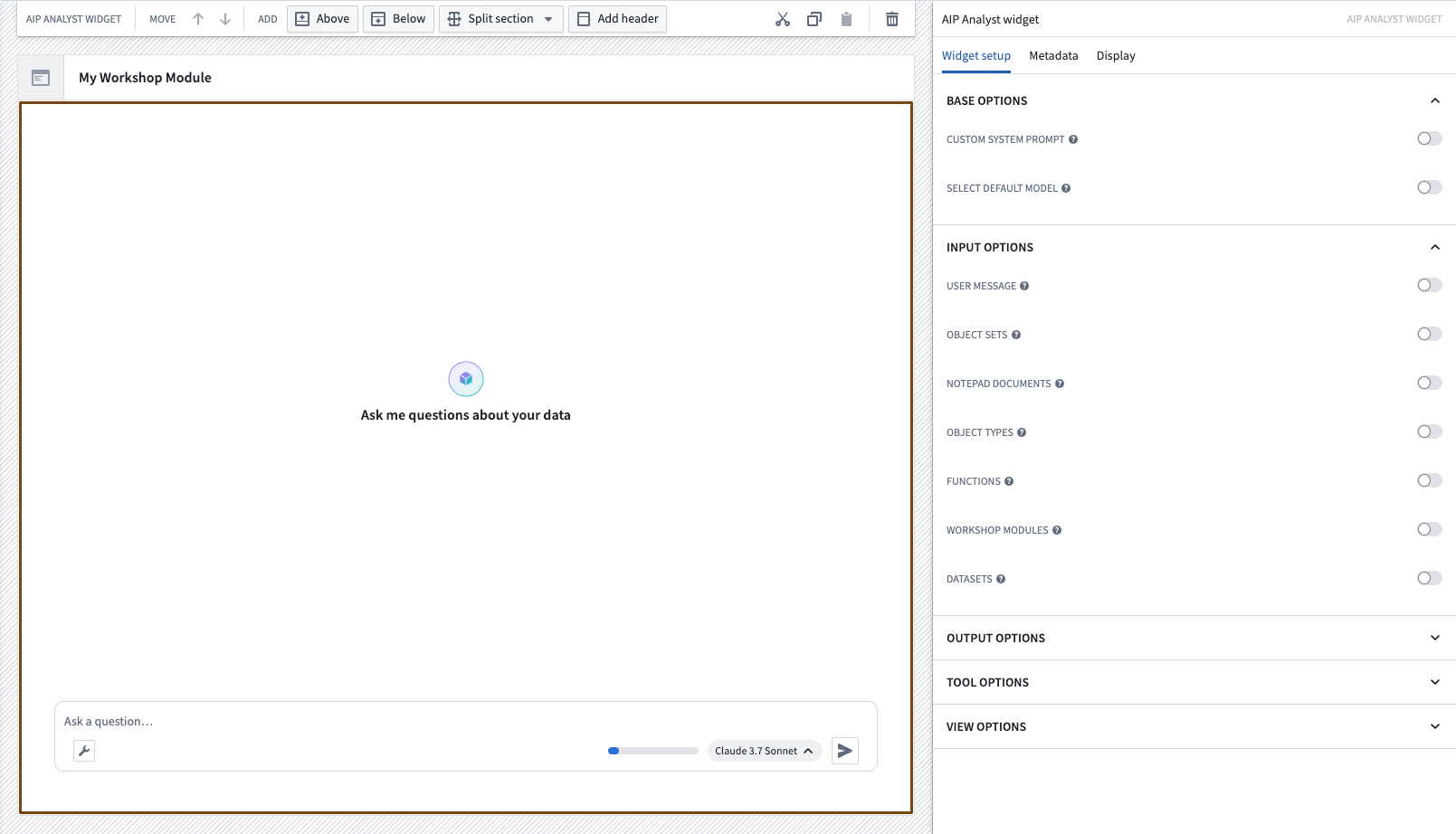
Widget configuration
The AIP Analyst widget can be configured to customize the analysis experience for your users. Configuration is organized into several sections that control how the widget behaves and what capabilities are available.
Base configuration
The base configuration controls the fundamental behavior of the AIP Analyst widget:
- Custom system prompt: Provide specific instructions that guide the agent's behavior for this particular widget instance. Use this to set analytical focus, define response style, or establish domain-specific guidelines. This can be a static value or connected to a Workshop variable for dynamic prompts.
- Default model: Override the application default with a specific AI model for this widget. This ensures consistent behavior across all users of your Workshop module.
- Suggested prompts: Define a set of pre-populated prompts that appear when the chat is empty. These help guide users toward common questions or analytical workflows relevant to your use case.
Input configuration
Input configuration allows you to pre-load context and trigger analyses automatically:
- Preloaded resources: Add Foundry resources including object sets, notepad documents, object types, functions, action types, Workshop modules, datasets, and media items. Preloading context gives users immediate access to relevant data without manual searching.
- User message: Connect a Workshop variable to automatically start an analysis. When the variable changes, AIP Analyst begins processing the new query without user intervention. This enables dynamic, event-driven analyses within your Workshop application.
Output configuration
Output configuration enables you to extract analysis results into Workshop variables for use in other parts of your application:
- Last object set: Capture the most recent object set produced during analysis.
- Last user message: Extract the user's most recent question.
- All user messages: Retrieve the complete list of user questions from the session.
- Last analyst message: Capture AIP Analyst's final response.
- All analyst messages: Extract all responses generated by the agent.
- All vega chart specs: Extract all Vega visualization specifications as strings, enabling you to render charts elsewhere in your Workshop module.
- All messages: Retrieve all messages from the session, with an option to include input context items.
- Active tab agent running: A boolean indicating whether the agent is currently running in the active tab. Use this to show loading states or disable inputs while analysis is in progress.
These outputs can drive visualizations, filters, or downstream logic in your Workshop module.
Interaction configuration
You can configure actions that trigger in response to analysis events:
- On user message sent: Execute a Foundry action each time a user sends a message. The action receives the user's message text and the chat session identifier as inputs. You can optionally display a toast notification when the action runs.
- On agent stopped: Execute a Foundry action when the agent completes its response. The action receives the chat session identifier as input. This is useful for triggering downstream workflows, such as saving analysis results or notifying other systems.
Tool configuration
Tool configuration allows you to control AIP Analyst's capabilities and scope:
- Default enabled tools: Select which tools are enabled by default when the widget loads. This lets you disable tools that are not relevant to your use case.
- Ontology restriction: Limit the widget to a specific ontology. When set, AIP Analyst can only discover and analyze data from this ontology, preventing access to unrelated data.
- Object type groups: Further restrict searches to specific object type groups within the ontology. This improves performance and focuses the agent on relevant portions of large ontologies.
- Compass projects: Restrict searches to resources within specific Compass projects or folders.
- Object type statuses: Filter which object types are discoverable based on their status:
Endorsed,Active,Experimental,Deprecated, orExample. - Object type visibilities: Filter which object types are discoverable based on their visibility:
Prominent,Normal, orHidden. - Enable memories: When enabled on the ontology, allow the agent to search and recall memories from previous interactions.
- Enable memory creation: Allow the agent to create new memories during analysis sessions.
- Semantic search threshold: Set the minimum confidence threshold for semantic search results (from 0.0 to 1.0). Higher values return fewer but more relevant results.
View configuration
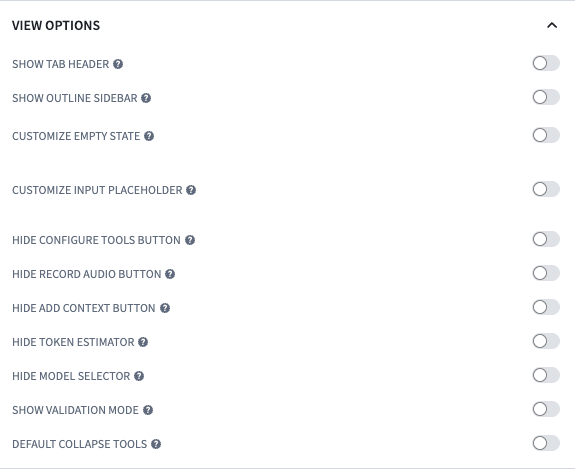
View configuration controls which interface elements are visible to users, allowing you to create streamlined experiences tailored to your use case. Available options include:
- Hide tabs: Remove the chat tab headers for a single-session experience.
- Hide PDF export: Remove the PDF export button from the interface.
- Hide outline: Remove the analysis outline sidebar.
- Hide input area: Remove the chat input field, useful for display-only configurations where analysis is triggered by Workshop variables.
- Hide configure tools: Remove the tool configuration button.
- Hide record audio: Remove the audio recording button from the input area.
- Hide add context: Remove the manual context addition button.
- Hide model selector: Remove the AI model selector.
- Hide token estimator: Remove the token usage estimator.
- Hide validation mode: Remove the validation mode toggle.
- Default tools collapsed: Collapse tool results by default, showing only the tool name rather than full results.
- Input placeholder: Set custom placeholder text for the chat input field.
- Empty state configuration: Customize the appearance of the empty chat state with a custom title, description, and icon or image.
Session persistence
By default, the AIP Analyst widget preserves the chat session when you navigate away from the widget and return. This means your conversation history, context items, and tool results are maintained across page navigation within the same Workshop module. The session is tied to the widget instance, so returning to the same page restores the full analysis state.
If you want the chat to reset each time a user navigates away, enable the Clear chat on unmount option in the view configuration. When enabled, the session is discarded when the widget is removed from the page and a fresh session begins on return.
Best practices
When configuring the AIP Analyst widget for your Workshop module, consider the following approaches:
- Preload context for faster results: Adding relevant object types, datasets, or object sets in the input configuration eliminates initial search time and guides users toward the right data.
- Use custom system prompts for specialized analysis: Tailor the agent's behavior by providing domain-specific instructions or analytical frameworks in the system prompt.
- Connect variables for automated workflows: Link Workshop variables to the user message input to create dynamic, event-driven analyses that respond to user interactions elsewhere in your module.
- Extract outputs to drive downstream logic: Use output variables to incorporate AIP Analyst results into other visualizations, filters, or analytical components.
- Limit scope for focused analysis: Apply ontology, object type group, and Compass project restrictions when building purpose-specific applications to improve performance and prevent access to irrelevant data.
- Streamline the interface: Hide advanced features and controls when building guided experiences for non-technical users.
- Use interaction hooks for integration: Configure the On user message sent and On agent stopped actions to trigger downstream workflows, such as logging analysis activity or saving results.
- Provide suggested prompts: Define suggested prompts to guide users toward common questions and reduce the barrier to starting an analysis.
中文翻译
AIP Analyst Workshop 小组件
AIP Analyst 可作为 Workshop 小组件嵌入,直接在 Workshop 模块中提供 AI 驱动的分析能力。该小组件支持丰富的配置选项,用于控制数据访问、工具可用性和用户界面自定义。
小组件配置
AIP Analyst 小组件可配置以自定义用户的分析体验。配置分为多个部分,控制小组件的行为方式和可用功能。
基础配置
基础配置控制 AIP Analyst 小组件的基本行为:
- 自定义系统提示词 (Custom system prompt): 提供特定指令,指导该小组件实例中代理的行为。用于设定分析重点、定义回复风格或建立领域特定指南。可以是静态值,也可连接到 Workshop 变量以实现动态提示。
- 默认模型 (Default model): 为此小组件覆盖应用默认设置,指定特定的 AI 模型。这能确保 Workshop 模块所有用户的行为一致。
- 建议提示词 (Suggested prompts): 定义一组预填充的提示词,在聊天为空时显示。这些提示词有助于引导用户提出与您的用例相关的常见问题或分析工作流。
输入配置
输入配置允许您预加载上下文并自动触发分析:
- 预加载资源 (Preloaded resources): 添加 Foundry 资源,包括对象集、Notepad 文档、对象类型、函数、操作类型、Workshop 模块、数据集和媒体项。预加载上下文使用户无需手动搜索即可立即访问相关数据。
- 用户消息 (User message): 连接一个 Workshop 变量以自动开始分析。当变量发生变化时,AIP Analyst 开始处理新查询,无需用户干预。这可在 Workshop 应用中实现动态的、事件驱动的分析。
输出配置
输出配置使您能够将分析结果提取到 Workshop 变量中,以便在应用的其他部分使用:
- 最后一个对象集 (Last object set): 捕获分析过程中生成的最新对象集。
- 最后一条用户消息 (Last user message): 提取用户最近提出的问题。
- 所有用户消息 (All user messages): 检索会话中用户问题的完整列表。
- 最后一条分析师消息 (Last analyst message): 捕获 AIP Analyst 的最终回复。
- 所有分析师消息 (All analyst messages): 提取代理生成的所有回复。
- 所有 Vega 图表规格 (All vega chart specs): 将所有 Vega 可视化规格提取为字符串,使您能够在 Workshop 模块的其他位置渲染图表。
- 所有消息 (All messages): 检索会话中的所有消息,并可选择包含输入上下文项。
- 活动标签页代理正在运行 (Active tab agent running): 一个布尔值,指示代理当前是否在活动标签页中运行。使用此值可在分析进行时显示加载状态或禁用输入。
这些输出可用于驱动 Workshop 模块中的可视化、过滤器或下游逻辑。
交互配置
您可以配置在分析事件触发时执行的操作:
- 用户消息发送时 (On user message sent): 每次用户发送消息时执行一个 Foundry 操作。该操作接收用户消息文本和聊天会话标识符作为输入。您可以选择在操作运行时显示 Toast 通知。
- 代理停止时 (On agent stopped): 当代理完成回复时执行一个 Foundry 操作。该操作接收聊天会话标识符作为输入。这对于触发下游工作流非常有用,例如保存分析结果或通知其他系统。
工具配置
工具配置允许您控制 AIP Analyst 的能力和范围:
- 默认启用的工具 (Default enabled tools): 选择小组件加载时默认启用的工具。这使您可以禁用与用例无关的工具。
- 本体限制 (Ontology restriction): 将小组件限制在特定的本体 (ontology) 中。设置后,AIP Analyst 只能发现和分析来自该本体的数据,从而防止访问无关数据。
- 对象类型组 (Object type groups): 进一步将搜索限制在本体中的特定对象类型组内。这能提高性能,并将代理的注意力集中在大型本体的相关部分。
- Compass 项目 (Compass projects): 将搜索限制在特定 Compass 项目或文件夹内的资源。
- 对象类型状态 (Object type statuses): 根据对象类型的状态过滤哪些对象类型可被发现:
Endorsed(已认可)、Active(活跃)、Experimental(实验性)、Deprecated(已弃用)或Example(示例)。 - 对象类型可见性 (Object type visibilities): 根据对象类型的可见性过滤哪些对象类型可被发现:
Prominent(突出)、Normal(正常)或Hidden(隐藏)。 - 启用记忆 (Enable memories): 在本体上启用后,允许代理搜索和回忆之前交互中的记忆。
- 启用记忆创建 (Enable memory creation): 允许代理在分析会话期间创建新记忆。
- 语义搜索阈值 (Semantic search threshold): 设置语义搜索结果的最低置信度阈值(0.0 到 1.0)。值越高,返回的结果越少但相关性更高。
视图配置
视图配置控制哪些界面元素对用户可见,使您能够创建针对用例量身定制的简化体验。可用选项包括:
- 隐藏标签页 (Hide tabs): 移除聊天标签页标题,实现单一会话体验。
- 隐藏 PDF 导出 (Hide PDF export): 从界面中移除 PDF 导出按钮。
- 隐藏大纲 (Hide outline): 移除分析大纲侧边栏。
- 隐藏输入区域 (Hide input area): 移除聊天输入字段,适用于仅显示配置,分析由 Workshop 变量触发。
- 隐藏配置工具 (Hide configure tools): 移除工具配置按钮。
- 隐藏录音 (Hide record audio): 从输入区域移除录音按钮。
- 隐藏添加上下文 (Hide add context): 移除手动添加上下文按钮。
- 隐藏模型选择器 (Hide model selector): 移除 AI 模型选择器。
- 隐藏 Token 估算器 (Hide token estimator): 移除 Token 使用量估算器。
- 隐藏验证模式 (Hide validation mode): 移除验证模式切换开关。
- 默认折叠工具 (Default tools collapsed): 默认折叠工具结果,仅显示工具名称而非完整结果。
- 输入占位符 (Input placeholder): 为聊天输入字段设置自定义占位符文本。
- 空状态配置 (Empty state configuration): 使用自定义标题、描述和图标或图像自定义聊天空状态的外观。
会话持久化
默认情况下,当您离开小组件再返回时,AIP Analyst 小组件会保留聊天会话。这意味着您的对话历史、上下文项和工具结果会在同一 Workshop 模块内的页面导航中得以保留。会话与小组件实例绑定,因此返回同一页面会恢复完整的分析状态。
如果您希望每次用户离开时聊天重置,请在视图配置中启用卸载时清除聊天 (Clear chat on unmount) 选项。启用后,当小组件从页面中移除时,会话将被丢弃,返回时将开始一个新的会话。
最佳实践
为 Workshop 模块配置 AIP Analyst 小组件时,请考虑以下方法:
- 预加载上下文以加快结果: 在输入配置中添加相关的对象类型、数据集或对象集,可消除初始搜索时间,并引导用户找到正确的数据。
- 使用自定义系统提示词进行专门分析: 通过在系统提示词中提供领域特定的指令或分析框架来定制代理的行为。
- 连接变量以实现自动化工作流: 将 Workshop 变量链接到用户消息输入,以创建动态的、事件驱动的分析,响应用户在模块其他部分的交互。
- 提取输出以驱动下游逻辑: 使用输出变量将 AIP Analyst 的结果整合到其他可视化、过滤器或分析组件中。
- 限制范围以实现聚焦分析: 在构建特定用途的应用时,应用本体、对象类型组和 Compass 项目限制,以提高性能并防止访问无关数据。
- 简化界面: 为面向非技术用户构建引导式体验时,隐藏高级功能和控件。
- 使用交互钩子进行集成: 配置用户消息发送时和代理停止时操作,以触发下游工作流,例如记录分析活动或保存结果。
- 提供建议提示词: 定义建议提示词,引导用户提出常见问题,降低开始分析的门槛。