Run experiments(运行实验)
Systematically testing different combinations of multiple parameter values is an important part of evaluating and optimizing LLM-backed functions. You may want to determine which models perform best while minimizing costs, or which prompts yield the best results.
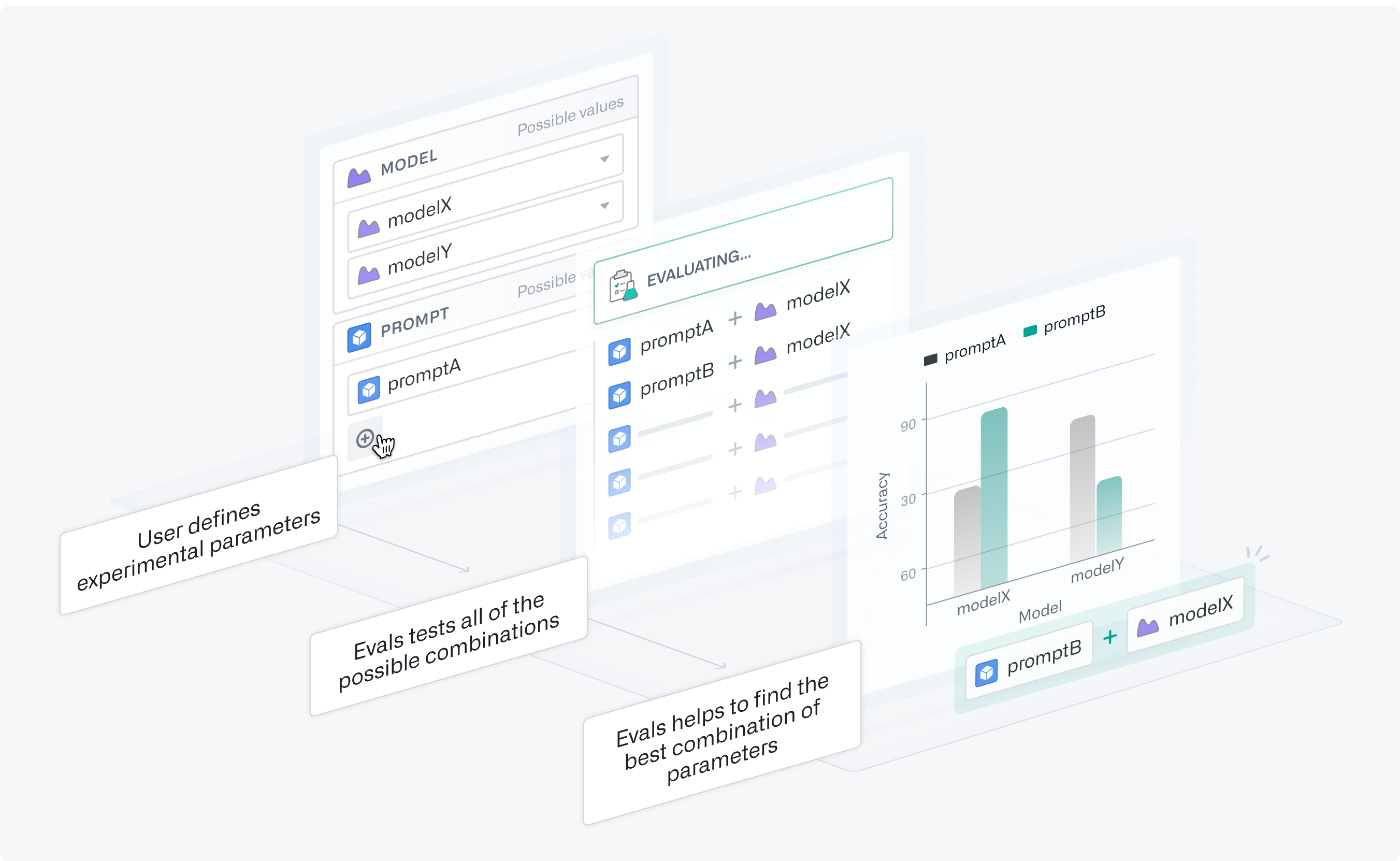
Experiments allow you to optimize the performance and cost of your tested functions. You can define parameter values for AIP Evals to test in all possible combinations using grid search in separate evaluation suite runs. Afterwards, you can analyze the experiment results to identify the parameter values that performed best.
Set up experiments
Prepare your function
For this example, we have a Logic function that summarizes an article, and we want to determine what model and prompt combination performs best. Note that experiments are not limited to Logic functions.
First, we need to parameterize both the model and prompt. This means adding them as inputs and using them somewhere in the Logic function. In this case, we want to experiment with subtle differences in our prompt phrasing to see which one produces the best summaries. We will use extraPromptContext to append our original prompt with additional context.

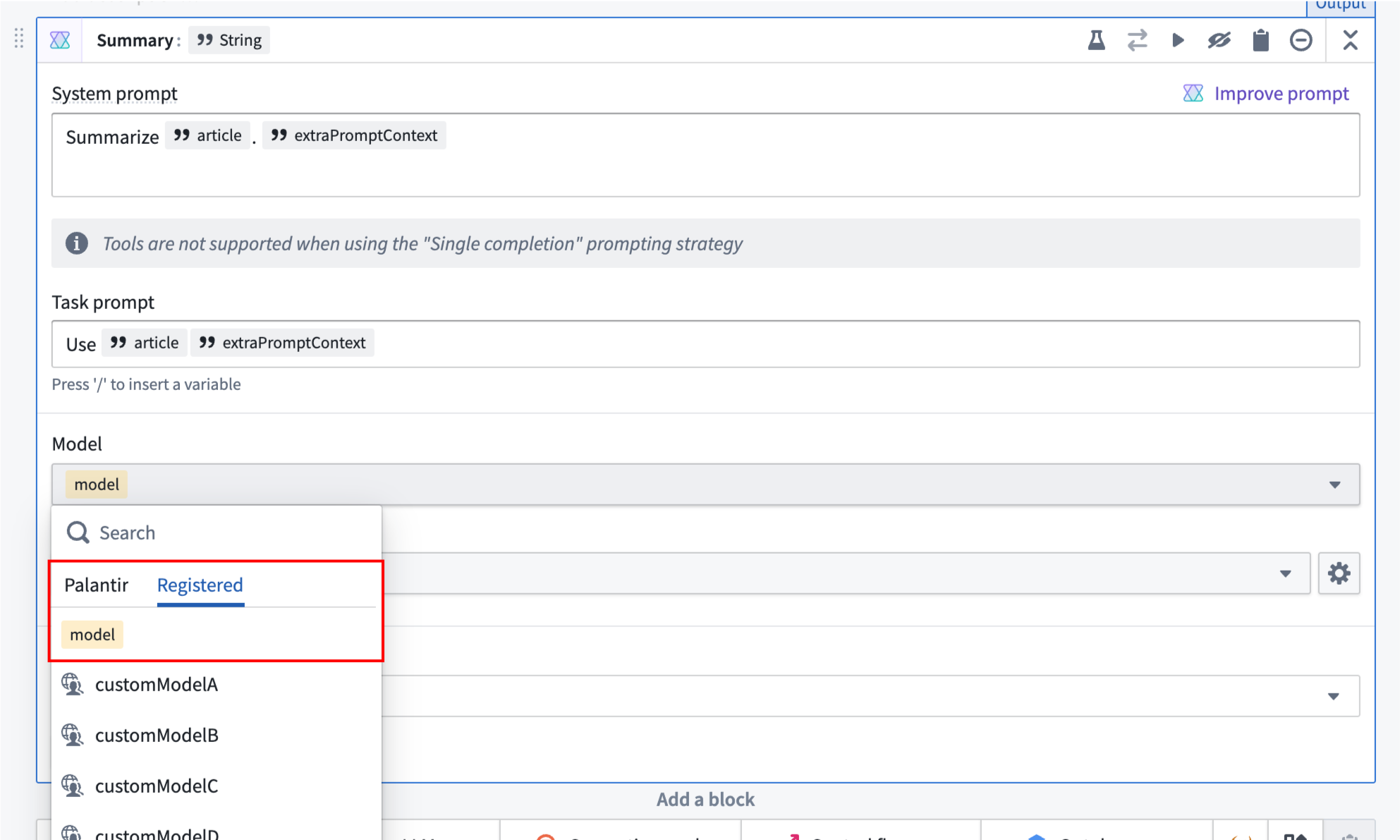
For models, we suggest changing the variable from Required to Optional. You will also need to configure each Use LLM block to use the model variable. You can do this by selecting the model selector in a UseLLM block and navigating to the model variable under the Registered tab.
Enable experiments
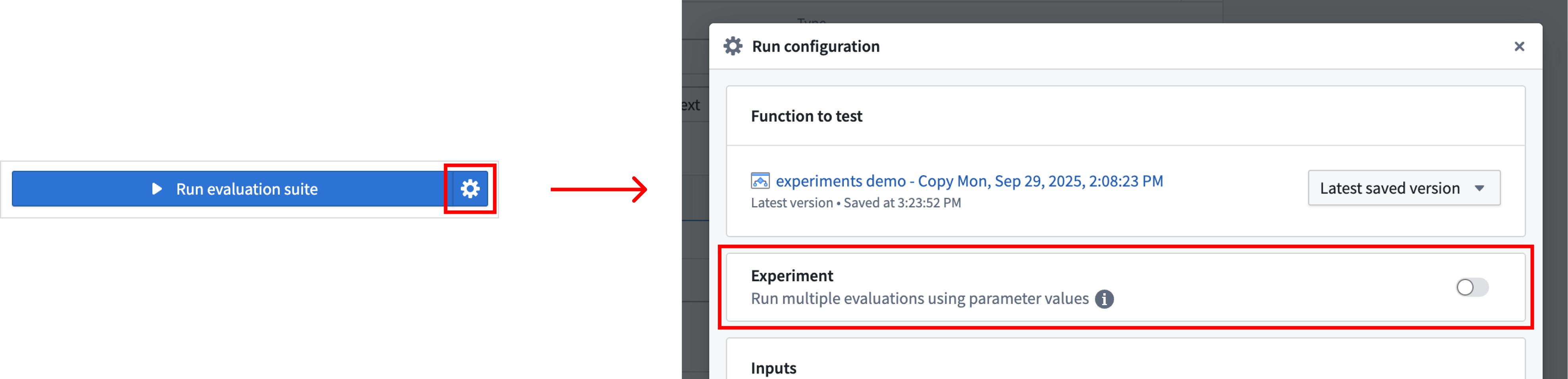
After parameterizing your Logic function, enable experiments by turning on the toggle in the Run configuration dialog.
Define your experiment
You can name your experiment to help you easily locate results later. Next, add Experiment parameters. These are the parameters you want to test with different values. For each parameter, you can specify multiple value options to explore in your experiment. This will override any existing values that were configured per test in your evaluation suite.
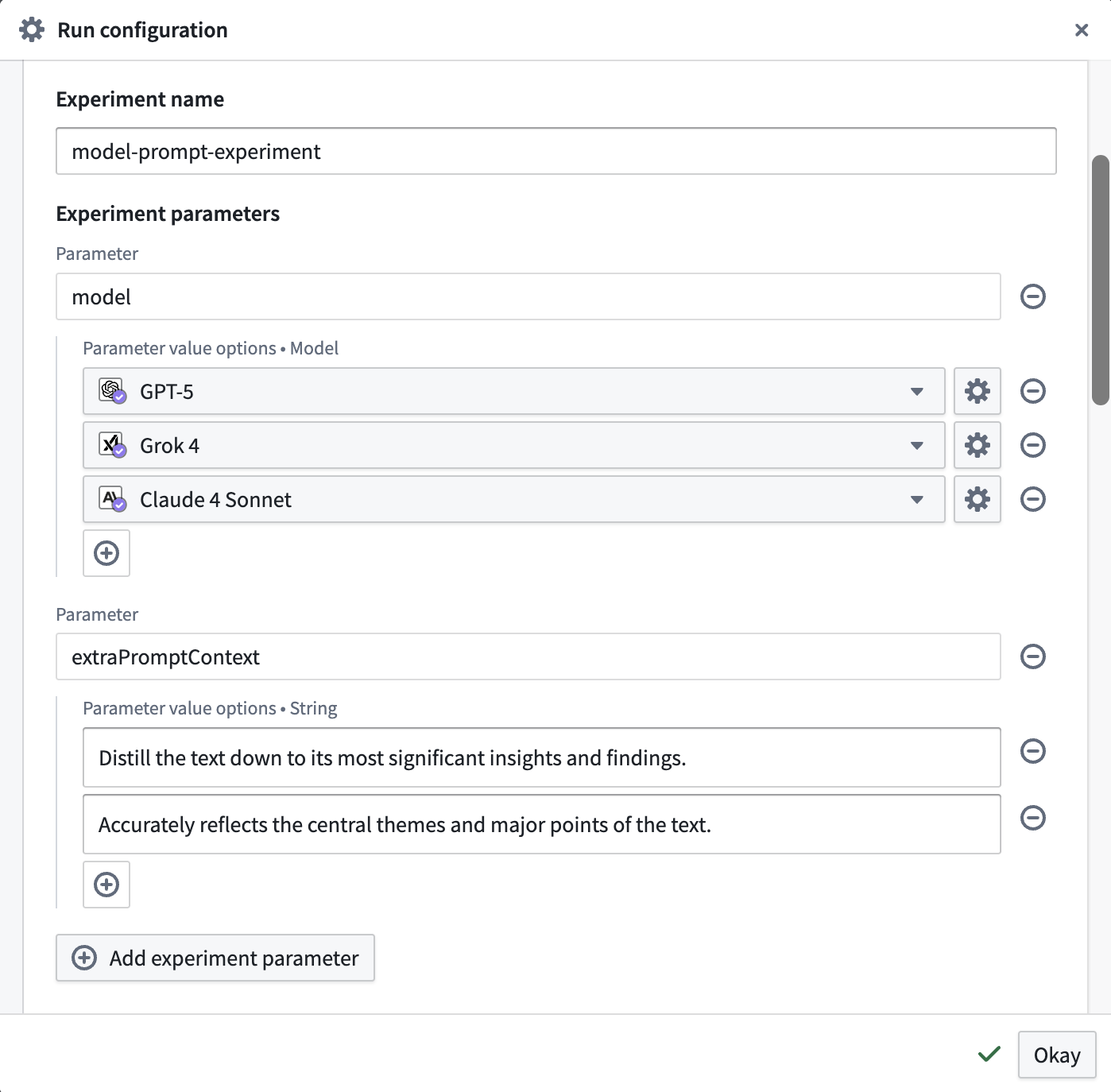
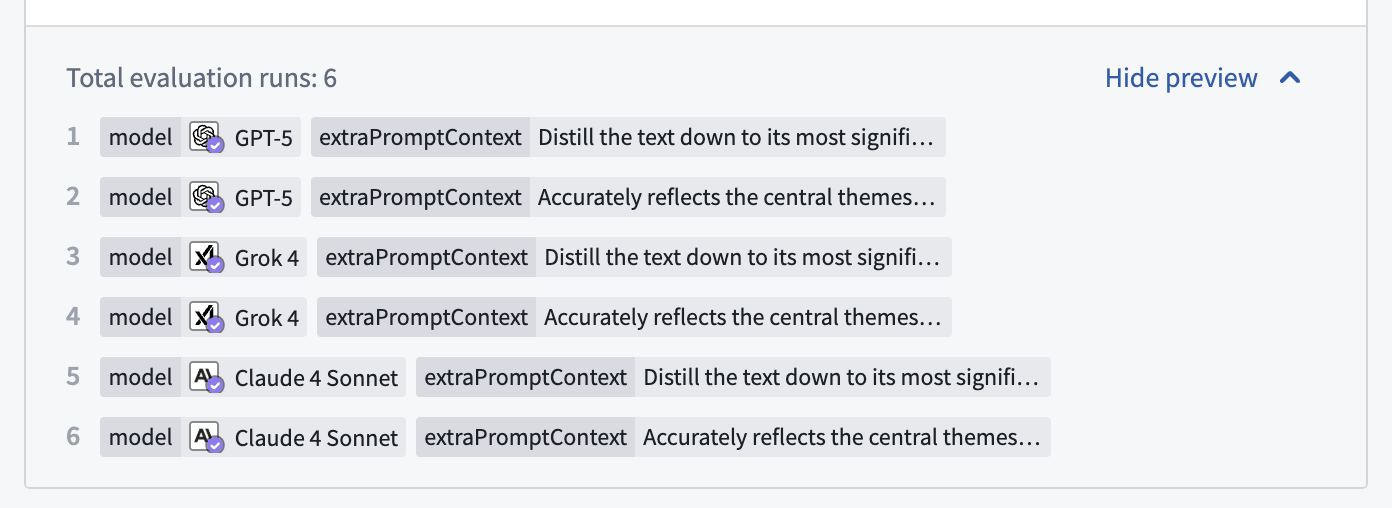
At the bottom of the section, you can see how many evaluation runs will occur and open a preview to see all of the parameter combinations that will be tested in your experiment using grid search.
Run the experiment
To run the experiment, close the dialog and select the Run experiment option.

View and analyze experiment results
When the experiment is complete, select the Results option at the bottom of the side panel. This will take you to the AIP Evals application, where you will be able to analyze the results.
:::callout{theme="neutral"} The Most recent run card in AIP Logic only shows results from the last evaluation run in the set (in this case, run 6 of 6). For a complete view of your results, we recommend accessing them through AIP Evals. :::

Compare runs
In AIP Evals, single evaluation runs and experiment runs can be viewed under the Results > Runs tab. When coming from the Results in AIP Logic (shown above), the Runs table will be automatically filtered down to the experiment that just ran.
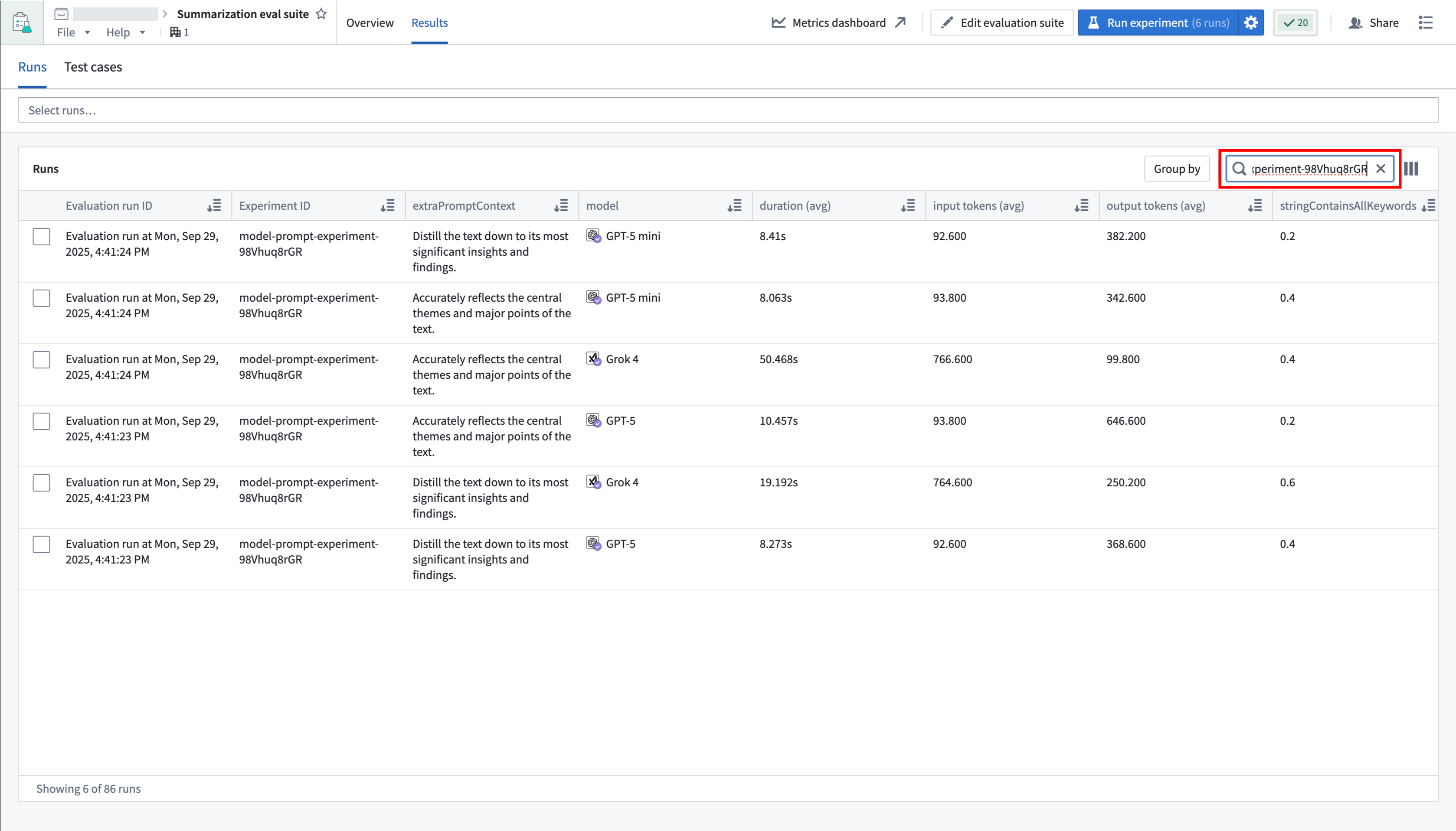
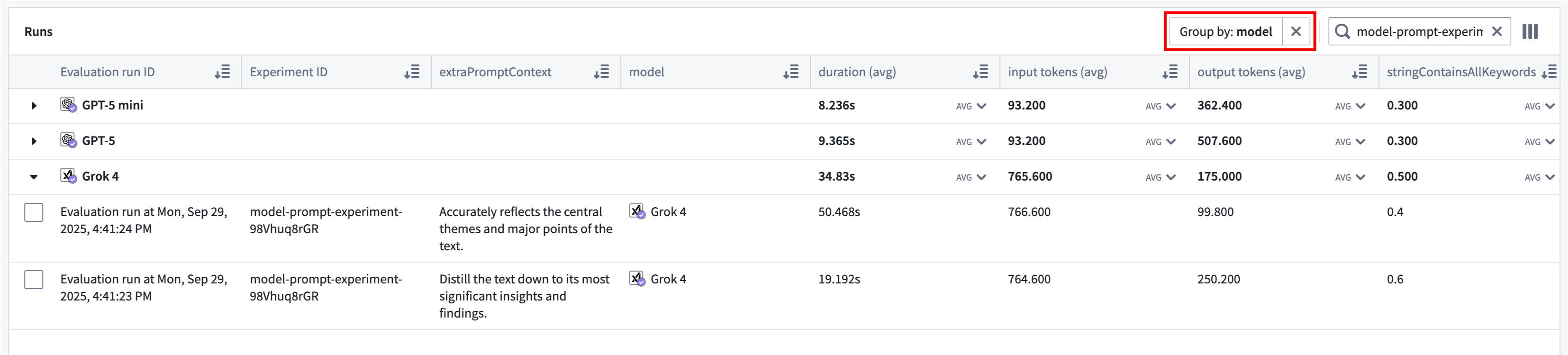
The Group by option allows you to select a column in the table to group runs by and view aggregate metrics for each group. For example, we can group by model to easily compare how each model performed across all metrics.
Use the far right column icon in the table header to control which columns are shown in the table.
Compare test cases
You can select up to 4 runs from the Runs table to compare, then select the View test cases option or the Test cases sub-tab to continue drilling down into your results.
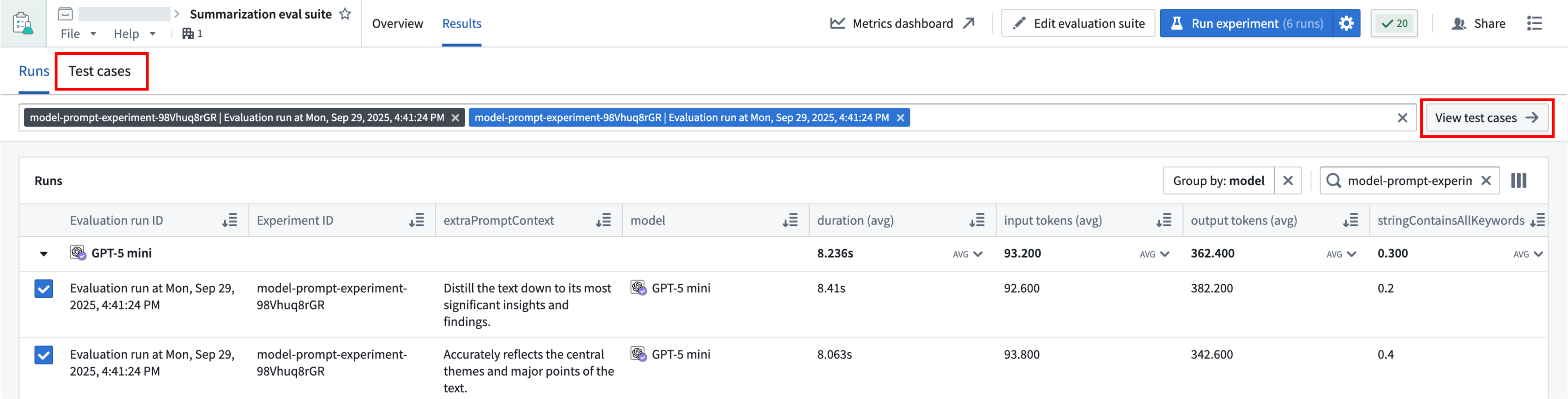
Test case comparisons are useful for debugging how test case outputs and metrics compare across runs, and the possible performance and cost tradeoffs between different parameters. You can hover over the selected run to see the specific parameter values that were used, or find them in the table.
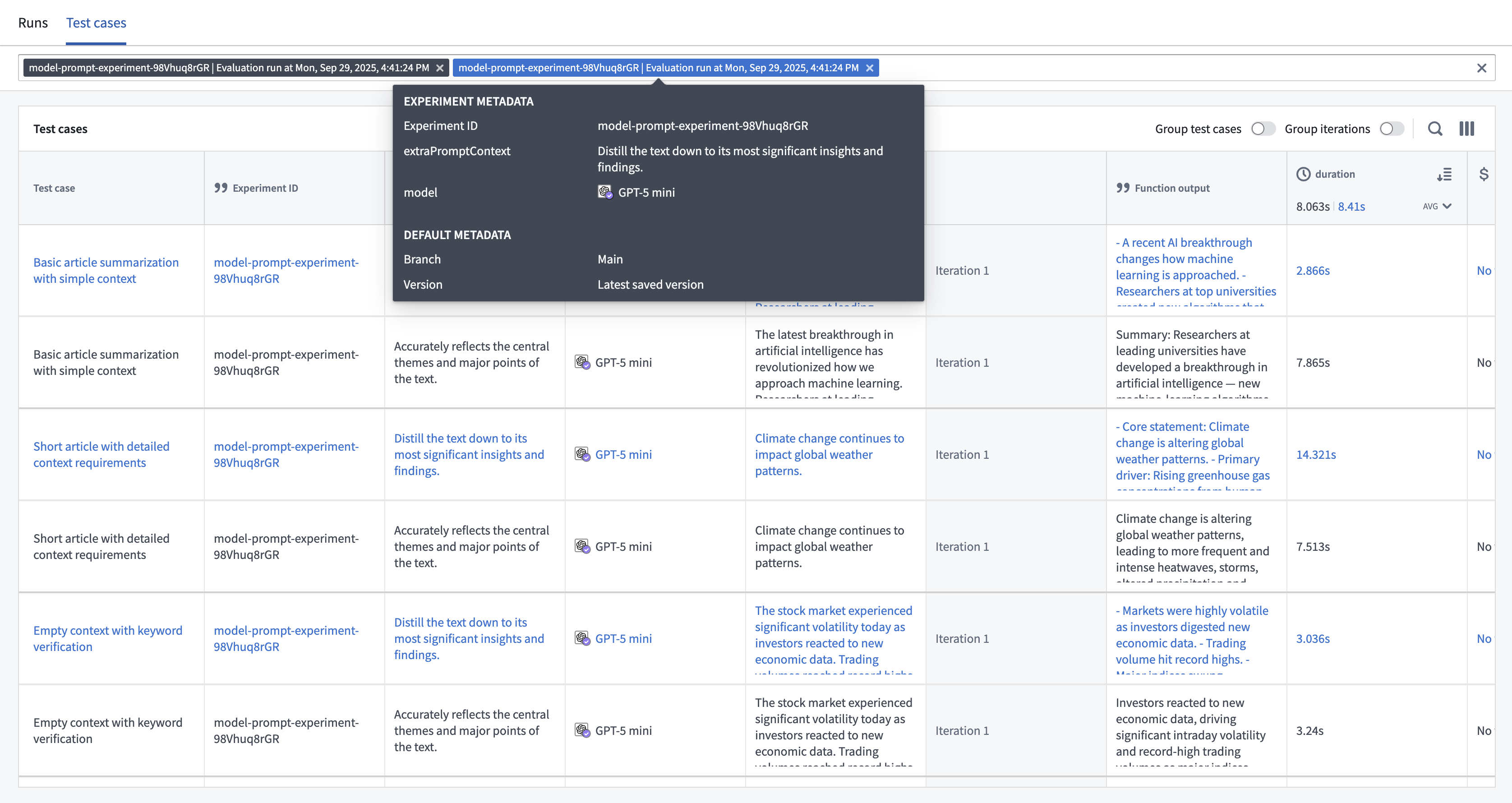
You can change the way rows are displayed by grouping related test cases and/or iterations together.
- Group test cases: Combines all instances of the same test case across multiple runs into a single row rather than displaying each instance in a separate row.
- Group iterations: Collapses all iterations into a single selector rather than showing each iteration in a single row.
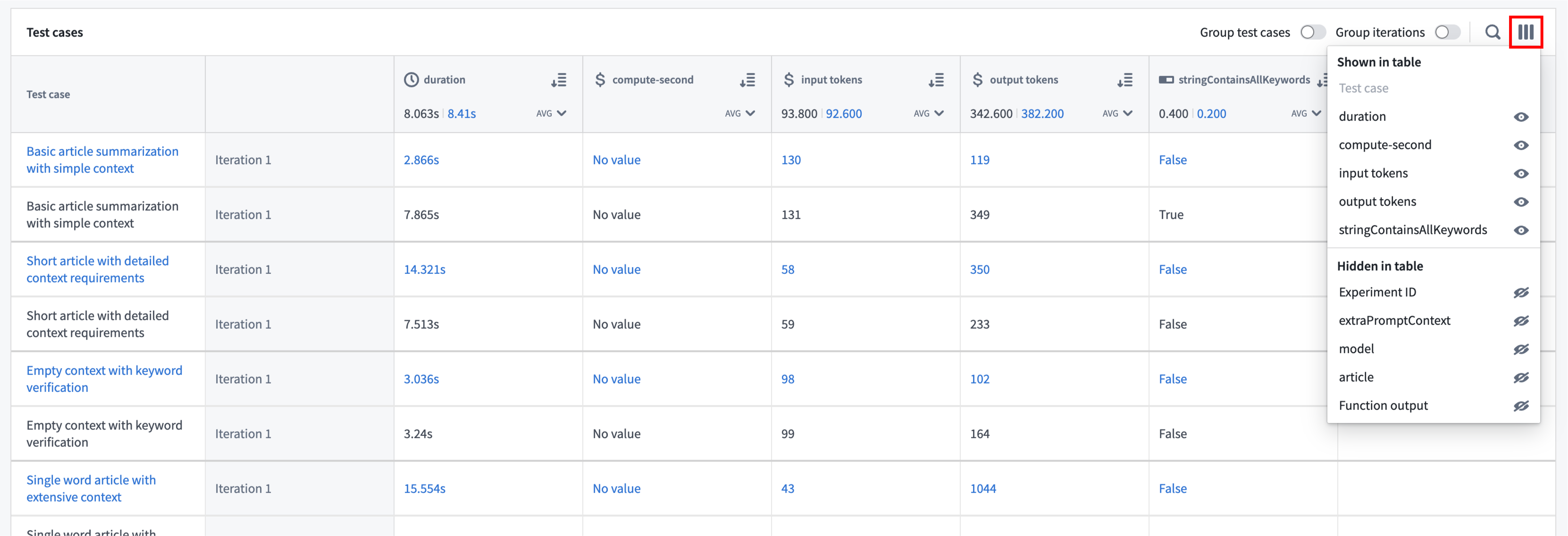
The column selector can be used to hide and show columns in a way that is meaningful to you. For example, if you want a data-dense view of your metrics, you can choose to hide columns containing inputs and function outputs.
Debug test cases
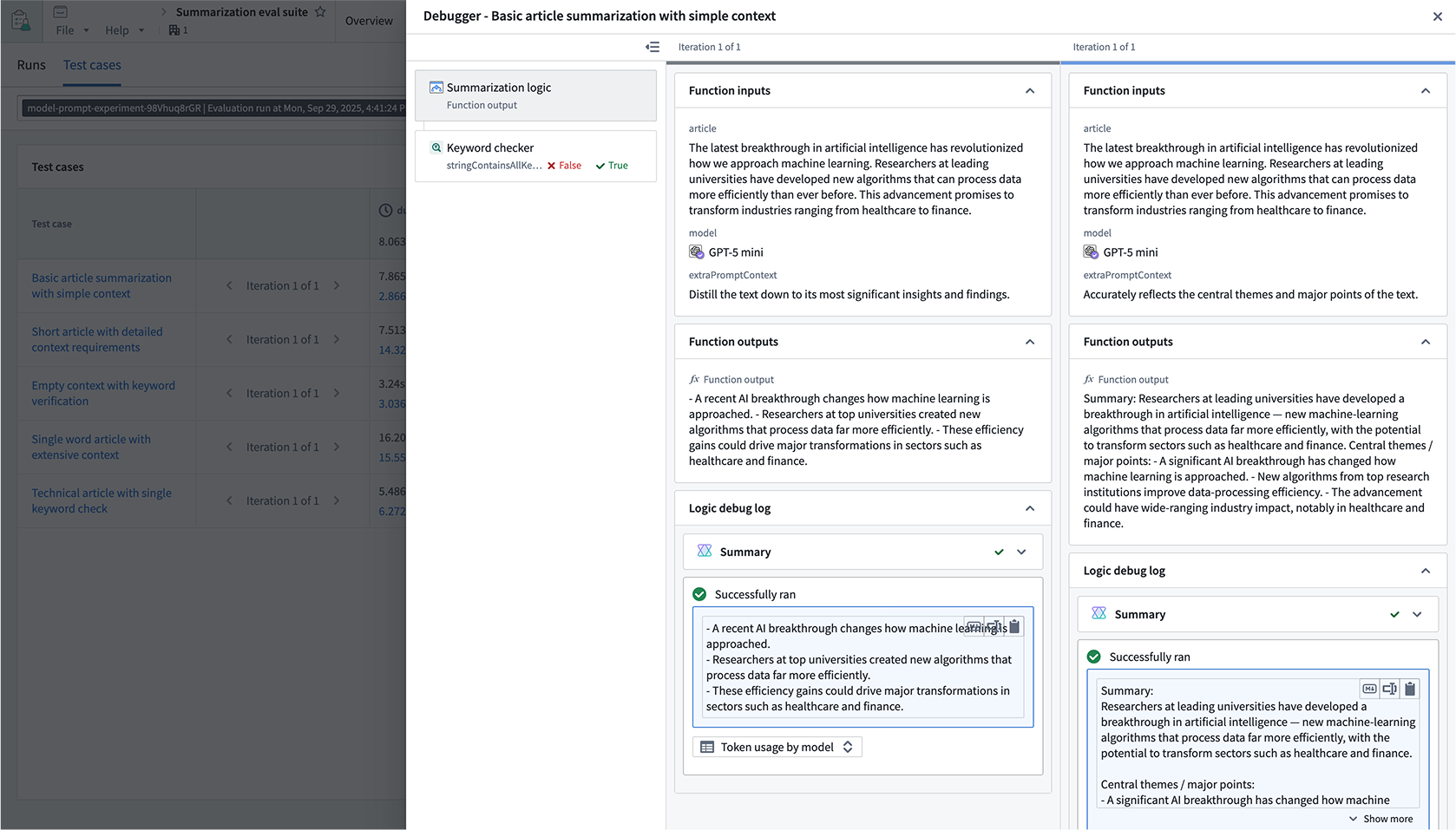
When hovering over a row, an Open option will be displayed, allowing you to drill down even further to understand and debug the execution of the test case.

This will open a drawer that displays inputs, outputs, and logs for both the function execution and any evaluators on the suite.
Note that the comparison views will depend on how you have grouped the table. When comparison runs are shown as separate rows, the debugger will only be shown for the run on the row that was selected.
中文翻译
运行实验
系统性地测试多个参数值的不同组合,是评估和优化基于LLM的函数的重要环节。您可能希望确定哪些模型在成本最低的情况下表现最佳,或者哪些提示词能产生最佳结果。
通过实验,您可以优化所测试函数的性能和成本。您可以为AIP Evals定义参数值,在独立的评估套件运行中使用网格搜索测试所有可能的组合。之后,您可以分析实验结果,以确定表现最佳的参数值。
设置实验
准备函数
在本示例中,我们有一个用于总结文章的Logic函数,我们希望确定哪种模型和提示词组合表现最佳。请注意,实验并不仅限于Logic函数。
首先,我们需要将模型和提示词都参数化。这意味着将它们添加为输入,并在Logic函数中使用它们。在本例中,我们希望尝试提示词措辞上的细微差异,以找出哪种能产生最佳摘要。我们将使用extraPromptContext为原始提示词附加额外的上下文。
对于模型,我们建议将变量从Required(必填)改为Optional(可选)。您还需要配置每个Use LLM(使用LLM)模块以使用模型变量。您可以在UseLLM模块中选择模型选择器,然后导航到Registered(已注册)选项卡下的模型变量来完成此操作。
启用实验
在参数化Logic函数后,通过在Run configuration(运行配置)对话框中打开开关来启用实验。
定义实验
您可以为实验命名,以便日后轻松定位结果。接下来,添加Experiment parameters(实验参数)。这些是您希望用不同值进行测试的参数。对于每个参数,您可以指定多个值选项进行探索。这将覆盖评估套件中为每个测试预先配置的任何现有值。
在该部分的底部,您可以查看将进行多少次评估运行,并打开预览查看实验中通过网格搜索测试的所有参数组合。
运行实验
要运行实验,请关闭对话框并选择Run experiment(运行实验)选项。
查看和分析实验结果
实验完成后,选择侧面板底部的Results(结果)选项。这将带您进入AIP Evals应用程序,您可以在其中分析结果。
:::callout{theme="neutral"} AIP Logic中的Most recent run(最近一次运行)卡片仅显示集合中最后一次评估运行的结果(在本例中为6次运行中的第6次)。要查看完整结果,我们建议通过AIP Evals访问。 :::
比较运行
在AIP Evals中,可以在Results > Runs(结果 > 运行)选项卡下查看单次评估运行和实验运行。当从AIP Logic中的Results(结果)进入时(如上所示),Runs(运行)表格将自动筛选为刚刚运行的实验。
Group by(分组依据)选项允许您选择表格中的一列来对运行进行分组,并查看每个分组的聚合指标。例如,我们可以按模型分组,轻松比较每个模型在所有指标上的表现。
使用表格标题中最右侧的列图标来控制表格中显示的列。
比较测试用例
您可以从Runs(运行)表格中选择最多4次运行进行比较,然后选择View test cases(查看测试用例)选项或Test cases(测试用例)子选项卡,继续深入分析结果。
测试用例比较有助于调试测试用例输出和指标在不同运行之间的比较情况,以及不同参数之间可能的性能和成本权衡。您可以悬停在选定的运行上查看使用的具体参数值,也可以在表格中找到它们。
您可以通过将相关的测试用例和/或迭代分组来更改行的显示方式。
- Group test cases(分组测试用例):将多次运行中同一测试用例的所有实例合并为一行,而不是将每个实例显示为单独的行。
- Group iterations(分组迭代):将所有迭代折叠为一个选择器,而不是将每次迭代显示为单独的行。
列选择器可用于以对您有意义的方式隐藏和显示列。例如,如果您希望获得数据密集的指标视图,可以选择隐藏包含输入和函数输出的列。
调试测试用例
当悬停在一行上时,将显示Open(打开)选项,允许您进一步深入理解和调试测试用例的执行。
这将打开一个抽屉,显示函数执行以及套件上任何评估器的输入、输出和日志。
请注意,比较视图将取决于您如何对表格进行分组。当比较运行显示为单独的行时,调试器将仅显示在所选行对应的运行上。