Evaluation suites for Logic functions(Logic 函数的评估套件)
The Logic Preview panel is great for one-off testing, but for greater confidence in your Logic functions, it is important to test against many inputs.
This tutorial will walk you through creating an evaluation suite for a simple Logic function with AIP Evals.
Create an evaluation suite from Logic
For this example, we have a Logic function that takes restaurant reviews as input and categorizes them as positive or negative based on review sentiment. We want to create test cases with review inputs and the expected sentiment output to validate our function.
There are a few options to create an evaluation suite after saving your Logic function:
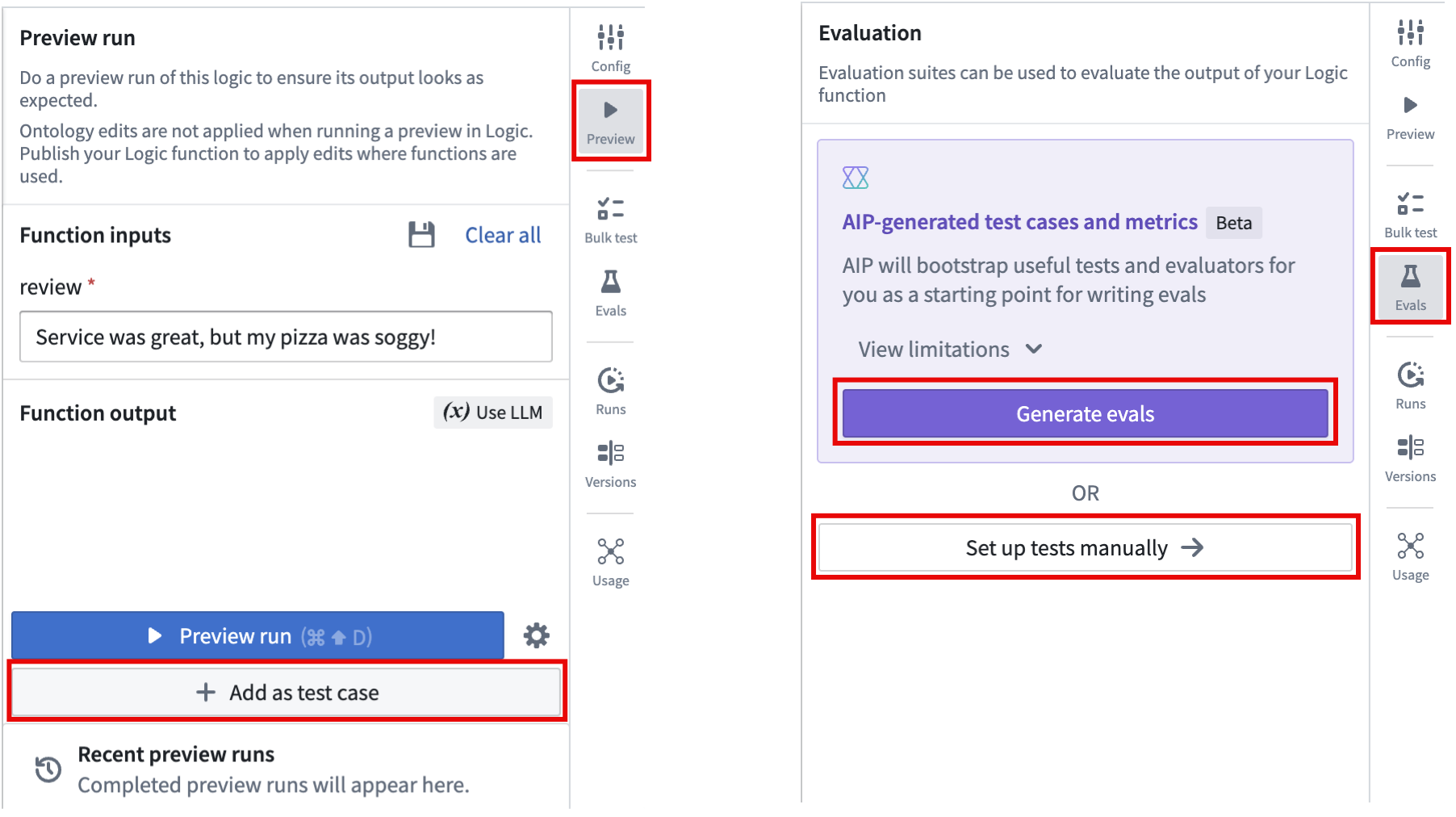
- From the Preview panel, you can create a new evaluation suite and simultaneously add a first test case by selecting Add as test case.
- From the Evals panel, you can select Set up tests manually to create an empty evaluation suite or select Generate evals, if your Logic function is eligible, to have AIP bootstrap useful tests and evaluators for you.
:::callout{theme="neutral"} Select View limitations to learn about cases where AIP cannot automatically generate tests and evaluators. If your Logic function is not eligible for AIP-generated evals, then the Generate evals button will be disabled and display an explanation to help you understand why. :::
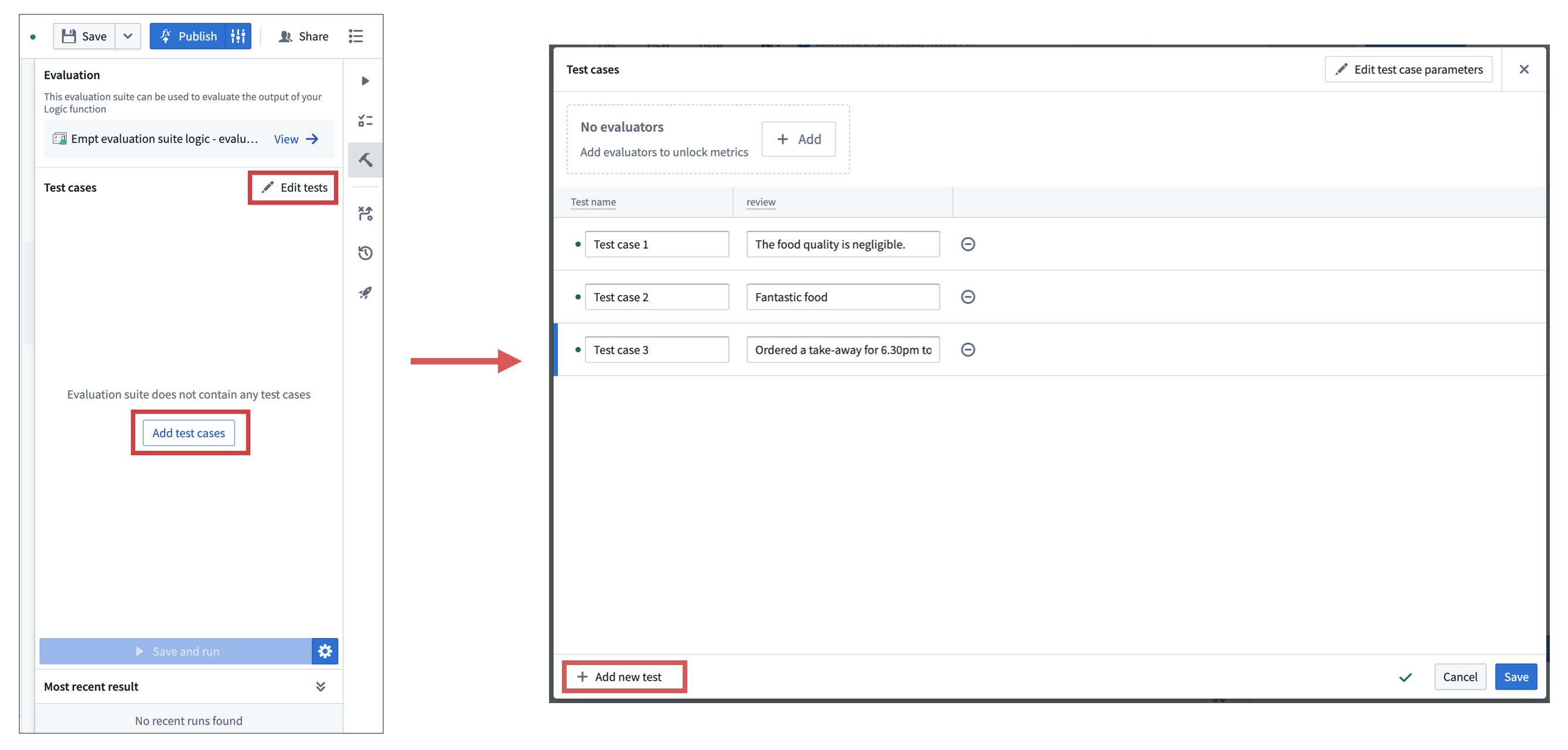
After creating or generating the evaluation suite, you can add or modify test cases by selecting Edit tests in the AIP Evals panel. This will open the test case editor, where you can configure inputs for each test case and save the evaluation suite.
AIP will attempt to provide a descriptive name for your test case based off of the input parameters when you select Add as test case in the Preview panel or Generate evals in the Evals panel. You can also select the purple AIP star icon next to the test case name to generate a suggested name.
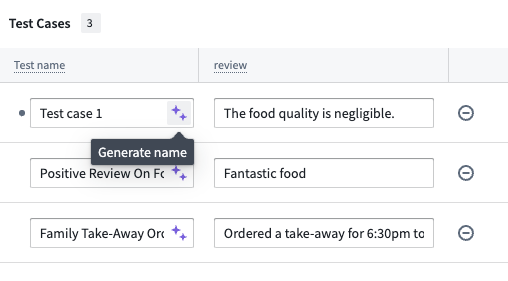
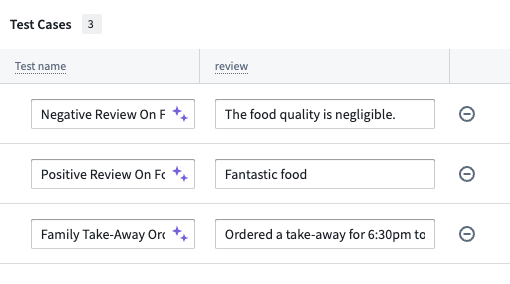
In this example, the suggested name of Negative Review On Food Quality adds more information than Test case 1:
After adding test cases, you can run the evaluation suite by selecting Run evaluation suite in the Evals panel. This will run all test cases in the suite. When the suite is done running, review the results by selecting the card in the Most recent run section.
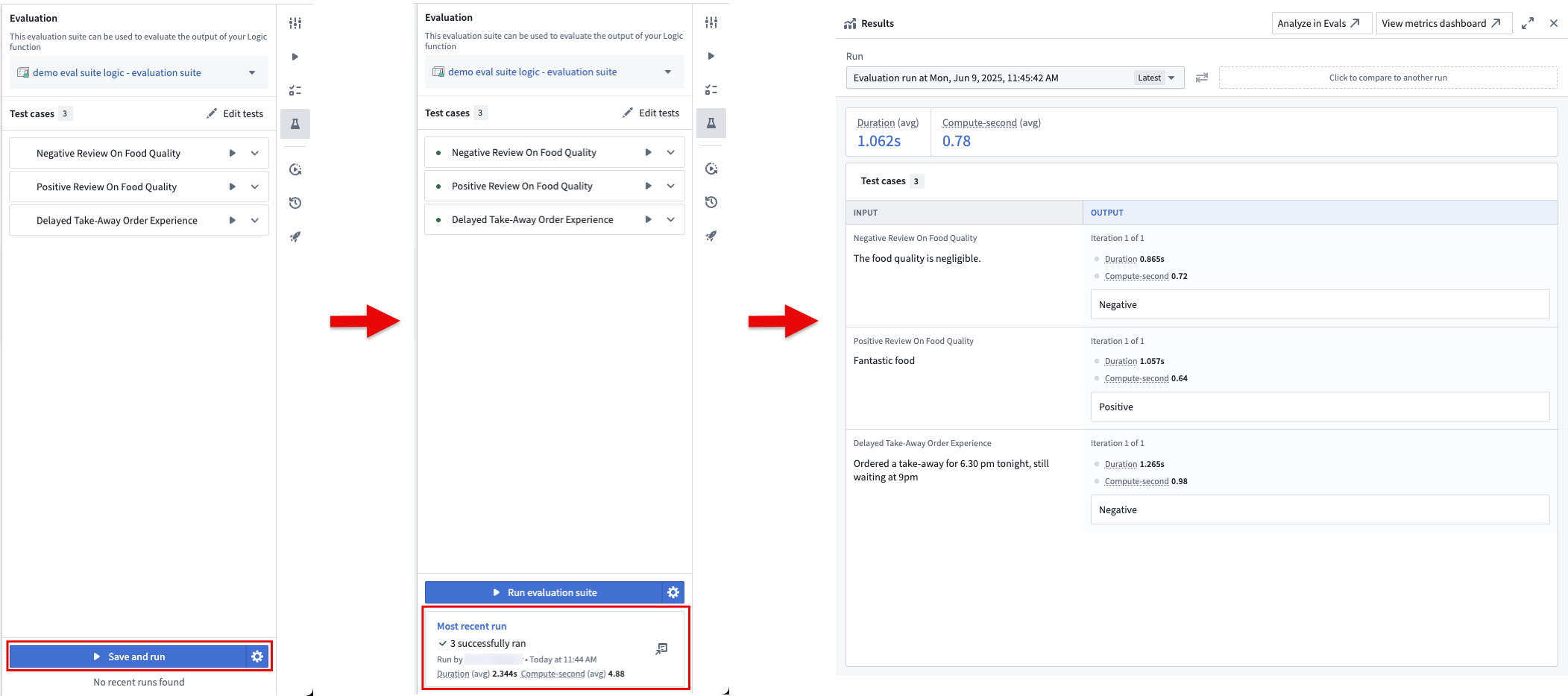
If you created the evaluation suite from the Set up tests manually in the Evals panel or Add as test case in the Preview panel, AIP Evals will output the function's return value, but will not provide aggregated performance metrics. To scale your evaluation suite, add an evaluator to compare the outputs produced by the Logic function against the expected values and calculate aggregate metrics. For this example, use the built-in Exact string match evaluator. In practice, depending on the nature of your function, you may need to use other evaluators or write custom ones.
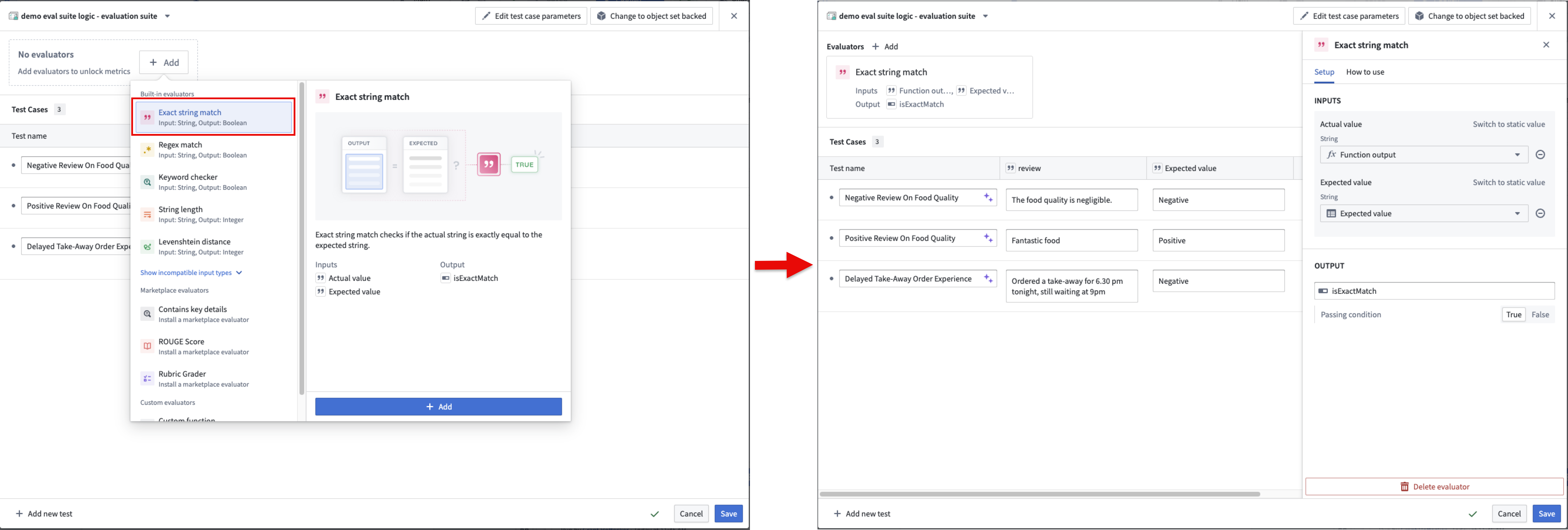
To add an evaluator, select + Add in the test case configuration header, then select Exact string match > Add. This will add the evaluator and open the evaluator editor, where you can map evaluator inputs to function outputs and test case columns. In this case, map the function output to the actual value and create a new parameter for the expected value. This will add a new column to the test case editor where you can input the expected sentiment for each test case.
You can configure the objective for each metric. For Boolean metrics, select whether a true or false value is considered a passing result. For numeric metrics, choose whether higher or lower values are better, and set a threshold if needed. The evaluation suite will automatically determine a passed or failed status for each test case based on these objectives.
After saving, you can run the evaluation suite again to view the aggregated metrics for your function and the passed or failed results for each test case based on your configured objectives.
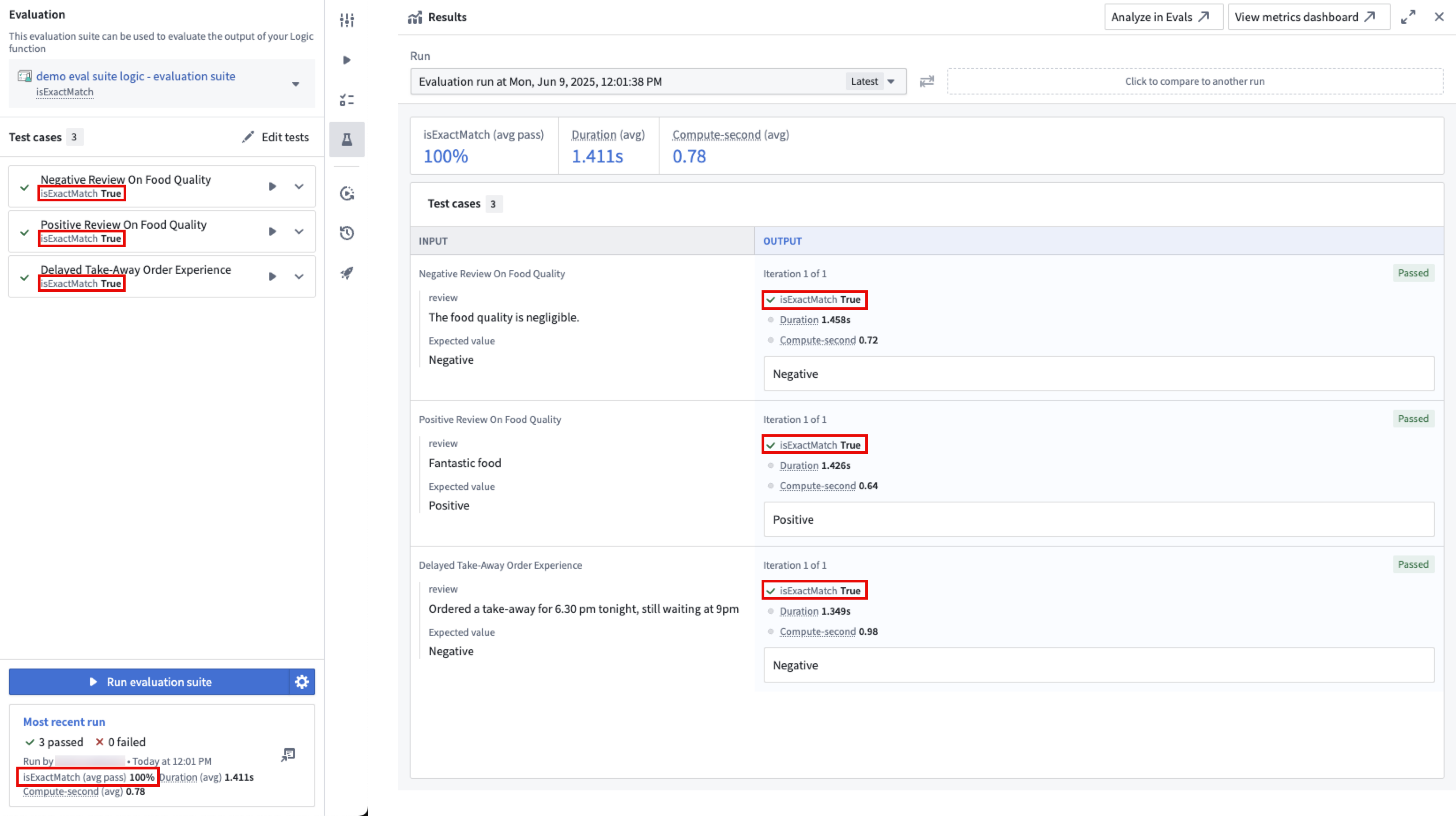
Note that you do not have to run the entire suite every time you make a change to your function. You can run individual test cases by selecting the play icon next to the test case in the sidebar. This is useful for debugging and quickly iterating on your function.
After creating an evaluation suite, learn more about evaluation suite run configurations.
中文翻译
Logic 函数的评估套件
Logic 的预览面板非常适合进行一次性测试,但为了对 Logic 函数更有信心,针对多种输入进行测试至关重要。
本教程将指导您使用 AIP Evals 为一个简单的 Logic 函数创建评估套件。
从 Logic 创建评估套件
在本示例中,我们有一个 Logic 函数,它接收餐厅评论作为输入,并根据评论情感将其分类为正面或负面。我们希望创建包含评论输入和预期情感输出的测试用例,以验证我们的函数。
在保存 Logic 函数后,有几种方法可以创建评估套件:
- 在预览面板中,您可以通过选择添加为测试用例来创建新的评估套件,并同时添加第一个测试用例。
- 在Evals面板中,您可以选择手动设置测试来创建一个空的评估套件,或者如果您的 Logic 函数符合条件,选择生成 evals,让 AIP 为您引导生成有用的测试和评估器。
:::callout{theme="neutral"} 选择查看限制以了解 AIP 无法自动生成测试和评估器的情况。如果您的 Logic 函数不符合 AIP 生成 evals 的条件,则生成 evals按钮将被禁用,并显示说明以帮助您理解原因。 :::
创建或生成评估套件后,您可以通过在 AIP Evals 面板中选择编辑测试来添加或修改测试用例。这将打开测试用例编辑器,您可以在其中配置每个测试用例的输入并保存评估套件。
当您在预览面板中选择添加为测试用例或在Evals面板中选择生成 evals时,AIP 会尝试根据输入参数为您的测试用例提供一个描述性名称。您还可以选择测试用例名称旁边的紫色 AIP 星形图标,以生成建议的名称。
在本示例中,建议名称Negative Review On Food Quality比Test case 1提供了更多信息:
添加测试用例后,您可以通过在Evals面板中选择运行评估套件来运行评估套件。这将运行套件中的所有测试用例。套件运行完成后,通过选择最近一次运行部分中的卡片来查看结果。
如果您是通过Evals面板中的手动设置测试或预览面板中的添加为测试用例创建的评估套件,AIP Evals 将输出函数的返回值,但不会提供聚合性能指标。要扩展您的评估套件,请添加一个评估器,将 Logic 函数产生的输出与预期值进行比较,并计算聚合指标。在本示例中,使用内置的精确字符串匹配评估器。在实践中,根据函数的具体性质,您可能需要使用其他评估器或编写自定义评估器。
要添加评估器,请选择测试用例配置标题中的+ 添加,然后选择精确字符串匹配 > 添加。这将添加评估器并打开评估器编辑器,您可以在其中将评估器输入映射到函数输出和测试用例列。在本例中,将函数输出映射到实际值,并为预期值创建一个新参数。这将在测试用例编辑器中添加一个新列,您可以在其中输入每个测试用例的预期情感。
您可以为每个指标配置目标。对于布尔型指标,选择true或false值中的哪一个被视为通过结果。对于数值型指标,选择较高值还是较低值更好,并在需要时设置阈值。评估套件将根据这些目标自动确定每个测试用例的passed或failed状态。
保存后,您可以再次运行评估套件,以查看函数的聚合指标以及根据您配置的目标得出的每个测试用例的passed或failed结果。
请注意,您不必每次对函数进行更改时都运行整个套件。您可以通过选择侧边栏中测试用例旁边的播放图标来运行单个测试用例。这对于调试和快速迭代函数非常有用。
创建评估套件后,进一步了解评估套件运行配置。