Run an evaluation suite(运行评估套件)
An evaluation suite can be run from different locations, including the AIP Logic Evals sidebar and the AIP Evals application. You can choose to run a full evaluation suite or only execute single test cases. The latter is useful for debugging and quick function iteration.
Full evaluation suite runs
In AIP Logic, navigate to the AIP Evals sidebar panel and select Run evaluation suite. If you have unsaved changes, Save and run will be displayed instead, ensuring that changes are saved before running an evaluation suite.
Alternatively, you can run an evaluation suite from the AIP Evals application. To open the application select View in the AIP Logic sidebar, or open the evaluation suite from the file system. In the Evals application you can run the evaluation suite by selecting Run evaluation suite in the upper-right corner.
Run configuration
There are multiple configuration options available when running an evaluation suite. To access run configuration options, select the cog icon next to Run evaluation suite. This will open a dialog with the following options:
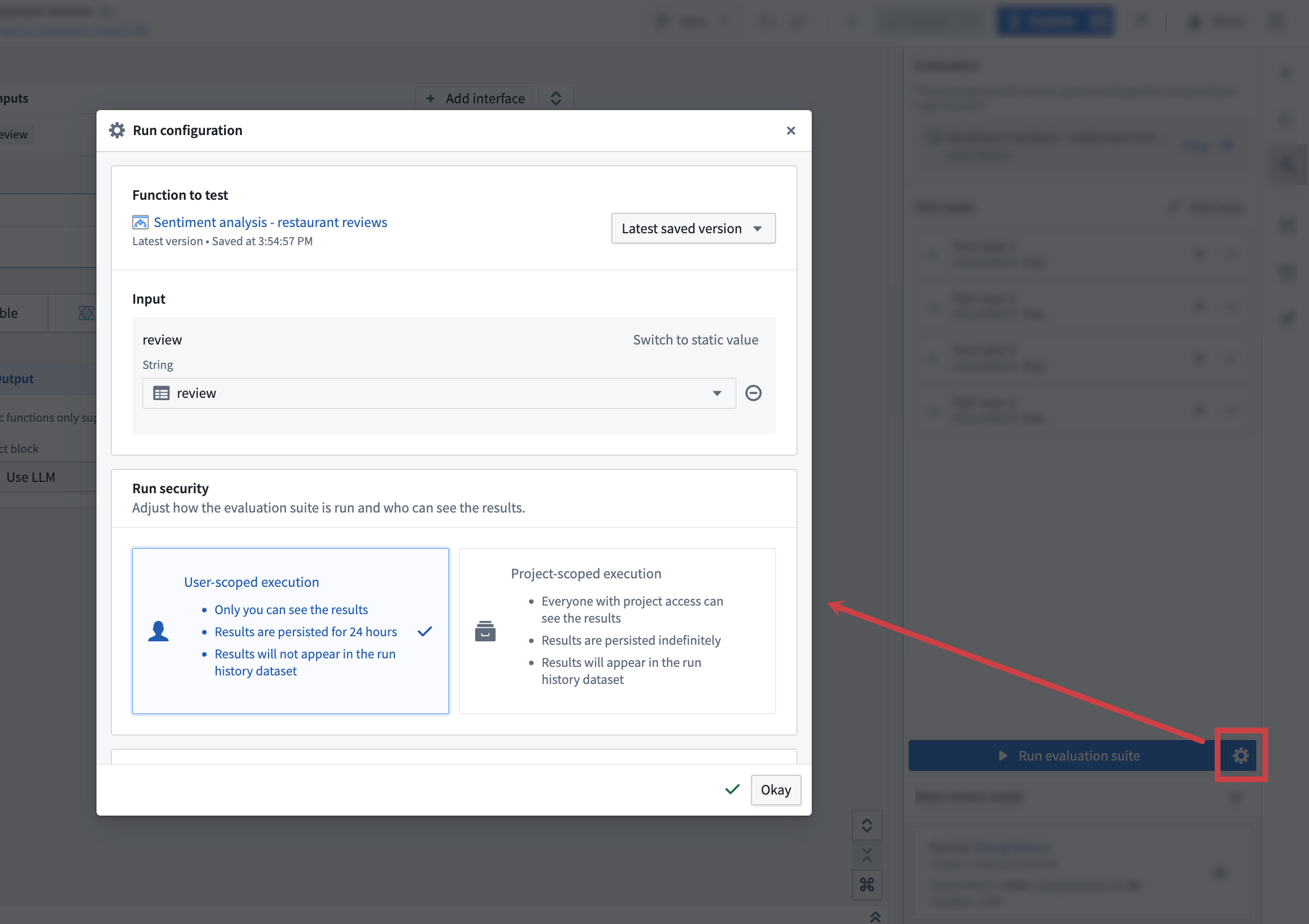
Function to test
Evaluation suites can be run against functions authored in AIP Logic and functions authored in Code repositories. Depending on this function source, you can target different versions of your function:
- AIP Logic function: Last saved (default) and published versions.
- Non-AIP Logic function: Published versions.
Testing multiple functions
If your evaluation suite has multiple target functions configured, you can run evaluations against multiple functions simultaneously from AIP Evals. Select Test multiple functions to switch to multi-target mode, then select which targets to include in the run.
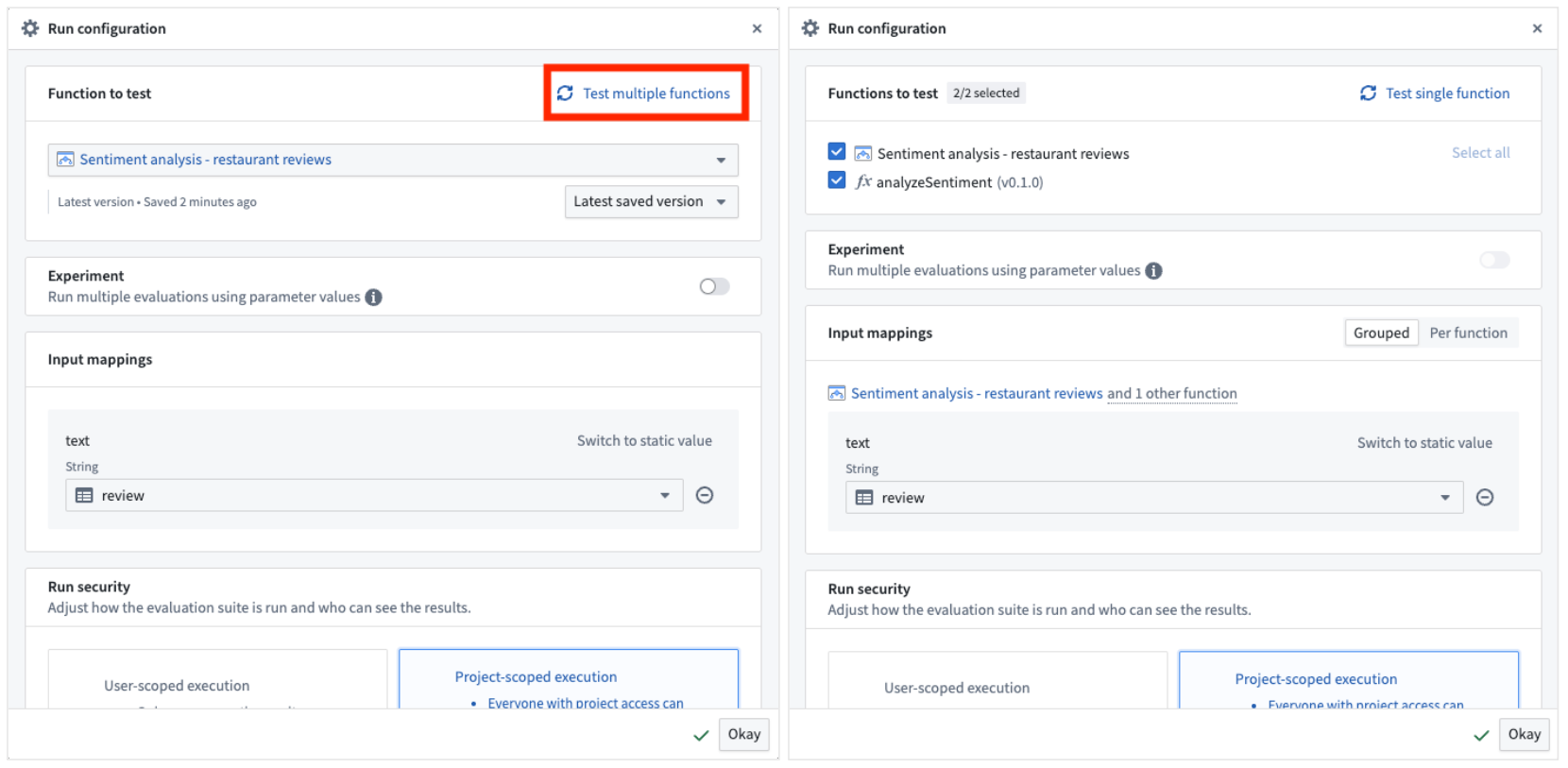
:::callout{theme="neutral"} Experiment configuration is not available when running in multi-target mode. :::
Input mapping
Input mappings need to be provided to map values in evaluation suite columns to the inputs expected by the evaluated function. You will be able to select suite columns with types that match expected function inputs.
Usually, the evaluation suite column name and the function input will match, but this is not required.
Execution mode
You can choose between two execution modes when running an evaluation suite; User-scoped execution and Project-scoped execution. User-scoped execution is the default mode and executes the evaluation suite using the permissions of the user who initiated the run.
User-scoped execution:
- The suite is executed with user permissions.
- Results will be visible only to you and will be deleted after 24 hours.
- Results will not be persisted in the results dataset.
Project-scoped execution [Beta]:
:::callout{theme="neutral" title="Beta"} Project-scoped execution is in the beta phase of development and may not be available on your enrollment. Functionality may change during active development. If you encounter issues with this execution mode, try running your evaluation suite with user-scoped execution instead. :::
- The evaluation suite is executed with project-scope. This means all resources that are used during function or evaluator execution need to be imported into the same project.
- Results of a run will be visible to everyone with project access.
- Results will be persisted indefinitely.
- Results will be written to the results dataset if one is configured.
Number of iterations
You can specify the number of times each test case should be run. Due to the non-deterministic nature of LLMs, we recommend running test cases at least three times for LLM-backed functions. The results of each iteration are aggregated to provide a comprehensive overview of the function's performance.
A high variance in numeric evaluators like rubric graders can indicate that the test case and evaluator are not meaningful and require further refinement.
Test parallelization
By default, ten test cases are executed in parallel. You can adjust the number of parallel test case executions to optimize the performance of your evaluation suite run. Reducing it can be beneficial when running into rate limits.
Run metadata
In addition to automatically captured run metadata like used branch, version, or model, you can add custom metadata to your evaluation suite runs.
This metadata is provided as key-value pairs and can be used to differentiate runs in the evaluation suite run history.
View results
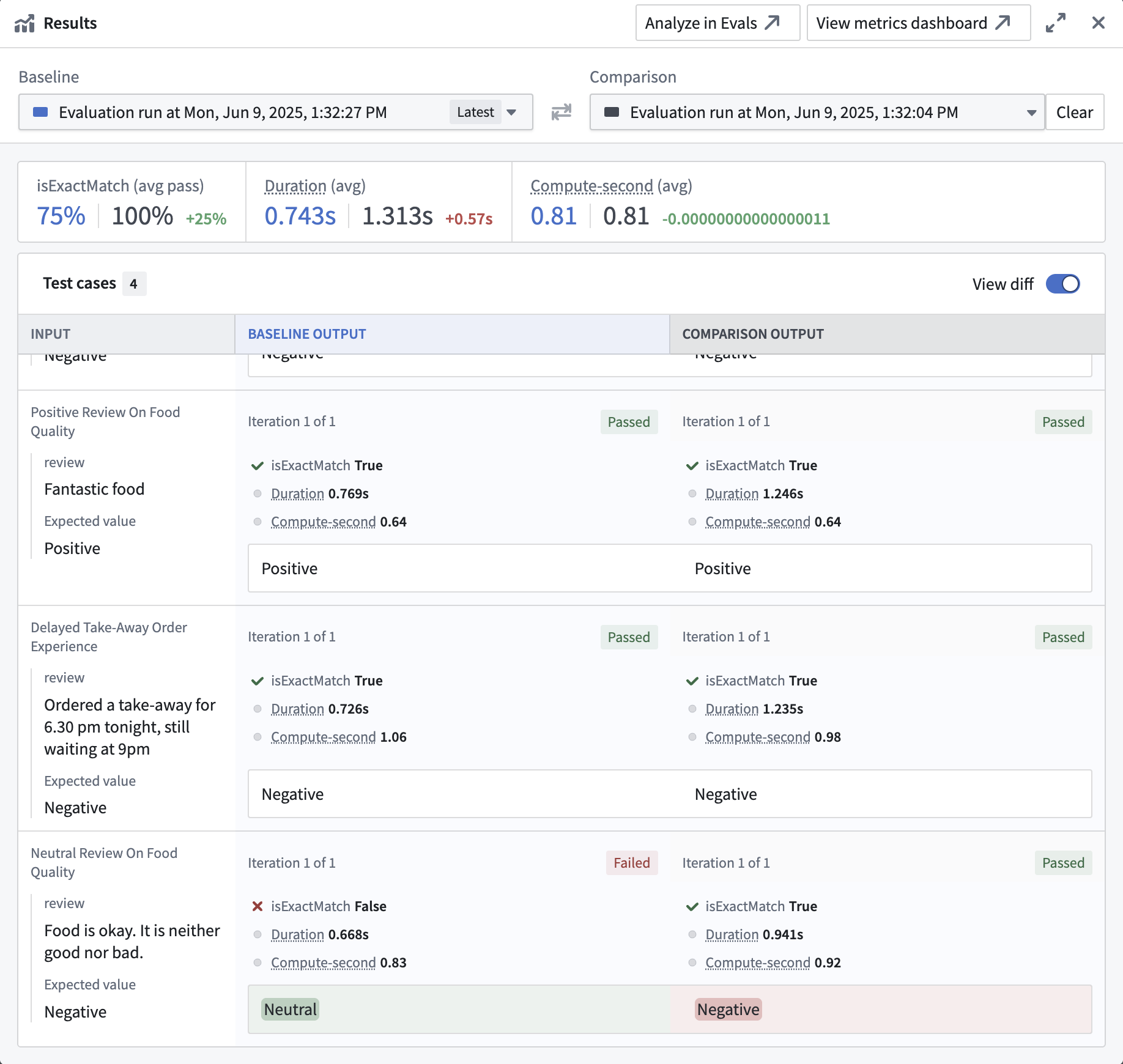
After the evaluation suite run is completed, you can view the results by selecting the card in the Most recent result section. This will open the results view, where you can see aggregated metrics for your evaluation suite run and the results for each individual test case. The passed or failed status for each metric is displayed based on your configured objectives (Boolean or numeric, direction, and threshold). When hovering over a single test case, you will be able to view the debugger button on the bottom right of the test case result. Selecting it will open a debug view for the test case in a new tab. The debug view will show the respective steps of the Logic function and evaluators that were executed for the test case.
Moreover, the results view offers the ability to compare runs by selecting Click to compare another run. This will open another run side-by-side with the current run, allowing you to compare the results of both runs. By default, the View diff toggle will be enabled, resulting in output differences between the two runs being highlighted.
Single test case execution
The passed or failed status for each metric is also shown when running a single test case, according to the objectives you have set (Boolean or numeric, direction, and threshold).
The AIP Evals sidebar in AIP Logic provides a quick way to run single test cases. This is especially useful when building your Logic function or when iterating on failed test cases after a full Evaluation suite run.
To run a single test case, select the play icon next to the test case name in the sidebar. This will immediately execute the test case and open the debugger sidebar panel. Here, you will be able to follow the execution of the Logic function and evaluators that are run on test case results. Additionally, the test case will be marked as executed in the sidebar.
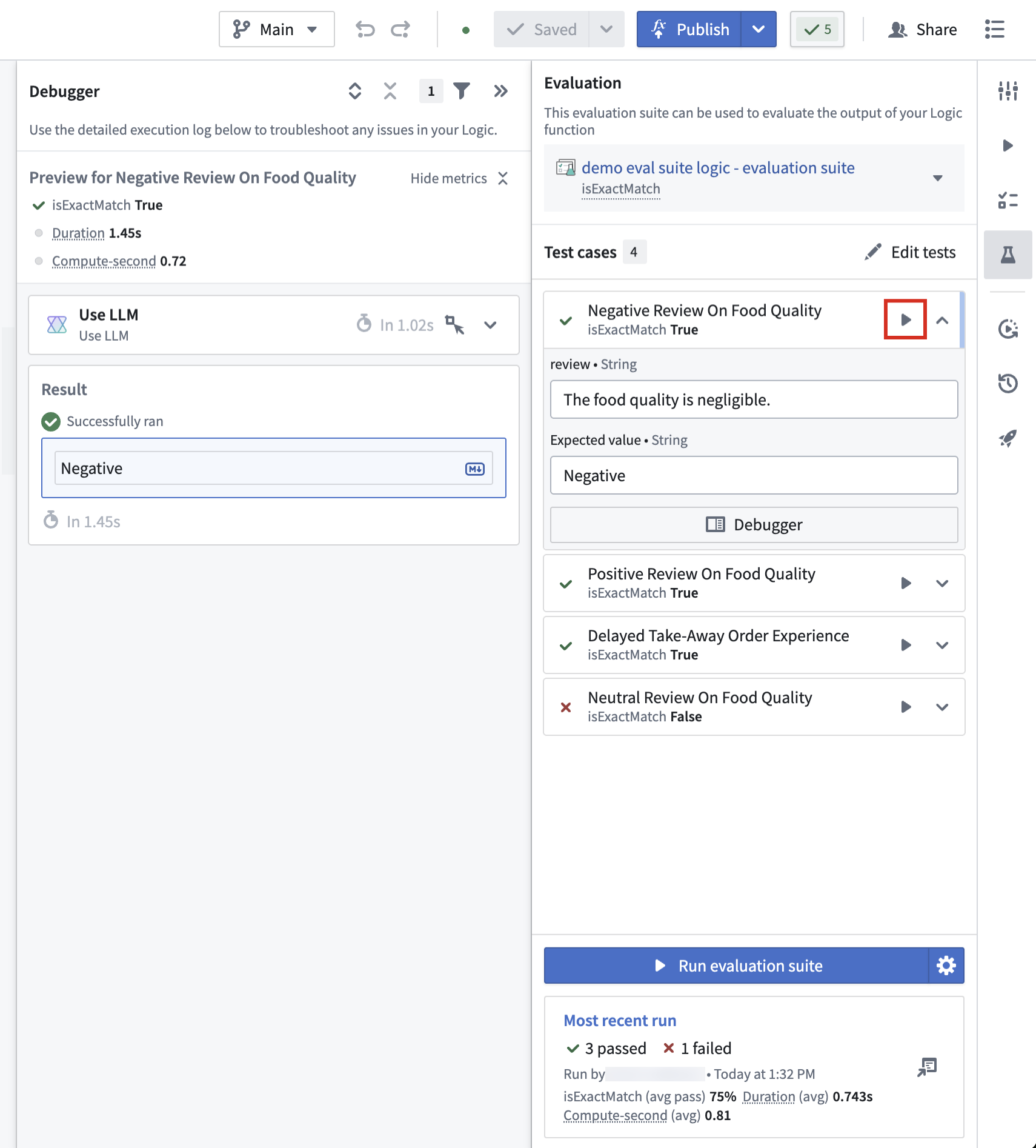
After execution, the sidebar and results panel will indicate whether each metric passed or failed, according to your configured objectives.
中文翻译
运行评估套件
评估套件可以从不同位置运行,包括 AIP Logic Evals 侧边栏和 AIP Evals 应用程序。您可以选择运行完整的评估套件,或仅执行单个测试用例。后者对于调试和快速函数迭代非常有用。
完整评估套件运行
在 AIP Logic 中,导航至 AIP Evals 侧边栏面板,然后选择 运行评估套件(Run evaluation suite)。如果您有未保存的更改,则会显示 保存并运行(Save and run),确保在运行评估套件前保存更改。
或者,您也可以从 AIP Evals 应用程序运行评估套件。要打开该应用程序,请在 AIP Logic 侧边栏中选择 查看(View),或从文件系统中打开评估套件。在 Evals 应用程序中,您可以通过选择右上角的 运行评估套件 来运行评估套件。
运行配置
运行评估套件时有多种配置选项可用。要访问运行配置选项,请选择 运行评估套件 旁边的齿轮图标。这将打开一个包含以下选项的对话框:
待测试函数
评估套件可以针对在 AIP Logic 中编写的函数和在 代码仓库(Code repositories)中编写的函数运行。根据函数来源,您可以针对函数的不同版本:
- AIP Logic 函数: 最后保存的版本(默认)和已发布版本。
- 非 AIP Logic 函数: 已发布版本。
测试多个函数
如果您的评估套件配置了多个目标函数,您可以从 AIP Evals 同时针对多个函数运行评估。选择 测试多个函数(Test multiple functions)切换到多目标模式,然后选择要包含在运行中的目标。
:::callout{theme="neutral"} 在多目标模式下运行时,实验配置不可用。 :::
输入映射
需要提供输入映射(Input mapping),将评估套件列中的值映射到被评估函数期望的输入。您将能够选择与期望函数输入类型匹配的套件列。
通常,评估套件列名和函数输入会匹配,但这并非必需。
执行模式
运行评估套件时,您可以在两种执行模式之间选择:用户范围执行(User-scoped execution)和项目范围执行(Project-scoped execution)。用户范围执行是默认模式,使用发起运行的用户权限执行评估套件。
用户范围执行:
- 套件使用用户权限执行。
- 结果仅对您可见,并在24小时后删除。
- 结果不会持久化到结果数据集(results dataset)中。
项目范围执行 [Beta]:
:::callout{theme="neutral" title="Beta"} 项目范围执行处于开发阶段的 beta 阶段,可能在您的注册环境中不可用。功能在活跃开发期间可能会发生变化。如果您在此执行模式下遇到问题,请尝试改用用户范围执行运行评估套件。 :::
- 评估套件以项目范围执行。这意味着函数或评估器执行期间使用的所有资源都需要导入到同一项目中。
- 运行结果将对所有拥有项目访问权限的人可见。
- 结果将无限期持久化。
- 如果配置了结果数据集,结果将写入其中。
迭代次数
您可以指定每个测试用例应运行的次数。由于 LLM 的非确定性特性,我们建议对于基于 LLM 的函数至少运行测试用例三次。每次迭代的结果会被汇总,以提供函数性能的全面概览。
在数值型评估器(如评分标准评估器)中出现高方差可能表明测试用例和评估器没有意义,需要进一步优化。
测试并行化
默认情况下,十个测试用例并行执行。您可以调整并行执行的测试用例数量,以优化评估套件运行的性能。当遇到速率限制时,减少并行数会有所帮助。
运行元数据
除了自动捕获的运行元数据(如 使用的分支、版本 或 模型)之外,您还可以向评估套件运行添加自定义元数据。这些元数据以键值对形式提供,可用于在评估套件运行历史中区分不同的运行。
查看结果
评估套件运行完成后,您可以通过选择 最近结果(Most recent result)部分中的卡片来查看结果。这将打开结果视图,您可以在其中查看评估套件运行的汇总指标以及每个单独测试用例的结果。根据您配置的目标(布尔型或数值型、方向和阈值),会显示每个指标的 通过(passed)或 失败(failed)状态。当悬停在单个测试用例上时,您将能够在测试用例结果的右下角看到调试器按钮。选择该按钮将在新标签页中打开该测试用例的调试视图。调试视图将显示为该测试用例执行的 Logic 函数和评估器的各个步骤。
此外,结果视图还提供了比较运行的功能,通过选择 点击比较另一个运行(Click to compare another run)即可实现。这将在当前运行旁边打开另一个运行,使您能够比较两次运行的结果。默认情况下,查看差异(View diff)切换开关将启用,从而突出显示两次运行之间的输出差异。
单个测试用例执行
运行单个测试用例时,也会根据您设置的目标(布尔型或数值型、方向和阈值)显示每个指标的 通过 或 失败 状态。
AIP Logic 中的 AIP Evals 侧边栏提供了运行单个测试用例的快捷方式。这在构建 Logic 函数或在完整评估套件运行后迭代失败的测试用例时特别有用。
要运行单个测试用例,请选择侧边栏中测试用例名称旁边的播放图标。这将立即执行测试用例并打开调试器侧边栏面板。在这里,您将能够跟踪 Logic 函数和在测试用例结果上运行的评估器的执行过程。此外,该测试用例将在侧边栏中被标记为已执行。
执行后,侧边栏和结果面板将根据您配置的目标指示每个指标是通过还是失败。