Log permissions(日志权限)
:::callout{theme="warning"} Service and trace logs can contain sensitive content from any data source a workflow reaches, including language model prompts and completions, object property values, and user-supplied inputs. The platform does not propagate markings from the source executor's resource or from any data the execution accessed; only the markings an administrator explicitly applies when enabling log access are enforced on viewers. Enabling log access therefore carries a security risk and should be reviewed against the maximum sensitivity of data the workflow may touch. :::
Required roles
The following table lists the required roles for various operations in AIP observability.
| Capability | Required role |
|---|---|
| View metrics | View permission on the resource² |
| View run history | Edit permission on the resource² |
| View trace and service logs¹ | Edit permission on the resource² + Log access enabled³ + Access to all markings |
| Search logs¹ | Edit permission on the resource² + Log access enabled³ + Access to all markings |
| Configure log access | Information security officer or Enrollment administrator role |
| Delete logs | Information security officer or Enrollment administrator role |
¹Users always have access to logs for their own executions from the past 24 hours with just Edit permission, independent of log access settings. This exception does not apply on CBAC stacks, where log access must be enabled to see logs for one's own executions.
²A Foundry operation backs each capability: foundry-telemetry-service:read-metrics (granted by the Viewer role) for metrics, and foundry-telemetry-service:view-execution-history (granted by the Editor role) for run history and logs. You can grant these operations through a different role using custom roles.
³Log access enablement: An administrator must enable log access either on the source executor resource directly (as a resource override) or on the source executor's project (and attributed project if the resource has been moved). See log access requirements below for full details, and Configure logging for how to enable it.
Log access requirements
To view the run history for a resource, you must have edit permission on the resource.
To view the trace and service logs for an execution you did not invoke, you must satisfy all three requirements below. The log access overview dialog, described in Review log access requirements below, shows each requirement and whether you currently meet it.
- Role: You must have Edit permission on the source executor. The source executor is the first executable resource in the call chain and can be a function, action, automation, AIP logic, or AIP agent.
- Log access policy: Log access must be enabled for the source executor, either on its project (and its attributed project — the project the resource first emitted telemetry under — if the resource has been moved) or through a resource-level override. An
Information security officerorEnrollment administratorenables this. See Configure logging for how to enable log access. - Markings: You must hold every marking applied to the logs. See Markings on log content below.
Actions are a special case. An action managed by legacy Ontology permissions cannot yet be managed at the project level, so enabling log access for it requires a resource-level override rather than the project setting, until the action is migrated to project-based permissions. See Configure logging for details.
Source executor log access status
The Run history and Log search panels in Workflow Lineage display a status tag for the source executor's log access. The tag reflects your current level of access:
- Full log access: Log access is enabled on the project or through a resource-level override, and you hold the required markings. Logs are visible for all executions originating from the resource.
- User ID secured log access: Based on your role, you have access to logs from your own executions in the past 24 hours. This applies even when log access is not otherwise enabled (except on CBAC stacks).
- No log access: Log access is not enabled and you have no other path to the logs.
When log access is enabled for the project and marking permissions are satisfied, Source executor log access will show as enabled. Logs will be visible for all executions originating from the enabled project.
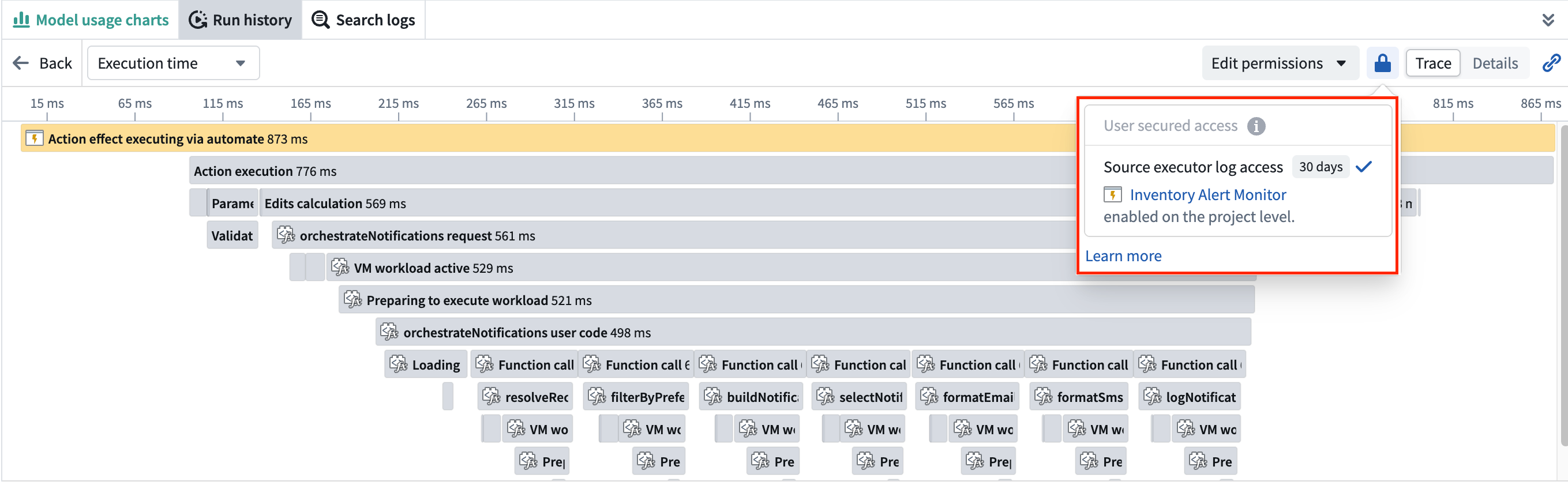
Otherwise, only your own executions from the past 24 hours show logs (except on CBAC stacks).
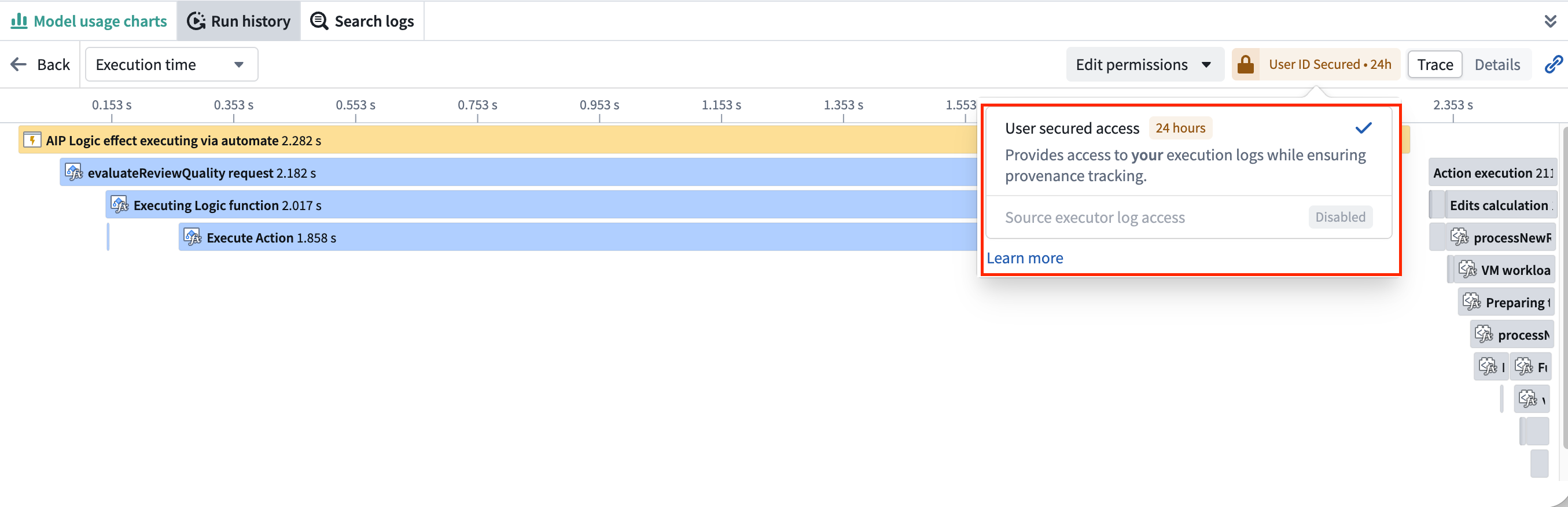
:::callout{theme="warning"} On CBAC stacks, this 24-hour access to your own executions' logs is disabled. Log access must be enabled on the source executor's project before users can view trace and service logs or search logs, even for their own executions. :::
Open the log access overview
To check what you need to read logs, open the Log access overview dialog from either of these places:
- From the Workflow Lineage graph, select the resource's node and choose View log access.
- From the Run history or Log search panel, select View log access in the top right.
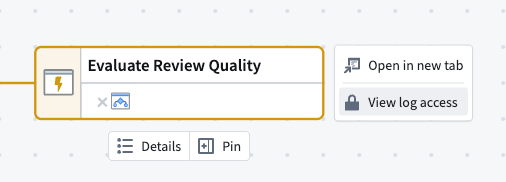
Viewing the overview requires at least the Viewer role on both the resource and its project.
If you have the Information security officer or Enrollment administrator role and can manage log access for the resource, the Run history and Log search panels show Edit permissions in place of View log access. That menu adds Configure log access and Delete log history, both covered in Configure logging.

Review log access requirements
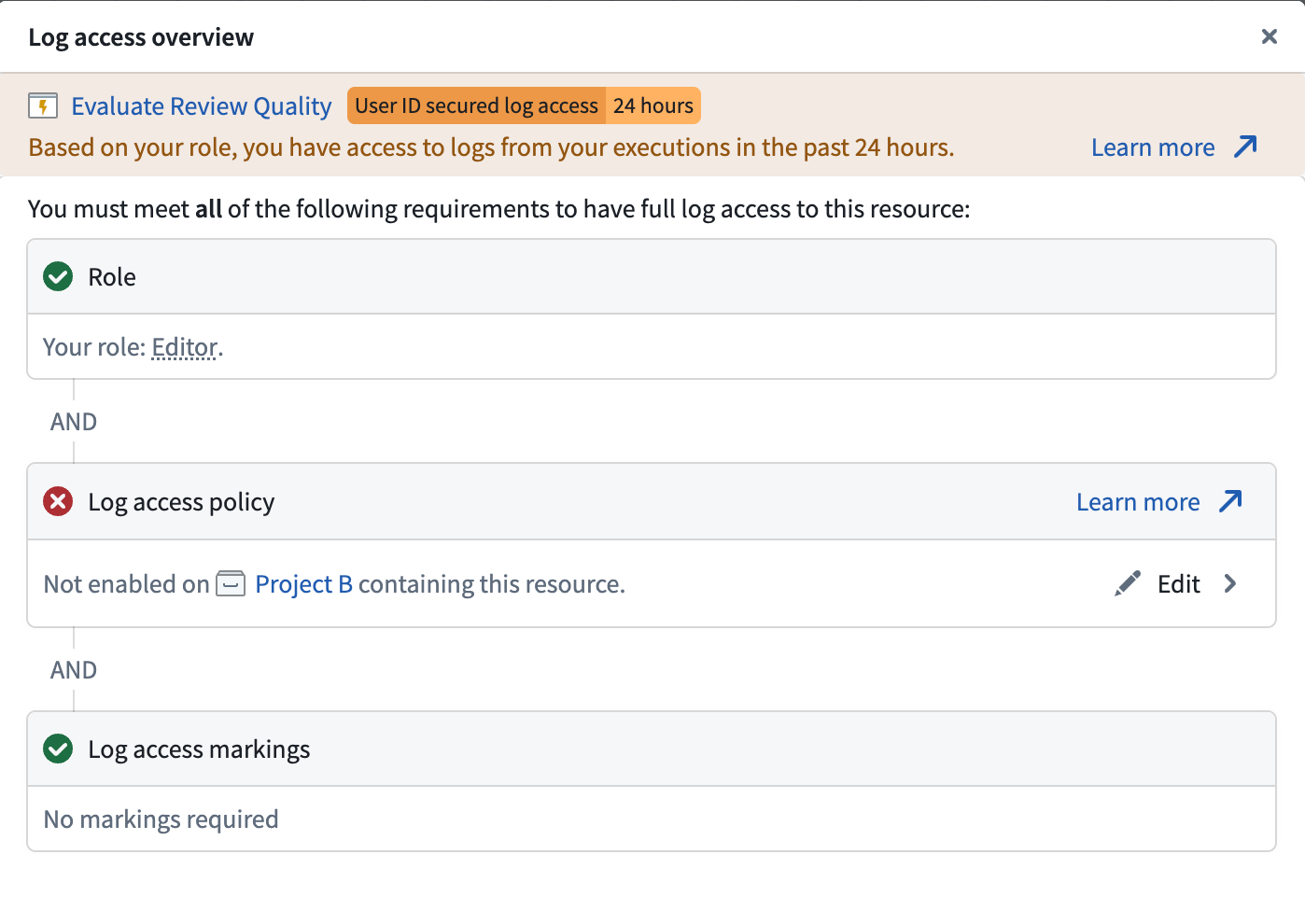
The Log access overview dialog lists the three requirements a viewer must satisfy to see logs.
- Role: Shows your current role on the resource. If your role does not grant log access, the dialog suggests the least-privileged role that grants log access.
- Log access policy: Shows whether log access is enabled on the project containing this resource (and attributed project if the resource has been moved), enabled via a resource-level override, or not enabled. If you have the
Information security officerorEnrollment administratorrole, you can select Edit to configure the policy (see Configure logging). - Log access markings: Shows the markings applied to the logs and, if you are missing any, how many.
Markings on log content
The markings that protect log content are configured explicitly by an administrator when log access is enabled. These are the only markings enforced when a user attempts to view logs.
Markings are not derived from the source executor's resource, its inputs, or any data the execution accessed. Administrators are responsible for selecting markings that reflect the maximum sensitivity of any data the workflow may touch, as the platform cannot determine the full set of data sources a workflow may reach in advance. Logs enabled without markings are visible to every user who satisfies the role and log access requirements described above.
Related documentation
- Configure logging: Enable and manage in-platform log access
- Execution history: View available executions
- Service logs: Access logs once permissions are configured
- Log search: Search across logs from all executions for a source executor
- AIP security and privacy: Learn about the AIP security model
中文翻译
日志权限
:::callout{theme="warning"} 服务和追踪日志可能包含工作流所触及的任何数据源中的敏感内容,包括语言模型提示词和补全内容、对象属性值以及用户提供的输入。平台不会传播源执行器资源或执行所访问数据的标记;只有管理员在启用日志访问时明确应用的标记才会对查看者强制执行。因此,启用日志访问存在安全风险,应针对工作流可能触及的数据的最大敏感度进行审查。 :::
所需角色
下表列出了AIP可观测性中各种操作所需的角色。
| 能力 | 所需角色 |
|---|---|
| 查看指标 | 资源的查看权限² |
| 查看运行历史 | 资源的编辑权限² |
| 查看追踪和服务日志¹ | 资源的编辑权限² + 已启用日志访问³ + 拥有所有标记的访问权限 |
| 搜索日志¹ | 资源的编辑权限² + 已启用日志访问³ + 拥有所有标记的访问权限 |
| 配置日志访问 | 信息安全官或注册管理员角色 |
| 删除日志 | 信息安全官或注册管理员角色 |
¹用户始终可以仅凭编辑权限访问自己过去24小时内执行的日志,不受日志访问设置影响。此例外不适用于CBAC堆栈,在这些堆栈中,必须启用日志访问才能查看自己执行的日志。
²每个能力都由一个Foundry操作支持:foundry-telemetry-service:read-metrics(由查看者角色授予)用于指标,foundry-telemetry-service:view-execution-history(由编辑者角色授予)用于运行历史和日志。您可以通过自定义角色使用不同的角色授予这些操作。
³日志访问启用:管理员必须直接在源执行器资源上(作为资源覆盖)或在源执行器的项目上(以及如果资源已被移动,则在其归属项目上)启用日志访问。有关完整详情,请参见下面的日志访问要求,有关如何启用,请参见配置日志记录。
日志访问要求
要查看资源的运行历史,您必须对该资源拥有编辑权限。
要查看您未调用的执行的追踪和服务日志,您必须满足以下所有三个要求。日志访问概览对话框(如下文查看日志访问要求所述)会显示每个要求以及您当前是否满足。
- 角色: 您必须对源执行器拥有编辑权限。源执行器是调用链中的第一个可执行资源,可以是函数、操作、自动化、AIP逻辑或AIP代理。
- 日志访问策略: 必须为源执行器启用日志访问,可以在其项目(以及其归属项目——即资源首次发出遥测的项目,如果资源已被移动)上启用,或通过资源级覆盖启用。由
信息安全官或注册管理员启用。有关如何启用日志访问,请参见配置日志记录。 - 标记: 您必须持有应用于日志的每一个标记。请参见下面的日志内容上的标记。
操作是一个特殊情况。由旧版本体论(Ontology)权限管理的操作尚无法在项目级别进行管理,因此在操作迁移到基于项目的权限之前,为其启用日志访问需要资源级覆盖而非项目设置。详情请参见配置日志记录。
源执行器日志访问状态
工作流谱系中的运行历史和日志搜索面板会显示源执行器日志访问的状态标签。该标签反映您当前的访问级别:
- 完全日志访问: 已在项目上或通过资源级覆盖启用了日志访问,并且您拥有所需的标记。源自该资源的所有执行的日志均可见。
- 用户ID安全日志访问: 根据您的角色,您可以访问自己过去24小时内执行的日志。即使在其他情况下未启用日志访问(CBAC堆栈除外),此规则也适用。
- 无日志访问: 未启用日志访问,并且您没有其他访问日志的途径。
当为项目启用日志访问且满足标记权限时,源执行器日志访问将显示为已启用。源自已启用项目的所有执行的日志均可见。
否则,只有您自己过去24小时内的执行会显示日志(CBAC堆栈除外)。
:::callout{theme="warning"} 在CBAC堆栈上,这种对自己过去24小时内执行日志的访问权限被禁用。必须在源执行器的项目上启用日志访问后,用户才能查看追踪和服务日志或搜索日志,即使是对自己执行的日志也是如此。 :::
打开日志访问概览
要检查查看日志所需的条件,请从以下任一位置打开日志访问概览对话框:
- 在工作流谱系图中,选择资源的节点并选择查看日志访问。
- 在运行历史或日志搜索面板中,选择右上角的查看日志访问。
查看概览需要至少对资源及其项目拥有查看者角色。
如果您拥有信息安全官或注册管理员角色并且可以管理资源的日志访问,运行历史和日志搜索面板会显示编辑权限以替代查看日志访问。该菜单增加了配置日志访问和删除日志历史,两者均在配置日志记录中介绍。
查看日志访问要求
日志访问概览对话框列出了查看者必须满足的三个要求才能查看日志。
- 角色: 显示您当前在资源上的角色。如果您的角色未授予日志访问权限,对话框会建议授予日志访问权限的最低权限角色。
- 日志访问策略: 显示日志访问是否在包含此资源的项目上启用(以及如果资源已被移动,则在归属项目上启用)、是否通过资源级覆盖启用,或未启用。如果您拥有
信息安全官或注册管理员角色,您可以选择编辑来配置策略(请参见配置日志记录)。 - 日志访问标记: 显示应用于日志的标记,以及如果您缺少任何标记,则显示缺少的数量。
日志内容上的标记
保护日志内容的标记由管理员在启用日志访问时明确配置。这些是用户在尝试查看日志时唯一强制执行的标记。
标记并非源自源执行器的资源、其输入或执行所访问的任何数据。管理员负责选择能够反映工作流可能触及的任何数据的最大敏感度的标记,因为平台无法预先确定工作流可能触及的完整数据源集合。未启用标记的日志对满足上述角色和日志访问要求的每个用户均可见。