Navigation(导航)
This page provides an overview of AI FDE's interface, navigation, and available controls.
Initiate a session
Navigate to the AI FDE application and start by asking a question or making a request in the input field at the bottom of the page.
Sessions can be managed in the top toolbar, where you can create a new session and manage existing sessions.

Manage context
AI FDE only has access to context that has been added to the chat.
Context can be added in various ways:
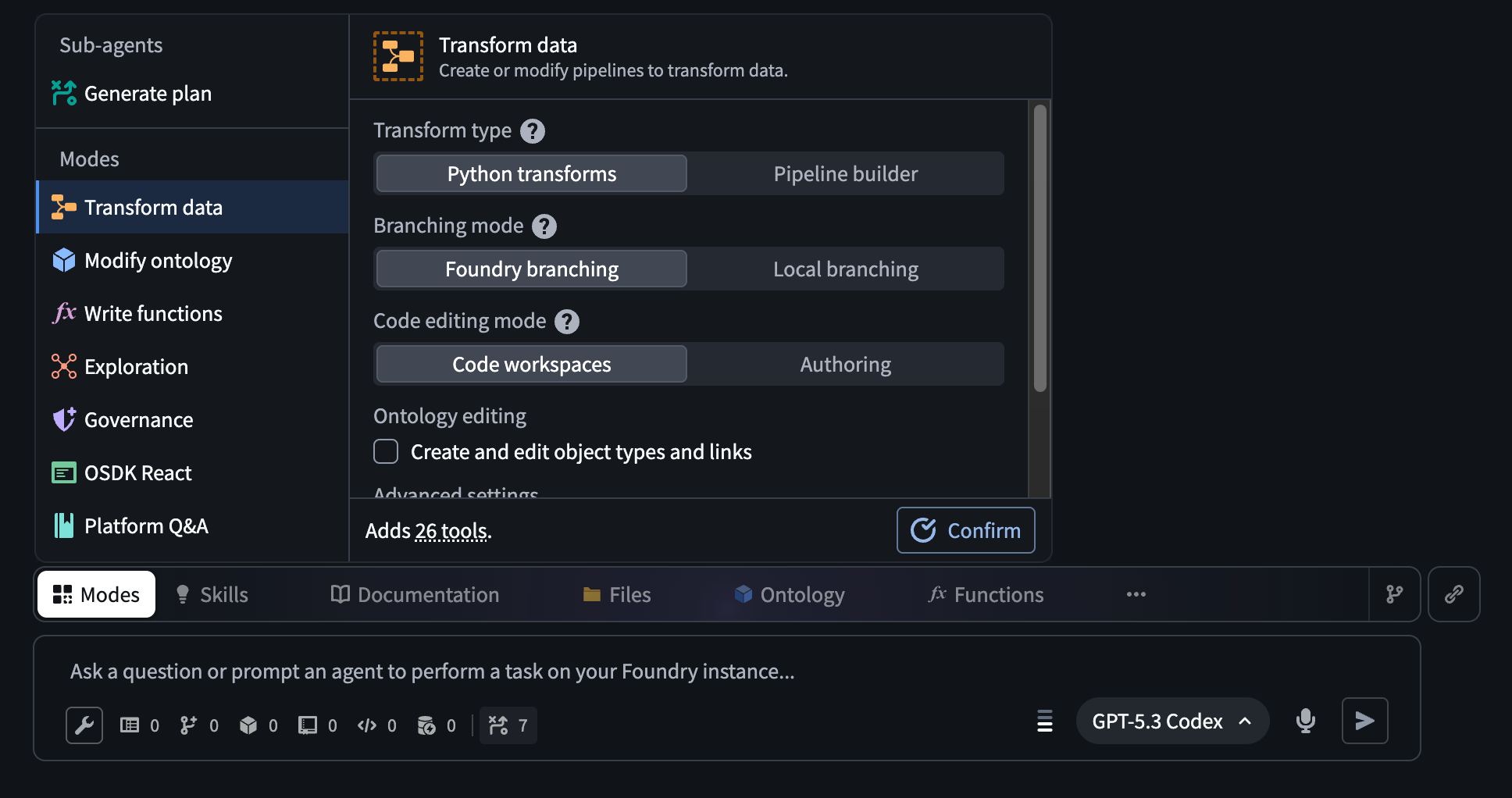
- Describe the task you want to accomplish, and the agent will pick a mode for you, determining available context and tools based on your prompt.
- Select a mode from the Modes menu above the input field. Depending on the mode, additional configurations are available, such as the language you want to use for functions, or whether you want to use transforms instead of Pipeline Builder.
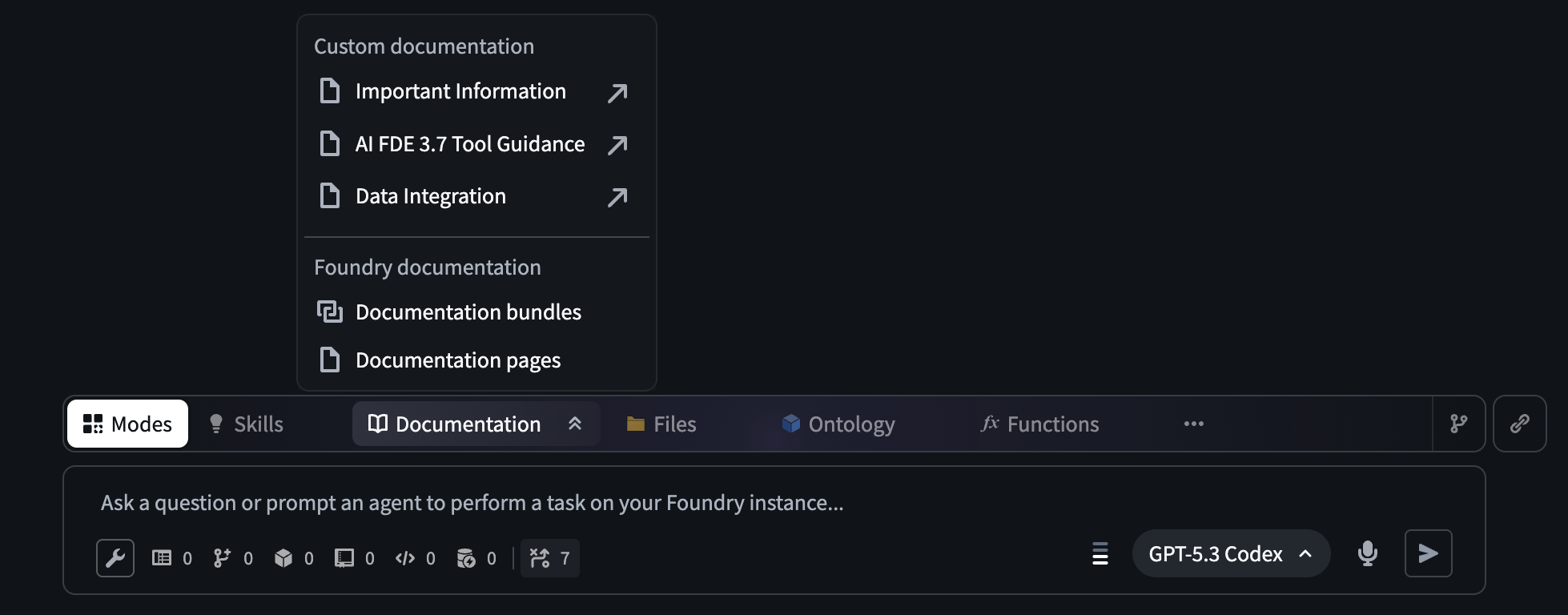
- Add context manually from the ribbon above the prompt input field. You can add documentation bundles that are relevant to the task you want AI FDE to perform or upload media. You can also select the following Foundry resources:
- Datasets
- Functions
- Branches
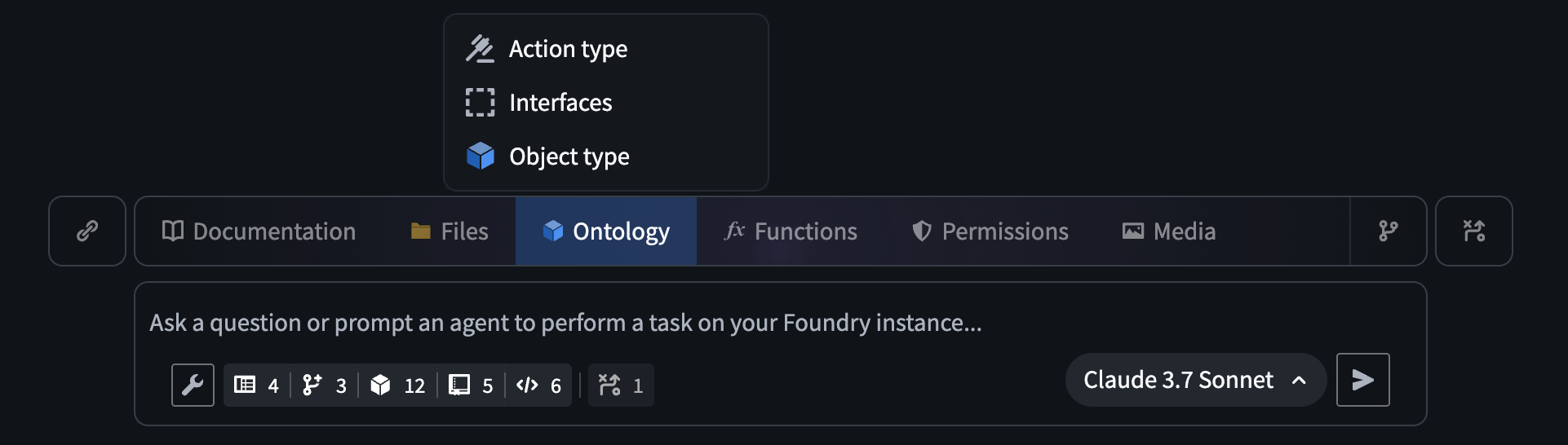
- Interfaces
- Action types
- Object types
- Drag and drop links from other applications in Foundry into AI FDE.
- Enable search tools that allow AI FDE to find relevant resources.
Chat outline
The chat outline can be found in a collapsible panel to the right, and contains a history of prompts, responses, and tools used in your session. Messages can be summarized or removed completely in the main chat or in the outline to prevent reaching the model’s context window in long-running sessions. The outline also displays the number of tokens used for each message.

Tool configuration
AI FDE provides customizable access to tools. Models perform better when only the subset of tools needed to accomplish the task are enabled. You can choose which tools to enable using the tools menu below the input field.
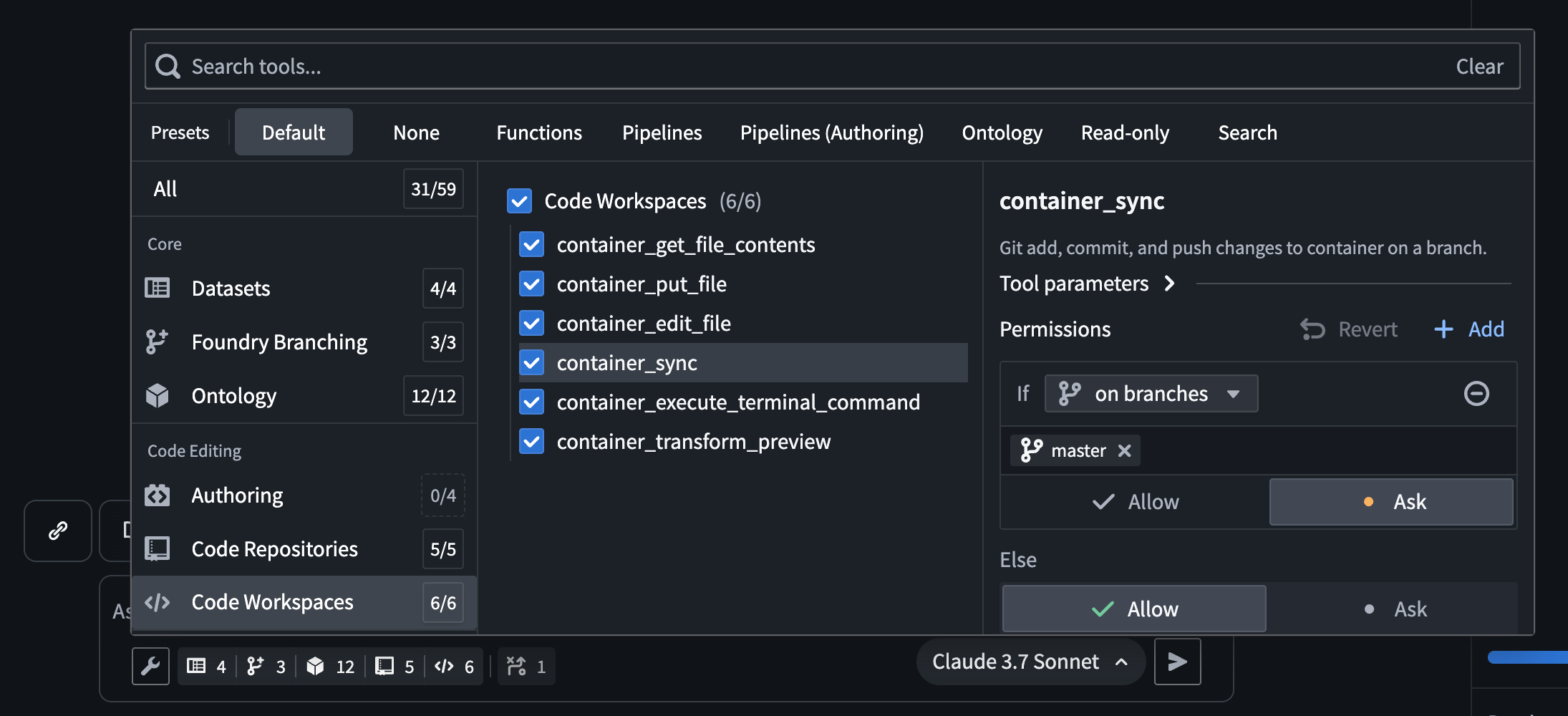
While prompting AI FDE with various tasks, you may be asked to approve tool usage. By default, executing tools requires approval in the following situations:
- The tool is making a change on the default branch.
- The tool is making an unbranched change such as creating a code repository.
- The tool might have side effects, for example dataset builds.
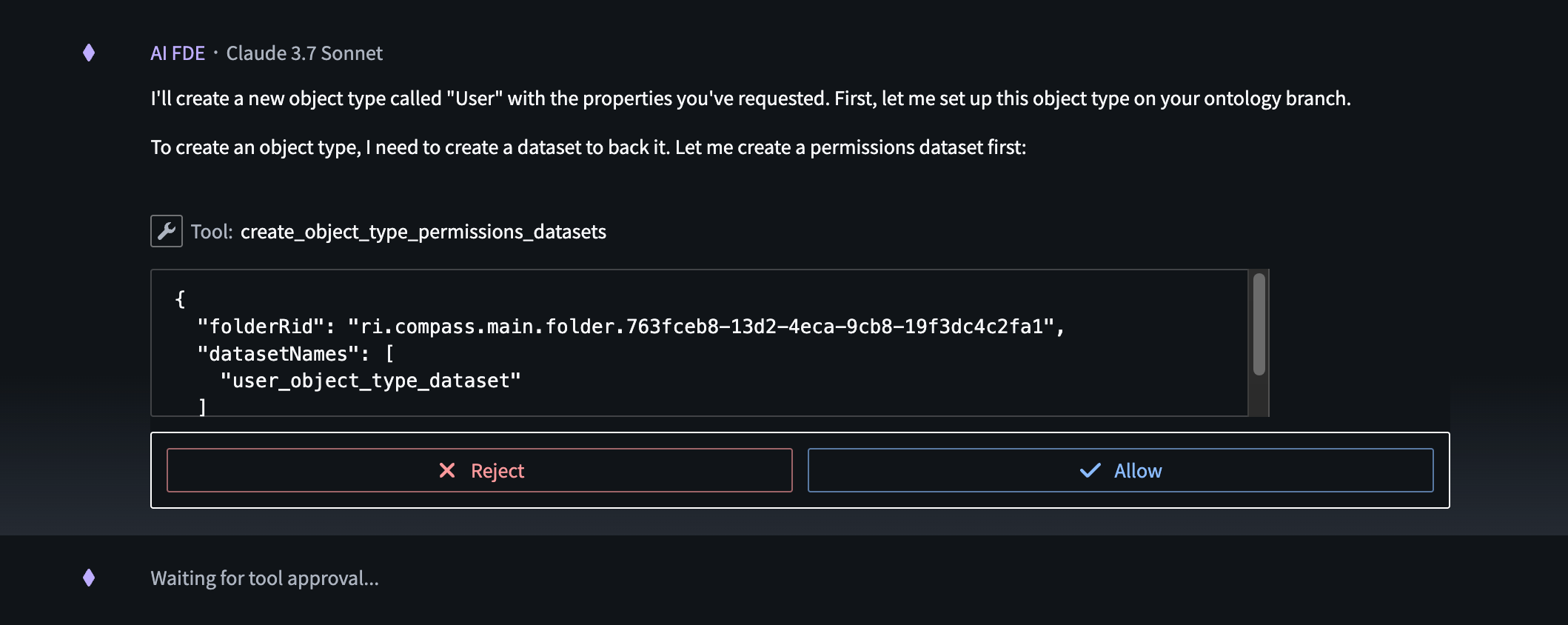
Tool approval for all tools can be customized in the tool selection panel. For example, relevant tools can be set to automatically execute on allowlisted branches and projects.
中文翻译
导航
本文概述了 AI FDE 的界面、导航方式及可用控件。
启动会话
导航至 AI FDE 应用程序,在页面底部的输入框中提问或提出请求即可开始。
可通过顶部工具栏管理会话,在此可创建新会话或管理现有会话。
管理上下文
AI FDE 仅能访问已添加到聊天中的上下文。
可通过以下方式添加上下文:
- 描述您要完成的任务,AI 助手将为您选择模式,并根据您的提示确定可用的上下文和工具。
- 从输入框上方的模式菜单中选择一种模式。根据所选模式,还可进行其他配置,例如函数使用的语言,或是否使用 transforms 替代 Pipeline Builder。
- 通过提示输入框上方的功能区手动添加上下文。您可以添加与 AI FDE 需执行任务相关的文档包,或上传媒体文件。您还可以选择以下 Foundry 资源:
- 数据集(Datasets)
- 函数(Functions)
- 分支(Branches)
- 接口(Interfaces)
- 操作类型(Action types)
- 对象类型(Object types)
- 将 Foundry 中其他应用的链接拖放到 AI FDE 中。
- 启用搜索工具,让 AI FDE 能够查找相关资源。
聊天大纲
聊天大纲位于右侧可折叠面板中,包含会话中的提示、回复及所用工具的历史记录。在长时间运行的会话中,可对消息进行摘要或完全删除(在主聊天或大纲中均可),以避免超出模型的上下文窗口。大纲还会显示每条消息使用的令牌数。
工具配置
AI FDE 提供可自定义的工具访问权限。仅启用完成任务所需的工具子集时,模型表现更佳。您可以通过输入框下方的工具菜单选择要启用的工具。
在使用 AI FDE 处理各种任务时,系统可能会要求您批准工具的使用。默认情况下,在以下情况下执行工具需要批准:
- 工具正在对默认分支进行更改。
- 工具正在进行无分支更改,例如创建代码仓库。
- 工具可能产生副作用,例如数据集构建(dataset builds)。
所有工具的使用批准设置均可在工具选择面板中自定义。例如,可将相关工具设置为在允许列表中的分支和项目上自动执行。