Serve custom content sources with AIP Assist(使用 AIP Assist 提供自定义内容源)
You can serve a custom content source with AIP Assist by configuring its availability to users in Control Panel after it has been registered. This functionality adds custom sources to the existing large search context that AIP Assist uses to answer all questions in default mode.
When making a custom source available to AIP Assist, you can choose whether it will only be served when a specific resource or set of resources is open, or if it will always be served. If you select the option to always serve content to users, AIP Assist will use the custom source to answer user queries regardless of the resources a user is viewing when using AIP Assist. We recommend using this functionality for custom, platform level content that would be valuable along with platform and developer documentation that AIP Assist stores in its search context in default mode.
Register your content source with AIP Assist
The first step is registering your content source and making it available in AIP Assist. Depending on your needs, review the instructions for registering content from Notepad or in-platform custom documentation.
Enable content source visibility for your users
Once your custom source is registered with AIP Assist, you will need to configure its visibility for users on your enrollment.
:::callout{theme="warning"} The following steps must be completed by a platform administrator with Control Panel access. :::
-
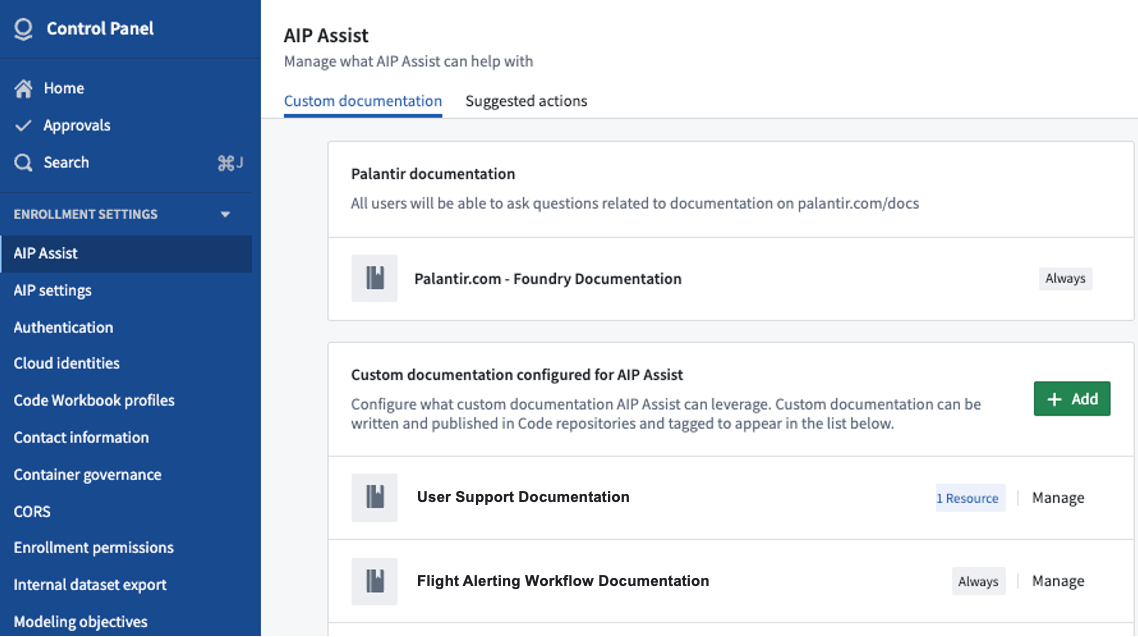
Navigate to Control Panel, select your enrollment, and open the AIP Assist page.
-
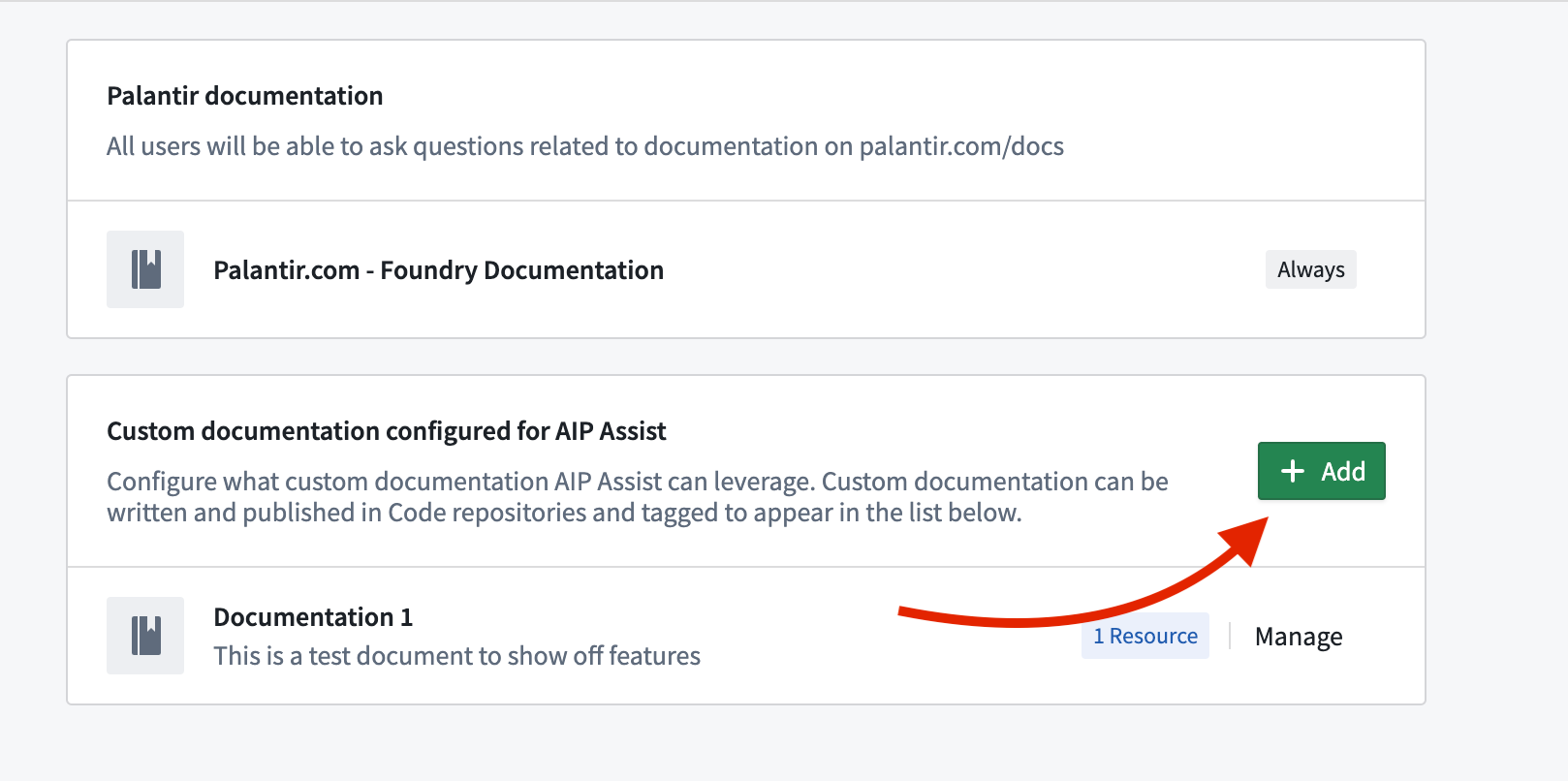
Select + Add, which will open a dialog listing currently ingested documents.
-
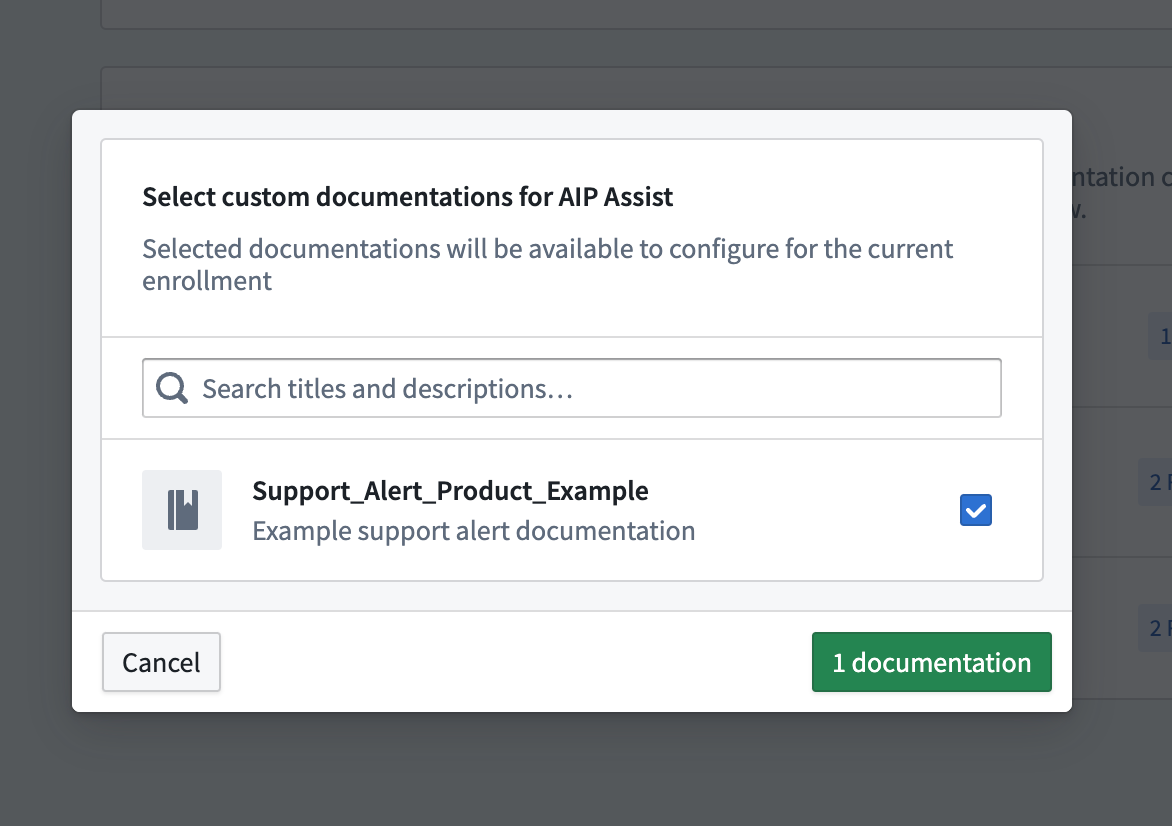
Find the relevant document, select it, and add it. By default, sources are added with visibility only in the repository or Notepad document that was used to create it. This level of visibility can be used to test that AIP Assist responses work as expected.
-
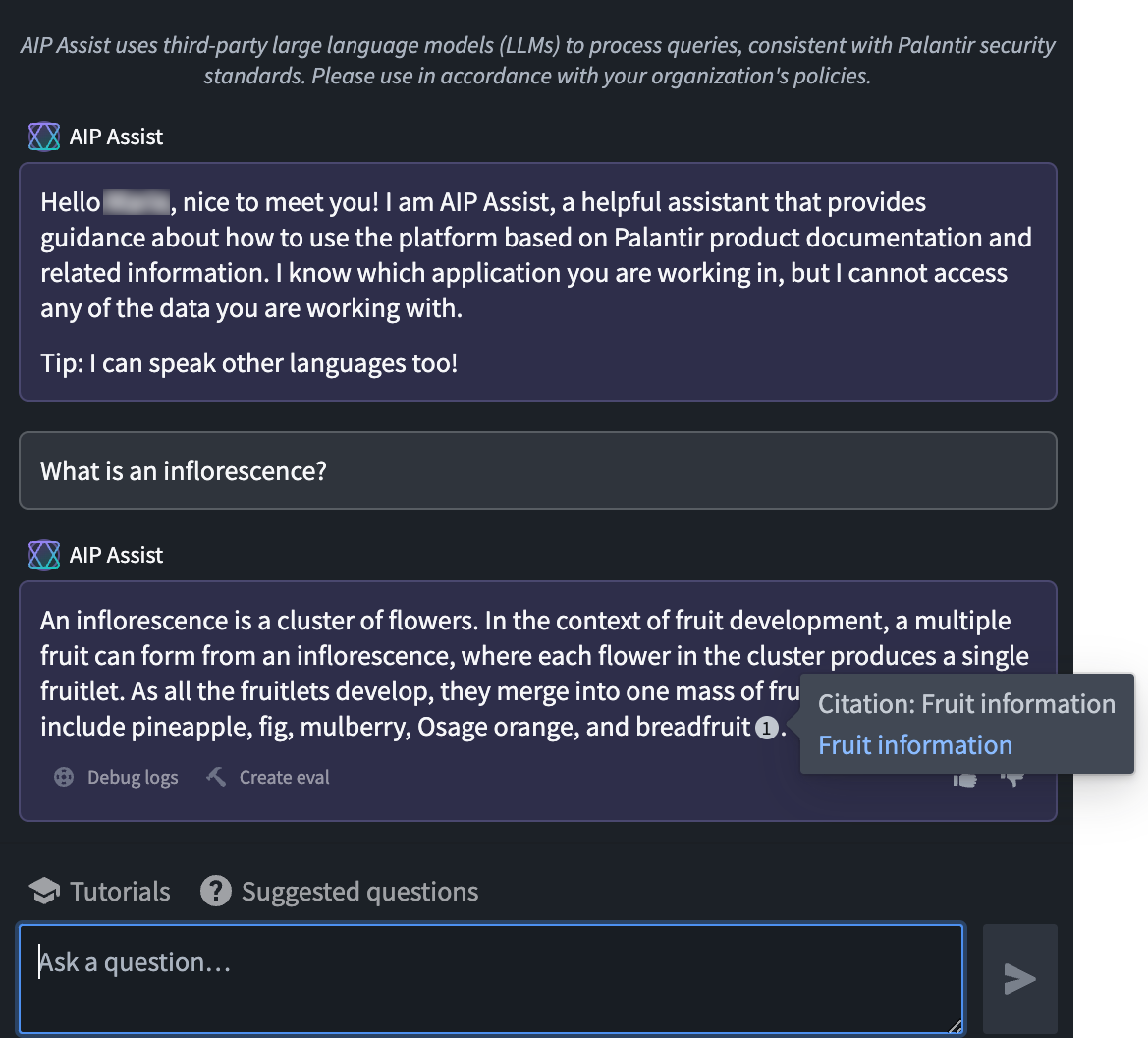
In the custom documentation repository or Notepad document(s) containing your content, open AIP Assist and input questions specifically related to your product to confirm that AIP Assist responds as expected.
-
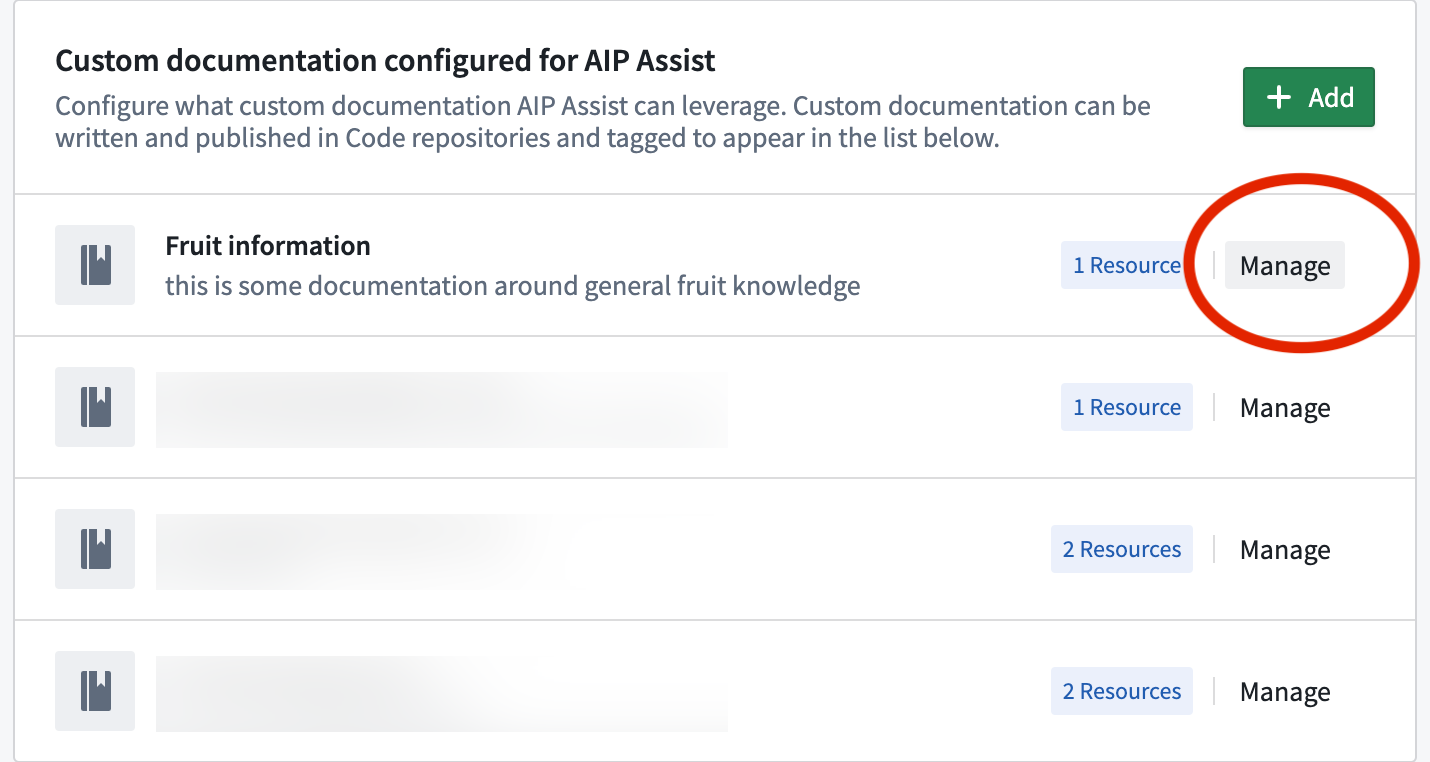
When you are confident in the answers and want to expose them more broadly, re-configure the visibility by navigating to Control Panel > AIP Assist. Find your content source and select Manage.
-
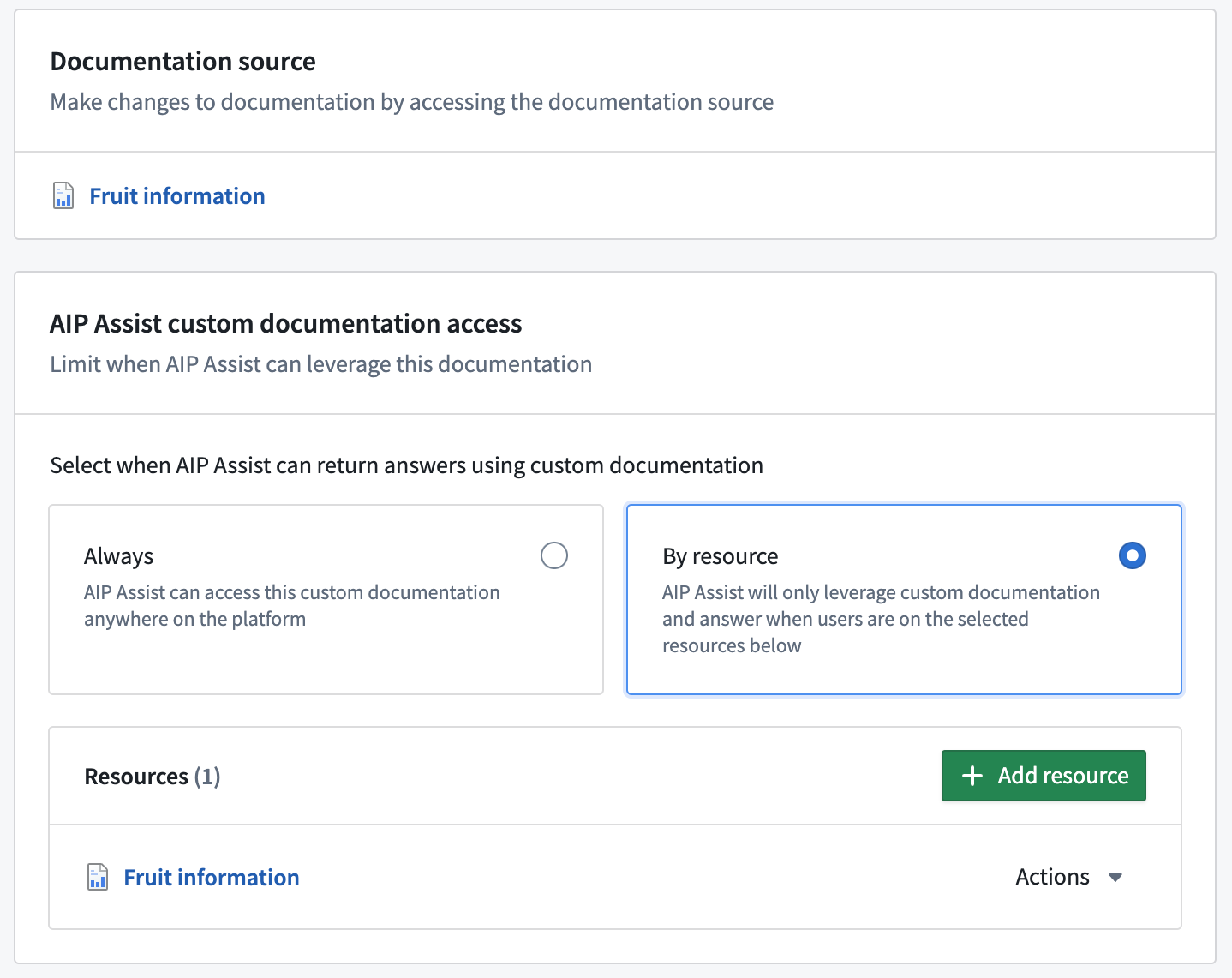
If the content is relevant to your users wherever they are in Foundry, select Always.
-
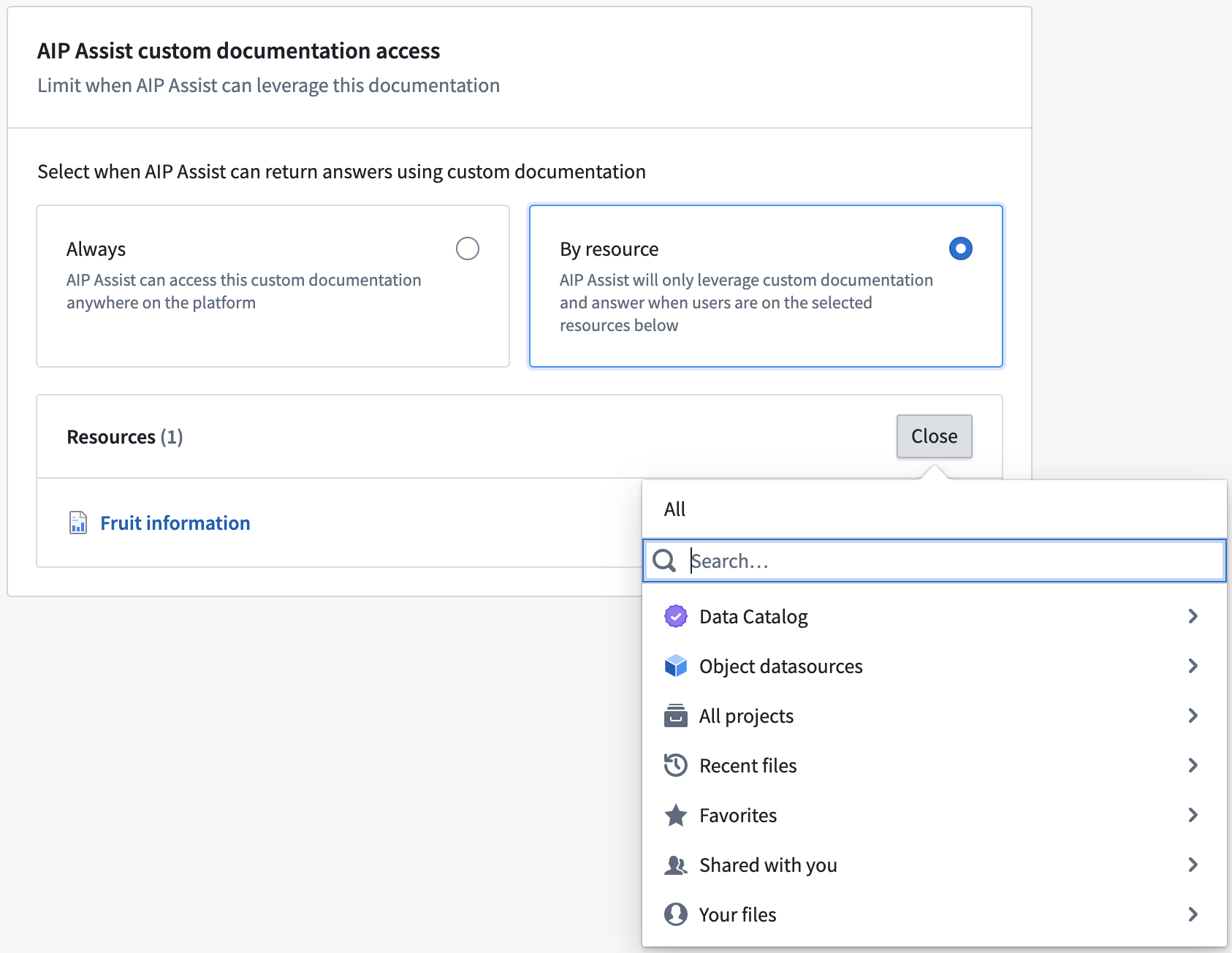
If the content is only relevant in a specific context, for example in a Workshop application, select By resource and add the relevant resources. Note that you can add multiple resources.
-
Save your changes.
Your content will now be accessible to users depending on visibility settings when AIP Assist is prompted about relevant topics.
中文翻译
使用 AIP Assist 提供自定义内容源
您可以通过在控制面板(Control Panel)中配置自定义内容源对用户的可用性,使其能够与 AIP Assist 配合使用(前提是该内容源已完成注册)。此功能可将自定义源添加到 AIP Assist 在默认模式下回答所有问题时使用的现有大型搜索上下文中。
在将自定义源提供给 AIP Assist 时,您可以选择该源仅在打开特定资源或资源集时提供,还是始终提供。如果选择始终向用户提供内容的选项,则无论用户在使用 AIP Assist 时正在查看哪些资源,AIP Assist 都会使用该自定义源来回答用户查询。我们建议将此功能用于自定义的平台级内容,这些内容应与 AIP Assist 在默认模式下存储在其搜索上下文中的平台和开发者文档一同使用。
向 AIP Assist 注册内容源
第一步是注册内容源并使其在 AIP Assist 中可用。根据您的需求,查看从记事本(Notepad)或平台内自定义文档注册内容的说明。
为用户启用内容源可见性
自定义源在 AIP Assist 中注册后,您需要为其在您的注册实例(enrollment)中配置对用户的可见性。
:::callout{theme="warning"} 以下步骤必须由具有控制面板(Control Panel)访问权限的平台管理员完成。 :::
-
导航至控制面板(Control Panel),选择您的注册实例,然后打开 AIP Assist 页面。
-
选择 + 添加(Add),这将打开一个对话框,列出当前已摄入的文档。
-
找到相关文档,选择它并添加。默认情况下,源的可见性仅限于用于创建该源的存储库(repository)或记事本(Notepad)文档。此可见性级别可用于测试 AIP Assist 的响应是否符合预期。
-
在包含您内容的自定义文档存储库或记事本文档中,打开 AIP Assist 并输入与您的产品具体相关的问题,以确认 AIP Assist 的响应符合预期。
-
当您对答案有信心并希望更广泛地公开它们时,通过导航至控制面板(Control Panel) > AIP Assist 重新配置可见性。找到您的内容源并选择管理(Manage)。
-
如果内容与用户在 Foundry 中的任何位置都相关,请选择始终(Always)。
-
如果内容仅在特定上下文中相关(例如在 Workshop 应用程序中),请选择按资源(By resource)并添加相关资源。请注意,您可以添加多个资源。
-
保存您的更改。
现在,当 AIP Assist 被提示相关主题时,您的内容将根据可见性设置对用户可用。