Register custom content sources with AIP Assist(使用 AIP Assist 注册自定义内容源)
Use AIP Assist to speed up workflows, onboarding, and automate support by allowing it to deliver targeted instructions from custom content sources. You can allow AIP Assist to serve existing content from in-platform custom documentation or from Notepad documents by registering your content source to make it available to AIP Assist. To do so, follow the steps below for Notepad or in-platform custom documentation, depending on your content source. After that, additional configuration in Control Panel is necessary to allow AIP Assist to serve your content when answering user queries.
In most instances, we recommend using Notepad due to its versatile use across the Palantir platform through embedding in other applications, like Workshop. To learn more, consult the Notepad documentation. If in-platform custom documentation is a better option for your use case but is not yet enabled, contact your Palantir representative to enable it for your enrollment.
We highly recommend reviewing the best practices for custom content sources as you write and update your content.
Notepad as a content source for AIP Assist
:::callout{theme="neutral"} This feature may not currently be available on all enrollments. If you do not see the option to add Notepad documents to AIP Assist, contact your Palantir representative to find out if your enrollment is eligible. :::
The following instructions detail how to add a Notepad document as an AIP Assist custom content source:
-
Create a Notepad document by selecting + New Document, or navigate to an existing document. Ensure that your document belongs to a project.
-
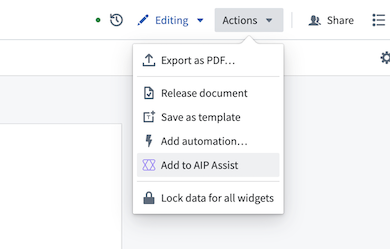
Open the Actions dropdown in the top right corner of your Notepad document and select Add to AIP Assist. This will open a dialog where you can grant AIP Assist access to your document. Note that it may take some time for this to appear as the document becomes discoverable to AIP Assist.
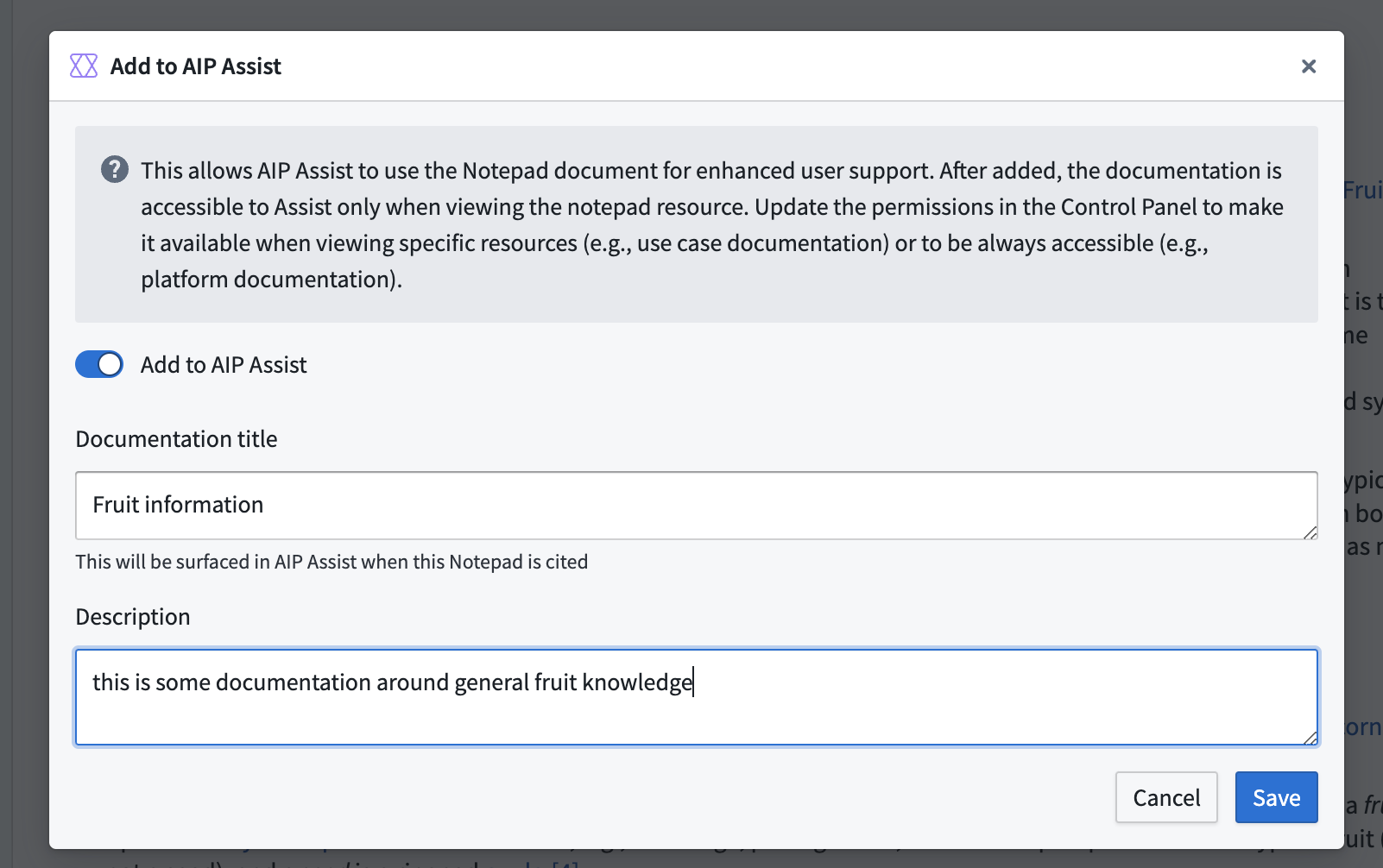
- Toggle the Add to AIP Assist option in the dialog and fill in the Documentation title and Description fields. These fields should be descriptive and specific to the content in your document.
- Select Save and ensure that a success message is displayed, confirming that the document has been ingested into AIP Assist.
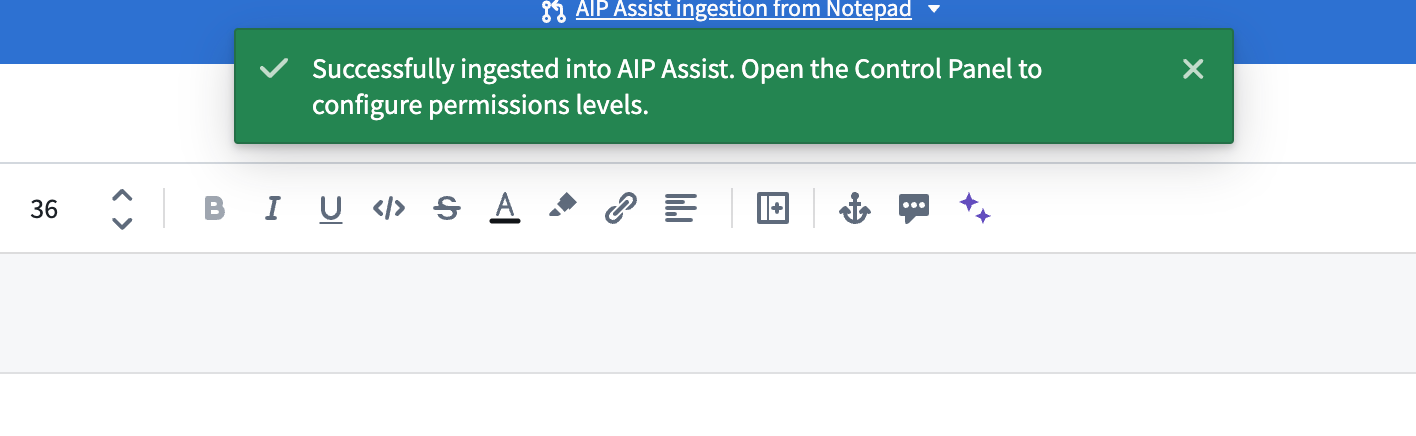
Your content has now been ingested into AIP Assist and will be available in Control Panel for visibility configuration. Ensure that you first configure visibility settings for Notepad documents by user and group, as existing permissions are respected by AIP Assist.
In-platform custom documentation as a content source for AIP Assist
:::callout{theme="neutral"}
To use this feature, you must already have a documentation repository in Code Repositories. Contact your Palantir representative to enable documentation type repositories if this feature is not available for your enrollment, or to whitelist the repository after creation if it is already enabled.
:::

To grant AIP Assist access to your in-platform custom documentation, add content to your documentation repository and opt-in to provide the information to AIP Assist.
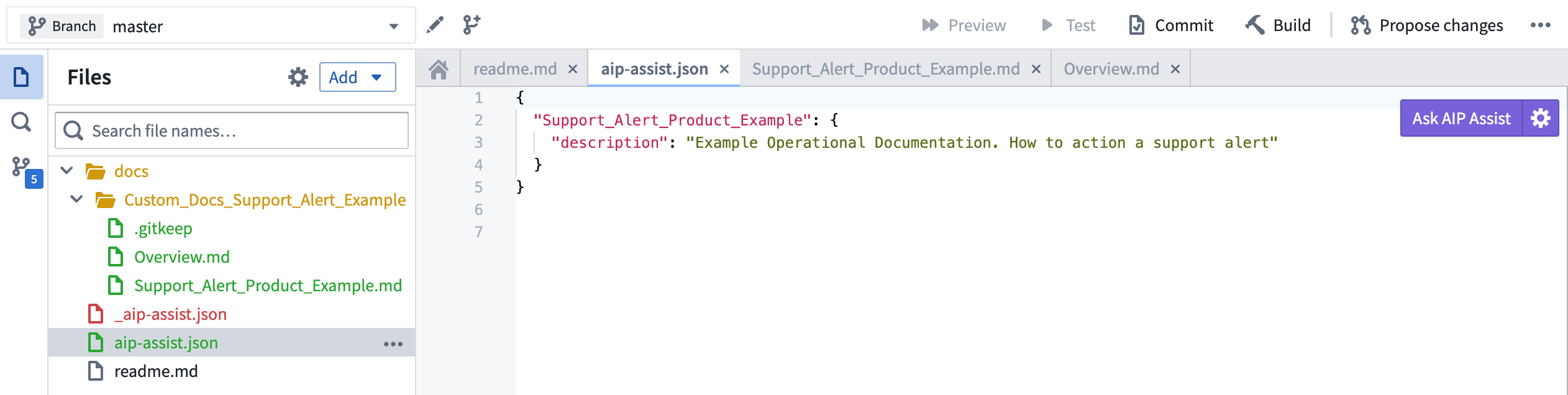
- Make sure you have initialized a documentation repository in Code Repositories. Populate it with content by creating a new folder, or “product” in the docs folder.

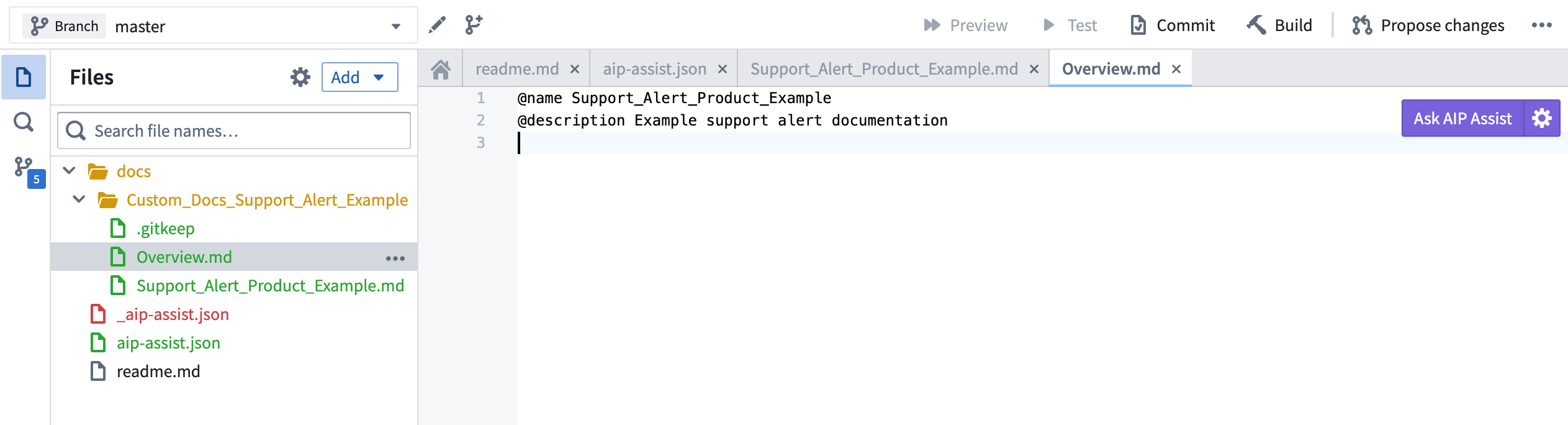
- In a “product” folder (“Custom_Docs_Support_Alert_Example” below), create an
overview.mdfile with@nameand@description, followed by your documentation in Markdown format.
-
When you have finished populating your documentation repository with content, rename the existing
_aip-assist.jsonfile, located in the top-level of the repo, toaip-assist.json. The original file may be regenerated after some time; no action is required. -
In this file, list the "product" folder you want to opt in to AIP Assist along with a description. The description will be provided to AIP Assist so it can assess when to query custom documentation. Ensure that the description is comprehensive and compact. Commit your changes and ensure that the documentation is published as part of the checks.
FAQ
Will content updates in custom documentation or Notepad documents be reflected in the information AIP Assist provides to users?
Every update in the in-platform custom documentation or Notepad documents will automatically propagate and update our databases. No further action is necessary to update content in AIP Assist.
Why can’t I see images in AIP Assist responses?
For now, AIP Assist only displays images from Palantir's public documentation and in-platform custom documentation, but we are working on support for Notepad images as well. In the meantime, we recommend adding descriptions below images. This text will be surfaced in AIP Assist, and in-line citations will be added to answers. When users select a citation, they will be redirected to your content where they can view any relevant images.
Why can't I see the AIP assist button under actions in Notepad?
Currently, you cannot add empty Notepad documents to AIP Assist, so make sure your document includes content. If you have just added content or pasted a large document into Notepad, allow it some time to update, as new resources can take some time to propagate.
Make sure that you have AIP enabled on your enrollment, that your Notepad document is in a project, and that the project has organization Markings.
中文翻译
使用 AIP Assist 注册自定义内容源
通过允许 AIP Assist 从自定义内容源提供针对性指令,可加速工作流程、简化入职流程并实现支持自动化。您可以通过注册内容源,让 AIP Assist 调用平台内自定义文档或 Notepad 文档中的现有内容。具体操作请根据您的内容源类型,参照下方 Notepad 或平台内自定义文档的步骤。完成注册后,还需在控制面板中进行额外配置,才能让 AIP Assist 在回答用户问题时调用您的内容。
大多数情况下,我们推荐使用 Notepad,因为它可通过嵌入 Workshop 等其他应用在 Palantir 平台中灵活使用。更多信息请查阅 Notepad 文档。如果平台内自定义文档更符合您的使用场景但尚未启用,请联系您的 Palantir 代表为您的注册环境启用该功能。
我们强烈建议在编写和更新内容时参考自定义内容源最佳实践。
将 Notepad 作为 AIP Assist 的内容源
:::callout{theme="neutral"} 此功能可能尚未在所有注册环境中可用。如果您在 Notepad 中看不到"添加到 AIP Assist"选项,请联系您的 Palantir 代表确认您的注册环境是否符合条件。 :::
以下步骤详细说明如何将 Notepad 文档添加为 AIP Assist 的自定义内容源:
-
选择 + 新建文档 创建 Notepad 文档,或导航至现有文档。确保您的文档属于某个项目。
-
打开 Notepad 文档右上角的 操作 下拉菜单,选择 添加到 AIP Assist。这将打开一个对话框,您可以在其中授予 AIP Assist 对文档的访问权限。请注意,文档被 AIP Assist 发现可能需要一些时间。
- 在对话框中切换 添加到 AIP Assist 选项,并填写 文档标题 和 描述 字段。这些字段应具有描述性,并具体说明文档内容。
- 选择 保存,确保显示成功消息,确认文档已导入 AIP Assist。
您的内容现已导入 AIP Assist,并将在控制面板中用于可见性配置。请务必先按用户和组配置 Notepad 文档的可见性设置,因为 AIP Assist 会遵循现有权限。
将平台内自定义文档作为 AIP Assist 的内容源
:::callout{theme="neutral"}
要使用此功能,您必须在代码仓库中已有文档仓库。如果您的注册环境未启用此功能,请联系您的 Palantir 代表启用 documentation 类型的仓库;如果已启用,请在创建后对仓库进行白名单授权。
:::
要授予 AIP Assist 对平台内自定义文档的访问权限,请向文档仓库添加内容,并选择将信息提供给 AIP Assist。
- 确保已在代码仓库中初始化文档仓库。通过在 docs 文件夹中创建新文件夹(即"产品")来填充内容。
- 在"产品"文件夹(如下例中的"Custom_Docs_Support_Alert_Example")中,创建一个
overview.md文件,包含@name和@description,后跟 Markdown 格式的文档内容。
-
完成文档仓库内容填充后,将仓库根目录下的现有
_aip-assist.json文件重命名为aip-assist.json。原始文件可能会在一段时间后重新生成,无需额外操作。 -
在该文件中,列出要加入 AIP Assist 的"产品"文件夹及其描述。该描述将提供给 AIP Assist,以便其判断何时查询自定义文档。请确保描述全面且简洁。提交更改,并确保文档在检查中发布。
常见问题解答
自定义文档或 Notepad 文档的内容更新是否会反映在 AIP Assist 提供给用户的信息中?
平台内自定义文档或 Notepad 文档的每次更新都会自动传播并更新我们的数据库。无需额外操作即可更新 AIP Assist 中的内容。
为什么在 AIP Assist 回复中看不到图片?
目前,AIP Assist 仅显示 Palantir 公共文档和平台内自定义文档中的图片,但我们正在努力支持 Notepad 图片。在此期间,建议在图片下方添加描述。这些文本将显示在 AIP Assist 中,并在回答中添加行内引用。当用户选择引用时,将被重定向到您的内容,在那里可以查看相关图片。
为什么在 Notepad 的操作下看不到 AIP Assist 按钮?
目前,您无法将空白的 Notepad 文档添加到 AIP Assist,因此请确保文档包含内容。如果您刚刚添加内容或将大型文档粘贴到 Notepad 中,请等待一段时间让其更新,因为新资源可能需要一些时间才能传播。
请确保您的注册环境已启用 AIP,Notepad 文档位于项目中,并且该项目具有组织标记。