Getting started(入门指南)
To get started, create an Autopilot workbench from one of the following entry points:
- Directly in Autopilot: Open Autopilot from the application portal and select object types (optionally selecting the related automations to import), or select automations directly.
- From an automation: On the overview page for an automation, select Open in Autopilot in the Actions menu.
Set up your Autopilot workbench
Autopilot automatically generates an initial workbench for you based on the starting object types or automations you have selected. Alerts at the top of your workbench guide you through steps to configure a complete system view.
Workbench configuration
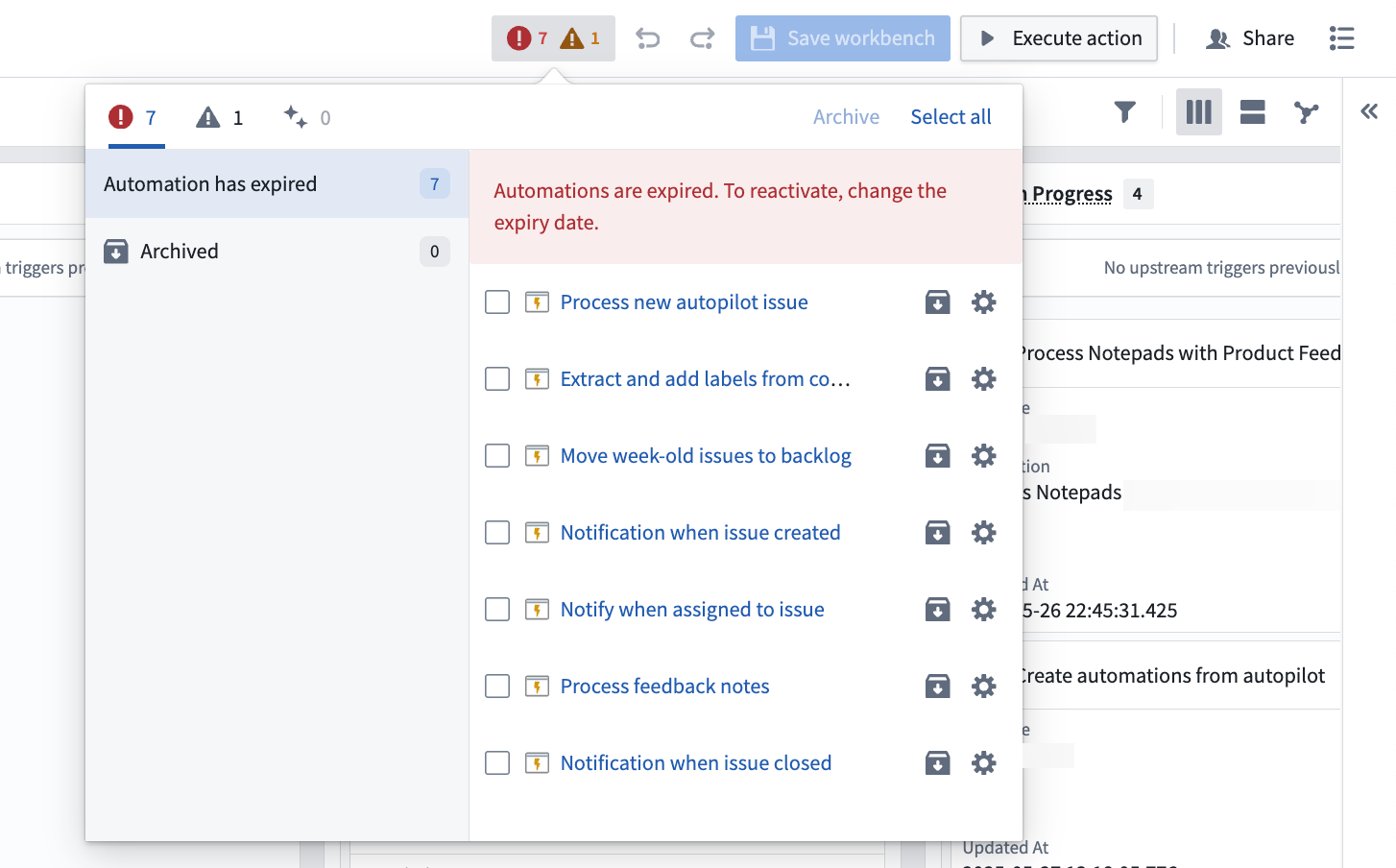
- Review and add automations: When you open your workbench, Autopilot will alert you to automations related to your workflow that are not yet included in your workbench. Follow the prompts to add relevant automations for a complete system view.
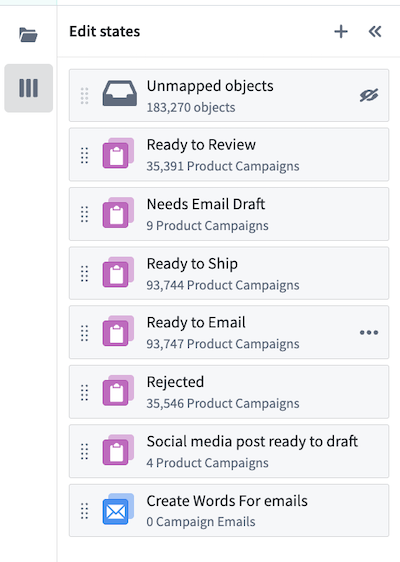
- Customize states: Autopilot infers and automatically generates states (columns in your Kanban board) based on automations in your workbench. You can also add and manually define your own states.
- In the States sidebar, drag states to reorganize the Kanban board.
- Enable project-scoped mode for full visibility: For the most comprehensive view of your automation system, enable project-scoped mode on your automations. This setting allows all workbench users to view automation execution events and discover dependencies between automations.
:::callout{theme="warning"} Project-scoped mode expands permissions so that automation relationships are visible to all users in the project. Autopilot may not be able to infer relationships for user-scoped automations owned by another user. :::
- Enable edit history tracking for object types: Enable edit history for your object types to track changes and view detailed object histories within Autopilot.
- Ensure automations have run at least once: Autopilot relies on historical executions to discover relationships between automations; if an automation has never run or the automation is scheduled, Autopilot cannot infer the dependent automations in a process.
- Enable trace logs per resource: Trace logs show detailed execution for each automation run. Contact your enrollment administrator to enable logs.
:::callout{theme="neutral"}
For more granular logs, consider using console in your TypeScript functions or import logging in your Python functions.
:::
- Configure object card properties and object previews: Define which object properties appear on Kanban cards, set conditional formatting for properties, and customize object views in Ontology Manager. Autopilot will render the panel object view for an object in the sidebar, when available. View the Autopilot integrations documentation for more details on working with Ontology Manager.
Understand alerts
Autopilot continually analyzes your workflow and displays alerts for recommended configuration steps. These alerts help you:
- Complete your workflow view: Identify and add automations related to your workflow that are not yet included in your workbench.
- Improve observability: Enable settings like project-scoped mode, edit history tracking, and trace logs that enhance Autopilot's ability to show execution details and relationships.
- Resolve configuration issues: Address any missing permissions or settings that prevent Autopilot from displaying complete workflow information.
中文翻译
入门指南
要开始使用,请通过以下任一入口点创建 Autopilot 工作台:
- 直接在 Autopilot 中: 从应用门户打开 Autopilot,选择对象类型(可选择导入相关自动化),或直接选择自动化。
- 从自动化: 在自动化的概览页面上,从操作菜单中选择在 Autopilot 中打开。
设置 Autopilot 工作台
Autopilot 会根据您选择的起始对象类型或自动化,自动为您生成初始工作台。工作台顶部的警报会引导您完成配置完整系统视图的步骤。
工作台配置
- 审查并添加自动化: 打开工作台时,Autopilot 会提醒您工作流中尚未包含的自动化。按照提示添加相关自动化,以获得完整的系统视图。
- 自定义状态: Autopilot 会根据工作台中的自动化推断并自动生成状态(看板中的列)。您也可以添加并手动定义自己的状态。
- 在状态侧边栏中,拖拽状态以重新组织看板。
- 启用项目范围模式以获得完整可见性: 为获得自动化系统最全面的视图,请为您的自动化启用项目范围模式。此设置允许所有工作台用户查看自动化执行事件并发现自动化之间的依赖关系。
:::callout{theme="warning"} 项目范围模式会扩展权限,使项目中的所有用户都能看到自动化之间的关系。对于其他用户拥有的用户范围自动化,Autopilot 可能无法推断其关系。 :::
- 为对象类型启用编辑历史记录追踪: 为对象类型启用编辑历史记录,以在 Autopilot 中追踪更改并查看详细的对象历史。
- 确保自动化至少运行过一次: Autopilot 依赖历史执行记录来发现自动化之间的关系;如果自动化从未运行过或为定时调度,Autopilot 将无法推断流程中的依赖自动化。
- 为每个资源启用追踪日志: 追踪日志显示每次自动化运行的详细执行情况。请联系您的注册管理员以启用日志。
:::callout{theme="neutral"}
如需更细粒度的日志,请考虑在 TypeScript 函数中使用 console,或在 Python 函数中使用 import logging。
:::
- 配置对象卡片属性和对象预览: 定义哪些对象属性显示在看板卡片上,设置属性的条件格式,并在本体论管理器(Ontology Manager)中自定义对象视图。当可用时,Autopilot 会在侧边栏中渲染对象的面板对象视图。有关使用本体论管理器(Ontology Manager)的更多详情,请查看 Autopilot 集成文档。
理解警报
Autopilot 会持续分析您的工作流,并显示推荐配置步骤的警报。这些警报帮助您:
- 完善工作流视图: 识别并添加工作流中尚未包含的自动化。
- 提高可观测性: 启用项目范围模式、编辑历史记录追踪和追踪日志等设置,增强 Autopilot 显示执行细节和关系的能力。
- 解决配置问题: 处理任何缺失的权限或设置,这些设置会阻止 Autopilot 显示完整的工作流信息。