Kanban board view(看板视图)
The Kanban board view displays your automation workflow as a state machine, where each column represents a state and each card represents an individual object in that state. This view helps you understand the current distribution of objects across your workflow and quickly identify bottlenecks or objects requiring attention.
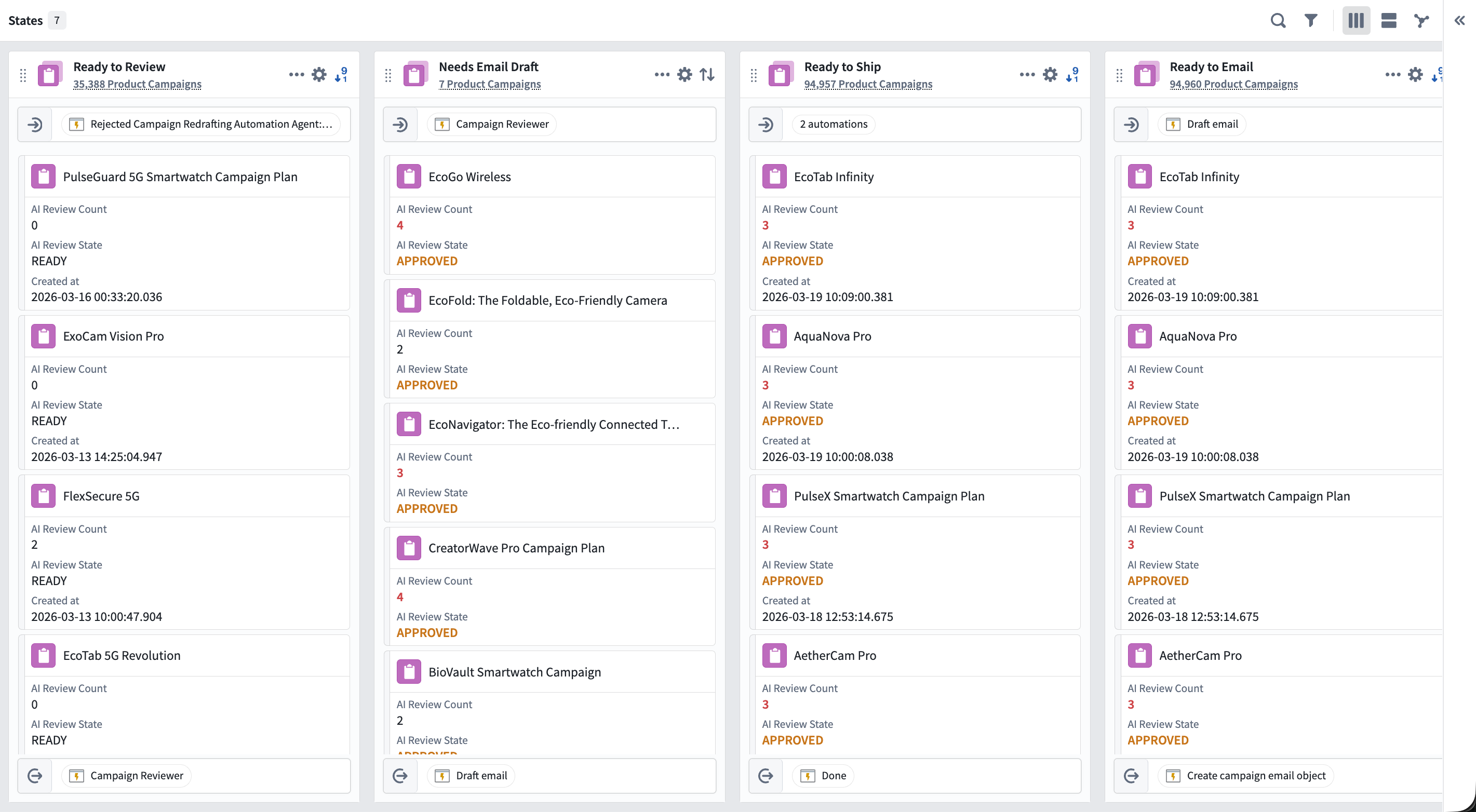
States and columns
Each column in the Kanban board represents a state in your workflow. States are automatically inferred from your automations or can be manually defined. In the States sidebar, you can add, delete, configure, and reorder states. To add a state directly from the board, scroll to the far right side and select + Add state.
Configure states
Choose a state in the States sidebar or select the cog button in the top right corner of a column. Learn more about configuring states.
Object views
Each card in a Kanban column represents a single object and displays its title, configurable properties (defined in Ontology Manager), and visual indicators for status and activity. You can configure which properties appear on cards and set conditional formatting in Ontology Manager. Autopilot renders the panel object view for an object in the sidebar when available.
Inspect objects in the side panel
Select any object in the workbench to open a rich detail view in the right side panel:
- History: View the complete edit history for the object, including:
- Current state(s)
- Properties changed over time
- Who or what made changes (an automation, Workshop application, or user action), including the object that triggered the action
-
Links to automation events for automation-driven changes
-
Object preview: Full object preview and metadata.
Customize visible properties on your workbench
The visible properties editor allows you to control which object properties appear on Kanban cards in the Autopilot workbench. By default, cards display the prominent properties defined in Ontology Manager. The editor lets you override that default per state, allowing you to control what information is surfaced at each stage of a workflow.
To configure properties for a state:
- Navigate to the settings for the state you want to configure and select the Display tab.
- Select Use custom properties to add, remove, or reorder the properties to display on Kanban cards for that state.
Changes are saved as part of the workbench configuration and persist across sessions. Selecting Use prominent properties restores the Ontology Manager defaults for that state.
Take action on objects
From the Kanban board, you can:
- Filter to linked objects: Right-click an object and select to filter the workbench to display only objects linked to the selected object.
- Retry automations: Manually trigger automation retries on specific objects. To manually trigger bulk automations, filter to your target set, then select the options menu in the top right corner of the state. Choose Execute automation for all objects, then select the automation you want to retry.
- Copy values: Quickly copy the object title or other prominent properties.
Liveness indicators
When automations are actively processing, the Kanban board shows real-time indicators: a spinning icon appears in the column header next to the executing automation, and an animated indicator appears on the left edge of any card currently being processed.
中文翻译
看板视图
看板视图(Kanban board view)将您的自动化工作流以状态机形式呈现,其中每一列代表一个状态,每张卡片代表该状态下的单个对象。此视图有助于您了解对象在工作流中的当前分布情况,并快速识别瓶颈或需要关注的对象。
状态与列
看板中的每一列代表工作流中的一个状态。状态可从您的自动化中自动推断,也可手动定义。在状态侧边栏中,您可以添加、删除、配置和重新排序状态。如需直接从看板添加状态,请滚动至最右侧并选择+ 添加状态。
配置状态
在状态侧边栏中选择一个状态,或点击列右上角的齿轮按钮。详细了解如何配置状态。
对象视图
看板列中的每张卡片代表一个对象,并显示其标题、可配置属性(在Ontology Manager中定义)以及状态和活动的视觉指示器。您可以在Ontology Manager中配置卡片上显示的属性并设置条件格式。当侧边栏中有可用内容时,Autopilot会渲染该对象的面板对象视图(panel object view)。
在侧面板中检查对象
在工作台中选择任意对象,即可在右侧面板中打开详细的视图:
- 历史记录: 查看对象的完整编辑历史,包括:
- 当前状态
- 随时间变化的属性
- 变更的发起方或发起内容(自动化、Workshop应用或用户操作),包括触发该操作的对象
-
指向自动化事件的链接(针对自动化驱动的变更)
-
对象预览: 完整的对象预览及元数据。
自定义工作台上显示的属性
可见属性编辑器(visible properties editor)允许您控制Autopilot工作台看板卡片上显示的对象属性。默认情况下,卡片显示Ontology Manager中定义的突出属性。该编辑器允许您按状态覆盖默认设置,从而控制工作流每个阶段所呈现的信息。
为状态配置属性的步骤:
- 导航至要配置的状态的设置,选择显示选项卡。
- 选择使用自定义属性,以添加、删除或重新排序该状态下看板卡片上显示的属性。
更改将作为工作台配置的一部分保存,并在会话间持续生效。 选择使用突出属性可恢复该状态的Ontology Manager默认设置。
对对象执行操作
在看板中,您可以:
- 筛选至关联对象: 右键单击一个对象,选择筛选工作台,仅显示与所选对象关联的对象。
- 重试自动化: 手动触发特定对象上的自动化重试。如需手动触发批量自动化,请筛选至目标集合,然后选择状态右上角的选项菜单。选择对所有对象执行自动化,再选择要重试的自动化。
- 复制值: 快速复制对象标题或其他突出属性。
活跃指示器
当自动化正在处理时,看板会显示实时指示器:执行中的自动化所在列标题旁会出现旋转图标,正在处理的卡片左侧边缘会出现动画指示器。