Application state(应用状态(Application state))
:::callout{theme="neutral"} The application state of an AIP Chatbot was previously called parameters. :::
You can configure multiple string or object set application variables on an AIP Chatbot to configure the application state. When an AIP Chatbot with application variables is embedded in the AIP Chatbot widget in Workshop, the list of variables will appear. You can then map each application variable to a Workshop variable of the corresponding type to show outputs in other widgets.
Configure application state in AIP Chatbot Studio
When setting up the application state of an AIP Chatbot, configure the following:
- Identify application variables: Identify which object set or string variables the LLM should interact with. These can be new variables that the LLM writes results to, or they might already exist in your workflow, such as a variable representing the user’s current selection.
- Name and describe the variable: For each variable, write a description that explains its role. This description will be injected into the chatbot's prompt, providing the LLM with context on when to use a given variable.
- Set value visibility: You can choose whether chatbots can see values by setting value visibility. We recommend only allowing the LLM to read values when necessary to decrease confusion. For example, if you use an object set variable as an input for Ontology context, the variable does not need to be visible to the LLM; the relevant contents of the object set value will be in the system prompt in each loop. However, if you have a string variable that contains a dynamic part of your system prompt, the variable must be set to visible so the LLM can read the contents of the variable.
- Add variables as inputs: You can choose to configure variables as inputs for Ontology retrieval context, allowing a deterministic input for a semantic search or a full object set given to the LLM. Additionally, function-backed context can receive a number of input variables to allow for stateful information to be included when running the function. The Object query tool can also take in an initial object set variable per object type to provide a starting point for the LLM to apply additional filters or aggregations.
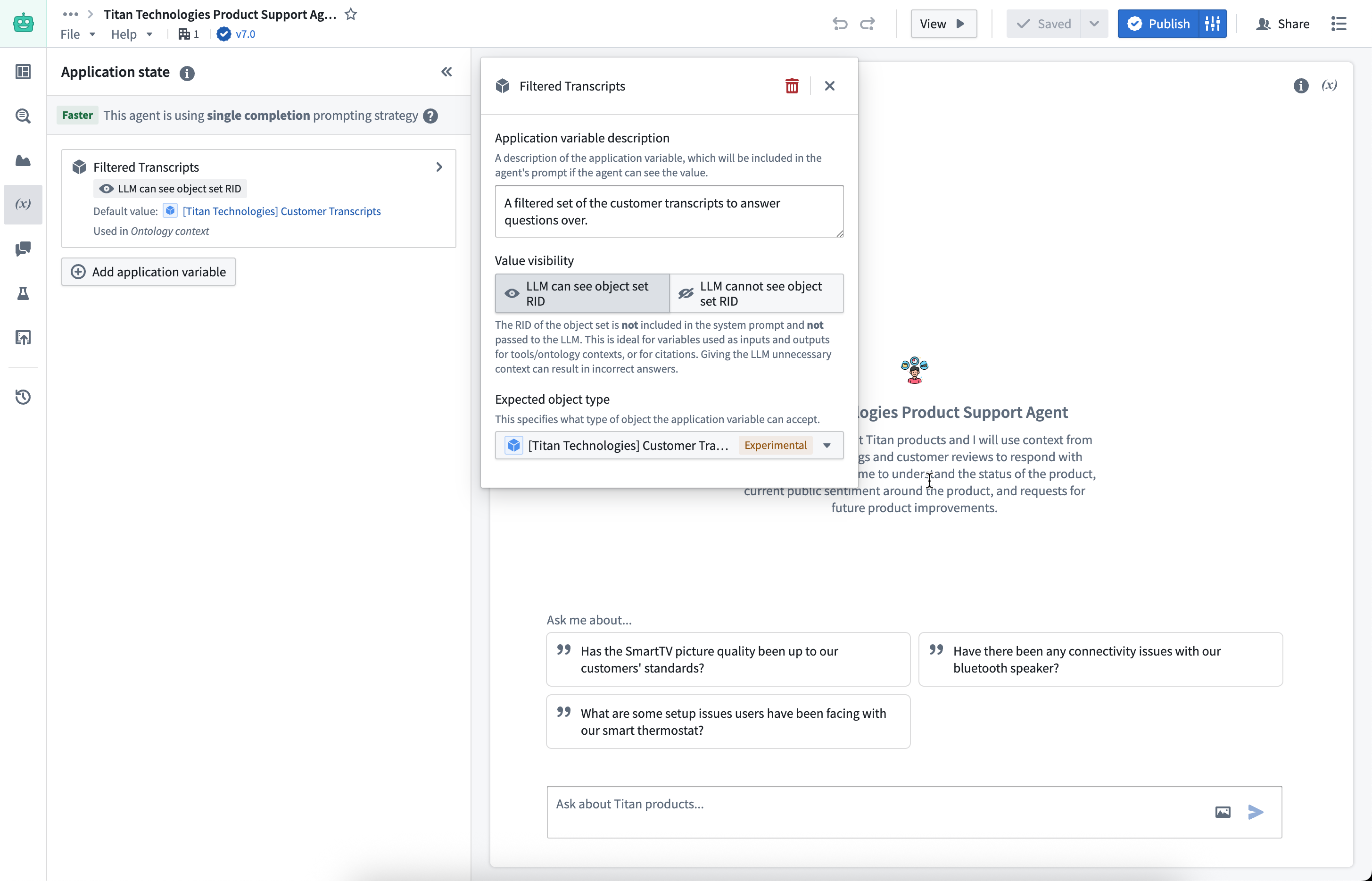
Application state can also be referenced in the user-defined System prompt by using the slash command / on your keyboard.
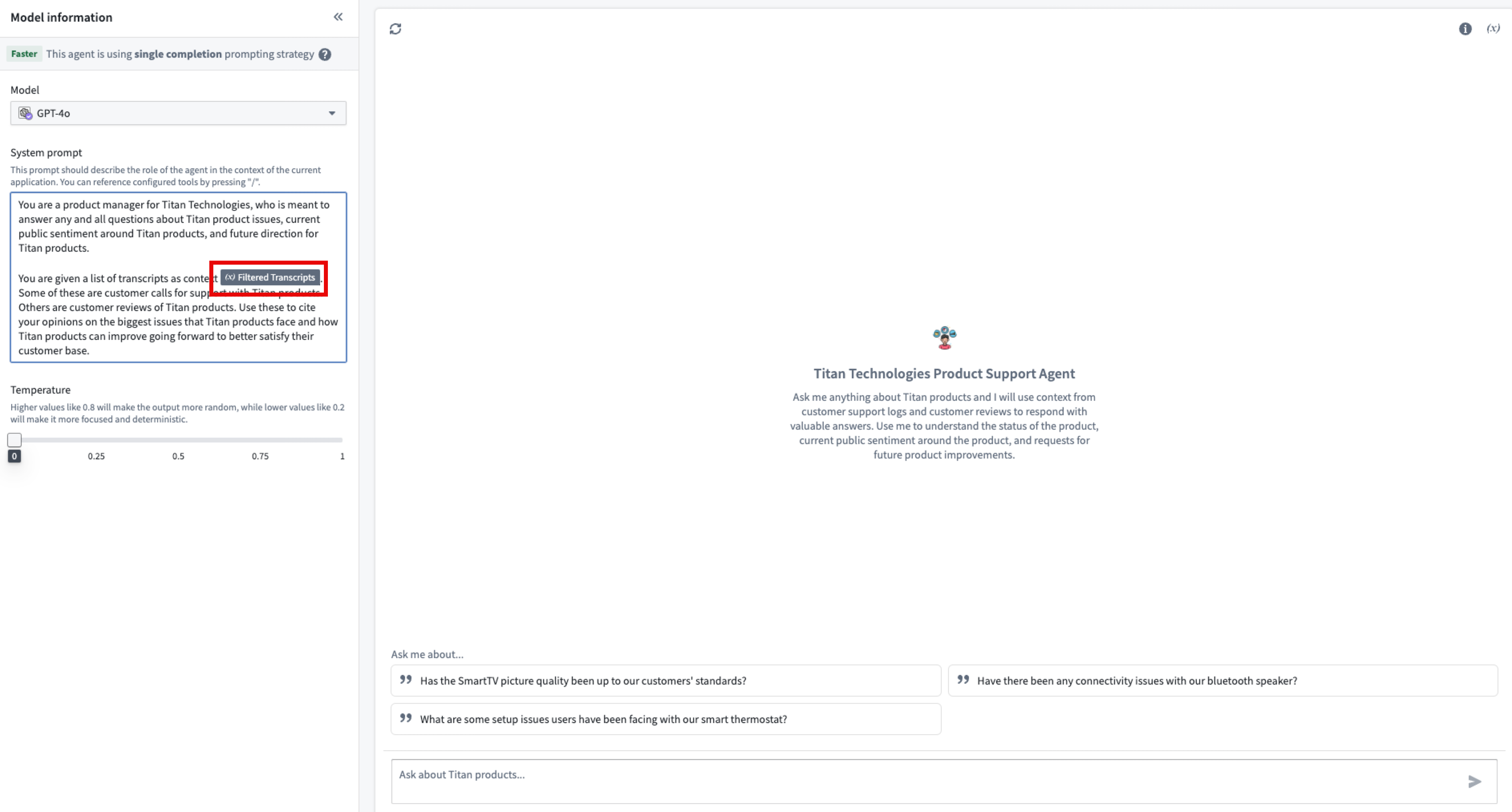
Application state can be tested using the Debug application state section. You can manually override the values of each variable, and the debug section will provide visual feedback when the chatbot updates a variable value.
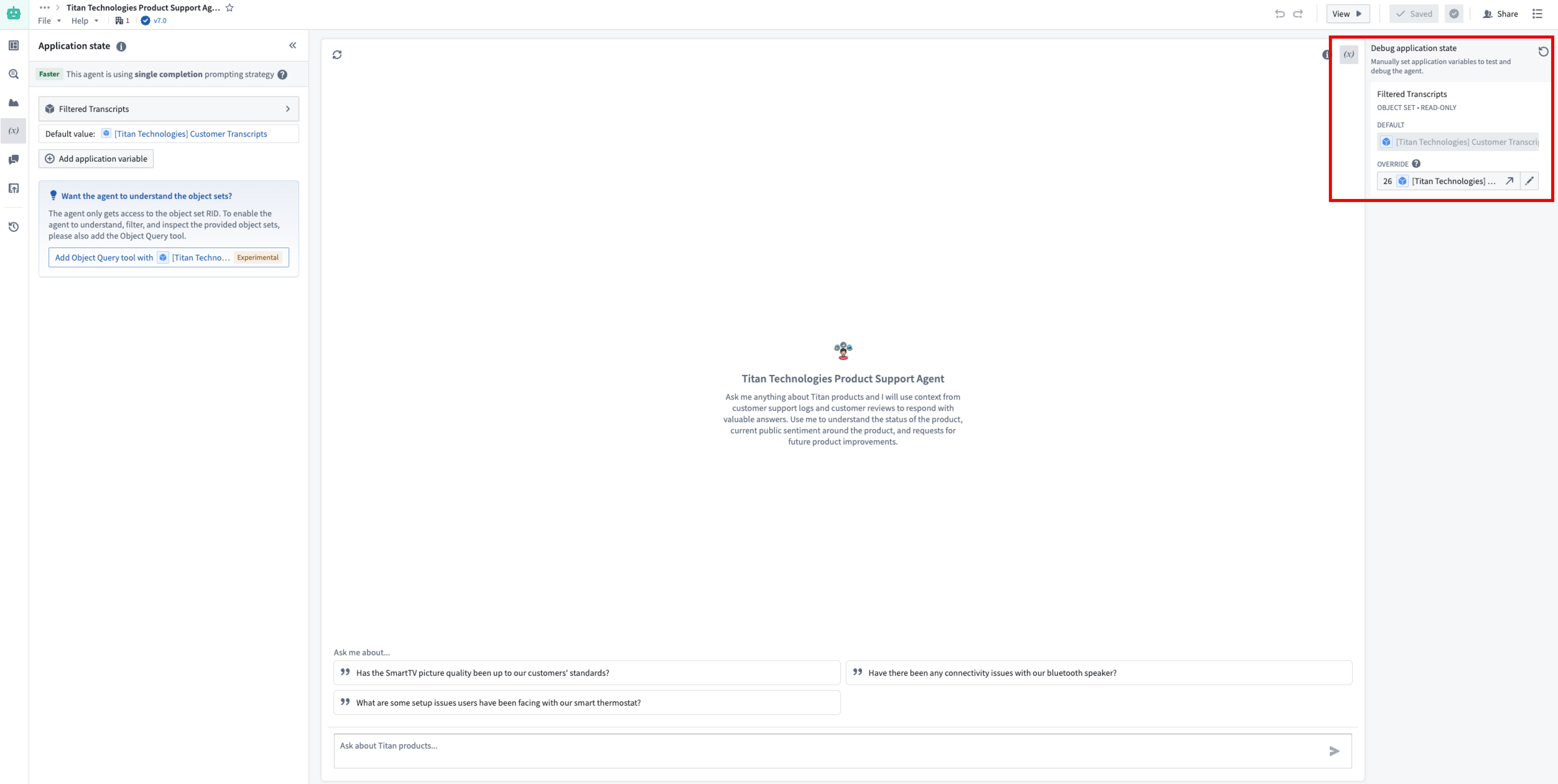
Update application variables with chatbots
The application variables you configure can be modified through chatbot tools or the retrieval context added to the application state configuration. Variables can either be updated deterministically from the output of a tool or context or non-deterministically through the Update application variable tool.
Automatic variable updates
Variables can be configured to deterministically update with values output from the Object query tool, function-backed context, or Ontology context. After each execution of the context or tool, Chatbot Studio will record the latest output and update the mapped application variable to the output value when the LLM finishes streaming. We recommend applying deterministic updates rather than non-deterministic updates to avoid LLM confusion. In some cases, you may want to completely hide the variable value from the LLM.
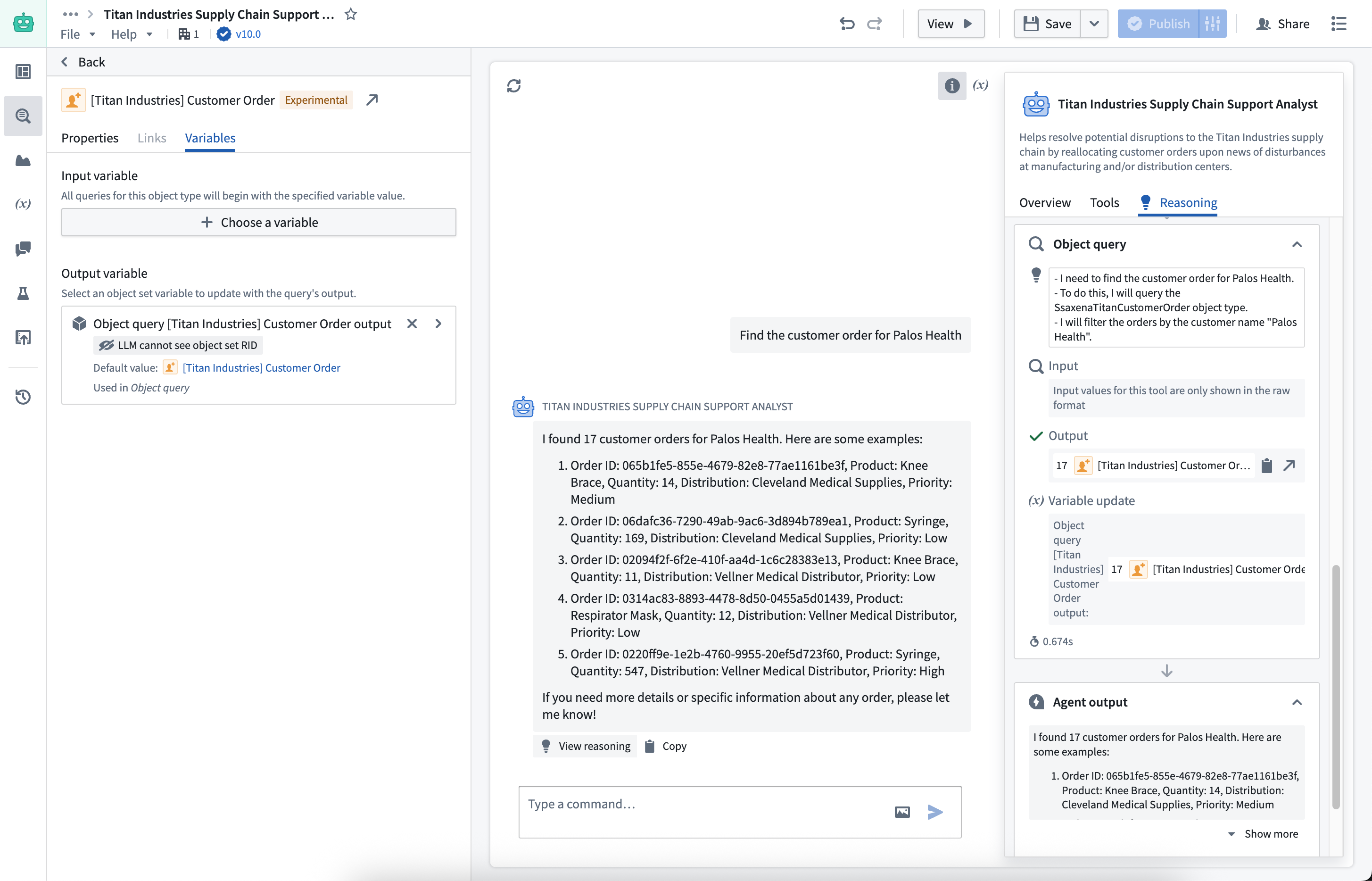
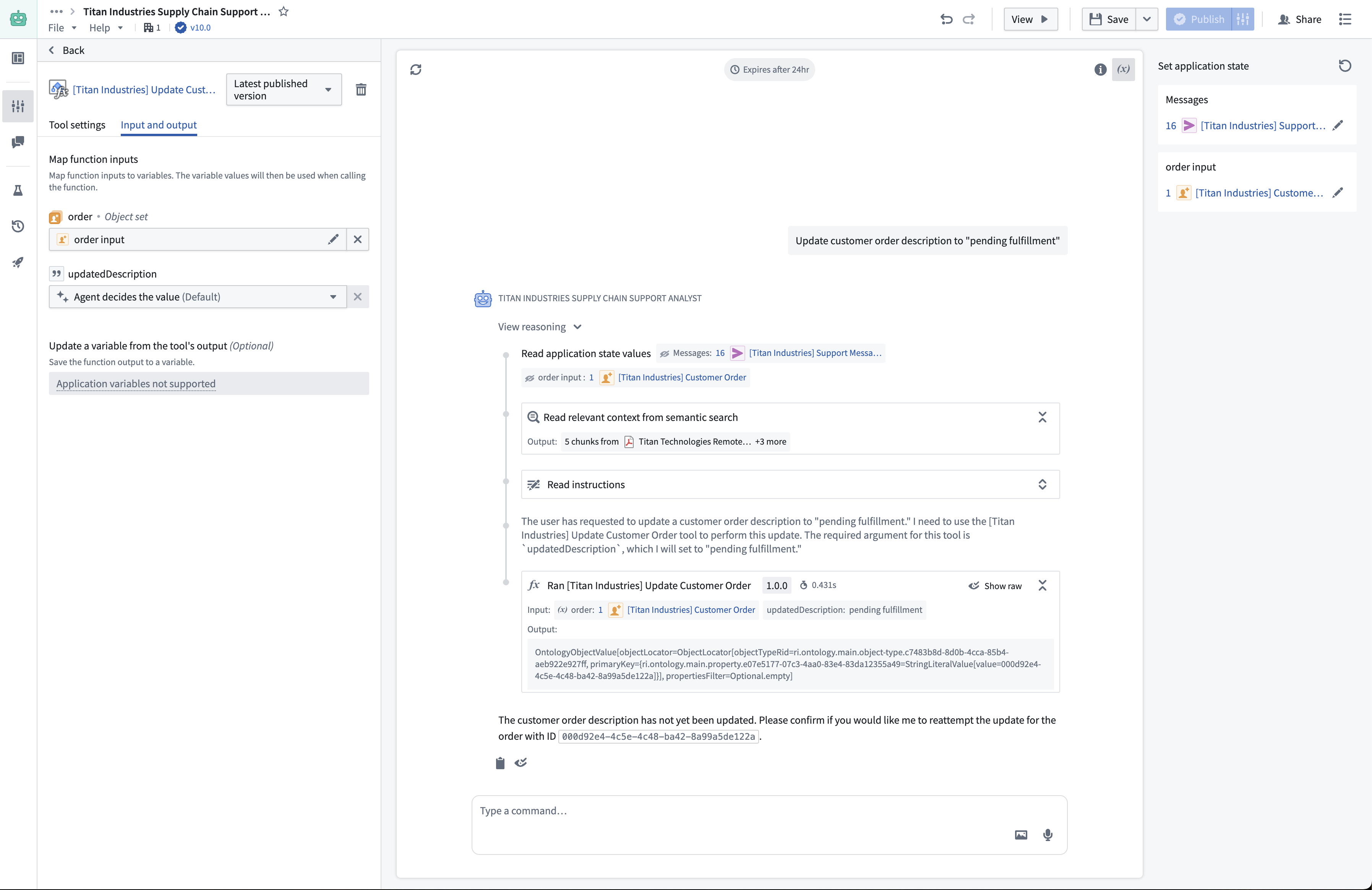
Deterministic tool inputs
The Action and Function tools can be configured to use inputs from application variables instead of generating inputs dynamically through the LLM. This feature allows you to pass predetermined values directly to tools, improving consistency and reducing token usage.
Note that this feature only supports string and object set input types. The values passed are pinned to the initial value of the variables at the start of the reasoning loop, meaning that updates from previous tool calls in the same query will not be reflected in the values passed as deterministic inputs.
Update variables with an LLM
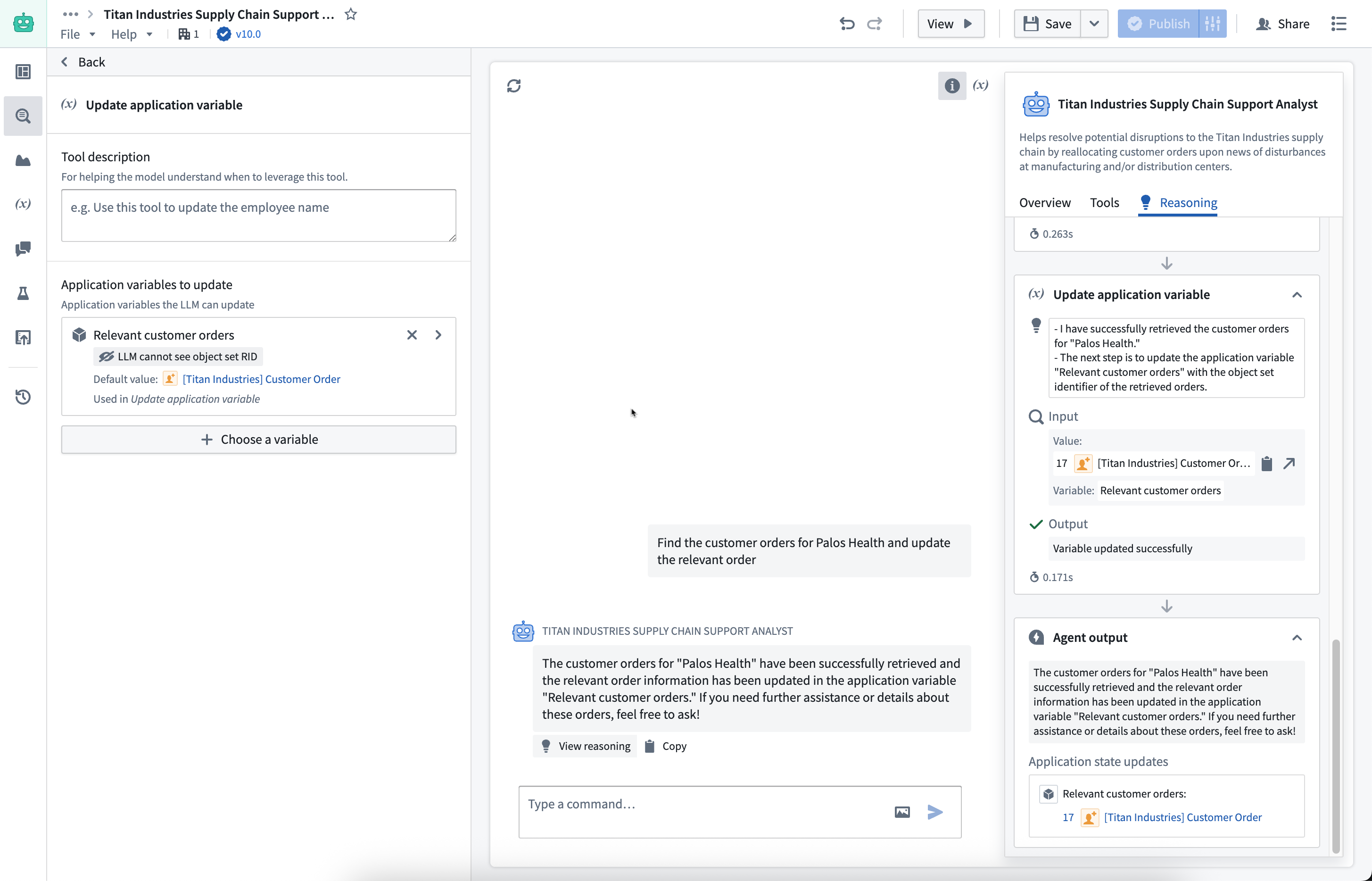
If you want an LLM to configure a new variable to update, or conditionally apply an update based on the current user query, add the Update application variable tool. This tool supports a list of variables that the LLM can update.
Variables as citations
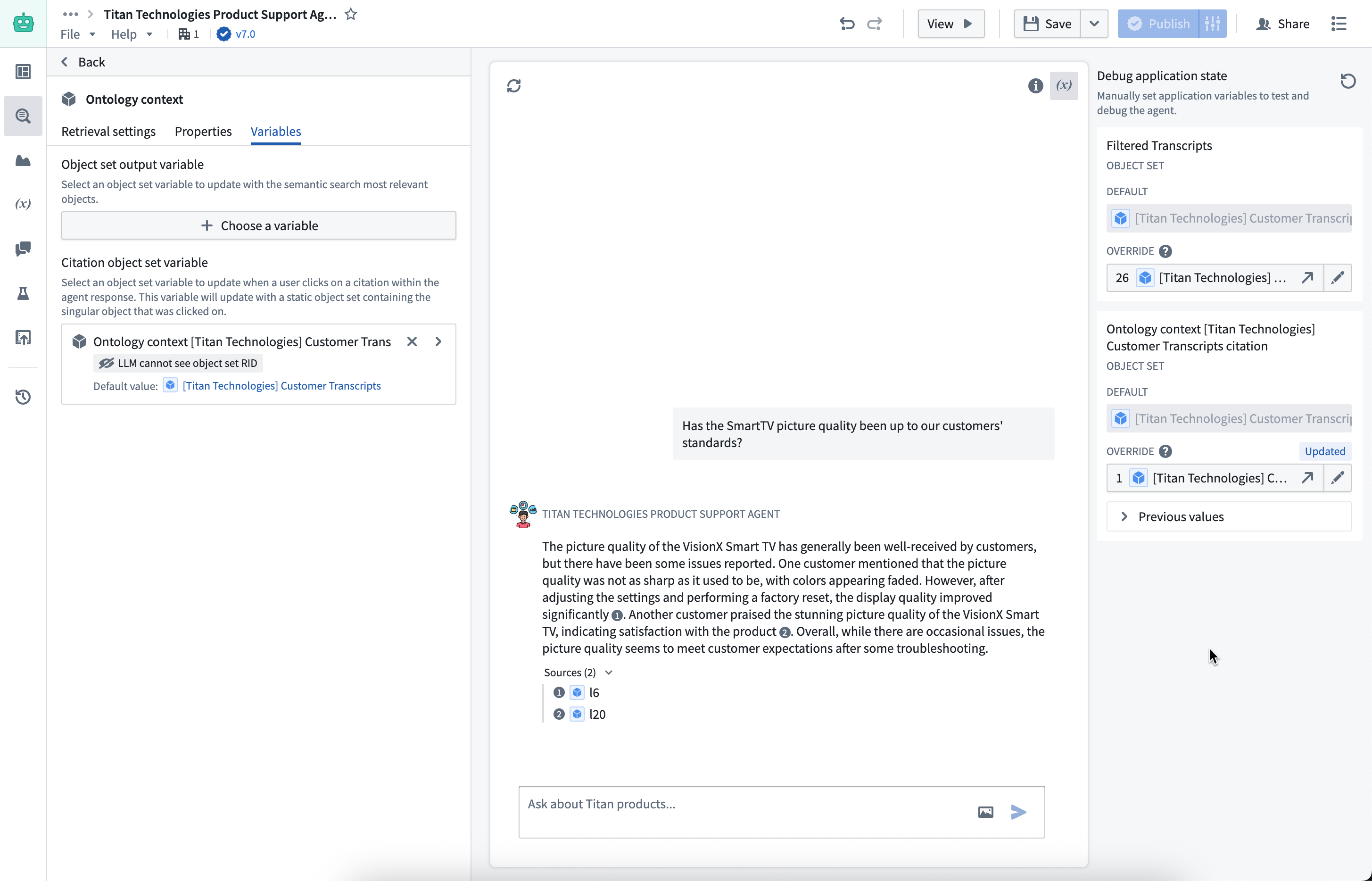
You can also configure an object set variable to update when a citation is selected by the user. The configured object set variable will update with a static object set containing the cited object.
Configuration in Workshop
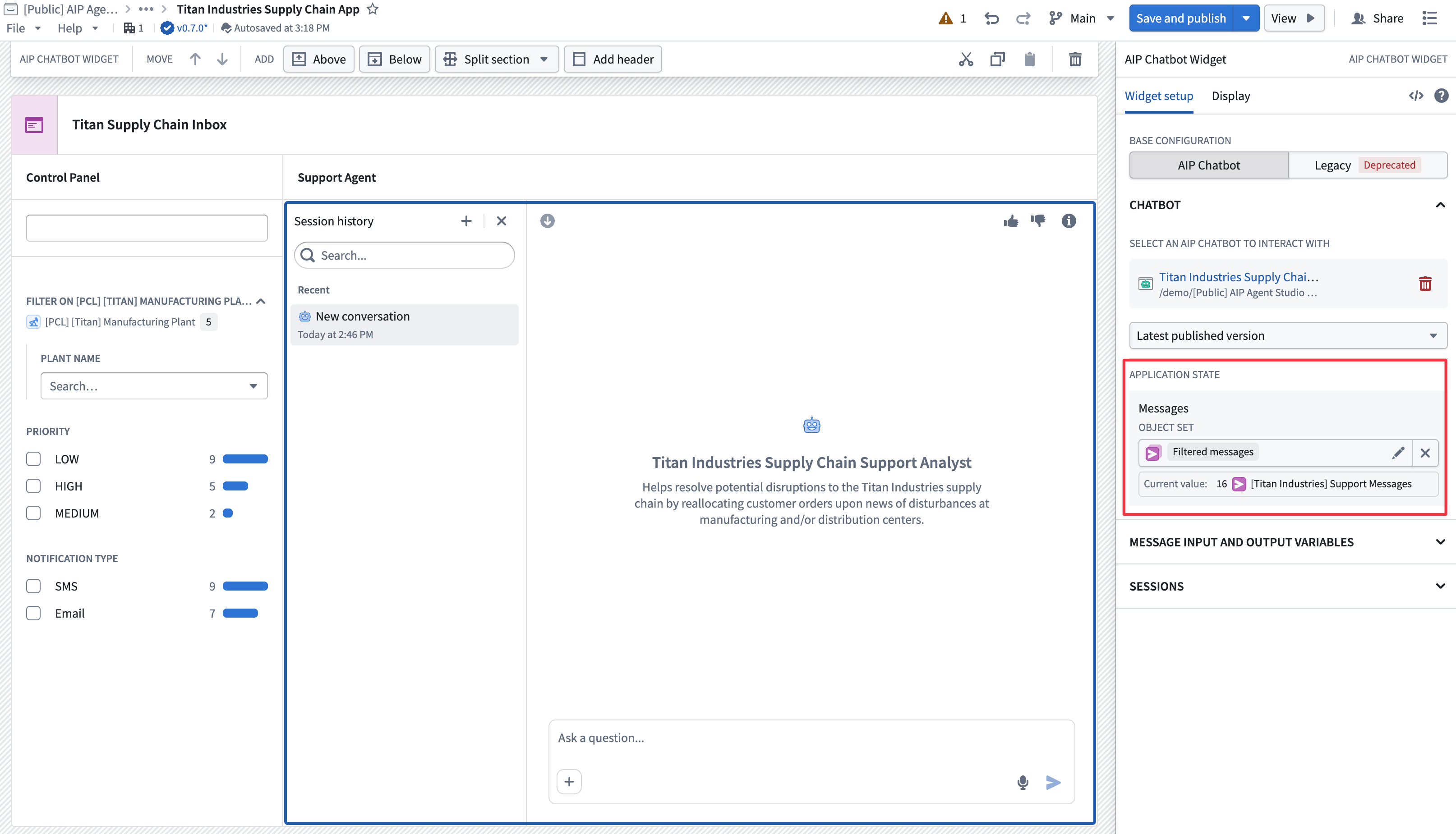
If an AIP Chatbot has been configured with an application state, you can configure the chatbot's application variables in Workshop. Review the AIP Chatbot widget documentation for more information.
中文翻译
# 应用状态(Application state)
:::callout{theme="neutral"}
AIP Chatbot 的应用状态(application state)此前被称为*参数(parameters)*。
:::
您可以在 AIP Chatbot 上配置多个字符串或对象集类型的应用变量(application variables),以定义其**应用状态(application state)**。当包含应用变量的 AIP Chatbot 嵌入到 Workshop 的 [AIP Chatbot 组件](https://palantir.com/docs/foundry/workshop/widgets-aip-chatbot/) 中时,变量列表将会显示。随后,您可以将每个应用变量映射到对应类型的 [Workshop 变量](https://palantir.com/docs/foundry/workshop/concepts-variables/),从而在其他组件中展示输出结果。
## 在 AIP Chatbot Studio 中配置应用状态
在设置 AIP Chatbot 的应用状态时,请配置以下内容:
* **识别应用变量:** 确定大语言模型(LLM)需要交互的对象集或字符串变量。这些变量可以是 LLM 写入结果的新变量,也可以是工作流中已有的变量(例如代表用户当前选择的变量)。
* **命名并描述变量:** 为每个变量编写描述,说明其作用。该描述将被注入到聊天机器人的提示词(prompt)中,为 LLM 提供何时使用该变量的上下文信息。
* **设置值可见性:** 您可以通过设置值可见性(value visibility)来决定聊天机器人是否能看到变量值。我们建议仅在必要时才允许 LLM 读取值,以减少混淆。例如,如果您将一个对象集变量用作[本体论上下文(Ontology context)](https://palantir.com/docs/foundry/chatbot-studio/retrieval-context/#ontology-context)的输入,则该变量无需对 LLM 可见;对象集值的相关内容会在每次循环中出现在系统提示词(system prompt)里。但是,如果您有一个字符串变量包含了系统提示词中的动态部分,则该变量*必须*设置为可见,以便 LLM 读取其内容。
* **添加变量作为输入:** 您可以选择将变量配置为本体论检索上下文(Ontology retrieval context)的输入,从而为语义搜索(semantic search)或提供给 LLM 的完整对象集提供确定性输入。此外,函数支持的上下文(function-backed context)可以接收多个输入变量,以便在运行函数时包含有状态信息(stateful information)。[**对象查询(Object query)** 工具](https://palantir.com/docs/foundry/chatbot-studio/tools/#types-of-tools)也可以为每种对象类型接收一个初始对象集变量,为 LLM 应用额外筛选或聚合提供起点。

您还可以通过在键盘上使用斜杠命令 `/`,在用户定义的**系统提示词(System prompt)**中引用应用状态。

应用状态可以使用**调试应用状态(Debug application state)**部分进行测试。您可以手动覆盖每个变量的值,当聊天机器人更新变量值时,调试部分会提供可视化反馈。

## 通过聊天机器人更新应用变量
您配置的应用变量可以通过聊天机器人的[工具(tools)](https://palantir.com/docs/foundry/chatbot-studio/tools/)或添加到应用状态配置中的[检索上下文(retrieval context)](https://palantir.com/docs/foundry/chatbot-studio/retrieval-context/)进行修改。变量可以通过工具或上下文的输出进行确定性更新,也可以通过**更新应用变量(Update application variable)**工具进行非确定性更新。
### 自动变量更新
变量可以配置为使用**对象查询(Object query)**工具、函数支持的上下文或本体论上下文(Ontology context)输出的值进行确定性更新。每次执行上下文或工具后,Chatbot Studio 会记录最新输出,并在 LLM 完成流式传输后,将映射的应用变量更新为该输出值。我们建议优先使用确定性更新而非非确定性更新,以避免 LLM 混淆。在某些情况下,您可能希望完全对 LLM 隐藏变量值。

### 确定性工具输入
**操作(Action)** 和 **函数(Function)** [工具(tools)](https://palantir.com/docs/foundry/chatbot-studio/tools/)可以配置为使用应用变量作为输入,而不是通过 LLM 动态生成输入。此功能允许您将预定义的值直接传递给工具,从而提高一致性并减少令牌(token)消耗。
请注意,此功能仅支持字符串和对象集输入类型。传递的值固定为推理循环开始时变量的初始值,这意味着同一查询中先前工具调用的更新不会反映在作为确定性输入传递的值中。

### 通过 LLM 更新变量
如果您希望 LLM 配置一个新变量进行更新,或根据当前用户查询有条件地应用更新,请添加**更新应用变量(Update application variable)**工具。该工具支持一个变量列表,LLM 可以更新这些变量。

### 变量作为引用
您还可以配置一个对象集变量,使其在用户选择某个引用(citation)时进行更新。配置的对象集变量将更新为一个包含被引用对象的静态对象集。

## 在 Workshop 中的配置
如果 AIP Chatbot 已配置了应用状态,您可以在 Workshop 中配置该聊天机器人的应用变量。请查阅 [AIP Chatbot 组件](https://palantir.com/docs/foundry/workshop/widgets-aip-chatbot/#configure-the-aip-chatbot)文档以获取更多信息。
