Chatbots as Functions(将聊天机器人作为函数发布)
AIP Chatbots can be published as Functions, allowing them to be used anywhere in the platform where Functions can be executed. For example, builders can publish AIP Chatbots as Functions to evaluate them in AIP Evals, to automate chatbot workflows with Automate, or to use chatbots in Code Repositories. You can configure function versions to be published every time a chatbot is published, or every time a chatbot is saved.
Function inputs
The following are inputs taken by chatbots published as Functions:
userInput: The user input string that the chatbot will respond to.sessionRid(Optional): A string identifier for the current session with the following format:
ri.aip-agents..session.{uuid}
- To start a new session with the chatbot, leave the
sessionRidinput empty. Do not provide an empty string; omit this input entirely. - Provide a value to continue an existing session using that session's RID.
- This RID is returned on all Function executions.
- All application variables used for application state are added as optional inputs. These variables can be used to override default application state values.
- For object set variables, the default value is the base object set of the object type, meaning that all objects in the object type will be included by default.
- For string variables, the default value is displayed and configured in Chatbot Studio.
Function outputs
The following are outputs of chatbots published as Functions:
markdownResponse: The final text response generated by the chatbot, formatted using markdown.sessionRid: A string identifier for the current session with the following format:
ri.aip-agents..session.{uuid}
- This RID is returned on all Function executions.
- Provide this value to the next Function execution to continue the session.
- All application variables used for application state are added as optional outputs.
- Values will only be output for these variables if the value was updated. Variables that were not updated will be empty.
Publish a chatbot as a Function
- To publish a chatbot as a Function in Chatbot Studio, select the publish settings icon to the right of the Publish button in the top-right. This will open a Publish settings dialog.
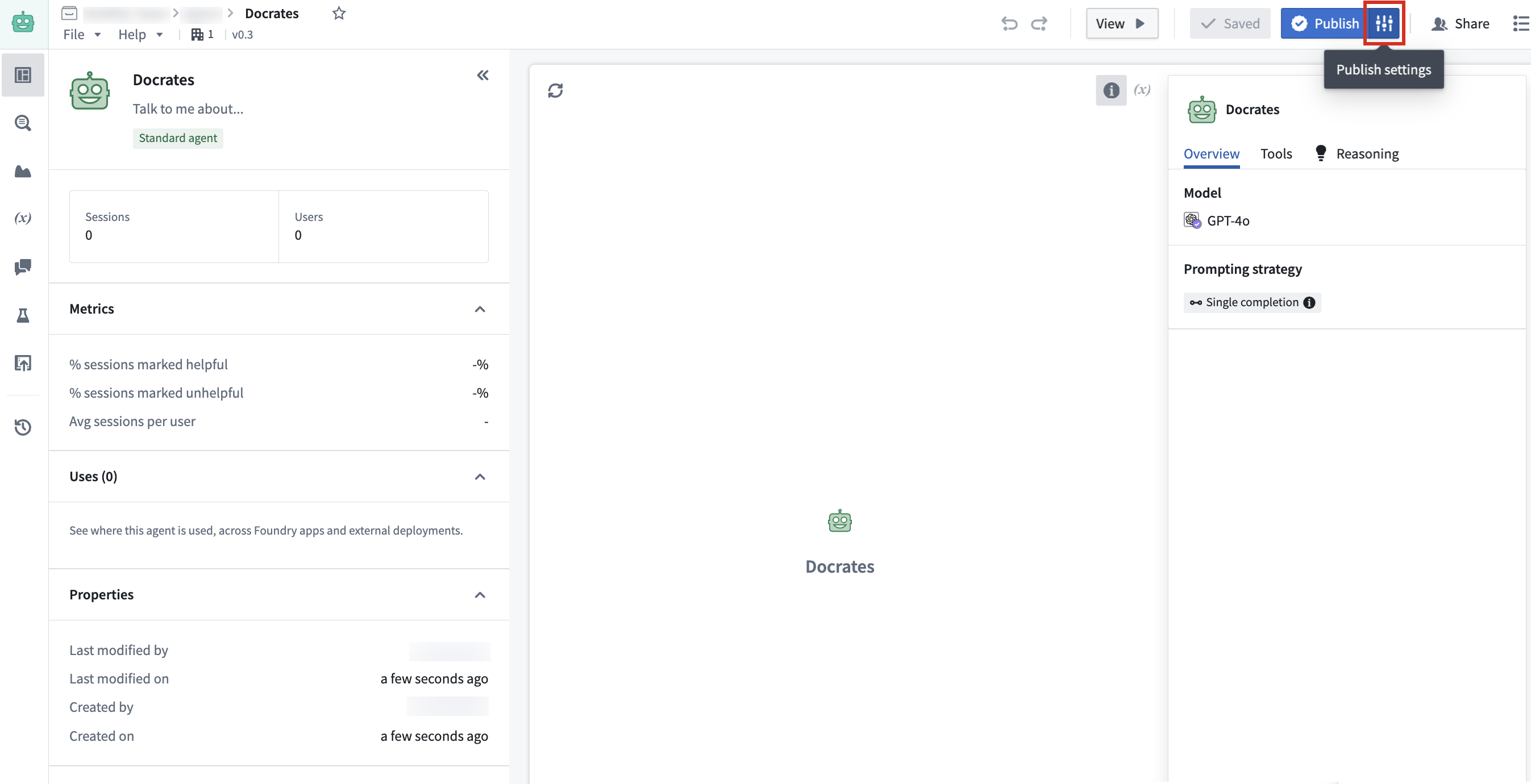
- Toggle the Publish function from chatbot option on, which will display additional configuration options for the published Function.

- In the extended Publish settings dialog, select an Ontology and fill in Function details such as the Function name, API name, and description. Optionally, you can choose to release minor Function versions when the chatbot is saved by selecting the checkbox under Version configuration.

- Select Publish chatbot and function at the bottom of the dialog.
After publishing, a toast notification will inform you that the chatbot and Function have been published, with a link to view the published Function in Ontology Manager. You can also view the Function by opening Publish settings and selecting it under Published function.
Disable chatbot Function publishing
To disable Function publishing, open Publish settings and toggle the option to Publish function from chatbot off. If you disable this option, future published versions of your chatbot will not register your chatbot as a Function until the option is re-enabled. You can re-enable this option at any time. To publish a Function after re-enabling, publish the chatbot.
Evaluate chatbots with AIP Evals
Publishing chatbots as Functions allows them to be evaluated with AIP Evals evaluation suites. To create an evaluation suite from Chatbot Studio, ensure that your chatbot has been published as a Function, then open the Evaluation tab on the left toolbar. Here, you can select Create evaluation suite, which will prompt you to name your suite and choose the same Project as the chatbot.
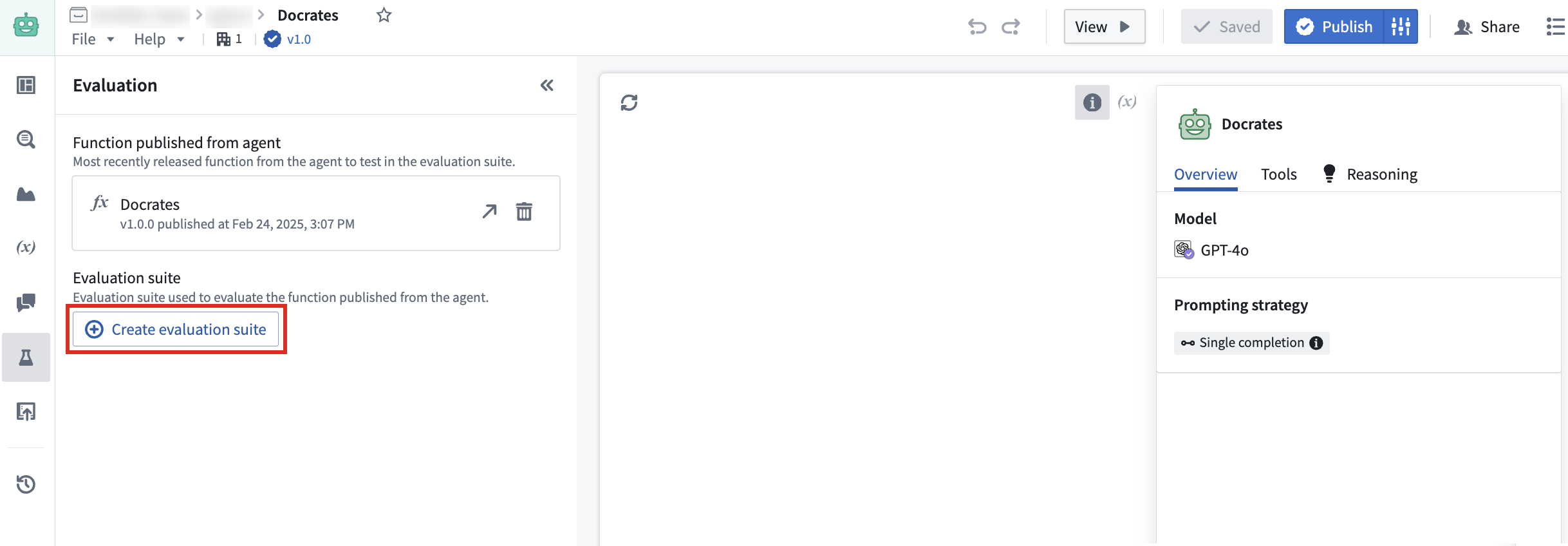
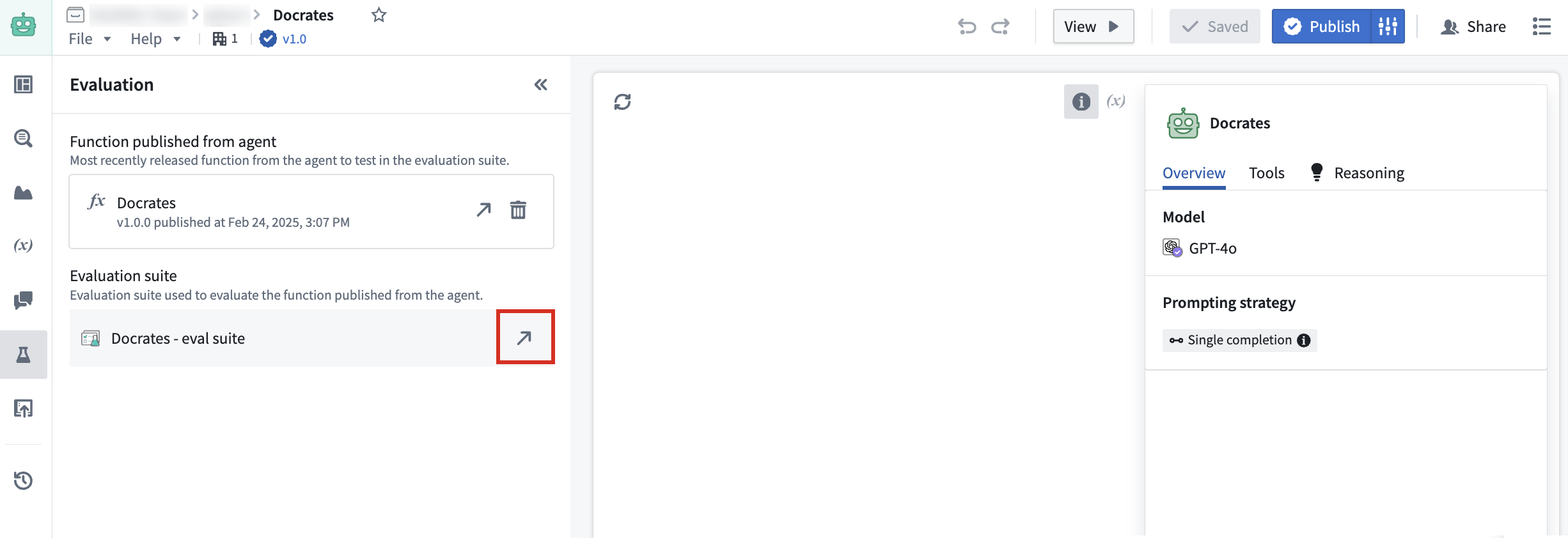
Note that the evaluation suite must be in the same Project as the chatbot. To open the evaluation suite in AIP Evals after creation, select the arrow icon to the right of the created suite.
Keep the following in mind when setting up your test cases in AIP Evals:
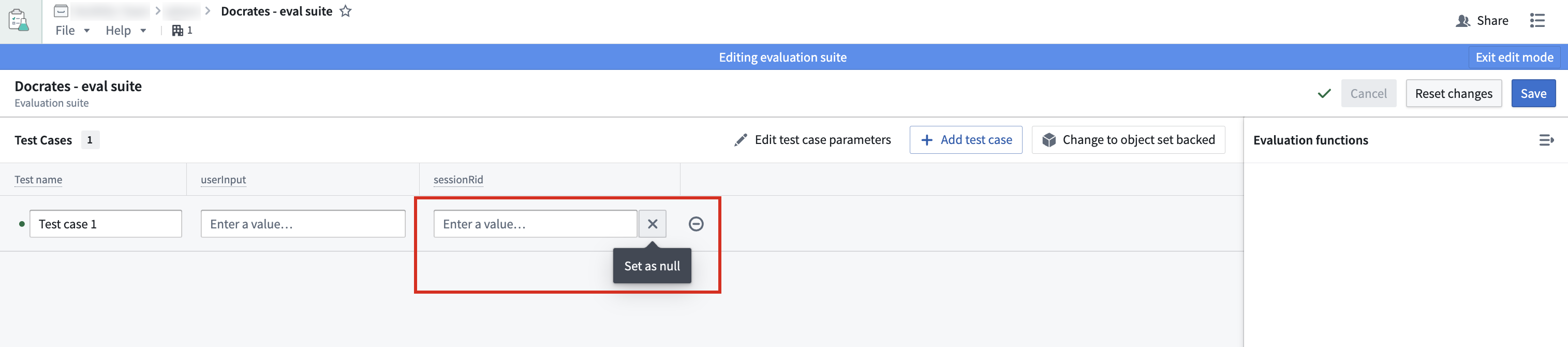
- To start a new session with your chatbot, make sure that the
sessionRidis set tonull. If a session RID is provided, the chatbot will continue an existing session, which is likely not the intent during testing.
- Object set variables must be set to
nullor contain a real value. Object set variables cannot be empty.
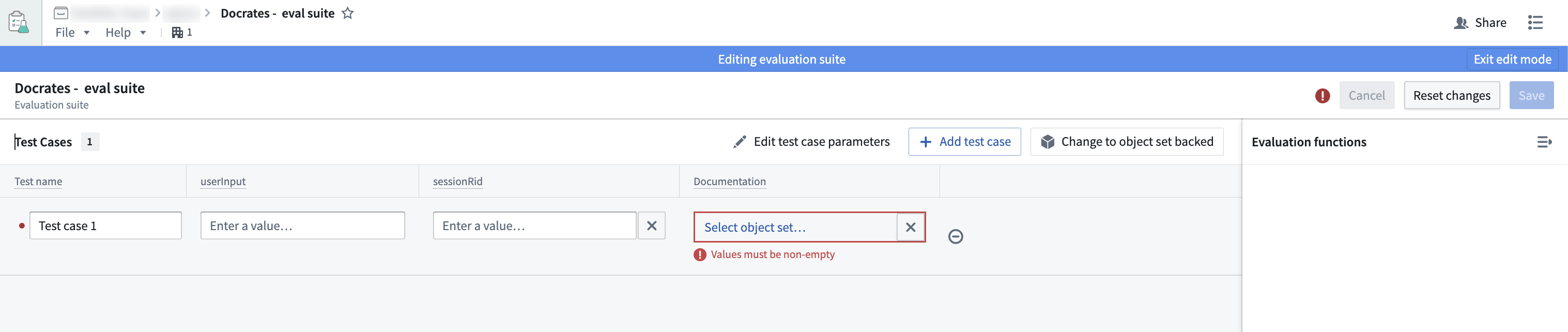
For more information on evaluation suites, refer to the AIP Evals documentation.
中文翻译
将聊天机器人作为函数发布
AIP 聊天机器人可以发布为函数(Functions),从而能够在平台中任何可以执行函数的位置使用。例如,构建者可以将 AIP 聊天机器人发布为函数,用于在 AIP 评估(AIP Evals)中进行评估、通过 自动化(Automate)实现聊天机器人工作流自动化,或在代码仓库(Code Repositories)中使用聊天机器人。您可以配置函数版本在每次发布聊天机器人时发布,或在每次保存聊天机器人时发布。
函数输入
以下为发布为函数的聊天机器人所接受的输入:
userInput: 聊天机器人将响应的用户输入字符串。sessionRid(可选): 当前会话的字符串标识符,格式如下:
ri.aip-agents..session.{uuid}
- 若要启动与聊天机器人的新会话,请将
sessionRid输入留空。不要提供空字符串;请完全省略此输入。 - 提供值以使用该会话的 RID 继续现有会话。
- 此 RID 会在所有函数执行时返回。
- 所有用于应用状态(application state)的应用变量都会作为可选输入添加。这些变量可用于覆盖默认的应用状态值。
- 对于对象集变量,默认值为该对象类型的基础对象集,这意味着默认情况下将包含该对象类型中的所有对象。
- 对于字符串变量,默认值会在 Chatbot Studio 中显示和配置。
函数输出
以下为发布为函数的聊天机器人的输出:
markdownResponse: 聊天机器人生成的最终文本响应,使用 Markdown 格式。sessionRid: 当前会话的字符串标识符,格式如下:
ri.aip-agents..session.{uuid}
- 此 RID 会在所有函数执行时返回。
- 将此值提供给下一次函数执行以继续会话。
- 所有用于应用状态(application state)的应用变量都会作为可选输出添加。
- 仅当变量值被更新时才会输出这些变量的值。未更新的变量将为空。
将聊天机器人发布为函数
- 要在 Chatbot Studio 中将聊天机器人发布为函数,请选择右上角发布按钮右侧的发布设置图标。这将打开一个发布设置对话框。
- 开启从聊天机器人发布函数选项,这将显示已发布函数的其他配置选项。
- 在扩展的发布设置对话框中,选择一个本体(Ontology)并填写函数详细信息,如函数名称、API 名称和描述。您还可以选择在保存聊天机器人时发布次要函数版本,方法是选中版本配置下的复选框。
- 选择对话框底部的发布聊天机器人和函数。
发布后,会有一条 toast 通知告知您聊天机器人和函数已发布,并提供一个链接,可在本体管理器(Ontology Manager)中查看已发布的函数。您也可以通过打开发布设置并选择已发布函数下的内容来查看该函数。
禁用聊天机器人函数发布
要禁用函数发布,请打开发布设置并关闭从聊天机器人发布函数选项。如果禁用此选项,聊天机器人的未来发布版本将不会将您的聊天机器人注册为函数,直到重新启用该选项。您可以随时重新启用此选项。重新启用后,请发布聊天机器人以发布函数。
使用 AIP 评估评估聊天机器人
将聊天机器人发布为函数后,即可使用 AIP 评估(AIP Evals)评估套件对其进行评估。要从 Chatbot Studio 创建评估套件,请确保您的聊天机器人已发布为函数,然后打开左侧工具栏上的评估选项卡。在此处,您可以选择创建评估套件,系统将提示您为套件命名并选择与聊天机器人相同的项目(Project)。
请注意,评估套件必须与聊天机器人在同一个项目中。要在创建后于 AIP 评估中打开评估套件,请选择已创建套件右侧的箭头图标。
在 AIP 评估中设置测试用例时,请牢记以下几点:
- 要启动与聊天机器人的新会话,请确保
sessionRid设置为null。如果提供了会话 RID,聊天机器人将继续现有会话,这很可能不是测试的意图。
- 对象集变量必须设置为
null或包含实际值。对象集变量不能为空。
有关评估套件的更多信息,请参阅 AIP 评估文档。