Use AIP Chatbots through Foundry APIs(通过 Foundry API 使用 AIP 聊天机器人)
To build applications on top of the Foundry platform, you can embed chatbots into your applications using the Palantir APIs.
What can I do with the APIs?
Easily build multi-shot interactions with your chatbots over the API, using its options to:
- Start new conversations for a given task or context by creating a new session with your chatbot.
- Orchestrate complex back-and-forth task prompts with the streaming or blocking APIs, with built-in state management to track these updates to your sessions for you.
- Provide custom application inputs to the chatbot through the options for application state in the API. These use the
parameterpreviously used in Chatbot Studio, now available as Application state/variables. Use theparameterInputsfield in requests to provide inputs. Use theparameterUpdatesfield for blocking responses (or load the session exchange after streaming) to read custom outputs.
For straightforward, single-use tasks that do not need extensive session management, consider using chatbots as functions. You can access a chatbot as a function from a third-party application using the Palantir OSDK.
Deploy an AIP Chatbot to a Developer Console application
Once you have configured and published your AIP Chatbot, you can create and configure a Developer Console application to interact with your AIP Chatbot in a custom application.
To enable your Developer Console application to interact with your AIP Chatbot using platform APIs, follow the steps in create a new Developer Console application to create a new SDK application with access to Platform SDK resources:
:::callout{theme="neutral"} To use an AIP Chatbot from an Ontology SDK application, you must configure the AIP Chatbot to only use object types, action types or function types from a single Ontology. :::
- On the Resources page, select the Ontology used by your AIP Chatbot, then select all object types, action types and function types used in your AIP Chatbot configuration. Ensure you select the types used for the application state and all tools and retrieval context configured for your AIP Chatbot.
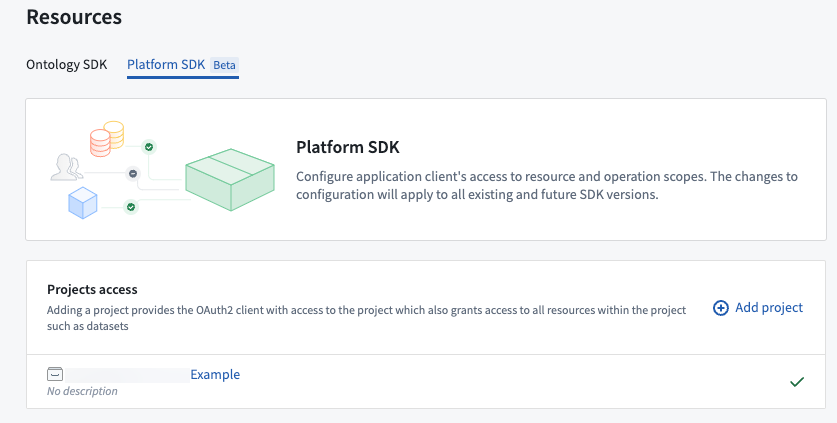
- Next, select the Platform SDK tab. Under Projects access, add the project containing your AIP Chatbot. To find the project for the AIP Chatbot, open the AIP Chatbot in Chatbot Studio and inspect the filesystem path details next to the AIP Chatbot's name in the header.
- If your AIP Chatbot is configured to use any other filesystem resources, such as a media set for document context, ensure these are in the same project as your AIP Chatbot, or add all additional projects for these resources to the Projects access section.
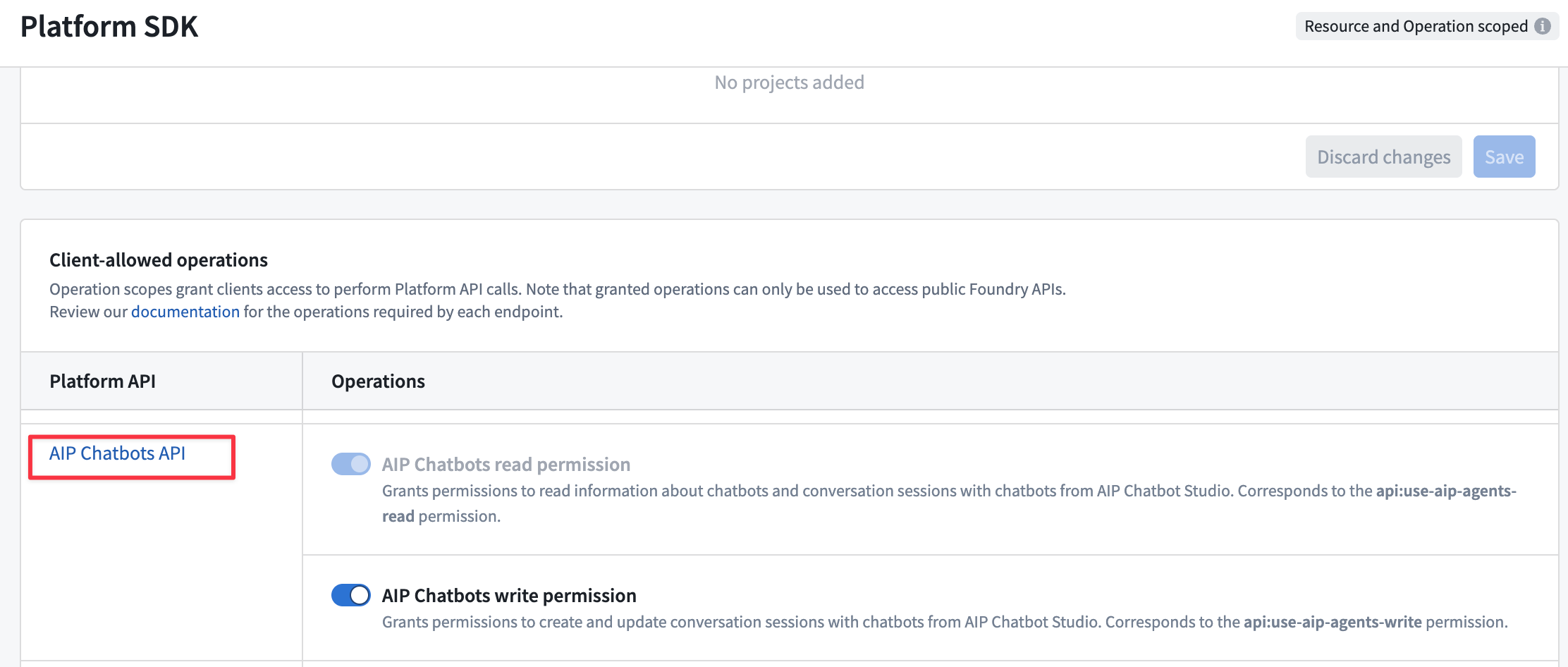
- Finally, enable operations for the AIP Chatbots API in the Client allowed operations table. To check the operations required for the different AIP Chatbot platform APIs, refer to the platform API documentation.
:::callout{theme="neutral"} To allow your Developer Console application to create and send messages in conversation sessions with an AIP Chatbot, you must enable the AIP Chatbots write permission. :::
- Refer to the Developer Console documentation steps to review and finalize creation of your application.
Update an AIP Chatbot used in Developer Console applications
Once you have configured a Developer Console application to allow interaction with an AIP Chatbot through Platform SDK resources, you will need to update the application if any of the Ontology or platform resources used by your AIP Chatbot are modified.
For example, if you add any new object types, action types or function types to the AIP Chatbot, you must add these to the Ontology SDK resources for your application in Developer Console. Similarly, if you add any platform resources to your AIP Chatbot, such as additional media sets for document context retrieval, you must add these to the Platform SDK resources for your application. Developer Console application resources are not updated automatically when changes occur to the types of resources used by your AIP Chatbot.
Create conversations with AIP Chatbots in custom applications
To get started bootstrapping a new application, refer to the documentation examples for TypeScript or Python, or add the SDK to an existing application.
Once you have created your application, use the Create Session platform API to create a new conversation with your AIP Chatbot.
:::callout{theme="neutral"}
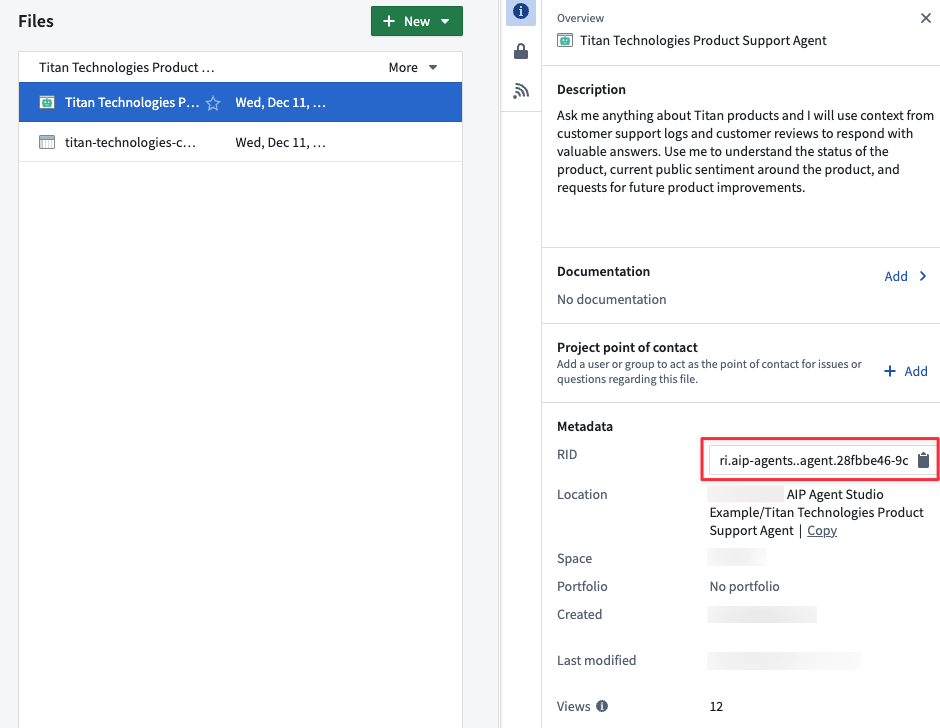
The Sessions APIs for AIP Chatbots require you to specify the agentRid for the AIP Chatbot to use for conversation session interactions.
You can find this by opening the project for your AIP Chatbot, selecting the AIP Chatbot and using the Copy to clipboard option for the RID under Metadata in the file overview.
 :::
:::
Once you have created a new session, use the sessionRid value in the returned response to send a new message to the AIP Chatbot and get responses using the Blocking continue session or Streaming continue session platform APIs. Use the blocking API to wait to receive the full AIP Chatbot response once it is fully generated, or use the streaming API to receive a stream of the AIP Chatbot's answer text as it is generated.
You can load conversation metadata for a session using the Get Session API, and load the history of exchanges (messages sent by your application and responses from the AIP Chatbot) for a session with the Get Content API.
You can use the Get Session Trace API to retrieve the sequence of steps taken by the AIP Chatbot, which can be useful for debugging or understanding the chatbot's reasoning process. The endpoint requires a sessionTraceId which you can obtain in two ways:
- For new exchanges:
- Generate a random UUIDv4 to use as the
sessionTraceIdin the request to theBlocking continue sessionorStreaming continue sessionAPIs. This option allows you to poll the 'Get Session Trace' API and see the real-time trace of the chatbot's answer generation. - Inspect the
sessionTraceIdfield in the response from theBlocking continue sessionAPI. - For existing exchanges:
- Inspect the
sessionTraceIdfield on the exchange results in the response from theGet ContentAPI.
Refer to the platform API documentation for code examples on how to use these APIs in your target application language.
中文翻译
通过 Foundry API 使用 AIP 聊天机器人
要在 Foundry 平台之上构建应用程序,您可以使用 Palantir API 将聊天机器人嵌入到您的应用程序中。
我能用这些 API 做什么?
通过 API 轻松构建与聊天机器人的多轮交互,利用其选项可以:
- 通过创建与聊天机器人的新会话(session),为特定任务或上下文开启新对话。
- 使用流式或阻塞 API 编排复杂的来回任务提示,内置状态管理(state management)功能可为您跟踪这些会话更新。
- 通过 API 中应用程序状态(application state)的选项,向聊天机器人提供自定义应用程序输入。这些使用之前在 Chatbot Studio 中使用的
parameter,现在作为应用程序状态/变量(Application state/variables)提供。在请求中使用parameterInputs字段提供输入。对于阻塞响应,使用parameterUpdates字段(或在流式传输后加载会话交换内容)来读取自定义输出。
对于不需要大量会话管理的简单一次性任务,请考虑使用聊天机器人作为函数。您可以使用 Palantir OSDK 从第三方应用程序将聊天机器人作为函数访问。
将 AIP 聊天机器人部署到 Developer Console 应用程序
一旦您配置并发布了 AIP 聊天机器人,就可以创建并配置一个 Developer Console 应用程序,以便在自定义应用程序中与您的 AIP 聊天机器人进行交互。
要使您的 Developer Console 应用程序能够使用平台 API 与您的 AIP 聊天机器人交互,请按照创建新的 Developer Console 应用程序中的步骤,创建一个可访问 Platform SDK 资源的新 SDK 应用程序:
:::callout{theme="neutral"} 要从 Ontology SDK 应用程序使用 AIP 聊天机器人,您必须将 AIP 聊天机器人配置为仅使用单个 Ontology 中的对象类型(object types)、操作类型(action types)或函数类型(function types)。 :::
- 在 Resources 页面上,选择您的 AIP 聊天机器人所使用的 Ontology,然后选择 AIP 聊天机器人配置中使用的所有对象类型、操作类型和函数类型。确保选择了用于应用程序状态以及为 AIP 聊天机器人配置的所有工具和检索上下文(retrieval context)的类型。
- 接下来,选择 Platform SDK 选项卡。在 Projects access 下,添加包含您的 AIP 聊天机器人的项目。要找到 AIP 聊天机器人的项目,请在 Chatbot Studio 中打开该 AIP 聊天机器人,并检查标题中 AIP 聊天机器人名称旁边的文件系统路径详情。
- 如果您的 AIP 聊天机器人配置为使用任何其他文件系统资源,例如用于文档上下文的媒体集(media set),请确保这些资源与您的 AIP 聊天机器人在同一个项目中,或者将这些资源的所有其他项目添加到 Projects access 部分。
- 最后,在 Client allowed operations 表中启用 AIP Chatbots API 的操作。要检查不同 AIP 聊天机器人平台 API 所需的操作,请参考平台 API 文档。
:::callout{theme="neutral"} 要允许您的 Developer Console 应用程序与 AIP 聊天机器人创建对话会话并发送消息,您必须启用 AIP Chatbots write permission。 :::
- 参考 Developer Console 文档中的步骤,审查并最终完成应用程序的创建。
更新 Developer Console 应用程序中使用的 AIP 聊天机器人
一旦您配置了 Developer Console 应用程序以允许通过 Platform SDK 资源与 AIP 聊天机器人交互,如果您的 AIP 聊天机器人使用的任何 Ontology 或平台资源被修改,您将需要更新该应用程序。
例如,如果您向 AIP 聊天机器人添加了任何新的对象类型、操作类型或函数类型,则必须将这些类型添加到 Developer Console 中应用程序的 Ontology SDK 资源中。同样,如果您向 AIP 聊天机器人添加了任何平台资源,例如用于文档上下文检索的额外媒体集,则必须将这些资源添加到应用程序的 Platform SDK 资源中。当 AIP 聊天机器人使用的资源类型发生变化时,Developer Console 应用程序资源不会自动更新。
在自定义应用程序中与 AIP 聊天机器人创建对话
要开始引导新应用程序,请参考 TypeScript 或 Python 的文档示例,或者将 SDK 添加到现有应用程序。
创建应用程序后,使用 Create Session 平台 API 与您的 AIP 聊天机器人创建新对话。
:::callout{theme="neutral"}
AIP 聊天机器人的 Sessions API 要求您指定用于对话会话交互的 AIP 聊天机器人的 agentRid。
您可以通过打开 AIP 聊天机器人的项目,选择该 AIP 聊天机器人,然后在文件概览的 Metadata 下使用 RID 的 Copy to clipboard 选项来找到它。
:::
创建新会话后,使用返回响应中的 sessionRid 值向 AIP 聊天机器人发送新消息,并使用 Blocking continue session 或 Streaming continue session 平台 API 获取响应。使用阻塞 API 等待接收完整的 AIP 聊天机器人响应(在完全生成后),或使用流式 API 在生成过程中接收 AIP 聊天机器人回答文本的流。
您可以使用 Get Session API 加载会话的元数据,并使用 Get Content API 加载会话的交换历史记录(您的应用程序发送的消息和 AIP 聊天机器人的响应)。
您可以使用 Get Session Trace API 检索 AIP 聊天机器人所采取的步骤序列,这对于调试或理解聊天机器人的推理过程非常有用。该端点需要一个 sessionTraceId,您可以通过两种方式获取:
- 对于新的交换:
- 生成一个随机的 UUIDv4 作为
Blocking continue session或Streaming continue sessionAPI 请求中的sessionTraceId。此选项允许您轮询 'Get Session Trace' API 并查看聊天机器人回答生成的实时追踪。 - 检查
Blocking continue sessionAPI 响应中的sessionTraceId字段。 - 对于现有的交换:
- 检查
Get ContentAPI 响应中交换结果上的sessionTraceId字段。
请参考平台 API 文档,了解如何在您的目标应用程序语言中使用这些 API 的代码示例。