Navigation(导航)
This page provides an overview of Model Studio's interface, navigation, and available controls.
Set up a model studio
To create a model studio, choose a trainer and select a name and location for the output model.
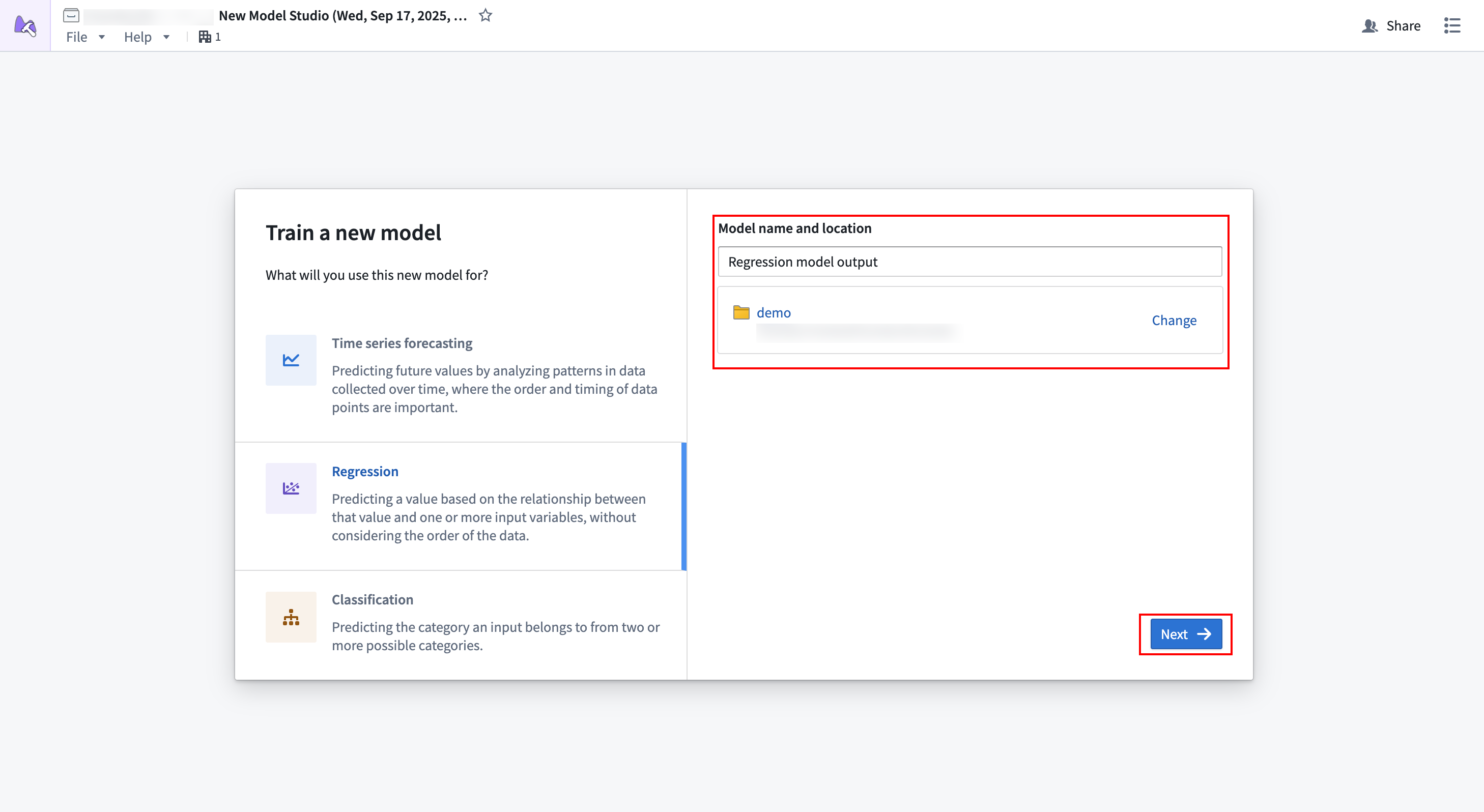
Selecting Next will bring you to the configuration wizard.
Home page
After successfully creating a model studio and launching a training run, you will be directed to the Model Studio home page. This page contains information about your model studio and provides links to access output models and experiments.
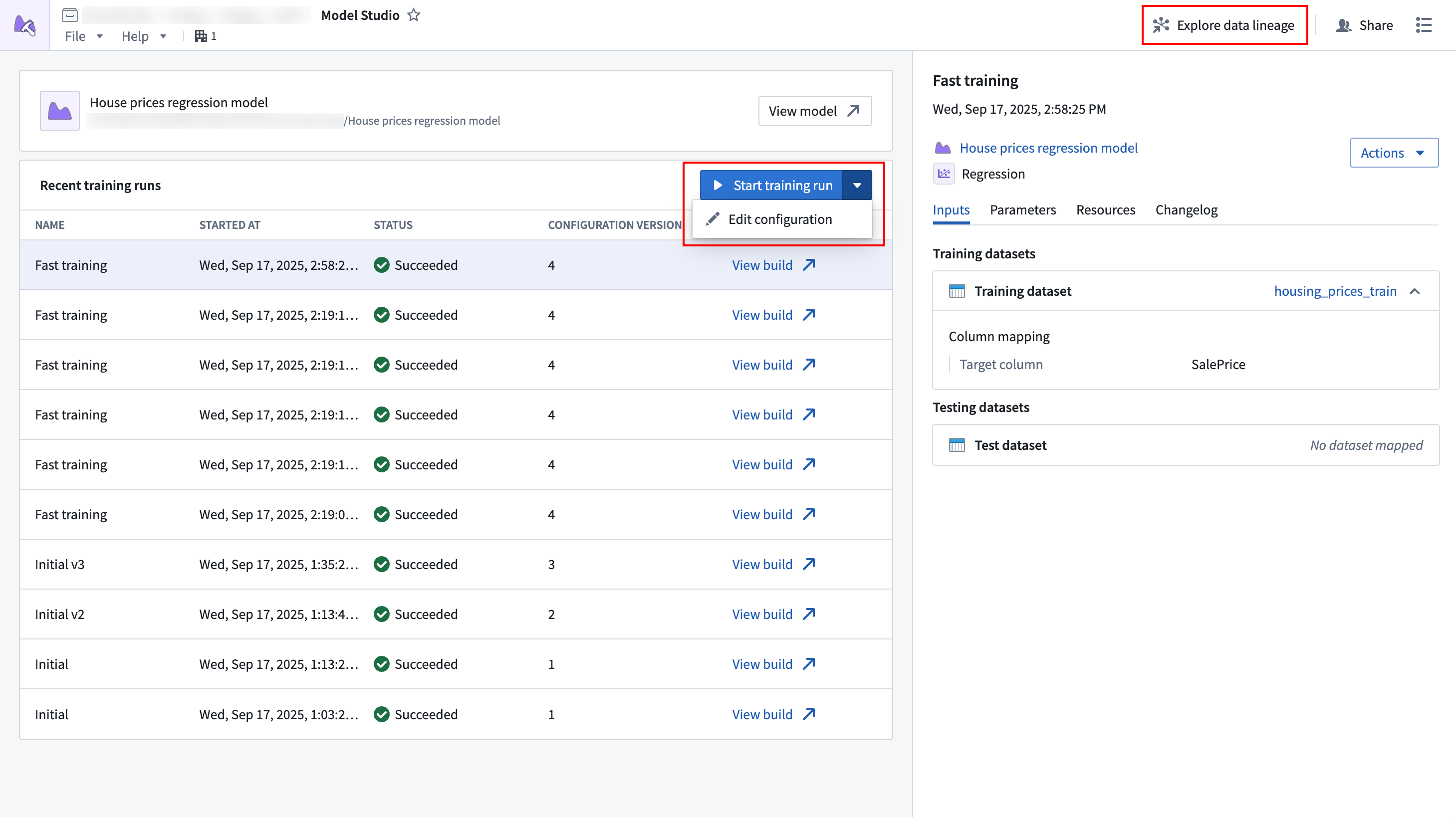
The Start training run option at the top of the Recent training runs table will launch a build with the latest configuration when selected. The dropdown next to the Start training run option contains controls for editing the configuration, and the Explore data lineage button in the top navigation bar allows viewing the data lineage for your model studio. Open the data lineage to set up a build schedule.
Below the top navigation bar is a card that has contains details about the output model, such as its name, path, and status. The icon to the right of the model name may appear yellow, indicating that source data has updated and the model is considered out of date.
Training runs
The main section of the home page shows a list of training runs that were executed for the model studio.
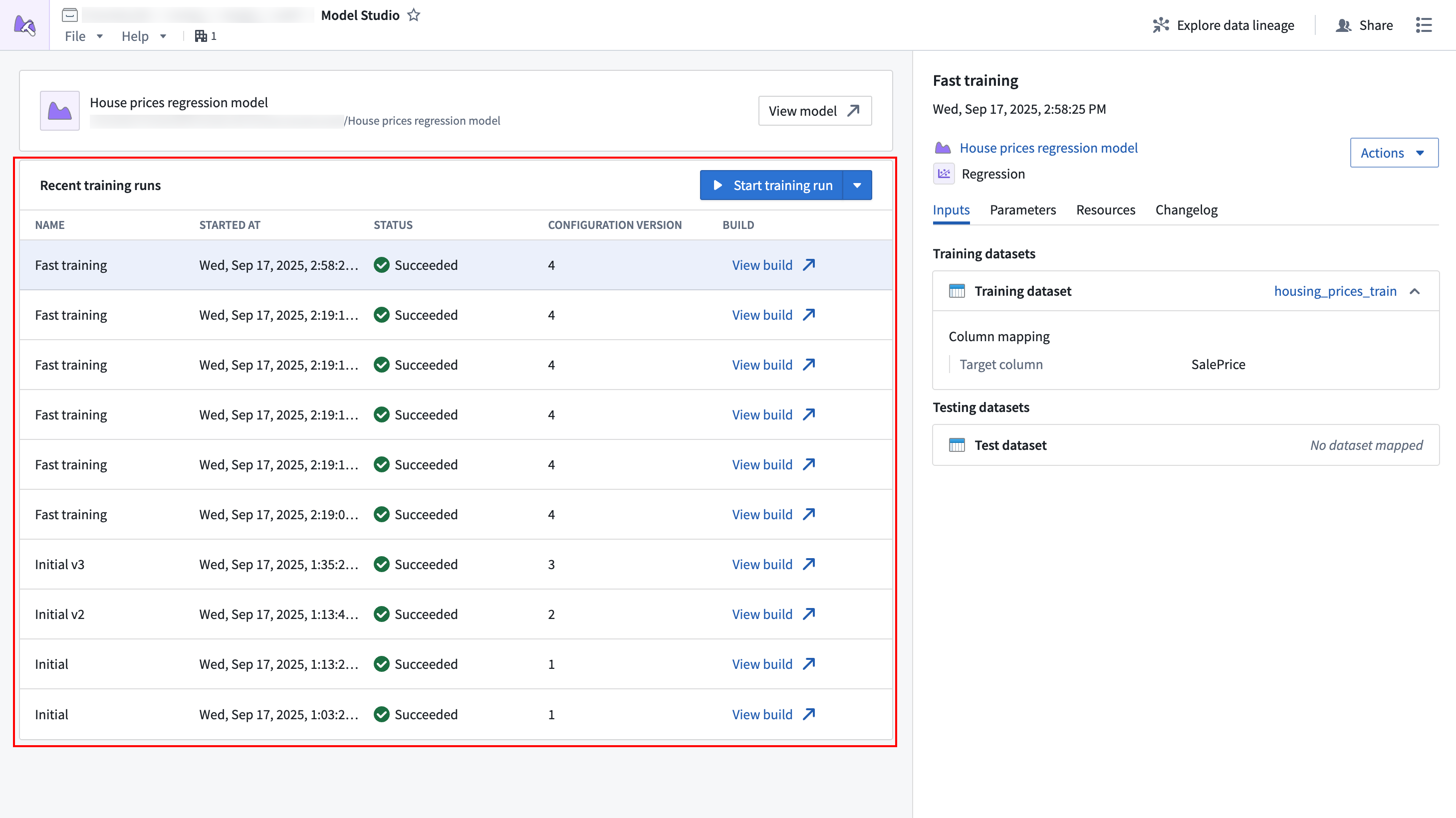
The table columns are as follows:
- Name: The name of the configuration that was executed. The name can be set when editing the model studio configuration.
- Started at: The time the training job was started.
- Status: The status of the training job.
- Configuration version: An incrementing number indicating what configuration version the training job was executed with. This number increments every time a change is made to the configuration.
- Build: A link to the build for that job.
Select a row in the table to reveal more details about that row in the sidebar.
Sidebar
The sidebar displays information about a selected run from the Recent training runs table. The top of the sidebar shows the date the training run was executed. Links to the experiment and the produced model version can be found in the Actions dropdown.
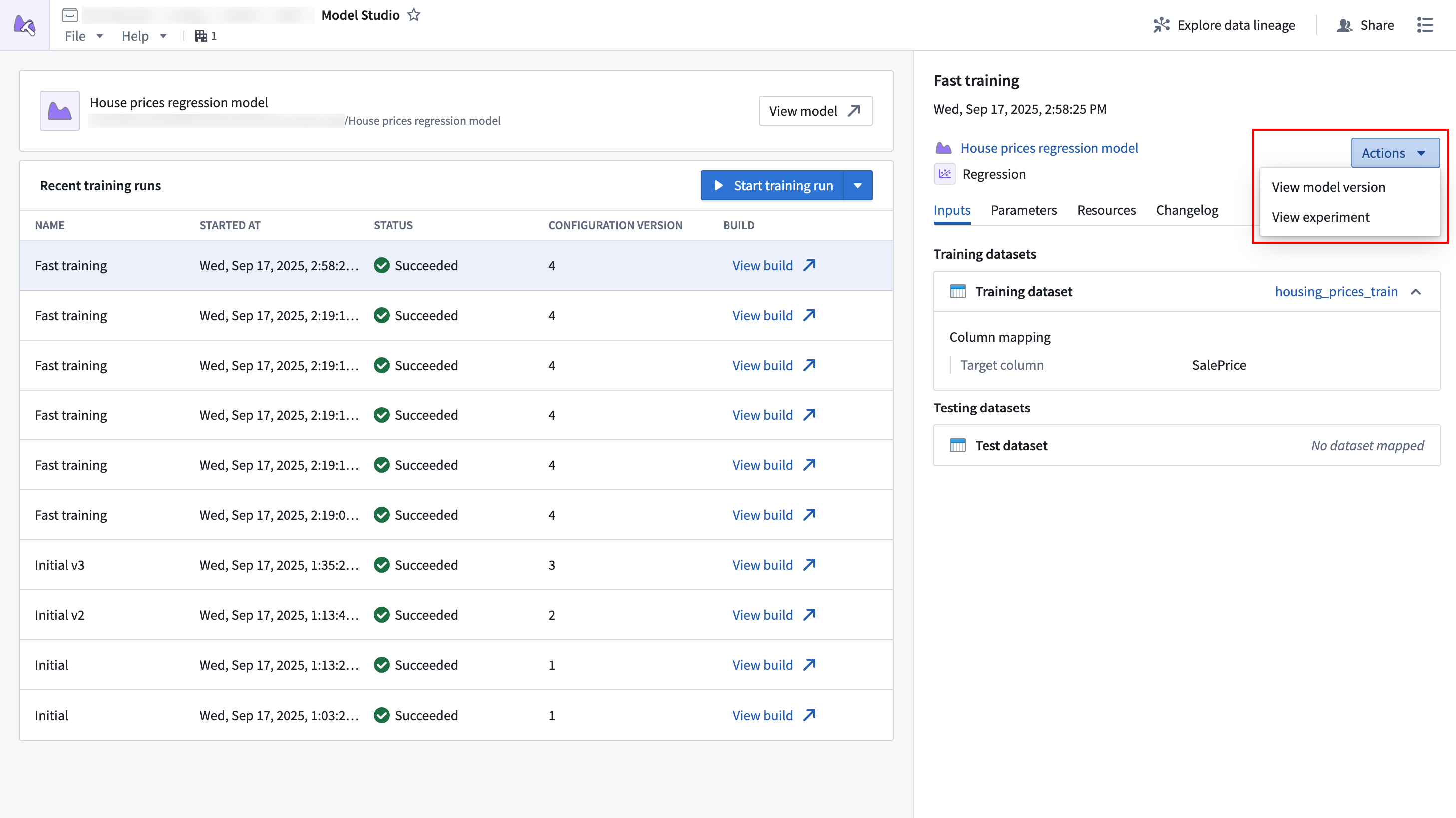
The following information about the training run's configuration is also available:
- Inputs: The dataset inputs and column mappings applied for the run's inputs.
- Parameters: The parameters that were configured for the job.
- Resources: The compute resources applied for the job.
- Changelog: An optional configuration changelog that is written after editing the configuration.
Configuration wizard
The configuration wizard is used when creating or editing a model studio configuration, and will guide you through the model studio configuration steps. Each trainer has its own defined configuration options.
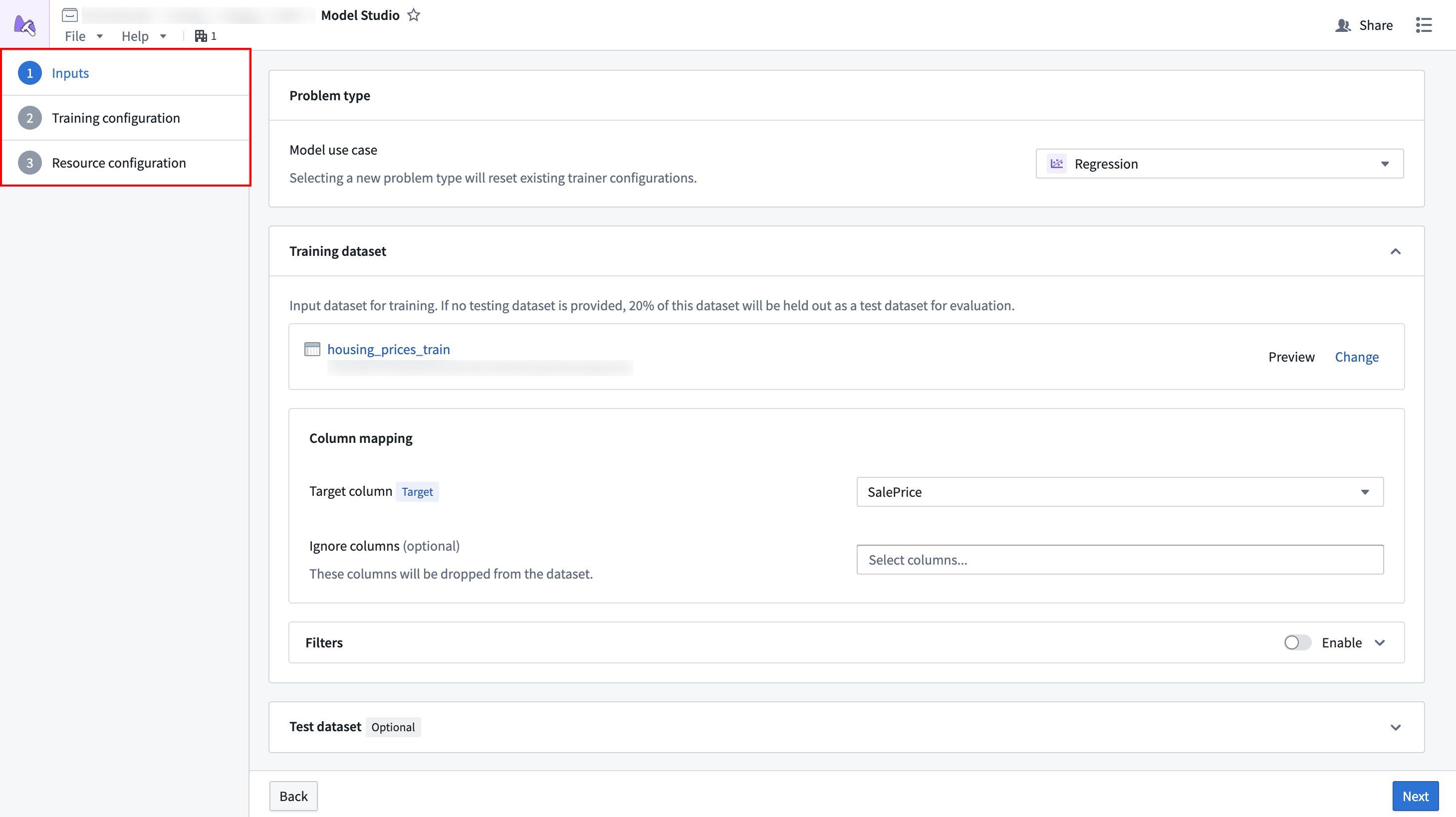
- Inputs: Define the dataset inputs that are needed for the trainer.
- Parameters: Define the parameters needed for the training job. Each trainer will present its own options and display in-platform documentation for them.
- Compute resources: Define the vCPU and memory resources for the training job.
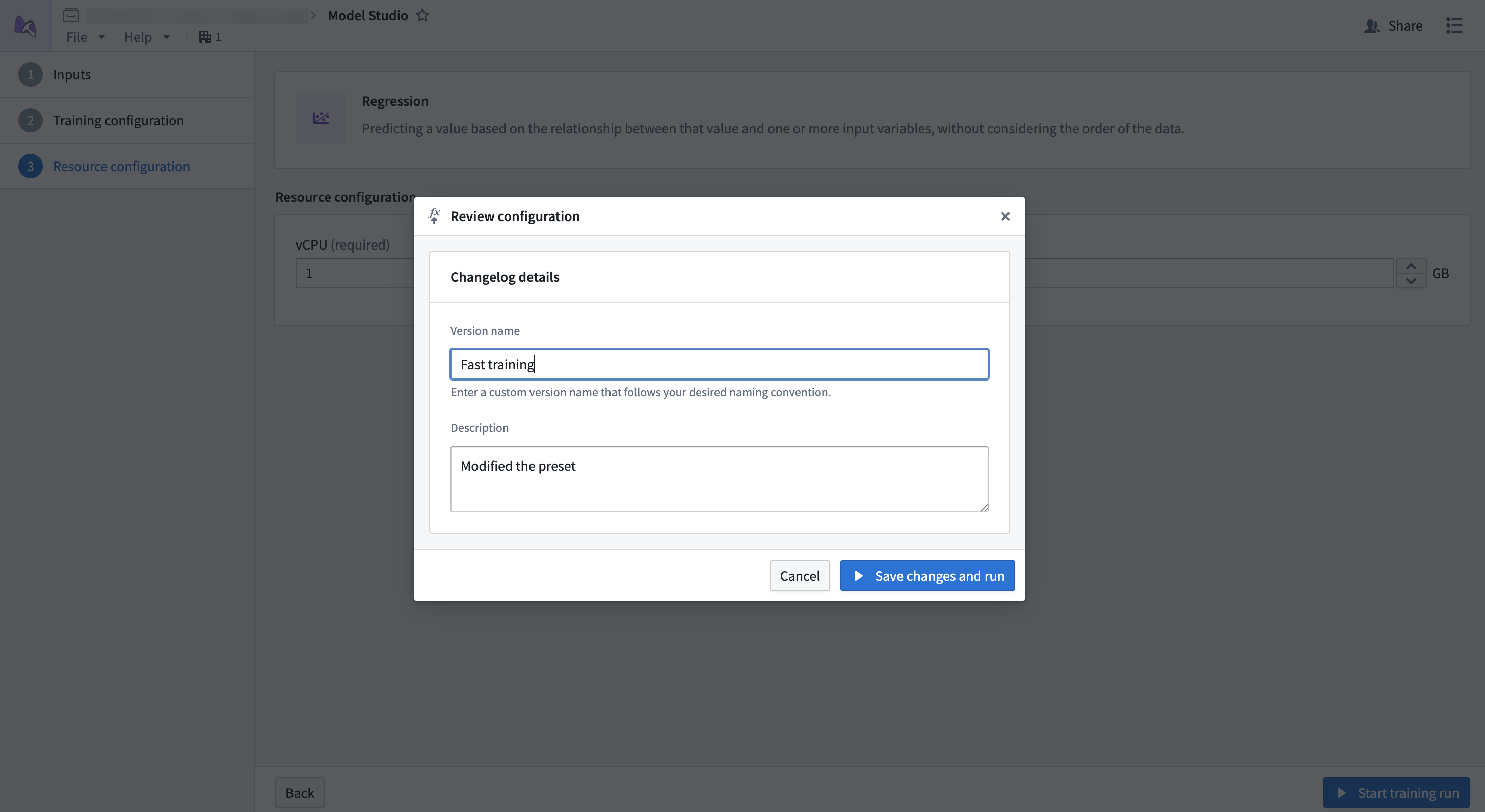
When all steps in the wizard have been completed, you will be asked to provide a name and an optional changelog for the configuration version. These will provide descriptive details about what the configuration does and what changed from the previous version.
中文翻译
导航
本文概述了 Model Studio 的界面、导航及可用控件。
设置 Model Studio
要创建 Model Studio,请选择一个训练器(trainer),并为输出的模型指定名称和位置。
点击 下一步 将进入配置向导。
首页
成功创建 Model Studio 并启动训练运行后,您将进入 Model Studio 首页。此页面包含有关 Model Studio 的信息,并提供访问输出模型和实验的链接。
最近训练运行 表格顶部的 开始训练运行 选项,点击后将使用最新配置启动一次构建。开始训练运行 选项旁边的下拉菜单包含编辑配置的控件,顶部导航栏中的 探索数据沿袭 按钮可查看 Model Studio 的数据沿袭。打开数据沿袭以设置构建计划。
顶部导航栏下方是一张卡片,包含输出模型的详细信息,如名称、路径和状态。模型名称右侧的图标可能显示为黄色,表示源数据已更新,模型被视为过期。
训练运行
首页的主要部分显示为 Model Studio 执行的训练运行列表。
表格列如下:
- 名称: 所执行配置的名称。可在编辑 Model Studio 配置时设置。
- 开始时间: 训练作业开始的时间。
- 状态: 训练作业的状态。
- 配置版本: 一个递增的数字,表示训练作业所使用的配置版本。每次对配置进行更改时,该数字都会递增。
- 构建: 指向该作业的构建的链接。
选择表格中的一行,可在侧边栏中查看该行的更多详细信息。
侧边栏
侧边栏显示 最近训练运行 表格中所选运行的信息。侧边栏顶部显示训练运行的执行日期。操作 下拉菜单中可找到指向实验和生成模型版本的链接。
此外,还提供以下关于训练运行配置的信息:
配置向导
配置向导用于创建或编辑 Model Studio 配置,并将引导您完成 Model Studio 的配置步骤。每个训练器都有其自定义的配置选项。
当向导中的所有步骤完成后,系统将要求您为配置版本提供名称和可选的变更日志。这些信息将描述配置的功能以及相较于上一版本的更改。