Model deprecation(模型弃用)
Model providers often deprecate models, which affects workflows that rely on these models and requires users to transition to recommended substitutes. Palantir will notify affected users when providers announce model deprecations, and identify resources that rely on affected models through Upgrade Assistant.
Once notified, we encourage users to plan ahead by migrating any existing workflows that use soon-to-be deprecated models onto the recommended substitutes. Users will be notified of migration due dates, after which a series of brownout access restrictions to the model will be implemented to facilitate the migration process for any remaining workflows.
If no action is taken by the brownout due date, workflows using deprecated models will fail and output the following error message during brownouts:
{
    "errorCode": "NOT_FOUND",
    "errorName": "LanguageModelService:LanguageModelNotAvailable",
    "errorInstanceId": "<error instance id>",
    "parameters": {
        "safeParams": "{languageModelRid=<language model rid>, deprecationDate=<deprecation date>, brownoutStart=<brown-out start>, brownoutEnd=<brown-out end>}",
        "unsafeParams": "{}",
        "message": "Unable to use model: language model is in planned deprecation and is currently under a brown-out"
    }
}
Likewise, if no action is taken by the provider’s model deprecation date, workflows that use deprecated models will fail and output the error message below until the workflow is migrated to an alternate model:
{
    "errorCode": "NOT_FOUND",
    "errorName": "LanguageModelService:LanguageModelNotAvailable",
    "errorInstanceId": "<error instance id>",
    "parameters": {
        "safeParams": "{languageModelRid=<language model rid>, deprecationDate=<deprecation date>}",
        "unsafeParams": "{}",
        "message": "Unable to use model: language model is deprecated"
    }
}
Brownout access restrictions
Model brownouts serve as a strategy to guide users away from models that are being deprecated. Brownouts introduce deliberate, temporary instability to signal impending changes and avoid abruptly discontinuing service for users that did not action the affected resources listed in Upgrade Assistant.
Each model follows a specific brownout schedule. To view the brownout schedule for a model undergoing deprecation, including the number of stages, start dates, and duration, refer to the deprecated model’s Upgrade Assistant description page.
Migrate models
To successfully migrate away from deprecated models and avoid disruption of critical workflows, proceed with the following steps:
- Identify resources that require migration.
- Navigate to the affected resources.
- Replace deprecated models.
Identify resources that require migration
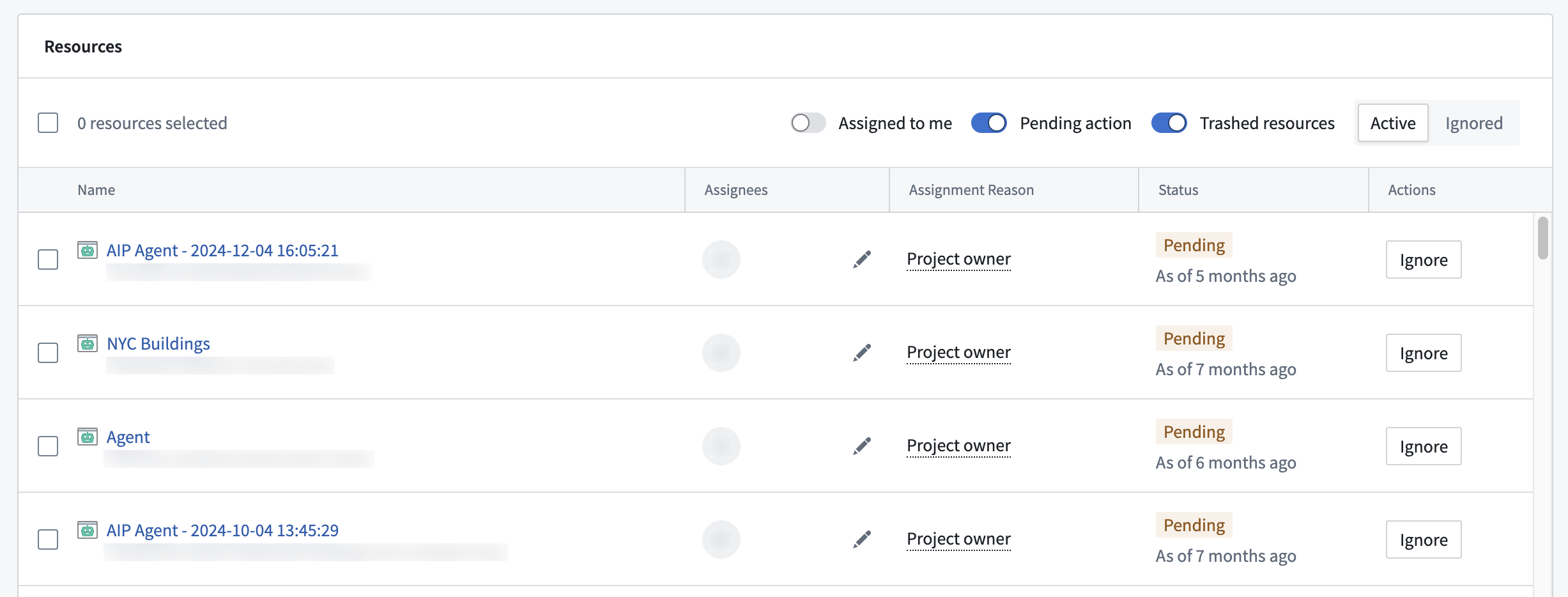
Navigate to Upgrade Assistant and open the relevant model deprecation page in the Active upgrades section. On the deprecated model's description page, scroll down to the Resources section to see a list of resources affected by this model deprecation.
Resource identification criteria
Resources are marked for migration based on the following criteria:
- If a resource makes a call to a deprecated model, this resource will be marked as
PENDING. This indicates that the model used in this resource still needs to be migrated. - If a resource that previously called a deprecated model makes calls to a different model, and the last call to the deprecated model was more than 24 hours ago, this resource will be marked as
COMPLETED, since usage of a different model indicates that this resource was migrated.
In rare cases, resources may be marked as COMPLETED, and then revert back to PENDING. This can occur if a resource makes a new call to a deprecated model. To prevent this, ensure that resources such as Workshop modules update to the latest version of affected functions after the function has been saved and published.
Resources that are configured to use a deprecated model, but have not been actively used during the course of the migration period will not appear in the Upgrade Assistant resource list. For example, if a pipeline is configured to use a deprecated model, but has not been built during the migration period, it will not appear in the Upgrade Assistant resource list, as it is not actively calling a deprecated model. In such cases, we advise taking inventory of your production workflows and using the tools in the section below to understand resource usage and assess whether migration is necessary.
Navigate to the affected resources
In the Upgrade Assistant description page, select a resource to navigate to the resource application. Depending on the resource type, the process to migrate to a new model may vary. For each affected resource, you must identify how the deprecated model is used, such as in Use LLM nodes in Pipeline Builder and AIP Logic, or code references in transforms. You may need to navigate to additional upstream resources to select a new model for your workflow.
Replace deprecated models
To prevent disruptions in your workflows from deprecated models, a new model needs to be selected. Each deprecated model description page in Upgrade Assistant will include potential substitutes, but we highly encourage setting up evaluation suites in AIP Evals to ensure that you are using the best model for your use case.
Upgrade Assistant identifies resources that use soon-to-be deprecated models, and each resource type needs to be resolved differently. Some resources can be configured directly, and the model selector can be used to choose a new model. In other resource types, such as Workshop modules or pipelines, models may be called from upstream resources, such as AIP Logic functions or Code Repositories transforms. In these cases, model selection needs to occur in the upstream resource that contains the model configuration options. See the sections below for more details on resource types.
:::callout{theme="warning"} Users must have view and edit permissions on the affected resources. Otherwise, it will not be possible to properly examine resources such as pipelines and Workshop modules to find the root upstream resource for model configuration. :::
Model selector supported applications
If the deprecated model was chosen with the model selector, a new model can be chosen in the same way. When navigating to resources such as Logic functions and AIP Chatbots (formerly known as AIP Agents), open the resource configuration settings and use the model selector to choose a new model.
Applications that support model selector include:
- Pipeline Builder
- AIP Chatbot Studio
- AIP Evals
- AIP Logic
- Workshop
- Quiver
- Marketplace
- Code Workspaces
Resource configuration settings will display an alert next to the affected model, and it will be labeled as Sunset.

To choose a substitute model, open model selector and choose a new model.

Model usage in Pipeline Builder
For Pipeline Builder resources, Upgrade Assistant will link to the entire pipeline, rather than the specific affected node. In order to efficiently find relevant nodes in large pipelines, use the Pipeline Builder search functionality.
-
Navigate to the affected pipeline by selecting it from the list of resources in the Upgrade Assistant model deprecation page.
-
Select the search icon in the upper-right corner of the pipeline graph.

-
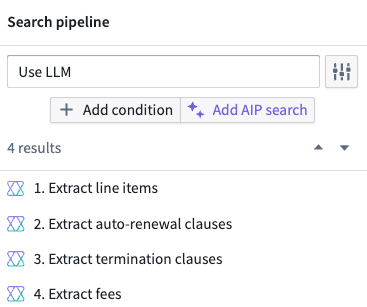
Enter “use LLM” as a search term to view a list of all
Use LLMnodes in the pipeline. All search results will also be highlighted with the color shown in the pipeline graph legend.
-
From the listed results, select each node to highlight it in the pipeline graph. Right click the selected node and select Edit from the context menu. This will open the node configuration page.
-
Navigate to the Model section, which will indicate an alert icon next to the model name if the model is being deprecated. If this alert is present, select Show configurations and select a new model from the Model type dropdown.
-
Repeat this process for all
Use LLMnodes in the pipeline. -
Save, deploy, and rebuild your pipeline.
Model usage in Workshop
Model usage in Workshop can originate from AIP widgets or referenced functions, such as AIP Logic functions. Depending on the source, the model can be changed from widget configuration settings or from the configuration settings of upstream resources, such as an AIP Logic function or an AIP Chatbot. You can navigate to affected Workshop modules by selecting them from the list of resources in the Upgrade Assistant model deprecation page. Enter edit mode to view module configuration settings.
Note that users need to have edit permissions on affected Workshop modules. Follow the instructions below to address function-based and widget-based model usage.
Function-based model usage
-
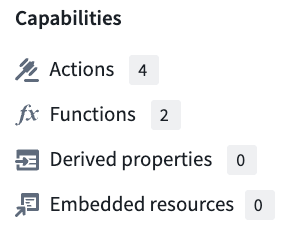
To identify the functions used in a Workshop module, open the Overview panel in the upper-left corner of your workspace. Under the Capabilities section, select Functions.
-
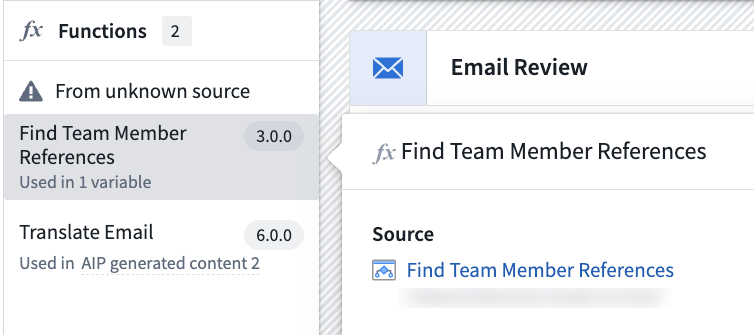
In the Functions panel, select each function to view the function source.
-
Select the function source to navigate to the source application, in this case AIP Logic. From this source, you can configure model settings and select a new model if the function uses a deprecated model.
-
Save and publish a new version of the function.
-
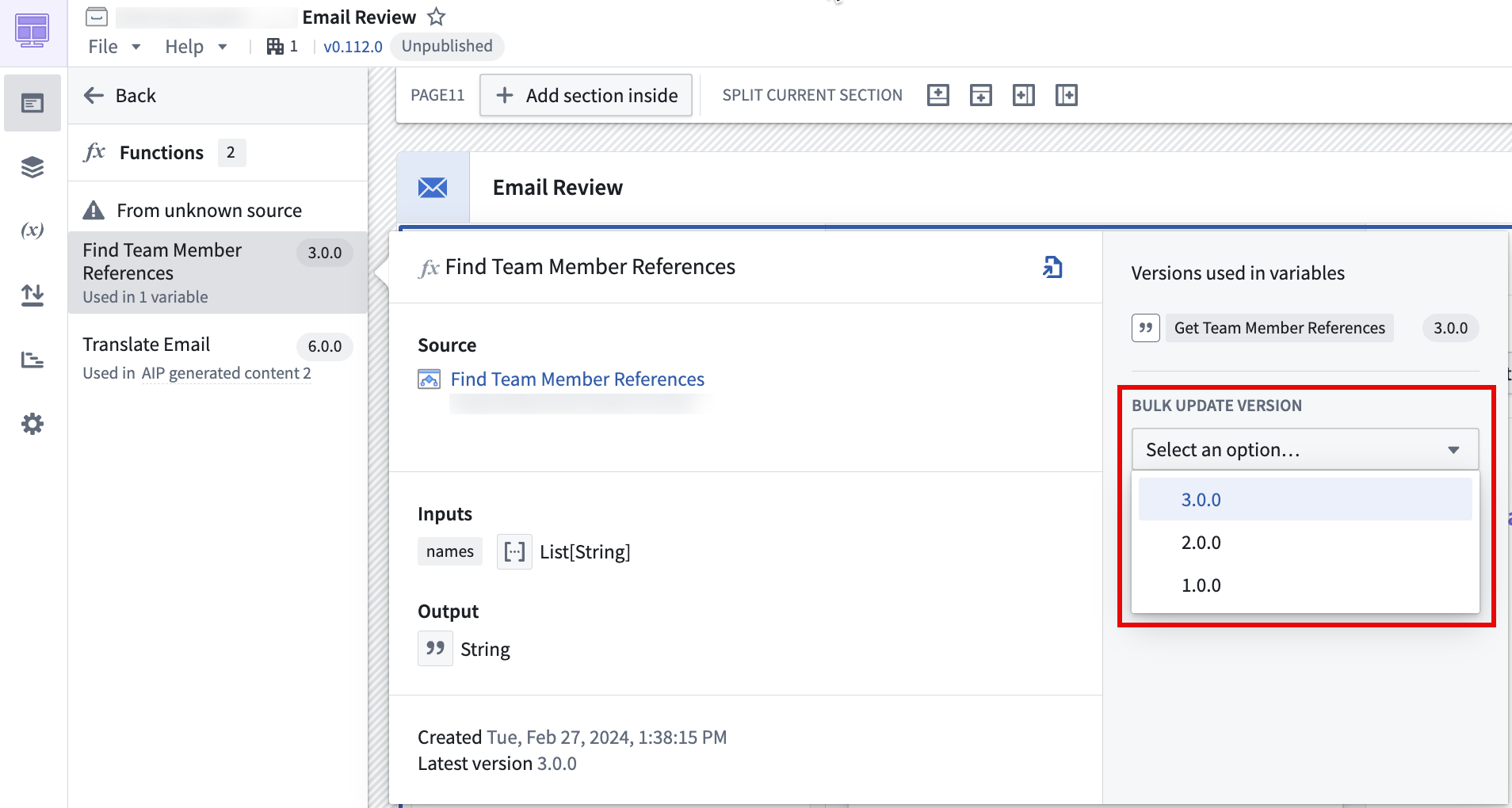
Back in Workshop, navigate to the Functions section in the Overview panel as specified in step 1. Select the updated function, and use the function version dropdown under the Bulk update version section to select the latest version of the function for all variables or widgets.
-
Repeat this process for all listed functions.
Widget-based model usage
Widget-based model configuration depends on the type of widget used. Review the following options and follow the instructions for the widgets used in your Workshop module:
- AIP chatbot: The AIP Chatbot widget uses chatbots, so model configuration must take place in the chatbot configuration settings in AIP Chatbot Studio.
- In the widget configuration panel, select the chatbot in use to open it in Chatbot Studio.
- Edit the chatbot by selecting Edit in the upper-right corner of the chatbot interface.
- Open the chatbot configuration panel and select a new model from the model selector.
-
Save and publish your chatbot.
-
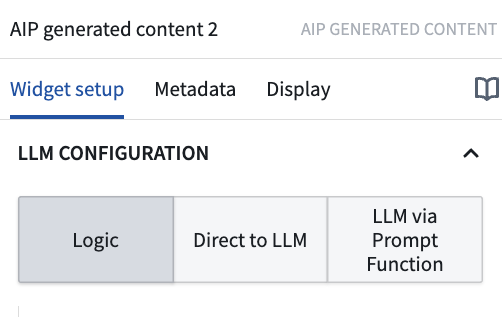
AIP generated content: For the AIP generated content widget, model usage can only be configured in Workshop if the widget uses the Direct to LLM or LLM via prompt function options. Otherwise, it can be configured in the referenced Logic function.
-
Direct to LLM/LLM via prompt function: A new model can be selected using the model selector in the widget configuration settings.
-
Logic: If the widget uses the Logic option, the Logic function will be listed under the module’s functions in the Overview panel. Refer to the function-based model usage section for more details.
-
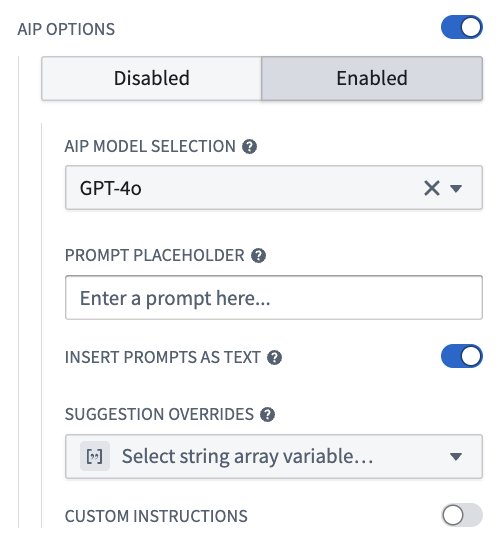
Free-form analysis: Model usage for the free-form analysis widget can be configured directly in Workshop. In the widget configuration settings, toggle on AIP options and select Enabled to configure model settings. Then, select a new model from the model selector.
-
Logic - Chain of thought: This widget uses Logic functions, which are listed in the Overview panel. Refer to the function-based model usage section for more details.
Ensure that you save and publish your Workshop module after any changes.
Code-based model usage
For code-based model usage, Upgrade Assistant will list the containing code repository, code workspace, or downstream resource, rather than the exact code file or function that contains references to the deprecated model. For cases where the downstream resource is flagged, review the Workshop model usage and additional tools sections. In cases where the code repository or workspace is flagged, open the repository or workspace listed in the Upgrade Assistant resource list. In the repository or workspace, you can replace instances of deprecated model usage with a new model.
Models are typically imported and used as shown in the TypeScript and Python examples below:
```typescript tab="TypeScript" import { Function } from "@foundry/functions-api" // A deprecated model is imported import { GPT_4_5 } from "@foundry/models-api/language-models"
/*
* Used to send a text completion request to the model based on user input
* @param {string} userInput - Text input to send to model
/
export class MyFunctions {
@Function()
public async createChatCompletion(userInput: string): Promise```python tab="Python"
from transforms.api import transform, Input, Output
from palantir_models.transforms import OpenAiGptChatLanguageModelInput
from palantir_models.models import OpenAiGptChatLanguageModel
from language_model_service_api.languagemodelservice_api_completion_v3 import GptChatCompletionRequest
from language_model_service_api.languagemodelservice_api import ChatMessage, ChatMessageRole
@transform(
reviews=Input("Input Dataset Rid"),
# Deprecated model usage
model=OpenAiGptChatLanguageModelInput("ri.language-model-service..language-model.gpt-4-5"),
output=Output("Output dataset rid or path"),
)
def compute_sentiment(ctx, reviews, model: OpenAiGptChatLanguageModel, output):
def get_completions(review_content: str) -> str:
system_prompt = "Take the following review determine the sentiment of the review"
request = GptChatCompletionRequest(
[ChatMessage(ChatMessageRole.SYSTEM, system_prompt), ChatMessage(ChatMessageRole.USER, review_content)]
)
resp = model.create_chat_completion(request)
return resp.choices[0].message.content
reviews_df = reviews.pandas()
reviews_df['sentiment'] = reviews_df['review_content'].apply(get_completions)
out_df = ctx.spark_session.createDataFrame(reviews_df)
return output.write_dataframe(out_df)
If you are not sure how to import and use a new model, navigate to the Model Catalog application for examples of Palantir-provided model usage. Search your code repository or workspace for deprecated model usage, and replace all instances with the recommended model, or a model of your choice. Depending on your workflow, this process may involve creating and merging a new branch to your repository or workspace for upstream function or transform usage to reflect these changes.
In the example above, the deprecated model GPT-4.5 is used. Updating to GPT-4.1 would involve importing the new model and updating all usage as shown below:
```typescript tab="TypeScript" import { Function } from "@foundry/functions-api" // Import a new model import { GPT_4_1 } from "@foundry/models-api/language-models"
/*
* Used to send a text completion request to the model based on user input
* @param {string} userInput - Text input to send to model
/
export class MyFunctions {
@Function()
public async createChatCompletion(userInput: string): Promise```python tab="Python"
from transforms.api import transform, Input, Output
from palantir_models.transforms import OpenAiGptChatLanguageModelInput
from palantir_models.models import OpenAiGptChatLanguageModel
from language_model_service_api.languagemodelservice_api_completion_v3 import GptChatCompletionRequest
from language_model_service_api.languagemodelservice_api import ChatMessage, ChatMessageRole
@transform(
reviews=Input("Input Dataset Rid"),
# Replace usage of the deprecated model with the new model.
model=OpenAiGptChatLanguageModelInput("ri.language-model-service..language-model.gpt-4-1"),
output=Output("Output dataset rid or path"),
)
def compute_sentiment(ctx, reviews, model: OpenAiGptChatLanguageModel, output):
def get_completions(review_content: str) -> str:
system_prompt = "Take the following review determine the sentiment of the review"
request = GptChatCompletionRequest(
[ChatMessage(ChatMessageRole.SYSTEM, system_prompt), ChatMessage(ChatMessageRole.USER, review_content)]
)
resp = model.create_chat_completion(request)
return resp.choices[0].message.content
reviews_df = reviews.pandas()
reviews_df['sentiment'] = reviews_df['review_content'].apply(get_completions)
out_df = ctx.spark_session.createDataFrame(reviews_df)
return output.write_dataframe(out_df)
Model usage in Quiver
LLM usage in Quiver can be configured in the analysis settings. Navigate to the settings tab in the sidebar of the affected analysis, and access the model selector under the AIP Settings section.

Additional tools
Workflows can grow to be complex and unwieldy, making it hard to intuitively find all instances of affected resource usage. Review the sections below to learn more about the tools available to help identify LLM usage in your workflows.
Workflow Lineage
For a better understanding of model usage across resources, you can use Workflow Lineage. Open a Workshop application or function repository in Workflow Lineage by using the keyboard shortcut Cmd + I (macOS) or Ctrl + I (Windows). In the Workflow Lineage graph, you will be able to view the objects, actions, and functions that back an application.
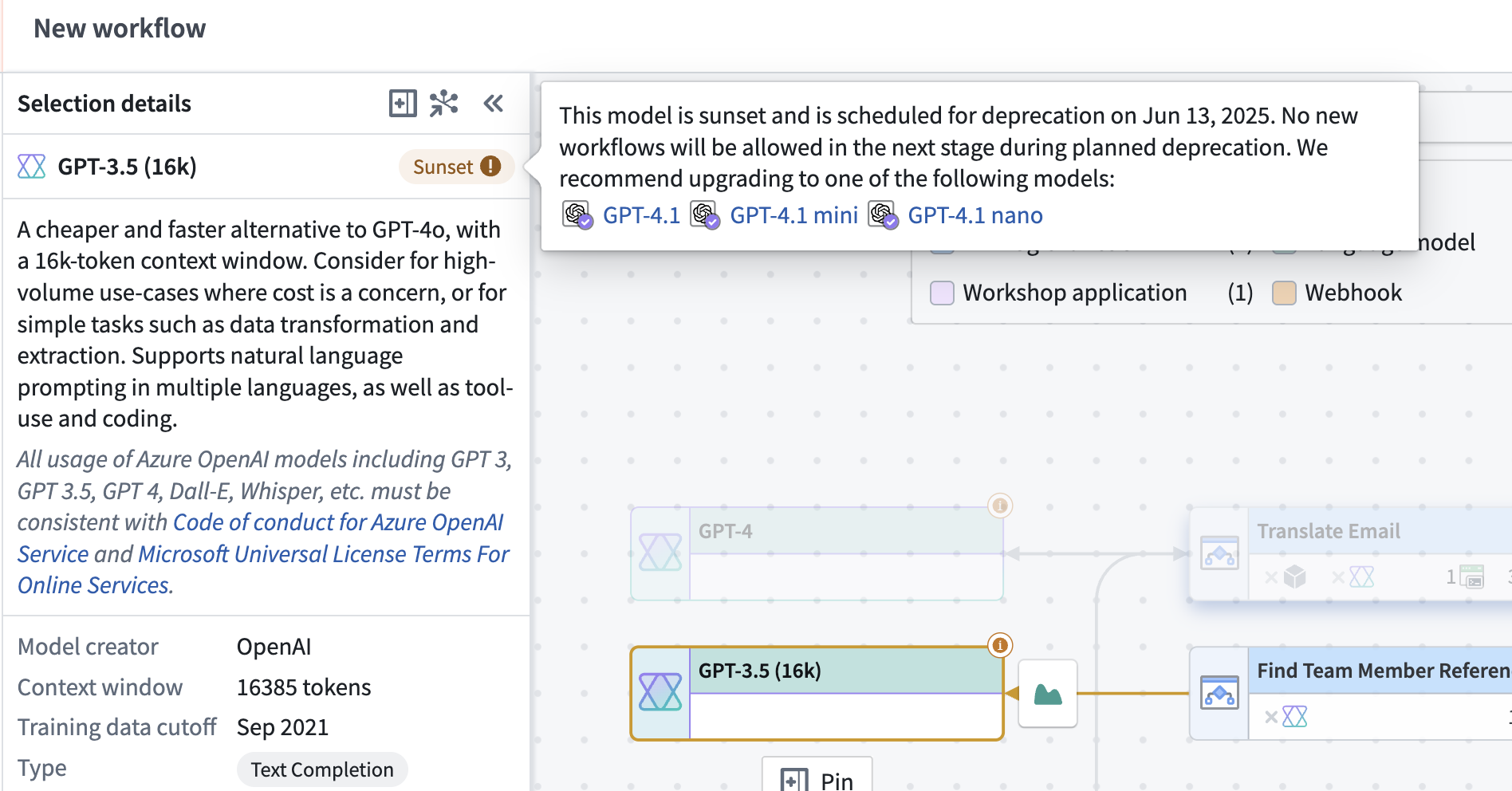
- Workshop applications: For Workshop applications, Workflow Lineage will display upstream resources like Logic functions, and the models they are configured to use. Workflow Lineage also allows users to see other Workshop or OSDK applications that consume a given function, making it easier to understand the complete scope of affected resources. If a resource uses a deprecated model, Workflow Lineage will display an alert icon and a message alerting the user of the model's deprecated status.
Workflow Lineage can help action model migrations for Workshop with its bulk update features. After updating a function as shown in the function-based model usage section, you can open the Workshop application in Workflow Lineage to bulk update the function version used across one or all dependent Workshop applications. Additionally, Workflow Lineage enables you to replace language models in bulk across multiple AIP Logic functions from the lineage graph with a single action.
- Function repositories: Workflow Lineage can provide a visual representation to help users understand model usage in function repositories. Functions that make calls to models will have a connected model node, allowing users to identify whether functions are making calls to deprecated models at a glance.
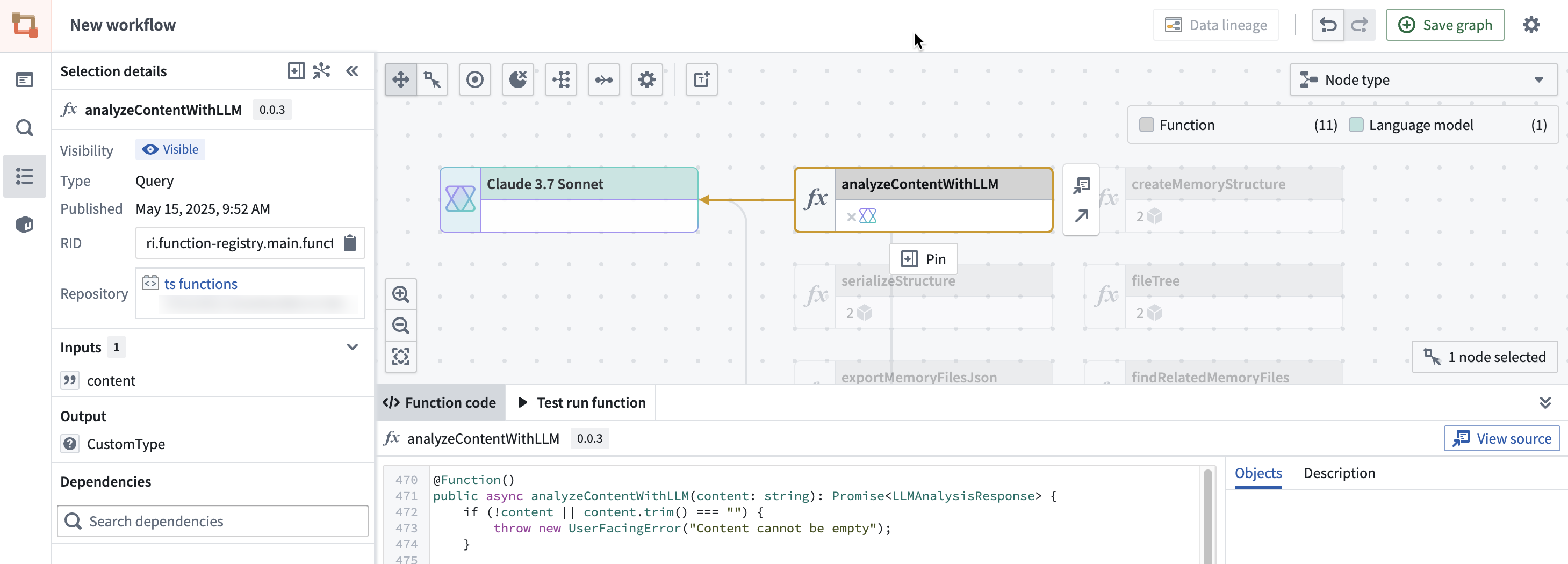
For more information on Workflow Lineage's complete set of features, refer to the Workflow Lineage usage documentation.
Ontology Manager
Once you have identified a function that contains a deprecated model, you can open it in Ontology Manager to track the resources that use this function. You can then navigate to those resources and update the function version to ensure uninterrupted service. In the case of Workshop applications, you can use Workflow Lineage as described in the section above to update function versions in bulk.
To view function usage, navigate to Ontology Manager and select Functions in the sidebar. On the functions page, you can search for the function name and select it from the Functions table to open its overview page.
In the function overview page, scroll down to the Usage history section to see the list of resources that use this function. You can filter by version to find resources that may be using outdated versions of the function.
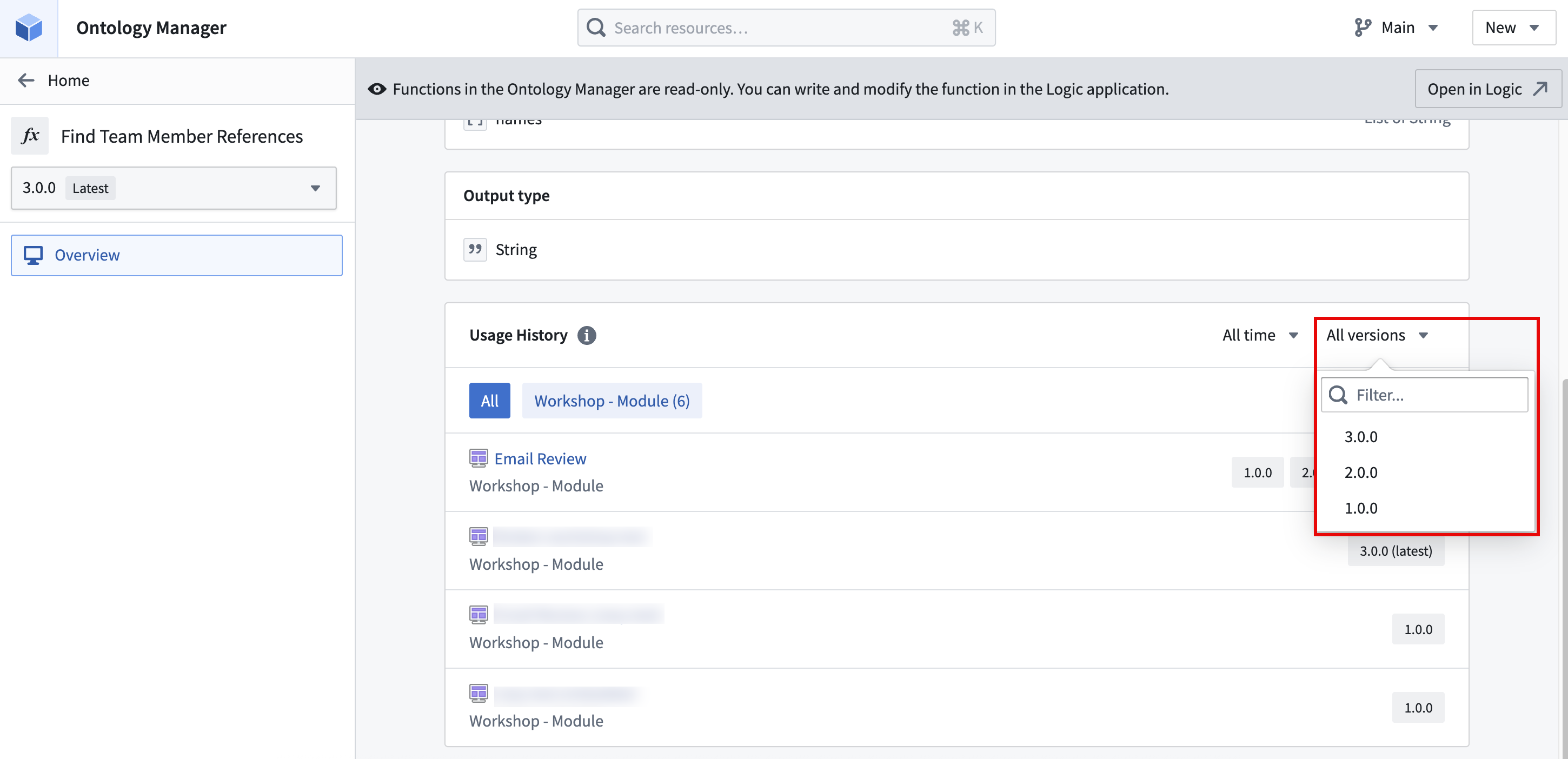
You can then navigate to the resources that use this function to update it to the latest version. For more information, refer to the Ontology Manager function type view documentation.
中文翻译
模型弃用
模型提供商经常会弃用某些模型,这会影响依赖这些模型的工作流,并需要用户迁移到推荐的替代模型。当提供商宣布模型弃用时,Palantir 将通知受影响的用户,并通过 升级助手 识别依赖受影响模型的资源。
收到通知后,我们建议用户提前规划,将使用即将弃用模型的现有工作流迁移到推荐的替代模型。用户将收到迁移截止日期的通知,此后将对该模型实施一系列限电访问限制,以促进剩余工作流的迁移过程。
如果在限电截止日期前未采取任何行动,使用已弃用模型的工作流将失败,并在限电期间输出以下错误信息:
{
    "errorCode": "NOT_FOUND",
    "errorName": "LanguageModelService:LanguageModelNotAvailable",
    "errorInstanceId": "<error instance id>",
    "parameters": {
        "safeParams": "{languageModelRid=<language model rid>, deprecationDate=<deprecation date>, brownoutStart=<brown-out start>, brownoutEnd=<brown-out end>}",
        "unsafeParams": "{}",
        "message": "Unable to use model: language model is in planned deprecation and is currently under a brown-out"
    }
}
同样,如果在提供商的模型弃用日期前未采取任何行动,使用已弃用模型的工作流将失败,并输出以下错误信息,直到工作流迁移到替代模型:
{
    "errorCode": "NOT_FOUND",
    "errorName": "LanguageModelService:LanguageModelNotAvailable",
    "errorInstanceId": "<error instance id>",
    "parameters": {
        "safeParams": "{languageModelRid=<language model rid>, deprecationDate=<deprecation date>}",
        "unsafeParams": "{}",
        "message": "Unable to use model: language model is deprecated"
    }
}
限电访问限制
模型限电是一种引导用户远离被弃用模型的策略。限电会引入有意的、暂时的不稳定性,以提示即将发生的变化,并避免突然中断那些未对升级助手中列出的受影响资源采取行动的用户的服務。
每个模型都遵循特定的限电时间表。要查看正在弃用的模型的限电时间表,包括阶段数量、开始日期和持续时间,请参阅已弃用模型的升级助手描述页面。
迁移模型
要成功迁移远离已弃用模型并避免关键工作流中断,请执行以下步骤:
识别需要迁移的资源
导航到升级助手,并在 Active upgrades 部分打开相关的模型弃用页面。在已弃用模型的描述页面上,向下滚动到 Resources 部分,查看受此模型弃用影响的资源列表。
资源识别标准
资源根据以下标准被标记为需要迁移:
- 如果某个资源调用了已弃用的模型,则该资源将被标记为
PENDING。这表示该资源中使用的模型仍需迁移。 - 如果之前调用过已弃用模型的资源现在调用的是不同的模型,并且 最后一次调用已弃用模型是在 24 小时之前,则该资源将被标记为
COMPLETED,因为使用不同的模型表明该资源已迁移。
在极少数情况下,资源可能被标记为 COMPLETED,然后又恢复为 PENDING。如果资源对已弃用模型发起了新的调用,就可能发生这种情况。为防止这种情况,请确保 Workshop 模块等资源在相关函数保存并发布后,更新到受影响函数的最新版本。
配置为使用已弃用模型但在迁移期间未被积极使用的资源将不会出现在升级助手资源列表中。例如,如果某个管道配置为使用已弃用模型但在迁移期间未构建,则它不会出现在升级助手资源列表中,因为它并未实际调用已弃用模型。在这种情况下,我们建议盘点您的生产工作流,并使用以下章节中的工具来了解资源使用情况并评估是否需要迁移。
导航到受影响的资源
在升级助手描述页面中,选择一个资源以导航到该资源应用程序。根据资源类型,迁移到新模型的过程可能有所不同。对于每个受影响的资源,您必须确定已弃用模型的使用方式,例如在 Pipeline Builder 和 AIP Logic 中的 Use LLM 节点,或转换中的代码引用。您可能需要导航到其他上游资源来为工作流选择新模型。
替换已弃用的模型
为防止工作流因已弃用模型而中断,需要选择一个新模型。升级助手中的每个已弃用模型描述页面都会包含潜在的替代模型,但我们强烈建议在 AIP Evals 中设置评估套件,以确保您为用例选择最佳模型。
升级助手会识别使用即将弃用模型的资源,每种资源类型需要以不同的方式解决。某些资源可以直接配置,并使用模型选择器选择新模型。在其他资源类型中,例如 Workshop 模块或管道,模型可能从上游资源调用,例如 AIP Logic 函数 或 代码仓库转换。在这些情况下,模型选择需要在包含模型配置选项的上游资源中进行。有关资源类型的更多详细信息,请参阅以下章节。
:::callout{theme="warning"} 用户必须对受影响的资源具有查看和编辑权限。否则,将无法正确检查管道和 Workshop 模块等资源以找到模型配置的根上游资源。 :::
模型选择器支持的应用程序
如果已弃用的模型是通过模型选择器选择的,则可以通过相同方式选择新模型。导航到 Logic 函数和 AIP Chatbots(以前称为 AIP Agents)等资源时,打开资源配置设置并使用模型选择器选择新模型。
支持模型选择器的应用程序包括:
- Pipeline Builder
- AIP Chatbot Studio
- AIP Evals
- AIP Logic
- Workshop
- Quiver
- Marketplace
- Code Workspaces
资源配置设置将在受影响的模型旁边显示一个警报,并将其标记为 Sunset。
要选择替代模型,请打开模型选择器并选择新模型。
Pipeline Builder 中的模型使用
对于 Pipeline Builder 资源,升级助手将链接到整个管道,而不是特定的受影响节点。为了在大型管道中高效地找到相关节点,请使用 Pipeline Builder 的搜索功能。
-
通过从升级助手模型弃用页面的资源列表中选择受影响的管道来导航到该管道。
-
选择管道图右上角的搜索图标。
-
输入 "use LLM" 作为搜索词,查看管道中所有
Use LLM节点的列表。所有搜索结果也将以管道图例中显示的颜色高亮显示。
-
从列出的结果中,选择每个节点以在管道图中高亮显示它。右键单击所选节点,然后从上下文菜单中选择 Edit。这将打开节点配置页面。
-
导航到 Model 部分,如果模型正在被弃用,该部分将在模型名称旁边显示一个警报图标。如果存在此警报,请选择 Show configurations,然后从 Model type 下拉菜单中选择一个新模型。
-
对管道中的所有
Use LLM节点重复此过程。 -
保存、部署并重建您的管道。
Workshop 中的模型使用
Workshop 中的模型使用可能源自 AIP 小部件或引用的函数,例如 AIP Logic 函数。根据来源,可以从部件配置设置或上游资源(如 AIP Logic 函数或 AIP Chatbot)的配置设置更改模型。您可以通过从升级助手模型弃用页面的资源列表中选择受影响的 Workshop 模块来导航到它们。进入编辑模式以查看模块配置设置。
请注意,用户需要对受影响的 Workshop 模块具有编辑权限。按照以下说明处理基于函数和基于部件的模型使用。
基于函数的模型使用
-
要识别 Workshop 模块中使用的函数,请打开工作区左上角的 Overview 面板。在 Capabilities 部分下,选择 Functions。
-
在 Functions 面板中,选择每个函数以查看函数源。
-
选择函数源以导航到源应用程序,此处为 AIP Logic。从此源,您可以配置模型设置,并在函数使用已弃用模型时选择新模型。
-
保存并发布函数的新版本。
-
返回 Workshop,按照步骤 1 中的说明导航到 Overview 面板中的 Functions 部分。选择更新后的函数,并使用 Bulk update version 部分下的函数版本下拉菜单为所有变量或小部件选择最新版本的函数。
-
对所有列出的函数重复此过程。
基于部件的模型使用
基于部件的模型配置取决于所用部件的类型。查看以下选项,并按照 Workshop 模块中使用的部件的说明进行操作:
- AIP chatbot: AIP Chatbot 小部件使用聊天机器人,因此模型配置必须在 AIP Chatbot Studio 的聊天机器人配置设置中进行。
- 在小部件配置面板中,选择正在使用的聊天机器人以在 Chatbot Studio 中打开它。
- 通过选择聊天机器人界面右上角的 Edit 来编辑聊天机器人。
- 打开聊天机器人配置面板,然后从模型选择器中选择一个新模型。
-
保存并发布您的聊天机器人。
-
AIP generated content: 对于 AIP generated content 小部件,仅当小部件使用 Direct to LLM 或 LLM via prompt function 选项时,才能在 Workshop 中配置模型使用。否则,可以在引用的 Logic 函数中配置。
-
Direct to LLM/LLM via prompt function: 可以使用小部件配置设置中的模型选择器选择新模型。
-
Logic: 如果小部件使用 Logic 选项,则 Logic 函数将列在 Overview 面板的模块函数下。有关更多详细信息,请参阅基于函数的模型使用部分。
-
Free-form analysis: free-form analysis 小部件的模型使用可以直接在 Workshop 中配置。在小部件配置设置中,打开 AIP options 并选择 Enabled 以配置模型设置。然后,从模型选择器中选择一个新模型。
-
Logic - Chain of thought: 此小部件使用 Logic 函数,这些函数列在 Overview 面板中。有关更多详细信息,请参阅基于函数的模型使用部分。
确保在进行任何更改后保存并发布您的 Workshop 模块。
基于代码的模型使用
对于基于代码的模型使用,升级助手将列出包含的代码仓库、代码工作区或下游资源,而不是包含对已弃用模型引用的确切代码文件或函数。如果下游资源被标记,请查看 Workshop 模型使用和其他工具部分。如果代码仓库或工作区被标记,请打开升级助手资源列表中列出的仓库或工作区。在仓库或工作区中,您可以将已弃用模型的使用实例替换为新模型。
模型通常按如下 TypeScript 和 Python 示例所示导入和使用:
```typescript tab="TypeScript" import { Function } from "@foundry/functions-api" // 导入一个已弃用的模型 import { GPT_4_5 } from "@foundry/models-api/language-models"
/*
* 用于根据用户输入向模型发送文本补全请求
* @param {string} userInput - 发送给模型的文本输入
/
export class MyFunctions {
@Function()
public async createChatCompletion(userInput: string): Promise```python tab="Python"
from transforms.api import transform, Input, Output
from palantir_models.transforms import OpenAiGptChatLanguageModelInput
from palantir_models.models import OpenAiGptChatLanguageModel
from language_model_service_api.languagemodelservice_api_completion_v3 import GptChatCompletionRequest
from language_model_service_api.languagemodelservice_api import ChatMessage, ChatMessageRole
@transform(
reviews=Input("Input Dataset Rid"),
# 已弃用的模型使用
model=OpenAiGptChatLanguageModelInput("ri.language-model-service..language-model.gpt-4-5"),
output=Output("Output dataset rid or path"),
)
def compute_sentiment(ctx, reviews, model: OpenAiGptChatLanguageModel, output):
def get_completions(review_content: str) -> str:
system_prompt = "Take the following review determine the sentiment of the review"
request = GptChatCompletionRequest(
[ChatMessage(ChatMessageRole.SYSTEM, system_prompt), ChatMessage(ChatMessageRole.USER, review_content)]
)
resp = model.create_chat_completion(request)
return resp.choices[0].message.content
reviews_df = reviews.pandas()
reviews_df['sentiment'] = reviews_df['review_content'].apply(get_completions)
out_df = ctx.spark_session.createDataFrame(reviews_df)
return output.write_dataframe(out_df)
如果您不确定如何导入和使用新模型,请导航到 Model Catalog 应用程序查看 Palantir 提供的模型使用示例。在您的代码仓库或工作区中搜索已弃用模型的使用,并将所有实例替换为推荐的模型或您选择的模型。根据您的工作流,此过程可能涉及为上游函数或转换使用创建并合并新分支到您的仓库或工作区,以反映这些更改。
在上面的示例中,使用了已弃用的模型 GPT-4.5。更新到 GPT-4.1 将涉及导入新模型并更新所有使用,如下所示:
```typescript tab="TypeScript" import { Function } from "@foundry/functions-api" // 导入一个新模型 import { GPT_4_1 } from "@foundry/models-api/language-models"
/*
* 用于根据用户输入向模型发送文本补全请求
* @param {string} userInput - 发送给模型的文本输入
/
export class MyFunctions {
@Function()
public async createChatCompletion(userInput: string): Promise```python tab="Python"
from transforms.api import transform, Input, Output
from palantir_models.transforms import OpenAiGptChatLanguageModelInput
from palantir_models.models import OpenAiGptChatLanguageModel
from language_model_service_api.languagemodelservice_api_completion_v3 import GptChatCompletionRequest
from language_model_service_api.languagemodelservice_api import ChatMessage, ChatMessageRole
@transform(
reviews=Input("Input Dataset Rid"),
# 将已弃用模型的使用替换为新模型。
model=OpenAiGptChatLanguageModelInput("ri.language-model-service..language-model.gpt-4-1"),
output=Output("Output dataset rid or path"),
)
def compute_sentiment(ctx, reviews, model: OpenAiGptChatLanguageModel, output):
def get_completions(review_content: str) -> str:
system_prompt = "Take the following review determine the sentiment of the review"
request = GptChatCompletionRequest(
[ChatMessage(ChatMessageRole.SYSTEM, system_prompt), ChatMessage(ChatMessageRole.USER, review_content)]
)
resp = model.create_chat_completion(request)
return resp.choices[0].message.content
reviews_df = reviews.pandas()
reviews_df['sentiment'] = reviews_df['review_content'].apply(get_completions)
out_df = ctx.spark_session.createDataFrame(reviews_df)
return output.write_dataframe(out_df)
Quiver 中的模型使用
Quiver 中的 LLM 使用可以在分析设置中配置。导航到受影响分析侧边栏中的设置选项卡,然后在 AIP Settings 部分下访问模型选择器。
其他工具
工作流可能变得复杂且难以管理,使得直观地找到所有受影响的资源使用实例变得困难。查看以下部分,了解可用于帮助识别工作流中 LLM 使用的工具。
工作流沿袭
为了更好地理解跨资源的模型使用,您可以使用 Workflow Lineage。使用键盘快捷键 Cmd + I (macOS) 或 Ctrl + I (Windows) 在 Workflow Lineage 中打开 Workshop 应用程序或函数仓库。在 Workflow Lineage 图中,您将能够查看支持应用程序的对象、操作和函数。
- Workshop 应用程序: 对于 Workshop 应用程序,Workflow Lineage 将显示上游资源,如 Logic 函数及其配置使用的模型。Workflow Lineage 还允许用户查看使用给定函数的其他 Workshop 或 OSDK 应用程序,从而更容易理解受影响资源的完整范围。如果资源使用了已弃用的模型,Workflow Lineage 将显示一个警报图标和一条消息,提醒用户模型的已弃用状态。
Workflow Lineage 可以通过其批量更新功能帮助执行 Workshop 的模型迁移。按照基于函数的模型使用部分所示更新函数后,您可以在 Workflow Lineage 中打开 Workshop 应用程序,以批量更新一个或所有依赖的 Workshop 应用程序中使用的函数版本。此外,Workflow Lineage 使您能够通过单个操作从沿袭图中批量替换语言模型。
- 函数仓库: Workflow Lineage 可以提供可视化表示,帮助用户理解函数仓库中的模型使用。调用模型的函数将有一个连接的模型节点,使用户能够一目了然地识别函数是否正在调用已弃用的模型。
有关 Workflow Lineage 完整功能的更多信息,请参阅 Workflow Lineage 使用文档。
Ontology Manager
一旦您识别出包含已弃用模型的函数,您可以在 Ontology Manager 中打开它,以跟踪使用此函数的资源。然后,您可以导航到这些资源并更新函数版本以确保服务不中断。对于 Workshop 应用程序,您可以使用上述部分中描述的 Workflow Lineage 来批量更新函数版本。
要查看函数使用情况,请导航到 Ontology Manager 并在侧边栏中选择 Functions。在函数页面上,您可以搜索函数名称,然后从 Functions 表中选择它以打开其概览页面。
在函数概览页面中,向下滚动到 Usage history 部分,查看使用此函数的资源列表。您可以按版本过滤,以查找可能使用过时函数版本的资源。
然后,您可以导航到使用此函数的资源,将其更新到最新版本。有关更多信息,请参阅 Ontology Manager 函数类型视图文档。