2b. Tutorial: Train a model in a Jupyter® notebook(2b. 教程:在 Jupyter® 笔记本中训练模型)
Before starting this step of the tutorial, you should have completed the modeling project set up. In this tutorial, you can choose to either train a model in a Jupyter® notebook or in Code Repositories. Jupyter® notebooks are recommended for fast and iterative model development whereas code repositories are recommended for production-grade data and model pipelines.
In this step of the tutorial, we will train a model in a Jupyter® notebook with Code Workspaces. This step will cover:
- Creating a Jupyter® Code Workspace for model training
- Splitting feature data for testing and training
- Training a model in Code Workspaces
- Publishing a model from Code Workspaces
- Viewing a model and submit it to a modeling objective
2b.1 How to create a notebook for model training
The Code Workspaces application in Foundry is a web-based development environment that provides third-party IDEs for data analysis and model development. You can directly publish models from Jupyter® notebooks within Foundry that can be used in downstream applications.
Code Workspaces provide an interactive development environment by securing continually available compute resources while you are using the workspace. Code Workspaces enable you to configure your Python environment, transform data, plot charts, and train models without waiting for compute resources or packaging a Python environment.
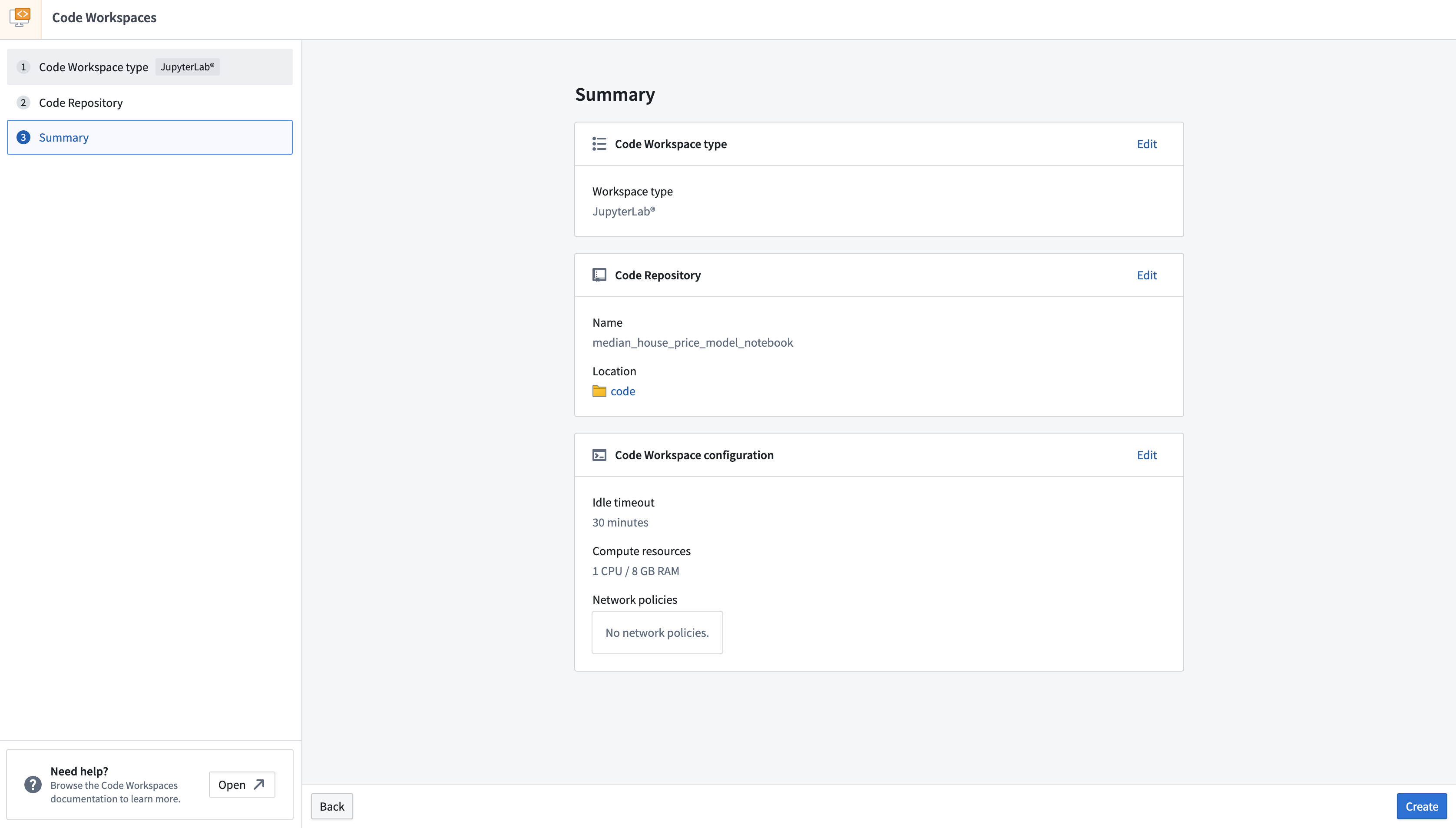
Action: In the code folder you created during the previous step of this tutorial, select + New > Jupyter Code Workspace. Your code workspace should be named in relation to the model that you are training. In this case, name the repository median_house_price_model_notebook. Select Continue to use default compute resources and repository configuration, then, use Create to create and launch the workspace.
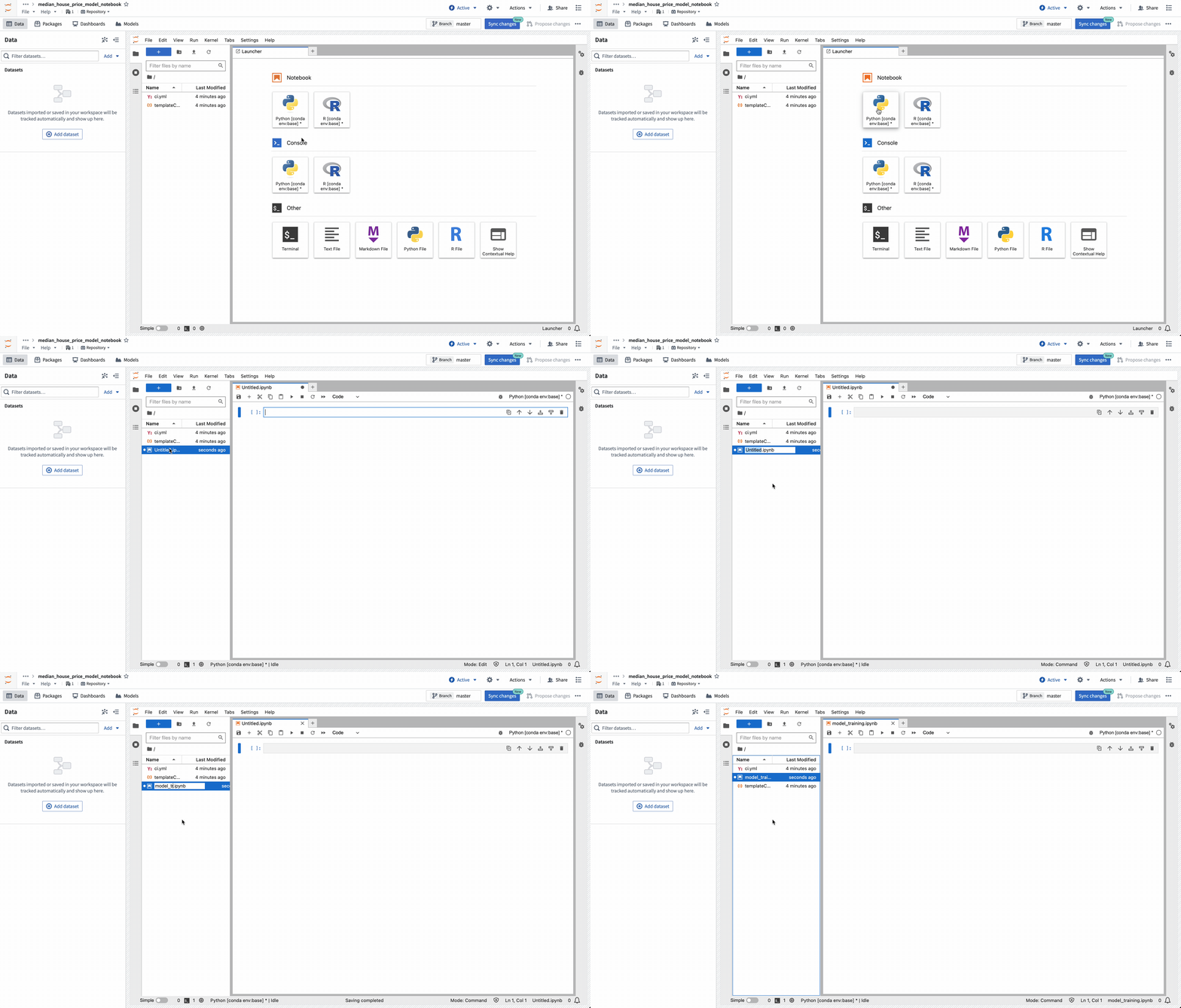
Once the workspace is created, we need to create a notebook and install some dependencies to train the model. In the Jupyterlab® launcher screen, select a notebook kernel to use.
Action: Select the base Python conda kernel to create a new notebook and then rename the file to model_training.ipynb.
2b.2 How to split feature data for testing and training
The first step in a supervised machine learning project is to split our labeled feature data into separate datasets for training and testing. Eventually, we will want to create performance metrics (estimates of how well our model performs on new data) so we can decide whether this model is good enough to use in a production setting and so we can communicate how much to trust the results of this model with other stakeholders. We must use separate data for this validation to help ensure that the performance metrics are representative of what we will see in the real world.
Import a dataset into a Code Workspace
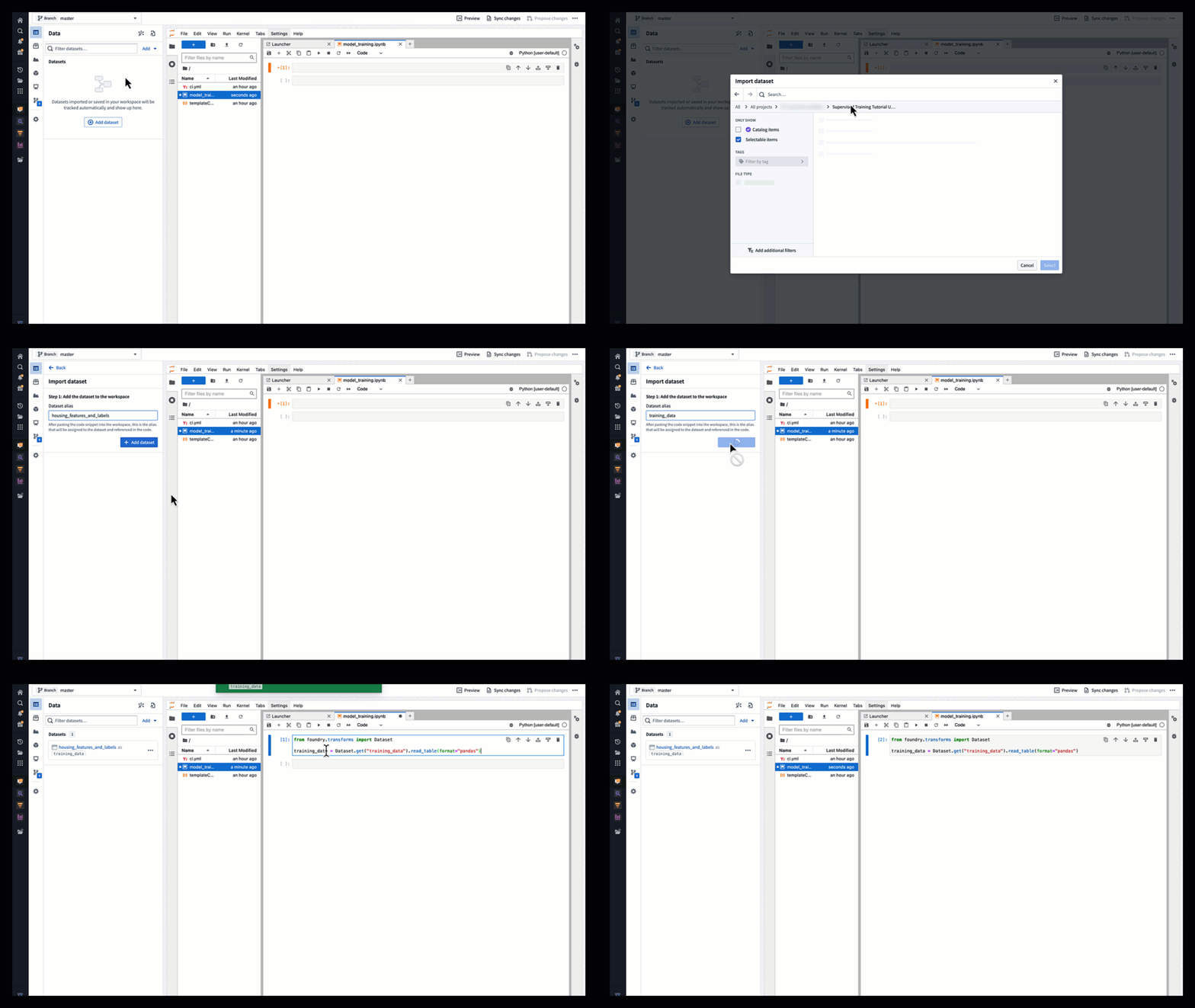
First, let's make our dataset available for use in our Jupyter® notebook in Code Workspaces. Code Workspaces allow us to create an "alias" for our input data which helps make our code more readable. In this case, we will use the alias training_data.
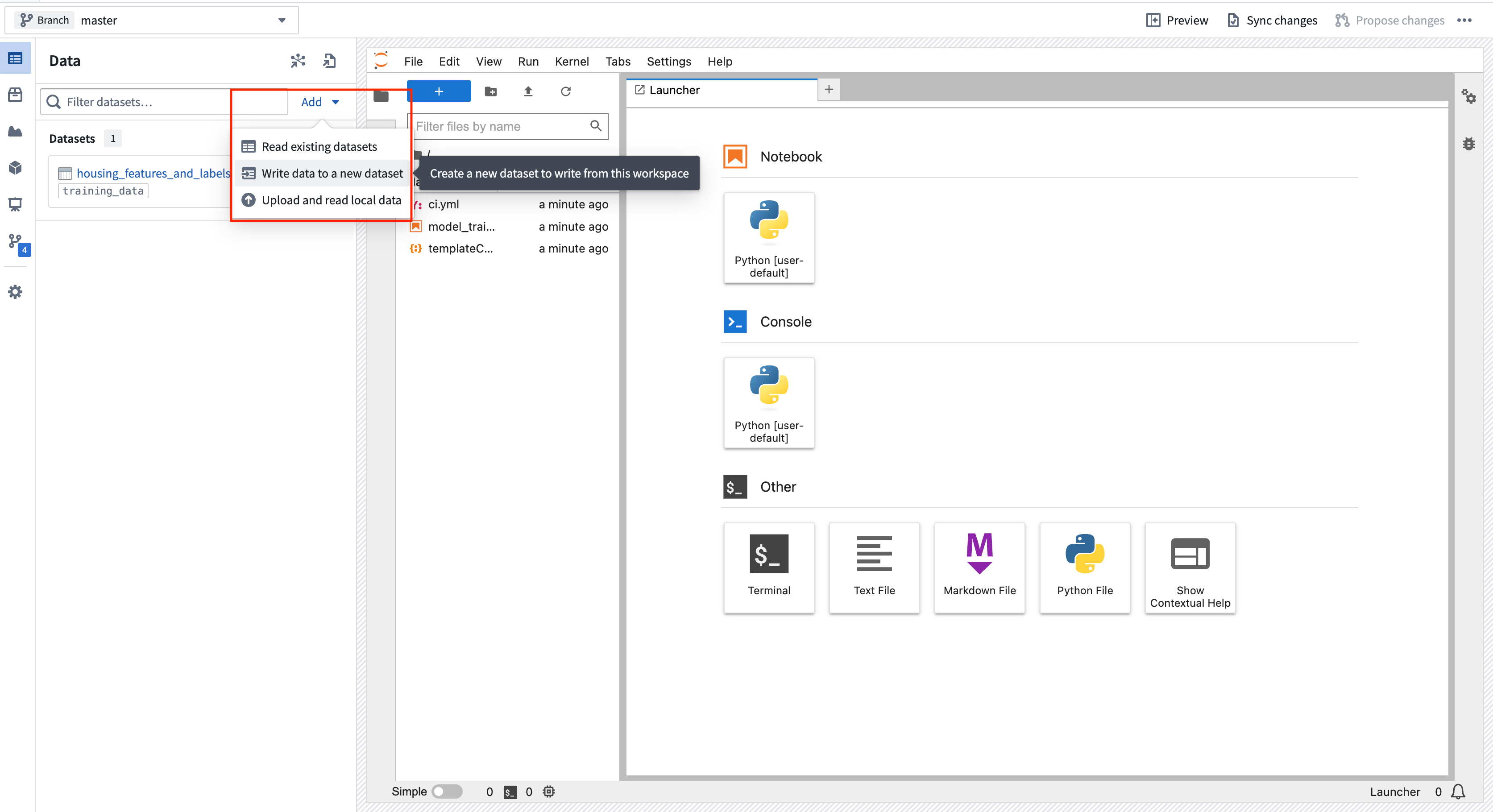
Action: Open the Data tab, then select Add dataset > Read existing datasets. Add the housing_features_and_labels dataset that we created earlier and provide it the alias training_data. Copy the provided import logic into a cell in your Jupyter® notebook. You can press Shift + Enter to run the code cell.
from foundry.transforms import Dataset

training_data = Dataset.get("training_data").read_table(format="pandas")
Split data into testing and training
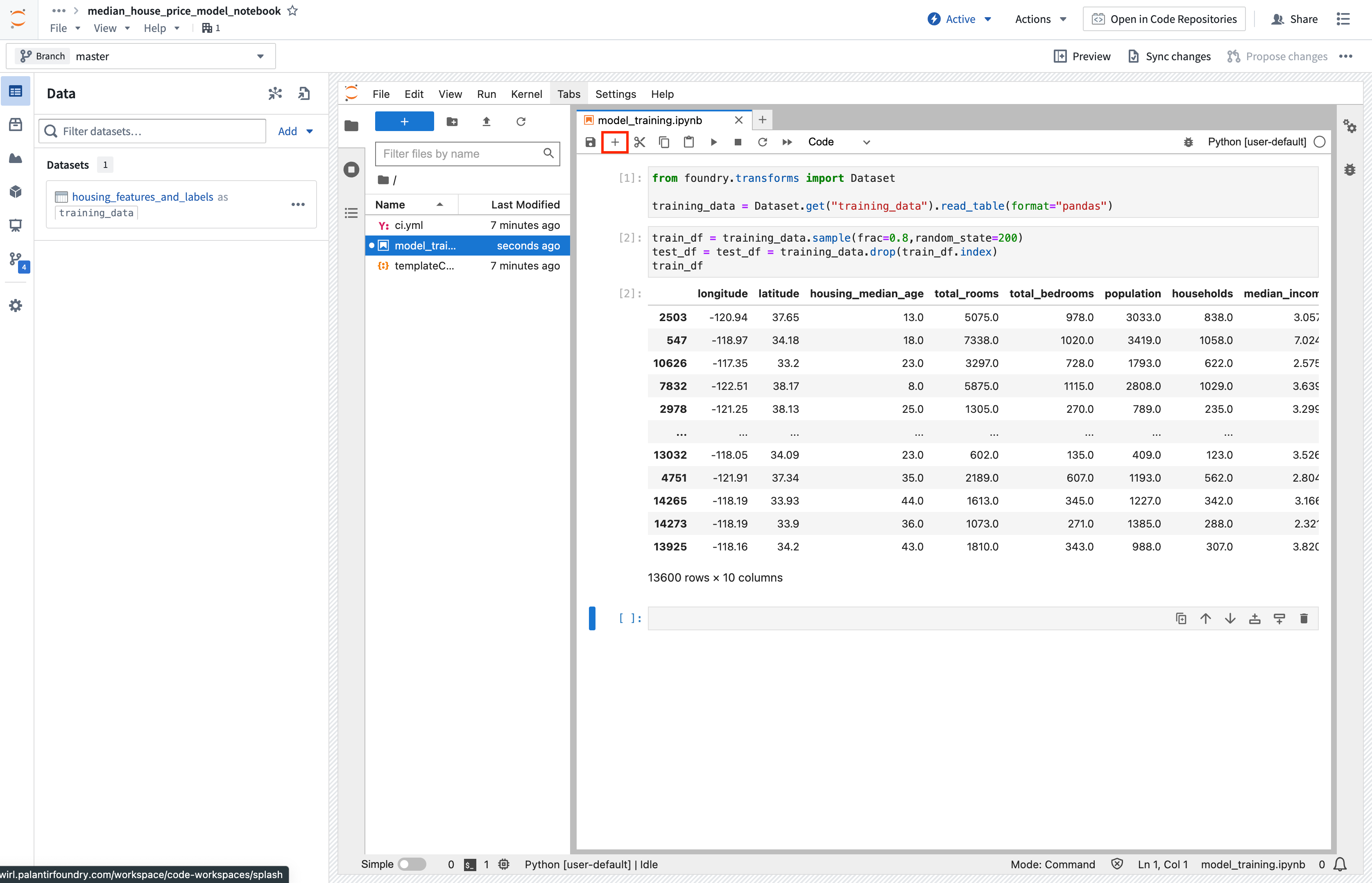
Now that we have imported our dataset, let's split the data into a testing and training dataframe.
Action: Create a new notebook cell by using the + option at the top of the notebook, then copy in the snippet below and run the cell.
train_df = training_data.sample(frac=0.8,random_state=200)
test_df = training_data.drop(train_df.index)
train_df
Save test dataset to Foundry
Next, we can save our testing and training splits back to Foundry. This enables us to have a record of the datasets we used for training and testing for future reference.
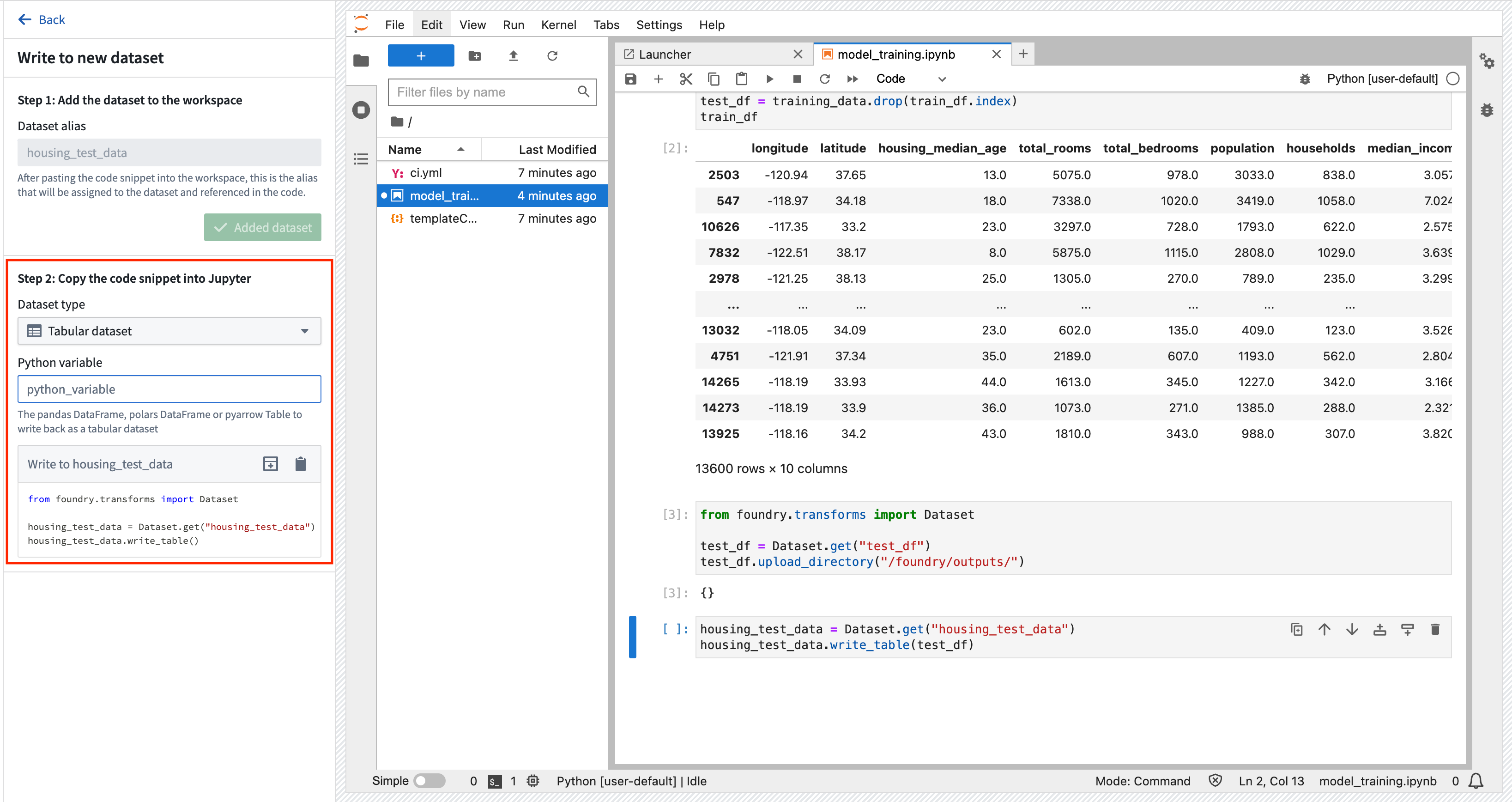
Action: Select Add > Write data to a new dataset to create a new dataset output. You can name the output housing_test_data and save the output in the data folder from earlier. Select Add Dataset and Tabular dataset for the dataset type and test_df for the Python variable. You can then copy the code to a new cell and execute it to save the dataset back to Foundry.
from foundry.transforms import Dataset

housing_test_data = Dataset.get("housing_test_data")
housing_test_data.write_table(test_df)
2b.3 How to train a model in Code Workspaces
Models in Foundry are comprised of two components:
- Model artifacts: Model files produced in a model training job.
- Model adapter: A Python class that describes how Foundry should interact with the model artifacts to perform inference.
Model dependencies
Model training will almost always require adding Python dependencies that contain model training, serialization, inference, or evaluation logic. Foundry supports adding dependency specifications through conda and PyPI (pip). These dependency specifications create a Python environment that can be used to train a model.
In Foundry, these resolved dependencies and all Python .py files in your Jupyter® notebook are automatically packaged with your models to ensure that your model automatically has all of the logic required to perform inference (generate predictions) in production. Environments in Jupyter® Code Workspaces are managed through maestro commands. In this example, we will use pandas and scikit-learn to produce our model and dill to save our model.
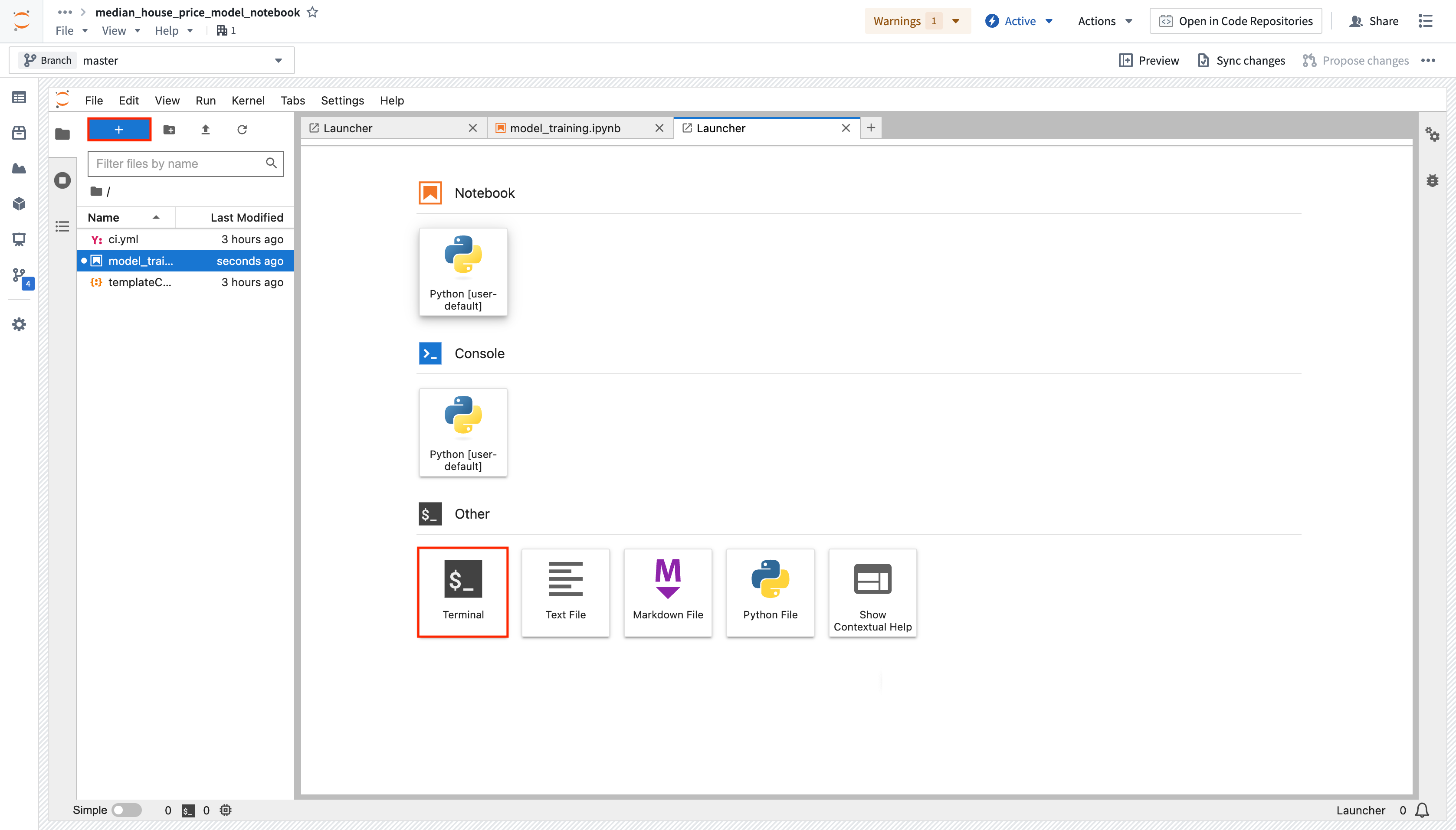
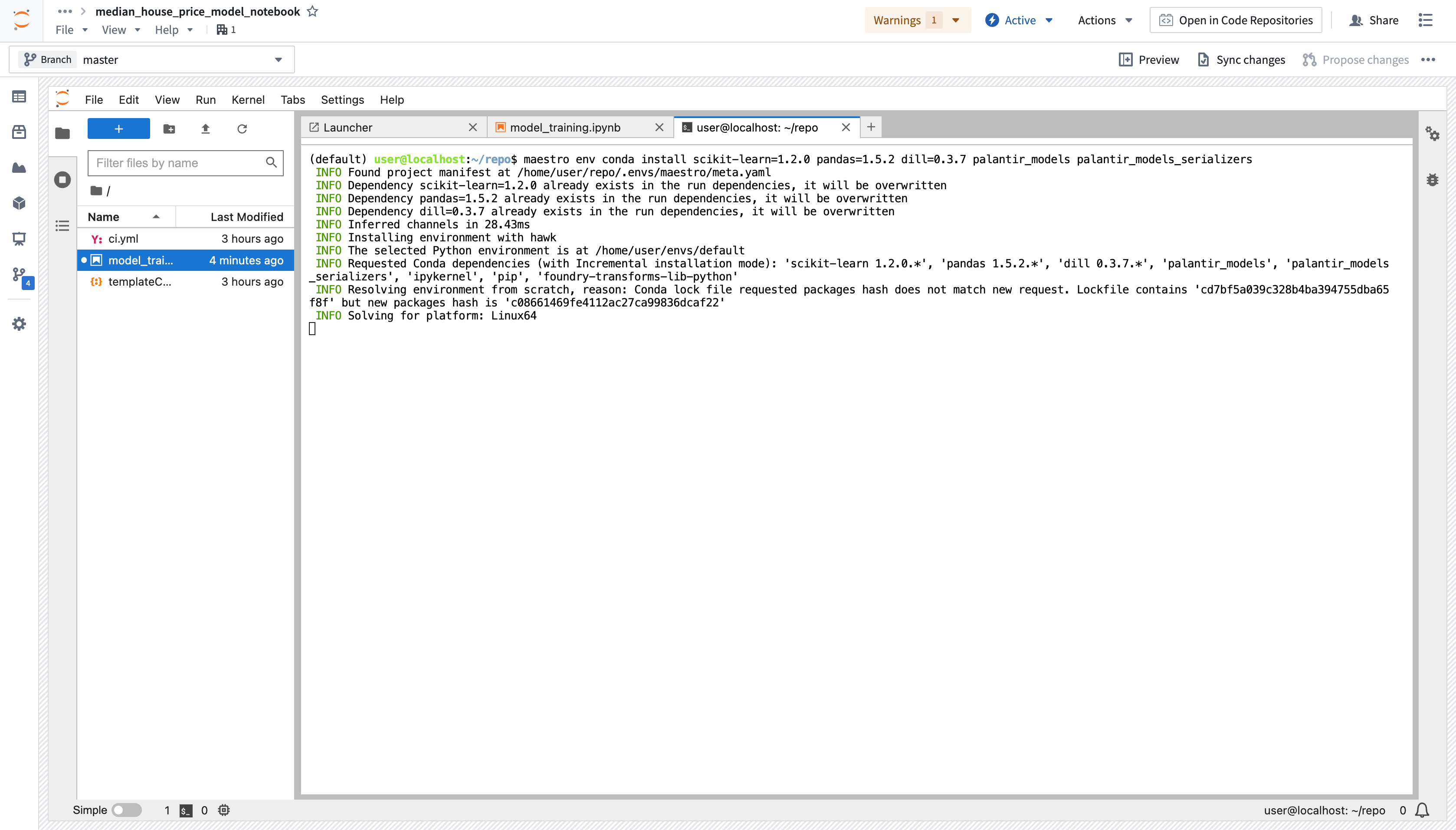
Action: Open Launcher by selecting the blue + button, then start a terminal. Add all three dependencies by running the command below. You can also use the Packages tab in the sidebar to install the backing repositories of the package you wish to install, which will open a terminal and run the maestro command for you.
maestro env conda install scikit-learn pandas dill "palantir_models>=0.1795.0"
Model training
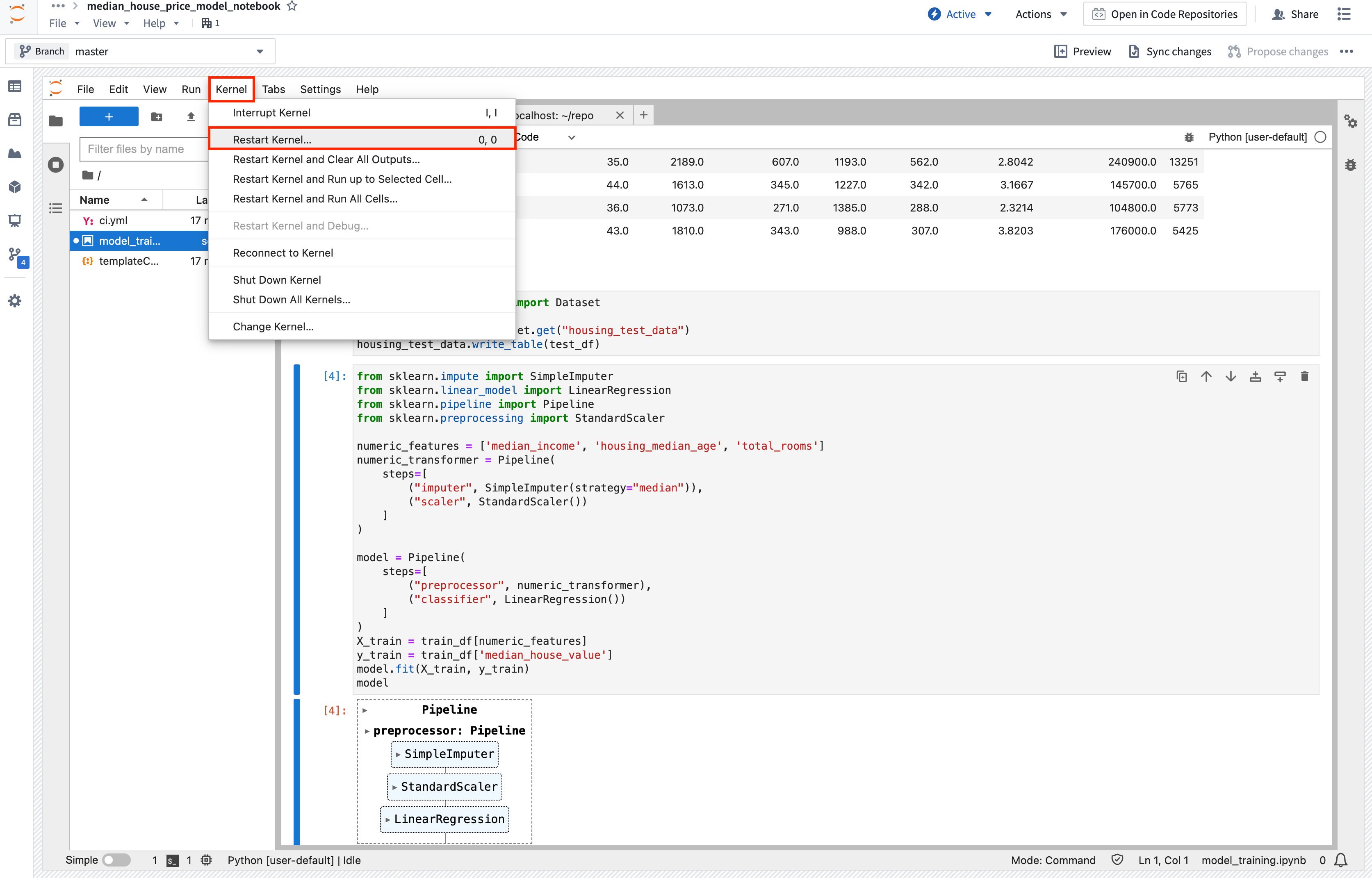
Action: Copy the above code into a new cell and execute it to train a new model in memory in your Jupyter® notebook. If you run into a ModuleNotFoundError or ImportError, restart the kernel (Kernel > Restart Kernel...) to make sure the environment has picked up the requested dependency changes.
from sklearn.impute import SimpleImputer
from sklearn.linear_model import LinearRegression
from sklearn.pipeline import Pipeline
from sklearn.preprocessing import StandardScaler

numeric_features = ['median_income', 'housing_median_age', 'total_rooms']
numeric_transformer = Pipeline(
    steps=[
        ("imputer", SimpleImputer(strategy="median")),
        ("scaler", StandardScaler())
    ]
)

model = Pipeline(
    steps=[
        ("preprocessor", numeric_transformer),
        ("classifier", LinearRegression())
    ]
)
X_train = train_df[numeric_features]
y_train = train_df['median_house_value']
model.fit(X_train, y_train)
model
(Optional) Log metrics and hyperparameters to a model experiment
Model experiments is a lightweight framework for logging metrics and hyperparameters produced during a model training run, which can then be published alongside a model and persisted in the model page.
Learn more about creating and writing to experiments.
2b.4 How to publish a model from Code Workspaces
Now that we have created a model, we can publish it to Foundry to integrate it with our production apps. To publish a model, we need to create the model resource in Foundry to which we will save the model, then wrap the model in a model adapter so Foundry knows how to interact with your model.
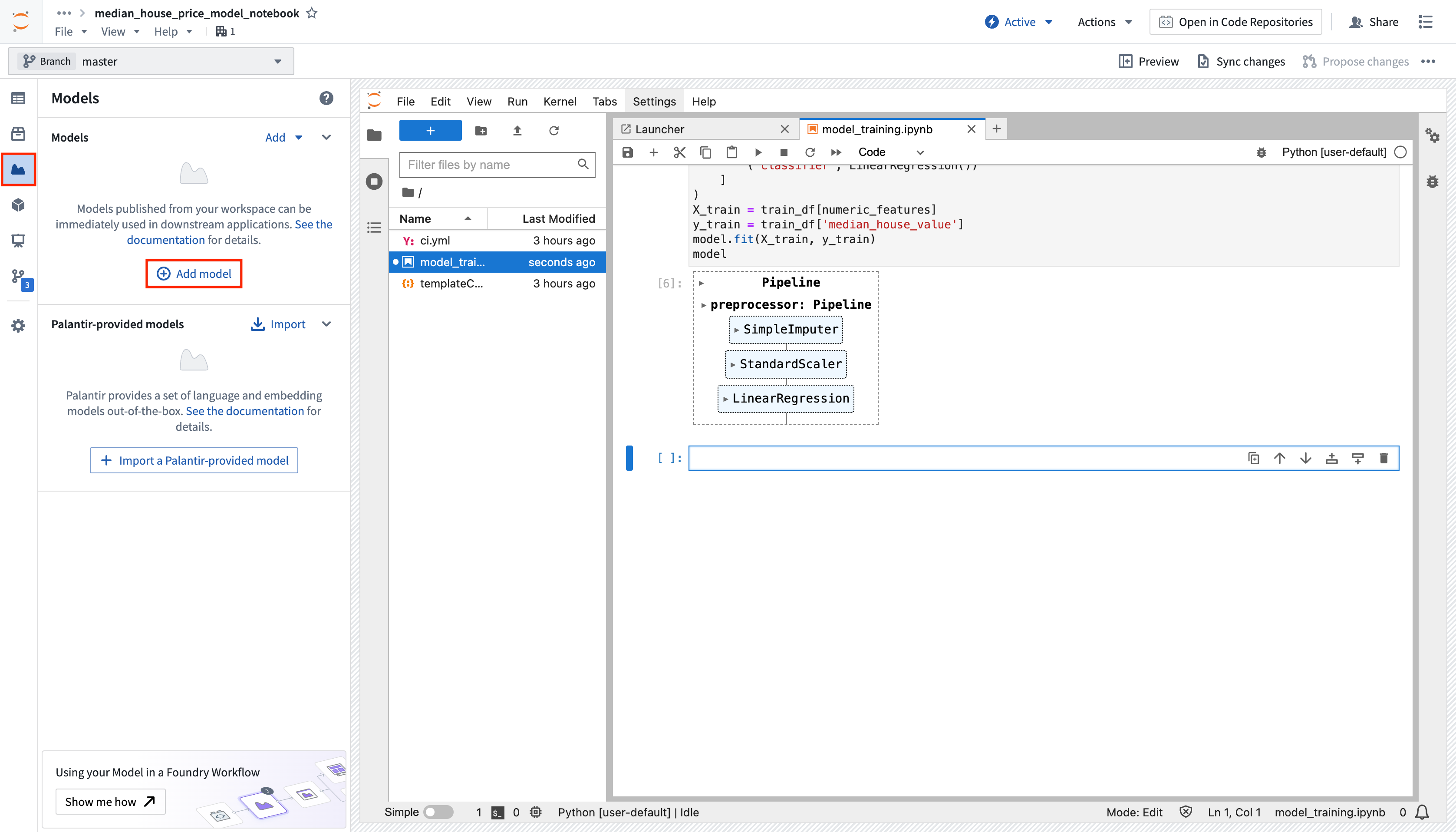
Action: In the Models tab, select Add model > Create new model and name it linear_regression_model. You can save the model to the models folder created earlier and then select Create to create the resource.
Now that you have created a model resource, Foundry will automatically create a new Python file for you to implement a model adapter in. Model adapters provide a standard interface for all models in Foundry. The standard interface ensures that all models can be used immediately in production applications as Foundry will handle the infrastructure to load the model, its Python dependencies, expose its API, and interface with your model.
Model adapters in Code Workspaces must be defined in a separate Python (.py) file and imported into the notebook.
To create a model adapter, you will need to implement four functions:
- Model save and load: To reuse your model, you must define how your model should be saved and loaded. Palantir provides many default methods of serialization (saving), and in more complex cases, you can implement custom serialization logic.
api: Defines the API of your model and tells Foundry what type of input data your model requires.predict: Called by Foundry to provide data to your model. This is where you can pass input data to the model and generate inferences (predictions).
import palantir_models as pm
from palantir_models.serializers import DillSerializer


class LinearRegressionModelAdapter(pm.ModelAdapter):

    @pm.auto_serialize(
        model=DillSerializer()
    )
    def __init__(self, model):
        self.model = model

    @classmethod
    def api(cls):
        columns = [
            ('median_income', float),
            ('housing_median_age', float),
            ('total_rooms', float),
        ]
        return {"df_in": pm.Pandas(columns)}, \
               {"df_out": pm.Pandas(columns + [('prediction', float)])}

    def predict(self, df_in):
        df_in['prediction'] = self.model.predict(
            df_in[['median_income', 'housing_median_age', 'total_rooms']]
        )
        return df_in
Action: Copy the above code into a new file named linear_regression_model_adapter.py. Select the Publish model version snippet from the model sidebar on the left, then expand the Publish to Foundry section and copy the corresponding code snippet into your main notebook. Make sure to adjust the code snippet to your new model variable in Python. You may want to test your model adapter before actually calling the .publish function, which you can do by running .transform from the adapter model instance:
Create adapted model instance and test it:
# Load the autoreload extension and automatically reload all modules
%load_ext autoreload
%autoreload 2
from palantir_models.code_workspaces import ModelOutput
from linear_regression_model_adapter import LinearRegressionModelAdapter # Update if class or file name changes

# Wrap the trained model in a model adapter for Foundry
linear_regression_model_adapter = LinearRegressionModelAdapter(model)
linear_regression_model_adapter.transform(test_df).df_out
Publish the model to Foundry:
# Get a writable reference to your model resource.
model_output = ModelOutput("linear_regression_model")
model_output.publish(linear_regression_model_adapter) # Publishes the model to Foundry

2b.5 Optional: Configure inference or retraining jobs
You can create an inference and/or retraining job and configure it to run on a schedule directly from your Jupyter® notebook. This will execute your .ipynb file as a transform leveraging the Palantir build infrastructure, which will keep track of data lineage and permissions. This feature also enables you to set up long-running training jobs in parallel while continuing to iterate on your Jupyter® notebook. Learn how to create transforms with model outputs directly from your notebook, how to consume a model from a Code Repository, and how to use the model in Pipeline Builder.
This model can also be consumed as a REST API via a direct deployment. Learn how to configure a direct deployment.
2b.6 How to view a model and submit it to a modeling objective
Now that you have a model, you can submit that model to a modeling objective to manage the entire model lifecycle for a problem. With modeling objectives, you can configure checks to validate new releases and perform continuous evaluation.
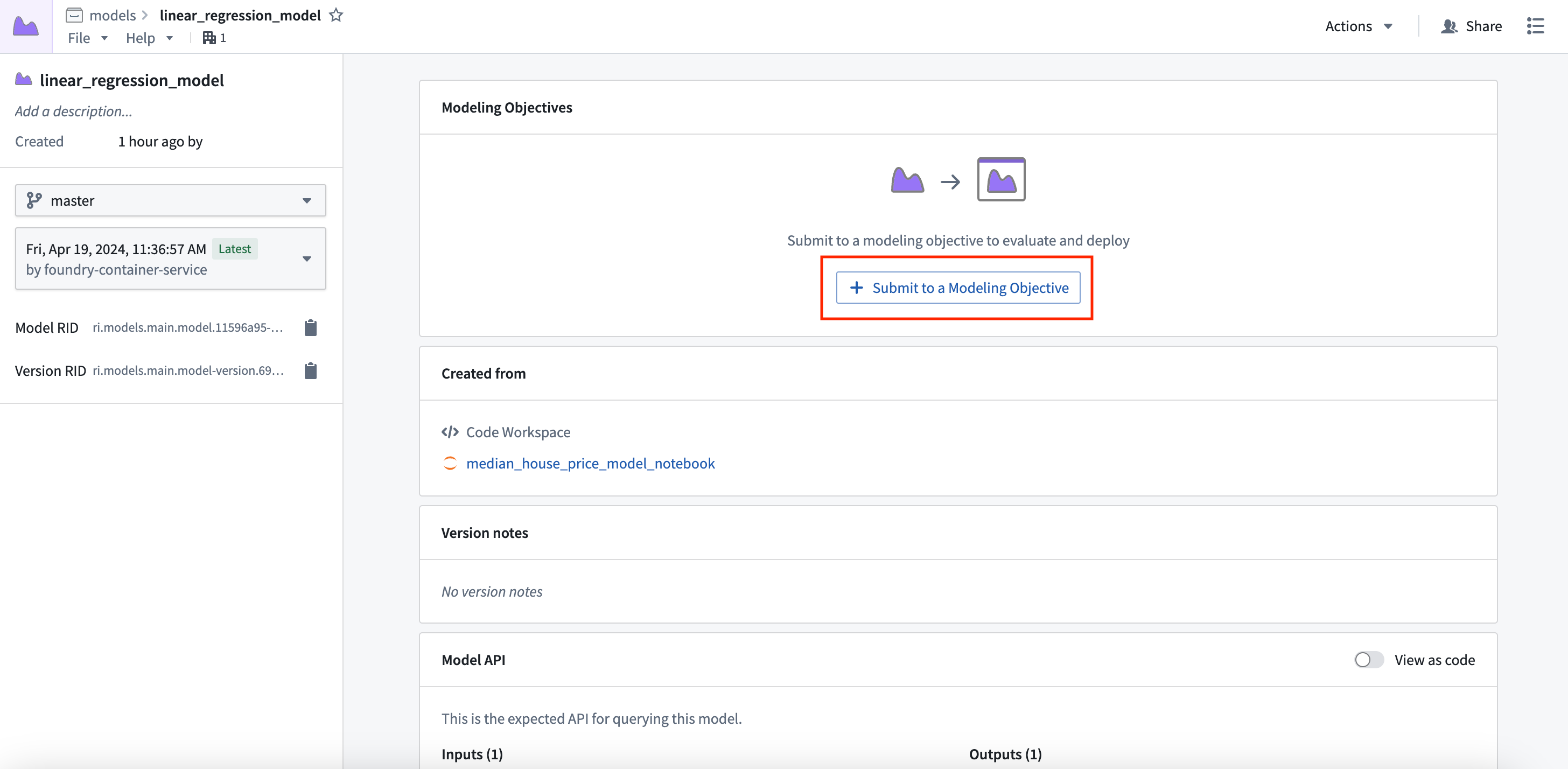
Action: Select View model version in the preview window to navigate to the model asset you have created, then select Submit to a Modeling Objective and submit that model to the modeling objective you created in step 1 of this tutorial. You will be asked to provide a submission name and submission owner. This is metadata that is used to track the model uniquely inside the modeling objective. Name the model linear_regression_model and mark yourself as the submission owner.
Next steps
Now that you have trained a model in Foundry, you can move onto model management, testing, and model evaluation. Here are some examples of additional steps you can take in Modeling Objectives:
- Automatic model evaluation
- Configuring checks for model submissions
- Live and batch inference can also be configured from the modeling objective
- No-code batch inference in Pipeline Builder
Optionally, you can also train a model in the Code Repositories application, designed for creating production-grade model training pipelines.
Jupyter®, JupyterLab®, and the Jupyter® logos are trademarks or registered trademarks of NumFOCUS.
All third-party trademarks (including logos and icons) referenced remain the property of their respective owners. No affiliation or endorsement is implied.
中文翻译
2b. 教程:在 Jupyter® 笔记本中训练模型
开始本教程步骤前,您应先完成建模项目设置。在本教程中,您可以选择在 Jupyter® 笔记本或代码仓库中训练模型。Jupyter® 笔记本推荐用于快速迭代的模型开发,而代码仓库则适用于生产级数据和模型管道。
在本教程步骤中,我们将使用代码工作区在 Jupyter® 笔记本中训练模型。本步骤将涵盖:
2b.1 如何创建用于模型训练的笔记本
Foundry 中的代码工作区(Code Workspaces)应用是一个基于 Web 的开发环境,提供第三方 IDE 用于数据分析和模型开发。您可以直接从 Foundry 内的 Jupyter® 笔记本发布模型,这些模型可在下游应用中使用。
代码工作区通过在使用工作区时确保持续可用的计算资源,提供交互式开发环境。代码工作区使您无需等待计算资源或打包 Python 环境,即可配置 Python 环境、转换数据、绘制图表和训练模型。
操作: 在您本教程上一步创建的 code 文件夹中,选择 + 新建 > Jupyter 代码工作区。您的代码工作区名称应与您训练的模型相关。此处,将仓库命名为 median_house_price_model_notebook。选择 继续 使用默认计算资源和仓库配置,然后使用 创建 来创建并启动工作区。
工作区创建完成后,我们需要创建一个笔记本并安装一些依赖项来训练模型。在 Jupyterlab® 启动器界面中,选择要使用的笔记本内核(kernel)。
操作: 选择基础的 Python conda 内核创建一个新笔记本,然后将文件重命名为 model_training.ipynb。
2b.2 如何拆分特征数据用于测试和训练
监督式机器学习项目的第一步是将我们带标签的特征数据拆分为独立的训练集和测试集。最终,我们需要创建性能指标(评估模型在新数据上表现如何的估计值),以便决定该模型是否足够好用于生产环境,并能够与其他利益相关者沟通对该模型结果的信任程度。我们必须使用独立的数据进行此验证,以确保性能指标能够代表我们在现实世界中看到的情况。
将数据集导入代码工作区
首先,让我们使数据集可在代码工作区的 Jupyter® 笔记本中使用。代码工作区允许我们为输入数据创建一个"别名",这有助于使代码更易读。此处,我们将使用别名 training_data。
操作: 打开 数据 选项卡,然后选择 添加数据集 > 读取现有数据集。添加我们之前创建的 housing_features_and_labels 数据集,并为其提供别名 training_data。将提供的导入逻辑复制到 Jupyter® 笔记本的一个单元格中。您可以按 Shift + Enter 运行代码单元格。
from foundry.transforms import Dataset

training_data = Dataset.get("training_data").read_table(format="pandas")
将数据拆分为测试集和训练集
现在我们已经导入了数据集,让我们将数据拆分为测试和训练数据框(dataframe)。
操作: 使用笔记本顶部的 + 选项创建一个新的笔记本单元格,然后复制以下代码片段并运行该单元格。
train_df = training_data.sample(frac=0.8,random_state=200)
test_df = training_data.drop(train_df.index)
train_df
将测试数据集保存到 Foundry
接下来,我们可以将测试和训练拆分保存回 Foundry。这使我们能够记录用于训练和测试的数据集,以备将来参考。
操作: 选择 添加 > 将数据写入新数据集 来创建一个新的数据集输出。您可以将输出命名为 housing_test_data,并将其保存在之前创建的 data 文件夹中。选择 添加数据集 和 表格数据集 作为数据集类型,test_df 作为 Python 变量。然后您可以将代码复制到新单元格并执行,将数据集保存回 Foundry。
from foundry.transforms import Dataset

housing_test_data = Dataset.get("housing_test_data")
housing_test_data.write_table(test_df)
2b.3 如何在代码工作区中训练模型
Foundry 中的模型由两个组件组成:
- 模型工件(Model artifacts):模型训练作业中产生的模型文件。
- 模型适配器(Model adapter):一个 Python 类,描述 Foundry 应如何与模型工件交互以执行推理(inference)。
模型依赖项
模型训练几乎总是需要添加包含模型训练、序列化、推理或评估逻辑的 Python 依赖项。Foundry 支持通过 conda 和 PyPI (pip) 添加依赖项规范。这些依赖项规范创建一个可用于训练模型的 Python 环境。
在 Foundry 中,这些已解析的依赖项以及 Jupyter® 笔记本中的所有 Python .py 文件会自动与您的模型打包在一起,以确保您的模型自动拥有在生产环境中执行推理(生成预测)所需的所有逻辑。Jupyter® 代码工作区中的环境通过 maestro 命令进行管理。在此示例中,我们将使用 pandas 和 scikit-learn 来生成模型,并使用 dill 来保存模型。
操作: 通过选择蓝色的 + 按钮打开启动器,然后启动一个终端。运行以下命令添加所有三个依赖项。您也可以使用侧边栏中的 包 选项卡来安装您要安装的包的底层仓库,这将为您打开一个终端并运行 maestro 命令。
maestro env conda install scikit-learn pandas dill "palantir_models>=0.1795.0"
模型训练
操作: 将上述代码复制到新单元格中并执行,以在 Jupyter® 笔记本的内存中训练一个新模型。如果遇到 ModuleNotFoundError 或 ImportError,请重启内核(内核 > 重启内核...)以确保环境已获取请求的依赖项更改。
from sklearn.impute import SimpleImputer
from sklearn.linear_model import LinearRegression
from sklearn.pipeline import Pipeline
from sklearn.preprocessing import StandardScaler

numeric_features = ['median_income', 'housing_median_age', 'total_rooms']
numeric_transformer = Pipeline(
    steps=[
        ("imputer", SimpleImputer(strategy="median")),
        ("scaler", StandardScaler())
    ]
)

model = Pipeline(
    steps=[
        ("preprocessor", numeric_transformer),
        ("classifier", LinearRegression())
    ]
)
X_train = train_df[numeric_features]
y_train = train_df['median_house_value']
model.fit(X_train, y_train)
model
(可选)将指标和超参数记录到模型实验
模型实验是一个轻量级框架,用于记录模型训练运行期间产生的指标和超参数,这些信息随后可与模型一起发布并持久保存在模型页面中。
2b.4 如何从代码工作区发布模型
现在我们已经创建了一个模型,可以将其发布到 Foundry 以与我们的生产应用集成。要发布模型,我们需要在 Foundry 中创建模型资源以保存模型,然后将模型包装在模型适配器中,以便 Foundry 知道如何与您的模型交互。
操作: 在 模型 选项卡中,选择 添加模型 > 创建新模型,并将其命名为 linear_regression_model。您可以将模型保存到之前创建的 models 文件夹中,然后选择 创建 来创建资源。
现在您已创建了模型资源,Foundry 将自动为您创建一个新的 Python 文件,用于实现模型适配器。模型适配器为 Foundry 中的所有模型提供了标准接口。标准接口确保所有模型可以立即在生产应用中使用,因为 Foundry 将处理加载模型、其 Python 依赖项、暴露其 API 以及与模型交互的基础设施。
代码工作区中的模型适配器必须在单独的 Python (.py) 文件中定义,并导入到笔记本中。
要创建模型适配器,您需要实现四个函数:
- 模型保存和加载: 要重用您的模型,您必须定义如何保存和加载模型。Palantir 提供了许多默认的序列化方法,在更复杂的情况下,您可以实现自定义序列化逻辑。
api: 定义模型的 API,并告诉 Foundry 您的模型需要什么类型的输入数据。predict: 由 Foundry 调用以向您的模型提供数据。您可以在此处将输入数据传递给模型并生成推理(预测)。
import palantir_models as pm
from palantir_models.serializers import DillSerializer


class LinearRegressionModelAdapter(pm.ModelAdapter):

    @pm.auto_serialize(
        model=DillSerializer()
    )
    def __init__(self, model):
        self.model = model

    @classmethod
    def api(cls):
        columns = [
            ('median_income', float),
            ('housing_median_age', float),
            ('total_rooms', float),
        ]
        return {"df_in": pm.Pandas(columns)}, \
               {"df_out": pm.Pandas(columns + [('prediction', float)])}

    def predict(self, df_in):
        df_in['prediction'] = self.model.predict(
            df_in[['median_income', 'housing_median_age', 'total_rooms']]
        )
        return df_in
操作: 将上述代码复制到一个名为 linear_regression_model_adapter.py 的新文件中。从左侧模型侧边栏中选择 发布模型版本 代码片段,然后展开 发布到 Foundry 部分,将相应的代码片段复制到您的主笔记本中。确保根据您在 Python 中的新 model 变量调整代码片段。您可能希望在实际调用 .publish 函数之前测试您的模型适配器,可以通过从适配器模型实例运行 .transform 来实现:
创建适配后的模型实例并测试:
# 加载自动重载扩展并自动重载所有模块
%load_ext autoreload
%autoreload 2
from palantir_models.code_workspaces import ModelOutput
from linear_regression_model_adapter import LinearRegressionModelAdapter # 如果类名或文件名更改,请更新

# 将训练好的模型包装在 Foundry 的模型适配器中
linear_regression_model_adapter = LinearRegressionModelAdapter(model)
linear_regression_model_adapter.transform(test_df).df_out
将模型发布到 Foundry:
# 获取模型资源的可写引用。
model_output = ModelOutput("linear_regression_model")
model_output.publish(linear_regression_model_adapter) # 将模型发布到 Foundry
2b.5 可选:配置推理或重新训练作业
您可以直接从 Jupyter® 笔记本创建推理和/或重新训练作业,并将其配置为按计划运行。这将利用 Palantir 构建基础设施执行您的 .ipynb 文件作为转换(transform),该基础设施将跟踪数据沿袭和权限。此功能还使您能够并行设置长时间运行的训练作业,同时继续迭代您的 Jupyter® 笔记本。了解如何直接从笔记本创建带有模型输出的转换,如何从代码仓库消费模型,以及如何在 Pipeline Builder 中使用模型。
此模型也可以通过直接部署作为 REST API 使用。了解如何配置直接部署。
2b.6 如何查看模型并提交至建模目标
现在您有了一个模型,可以将其提交到建模目标(modeling objective),以管理某个问题的整个模型生命周期。通过建模目标,您可以配置检查来验证新版本并执行持续评估。
操作: 在预览窗口中选择 查看模型版本 以导航到您创建的模型资产,然后选择 提交到建模目标,并将该模型提交到您在本教程步骤 1 中创建的建模目标。系统将要求您提供提交名称和提交所有者。这些元数据用于在建模目标中唯一标识模型。将模型命名为 linear_regression_model,并将您自己标记为提交所有者。
后续步骤
现在您已在 Foundry 中训练了模型,可以继续进行模型管理、测试和模型评估。以下是在建模目标中可以执行的一些额外步骤示例:
- 自动模型评估
- 为模型提交配置检查
- 实时推理和批量推理也可以从建模目标配置
- Pipeline Builder 中的无代码批量推理
或者,您也可以在代码仓库应用中训练模型,该应用专为创建生产级模型训练管道而设计。
Jupyter®、JupyterLab® 和 Jupyter® 标志是 NumFOCUS 的商标或注册商标。
所有第三方商标(包括徽标和图标)均为其各自所有者的财产。不暗示任何隶属关系或认可。