2a. Tutorial: Train a model in Model Studio(2a. 教程:在 Model Studio 中训练模型)
Before starting this part of the tutorial, you should have completed the modeling project set up.
In this part of the tutorial, we will train a model using Model Studio. We will cover the following steps:
- Create a model studio
- Configure a model studio training job
- Monitor a training job
- View the model and submit it to a modeling objective
2a.1 Create a model studio
Navigate to the Model Studio application in Foundry. Model Studio is a no-code model development tool.
Action: In the code folder you created during the previous step of this tutorial, select + New > Model studio. Your model studio should be named in relation to the model that you are training. In this case, name the studio median_house_price_model_studio. Select Save to create and open the studio.

2a.2 Configure a Model Studio training job
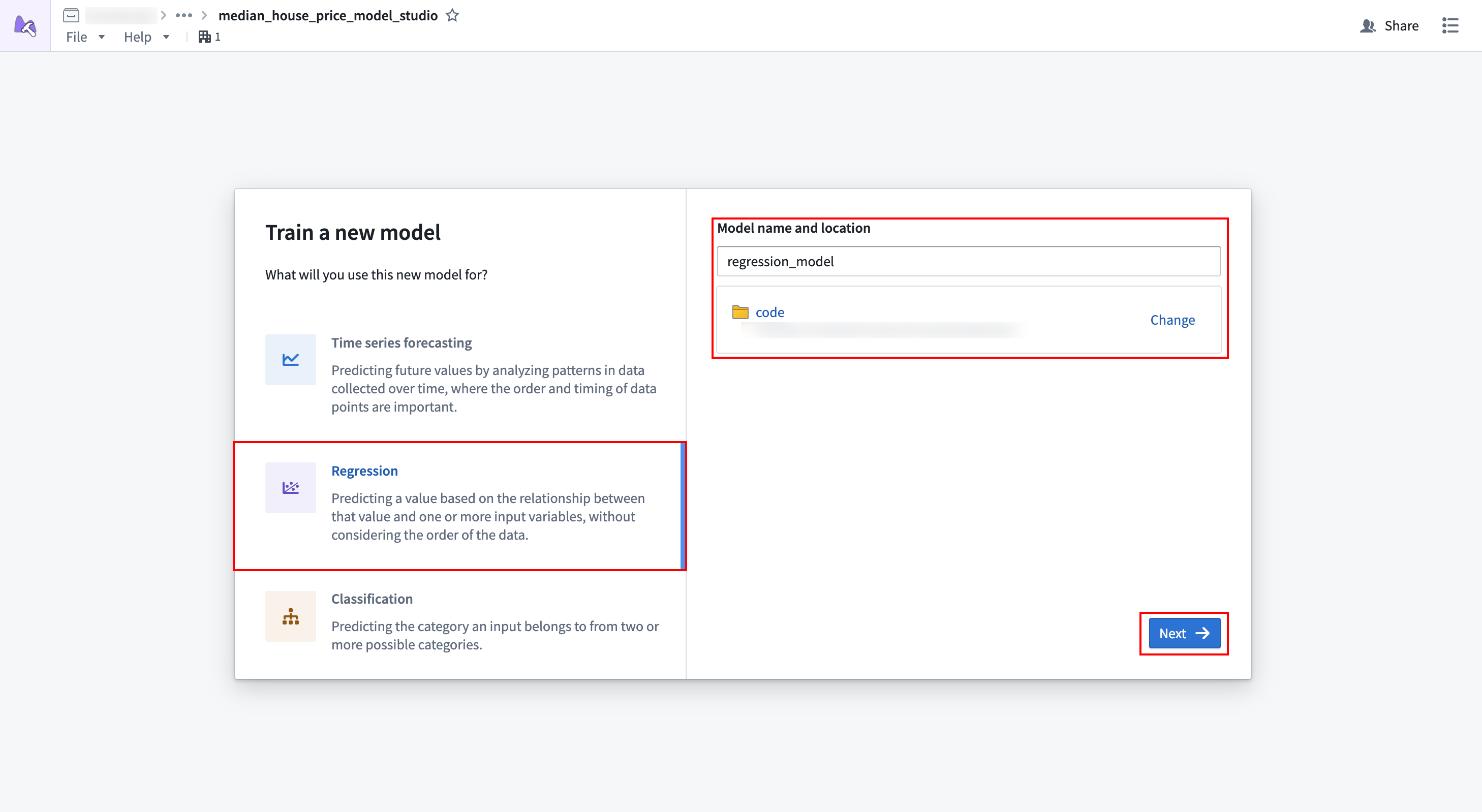
Once the model studio is created, you will be presented with options for the type of trainer you would like to use. In this tutorial we will predict the median house price, which is a regression problem.
Action: Select the regression trainer. We need to provide a name and location for storing the output model from the studio, so name the model regression_model and set the output location to the models folder that was created earlier. Once all the options are set, select Next to continue.
Dataset mapping
Model Studio requires users to map datasets to inputs that are predefined by the trainer. Since we only have a single training dataset, we will map that to the Training dataset input. Model Studio will automatically do a train-test split, splitting off 20% of the data for validation and testing.
Action: In the Training dataset card, select Choose dataset and select the housing_features_and_labels dataset in the dialog.
Optional: Once the dataset is selected, you can use the Preview button to open a preview panel at the bottom of the page to preview your dataset, or expand the Filters area to define filters to apply to the dataset.
Once the dataset is selected, we need to tell the trainer what certain columns mean. In this case, we want to tell the trainer that the median_house_value column is the target column.
Action: In the dropdown to the right of Target column, select the median_house_value column.
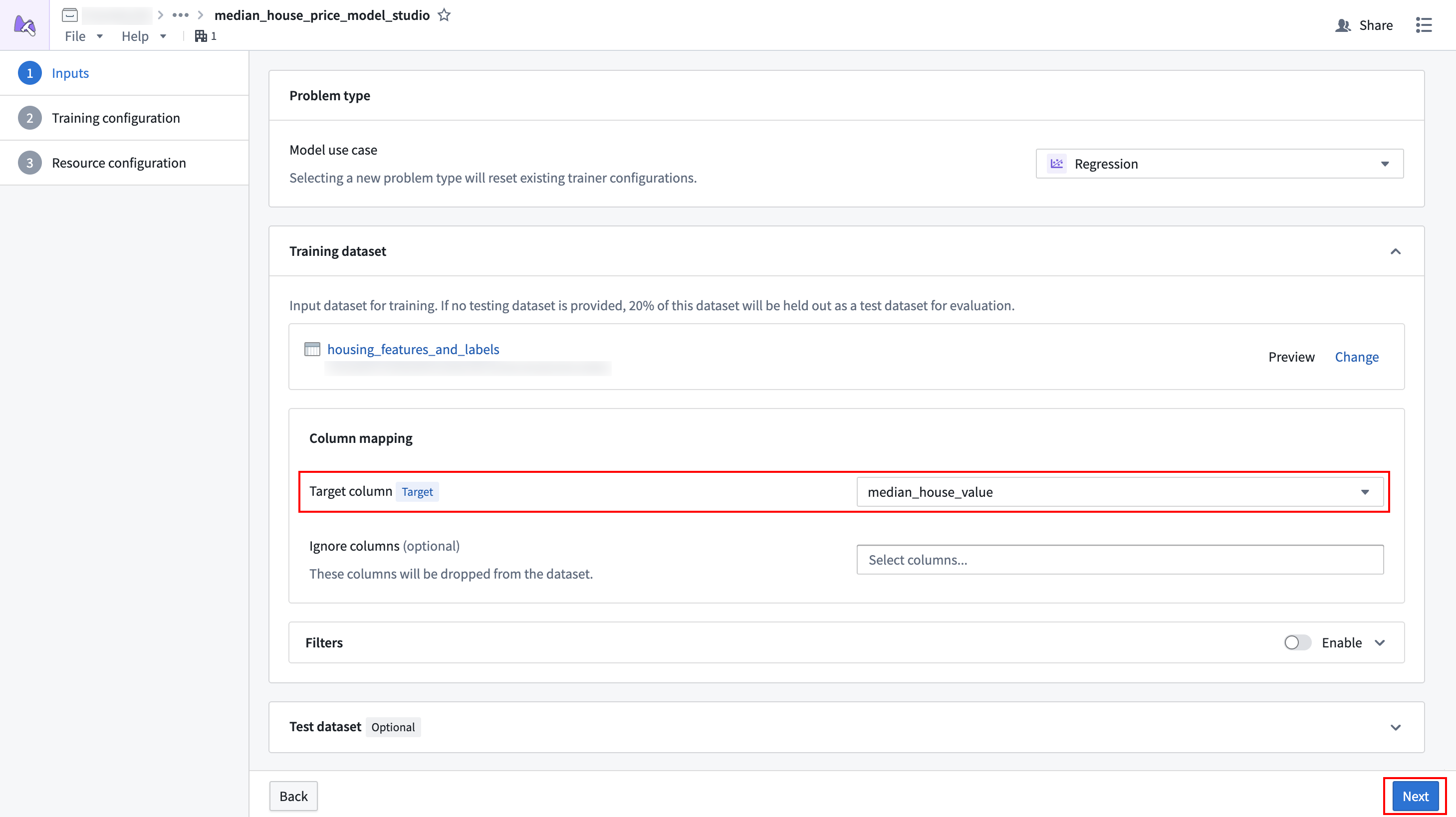
Once the dataset is properly configured, select Next to continue.
Parameter configuration
Model Studio trainers offer a set of configuration parameters that users can optionally change to improve model performance. Learn more about the regression trainer's parameters.
Action: For this tutorial, we are finding the balance between speed and predictive accuracy. To do so, we will set the following parameters:
- Evaluation metric: Set this to
root_mean_squared_error. - Training preset: Set this to
good_quality, which will provide advanced ensembling techniques while keeping training speed fast. - Training and inference limits > Training time limit: Set this to 300 seconds.
- Prediction column name: Set this to
prediction.
Leave all other parameters at their default values.
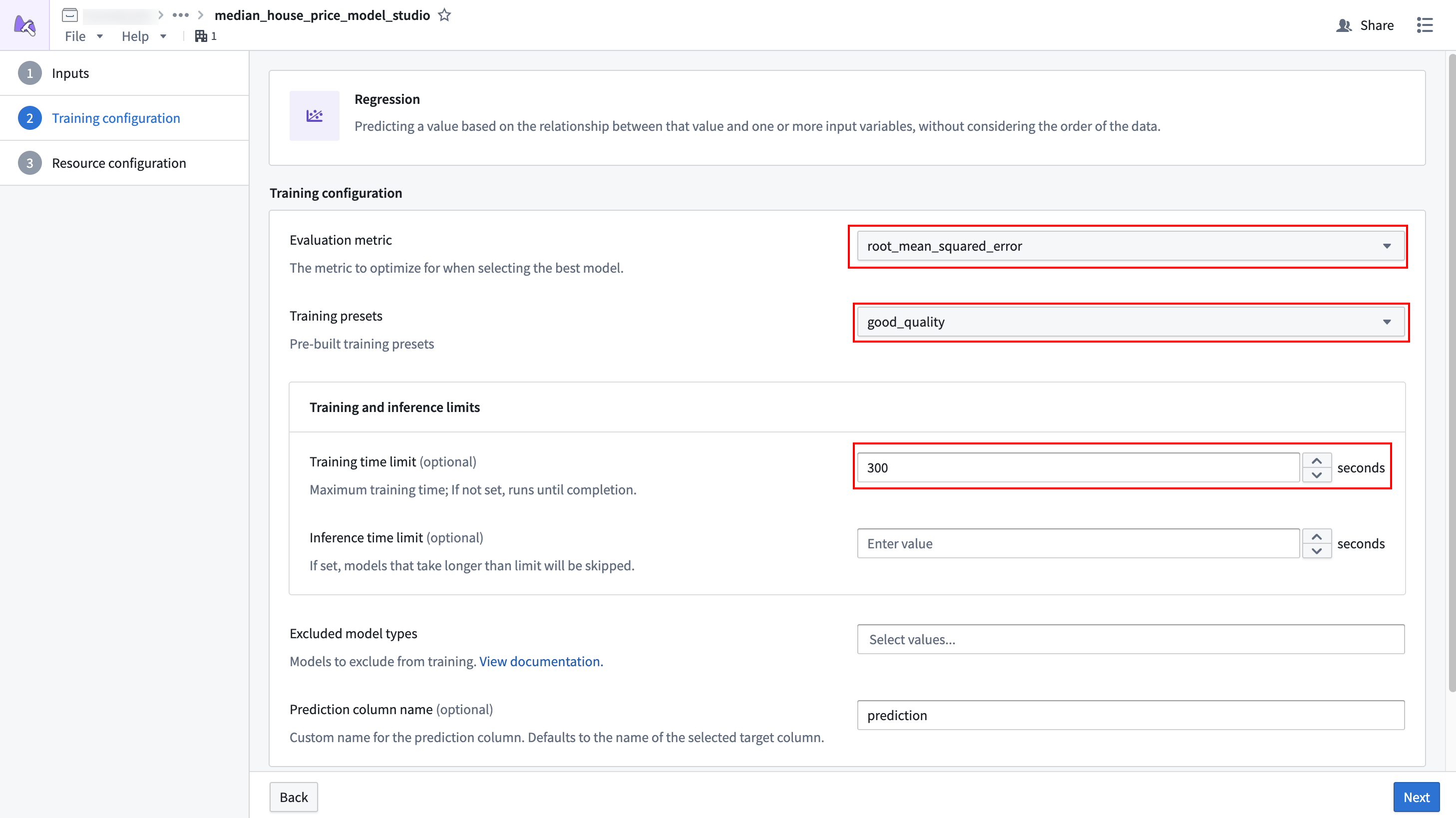
Once the parameters are properly configured, select Next to continue.
Resource configuration
To provide the model studio with adequate resources, we need to increase its resources from the default values.
Action: Set the vCPU value to 2 and the Memory value to 8 to provide 2 vCPUs and 8GB of memory to the job.
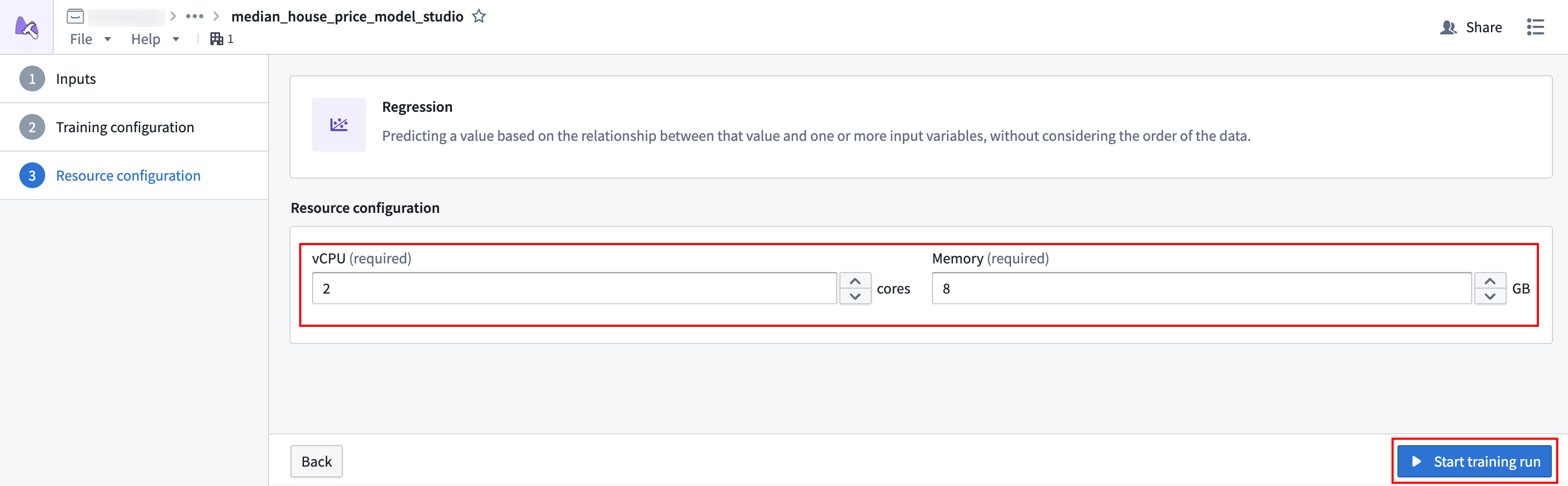
Once resources are properly configured, select Start training run, which will open a dialog asking you to enter a configuration name and changelog. For the name, enter Initial and leave the changelog blank. Then, select Start training run to launch the build.
2a.3 Monitor a training job
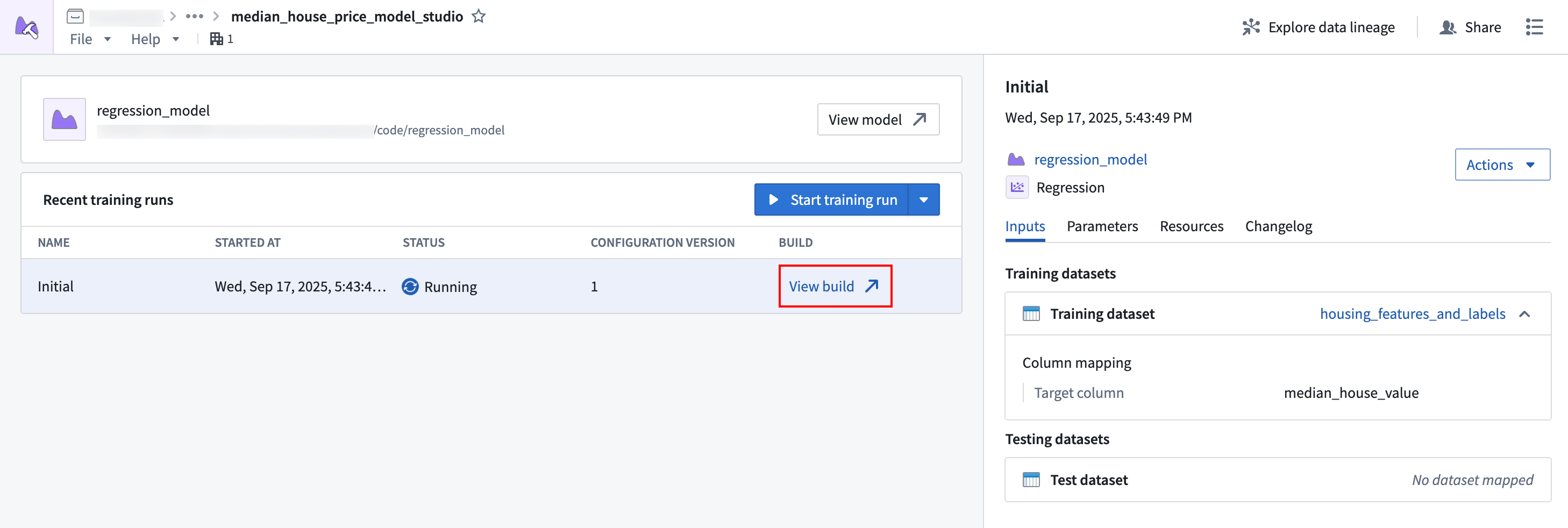
After launching the job, you will be redirected to the Model Studio home page. There will be one run in the list of Recent training runs.
Action: Select View build to navigate to the running job and monitor progress.
2a.4 View the model and submit it to a modeling objective
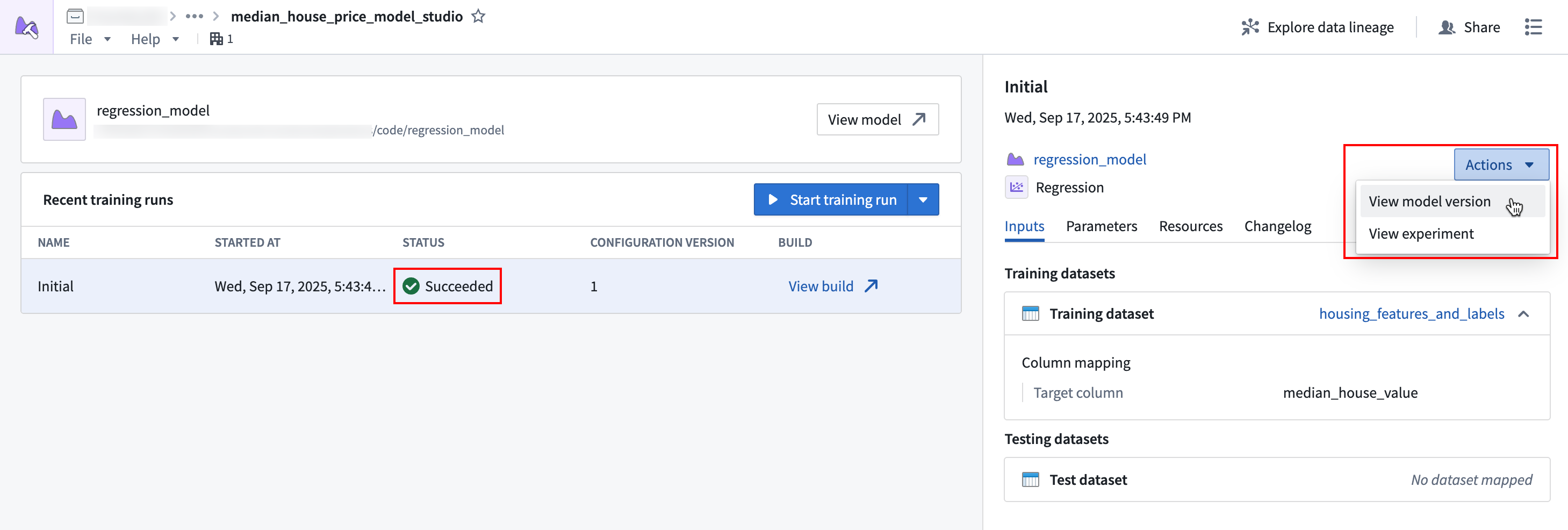
When the job is completed, there will be a green checkmark under the run's Status column. From here, you can view the produced model.
Action: Select the first row of the Recent training runs table, then select Actions > View model version in the sidebar to view the produced model. Once you are viewing the model, select Submit to a Modeling Objective to submit that model to the modeling objective you created in step one of this tutorial. You will be asked to provide a submission name and submission owner. This metadata is used to track the model uniquely inside the modeling objective. Name the model regression_model and mark yourself as the submission owner.
Next steps
Now that you have trained a model in Foundry, you can move onto model management, testing, and model evaluation. Here are some examples of additional steps you can take in Modeling Objectives:
- Automatic model evaluation
- Configure checks for model submissions
- Live and batch inference configuration from a modeling objective
- No-code batch inference in Pipeline Builder
Learn more about Model Studio.
中文翻译
2a. 教程:在 Model Studio 中训练模型
在开始本部分教程之前,您应先完成建模项目设置。
在本部分教程中,我们将使用 Model Studio 训练一个模型。我们将涵盖以下步骤:
2a.1 创建 Model Studio
导航至 Foundry 中的 Model Studio 应用程序。Model Studio 是一个无代码模型开发工具。
操作: 在本教程上一步创建的 code 文件夹中,选择 + New > Model studio。您的 Model Studio 名称应与您正在训练的模型相关。在本例中,将 Studio 命名为 median_house_price_model_studio。选择 Save 以创建并打开该 Studio。
2a.2 配置 Model Studio 训练任务
创建 Model Studio 后,系统将显示可供选择的训练器类型选项。在本教程中,我们将预测房价中位数,这是一个回归问题。
操作: 选择回归(regression)训练器。我们需要提供输出模型的名称和存储位置,因此将模型命名为 regression_model,并将输出位置设置为之前创建的 models 文件夹。设置完所有选项后,选择 Next 继续。
数据集映射
Model Studio 要求用户将数据集映射到训练器预定义的输入。由于我们只有一个训练数据集,我们将把它映射到 Training dataset 输入。Model Studio 会自动进行训练-测试拆分,将 20% 的数据用于验证和测试。
操作: 在 Training dataset 卡片中,选择 Choose dataset,然后在对话框中选择 housing_features_and_labels 数据集。
可选: 选择数据集后,您可以使用 Preview 按钮在页面底部打开预览面板来预览数据集,或展开 Filters 区域定义应用于数据集的筛选条件。
选择数据集后,我们需要告诉训练器某些列的含义。在本例中,我们希望告诉训练器 median_house_value 列是目标列。
操作: 在 Target column 右侧的下拉菜单中,选择 median_house_value 列。
数据集配置完成后,选择 Next 继续。
参数配置
Model Studio 训练器提供一组配置参数,用户可以根据需要更改这些参数以提升模型性能。了解更多关于回归训练器参数的信息。
操作: 在本教程中,我们将在速度和预测准确性之间寻找平衡。为此,我们将设置以下参数:
- Evaluation metric: 设置为
root_mean_squared_error。 - Training preset: 设置为
good_quality,这将提供高级集成技术,同时保持较快的训练速度。 - Training and inference limits > Training time limit: 设置为 300 秒。
- Prediction column name: 设置为
prediction。
其他所有参数保留默认值。
参数配置完成后,选择 Next 继续。
资源配置
为了为 Model Studio 提供充足的资源,我们需要将其资源从默认值提高。
操作: 将 vCPU 值设置为 2,将 Memory 值设置为 8,为任务提供 2 个 vCPU 和 8GB 内存。
资源配置完成后,选择 Start training run,系统将打开一个对话框,要求您输入配置名称和变更日志。将名称设置为 Initial,变更日志留空。然后,选择 Start training run 启动构建。
2a.3 监控训练任务
启动任务后,您将被重定向到 Model Studio 主页。在 Recent training runs 列表中将显示一个运行记录。
操作: 选择 View build 导航至正在运行的任务并监控进度。
2a.4 查看模型并提交至建模目标
任务完成后,运行记录的 Status 列下将出现一个绿色对勾。从这里,您可以查看生成的模型。
操作: 选择 Recent training runs 表格的第一行,然后在侧边栏中选择 Actions > View model version 查看生成的模型。查看模型后,选择 Submit to a Modeling Objective 将该模型提交至您在本教程第一步中创建的建模目标。系统将要求您提供提交名称和提交所有者。此元数据用于在建模目标中唯一标识模型。将模型命名为 regression_model,并将自己标记为提交所有者。
后续步骤
现在您已在 Foundry 中训练了模型,可以继续进行模型管理、测试和模型评估。以下是在建模目标中可以执行的一些额外步骤示例: