Source exploration(源数据探索(Source exploration))
:::callout{theme="warning" title="Sunset"} HyperAuto V1 is in the sunset phase of development and will be deprecated at a future date. Full support remains available. The creation of new V1 pipelines is discouraged, and users should migrate from HyperAuto V1 to V2 as detailed in the migration documentation. :::
:::callout{theme="warning"} Salesforce and Netsuite Sources will migrate to default Exploration in the near future and this page will be deprecated.
If you have a SDDI repository connected to your Salesforce or Netsuite source, the "raw" folder is now configured on the Source overview page. Ensure that the folder defined there matches your configuration in the corresponding SourceConfig-...-.yaml file of your SDDI repository.
:::
Source exploration in HyperAuto V1 supports exploring external data systems within the Foundry interface before datasets are synced to Foundry. It is accessible by selecting Explore and create syncs on any HyperAuto connector in the Data Connection application.

With source exploration, you can:
- Easily find and discover raw datasets
- Search to find datasets
- Click through different categorization folders to peruse data
- Explore relations of raw datasets at source through a powerful interface
- Expand or hide related datasets
- View attributes of a dataset
- Preview a dataset, its schema and relations
- Intuitively create and configure dataset syncs
- Create and configure syncs via a point-and-click shopping cart experience
Interface Quick Start
- Lineage Graph
- Graph Tools
- Backing Pipeline Generator
- Dataset Shopping Cart and Sync Configuration
- Right Side Panel
- Dataset Preview
- Left Side Search Panel
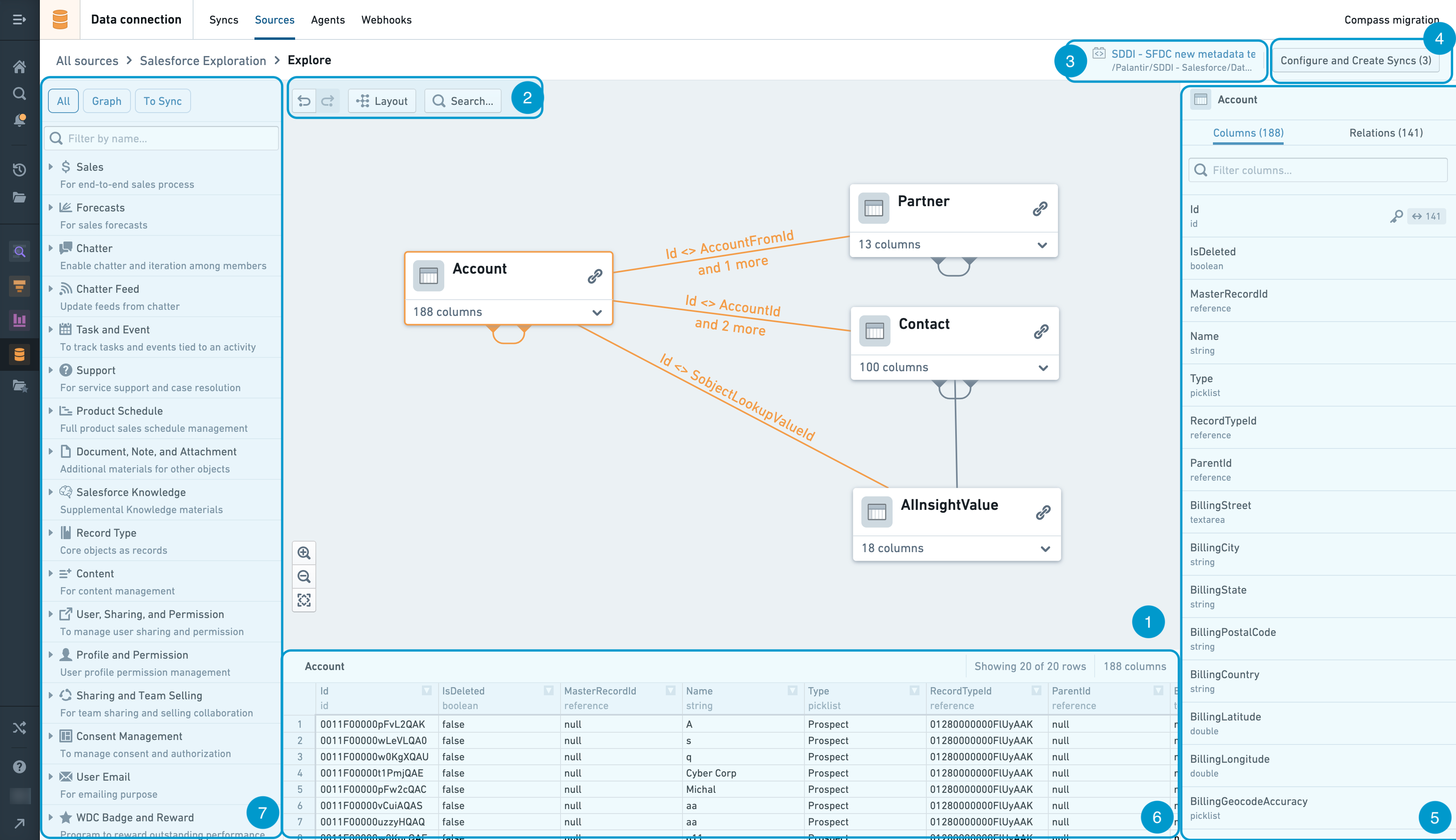
Lineage Graph
The graph is the workspace for arranging and manipulating dataset nodes as you explore the dataset relations at the source.
You can add dataset nodes to the lineage graph by using the Left Side Search Panel. Clicking on the downward arrow at the bottom right corner of each node on the graph allows you to see the list of columns available at this dataset. You can then add their related datasets by clicking on the link icon at the top right corner at each node. To hide those related datasets, click on the arrow icon at the top right corner. You can rearrange nodes manually by clicking and dragging them. You can also click the Layout button to automatically layout the nodes.
You can select a node by clicking it, or select multiple nodes with Ctrl + click (Cmd + click on Mac). Once a node or multiple nodes are selected, you can either remove the nodes or add them to Dataset Shopping Cart and Sync Configuration by right clicking on of the nodes to access the right-click menu. If a single node is selected, the Dataset Preview panel will pop up to show the dataset preview.
Graph Tools
The graph tools provides a set of graph exploration, navigation and customization capabilities:
- Undo and redo - buttons to undo or redo a graph exploration and navigation action
- Layout - Automatically layout dataset nodes in lineage graph
- Search - Search for dataset nodes by name or column
Backing pipeline generator
In source exploration, once you are done with exploration and creation of syncs, they are directed to push a configuration change to the associated automated pipeline generator. The backing pipeline generator indicates the specific pipeline generator Code Repository that is tied to the source exploration session, and thus where the pipeline configuration will land.
To change the backing pipeline generator, you can navigate to the page for your source in Data Connection application, and choose the corresponding pipeline generator upon clicking Edit Pipeline Builder settings.
Dataset Shopping Cart and Sync Configuration
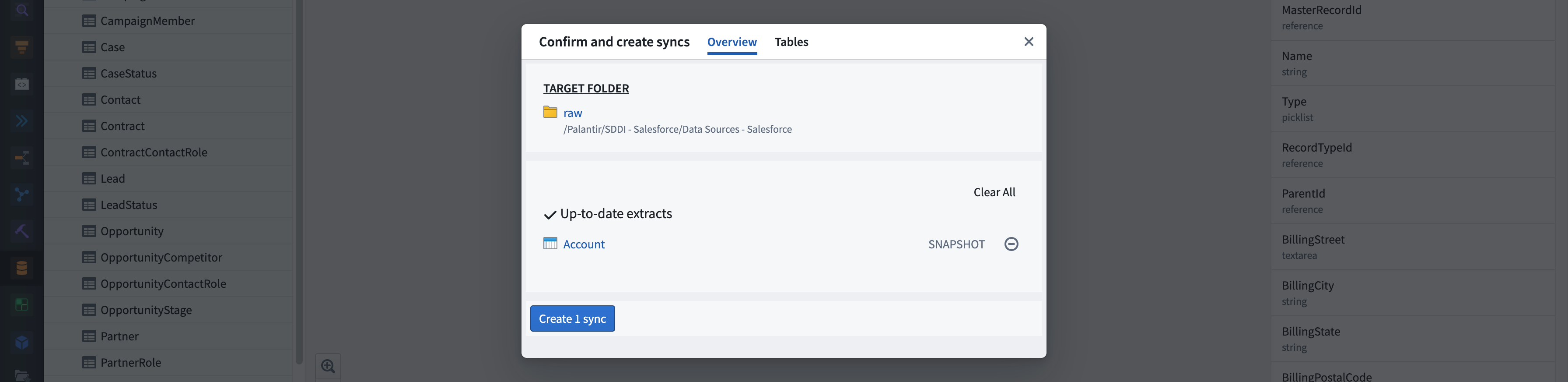
- Target Folder. A link to the folder in which syncs are created. It is defined within the automated pipeline generator and configurable in the HyperAuto application.
- Overview tab. Contains the overview information for the sync creation shopping cart
- Create extracts / Update extracts / Override datasets / Up-to-date extracts - list of extracts grouped by the operation that will be performed
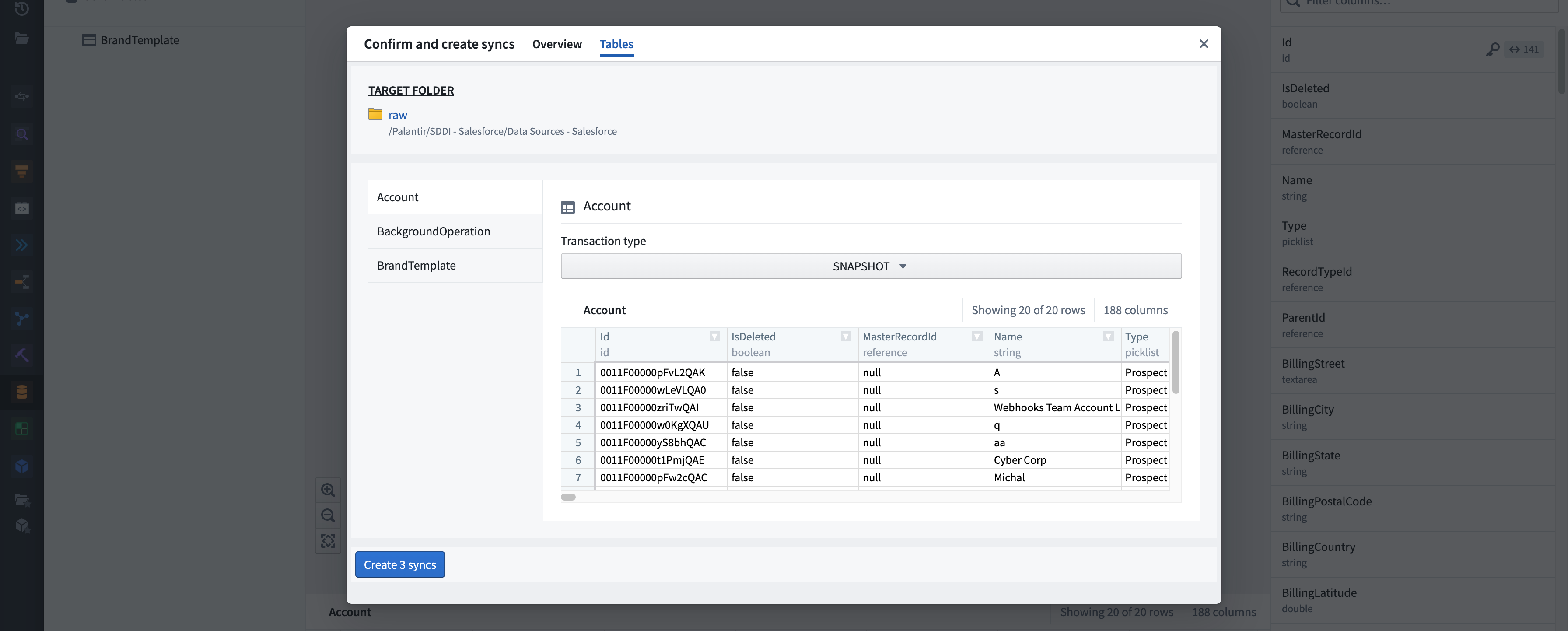
Tables tab. Enables you to do further sync configurations such as transaction types along with a preview of the table.
- Create Syncs and Integrate. Initiates syncing.
- Status summary. Displays the status of operations performed throughout the integration.
Right Side Panel
- Columns. Shows a full list of columns contained in the dataset. The key icon indicates which columns in the selected dataset form the primary key.
- Relations. Shows relations of related datasets within the source system.
Dataset Preview
Shows a sample of the data in the selected dataset.
Left Side Search Panel
The left sidebar serves as a navigation and search tool. Tables displayed in this panel are categorized based on the grouping logic defined for the associated source system type.
As you start typing the search term, the panel automatically performs the search to filter the list down to the related tables and categories. Once you find the suitable datasets, you can add them to the Lineage Graph and/or to the Dataset Shopping Cart by hovering over the dataset in the left side panel and clicking either the Add to shopping cart and graph or Add to graph buttons.
At the top of the panel, there are 3 different modes you can choose.
- All. Shows all tables and categories.
- Graph. Shows all tables that are on the graph and their categories.
- To Sync. Shows all tables that are in the shopping cart and their categories.
中文翻译
源数据探索(Source exploration)
:::callout{theme="warning" title="功能停用公告"} HyperAuto V1 已进入开发停用阶段,将在未来某个日期正式弃用。目前仍提供全面支持。不建议创建新的 V1 管道,用户应按照迁移文档中的说明,从 HyperAuto V1 迁移至 V2。 :::
:::callout{theme="warning"} Salesforce 和 Netsuite 数据源(Source)将在近期迁移至默认探索功能,本页面届时将停用。
如果您的 SDDI 仓库已连接到 Salesforce 或 Netsuite 数据源,则"raw"文件夹现已在数据源概览页面中配置。请确保该处定义的文件夹与 SDDI 仓库中对应 SourceConfig-...-.yaml 文件的配置一致。
:::
HyperAuto V1 中的源数据探索功能支持在数据集同步至 Foundry 之前,在 Foundry 界面内探索外部数据系统。您可以在数据连接应用中,点击任意 HyperAuto 连接器上的探索并创建同步来访问该功能。
通过源数据探索,您可以:
- 轻松查找和发现原始数据集
- 搜索查找数据集
- 点击不同分类文件夹浏览数据
- 通过强大的界面探索数据源中原始数据集的关系
- 展开或隐藏相关数据集
- 查看数据集属性
- 预览数据集及其架构和关系
- 直观地创建和配置数据集同步
- 通过点击式购物车体验创建和配置同步
界面快速入门
血缘关系图(Lineage Graph)
该图形工作区用于在探索数据源中数据集关系时,排列和操作数据集节点。
您可以使用左侧搜索面板将数据集节点添加到血缘关系图中。点击图形中每个节点右下角的向下箭头,可查看该数据集包含的列列表。点击每个节点右上角的链接图标,可添加其相关数据集。要隐藏这些相关数据集,请点击右上角的箭头图标。您可以通过点击并拖动节点来手动重新排列。也可以点击布局按钮自动排列节点。
点击节点可选择单个节点,按住 Ctrl 键(Mac 上为 Cmd 键)点击可选择多个节点。选中一个或多个节点后,您可以右键点击任一节点,通过右键菜单移除节点或将其添加到数据集购物车与同步配置。如果只选中单个节点,数据集预览面板将弹出显示该数据集的预览。
图形工具(Graph Tools)
图形工具提供了一系列图形探索、导航和自定义功能:
- 撤销和重做 - 用于撤销或重做图形探索和导航操作的按钮
- 布局 - 自动布局血缘关系图中的数据集节点
- 搜索 - 按名称或列搜索数据集节点
后端管道生成器(Backing pipeline generator)
在源数据探索中,完成探索和同步创建后,系统会将配置更改推送到关联的自动化管道生成器。后端管道生成器指示与源数据探索会话绑定的特定管道生成器代码仓库,即管道配置的最终存放位置。
要更改后端管道生成器,您可以导航至数据连接应用中数据源的页面,点击编辑管道构建器设置后选择相应的管道生成器。
数据集购物车与同步配置(Dataset Shopping Cart and Sync Configuration)
- 目标文件夹。指向同步创建所在文件夹的链接。该文件夹在自动化管道生成器中定义,并可在 HyperAuto 应用中配置。
- 概览选项卡。包含同步创建购物车的概览信息
- 创建提取/更新提取/覆盖数据集/最新提取 - 按将执行的操作分组的提取列表
表选项卡。允许您进行进一步的同步配置,例如事务类型以及表的预览。
- 创建同步并集成。启动同步过程。
- 状态摘要。显示整个集成过程中执行操作的状态。
右侧面板(Right Side Panel)
- 列。显示数据集中包含的完整列列表。键图标指示所选数据集中的哪些列构成主键。
- 关系。显示源系统内相关数据集的关系。
数据集预览(Dataset Preview)
显示所选数据集中的数据样本。
左侧搜索面板(Left Side Search Panel)
左侧边栏用作导航和搜索工具。此面板中显示的表根据为关联源系统类型定义的分组逻辑进行分类。
当您开始输入搜索词时,面板会自动执行搜索,将列表过滤到相关的表和类别。找到合适的数据集后,您可以将鼠标悬停在左侧面板中的数据集上,点击添加到购物车和图形或添加到图形按钮,将其添加到血缘关系图和/或数据集购物车中。
面板顶部有三种可选模式:
- 全部。显示所有表和类别。
- 图形。显示图形上的所有表及其类别。
- 待同步。显示购物车中的所有表及其类别。