Object set conditions(对象集条件(Object set conditions))
Automation effects can be triggered automatically when object data changes in a predefined object set.
Data sources: Changes can come from backing datasets, action types, or external applications.
Evaluation frequency: Data changes are typically picked up within minutes. Learn more
Effect input parameters: Certain object set conditions expose effect input parameters. These variables can be used inside of effects to access the objects that triggered the automation.
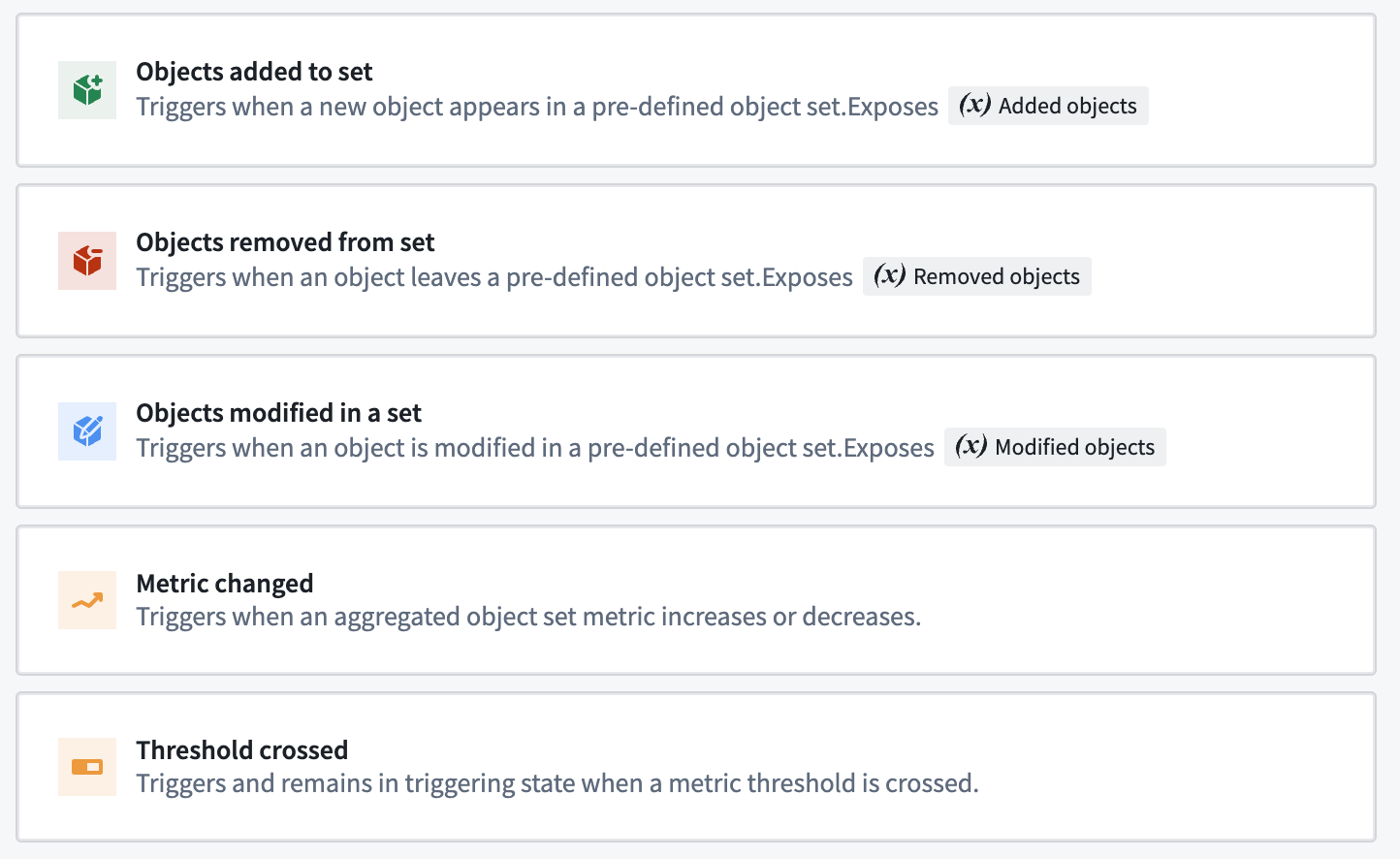
Available conditions
- Objects added to set: Triggers when a new object appears in the set.
- Objects removed from set: Triggers when an object leaves the set.
- Objects modified in set: Triggers when an object is modified in the set.
- Run on all objects: Periodically runs effects on all objects in a given object set.
- Threshold crossed: Triggers when a metric threshold is crossed or when a function returns true.
- Metric changed [Sunset]: Triggers when an aggregated metric increases or decreases.
Object set definition
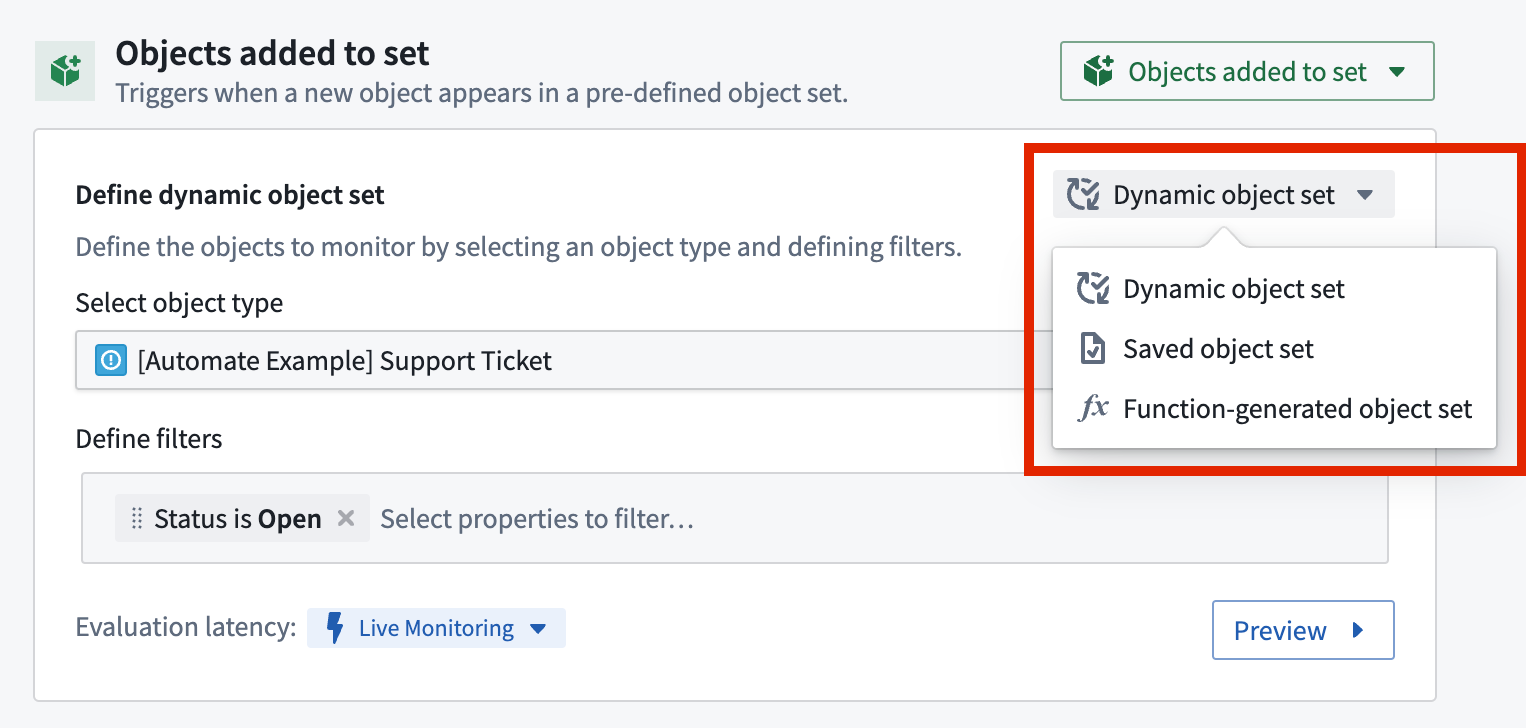
Most object set condition types require specifying an object set to monitor. You can:
- dynamically define an object set;
- select a saved object set; or
- select a function that returns an object set.
- Functions are a powerful building block for more advanced usage of Automate.
After defining the object set you want to monitor, select Preview to validate that the object set includes the expected objects.
When dynamically defining an object set, select your desired object type, then optionally add filters to narrow the set. For example, you could monitor a Support Ticket object type (shown below) filtered to "Status = Open". When no filters are selected, you are monitoring all objects of that type. The object type and filter selections determine whether the object set can be monitored live or on a schedule. Learn more about evaluation frequency.
Function-generated object sets
The example below uses a function to return support tickets linked to users. Used in an Objects added condition, the effects will run whenever a new ticket enters this set. The function must return an ObjectSet<T> to be used here.
Note that during evaluation this function is executed once for the system plus once for each subscriber.
/**
 * This function returns support tickets that are linked to users
 */
@Function()
public getSupportTicketsLinkedToUsers(): ObjectSet<DemoTicket> {
    return Objects.search()
        .users()
        .searchAroundSupportTickets()
}
Learn more about authoring a function to use with Automate and view the example function in this section.
Condition types
Objects added to set
The Objects added to set condition triggers every time an object gets added to your predefined object set. Start by specifying your object set according to the object set definition section above.
If you specified an object set filter, new objects or object edits from other users may trigger your objects added to set condition. In the example shown below, we monitor an object set of Support Tickets with status property value Open. The condition could be triggered in two ways: a new Support Ticket object with status Open is created, or an existing Support Ticket changes its status to Open.
If you do not specify any filters on the object set, you are effectively monitoring all objects of the type. That means the automation will only trigger when completely new objects are added to the Ontology.
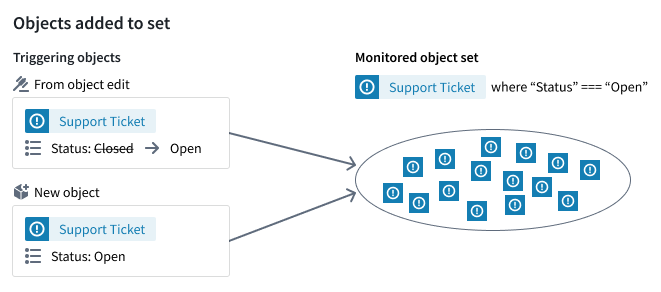
The Objects added to set condition exposes objects that triggered the condition as an effect input. This can be a single Added object, an object set of Added objects, or a property of Added objects. Learn more about how to use effect inputs.
Supported evaluation frequencies:
- Live evaluation
- Scheduled evaluation
Objects removed from set
The Objects removed from set condition triggers every time an object gets removed from your predefined object set. Start by specifying your object set according to the object set definition section above.
If you specify an object set filter, object edits from users may trigger your objects to be removed from the set condition. For example, if we monitor an object set of Support Tickets with status property value Open, then the condition will trigger when the status of an Open ticket changes to any other status.
Note that objects which are deleted from the ontology will not trigger.
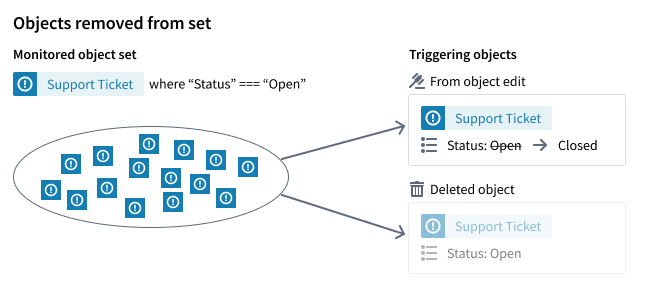
The Objects removed from set condition exposes objects that triggered the condition as an effect input. This can be either a single Removed object or an object set of Removed objects. Learn more about how to use effect inputs.
Supported evaluation frequencies:
- Live evaluation
- Scheduled evaluation
Objects modified in set
The Objects modified in set condition triggers every time an object gets modified in your predefined object set. Use this condition type to monitor any property value change in an object set. If you only want to monitor changes to a specific value, use the object added to set condition instead.
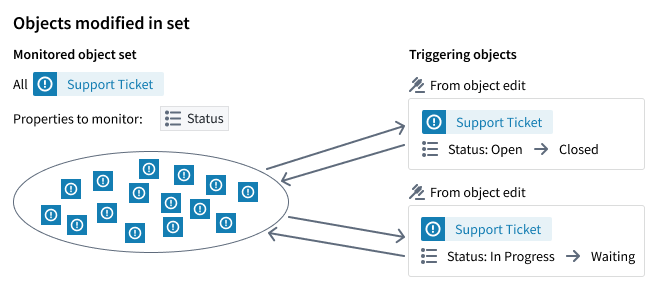
Start by specifying your object set according to the object set definition section above. Then, you can optionally select specific properties to watch. If no properties are selected, any property change in the monitored object set will trigger the automation.
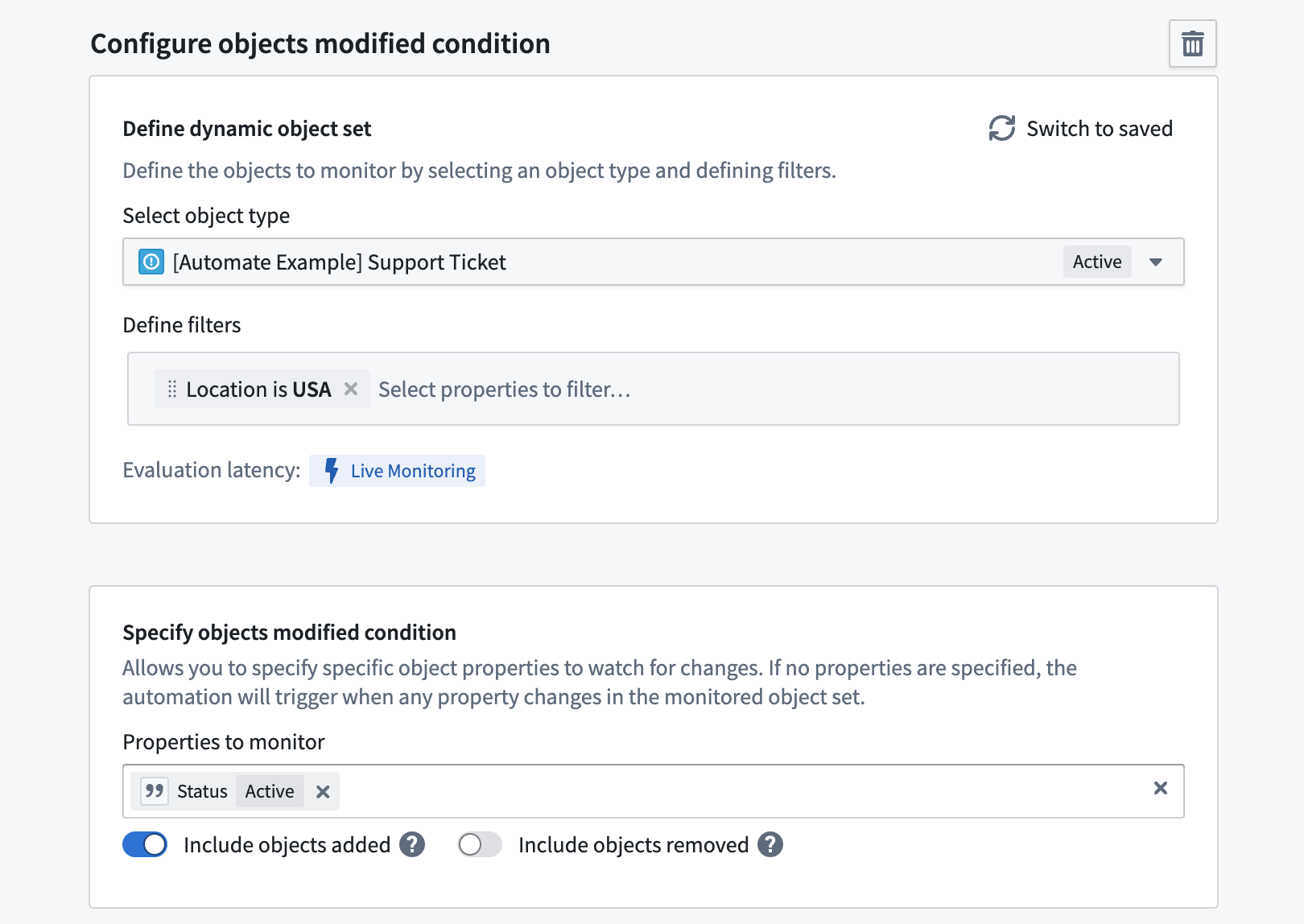
Additionally, you can specify Include objects added and Include objects removed. These options control whether modifications on objects that are added to (or removed from) the monitored object set will trigger the automation. When both options are disabled, only objects that already were in the object set and remain in the object set after modification will trigger the automation.
The Objects modified in set condition exposes as an effect input either a single Modified object or a set of Modified objects that triggered the condition. Learn more about effect inputs.
Supported evaluation frequency:
- Live evaluation
In the example below, we are monitoring for objects modified in the set of Support Tickets with a location of USA.
- Include objects added: Enabled. Objects that are added to the object set are considered modified. Thus, a
Support Ticketthat changed its location fromUKtoUSAwould trigger the automation, as would any newly created tickets with a location ofUSA. - Include objects removed: disabled. Tickets whose status property changes from
OpentoClosedwhile the location changes (for example, fromUSAtoUK) would not trigger an automation because the objects have left the set. - Deleted
Support Ticketswill not trigger the automation because they are no longer in the monitored object set.
Run on all objects
The Run on all objects condition can periodically run effects on all objects in a given object set. This condition is configured in combination with a schedule.
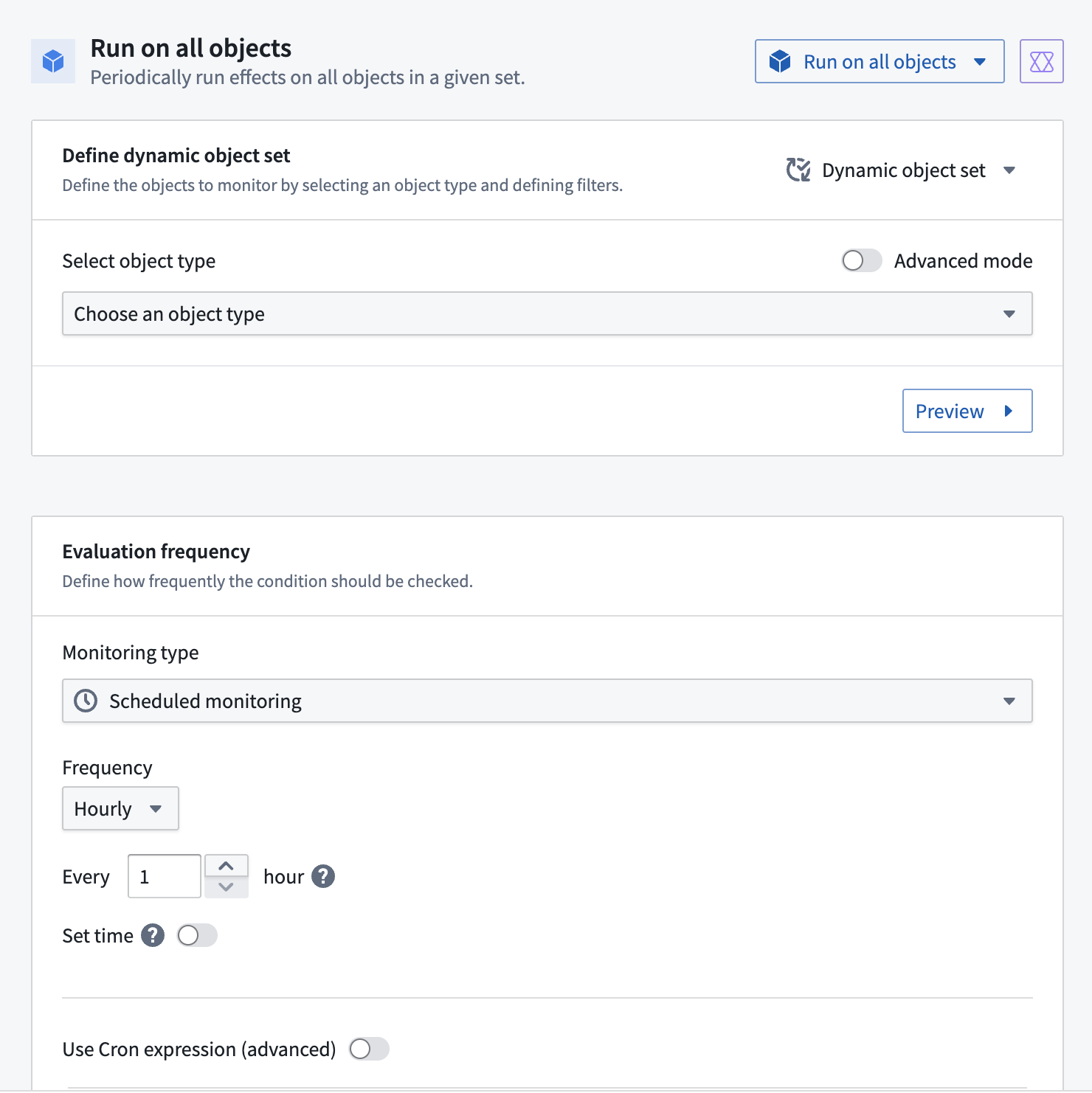
When using this condition, affected object parameters can be set up to inject objects into any effects. Batch size and parallelization settings are respected when using this condition. This condition allows you to run an effect over a large set of objects while avoiding function or action timeouts, since batching will be handled.
Supported evaluation frequency:
- Scheduled evaluation
Threshold crossed
The Threshold crossed condition triggers when all defined checks return true. Effects are triggered and activity is recorded whenever the threshold is crossed in either direction.
You can compose conditions that consist of Automate-defined logic, function-backed logic, or both.
Supported evaluation frequency:
- Scheduled evaluation
Automate-defined logic
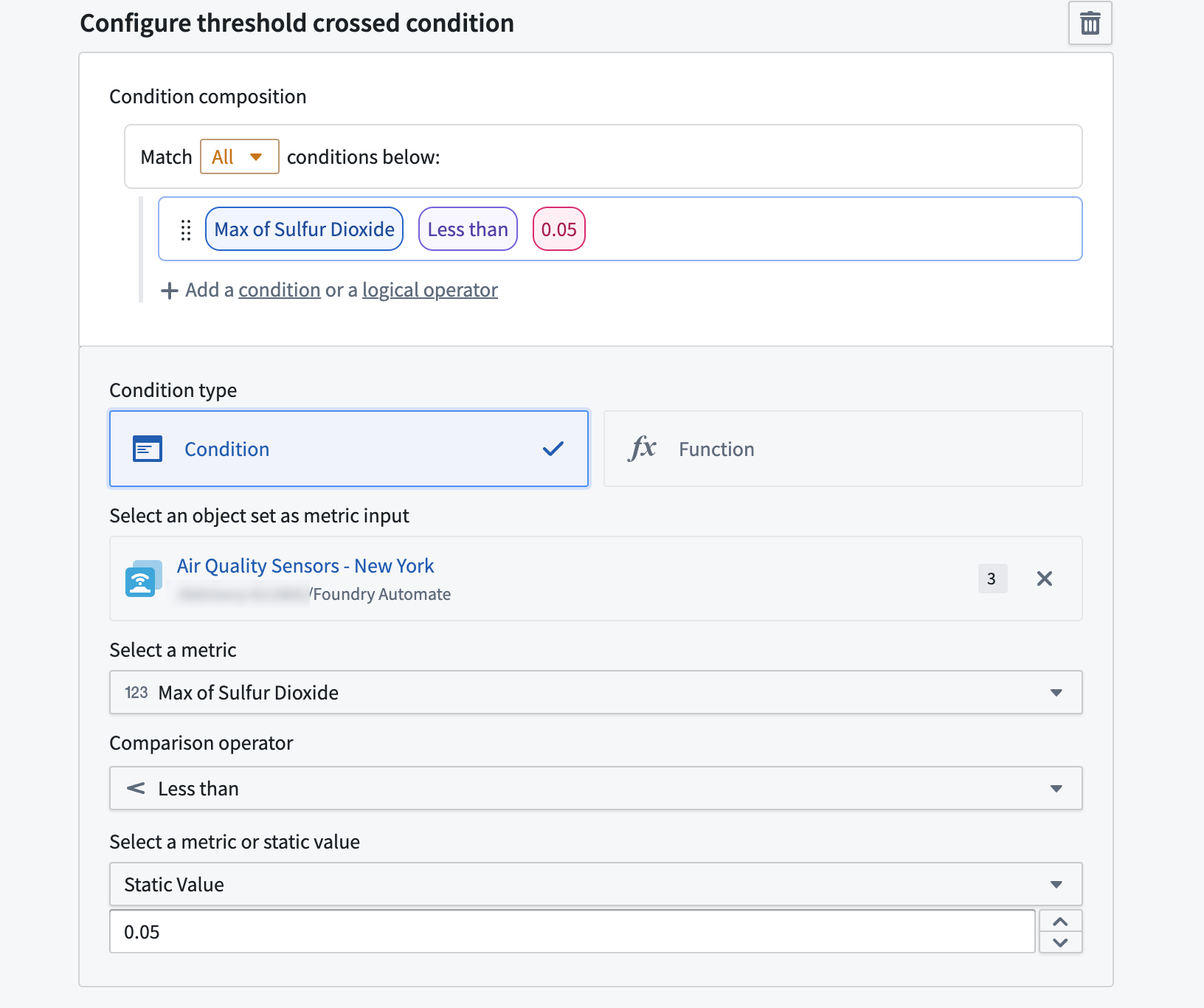
To define a threshold condition in the Automation interface, follow the steps below:
- In the Condition composition section, select Add condition.
- Choose Condition as the Condition type.
- Specify a saved object set to use as the metric input.
- In the Select a metric dropdown menu, choose a property that you want to compare.
- Select a comparison operator.
- Choose a metric or static value to compare the property against.
An example threshold crossed condition with logic defined in the Automate interface is shown below. The condition checks when the maximum value across all air quality sensors in New York is less than 0.05.
Function-backed logic
Use function-backed logic conditions for complex scenarios not supported by the interface-defined conditions. Function-backed conditions work by defining and publishing a function that returns a Boolean value (true or false). The function is called during evaluation, and events are recorded when the status changes.
Learn more about authoring a function for Automate.
The example function below computes whether more than 50% of air quality sensors are unhealthy. If the condition is met, the function will return true; if the condition is not met, the function will return false.
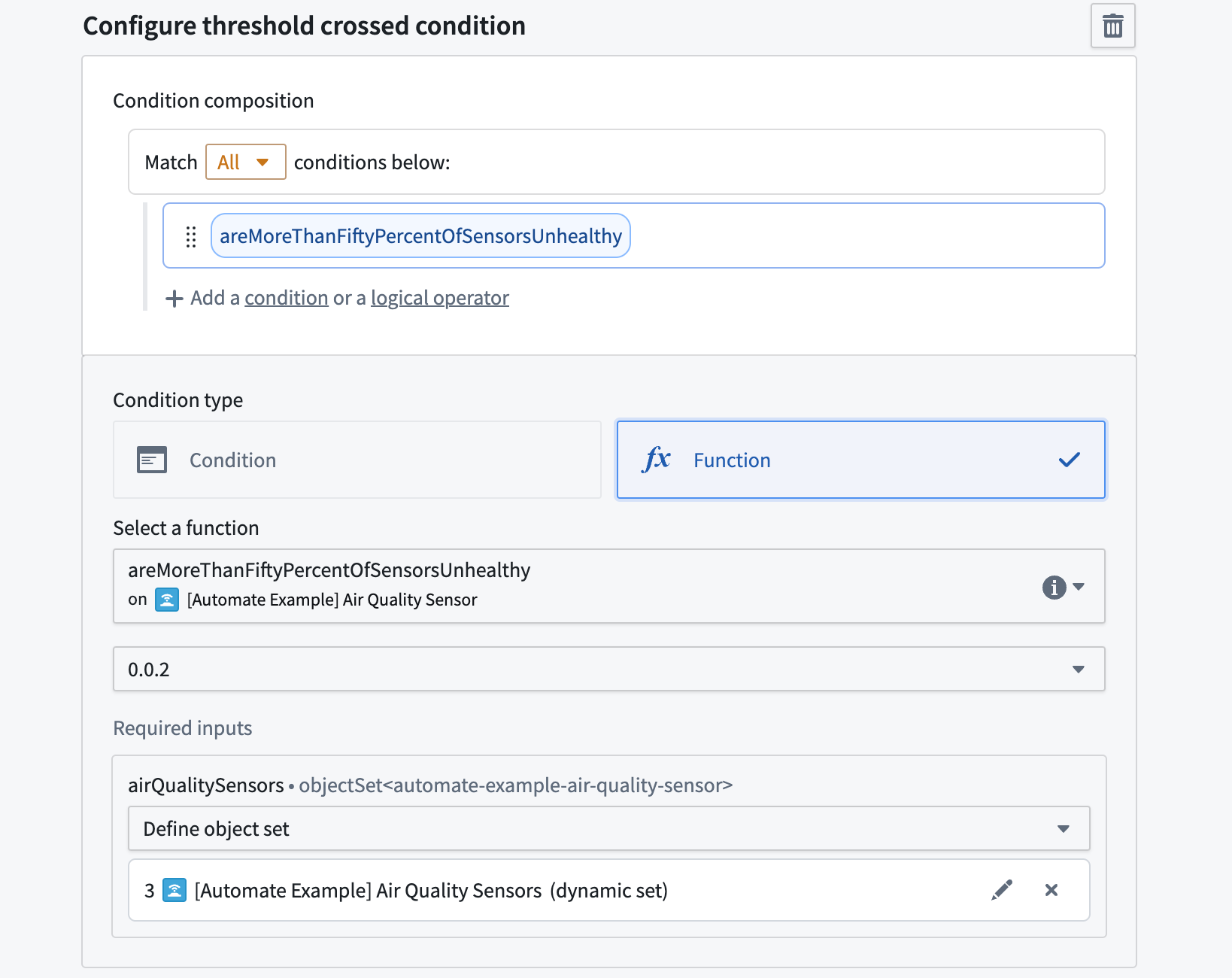
/**
 * This function calculates whether more than 50% of the passed air quality sensors are considered unhealthy.
 * A sensor is considered unhealthy when the carbon monoxide value passes `0.05`.
 */
@Function()
public async areMoreThanFiftyPercentOfSensorsUnhealthy (airQualitySensors: ObjectSet<automateExampleAirQualitySensor>): Promise<boolean> {
    const totalSensorCount = await airQualitySensors.count();
    const unhealthySensorCount = await airQualitySensors.filter(sensor => sensor.carbonMonoxide.range().gt(0.05)).count();
    if (totalSensorCount === null) {
        return false;
    }

    return ((unhealthySensorCount ?? 0) / totalSensorCount) > 0.5;
}
Metric changed [Sunset]
:::callout{theme="warning" title="Sunset"} The Metric changed condition is in the sunset phase of development and will be deprecated at a future date. Full support remains available, and you are able to edit existing automations with this condition. We recommend using the Objects modified in set condition instead. :::
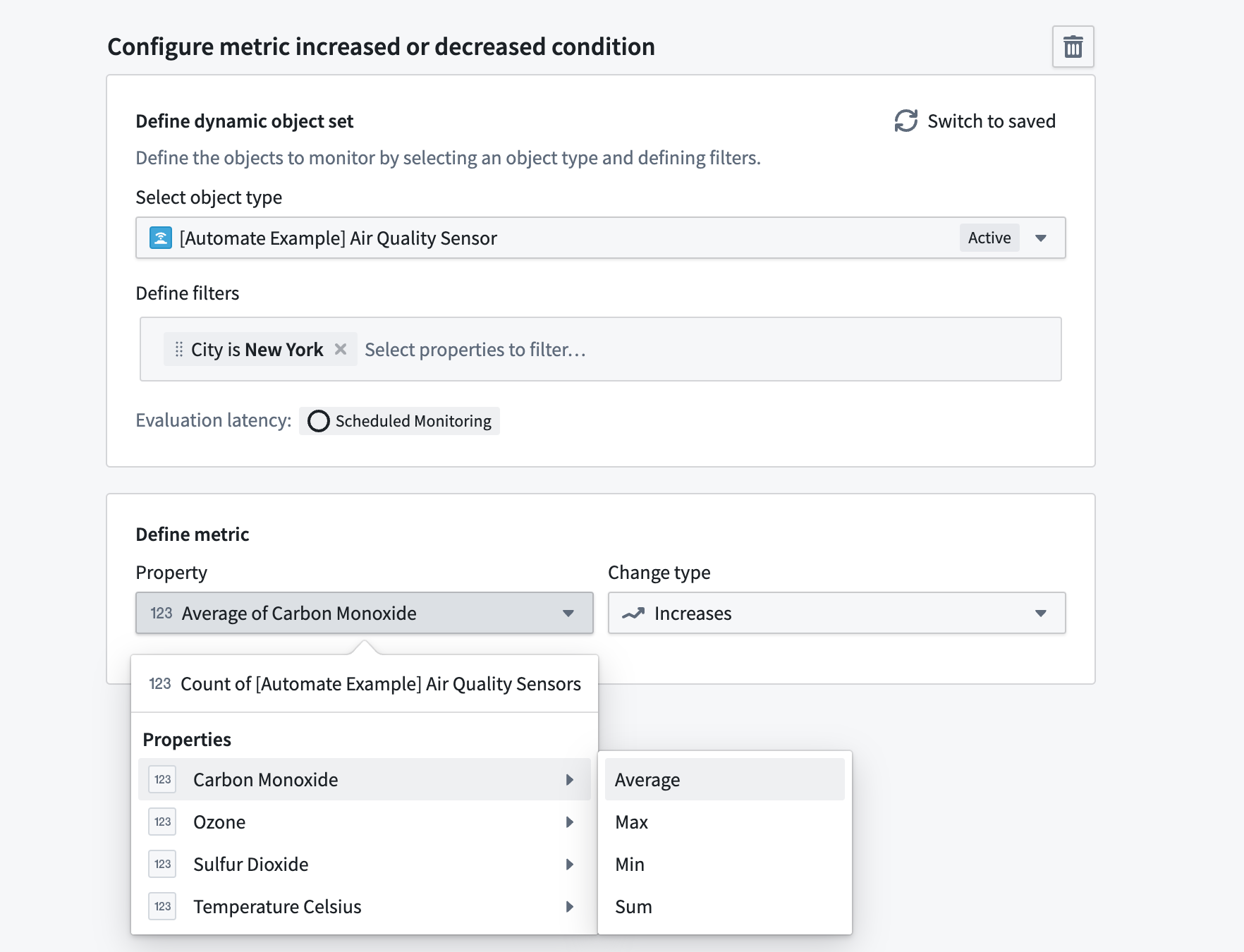
The Metric changed condition triggers every time an object set metric changes in a predefined object set. Example metrics are the total count of objects in the set, or aggregations like the average of numeric object property values. Start by specifying your object set according to the object set definition section above.
Select a metric property to monitor:
- Total count of objects in object set; or
- Aggregated value (average, max, min, or sum) of a numeric property across the monitored object set.
From the Change type dropdown menu, choose whether the metric Increases or Decreases. For example (shown below), an automation could trigger whenever the average carbon monoxide value across all air quality sensors in New York increases.
Supported evaluation frequency:
- Scheduled evaluation
中文翻译
对象集条件(Object set conditions)
当预定义对象集中的对象数据发生变化时,自动化效果(Automation effects)可被自动触发。
数据来源: 变化可来自支撑数据集(backing datasets)、操作类型(action types)或外部应用程序(external applications)。
评估频率: 数据变化通常在数分钟内被捕获。了解更多
效果输入参数(Effect input parameters): 某些对象集条件会暴露效果输入参数。这些变量可在效果内部使用,以访问触发自动化的对象。
可用条件
- 对象添加到集合(Objects added to set): 当新对象出现在集合中时触发。
- 对象从集合移除(Objects removed from set): 当对象离开集合时触发。
- 对象在集合中修改(Objects modified in set): 当对象在集合中被修改时触发。
- 对所有对象运行(Run on all objects): 定期对给定对象集中的所有对象运行效果。
- 阈值跨越(Threshold crossed): 当指标阈值被跨越或函数返回 true 时触发。
- 指标变化(Metric changed)[已弃用]: 当聚合指标增加或减少时触发。
对象集定义(Object set definition)
大多数对象集条件类型需要指定要监控的对象集。您可以:
- 动态定义对象集;
- 选择已保存的对象集;或
- 选择返回对象集的函数。
- 函数是更高级使用 Automate 的强大构建块。
定义要监控的对象集后,选择预览(Preview)以验证对象集是否包含预期对象。
动态定义对象集时,选择所需的对象类型,然后可选添加过滤器以缩小集合范围。例如,您可以监控过滤为"状态 = Open"的Support Ticket对象类型(如下所示)。当未选择过滤器时,您正在监控该类型的所有对象。对象类型和过滤器选择决定了对象集是实时监控还是按计划监控。了解更多关于评估频率的信息。
函数生成的对象集(Function-generated object sets)
下面的示例使用函数返回与用户关联的支持工单。在对象添加条件中使用时,每当新工单进入此集合时,效果将运行。该函数必须返回 ObjectSet<T> 才能在此使用。
请注意,在评估期间,此函数会为系统执行一次,并为每个订阅者再执行一次。
/**
 * 此函数返回与用户关联的支持工单
 */
@Function()
public getSupportTicketsLinkedToUsers(): ObjectSet<DemoTicket> {
    return Objects.search()
        .users()
        .searchAroundSupportTickets()
}
了解更多关于编写函数以与 Automate 配合使用的信息,并查看本节中的示例函数。
条件类型
对象添加到集合(Objects added to set)
对象添加到集合条件在每次对象被添加到预定义对象集时触发。首先按照上述对象集定义部分指定您的对象集。
如果您指定了对象集过滤器,其他用户的新对象或对象编辑可能会触发您的对象添加到集合条件。在下面的示例中,我们监控状态属性值为 Open 的 Support Tickets 对象集。该条件可能通过两种方式触发:创建了一个状态为 Open 的新 Support Ticket 对象,或者现有 Support Ticket 将其状态更改为 Open。
如果您未对对象集指定任何过滤器,则实际上是在监控该类型的所有对象。这意味着自动化仅会在向本体(Ontology)添加全新对象时触发。
对象添加到集合条件将触发条件的对象作为效果输入暴露出来。这可以是单个添加的对象、一个添加的对象对象集,或添加的对象的属性。了解更多关于如何使用效果输入的信息。
支持的评估频率:
- 实时评估(Live evaluation)
- 计划评估(Scheduled evaluation)
对象从集合移除(Objects removed from set)
对象从集合移除条件在每次对象从预定义对象集中移除时触发。首先按照上述对象集定义部分指定您的对象集。
如果您指定了对象集过滤器,用户的对象编辑可能会触发对象从集合中移除的条件。例如,如果我们监控状态属性值为 Open 的 Support Tickets 对象集,那么当 Open 工单的状态更改为任何其他状态时,该条件将触发。
请注意,从本体中删除的对象不会触发此条件。
对象从集合移除条件将触发条件的对象作为效果输入暴露出来。这可以是单个移除的对象或一个移除的对象对象集。了解更多关于如何使用效果输入的信息。
支持的评估频率:
- 实时评估
- 计划评估
对象在集合中修改(Objects modified in set)
对象在集合中修改条件在每次对象在预定义对象集中被修改时触发。使用此条件类型监控对象集中任何属性值的变化。如果您只想监控特定值的变化,请改用对象添加到集合条件。
首先按照上述对象集定义部分指定您的对象集。然后,您可以选择要监控的特定属性。如果未选择任何属性,则监控对象集中的任何属性变化都将触发自动化。
此外,您可以指定包含添加的对象(Include objects added)和包含移除的对象(Include objects removed)。这些选项控制添加到(或从)监控对象集中移除的对象上的修改是否会触发自动化。当两个选项都禁用时,只有已经在对象集中且在修改后仍保留在对象集中的对象才会触发自动化。
对象在集合中修改条件将触发条件的单个修改的对象或一组修改的对象作为效果输入暴露出来。了解更多关于效果输入的信息。
支持的评估频率:
- 实时评估
在下面的示例中,我们监控位置为 USA 的 Support Tickets 集合中修改的对象。
- 包含添加的对象: 已启用。 添加到对象集中的对象被视为已修改。因此,位置从
UK更改为USA的Support Ticket会触发自动化,任何新创建的且位置为USA的工单也会触发。 - 包含移除的对象:已禁用。 状态属性从
Open更改为Closed且位置同时变化(例如,从USA更改为UK)的工单不会触发自动化,因为这些对象已离开集合。 - 已删除的
Support Tickets不会触发自动化,因为它们不再位于监控的对象集中。
对所有对象运行(Run on all objects)
对所有对象运行条件可以定期对给定对象集中的所有对象运行效果。此条件与计划结合配置。
使用此条件时,可以设置受影响的对象参数以将对象注入任何效果中。使用此条件时,会遵循批处理大小和并行化设置。此条件允许您对大量对象运行效果,同时避免函数或操作超时,因为批处理将被自动处理。
支持的评估频率:
- 计划评估
阈值跨越(Threshold crossed)
阈值跨越条件在所有定义的检查返回 true 时触发。每当阈值在任一方向被跨越时,效果会被触发并记录活动。
您可以组合由Automate 定义的逻辑、函数支持的逻辑或两者组成的条件。
支持的评估频率:
- 计划评估
Automate 定义的逻辑(Automate-defined logic)
要在自动化界面中定义阈值条件,请按照以下步骤操作:
- 在条件组合(Condition composition)部分,选择添加条件(Add condition)。
- 选择条件(Condition)作为条件类型(Condition type)。
- 指定一个已保存的对象集(saved object set)作为指标输入。
- 在选择指标(Select a metric)下拉菜单中,选择要比较的属性。
- 选择比较运算符。
- 选择指标或静态值来与属性进行比较。
下面显示了一个在 Automate 界面中定义逻辑的阈值跨越条件示例。该条件检查纽约所有空气质量传感器的最大值何时小于 0.05。
函数支持的逻辑(Function-backed logic)
对于界面定义的条件不支持的复杂场景,请使用函数支持的逻辑条件。函数支持的条件通过定义和发布返回布尔值(true 或 false)的函数来工作。该函数在评估期间被调用,并在状态更改时记录事件。
了解更多关于为 Automate 编写函数的信息。
下面的示例函数计算是否有超过 50% 的空气质量传感器不健康。如果条件满足,函数将返回 true;如果条件不满足,函数将返回 false。
/**
 * 此函数计算传递的空气质量传感器中是否有超过 50% 被认为不健康。
 * 当一氧化碳值超过 `0.05` 时,传感器被认为不健康。
 */
@Function()
public async areMoreThanFiftyPercentOfSensorsUnhealthy (airQualitySensors: ObjectSet<automateExampleAirQualitySensor>): Promise<boolean> {
    const totalSensorCount = await airQualitySensors.count();
    const unhealthySensorCount = await airQualitySensors.filter(sensor => sensor.carbonMonoxide.range().gt(0.05)).count();
    if (totalSensorCount === null) {
        return false;
    }

    return ((unhealthySensorCount ?? 0) / totalSensorCount) > 0.5;
}
指标变化(Metric changed)[已弃用]
:::callout{theme="warning" title="已弃用"} 指标变化条件处于开发阶段的已弃用(sunset)阶段,将在未来某个日期被废弃。仍提供完全支持,并且您可以编辑使用此条件的现有自动化。我们建议改用对象在集合中修改条件。 :::
指标变化条件在每次预定义对象集中的对象集指标发生变化时触发。示例指标包括集合中对象的总数,或数值对象属性值的平均值等聚合。首先按照上述对象集定义部分指定您的对象集。
选择要监控的指标属性:
- 对象集中的总数(Total count);或
- 监控对象集中数值属性的聚合值(Aggregated value)(平均值、最大值、最小值或总和)。
从变化类型(Change type)下拉菜单中,选择指标是增加(Increases)还是减少(Decreases)。例如(如下所示),每当纽约所有空气质量传感器的一氧化碳平均值增加时,自动化可以触发。
支持的评估频率:
- 计划评估