Condition settings(条件设置)
You can configure behavior for cycles, dropped objects, execution queuing, and skipping peering events from the Advanced settings options found on the Condition page when setting up a new automation.
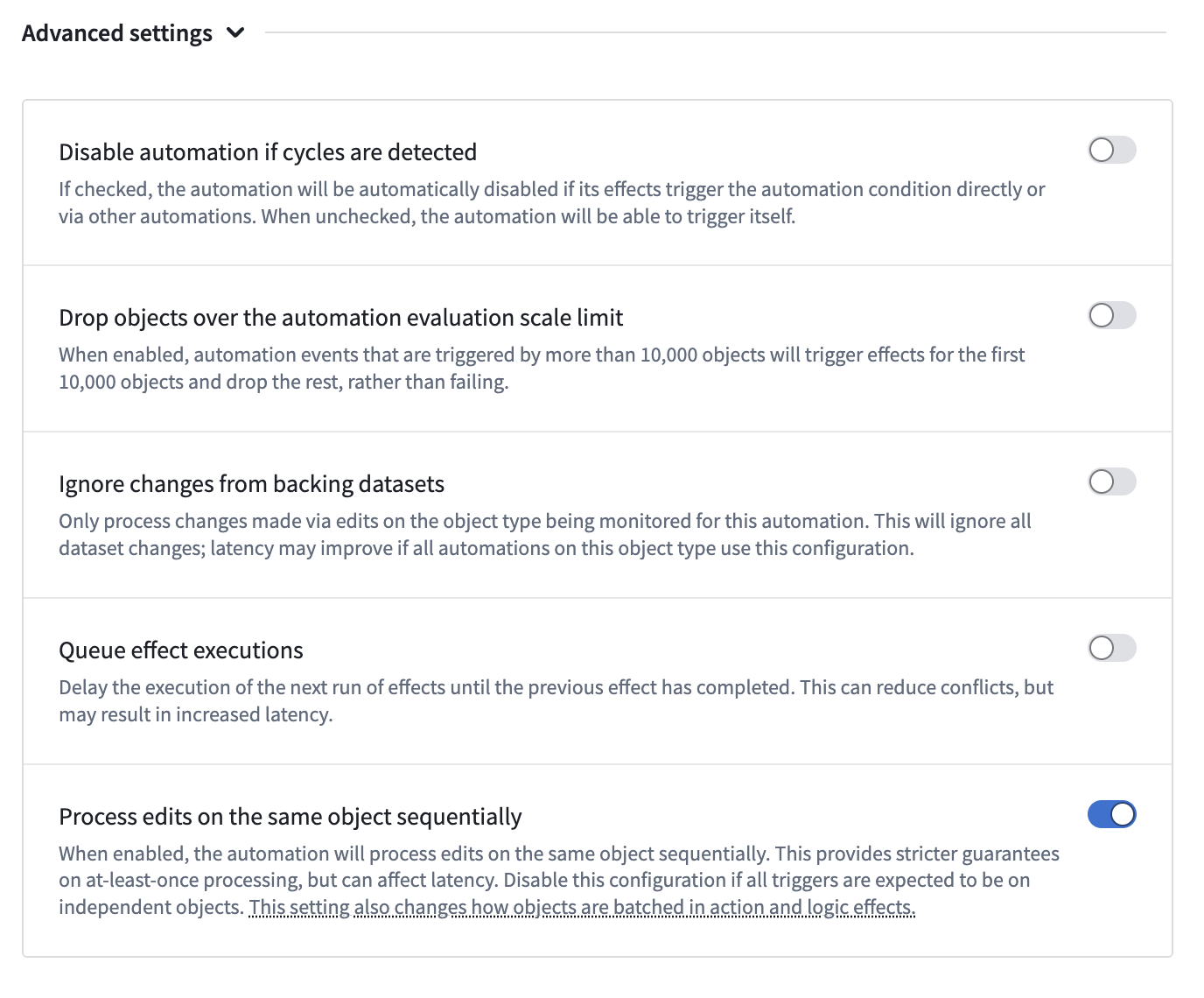
Cycles
Automation sequences can sometimes cause infinite loops (cycles) when automations trigger each other. Review the documentation on cycle detection for more information.
For certain automations, cycle detection may be undesirable. To allow up to 50 cycles, enable Allow cycles in the automation settings. Note that overriding cycle detection is only available for live monitoring.

Dropped objects
You can configure how Automate handles objects when the live automation scale limit is reached.
When Drop objects over the live automation scale limit is enabled, events triggered by more than 10,000 objects will process the first 10,000 objects and drop the remaining objects (instead of failing).
Note that this option is only available with live monitoring enabled.

Queue effect executions
You can enable Queue effect executions to process automation events sequentially in the order they triggered. When this setting is enabled, events execute one at a time, based on when they were triggered.
There are several reasons you might want to enable queue effect executions:
-
Ensure execution order: When you need events to happen in a specific sequence, such as sending a "Processing started" notification before a "Processing finished" notification.
-
Control concurrency: When you want events to run one at a time, which can be useful for:
- Managing capacity limits: Downstream actions, webhooks, or systems may have limited capacity. Using this option with low batch or parallelism limits places an upper bound on concurrency.
- Avoiding conflicts: Running effects concurrently can cause conflicts. For example, two actions cannot edit the same object simultaneously. When this happens, the first action will commit successfully while the second fails with a conflict error and requires a retry. Queue effect executions can reduce these conflicts at the cost of reduced throughput.
Queuing applies at the automation event level (individual runs in automation history). Concurrency settings (parallel vs. sequential effects) still apply within an individual event. The queuing only affects the order in which separate events are processed. For example, if three events trigger an automation in quick succession:
- Without queuing: All three events process simultaneously, potentially executing effects in parallel
- With queuing: "Event 1" completes all of its effects, then "Event 2" begins processing and completes before "Event 3" begins.
Skip peering events
When your automation monitors an object type that receives updates through ontology peering, you may want to prevent those peered changes from triggering the automation's effects. Enabling the Skip events from peering patches to this object option causes the automation to ignore events that originate from peering patches, so that only direct edits such as user actions or other non-peering sources trigger the automation's effects.
:::callout{theme="neutral"} This setting only applies to automations using live monitoring with an object set condition. Time-based triggers and scheduled evaluations are not affected. :::
This setting is used in environments that have peering connections where the same automation logic exists on both sides of a peer connection. Without this setting, a peered edit arriving on the remote enrollment could re-trigger the automation, leading to duplicated or unintended side effects. For example, if an automation creates an alert and sends an email notification, both enrollments could independently fire the automation for the same peered event, resulting in duplicate emails being sent to the same user or group.
:::callout{theme="warning"}
Events that are skipped by this setting will not appear in the Automate History page.
Additionally, this setting only skips events that arrive as peering patches, which represent individual user edits. Large-volume changes peered as new base versions (for example, source data peering from backing dataset updates) do not arrive as patches and will not be skipped. Instead, these events will still trigger the automation.
:::
Enable this option
Follow the steps below to enable skipping events from peering patches.
:::callout{theme="neutral"} If the following settings are not visible, contact your Palantir representative or Palantir Support to enable this option for your Enrollment. :::
- Open your automation in Automate.
- Navigate to the Condition page.
- Expand Advanced settings.
- Enable Skip events from peering patches to this object.
- Save your automation.
中文翻译
条件设置
在创建新自动化时,您可以通过条件页面上的高级设置选项,配置循环、丢弃对象、执行排队和跳过对等事件的行为。
循环
自动化序列在自动化相互触发时,有时会导致无限循环。有关更多信息,请参阅循环检测文档。
对于某些自动化,循环检测可能并不理想。要允许最多50次循环,请在自动化设置中启用允许循环。请注意,覆盖循环检测仅适用于实时监控。
丢弃对象
您可以配置当达到实时自动化规模限制时,Automate如何处理对象。
当启用丢弃超出实时自动化规模限制的对象时,由超过10,000个对象触发的事件将处理前10,000个对象,并丢弃剩余对象(而非失败)。
请注意,此选项仅在启用实时监控时可用。
排队效果执行
您可以启用排队效果执行,按事件触发的顺序依次处理自动化事件。启用此设置后,事件将根据其触发时间逐一执行。
您可能希望启用排队效果执行的原因包括:
-
确保执行顺序: 当您需要事件按特定顺序发生时,例如在发送"处理完成"通知之前先发送"处理开始"通知。
-
控制并发: 当您希望事件逐一运行时,这对于以下场景非常有用:
- 管理容量限制: 下游操作、webhooks或系统可能容量有限。将此选项与较低的批次或并行度限制结合使用,可以为并发设置上限。
- 避免冲突: 并发执行效果可能导致冲突。例如,两个操作无法同时编辑同一对象。此时,第一个操作将成功提交,而第二个操作会因冲突错误而失败,需要重试。排队效果执行可以减少此类冲突,但代价是降低吞吐量。
排队适用于自动化事件级别(自动化历史记录中的单个运行)。并发设置(并行与顺序效果)在单个事件内仍然适用。排队仅影响不同事件的处理顺序。例如,如果三个事件快速连续触发一个自动化:
- 不排队: 三个事件同时处理,可能并行执行效果。
- 排队: "事件1"完成所有效果后,"事件2"开始处理并在"事件3"开始前完成。
跳过对等事件
当您的自动化监控的对象类型通过本体对等接收更新时,您可能希望阻止这些对等更改触发自动化的效果。启用跳过来自此对象的对等补丁事件选项后,自动化将忽略源自对等补丁的事件,从而只有用户操作等直接编辑或其他非对等来源才能触发自动化的效果。
:::callout{theme="neutral"} 此设置仅适用于使用实时监控且带有对象集条件的自动化。基于时间的触发器和计划评估不受影响。 :::
此设置用于存在对等连接的环境中,且对等连接两侧具有相同的自动化逻辑。如果没有此设置,到达远程注册的对等编辑可能会重新触发自动化,导致重复或意外的副作用。例如,如果某个自动化创建警报并发送电子邮件通知,则两个注册可能独立地为同一对等事件触发自动化,导致向同一用户或组发送重复的电子邮件。
:::callout{theme="warning"}
被此设置跳过的事件不会出现在Automate的历史记录页面中。
此外,此设置仅跳过作为对等补丁到达的事件,这些补丁代表单个用户编辑。作为新基础版本对等的大批量更改(例如,来自支持数据集更新的源数据对等)不会作为补丁到达,因此不会被跳过。相反,这些事件仍会触发自动化。
:::
启用此选项
按照以下步骤启用跳过对等补丁事件。
:::callout{theme="neutral"} 如果以下设置不可见,请联系您的Palantir代表或Palantir支持团队,为您的注册启用此选项。 :::
- 在Automate中打开您的自动化。
- 导航至条件页面。
- 展开高级设置。
- 启用跳过来自此对象的对等补丁事件。
- 保存您的自动化。