Action effects(操作效果)
The action effect allows you to automatically run actions when an automation triggers or recovers.
Configuration
To set up an action effect, begin by opening the automation configuration wizard. On the Effects page, add an action effect; this will take you to the action effect configuration page. One action will already be added by default under Configured Actions and will be displayed as Unconfigured.
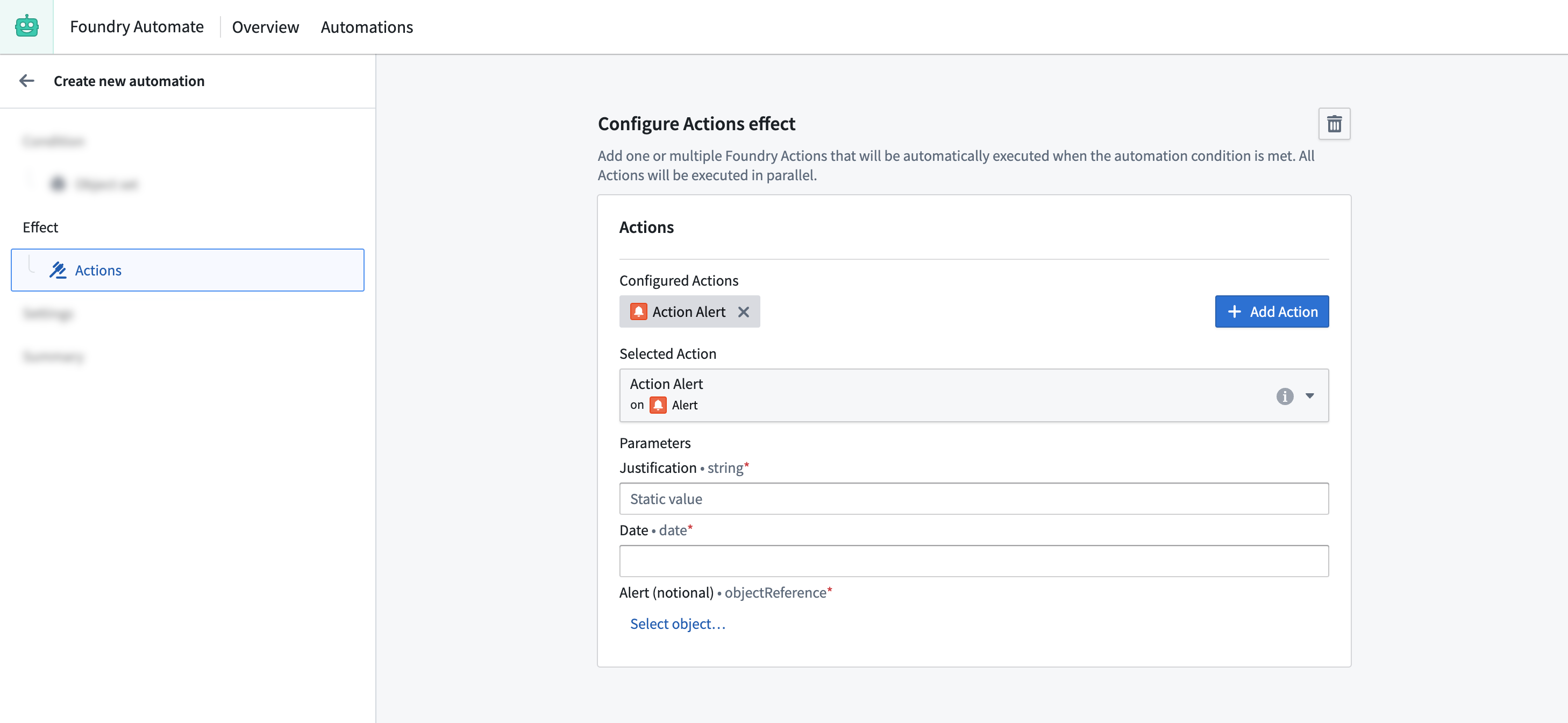
Starting with this unconfigured action, you can begin configuring your action. First, search and select the action that you want to execute. The interface will display the parameters required by the selected action, as shown in the image below. If the parameter type is supported, you can directly provide a value in the interface.
To add more actions, select Add Action. This will add another tab allowing you to configure a new action. Note that the execution sequence is not guaranteed when multiple actions are configured; actions may be executed in any order.
Use condition effect inputs
Available inputs
Some object set conditions expose effect inputs. These can be used in the action effect. To use condition effect inputs, the type of the action parameter needs to align with the type of the exposed condition effect input. For example, if the condition monitors the Alert object type, the action needs to take an object reference parameter of object type Alert.
The following conditions expose effect inputs:
The following effect inputs can be exposed:
- Object set
- Object list
- Single object
- Property reference
In the example shown below, an objects added to set condition exposes an effect input for an object set of type Support Ticket containing the Support Tickets added. Given that the selected Close Support Tickets action expects an object set parameter of type Support Ticket, the condition effect input New Support Tickets added is a selectable option.

Note that object set and object list inputs cannot be combined with single object and property reference inputs, since the former includes multiple objects at a time and the latter includes one object at a time.
Configure execution mode
When effect inputs are used, an execution mode can be configured to determine how objects and actions should be grouped. The options available depend on whether the effect input is for a one affected object (for example, single object and property reference inputs) or multiple affected objects (such as object set and object list inputs).
The use of single object and property reference inputs means that each action is executed once for each object from the condition. The execution of the actions can be optimized by customizing the parallelization setting which changes the number of actions that are executed at a time.

The use of object set and object list inputs will mean that the action is executed for multiple objects at a time. Changing the execution mode will modify how objects are grouped across action executions. The following options are available for grouping objects:
- Execute once for all objects: Ensure that the action is executed once if the condition is triggered by multiple objects at the same time.
- Execute once for each batch of objects: Split objects into batches up to the configured batch size, and execute the action once for each batch. The batch size is a maximum, not a minimum: the automation does not wait for additional objects before executing, so a batch may contain fewer objects than the configured size. Use this option to optimize the automation to run with higher scale.
- Execute once for each group of objects: Group the objects by a set of object properties from the condition's object type. Use this option if your action accepts an object set, but assumes that all objects in that set are the same for a set of properties. For example, if your action takes a set of
Support Ticketsbut expects them to belong to the sameCategory, grouping by theCategoryproperty will ensure that the action is only executed for oneCategoryat a time. Note that the grouping is based on exact matches of property values. For array type properties, the values must be exact, in-order matches to be grouped together.

Error handling
You can configure multiple ways to handle a failed action, including a retry policy. Available retry policies include:
- Constant backoff: Automatically retry with a fixed wait time between events.
- Exponential backoff: Wait time increases exponentially between retries.
You can also configure the amount of jitter, which is a variation in delay time between retries to prevent simultaneous retries. Jitter can be specified as:
- A factor by which retry delays should be randomly varied. For each retry delay, a randomly selected fraction of the delay is multiplied by the factor and added or subtracted to the delay. For example, given a delay of
100 msand a factor of0.25, the retry delay would be between75 msand125 ms. - A duration by which retry delays should be randomly varied. For each retry delay, a randomly selected fraction of the duration is added or subtracted to the delay. For example, given a delay of
100 mswith duration20 ms, the retry delay would be between80msand120ms.
Error handling with retries
For information about action effect execution guarantees and how to handle potential duplicate executions, see execution guarantees in the execution settings documentation.
Action visibility settings
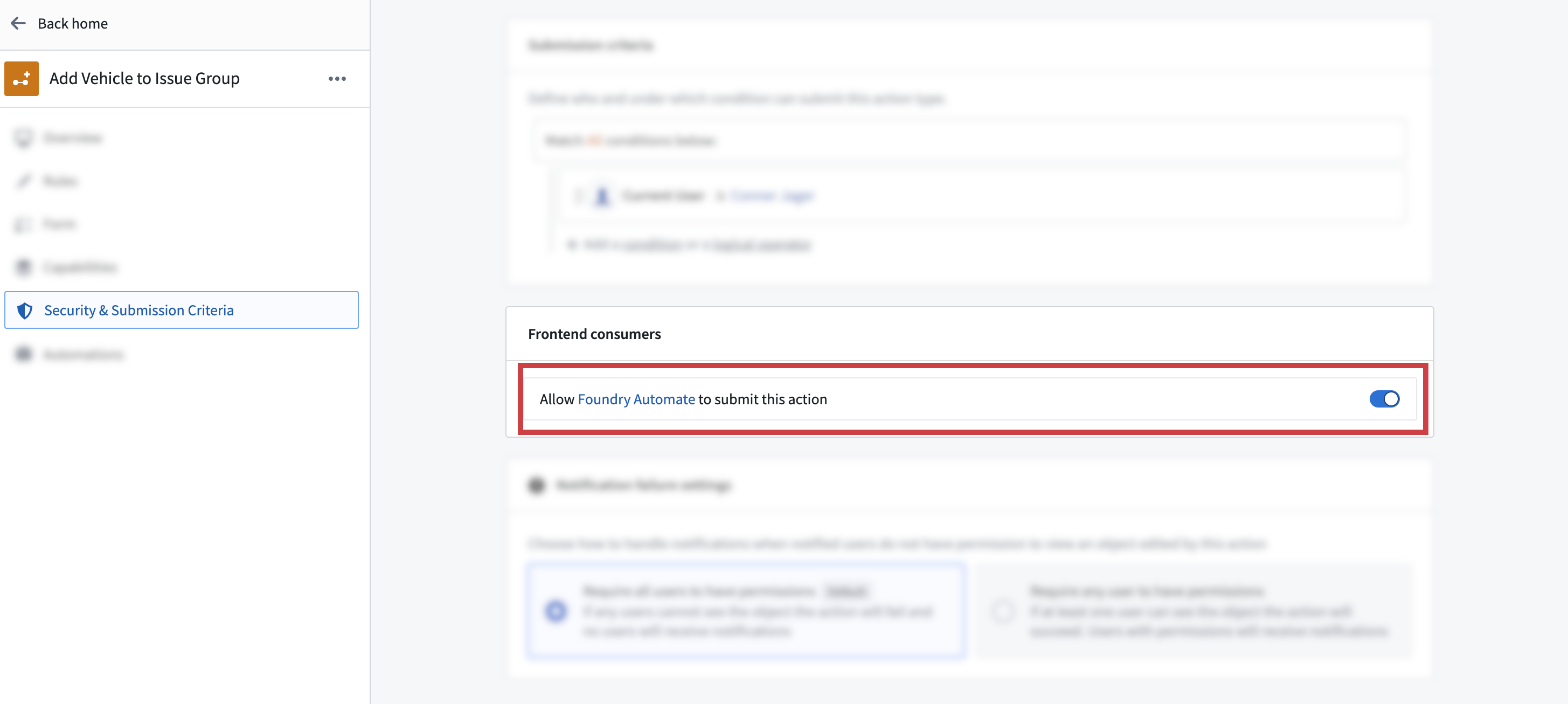
Not all actions are appropriate to use with Automate. You can disable an action from being usable in Automate once you configure the action type in Ontology Manager. After creating an action type, view its details by selecting the action type from the Action type list, then navigate to the Security & Submission Criteria tab in the left side panel. Then, find the Frontend consumers section and toggle off the switch that allows Automate to submit the action.
Permissions
Actions are associated with the owner of an automation. This means that the action will be run on behalf of the owner of the automation. That requires that the owner configuring an action must pass the submission criteria for that action.
:::callout{theme="warning"} Actions run on behalf of a specific user (the owner of an automation), so an action will no longer run if the associated user account is disabled or deleted. :::
中文翻译
操作效果
操作效果允许您在自动化触发或恢复时自动运行操作。
配置
要设置操作效果,首先打开自动化配置向导。在效果页面上,添加一个操作效果;这将带您进入操作效果配置页面。在已配置操作下,默认会添加一个操作,并显示为未配置。
从这个未配置的操作开始,您可以开始配置您的操作。首先,搜索并选择您要执行的操作。界面将显示所选操作所需的参数,如下图所示。如果参数类型受支持,您可以直接在界面中提供值。
要添加更多操作,请选择添加操作。这将添加另一个选项卡,允许您配置新操作。请注意,当配置多个操作时,执行顺序无法保证;操作可能以任意顺序执行。
使用条件效果输入
可用输入
某些对象集条件会暴露效果输入。这些输入可用于操作效果中。要使用条件效果输入,操作参数的类型需要与暴露的条件效果输入类型相匹配。例如,如果条件监控的是Alert对象类型,则操作需要接受对象类型为Alert的对象引用参数。
以下条件会暴露效果输入:
以下效果输入可以被暴露:
- 对象集
- 对象列表
- 单个对象
- 属性引用
在下面所示的示例中,一个"添加到集合的对象"条件暴露了一个对象集类型为Support Ticket的效果输入,其中包含已添加的Support Tickets。由于所选"关闭支持工单"操作期望一个对象集参数类型为Support Ticket,因此条件效果输入"新增支持工单"是一个可选项。
请注意,对象集和对象列表输入不能与单个对象和属性引用输入组合使用,因为前者一次包含多个对象,而后者一次包含一个对象。
配置执行模式
当使用效果输入时,可以配置执行模式以确定对象和操作应如何分组。可用选项取决于效果输入是针对一个受影响的对象(例如,单个对象和属性引用输入)还是多个受影响的对象(例如,对象集和对象列表输入)。
使用单个对象和属性引用输入意味着每个操作会针对条件中的每个对象执行一次。可以通过自定义并行化设置来优化操作的执行,该设置会更改同时执行的操作数量。
使用对象集和对象列表输入意味着操作会一次针对多个对象执行。更改执行模式将修改对象在操作执行中的分组方式。以下选项可用于分组对象:
- 对所有对象执行一次: 确保当条件同时被多个对象触发时,操作只执行一次。
- 对每批对象执行一次: 将对象拆分为不超过配置批次大小的批次,并对每个批次执行一次操作。批次大小是最大值而非最小值:自动化不会等待额外对象再执行,因此一个批次可能包含少于配置大小的对象。使用此选项可优化自动化以更高规模运行。
- 对每组对象执行一次: 根据条件对象类型的一组对象属性对对象进行分组。如果您的操作接受对象集,但假定该集合中的所有对象在一组属性上相同,请使用此选项。例如,如果您的操作接受一组
Support Tickets,但期望它们属于同一个Category,则按Category属性分组将确保操作一次只针对一个Category执行。请注意,分组基于属性值的精确匹配。对于数组类型属性,值必须精确且顺序一致才能被分组在一起。
错误处理
您可以配置多种方式来处理失败的操作,包括重试策略。可用的重试策略包括:
- 恒定退避: 自动重试,事件之间具有固定的等待时间。
- 指数退避: 重试之间的等待时间呈指数增长。
您还可以配置抖动量,即重试之间的延迟时间变化,以防止同时重试。抖动可以指定为:
- 一个因子,重试延迟应据此随机变化。对于每次重试延迟,随机选择延迟的一部分乘以该因子,然后加到延迟上或从延迟中减去。例如,给定延迟
100 ms和因子0.25,重试延迟将在75 ms到125 ms之间。 - 一个持续时间,重试延迟应据此随机变化。对于每次重试延迟,随机选择持续时间的一部分加到延迟上或从延迟中减去。例如,给定延迟
100 ms和持续时间20 ms,重试延迟将在80ms到120ms之间。
带重试的错误处理
有关操作效果执行保证以及如何处理潜在重复执行的信息,请参阅执行设置文档中的执行保证。
操作可见性设置
并非所有操作都适合与自动化一起使用。在Ontology Manager中配置操作类型后,您可以禁用操作使其无法在自动化中使用。创建操作类型后,通过从操作类型列表中选择操作类型来查看其详细信息,然后导航到左侧面板中的安全与提交标准选项卡。接着,找到前端消费者部分,并关闭允许自动化提交操作的开关。
权限
操作与自动化的所有者相关联。这意味着操作将以自动化所有者的身份运行。这就要求配置操作的所有者必须通过该操作的提交标准。
:::callout{theme="warning"} 操作以特定用户(自动化的所有者)的身份运行,因此如果关联的用户账户被禁用或删除,操作将不再运行。 :::