Notification effect(通知效果)
The Automate application allows you to automatically send out notifications to other platform users when a condition is met.
Notifications can be sent in two ways: directly in the platform and as email. The content can be statically defined or dynamically determined via a function. Notifications can also include PDF attachments. This page contains information about options for notification recipients, content, and attachments.
Object grouping
When a condition that exposes affected objects is used, an object grouping can be selected to define how these objects should be grouped before notifications are sent.
Conditions that expose affected objects are:
Execute once for all objects
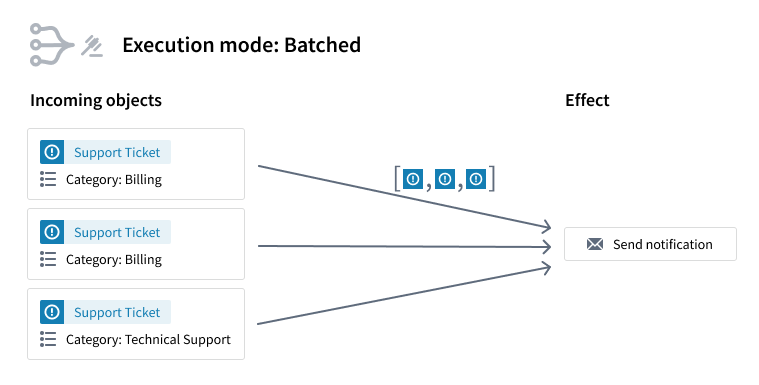
When multiple objects trigger the condition at the same time, only one notification will be sent to each recipient.
In the example shown in the screenshot below, three different Support Ticket objects trigger the automation and one notification is sent. Function-backed notifications have access to an object set with all three objects.
Execute once for each group of objects
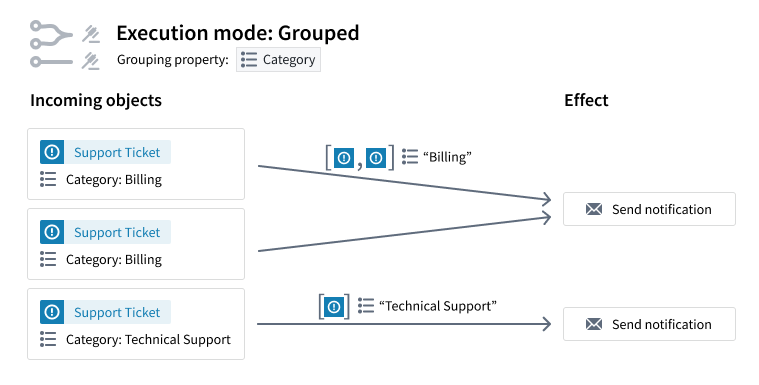
When multiple objects trigger the condition at the same time, objects will be grouped by a set of selected properties. One notification will be sent for each group to each recipient.
Note that the grouping is based on exact matches of property values. For array type properties, the values must be exact, in-order matches to be grouped together.
In the example shown below, three different Support Ticket objects simultaneously trigger the automation. Two objects belong to the category Billing and one belongs to Technical Support.
- Since Category was selected as the grouping property, there will be two notifications: one for the Billing group and one for the Technical Support group.
- For the first notification, function-backed notifications will have access to an object set containing both Billing Support Ticket objects.
- For the second notification, function-backed notifications will have access to an object set containing the Technical Support object.
Execute once for each object
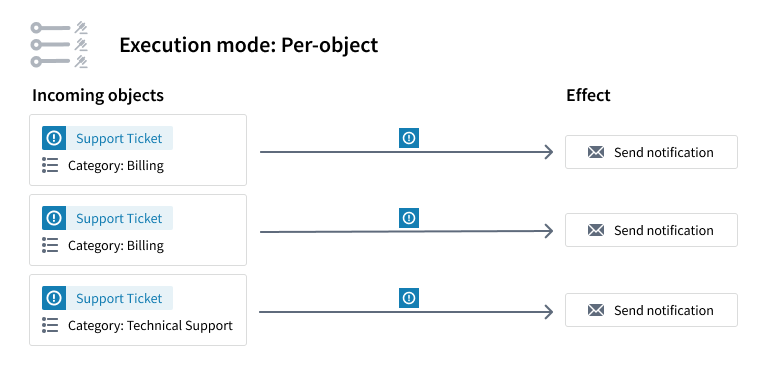
When multiple objects trigger the condition at the same time, one notification will be sent for each object.
For example, if three Support ticket objects trigger the automation, a separate notification will be sent for each Support ticket. Function-backed notifications will have access to the individual object as well as its property values.
Recipients
When configuring a notification, you must first define who should receive the notification. Recipients can be Foundry users or groups, defined either in a static recipient list or dynamically via object properties.
To be eligible to receive notifications from an automation, recipients must have the following permissions:
- At least Viewer permission on the automation. This is required for both static and dynamic recipients.
- Viewer permission on the object instances that trigger the automation.
- Viewer permission on all the properties of the object instances if the triggering object type is a multi-datasource object type.
- Viewer permission on all the object instances accessed by the function execution in a function-backed notification.
The above requirements apply for both active and pre-registered users.
:::callout{theme="warning"} Manual executions of the automation bypass the trigger conditions. As a result, permissions on the trigger objects are not checked during manual runs. :::
Static recipient list
The first option for defining the recipients of a notification is to provide these recipients as a static list under Static. To define the list, click into the associated text field and select the desired users or groups to be recipients.
Dynamic recipient definition via object properties
The second option is to define notification recipients dynamically through object properties from affected objects. This configuration option requires an object set condition that exposes effect inputs.
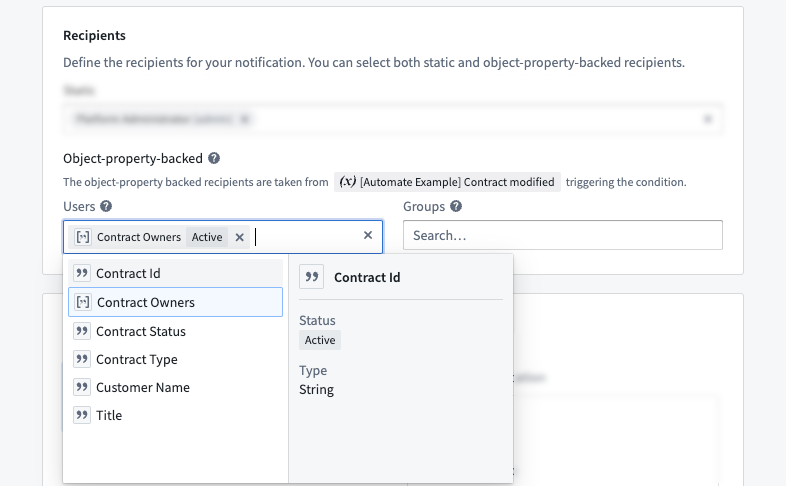
The dynamic recipient definition allows you to specify object properties that contain user IDs or group IDs to determine the notification recipients at runtime. Therefore, object property types must be either String or Array of String.
In the example shown below, we define an object modified condition on the Contract object type. Then, we can use the Contract Owners property, which contains an array of user IDs, to define the set of notification recipients.
Content
There are two ways to define the content of a notification: as a plain notification or as a function-generated notification.
:::callout{theme="neutral"} Notifications will be rendered for each individual recipient. Thus, the resulting content may differ for each user. :::
Plain notification
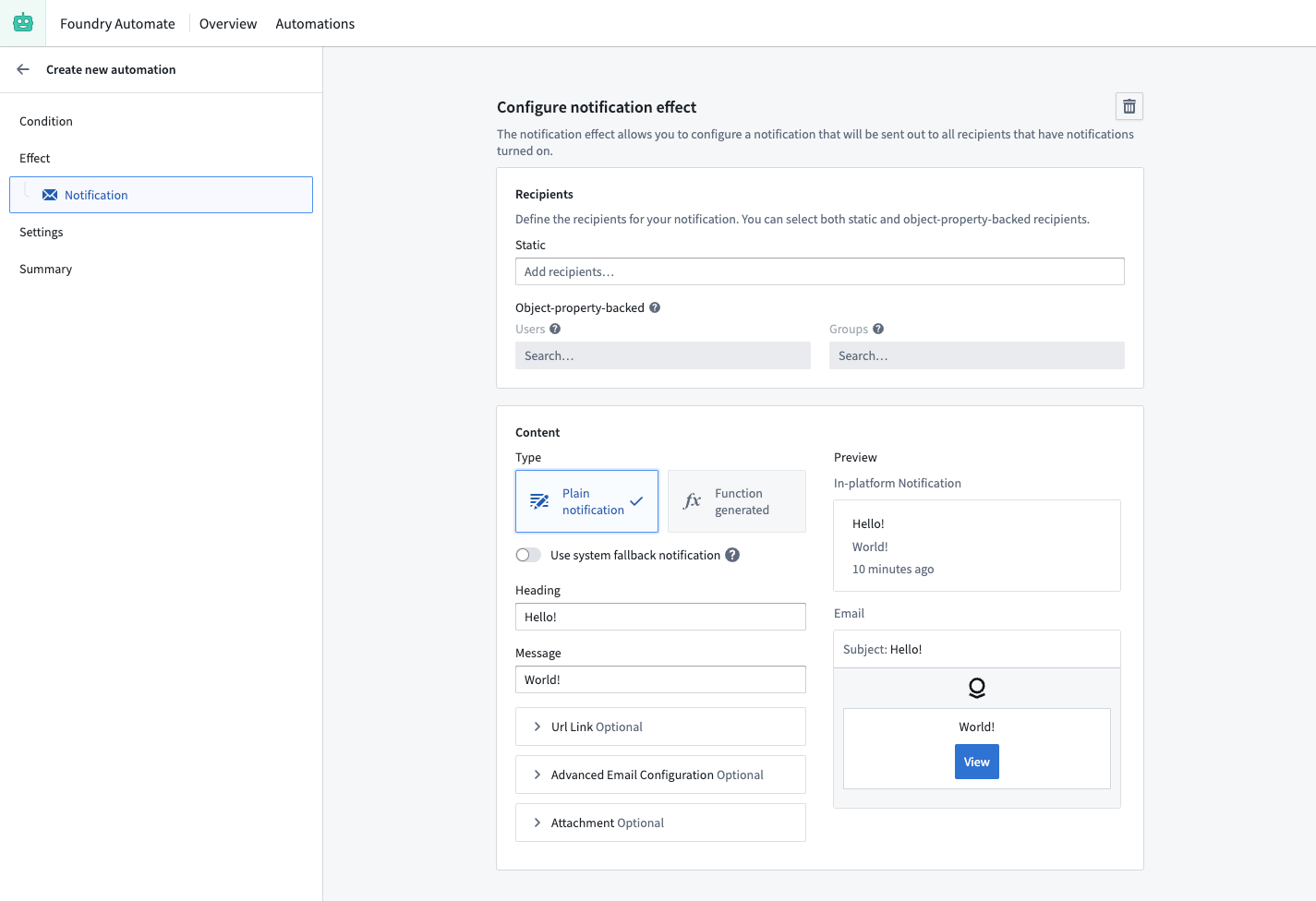
Plain notifications offer interface components to directly specify the notification content. You must provide a Heading and Message. Optionally, you can also modify the URL Link. By default, the URL link is a link to the in-platform notification that is only shown in the email.
You can also use the Advanced email configuration to configure different values for the email. By default, the Heading, Message, and URL link values that you provided above for the in-platform notification are used. HTML can also be used in the advanced email configuration if desired.
When adding content, you can use the / key to open a menu that allows you to treat the notification as a template, with values such as the name of the recipient substituted in when the notification is sent. If an object set is being monitored and Per-object execution is selected, the current and previous values of an associated object property are also an option as template values. Note that previous property values are only available if live monitoring is used.
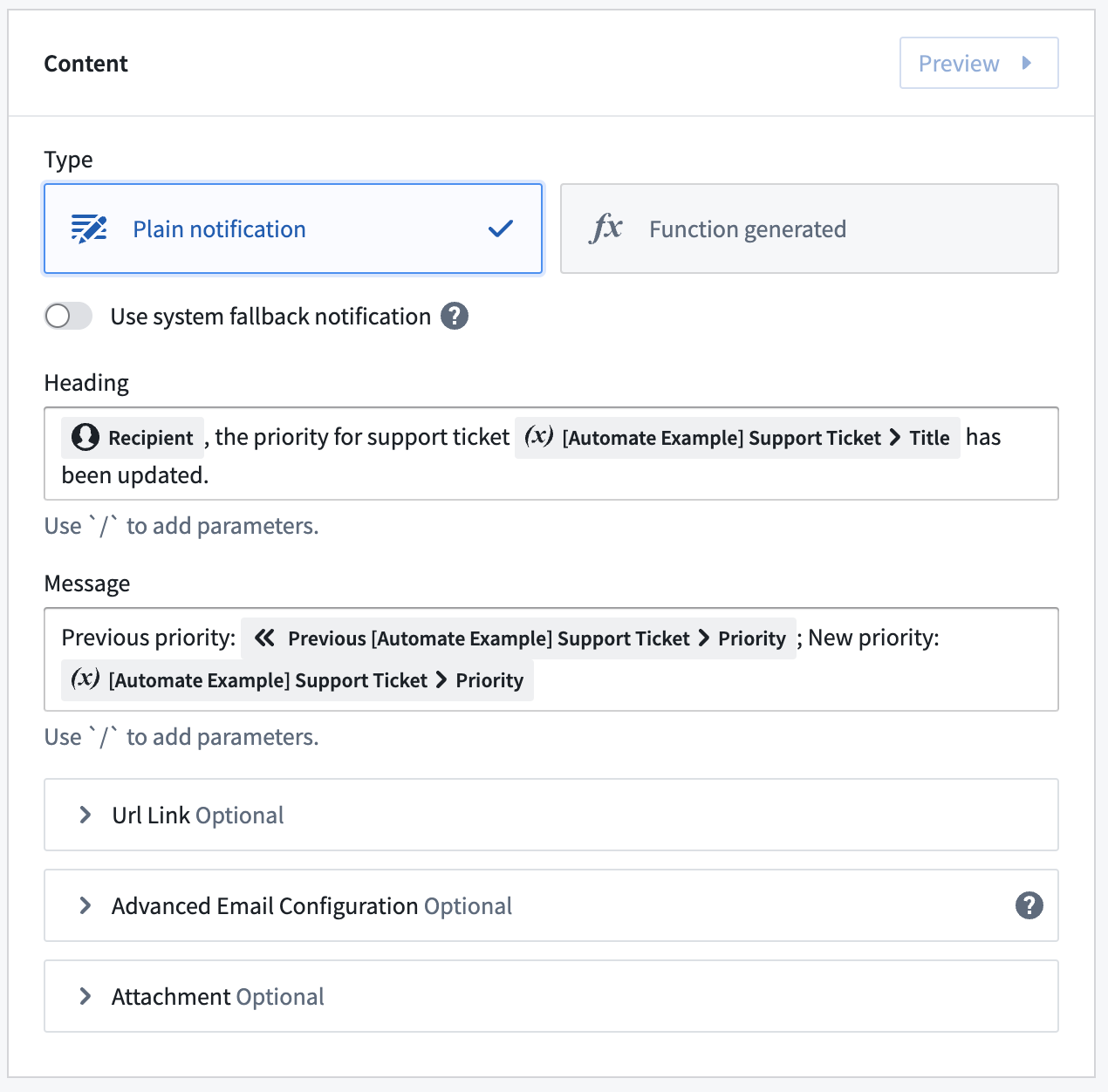
All changes you make will be live-previewed to the right of the configuration components.
Finally, you can define an attachment for the notification.
Function-generated notification
As an alternative to using plain notifications, you can back your notification with a function that dynamically generates the notification content. This should only be used for notification needs that cannot be met by plain notifications.
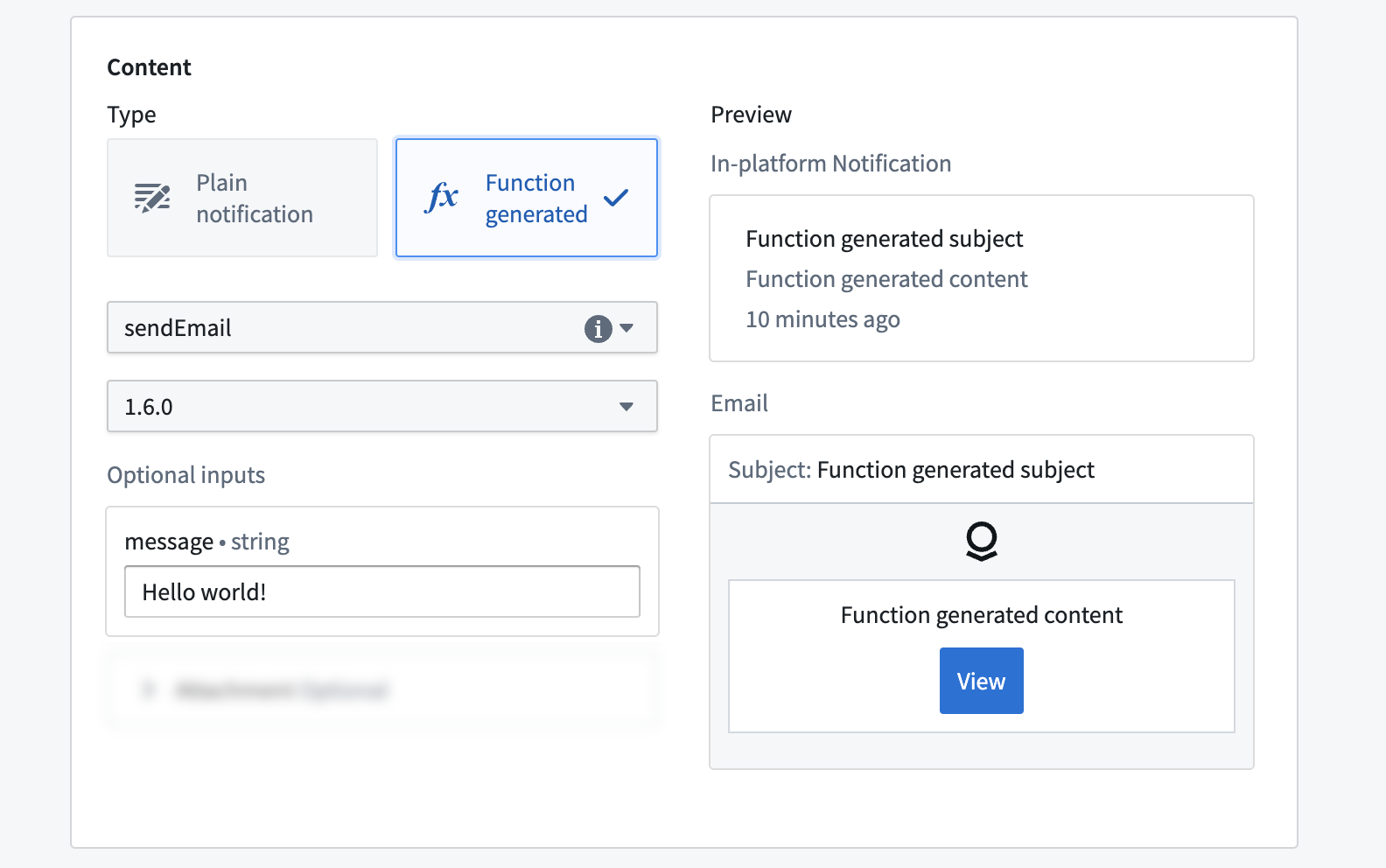
To create your custom notification function, follow the instructions in the functions documentation. The function must return either Notification or Notification | undefined. When undefined is returned, Automate will skip the notification. This can be used in the function logic to conditionally decide whether to send a notification.
After you have written and published your notification function, you can use it in the notification effect. Start by selecting your function and version. Afterward, the interface will update to expose the required inputs depending on the function definition.
Use condition effect inputs and recipient
Depending on the type of the input parameter, you may be able to use special effect inputs instead of just providing static values. Supported effect inputs include:
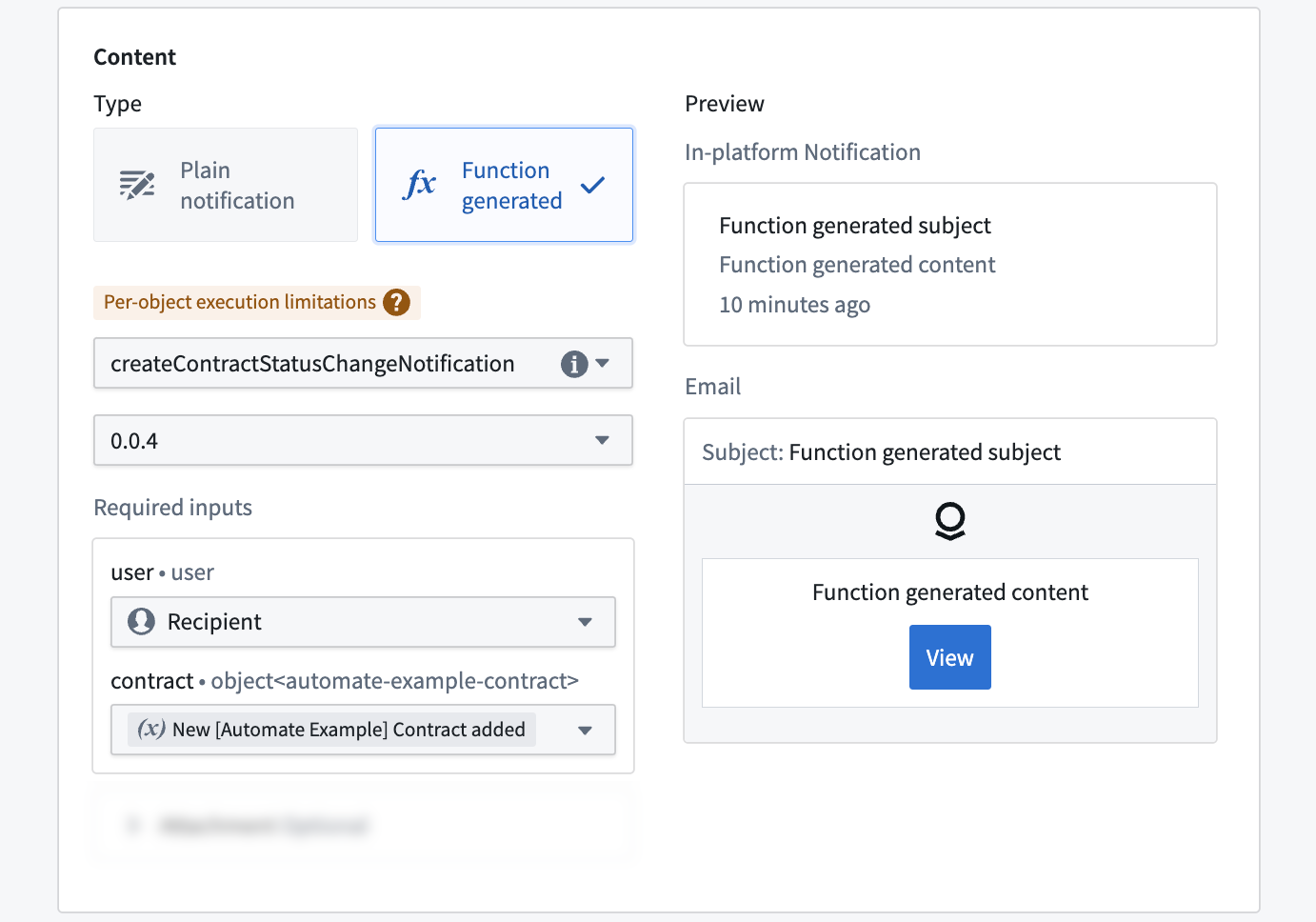
- Recipient: Can be used for
Usertype function inputs and passes the recipient that the notification is rendered for into the function. - Condition effect input: When the condition exposes effect inputs, you can use those effect inputs here. The type of the function parameter must align with the type of the exposed effect input. The type exposed by the condition depends on the condition type and execution mode.
The example below shows how the Recipient input and the Contract modified condition effect input are used to create a custom notification tailored to the recipient and the respective object that triggered the automation.
Attachments
You can configure your notification effect to include attached PDFs from Notepad documents or Notepad template documents in the notification email. A PDF will be generated automatically during runtime for each recipient.
Choose + Select in the attachment section and pick a Notepad document or Notepad template. Then, specify the file name for your attachment. Depending on the selected resource type, you may have to provide more values as described in the following section.
Notepad template
Notepad templates can be used to dynamically generate and export a Notepad document as PDF when the notification effect is executed. This is done via Notepad template inputs. Notepad template inputs can be used to pass values into the Notepad document during the generation step. Learn more about the capabilities of Notepad templates in the templates documentation.
After selecting a Notepad template and a Template version, the required Template Inputs will be shown. The Automate application supports passing static values and condition effect inputs to a Notepad template input. If the template exposes an object or object set template input and the condition exposes a condition effect input of the same type, you can pass the condition effect input into the template.
:::callout{theme="neutral"} Notepad templates do not expose object type information for object or object set template inputs. You must personally ensure that the types of the provided object values match. :::
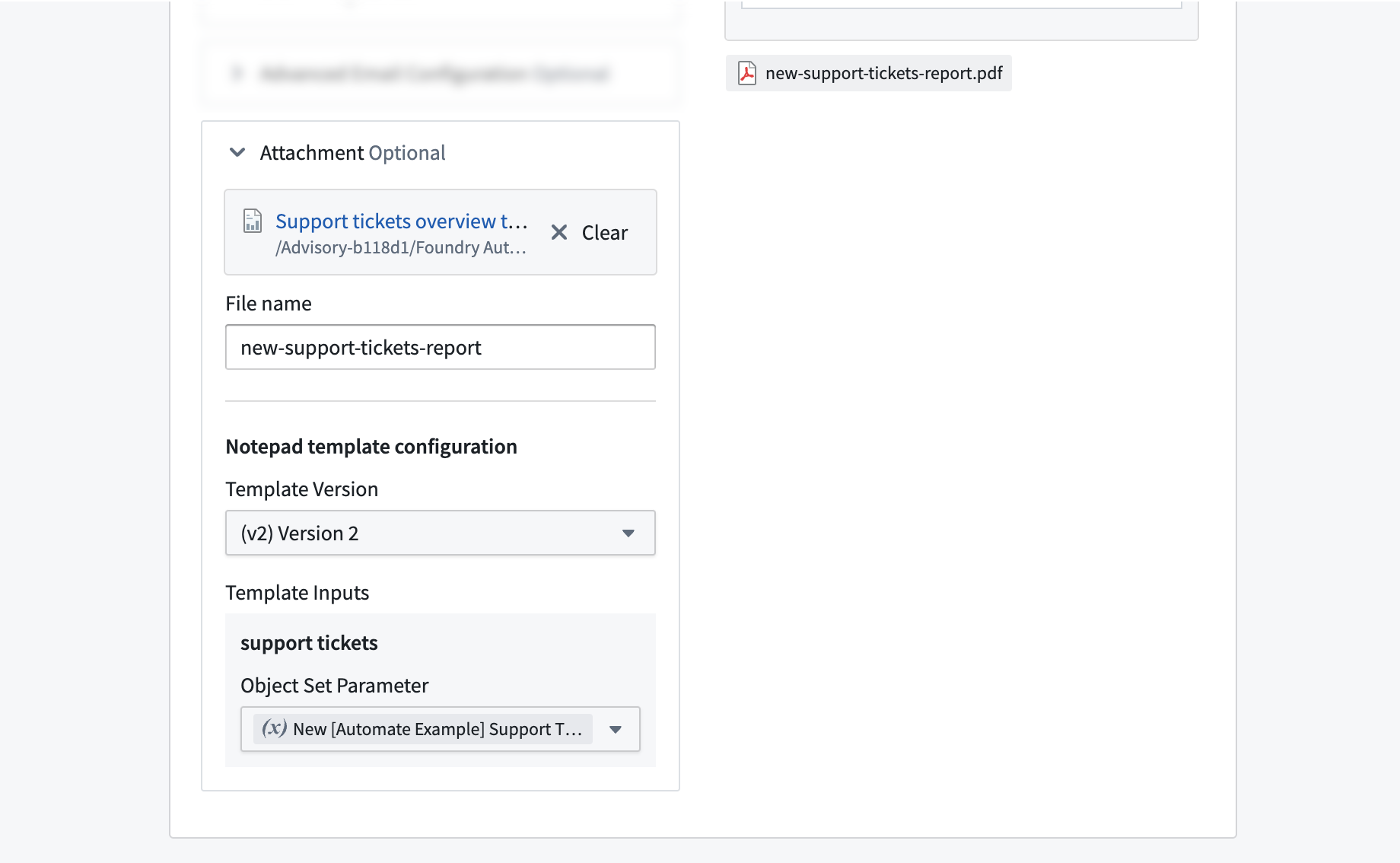
The image below shows an example where a Notepad template Support tickets overview is attached to a notification effect. The template input support tickets is connected to the New Support Tickets condition input that is exposed by an Object added to set condition. Therefore, whenever the condition triggers, the objects that triggered the condition will be used to generate a PDF of the document from the template.
中文翻译
通知效果
Automate 应用允许您在条件满足时自动向其他平台用户发送通知。
通知可以通过两种方式发送:直接在平台内发送以及通过电子邮件发送。内容可以是静态定义的,也可以通过函数动态确定。通知还可以包含 PDF 附件。本页包含有关通知收件人、内容和附件选项的信息。
对象分组
当使用暴露受影响对象的条件时,可以选择对象分组来定义在发送通知之前应如何对这些对象进行分组。
暴露受影响对象的条件包括:
对所有对象执行一次
当多个对象同时触发条件时,每个收件人只会收到一条通知。
在下方截图所示的示例中,三个不同的 Support Ticket 对象触发了自动化,并发送了一条通知。基于函数的通知可以访问包含所有三个对象的对象集。
对每组对象执行一次
当多个对象同时触发条件时,对象将根据一组选定的属性进行分组。每个收件人将为每个分组收到一条通知。
请注意,分组基于属性值的精确匹配。对于数组类型属性,值必须完全匹配且顺序一致才能被分到同一组。
在下方所示的示例中,三个不同的 Support Ticket 对象同时触发了自动化。其中两个对象属于 Billing 类别,一个属于 Technical Support 类别。
- 由于选择了 Category 作为分组属性,因此将生成两条通知:一条针对 Billing 分组,另一条针对 Technical Support 分组。
- 对于第一条通知,基于函数的通知将可以访问包含两个 Billing Support Ticket 对象的对象集。
- 对于第二条通知,基于函数的通知将可以访问包含 Technical Support 对象的对象集。
对每个对象执行一次
当多个对象同时触发条件时,将为每个对象发送一条通知。
例如,如果三个 Support ticket 对象触发了自动化,则会为每个 Support ticket 分别发送一条通知。基于函数的通知可以访问单个对象及其属性值。
收件人
配置通知时,必须首先定义谁应接收通知。收件人可以是 Foundry 用户或组,可以在静态收件人列表中定义,也可以通过对象属性动态定义。
要具备接收自动化通知的资格,收件人必须拥有以下权限:
- 至少对自动化拥有查看者权限。这对静态和动态收件人都适用。
- 对触发自动化的对象实例拥有查看者权限。
- 如果触发对象类型是多数据源对象类型,则需对对象实例的所有属性拥有查看者权限。
- 在基于函数的通知中,对函数执行所访问的所有对象实例拥有查看者权限。
上述要求适用于活跃用户和预注册用户。
:::callout{theme="warning"} 手动执行自动化会绕过触发条件。因此,在手动运行期间不会检查触发对象的权限。 :::
静态收件人列表
定义通知收件人的第一个选项是在静态下将这些收件人作为静态列表提供。要定义列表,请点击关联的文本字段,然后选择所需的用户或组作为收件人。
通过对象属性动态定义收件人
第二个选项是通过受影响对象的对象属性动态定义通知收件人。此配置选项需要一个暴露效果输入的对象集条件。
动态收件人定义允许您指定包含用户 ID 或组 ID 的对象属性,以便在运行时确定通知收件人。因此,对象属性类型必须是 String 或 Array of String。
在下方所示的示例中,我们在 Contract 对象类型上定义了一个对象修改条件。然后,我们可以使用包含用户 ID 数组的 Contract Owners 属性来定义通知收件人集合。
内容
:::callout{theme="neutral"} 通知将针对每个收件人单独渲染。因此,最终内容可能因用户而异。 :::
纯文本通知
纯文本通知提供界面组件来直接指定通知内容。您必须提供标题和消息。您还可以选择修改URL 链接。默认情况下,URL 链接是指向平台内通知的链接,仅在电子邮件中显示。
您还可以使用高级电子邮件配置为电子邮件设置不同的值。默认情况下,使用您在上面为平台内通知提供的标题、消息和URL 链接值。如果需要,也可以在高级电子邮件配置中使用 HTML。
添加内容时,您可以使用 / 键打开一个菜单,该菜单允许您将通知视为模板,并在发送通知时替换为收件人姓名等值。如果正在监视对象集并且选择了按对象执行,则关联对象属性的当前值和先前值也可作为模板值选项。请注意,仅当使用实时监控时,才提供先前的属性值。
您所做的所有更改都将在配置组件的右侧进行实时预览。
最后,您可以为通知定义附件。
函数生成的通知
作为使用纯文本通知的替代方案,您可以使用一个函数来支持您的通知,该函数动态生成通知内容。这仅应用于纯文本通知无法满足的通知需求。
要创建自定义通知函数,请按照函数文档中的说明进行操作。该函数必须返回 Notification 或 Notification | undefined。当返回 undefined 时,Automate 将跳过该通知。这可以在函数逻辑中用于有条件地决定是否发送通知。
在您编写并发布通知函数后,您可以在通知效果中使用它。首先选择您的函数和版本。之后,界面将更新以根据函数定义显示所需的输入。
使用条件效果输入和收件人
根据输入参数的类型,您可能能够使用特殊的效果输入,而不仅仅是提供静态值。支持的效果输入包括:
- 收件人: 可用于
User类型的函数输入,并将通知所针对的收件人传递给函数。 - 条件效果输入: 当条件暴露效果输入时,您可以在此处使用这些效果输入。函数参数的类型必须与暴露的效果输入的类型一致。条件暴露的类型取决于条件类型和执行模式。
下面的示例展示了如何使用 Recipient 输入和 Contract modified 条件效果输入来创建针对收件人和触发自动化的相应对象的自定义通知。
附件
您可以配置通知效果,使其在通知电子邮件中包含来自记事本文档或记事本模板文档的 PDF 附件。在运行时,系统会为每个收件人自动生成一个 PDF。
在附件部分选择 + 选择,然后选择一个记事本文档或记事本模板。然后,为您的附件指定文件名。根据所选资源类型,您可能需要提供更多值,如下节所述。
记事本模板
记事本模板可用于在执行通知效果时动态生成记事本文档并将其导出为 PDF。这是通过记事本模板输入实现的。记事本模板输入可用于在生成步骤中将值传递到记事本文档中。在模板文档中了解有关记事本模板功能的更多信息。
选择记事本模板和模板版本后,将显示所需的模板输入。Automate 应用支持将静态值和条件效果输入传递给记事本模板输入。如果模板暴露了对象或对象集模板输入,并且条件暴露了相同类型的条件效果输入,则可以将条件效果输入传递到模板中。
:::callout{theme="neutral"} 记事本模板不会暴露对象或对象集模板输入的对象类型信息。您必须亲自确保提供的对象值的类型匹配。 :::
下图显示了一个示例,其中记事本模板 Support tickets overview 附加到通知效果。模板输入 support tickets 连接到由 Object added to set 条件暴露的 New Support Tickets 条件输入。因此,每当条件触发时,触发条件的对象将用于根据模板生成文档的 PDF。