Example: Send a weekly report of new issues(示例:每周发送新问题报告)
In this example, we want to send a weekly Notepad report that contains a list of all newly created support tickets from the previous week. If there were none, we do not want to send a report. We will use the Support Ticket object type, which is a custom object type that we have created for this example.
Condition
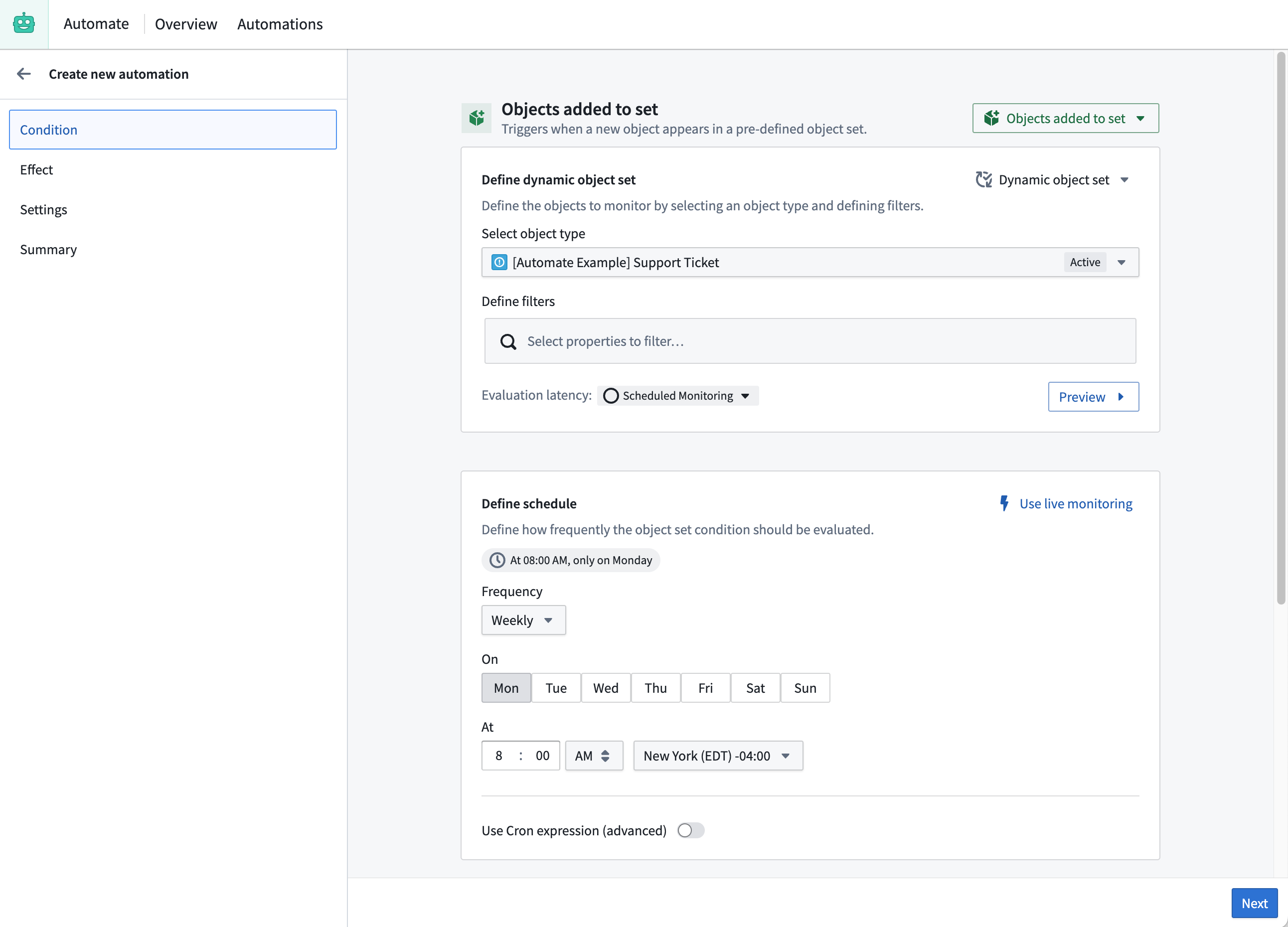
We begin in the automation creation wizard by selecting the Object added to set condition. By selecting the Support Ticket object type without additional filters, the automation will trigger when new tickets are created.
Since we only want to send the report once a week, we add a schedule to the condition and specify that the automation should trigger every Monday morning at 8am.
Because we added a weekly schedule to the objects added condition, every Monday the automation will check whether new Support Ticket objects were created in the last week.
Effect
When the condition is met, we want to send an email with an attached PDF report that contains all support tickets that were created in the previous week. To accomplish this, we start by adding a notification effect.
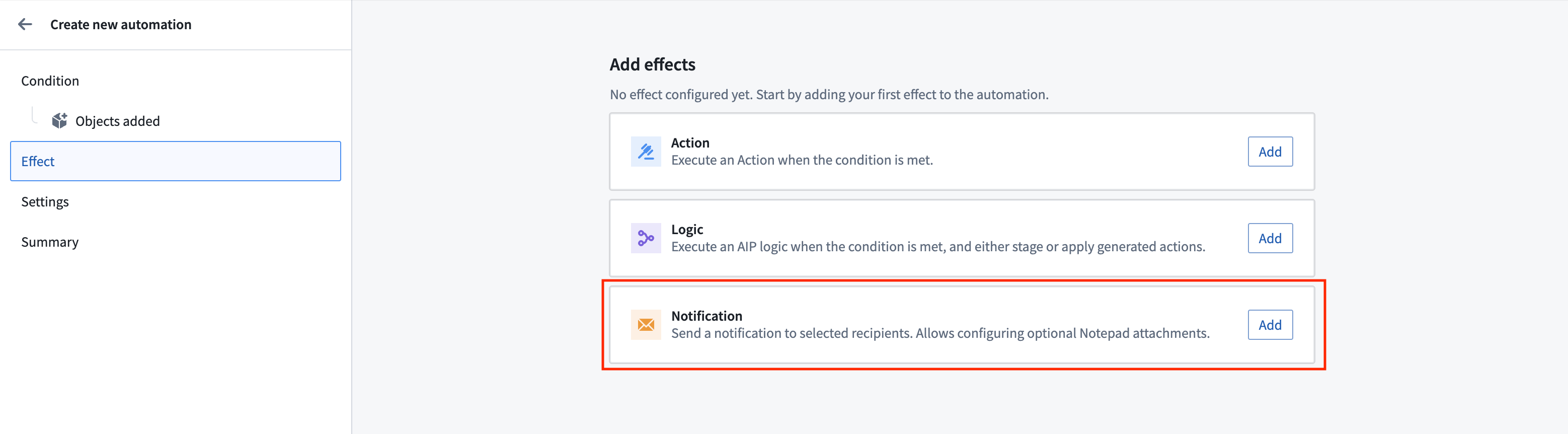
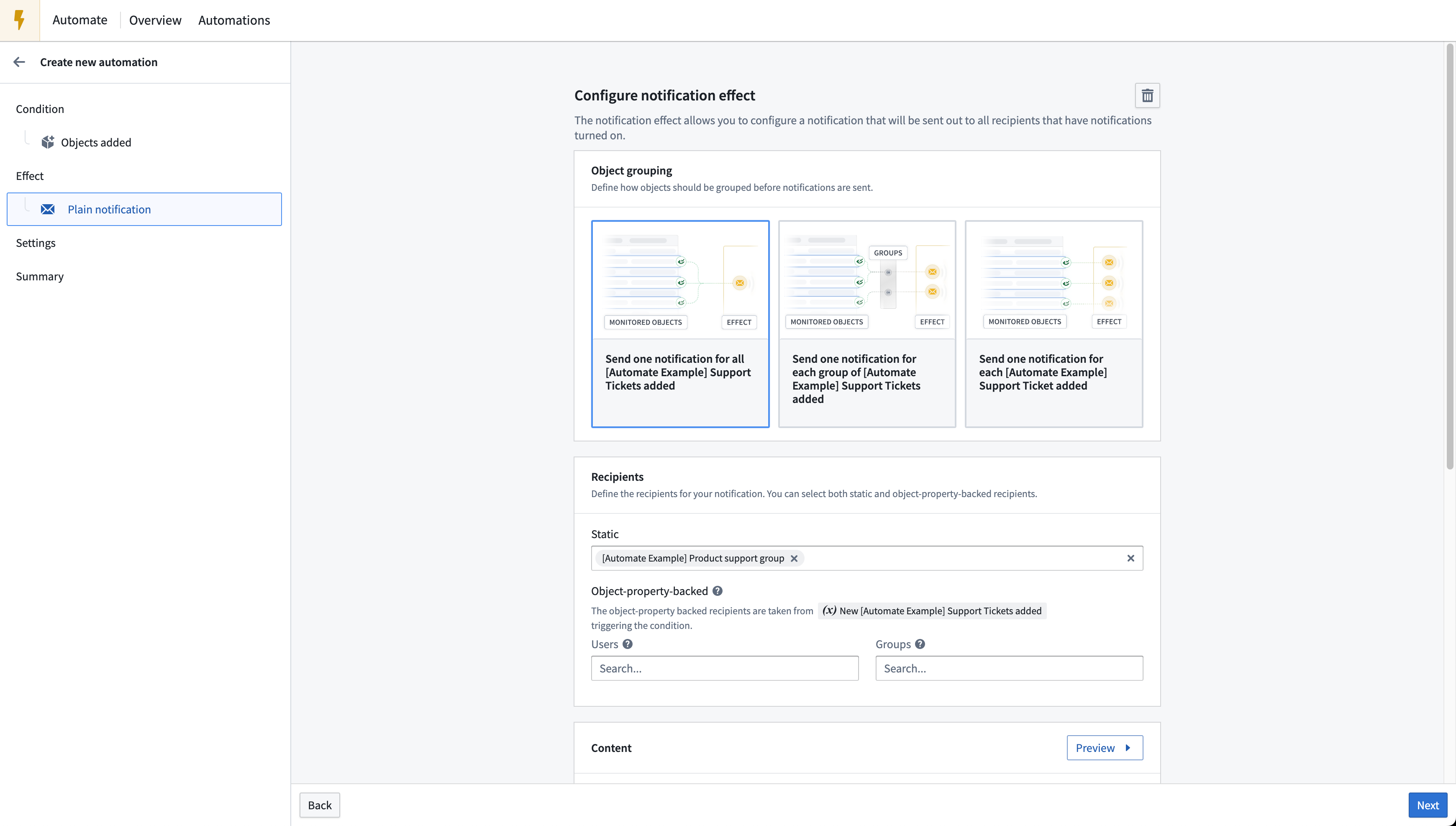
Since the PDF report should be generated for all support tickets that were created in the previous week, keep the default object grouping Send one notification for all Support Tickets added. For the recipients, add a group that contains the intended users. Alternatively, to only notify users who have had new support tickets assigned to them, select only object-property backed users.
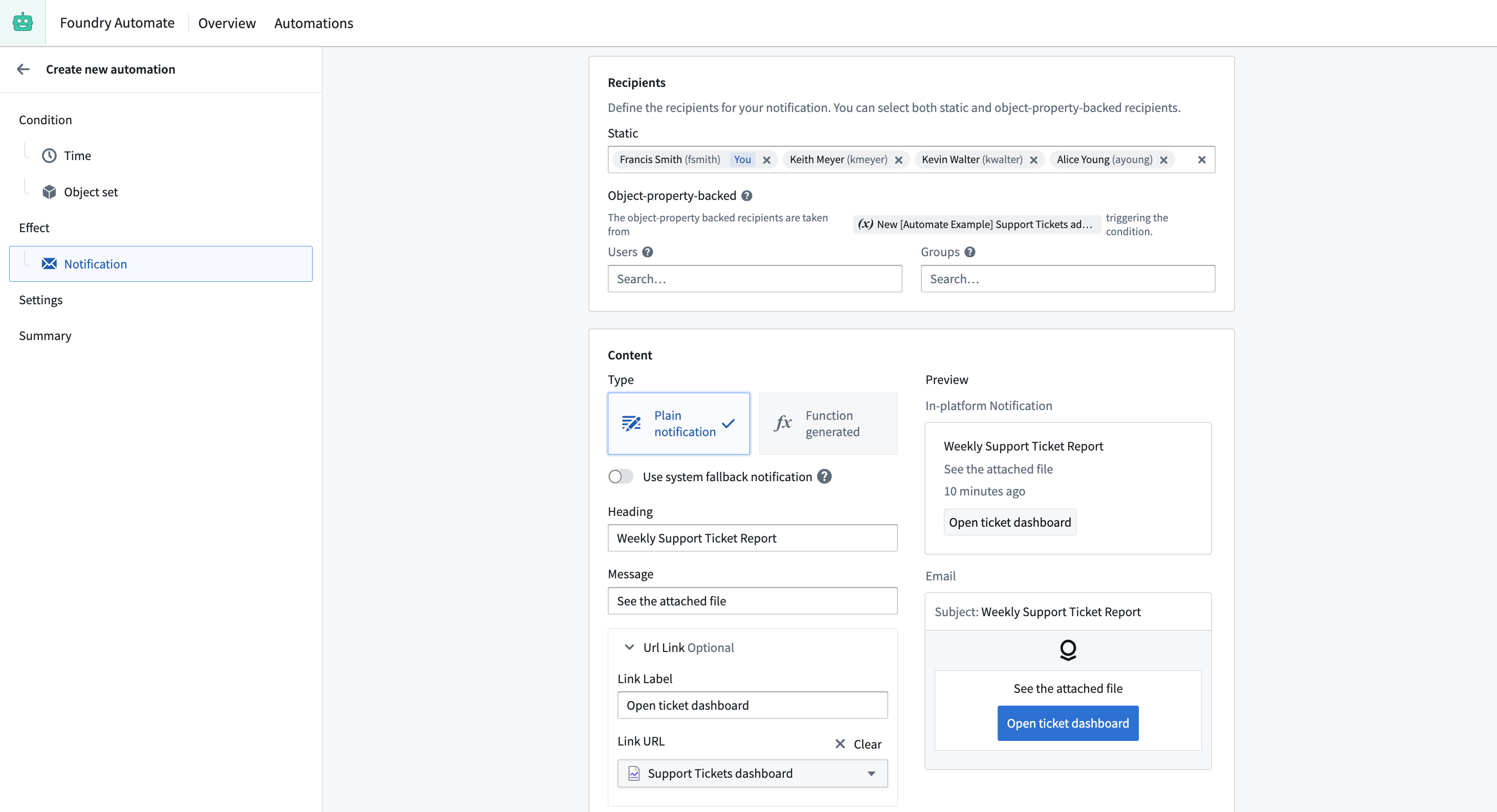
Because the information is contained in the attached PDF, we do not need a complex notification body: instead, we can rely on the Plain notification type to configure the content in the UI. We can also provide a link to a Quiver dashboard in the notification.
Attaching a Notepad document to a notification
To set up our notification attachment, we will use a Notepad template to dynamically create a Notepad document and attach a PDF of the Notepad document to our notification.
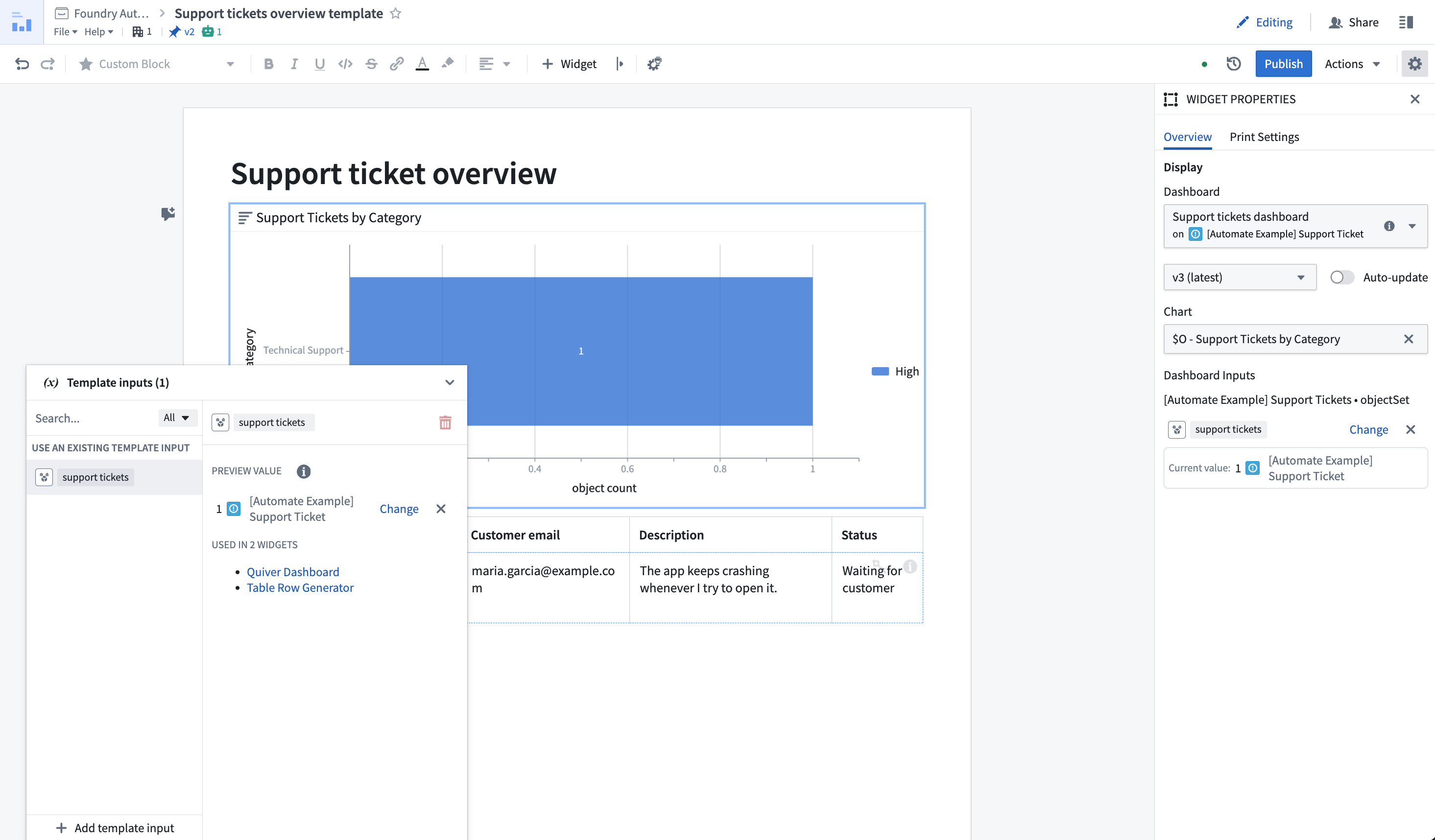
First, we need to create a Notepad template that can display the desired information. We can follow the steps outlined in the Notepad documentation for this. In our specific case, we create a Notepad template that takes in a Support Ticket object set as template input. Using the template input, we display a chart and render a table with the title and description of each object in the object set.
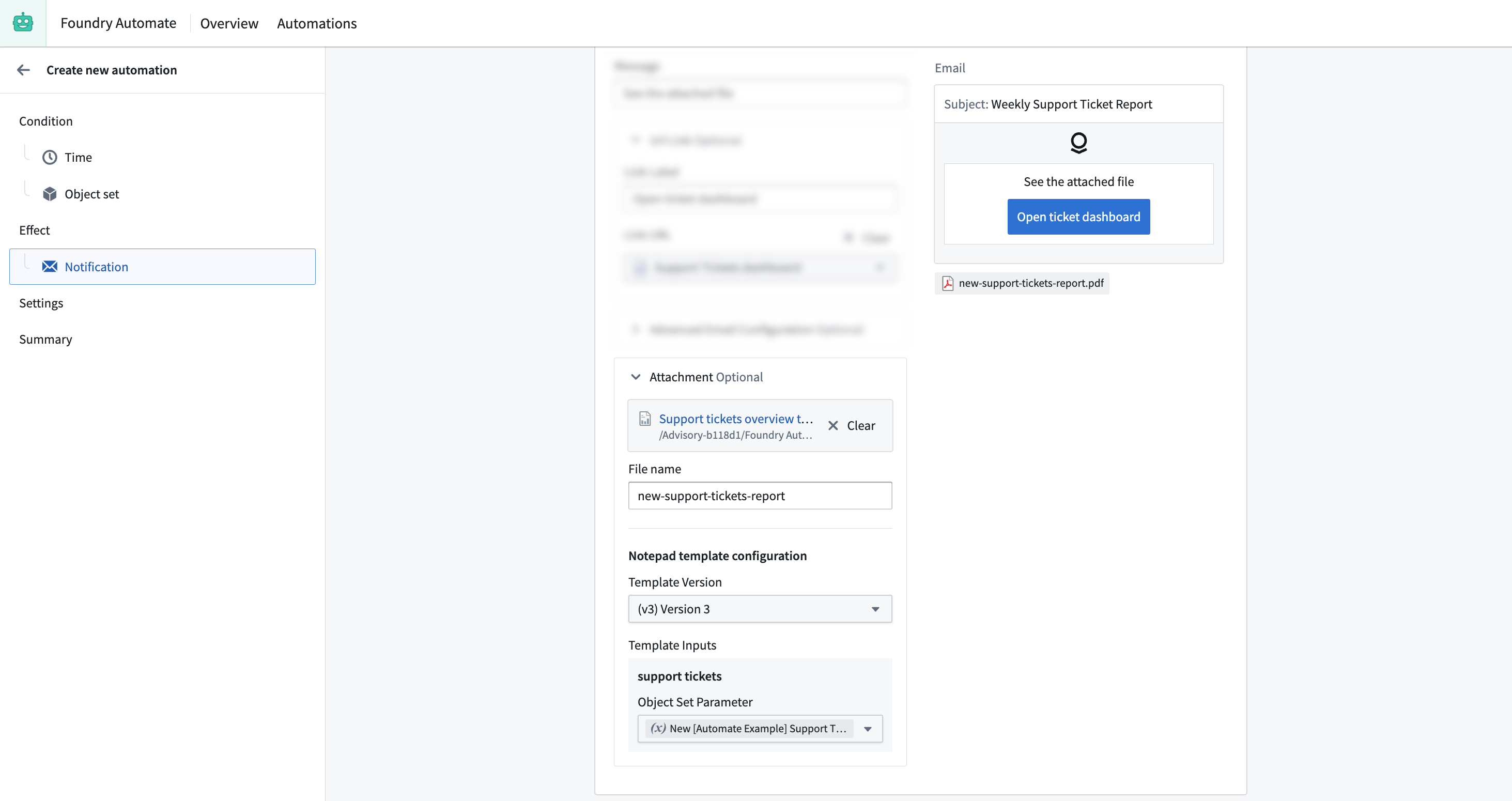
After saving and publishing our Notepad template, we can use it in our notification effect. First, we select it as attachment and define the template version. Then, we can connect the support tickets template input exposed by the Notepad template with the New Support Tickets condition effect input as shown below.
In this way, the Notepad template will be executed with the new support tickets as input and the resulting Notepad will be attached to the notification as PDF.
Summary
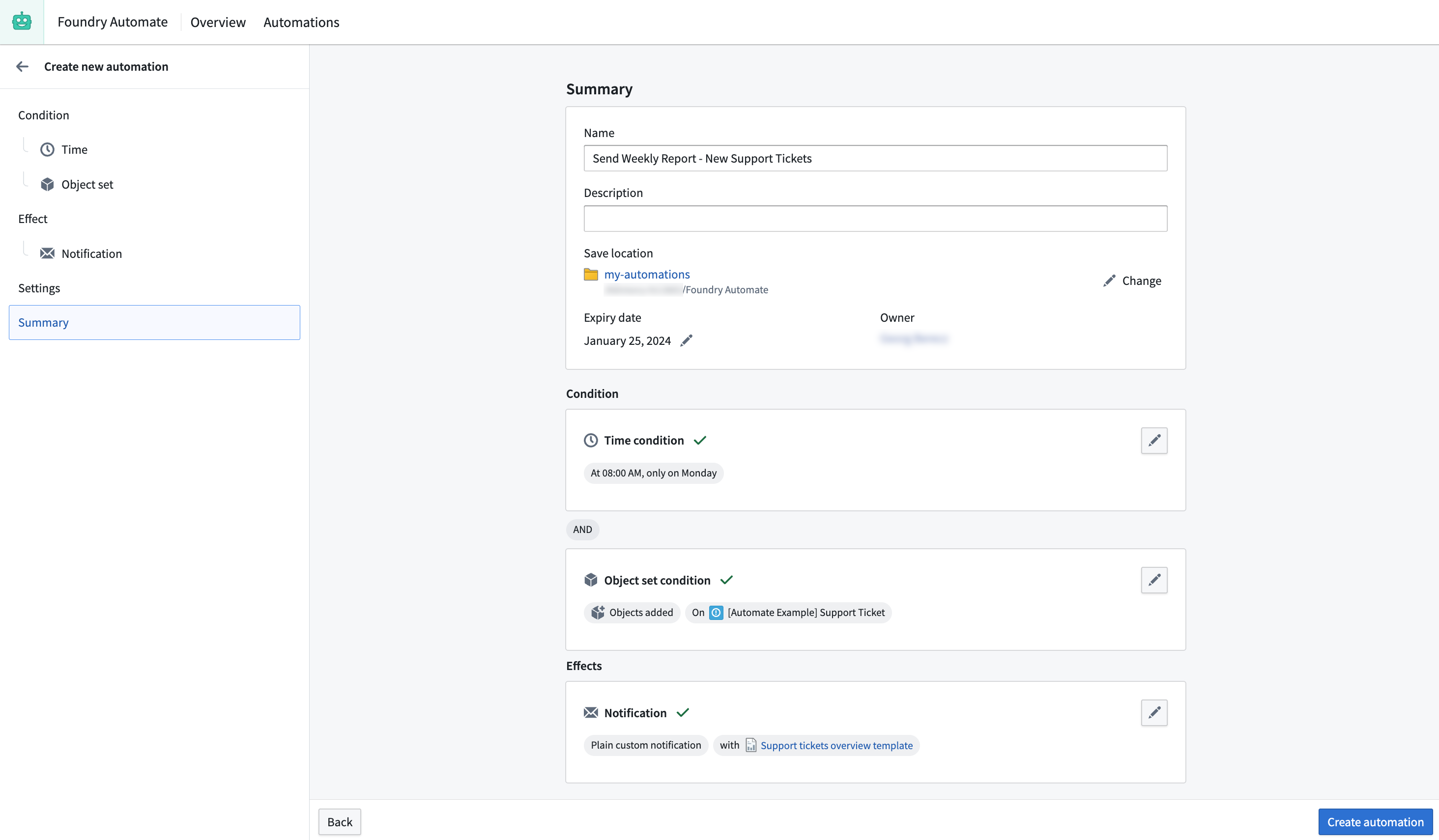
On the summary screen, we can confirm that the automation will send the Notepad template once for all new support tickets every Monday at 8am.
中文翻译
示例:每周发送新问题报告
在本示例中,我们希望每周发送一份 Notepad 报告,其中包含上周所有新创建的支持工单(support ticket)列表。如果上周没有新工单,则不发送报告。我们将使用 Support Ticket 对象类型(object type),这是为本示例创建的自定义对象类型。
条件
首先,在自动化创建向导中选择"添加到集合的对象"条件(Object added to set)。选择 Support Ticket 对象类型且不添加额外筛选条件,这样当新工单创建时,自动化将被触发。
由于我们只想每周发送一次报告,因此为条件添加一个调度(schedule),指定自动化应在每周一上午 8 点触发。
由于我们为对象添加条件设置了每周调度,因此每周一自动化将检查上周是否有新的 Support Ticket 对象被创建。
效果
当条件满足时,我们希望发送一封电子邮件,附件中包含一份 PDF 报告,列出上周创建的所有支持工单。为此,我们首先添加一个通知效果(notification effect)。
由于 PDF 报告应针对上周创建的所有支持工单生成,因此保留默认的对象分组设置"为所有新增的支持工单发送一条通知"(Send one notification for all Support Tickets added)。在收件人(recipients)中,添加包含目标用户的群组。或者,如果只想通知那些有新支持工单分配的用户,则仅选择基于对象属性的用户(object-property backed users)。
由于信息包含在附件 PDF 中,我们不需要复杂的通知正文:相反,我们可以使用"纯文本通知"类型(Plain notification)在 UI 中配置内容。我们还可以在通知中提供指向 Quiver 仪表盘的链接。
将 Notepad 文档附加到通知
要设置通知附件,我们将使用 Notepad 模板 动态创建 Notepad 文档,并将该文档的 PDF 版本附加到通知中。
首先,我们需要创建一个能够显示所需信息的 Notepad 模板。可以按照 Notepad 文档中概述的步骤 进行操作。在我们的具体案例中,我们创建一个 Notepad 模板,该模板接受一个 Support Ticket 对象集(object set)作为模板输入。利用模板输入,我们显示一个图表,并渲染一个表格,其中包含对象集中每个对象的标题和描述。
保存并发布 Notepad 模板后,我们可以在通知效果中使用它。首先,将其选为附件并定义模板版本。然后,将 Notepad 模板暴露的 support tickets 模板输入与"新增支持工单"条件效果输入(New Support Tickets)连接起来,如下所示。
这样,Notepad 模板将以新增支持工单作为输入执行,生成的 Notepad 文档将以 PDF 形式附加到通知中。
总结
在总结屏幕上,我们可以确认自动化将在每周一上午 8 点为所有新增支持工单发送一次 Notepad 模板。