Third-party application ownership(第三方应用所有权)
Automations can be owned by third-party applications instead of individual users. This ties execution history and permissions to an organizational service account, enabling centralized management and ensuring continuity regardless of team changes.
You can assign ownership to third-party applications when you create an automation, or you can transfer ownership for an existing automation.
Understanding third-party application ownership
Third-party applications in Foundry are OAuth2-based integrations that enable external applications or services to securely interact with Foundry resources. Refer to the third-party application overview for more information. For automation ownership, third-party apps provide a service user that can own automations independently from individual users, with several benefits:
- Team continuity: Automations continue running when team members leave or are out of office.
- Centralized permissions: Manage automation permissions independently from individual team members.
- Persistent history: Execution history remains accessible for debugging and auditing for project-scoped automations.
- Simplified access control: Share execution history across teams using project-scoped automations, and centralize permission management by using the same third-party application client for multiple automations.
Permissions for automations owned by third-party applications
The following apply when an automation is owned by a third-party application:
- Condition evaluation uses the service user's permissions.
- Action and Logic effects execute as the service user.
- Notification effects continue to use each recipient's individual permissions.
- Execution history is visible to team members based on their permissions. See history visibility settings for more information.
This ensures that automation behavior remains consistent and predictable, with clearly defined permissions tied to the service account rather than individual users.
Set up a third-party application
Before transferring automation ownership, create and configure an OAuth2 client by registering an application in Control Panel or Developer Console. See Registering third-party applications for complete guidance.
Prerequisites
To create a third-party application for automation ownership, you must have the following:
- The third-party application administrator role in your organization
- The
Manage OAuth 2.0 clientspermission
Create a new third-party application and obtain credentials
To register a new third-party application, select the following settings when registering an application:
- Client type: Confidential client
- Client credentials grant: Enabled
- Application restrictions: Unrestricted
- You can adjust this after creating the application one the OAuth & restrictions page.
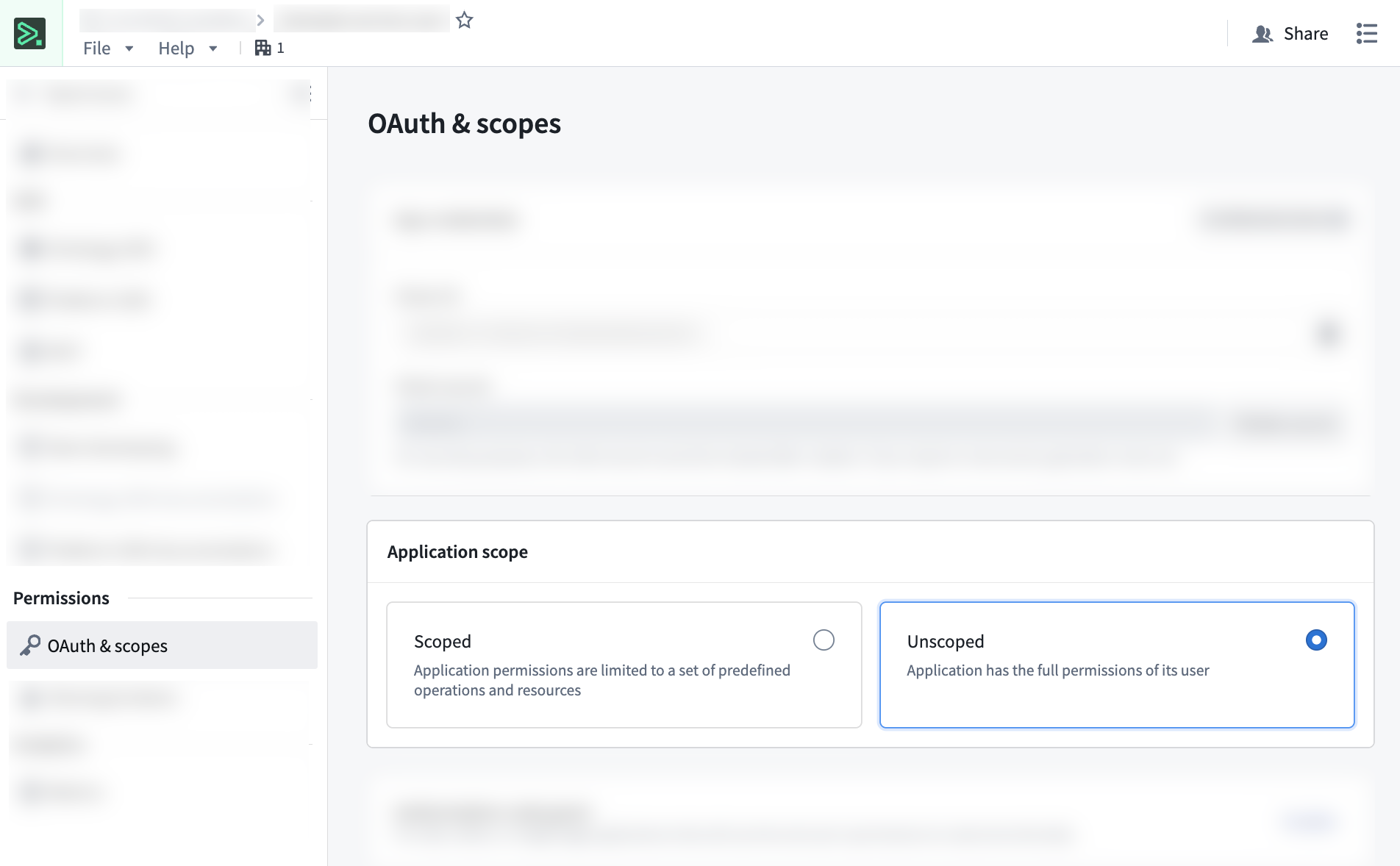
This creates a service user that can own automations. During registration, save the client ID and client secret immediately. The secret is shown only once.
:::callout{theme="warning"} Store the client secret securely. If lost, you will need to rotate it. Note that rotating a secret will not break existing automations owned by that third-party application. :::
For complete step-by-step instructions on registering applications and obtaining credentials, see Registering third-party applications and the Developer Console overview.
Manage ownership
Once you have registered a third-party application and configured its permissions, you can set up new automations with third-party application ownership, or transfer ownership of existing automations to the application's service user.
Before attempting to assign third-party application ownership, ensure that you have the following:
- The third-party application's client ID.
- The client secret for the application.
- Verification that the service user has been granted the editor role on the existing automation, or the folder where a new automation will be created.
- Verification that the service user has appropriate permissions for the automation's actions and is unrestricted. You can adjust the restrictions after creating the application on the OAuth & restrictions page.
If you do not have a client ID and client secret, see Creating a new application and obtaining credentials.
:::callout{theme="neutral"} Subsequent edits to an automation owned by a third-party application will require the credentials (client ID and client secret) before saving. :::
Add third-party application ownership when creating a new automation
Take the following steps to assign ownership to a service account when creating a new automation:
- Configure your automation and select Create automation.
- In the Save as... dialog, scroll to the bottom to the Provide client credentials section.
- Select Third-party app.
- Enter your client ID and client secret.
- Select Save.
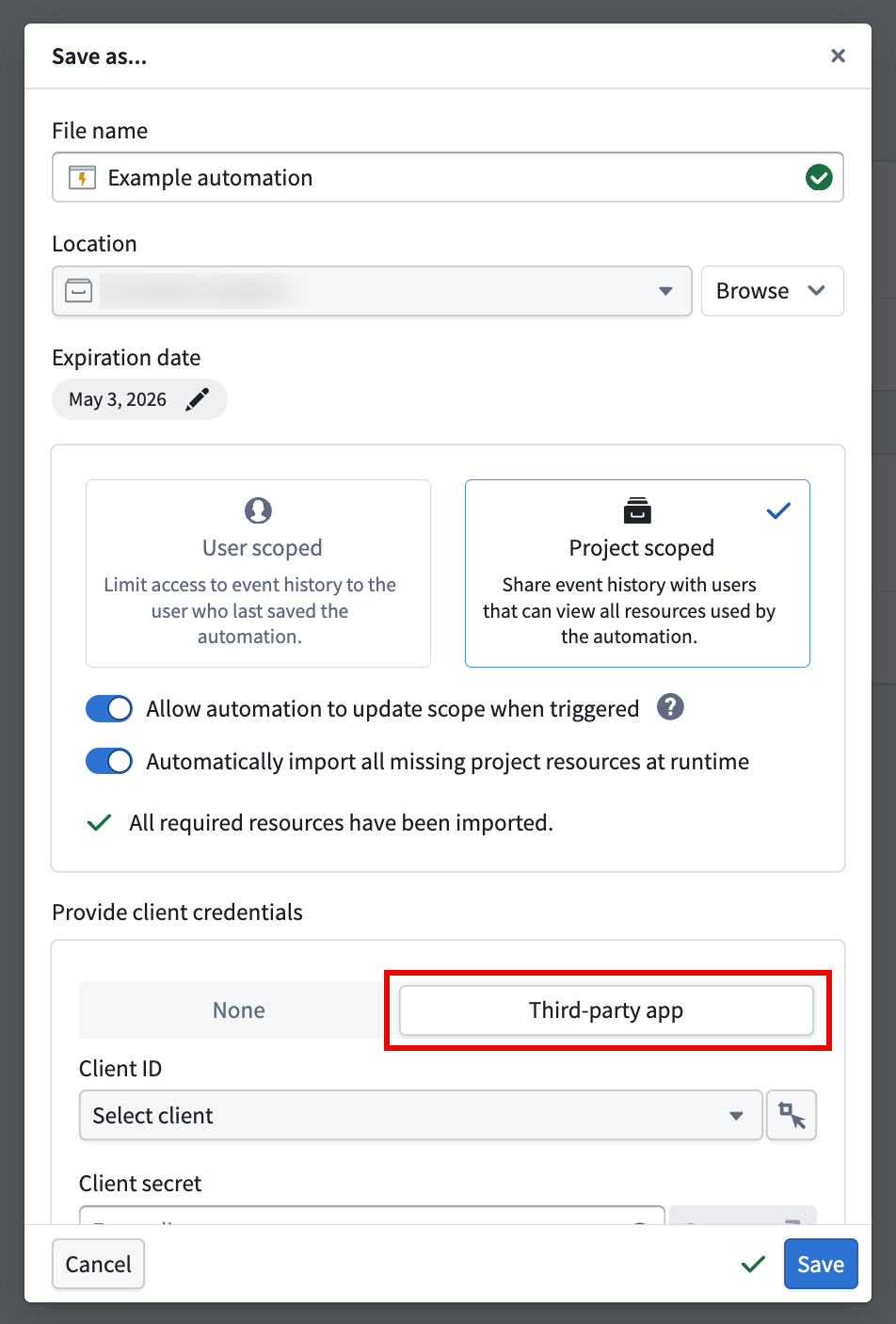
You can confirm automation ownership in the Automation details section on the Automation overview page.
Transfer ownership to a service user
Take the following steps to transfer ownership to an existing automation:
- In Automate, select the automation to open the Automation overview page.
- In the Actions dropdown, select Manage ownership.
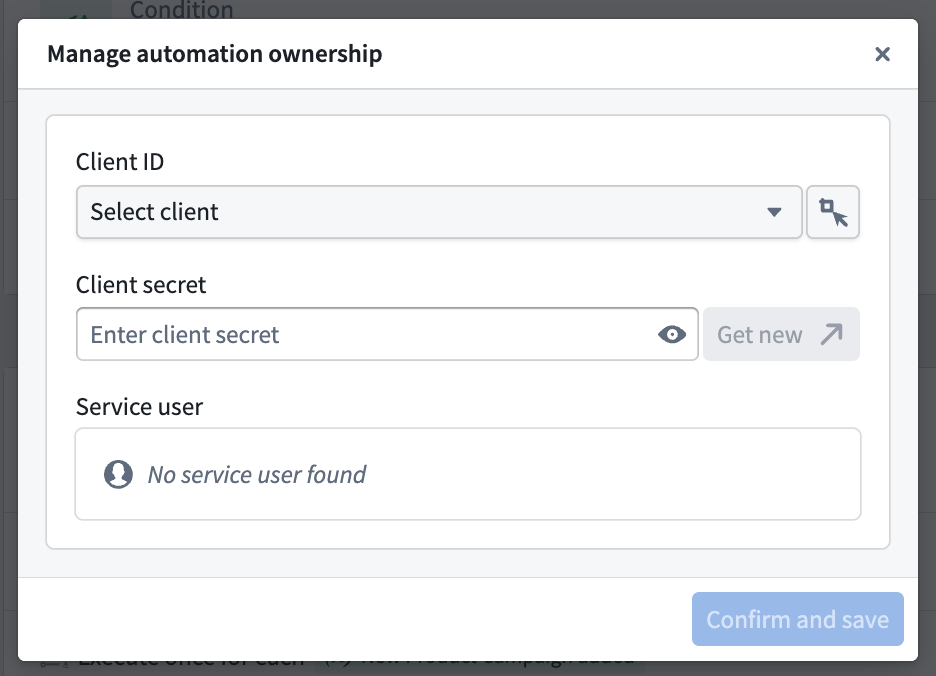
- Enter your client ID and client secret, then select Confirm and save.
After transferring ownership, the third-party application will appear as the automation owner in the Automation details section. The automation will continue running without interruption using the service user's permissions. Previous execution history will remain intact and accessible to authorized users.
Transfer ownership from a service user
Follow the steps below to transfer ownership from a third-party application back to an individual user:
- In Automate, select the automation to open the Automation overview page.
- In the Actions dropdown, select Manage ownership.
- In the Manage automation ownership dialog, select Confirm and save to transfer ownership back to yourself.
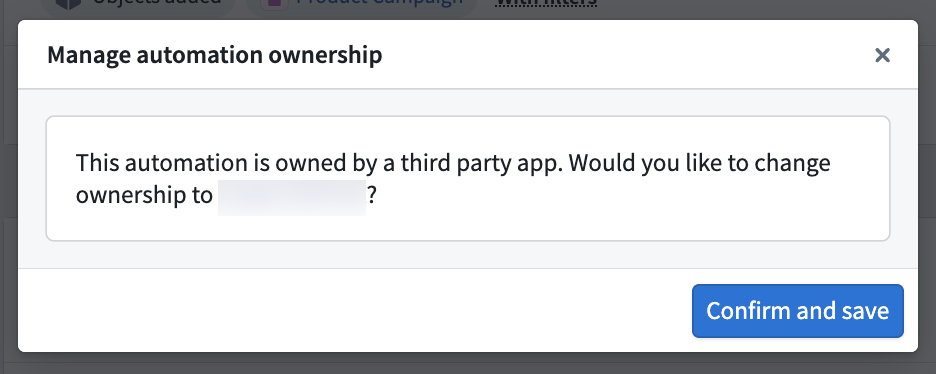
:::callout{theme="neutral"} Ensure that your user account has all the permissions previously granted to the service user. Otherwise, the automation may fail to execute certain actions. :::
Additional resources
- Foundry third-party application & API guidance
- Client credentials applications
- Unrestricted applications
- Create a new Developer Console application
中文翻译
第三方应用所有权
自动化流程可由第三方应用(third-party application)而非个人用户拥有。这将执行历史记录和权限绑定到组织服务账户,实现集中管理,并确保无论团队如何变动都能保持连续性。
您可以在创建自动化流程时分配所有权给第三方应用,也可以将现有自动化流程的所有权转移给服务用户。
理解第三方应用所有权
Foundry 中的第三方应用是基于 OAuth2 的集成方案,使外部应用或服务能够安全地与 Foundry 资源交互。更多信息请参阅第三方应用概述。对于自动化流程所有权,第三方应用提供了一种服务用户(service user),可以独立于个人用户拥有自动化流程,具有以下优势:
- 团队连续性:当团队成员离职或休假时,自动化流程仍能继续运行。
- 集中权限管理:独立于团队成员管理自动化流程权限。
- 持久化历史记录:对于项目级自动化流程,执行历史记录仍可访问,便于调试和审计。
- 简化访问控制:通过项目级自动化流程跨团队共享执行历史记录,并通过为多个自动化流程使用同一第三方应用客户端来集中管理权限。
第三方应用拥有的自动化流程的权限
当自动化流程由第三方应用拥有时,适用以下规则:
- 条件评估使用服务用户的权限。
- 操作和逻辑效果以服务用户身份执行。
- 通知效果继续使用每个收件人的个人权限。
- 执行历史记录根据团队成员权限对成员可见。更多信息请参阅历史记录可见性设置。
这确保了自动化流程行为的一致性和可预测性,权限明确绑定到服务账户而非个人用户。
设置第三方应用
在转移自动化流程所有权之前,需先在控制面板或开发者控制台中注册应用来创建并配置 OAuth2 客户端。完整指南请参阅注册第三方应用。
前提条件
要创建用于自动化流程所有权的第三方应用,您必须满足以下条件:
- 在组织中拥有第三方应用管理员角色
- 拥有
Manage OAuth 2.0 clients权限
创建新的第三方应用并获取凭证
要注册新的第三方应用,请在注册应用时选择以下设置:
- 客户端类型:机密客户端(Confidential client)
- 客户端凭证授权:启用(Enabled)
- 应用限制:无限制(Unrestricted)
- 创建应用后,您可以在 OAuth 与限制 页面上调整此设置。
这将创建一个可以拥有自动化流程的服务用户。注册期间,请立即保存客户端 ID 和客户端密钥。密钥仅显示一次。
:::callout{theme="warning"} 请安全存储客户端密钥。如果丢失,您需要轮换密钥。请注意,轮换密钥不会中断该第三方应用拥有的现有自动化流程。 :::
有关注册应用和获取凭证的完整分步说明,请参阅注册第三方应用和开发者控制台概述。
管理所有权
注册第三方应用并配置其权限后,您可以设置由第三方应用拥有的新自动化流程,或将现有自动化流程的所有权转移给应用的服务用户。
在尝试分配第三方应用所有权之前,请确保您具备以下条件:
- 第三方应用的客户端 ID。
- 应用的客户端密钥。
- 已验证服务用户已被授予现有自动化流程或新自动化流程创建所在文件夹的编辑者角色。
- 已验证服务用户拥有自动化流程操作的适当权限且不受限制。创建应用后,您可以在 OAuth 与限制 页面上调整限制。
如果您没有客户端 ID 和客户端密钥,请参阅创建新应用并获取凭证。
:::callout{theme="neutral"} 后续编辑由第三方应用拥有的自动化流程时,需要提供凭证(客户端 ID 和客户端密钥)才能保存。 :::
创建新自动化流程时添加第三方应用所有权
按照以下步骤在创建新自动化流程时将所有权分配给服务账户:
- 配置您的自动化流程并选择 创建自动化流程。
- 在 另存为... 对话框中,滚动到底部的 提供客户端凭证 部分。
- 选择 第三方应用。
- 输入您的客户端 ID 和客户端密钥。
- 选择 保存。
您可以在 自动化流程概览 页面的 自动化流程详情 部分确认自动化流程所有权。
将所有权转移给服务用户
按照以下步骤将现有自动化流程的所有权转移给服务用户:
- 在自动化流程中,选择该自动化流程以打开 自动化流程概览 页面。
- 在 操作 下拉菜单中,选择 管理所有权。
- 输入您的客户端 ID 和客户端密钥,然后选择 确认并保存。
转移所有权后,第三方应用将作为自动化流程所有者显示在 自动化流程详情 部分。自动化流程将继续使用服务用户的权限不间断运行。先前的执行历史记录将保持不变,授权用户仍可访问。
从服务用户转移所有权
按照以下步骤将所有权从第三方应用转移回个人用户:
- 在自动化流程中,选择该自动化流程以打开 自动化流程概览 页面。
- 在 操作 下拉菜单中,选择 管理所有权。
- 在 管理自动化流程所有权 对话框中,选择 确认并保存 以将所有权转移回您自己。
:::callout{theme="neutral"} 请确保您的用户账户拥有之前授予服务用户的所有权限。否则,自动化流程可能无法执行某些操作。 :::