Author and run a rule(编写并运行规则)
The following steps will guide you through the process of authoring and running a rule in a Workshop application.
-
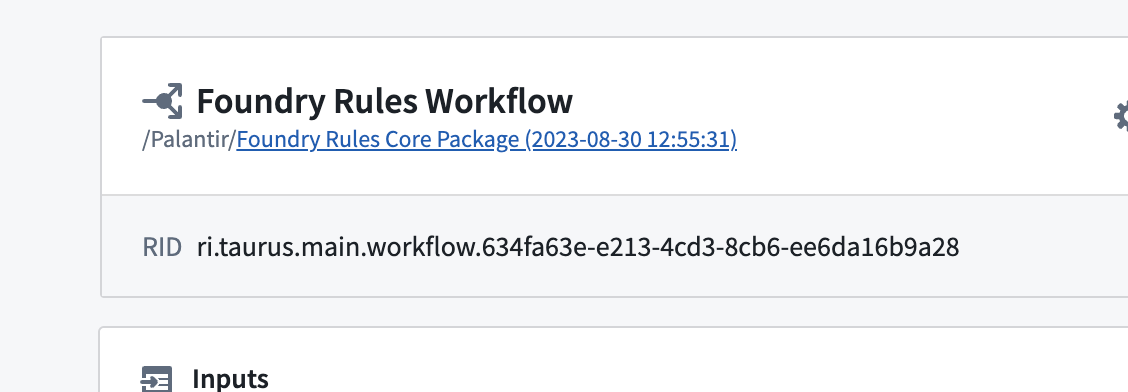
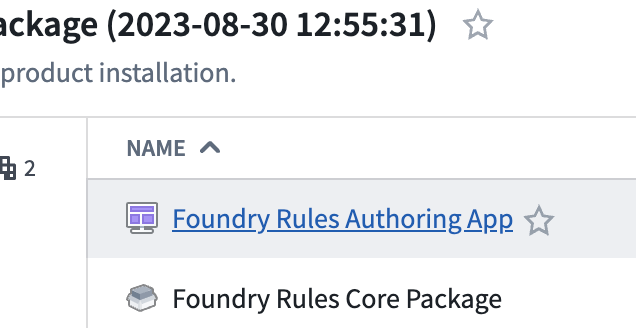
Find the Workshop Rule application: From the workflow configuration screen, select the folder and choose the Workshop application.
-
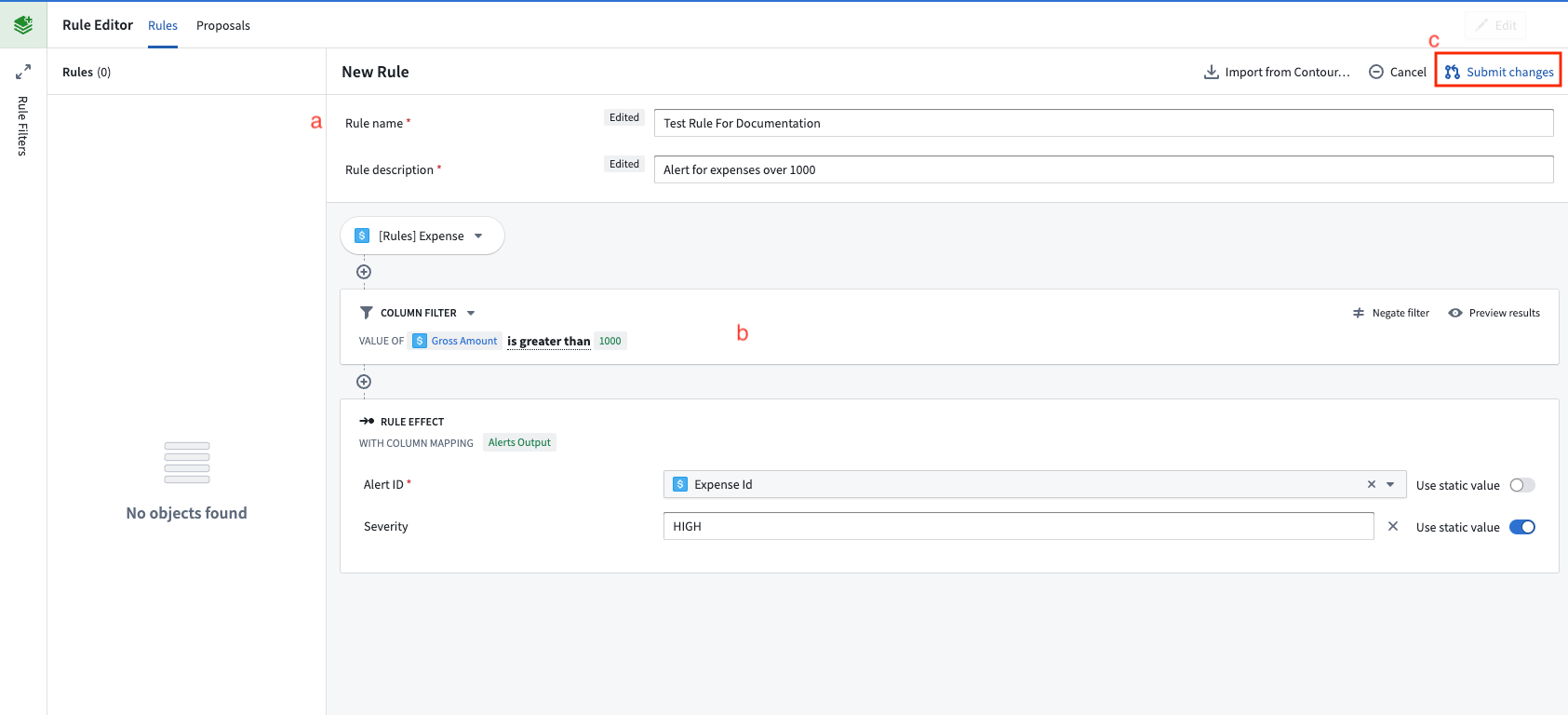
Author a rule: Within the Workshop application created in the previous step, click the Create New button to begin creating a rule.
- (a) Fill out the form at the top of the rule with a name, description, and other information.
- (b) Author logic that you want the rule to execute. For example, this could be a simple filter.
-
(c) Click Submit changes to create a proposal for this new rule.
-
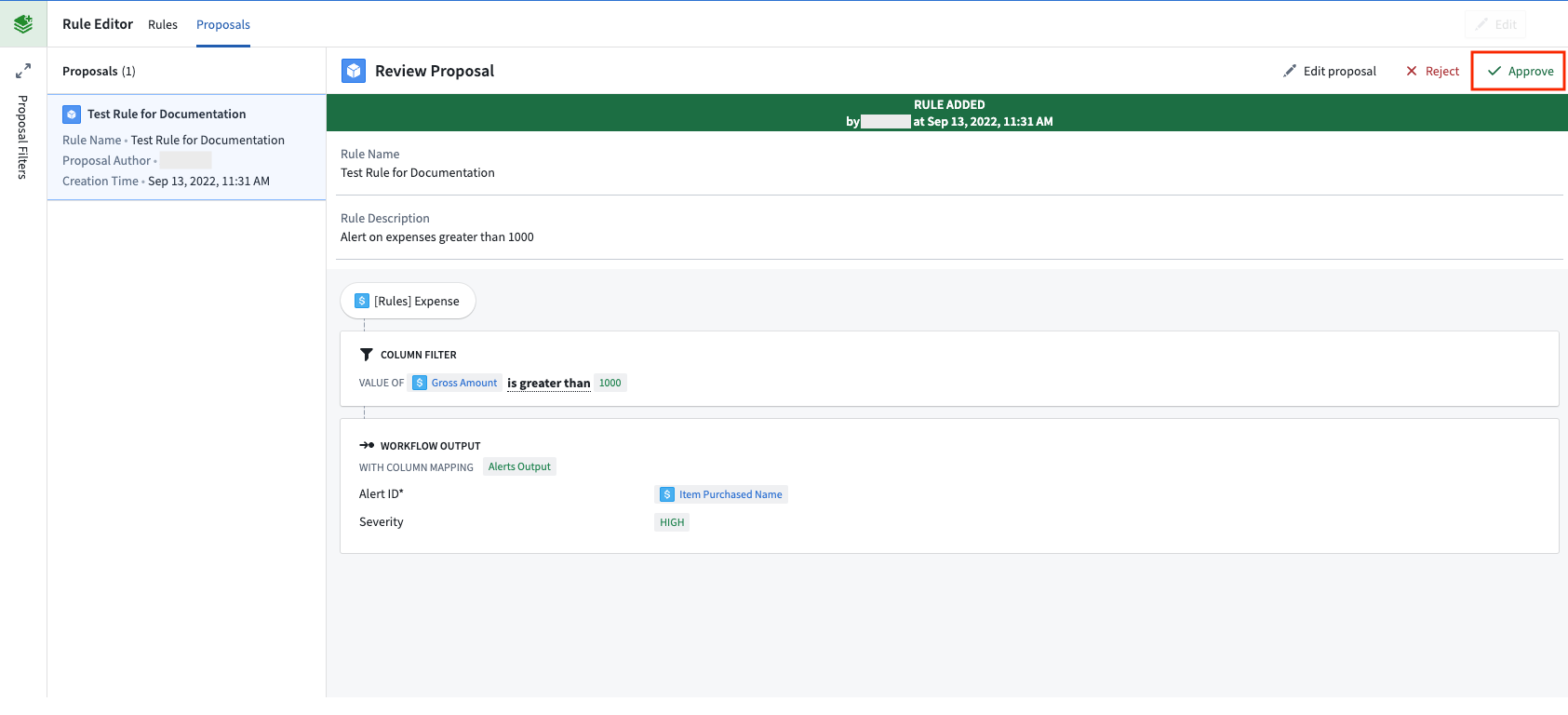
Approve the proposal: Within the Proposals tab of the Workshop application, select the newly created proposal on the left side.
-
Select Approve to activate it as a rule.
-
Build the rule writeback and rules output datasets: Navigate to the output dataset that was created while configuring the workflow.
-
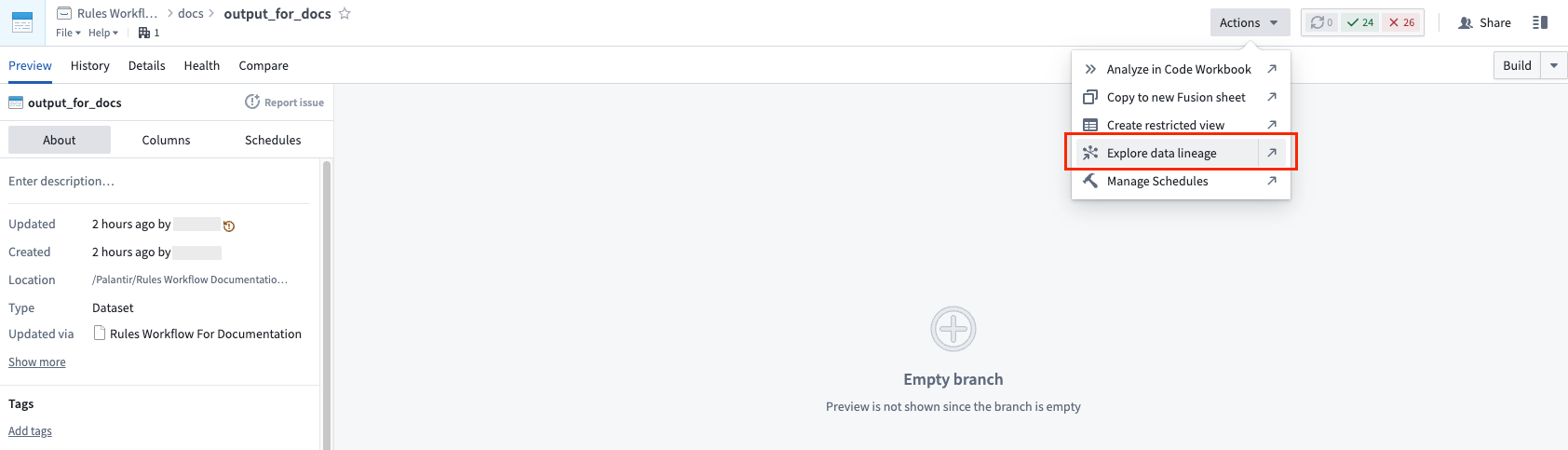
Choose Actions, then Explore data lineage to view the input datasets.
-
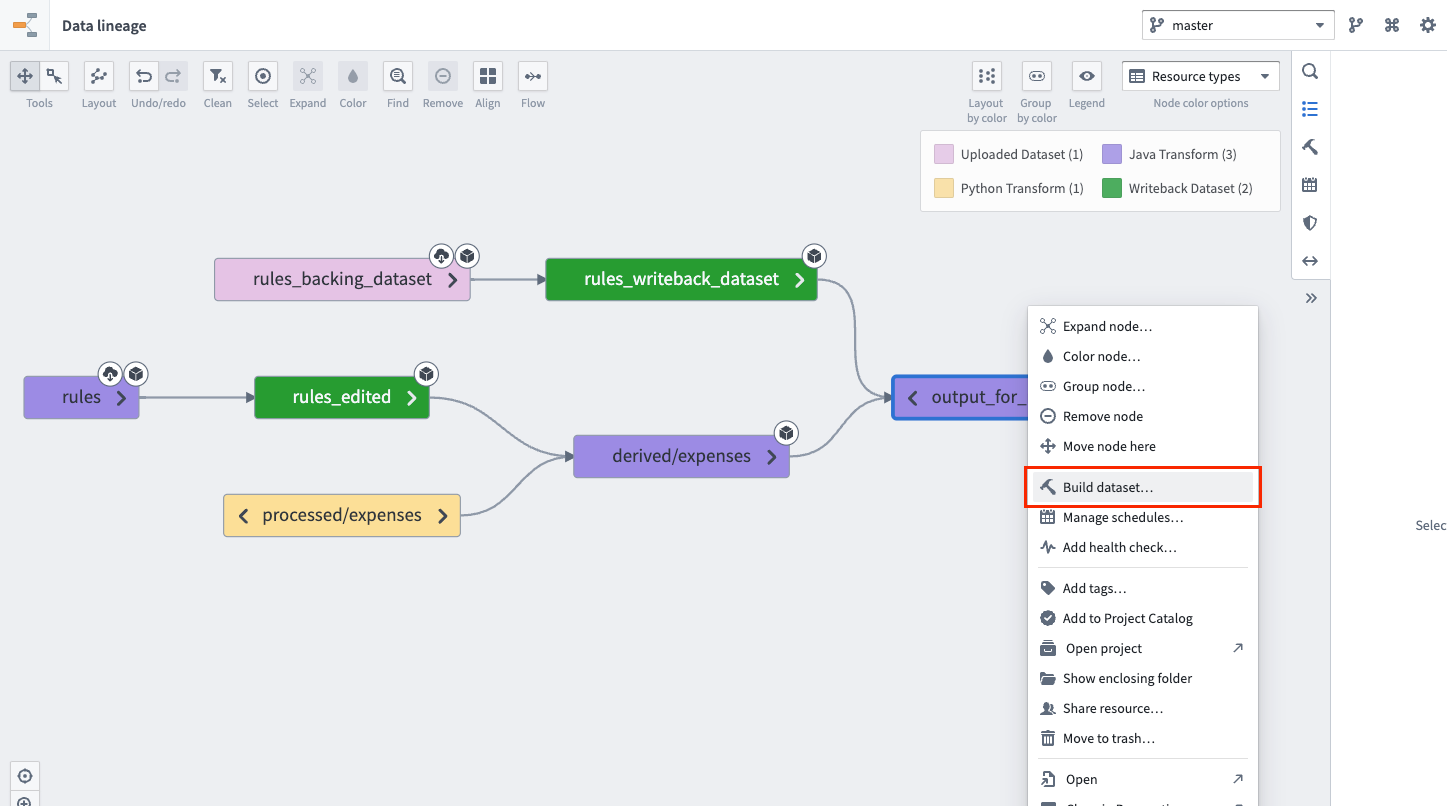
Select both the rules writeback dataset (d) and the output dataset (e).
-
Right-click with both datasets selected and choose Build.
-
Once the build has completed, the output dataset will contain the results of your new rule. In the future, these two datasets can be placed on a schedule to keep the outputs up to date.
中文翻译
编写并运行规则
以下步骤将指导您在 Workshop 应用中完成规则的编写与运行流程。
-
找到 Workshop 规则应用: 在工作流配置界面中,选择对应文件夹并点击 Workshop 应用。
-
编写规则: 在上一步骤创建的 Workshop 应用中,点击 创建新规则 按钮开始创建规则。
- (a) 在规则顶部的表单中填写名称、描述及其他信息。
- (b) 编写您希望规则执行的逻辑。例如,可以是一个简单的筛选条件。
-
(c) 点击 提交更改 为该新规则创建提案。
-
批准提案: 在 Workshop 应用的 提案 选项卡中,选择左侧新创建的提案。
-
点击 批准 将其激活为正式规则。
-
构建规则回写数据集与规则输出数据集: 导航至配置工作流时创建的输出数据集。
-
选择 操作,然后点击 探索数据沿袭 查看输入数据集。
-
同时选中规则回写数据集 (d) 和输出数据集 (e)。
-
右键点击已选中的两个数据集,选择 构建。
-
构建完成后,输出数据集将包含新规则的执行结果。后续可将这两个数据集添加到调度计划中,以保持输出数据的实时更新。