Configure workflow(配置工作流(Workflow))
Once you finish deploying the workflow template, the following steps will guide you through the process of configuring your workflow.
-
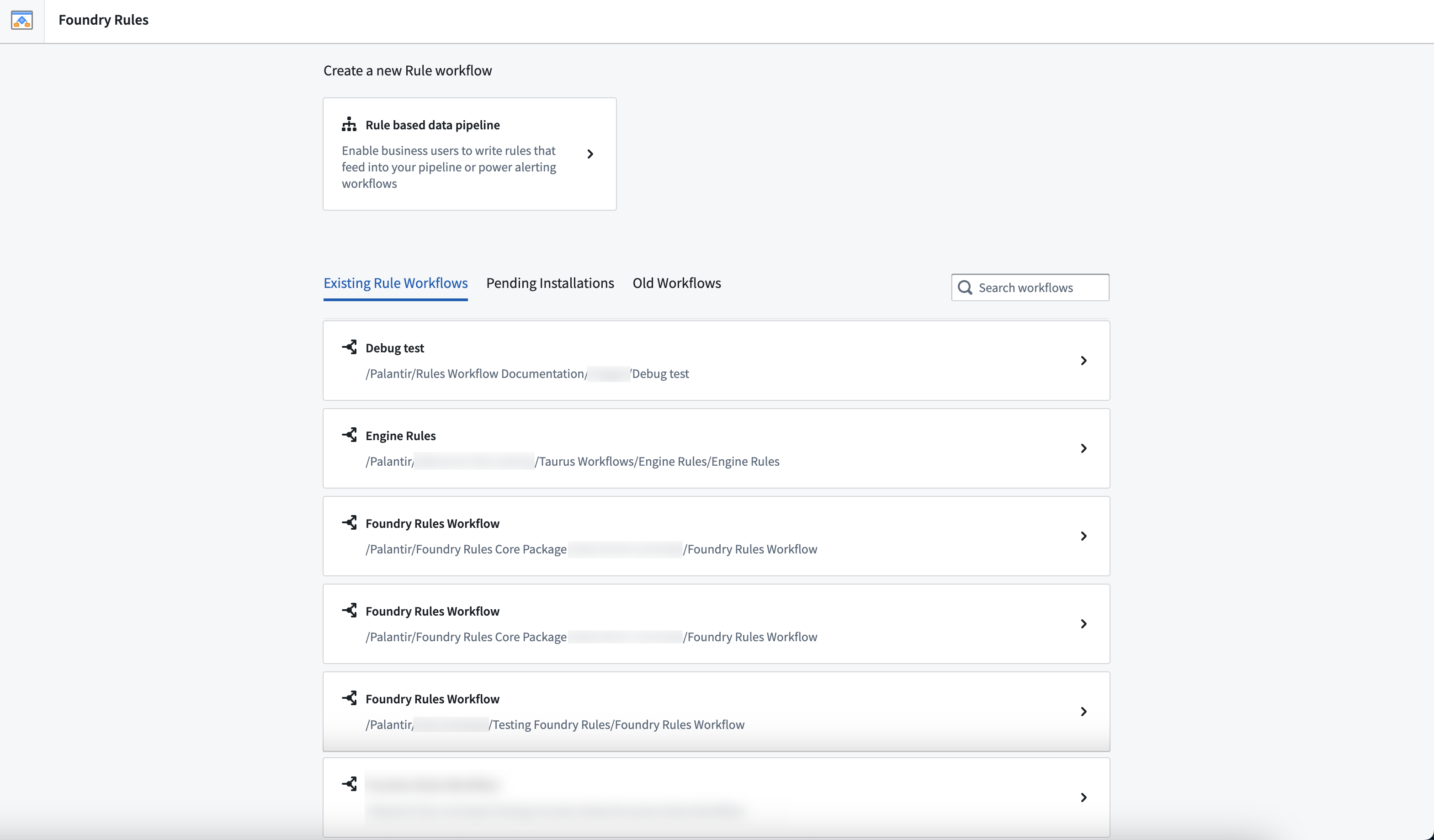
Access existing rule: From the Foundry Rules home page, choose from a list of existing rules by selecting the item. Alternatively, you may also navigate and select it from its respective project found in Files.
-
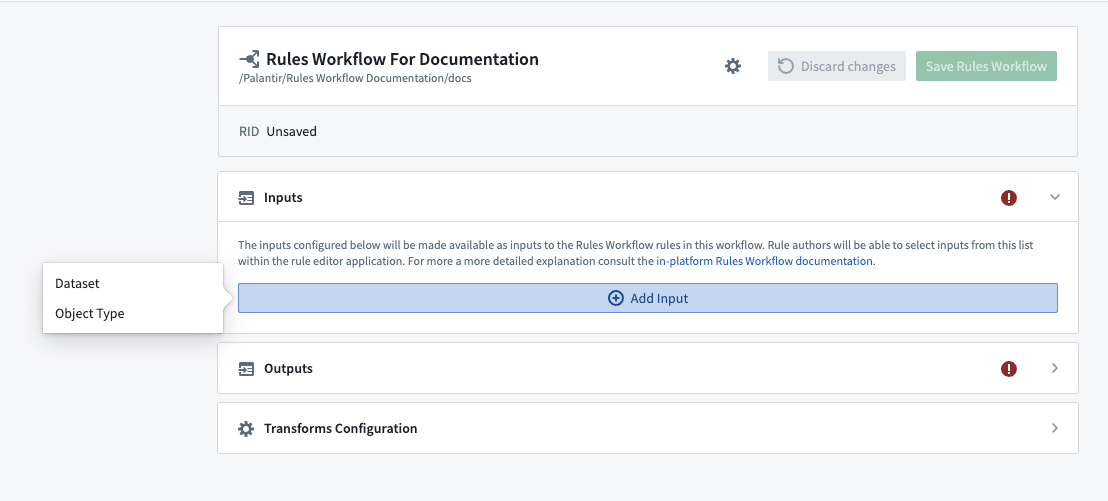
Add workflow inputs: With the rule in view, select the Add Input button to add an object or dataset input to the workflow. This will become usable as an input to the rule authored in the next section.
- You can add as many inputs here as you wish, but all workflows must contain at least one input.
- When adding object type inputs, the link types section will appear below each object type. Any links selected will become usable in the Rules Management application for joining together different objects.
:::callout{theme="neutral"} Objects backed by a restricted view cannot be used as inputs directly. Instead, configure the dataset which backs the restricted view as an alternate backing dataset. :::
-
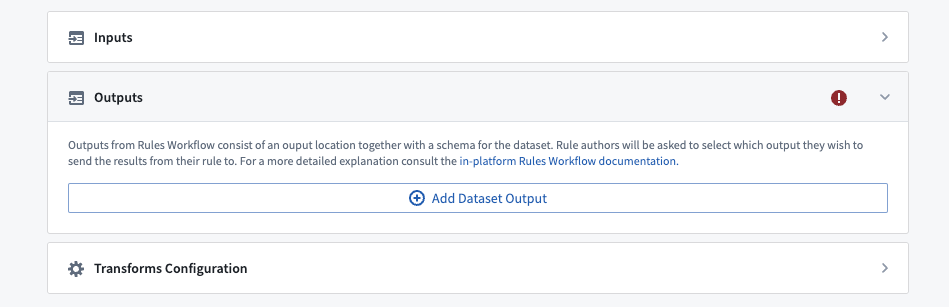
Add workflow outputs: In the third section of the editor, click Add Dataset Output and provide a name and location for the dataset where the rule results will be output.
-
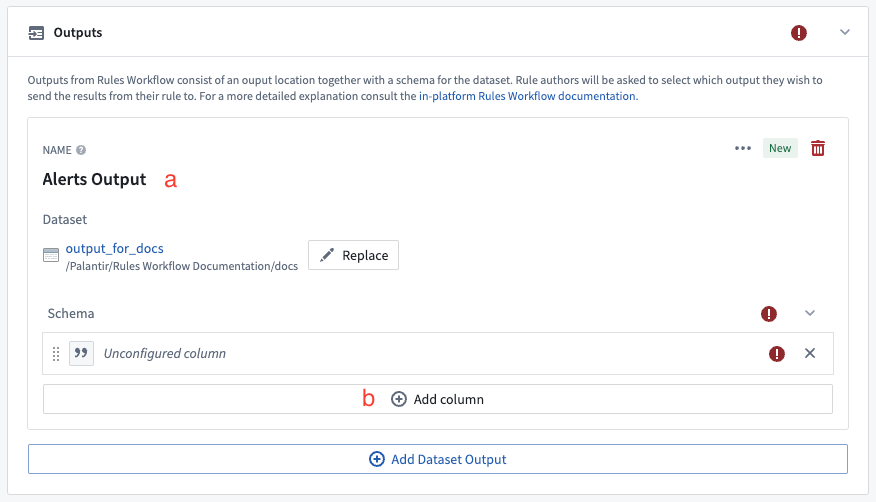
Provide a name for the output that will be displayed to rule authors in the Rules Management application (a).
- Click Add column to add at least one column to the output (b). Give this column a name to be used in the dataset and a display name to show to rule authors in the rules application. You can configure the type of column and determine whether it is required to provide this column when authoring a rule. Learn more about permitted and default output values.
-
Add a column for each piece of information you wish to capture from the results of your rule. For example, an alerting workflow may have columns for
Alert ID,Severity, andAssigneeas well as a column to capture an identifier for the object that triggered the alert (e.g.Machine ID).
-
Save the workflow: In the top right of the configuration editor, click the save button.
- After saving the workflow, you should see a green banner appear at the top of the editor, signifying that the transforms pipeline has been created successfully.

After completing the above steps, learn how to author and run a rule.
Advanced configurations
Alternate backing datasets
You can configure an object input with an alternate backing dataset. This means your rules are evaluated against the supplied alternate backing dataset instead of the writeback (or backing) dataset configured in the Ontology.
This is useful when:
- Writing rules on restricted view-backed objects
- Running rules on a subset of the Object's backing data

中文翻译
配置工作流(Workflow)
-
访问现有规则(Rule): 在Foundry Rules主页上,从现有规则列表中选择一个条目。或者,您也可以从文件(Files) 中找到相应项目并导航选择。
-
添加工作流输入(Workflow Inputs): 在规则视图中,选择添加输入(Add Input) 按钮,为工作流添加对象(Object)或数据集(Dataset)输入。该输入将作为下一节中编写的规则的可用输入。
- 您可以在此处添加任意数量的输入,但所有工作流必须至少包含一个输入。
- 添加对象类型输入时,每个对象类型下方会显示链接类型(Link Types)部分。所选链接将在规则管理应用中用于连接不同对象。
:::callout{theme="neutral"} 由受限视图(Restricted View)支持的对象不能直接用作输入。请将支持受限视图的数据集配置为备用支持数据集。 :::
-
添加工作流输出(Workflow Outputs): 在编辑器的第三部分,点击添加数据集输出(Add Dataset Output),为规则结果输出的数据集提供名称和位置。
-
为输出提供一个名称,该名称将显示在规则管理应用中供规则作者查看 (a)。
- 点击添加列(Add column),为输出添加至少一列 (b)。为列指定数据集中的名称,以及规则应用中向规则作者显示的显示名称。您可以配置列的类型,并确定编写规则时是否必须提供此列。了解更多关于允许和默认输出值的信息。
-
为每条希望从规则结果中捕获的信息添加一列。例如,告警工作流可能包含
告警ID(Alert ID)、严重级别(Severity)和处理人(Assignee)列,以及用于捕获触发告警的对象标识符的列(如机器ID(Machine ID))。
-
保存工作流: 在配置编辑器右上角,点击保存按钮。
- 保存工作流后,编辑器顶部应出现绿色横幅,表示转换管道(Transforms Pipeline)已成功创建。
完成上述步骤后,了解如何编写并运行规则。
高级配置
备用支持数据集(Alternate Backing Datasets)
您可以为对象输入配置备用支持数据集。这意味着您的规则将针对提供的备用支持数据集进行评估,而不是针对本体论(Ontology)中配置的回写(Writeback)或支持数据集。
这在以下场景中非常有用:
- 为受限视图支持的对象编写规则
- 在对象支持数据的子集上运行规则