Migrate to Foundry Rules(迁移至 Foundry Rules)
While long-term support for Taurus continues, some organizations may wish to migrate their existing Taurus workflows to Foundry Rules to benefit from additional features, such as improved ease in making changes and performing pipeline maintenance, and further updates to development. Note that Taurus continues to receive long-term support.
By migrating Taurus use cases to Foundry Rules, you may benefit from:
- A simplified deployment that can be completed in minutes from a single Foundry Rules configuration page.
- Modifications and maintenance via single-step changes to the Foundry Rules configuration.
- Out-of-the-box execution without the need to interact with pipeline code, including streaming workflows.
- A built-in code generator supporting advanced Foundry Rules use cases requiring custom pipeline code.
The optimal Foundry Rules workflow targets one specific use case with one type of rule that you want your users to author. If you have multiple user groups and multiple rule authoring applications, you may consider creating multiple rule workflows by using the migration wizard multiple times.
Migration considerations
Prior to migrating to Foundry Rules, consider the following:
-
If you use Taurus as a larger product offering such as supply chain optimization, anti-money laundering, or QMOS for the automotive industry, no migration needs to be performed at this time.
-
If you have a complex Taurus use case including any combination of the following, the migration will require some refactoring work, and you should consider the trade-off between the benefits outlined previously and extent of the changes required:
- Your Taurus workshop module has multiple rule editor widgets with different configurations for various user groups.
- Your Taurus repository uses advanced features of the Taurus packages or applies the rule logic in specific ways. An example of an advanced feature in use may be that the repository runs the proposals to create potential impact analyses.
-
Your rule actions implement optional visibility, use object locator, object set, or attachment field types.
-
If you are actively adding more input datasets, object types, or rule outputs to your Taurus use case, the new configuration interface provided by Foundry Rules may add maintainability. Even if you choose to use a Java repository in combination with a Foundry Rules workflow, you will benefit from partial code generation.
Migrate Taurus workflow to Foundry Rules workflow
The following process uses your existing object types and Workshop modules but creates a parallel pipeline and new output datasets to prevent disruptions to operating pipelines.
When upgrading to V2, the following processes are performed:
- Checks for time series in your workflow
- Upgrades the existing application
- Unlinks the old application if necessary
- Manual actions required to finalize migration
To start, follow the instructions below:
-
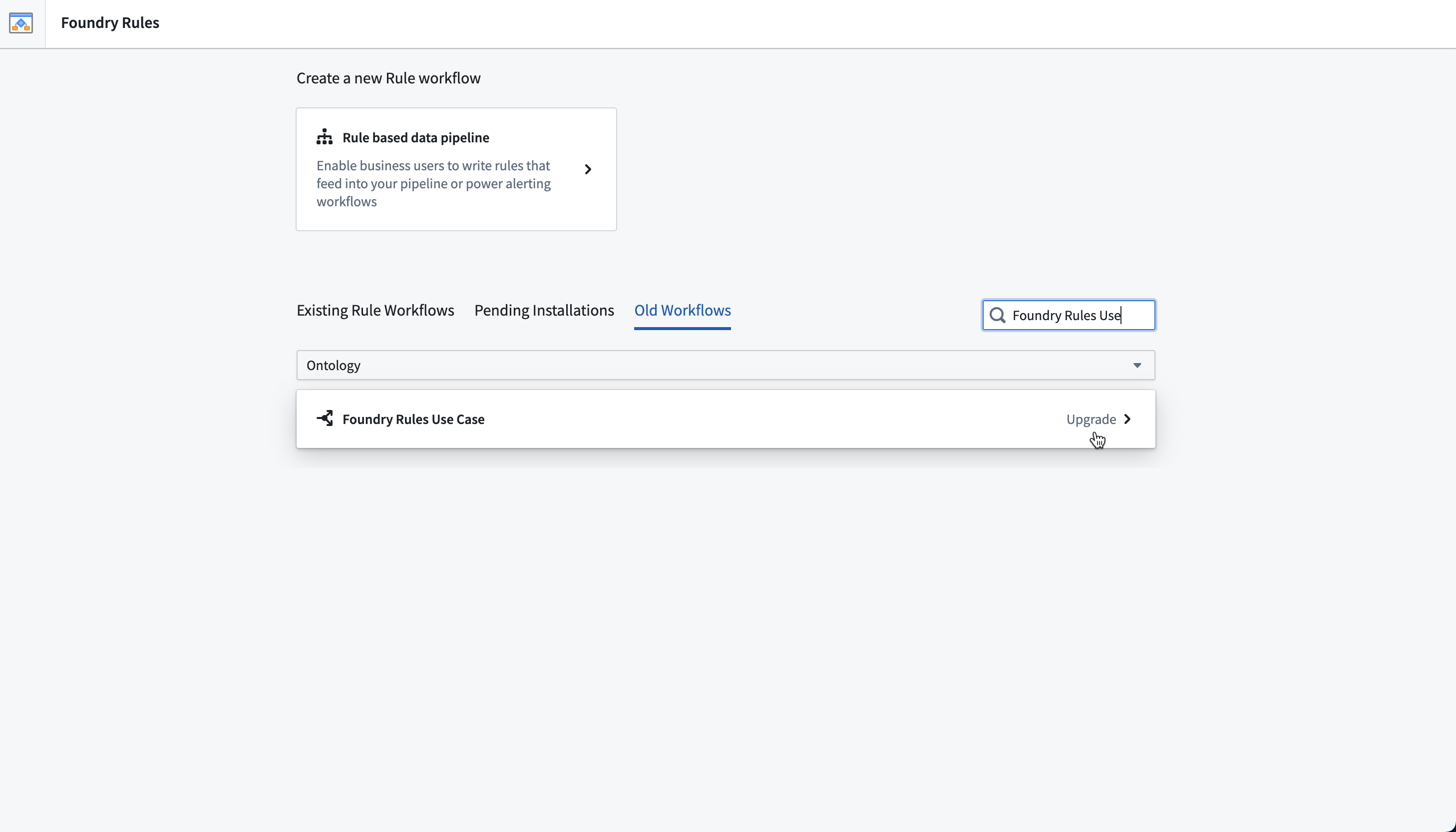
Navigate to Foundry Rules from the Foundry workspace navigation sidebar and then to the Old Workflows tab.
-
Select the Ontology and find the V1 archetype from the list or use the search field.
-
Select Migrate from older Version.
-
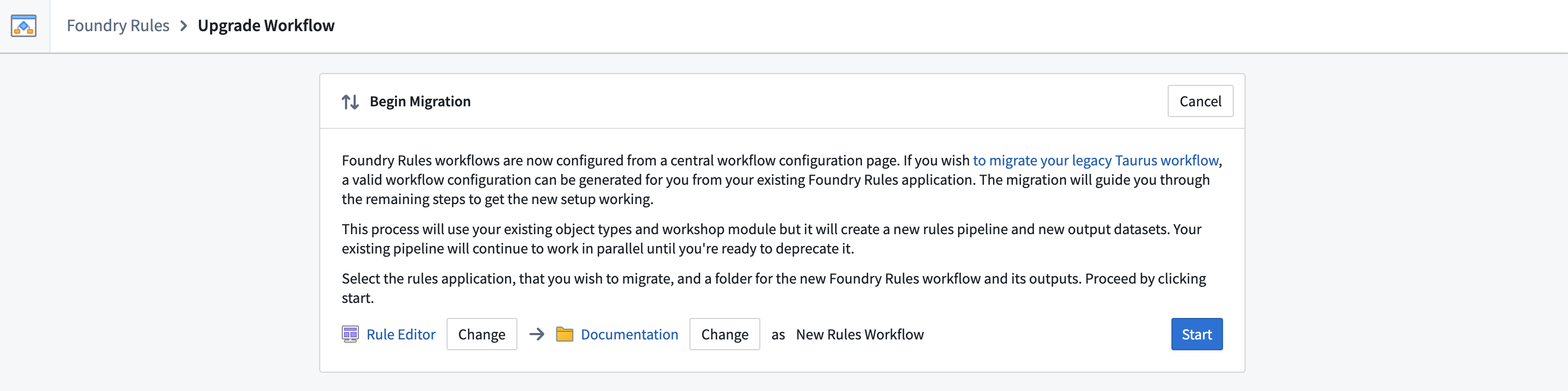
Choose the main rule editor Workshop resource and review the destination folder in which to save the new Foundry Rules workflow. Rename the workflow if necessary. Then, select Start
-
The Foundry Rules migration wizard will check whether your existing set up includes time series. If so, you will need to configure the link types and time series syncs. Select Save Rules workflow once you have completed the additional configuration.

-
Some resources may need to be imported to the project. Review and expand to verify the list of resources and then complete the required on-screen actions, then select Save.


-
Select Upgrade rules application.

-
If requested, select Unlink old application.

-
Finally, take note of the on-screen guidance and follow the appropriate instructions based on your use case for the newly upgraded pipeline:

-
My Foundry Rules outputs directly feed into Ontology object types.
- If your Outputs feed into Ontology object types (for example, without any additional transformations), then you need to replace the objects' backing datasets of this object type so that alerts will come from the new version of Foundry Rules.
:::callout{theme="warning"} This option will result in lost object edits if object types is V1. Otherwise, if you must retain edits, you may keep the backing dataset ↗ and ensure that its content is a direct copy of the new rules output. :::
- I apply additional transformations on my Foundry Rules outputs.
- You should use the new output datasets to replace the previous rule outputs in your transformations. For advanced use cases, you can register a custom repository to compute the rule outputs.
- I have other rule editor Workshop applications.
-
If your rule editors all have the same inputs and outputs, you can have all of them refer to this Rules workflow. You can deploy more rule editor Workshop applications using Archetype's deploy menu in the Applications tab on the left. If your rule editors serve different use cases and have different configurations, you should migrate each one in a dedicated workflow by deploying a new Rules Archetype.
-
Once the steps have been completed, select Mark migration completed. Your use case is now operational on the new Foundry Rules setup.
Verify migration
To check that the migration to Foundry Rules succeeded, access the link to the project where the rules output dataset was saved.
Open the rules output dataset and select Build or go to the Schedules tab and Add build schedule.

A successful build indicates the upgrade process to Foundry Rules was completed successfully.
FAQs
- I was warned that my outputs contain configuration that is different in V2. How do I resolve this? Action type forms can be configured to accept various types of input. This can be simple numbers or dates but also attachments, object properties, or derived values from other form parameters. While the migration wizard attempts to recreate a configuration as close to the original as possible, this message warning indicates there may have been changes to the configuration.
To resolve, review the output configuration for your rule effects, as below:

Then, check the rule editor form after completing step five of the migration to ensure it continues to behave according to your use case, as below:

- Why does my dataset build succeed but has no data in it?
The build job includes another dataset called the rules status dataset that contains information for each rule and why it did not run properly. Additionally, you may have not yet rerun your writeback dataset; see step four on the Author and run a rule guide. The dataset can also be found under the Transforms Configuration section of the Build page:

- Why am I unable to cancel the migration if someone else makes changes simultaneously to the Rules application?

This error happens if you have completed the stage of upgrading the Rules application, while another user makes changes to the Rules application when you then attempt to Cancel the migration.
To resolve, open the Rules Workshop application and publish the older migrated version to undo the manual changes made. You will then be able to cancel the upgrade process successfully.
- Why doesn't the migration proceed without exactly one rule editor and proposal reviewer widget each?
- Rules applications can be designed with any number of rule editor widgets and any number of proposal widgets, but are configured differently between Taurus and Foundry Rules. In Taurus, it is possible to configure the widgets with unique attributes such as having different inputs available in each. The migration would not combine configurations of multiple widgets but rather, translate one rule editor widget to one Rules workflow. In the new Foundry Rules setup however, different configurations should each be their own Rules workflow.
- To resolve this issue for your migration, you should consider the following scenarios and appropriate resolutions. After that, complete the migration wizard again. Note that Workshop changes are versioned to support reverting changes if necessary:
- You have multiple rule editor widgets by accident and only one is relevant. You should remove the irrelevant widgets from your workshop module and try the migration again.
- You have multiple widgets with the same configuration. You should remove all widgets but one. After the migration, you can copy and paste the updated widget to recreate the design of your application.
- You have multiple widgets with different configurations. In this case, you should split the Workshop module into multiple modules with one rule editor widget each and create a Rules archetype for each. Select Migrate from older version on the wizard to create the configuration from each Workshop module to save time.
中文翻译
迁移至 Foundry Rules
尽管 Taurus 仍将获得长期支持,但部分组织可能希望将其现有的 Taurus 工作流迁移至 Foundry Rules,以受益于额外功能,例如更便捷的变更操作、流水线维护以及后续开发更新。请注意,Taurus 将继续获得长期支持。
将 Taurus 用例迁移至 Foundry Rules 后,您可能获得以下优势:
- 简化部署:通过单个 Foundry Rules 配置页面,数分钟内即可完成部署。
- 修改与维护:通过单步修改 Foundry Rules 配置即可完成。
- 开箱即用:无需与流水线代码交互即可执行,包括流式工作流。
- 内置代码生成器:支持需要自定义流水线代码的高级 Foundry Rules 用例。
最优的 Foundry Rules 工作流针对一个特定用例,并包含一种您希望用户编写的规则类型。如果您有多个用户组和多个规则编写应用程序,您可以考虑通过多次使用迁移向导来创建多个规则工作流。
迁移注意事项
在迁移至 Foundry Rules 之前,请考虑以下事项:
-
如果您将 Taurus 作为更大的产品方案(如供应链优化、反洗钱或汽车行业的 QMOS)的一部分使用,则当前无需执行迁移。
-
如果您的 Taurus 用例较为复杂,包含以下任意组合,则迁移将需要一些重构工作,您应权衡前述优势与所需变更范围:
- 您的 Taurus Workshop 模块包含多个规则编辑器小部件,且针对不同用户组具有不同配置。
- 您的 Taurus 仓库使用了 Taurus 包的高级功能,或以特定方式应用规则逻辑。例如,使用中的高级功能可能包括仓库运行提案以创建潜在影响分析。
-
您的规则操作实现了可选可见性,使用了对象定位器、对象集或附件字段类型。
-
如果您正在积极向 Taurus 用例添加更多输入数据集、对象类型或规则输出,Foundry Rules 提供的新配置界面可能会提高可维护性。即使您选择将 Java 仓库与 Foundry Rules 工作流结合使用,您也将受益于部分代码生成。
将 Taurus 工作流迁移至 Foundry Rules 工作流
以下流程使用您现有的对象类型和 Workshop 模块,但会创建并行流水线和新的输出数据集,以避免对正在运行的流水线造成中断。
升级至 V2 时,将执行以下流程:
- 检查工作流中的时间序列
- 升级现有应用程序
- 必要时取消旧应用程序的链接
- 需要手动操作以完成迁移
请按照以下说明开始操作:
-
从 Foundry 工作区导航侧边栏导航至 Foundry Rules,然后进入 旧工作流 选项卡。
-
选择本体,并从列表中找到 V1 原型,或使用搜索字段。
-
选择 从旧版本迁移。
-
选择主规则编辑器 Workshop 资源,并查看用于保存新 Foundry Rules 工作流的目标文件夹。如有必要,重命名工作流。然后选择 开始。
-
Foundry Rules 迁移向导将检查您现有设置是否包含时间序列。如果包含,您需要配置链接类型和时间序列同步。完成额外配置后,选择 保存规则工作流。
-
某些资源可能需要导入到项目中。查看并展开以验证资源列表,然后完成屏幕上的必要操作,最后选择 保存。
-
选择 升级规则应用程序。
-
如果系统提示,选择 取消旧应用程序的链接。
-
最后,注意屏幕上的指导,并根据您的用例为升级后的新流水线遵循相应说明:
-
我的 Foundry Rules 输出直接馈送到本体对象类型。
- 如果您的输出馈送到本体对象类型(例如,无需任何额外转换),则需要替换此对象类型的对象支持数据集,以便告警来自新版本的 Foundry Rules。
:::callout{theme="warning"} 如果对象类型为 V1,此选项将导致对象编辑丢失。否则,如果您必须保留编辑,可以保留支持数据集 ↗,并确保其内容是新规则输出的直接副本。 :::
- 我对 Foundry Rules 输出应用了额外转换。
- 您应使用新的输出数据集替换转换中的先前规则输出。对于高级用例,您可以注册一个自定义仓库来计算规则输出。
- 我有其他规则编辑器 Workshop 应用程序。
-
如果您的所有规则编辑器具有相同的输入和输出,您可以让它们都引用此 Rules 工作流。您可以使用左侧 应用程序 选项卡中原型的部署菜单部署更多规则编辑器 Workshop 应用程序。如果您的规则编辑器服务于不同用例并具有不同配置,则应通过部署新的 Rules 原型,在专用工作流中迁移每个编辑器。
-
完成步骤后,选择 标记迁移完成。您的用例现在可在新的 Foundry Rules 设置上运行。
验证迁移
要检查迁移至 Foundry Rules 是否成功,请访问规则输出数据集保存到的项目链接。
打开规则输出数据集,选择 构建,或转到 计划 选项卡并 添加构建计划。
构建成功表示升级至 Foundry Rules 的流程已成功完成。
常见问题解答
- 我收到警告,我的输出包含与 V2 不同的配置。如何解决? 操作类型表单可以配置为接受各种类型的输入。这可以是简单的数字或日期,也可以是附件、对象属性或来自其他表单参数的派生值。虽然迁移向导尝试尽可能接近原始配置进行重建,但此警告消息表明配置可能已发生更改。
要解决此问题,请检查规则效果(rule effects)的输出配置,如下所示:
然后,在完成迁移的第五步后检查规则编辑器表单,确保其继续根据您的用例运行,如下所示:
- 为什么我的数据集构建成功但没有数据?
构建作业包含另一个名为规则状态数据集(rules status dataset)的数据集,其中包含每条规则的信息以及未正常运行的原因。此外,您可能尚未重新运行回写数据集(writeback dataset);请参阅编写并运行规则指南中的第四步。该数据集也可以在构建页面的 转换配置 部分找到:
- 如果其他人同时对 Rules 应用程序进行更改,为什么我无法取消迁移?
如果您已完成升级 Rules 应用程序的阶段,而另一个用户在您尝试 取消 迁移时对 Rules 应用程序进行了更改,则会出现此错误。
要解决此问题,请打开 Rules Workshop 应用程序并发布较旧的迁移版本以撤消手动更改。然后您将能够成功取消升级过程。
- 为什么迁移无法在没有恰好一个规则编辑器小部件和一个提案审查小部件的情况下进行?
- Rules 应用程序可以设计为包含任意数量的规则编辑器小部件和任意数量的提案小部件,但 Taurus 和 Foundry Rules 之间的配置方式不同。在 Taurus 中,可以为小部件配置独特的属性,例如每个小部件具有不同的可用输入。迁移不会合并多个小部件的配置,而是将一个规则编辑器小部件转换为一个 Rules 工作流。然而,在新的 Foundry Rules 设置中,不同的配置应各自对应一个 Rules 工作流。
- 要解决迁移中的此问题,您应考虑以下场景及相应的解决方案。之后,再次完成迁移向导。请注意,Workshop 更改已版本化,以便在必要时支持还原更改:
- 您意外拥有多个规则编辑器小部件,但只有一个相关。您应从 Workshop 模块中移除不相关的小部件,然后再次尝试迁移。
- 您有多个配置相同的小部件。您应移除除一个之外的所有小部件。迁移后,您可以复制并粘贴更新后的小部件以重新创建应用程序的设计。
- 您有多个配置不同的小部件。在这种情况下,您应将 Workshop 模块拆分为多个模块,每个模块包含一个规则编辑器小部件,并为每个模块创建一个 Rules 原型。在向导中选择 从旧版本迁移,以从每个 Workshop 模块创建配置,从而节省时间。