AIP Logic integration with Automate(AIP Logic 与 Automate 的集成)
AIP Logic can now be automated such that Ontology edits can be automatically applied or staged for human review. These automations can be triggered on existing objects or when new objects are created.
Create a new automation from AIP Logic file
You can start creating a new automation from your AIP Logic file using the Uses option on the right side.

Doing so will prompt a new window with a pre-populated automation flow based on your Logic instructions.
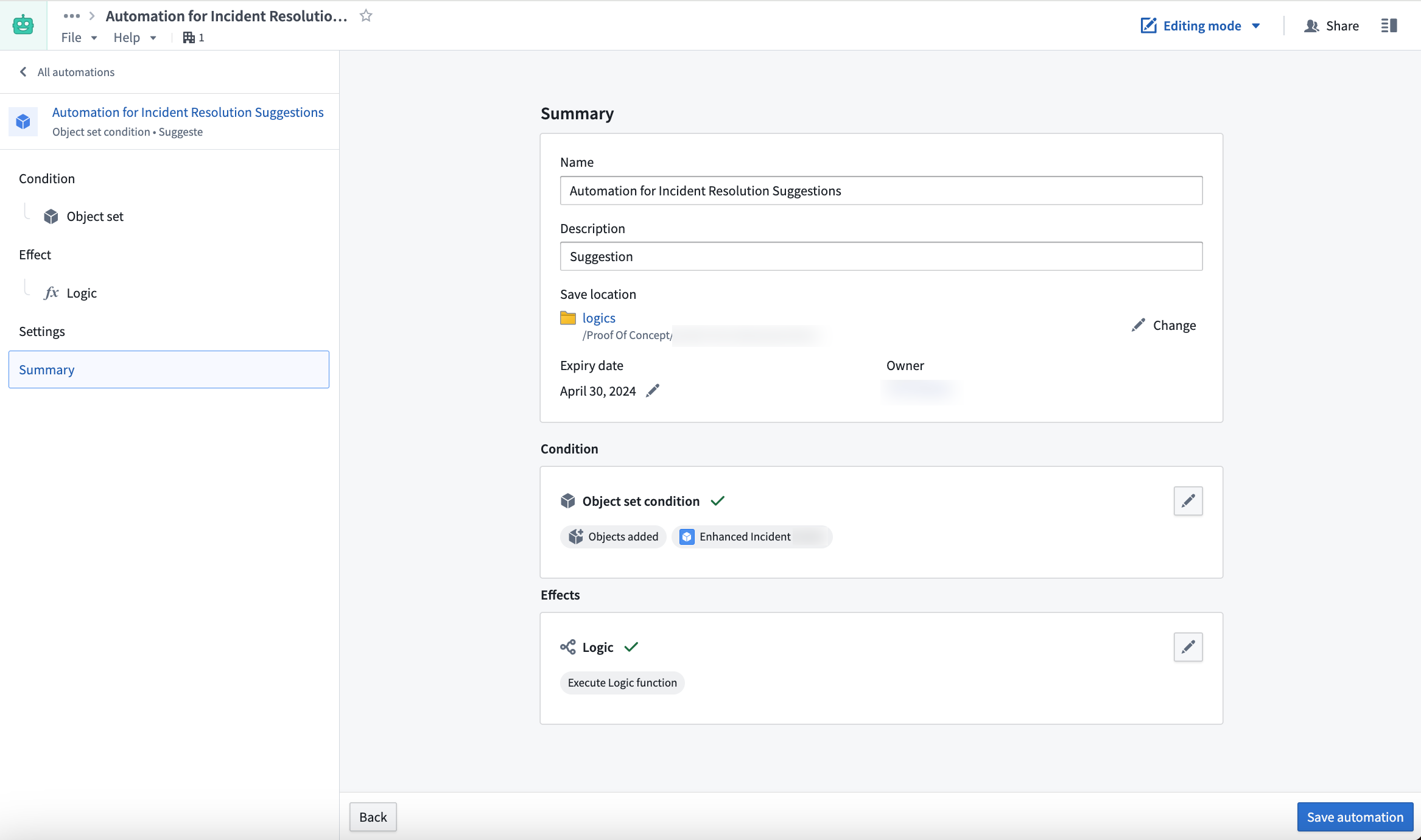
The condition you set up will monitor an object set and trigger the Logic effect for each new object added or automatically run edits. Learn how to set up an automation.
After confirming the name and settings of the new automation, select Save automation.
You will be redirected to the Automation Overview screen after saving.
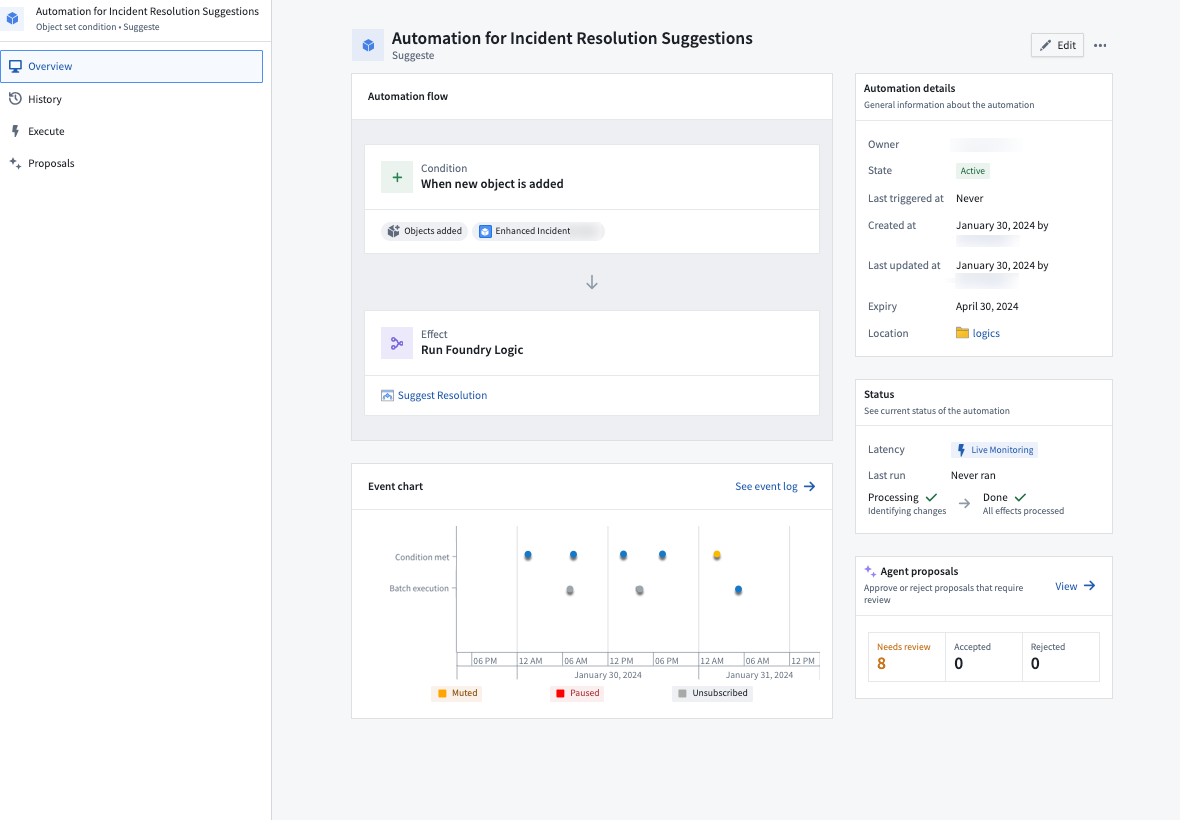
The Overview screen displays the automation flow, status, and event chart which updates automatically when the automation is triggered.
If you configured your automation to stage Actions for approval over automatically running edits, you can see an overview of Agent proposals that were generated and require a review by navigating to the Proposals tab using the left side navigation bar.
To review these agent proposals, do one of the following:
- Access the Proposals tab from the navigation bar.
- From the Agent proposals section, select View.
On the Proposals tab, select a specific proposal to inspect the reason it was created.
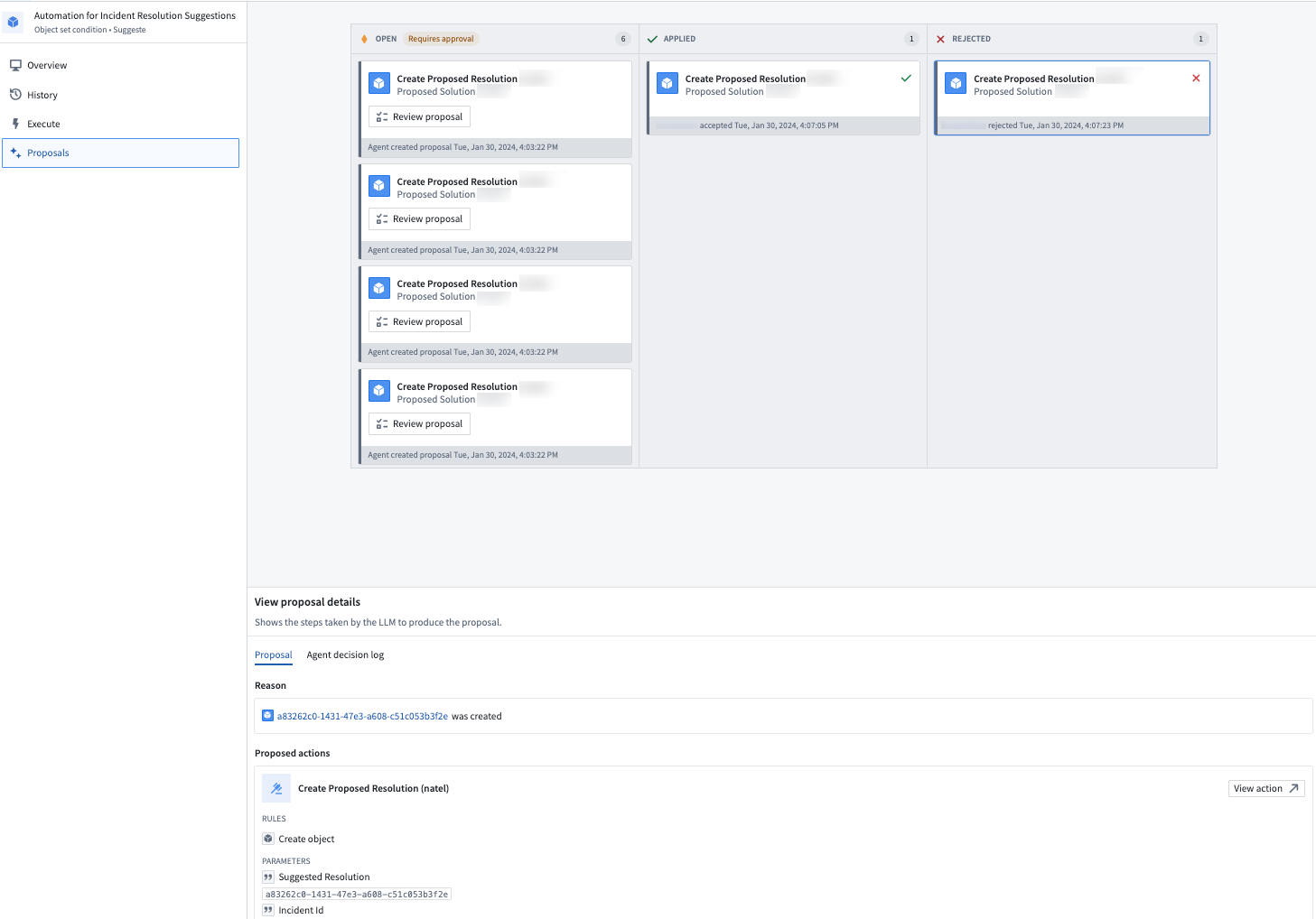
Additionally, the proposed Action will be previewed at the bottom of the screen. By selecting the Agent decision log tab under View proposal details, you can inspect the decision process the LLM followed to generate the proposed Action.
When you accept a proposal, the Action will be automatically executed, and the proposal card will be moved to the Applied column.
FAQ
The following are some frequently asked questions about the AIP Logic integration.
Why can I not see any proposals?
For security considerations, open proposals are visible for only 24 hours and only to the user who created the automation. Older proposals will not be visible.
Why is the Create Automation button unavailable?
The AIP Logic output must return an Ontology edit for the Automation to run.
Why is there no condition block in the Automation summary page?
Ensure that the AIP Logic input is an object.
中文翻译
AIP Logic 与 Automate 的集成
AIP Logic 现已支持自动化,可自动应用本体编辑或将其暂存以供人工审核。这些自动化可在现有对象上触发,也可在新对象创建时触发。
从 AIP Logic 文件创建新自动化
您可以从 AIP Logic 文件开始创建新自动化,使用右侧的 Uses 选项。
点击后,将弹出一个新窗口,其中包含基于您的 Logic 指令预填的自动化流程。
您设置的条件将监控一个对象集,并为每个新增对象触发 Logic 效果,或自动运行编辑。了解如何设置自动化。
确认新自动化的名称和设置后,选择 Save automation。
保存后,您将被重定向到 Automation Overview 界面。
概览界面显示自动化流程、状态和事件图表,当自动化触发时,这些内容会自动更新。
如果您将自动化配置为暂存操作以待审批(而非自动运行编辑),则可以通过左侧导航栏进入 Proposals 选项卡,查看已生成并需要审核的代理提案概览。
要审核这些代理提案,请执行以下任一操作:
- 从导航栏访问 Proposals 选项卡。
- 在 Agent proposals 部分,选择 View。
在 Proposals 选项卡中,选择特定提案以查看其创建原因。
此外,屏幕底部会预览所提议的操作。通过选择 View proposal details 下的 Agent decision log 选项卡,您可以查看 LLM 生成提议操作所遵循的决策过程。
当您接受提案时,操作将自动执行,提案卡片将移至 Applied 列。
常见问题解答
以下是关于 AIP Logic 集成的一些常见问题。
为什么我看不到任何提案?
出于安全考虑,开放提案仅在 24 小时内可见,且仅对创建自动化的用户可见。较旧的提案将不可见。
为什么 Create Automation 按钮不可用?
AIP Logic 输出必须返回一个本体编辑,自动化才能运行。
为什么自动化摘要页面中没有条件块?
请确保 AIP Logic 输入是一个对象。