Manage security(管理安全性)
:::callout{theme="neutral"} The application previously known as Workflow Builder is now called Workflow Lineage. :::
To start using Workflow Lineage, open a Workshop application or functions repository and use the keyboard shortcut Command + I (macOS) or Ctrl + I (Windows) to view the relevant Workflow Lineage graph depicting the objects, actions, and functions that back the application.
You can also navigate directly to the Workflow Lineage application and manually add resources to the graph.
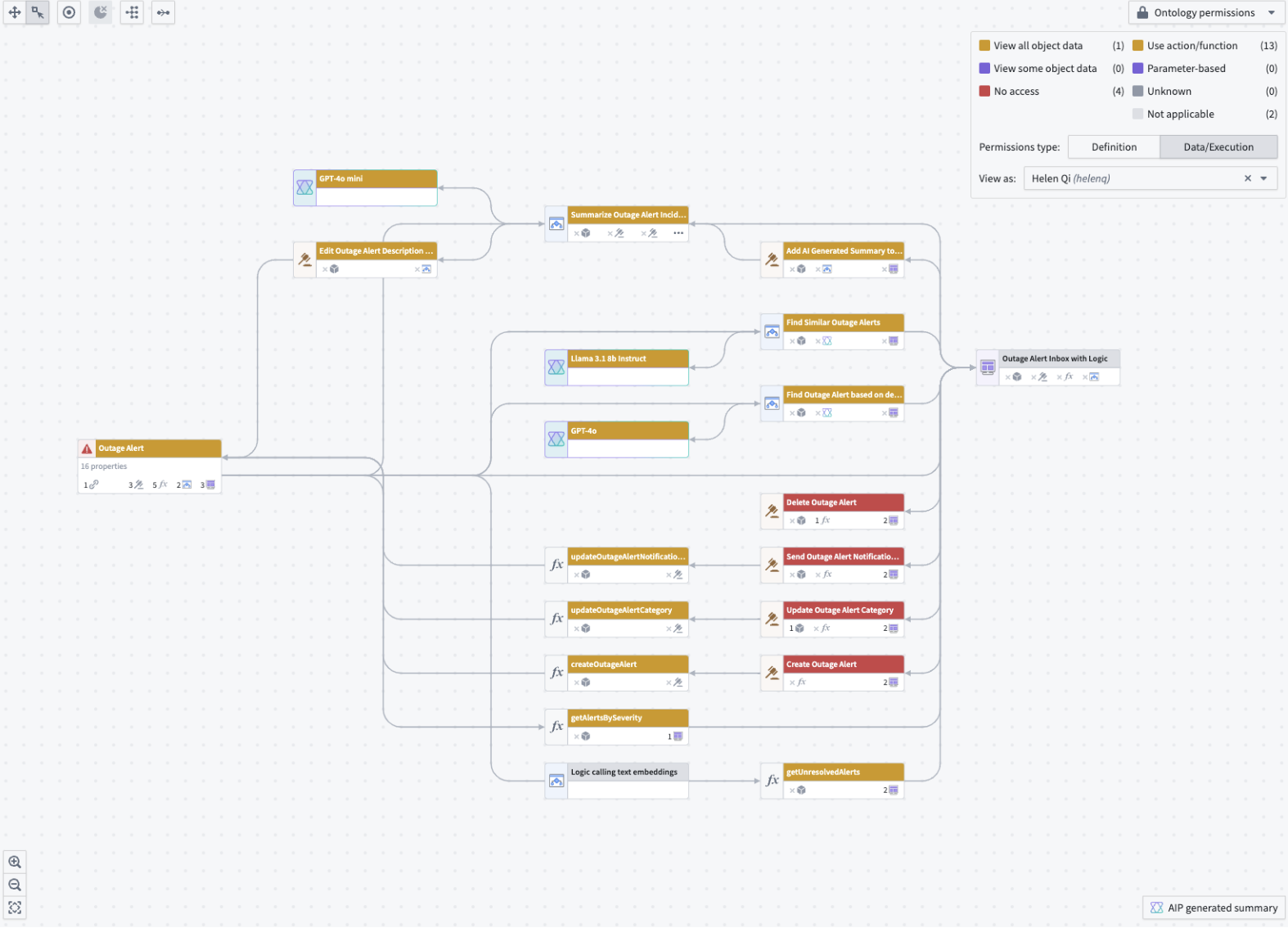
The color legend in Workflow Lineage allows you to view both Ontology and resource permissions. There are two types of Ontology permissions:
- Definition: Whether or not the specified user can view or edit entity definitions.
- Data and execution: Whether or not the specified user can view object data or execute actions.
To understand the access permissions of a specific user, you can input their username into the View as dropdown menu for a preview.
Bulk update ontology roles on resources
You can also bulk edit ontology role permissions on objects and actions by following the steps below:
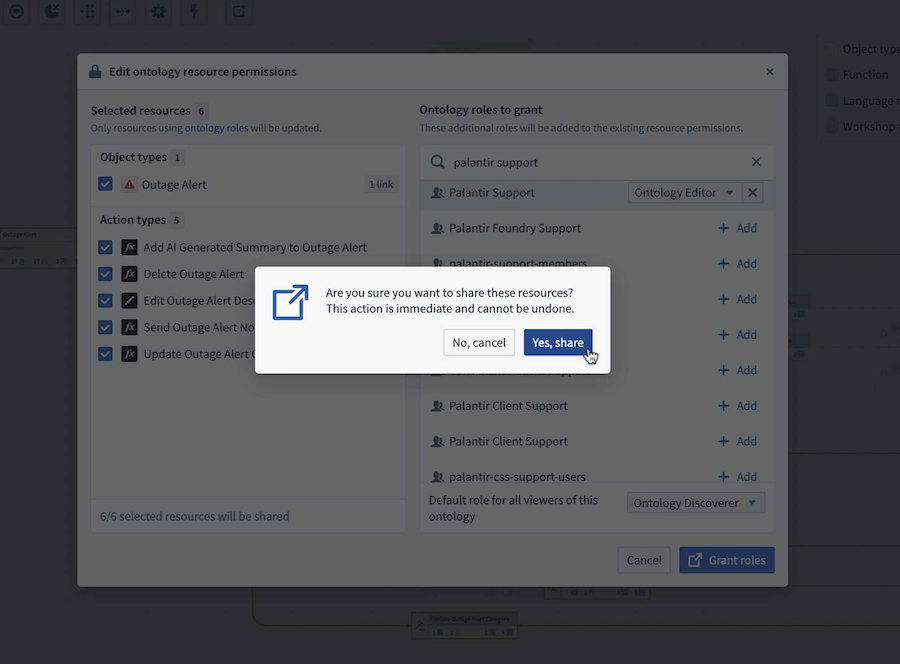
- Navigate to a resource and right-click on it, then select Edit permissions from the context menu.
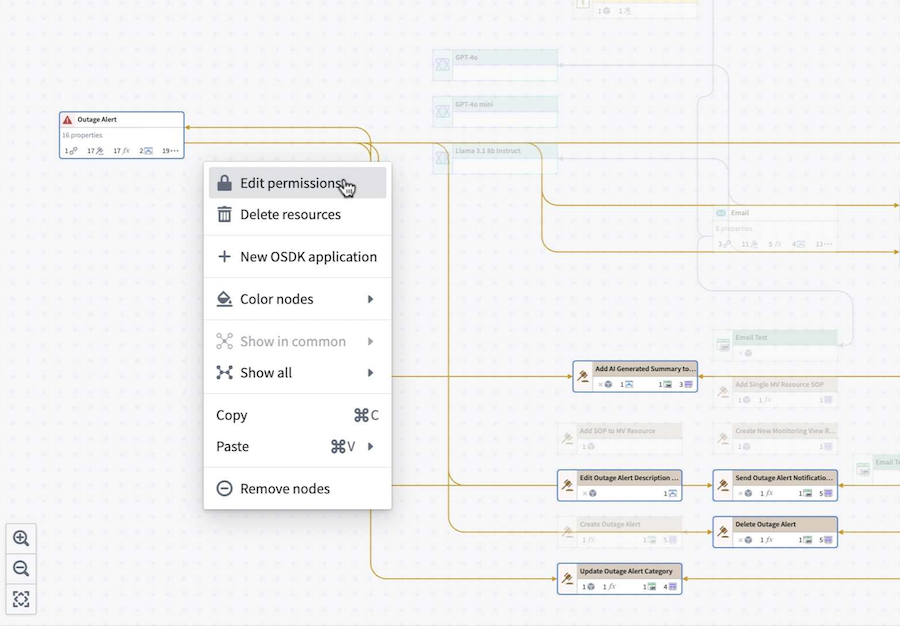
This will bring you to the Edit ontology resource permissions window, displaying the selected resources.
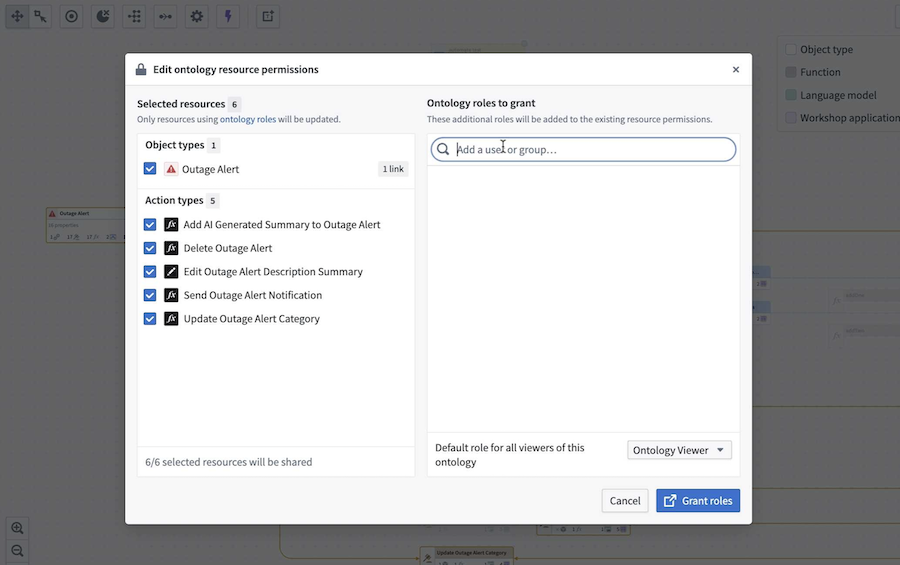
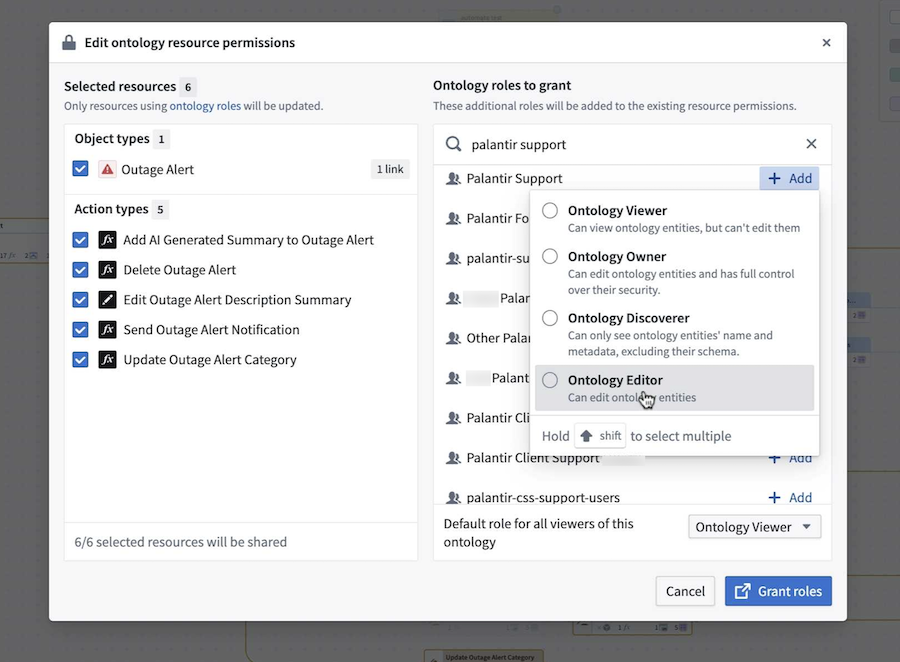
- In the Ontology roles to grant section, search for the group that you want to add. After selecting the role, you should see it displayed next to the selected group.
-
Confirm the action by selecting Grant roles in the bottom right. A dialog will appear with the prompt,
Are you sure you want to share these resources?. -
Select Yes, share to proceed. Note that this action is immediate and cannot be undone.
Bulk update action submission criteria
Additionally, you can update an action's submission criteria to match the submission criteria of a source action. From the Workflow Lineage graph, select the actions you wish to update. Then, navigate to Update submission criteria from the bottom panel.

On the left side of the panel, select the source action whose submission criteria you want applied to the other actions. The submission criteria of the source action can be viewed under the selected source action.
When completed, select the blue Update x actions button where x is the number of actions that will be updated. This will create a proposal you can approve and submit for the changes to take effect.
中文翻译
管理安全性
:::callout{theme="neutral"} 原名为"工作流构建器"的应用程序现已更名为"工作流血缘"。 :::
要开始使用工作流血缘(Workflow Lineage),请打开 Workshop 应用程序或函数仓库,使用键盘快捷键 Command + I(macOS)或 Ctrl + I(Windows)查看相关的工作流血缘图,该图展示了支持该应用程序的对象、操作和函数。
您也可以直接导航到工作流血缘应用程序,手动向图中添加资源。
工作流血缘中的颜色图例允许您查看本体(Ontology)和资源权限。本体权限分为两种类型:
- 定义: 指定用户是否可以查看或编辑实体定义。
- 数据与执行: 指定用户是否可以查看对象数据或执行操作。
要了解特定用户的访问权限,您可以在查看为下拉菜单中输入其用户名进行预览。
批量更新资源上的本体角色
您还可以按照以下步骤批量编辑对象和操作上的本体角色权限:
- 导航到某个资源,右键单击它,然后从上下文菜单中选择编辑权限。
这将打开编辑本体资源权限窗口,显示所选资源。
- 在要授予的本体角色部分,搜索您想要添加的组。选择角色后,您应该会看到它显示在所选组旁边。
-
通过选择右下角的授予角色来确认操作。将出现一个对话框,提示
您确定要共享这些资源吗?。 -
选择是,共享以继续。请注意,此操作会立即生效且无法撤销。
批量更新操作提交条件
此外,您可以更新操作的提交条件,使其与源操作的提交条件匹配。在工作流血缘图中,选择您要更新的操作。然后,从底部面板导航到更新提交条件。
在面板左侧,选择您希望将其提交条件应用于其他操作的源操作。源操作的提交条件可以在所选源操作下查看。
完成后,选择蓝色的更新 x 个操作按钮,其中 x 是将被更新的操作数量。这将创建一个提案,您可以批准并提交该提案以使更改生效。