Generate documentation from a workflow(从工作流生成文档)
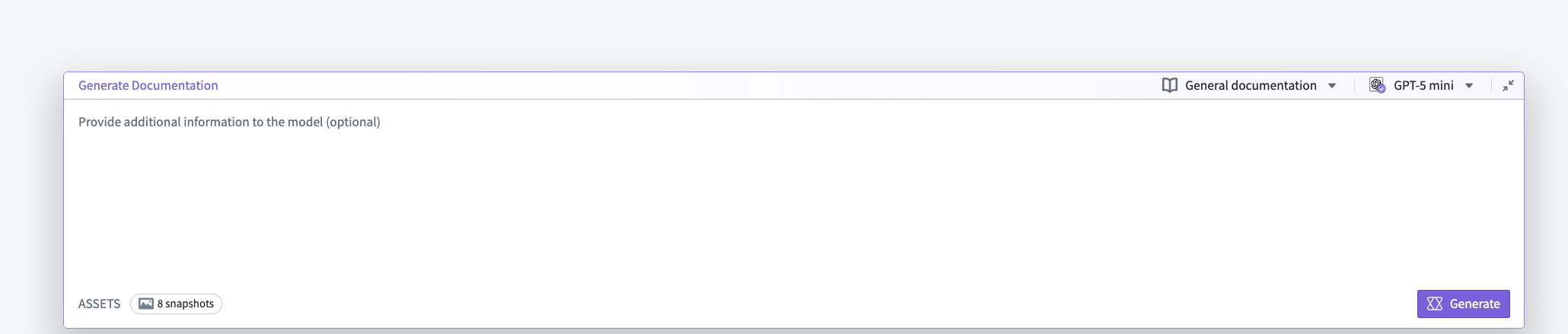
After recording a workflow, you can use the prompt bar at the bottom of the edit mode view in Flow Capture to provide additional context and generate documentation. Consider adding a target audience, required format, style guide, or specific instructions for content organization to improve generated content.
Choose a model
Select a model from the model selector in the top right of the prompt bar. Different models provide different context window sizes, speed, and cost characteristics. Choose the model that best matches your needs for accuracy and token capacity.
:::callout{theme="warning"} Different models support different images quantities per request. If your queries are failing, select a different model and try again. :::
At this stage, you can also change the prompt template using the selector to the left of the model selector.
Include assets in LLM context
Ensure that the screenshots and transcriptions you want to provide the model with are included in the generation context. Transcripts and images that have been added to the LLM context will display a purple In context tag. The Snapshots tag in the bottom left of the prompt bar will display the number of images currently available to the model.
Only assets that you have added to context are visible to the model during generation. Note that you can also upload images that were not captured during your flow capture session and include them in the LLM context.
Start generation
- Verify your prompt and assets.
- Select Generate in the bottom right of the prompt bar to start the generation process.
- Wait for the model to finish. The editor will display generated content in the Documentation tab when the process is finished.
Edit generated Markdown
After content has been generated, you can edit the results by switching to the Documentation tab and selecting Edit in the top right corner. Content will be displayed using Markdown syntax. To preview the result, you can toggle back to Preview.

Generation mode
You can also change the generation mode to regenerate or modify existing documentation. Choose one of the following generation modes using the selector in the top left of the prompt bar:
- Regenerate documentation: Overwrite existing documentation with a new prompt. Use this when you want a fresh document that does not depend on the current generated text.
- Append to or modify current documentation: Edit the existing documentation using the prompt. Use this when you want the model to revise, expand, or correct the current document while retaining its context.
Export generated documentation
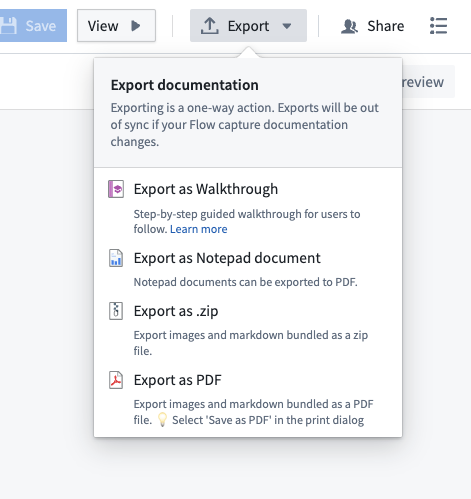
Flow Capture allows you to export generated content in various ways:
- Export as Walkthrough: Converts the content to a Walkthrough. Walkthroughs enforce a step-by-step structure, so Walkthrough content may differ after export from Flow Capture.
- Export as Notepad: Converts the content to a Notepad document.
- Export as .zip: Bundles Markdown content and images into a .zip file that can be downloaded.
- Export as PDF: Renders Markdown content as a PDF document that can be downloaded.
中文翻译
从工作流生成文档
录制工作流后,您可以使用 Flow Capture 编辑模式视图底部的提示栏提供额外上下文并生成文档。建议添加目标受众、所需格式、风格指南或内容组织的具体说明,以改进生成内容的质量。
选择模型
从提示栏右上角的模型选择器中选择一个模型。不同模型提供不同的上下文窗口大小、速度和成本特性。请根据您对准确性和 token 容量的需求选择最合适的模型。
:::callout{theme="warning"} 不同模型每次请求支持的图片数量不同。如果查询失败,请选择其他模型重试。 :::
在此阶段,您还可以使用模型选择器左侧的选择器更改提示模板。
在 LLM 上下文中包含资产
确保您希望提供给模型的截图和转录内容已包含在生成上下文中。已添加到 LLM 上下文的转录和图片将显示紫色上下文中标签。提示栏左下角的快照标签将显示当前可供模型使用的图片数量。
在生成过程中,模型只能看到您已添加到上下文中的资产。请注意,您也可以上传在 Flow Capture 会话期间未捕获的图片,并将其包含在 LLM 上下文中。
开始生成
- 确认您的提示和资产。
- 选择提示栏右下角的生成以启动生成过程。
- 等待模型完成。过程结束后,编辑器将在文档选项卡中显示生成的内容。
编辑生成的 Markdown
内容生成后,您可以通过切换到文档选项卡并选择右上角的编辑来编辑结果。内容将以 Markdown 语法显示。要预览结果,您可以切换回预览。
生成模式
您还可以更改生成模式以重新生成或修改现有文档。使用提示栏左上角的选择器选择以下生成模式之一:
- 重新生成文档: 使用新提示覆盖现有文档。当您希望获得不依赖当前生成文本的全新文档时使用此模式。
- 追加或修改当前文档: 使用提示编辑现有文档。当您希望模型在保留上下文的同时修订、扩展或更正当前文档时使用此模式。
导出生成的文档
Flow Capture 允许您以多种方式导出生成的内容: