Getting started(入门指南)
This tutorial guides you through a simple workflow to upload a document, interact with the document, and interact with an AIP Chatbot.
Access AIP Threads
AIP Threads can be accessed from the platform’s workspace navigation bar or by using the quick search shortcuts CMD + J (macOS) or CTRL + J (Windows).
Application interface
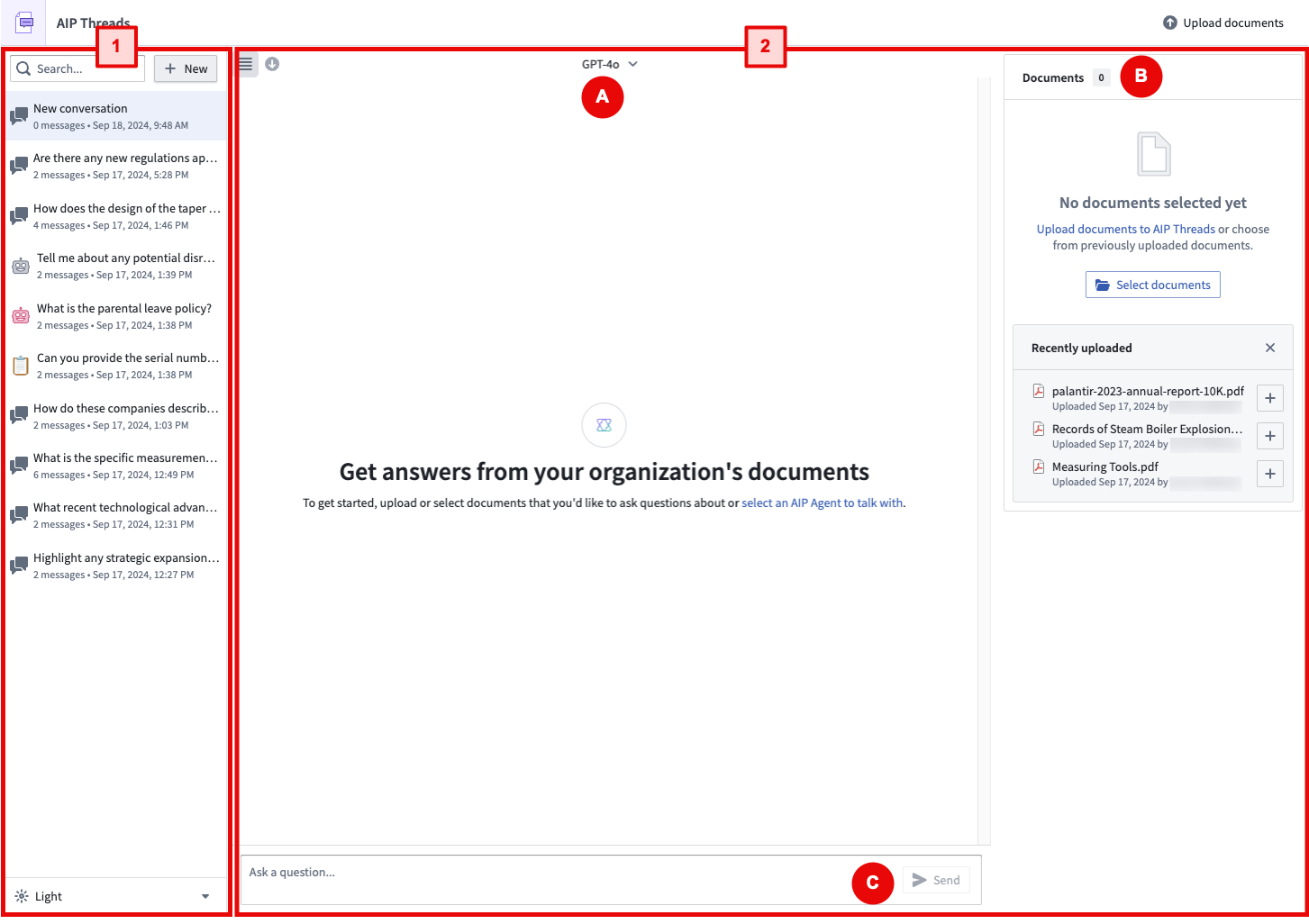
The AIP Threads interface can be divided into two main components, numbered left-to-right in the notional screenshot below:
Workflow overview
In a typical AIP Threads workflow, you can begin by selecting a previous conversation or starting a new one on the left panel (1), then using the right panel (2) to interact with documents or AIP Chatbots. To talk to an AIP Chatbot, simply select one from the Thread configuration dropdown menu (A) and begin interacting (C). To interact with documents, upload and select documents in the Document card (B) then begin interacting (C).
Left panel
The following section will discuss features configurable in the left panel.
Basic navigation
You can create a new thread, select from existing threads, and delete threads.
Dark mode
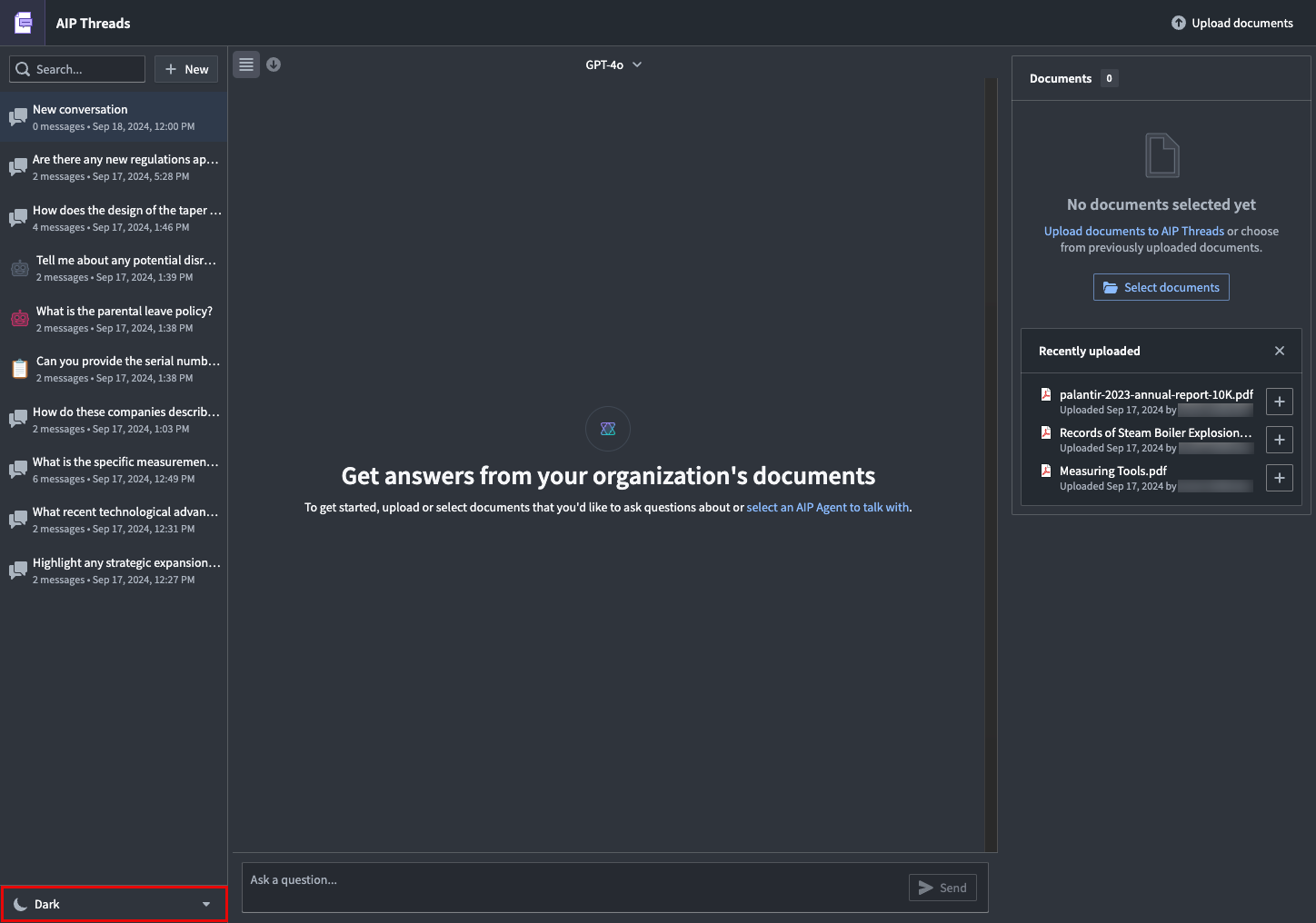
You can adjust the visual settings using the option under the thread history.
Minimize left panel
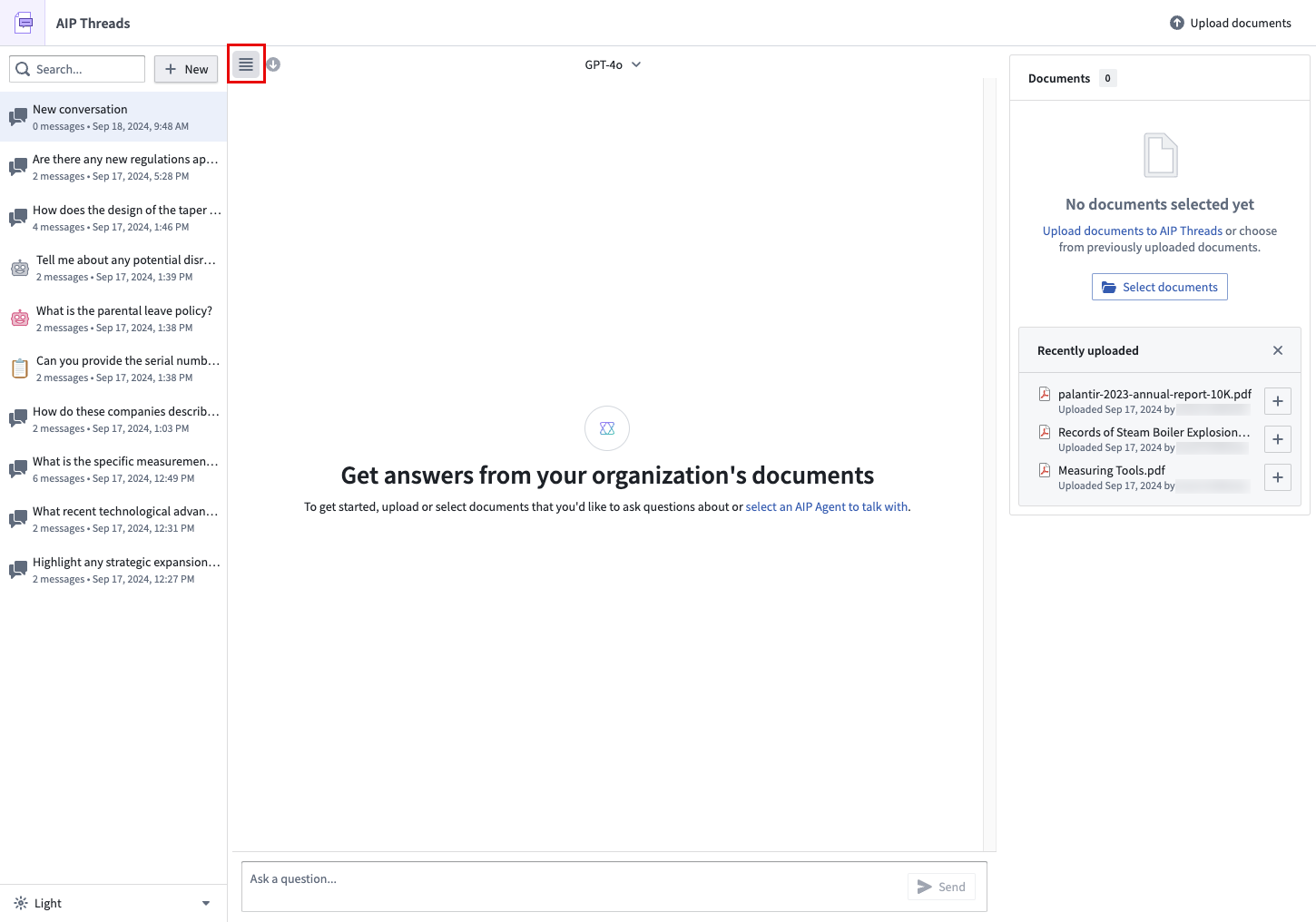
You can minimize the left panel with the following button.
Download
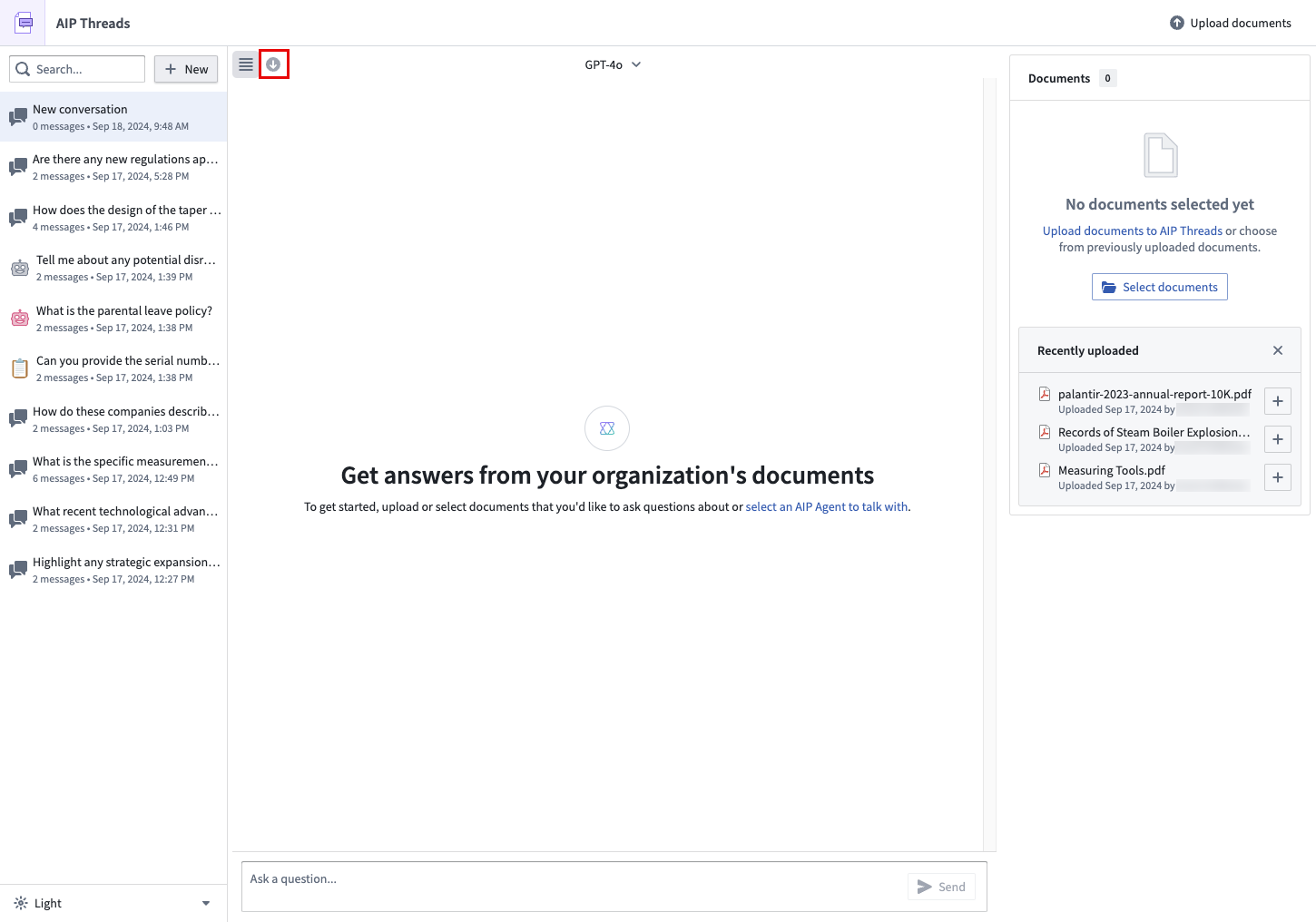
You can download the contents of a conversation (as JSON or PDF) using the Export option.
Upload a document
AIP Threads currently supports native (non-scanned) PDF documents.
To upload a document, follow the Upload option in the Documents card.
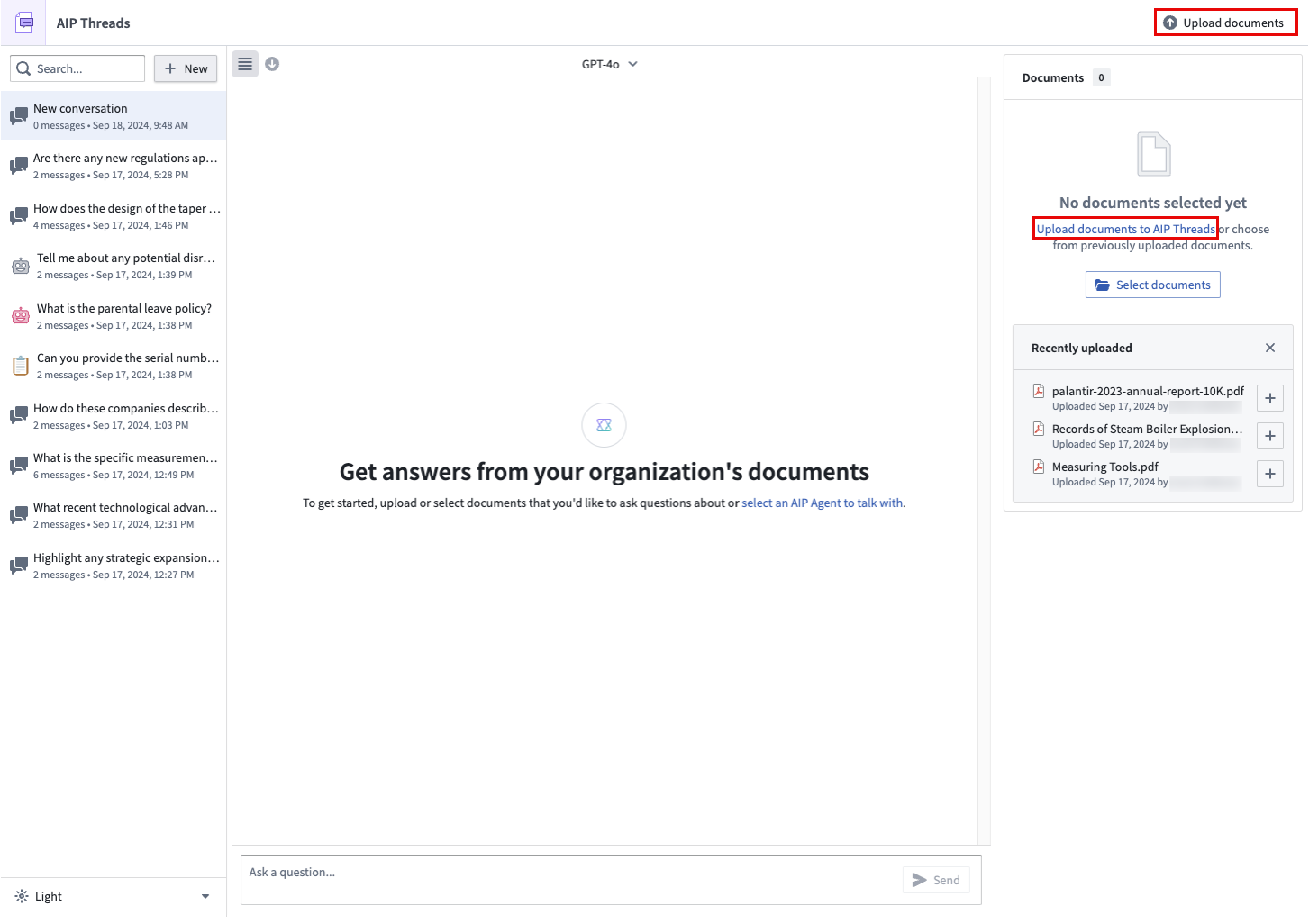
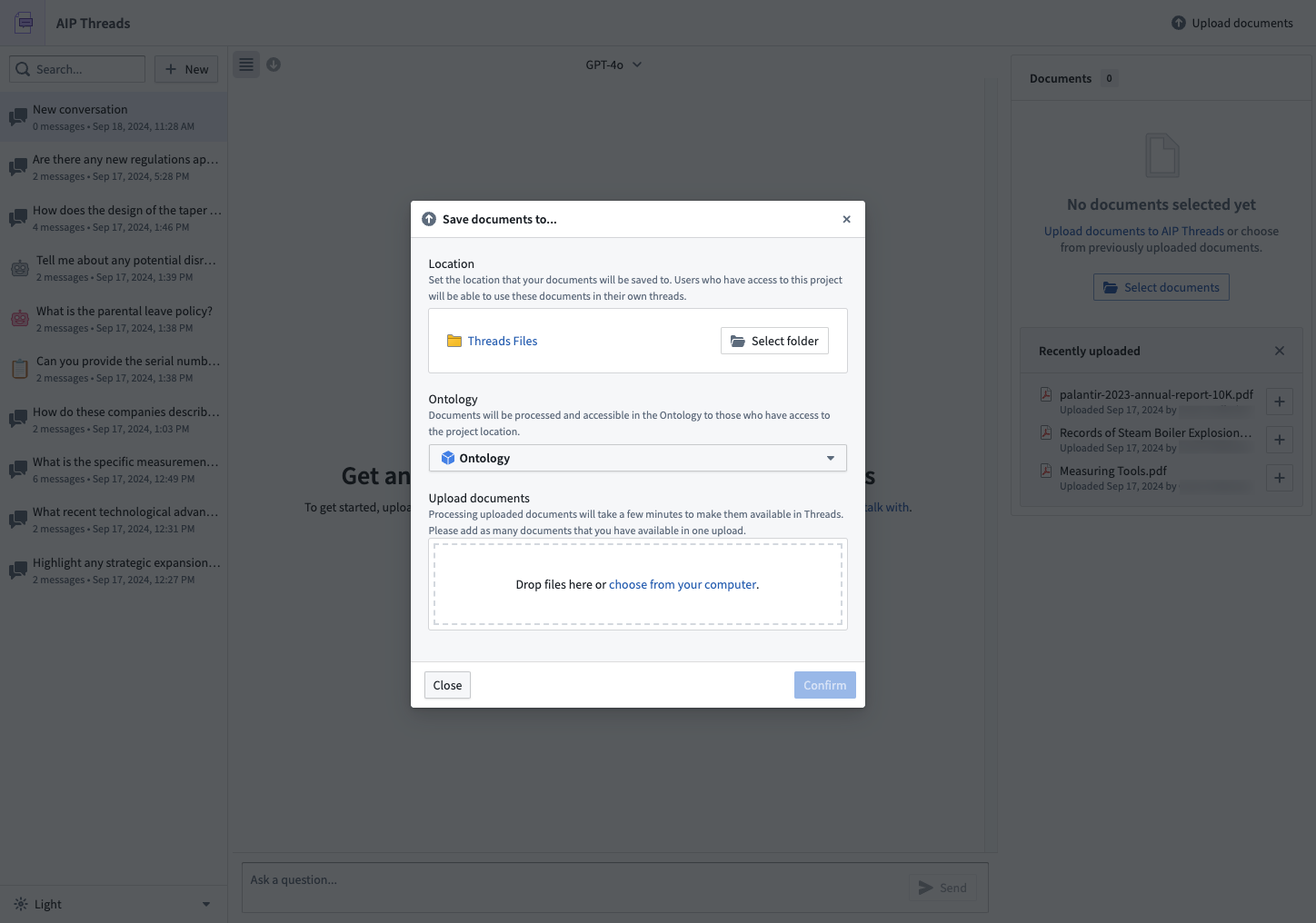
After choosing a media set for the document storage location, drag and drop the documents to be processed.
Interact with documents
Add documents to the context of a thread using the Select documents option to access the document selection dialog.
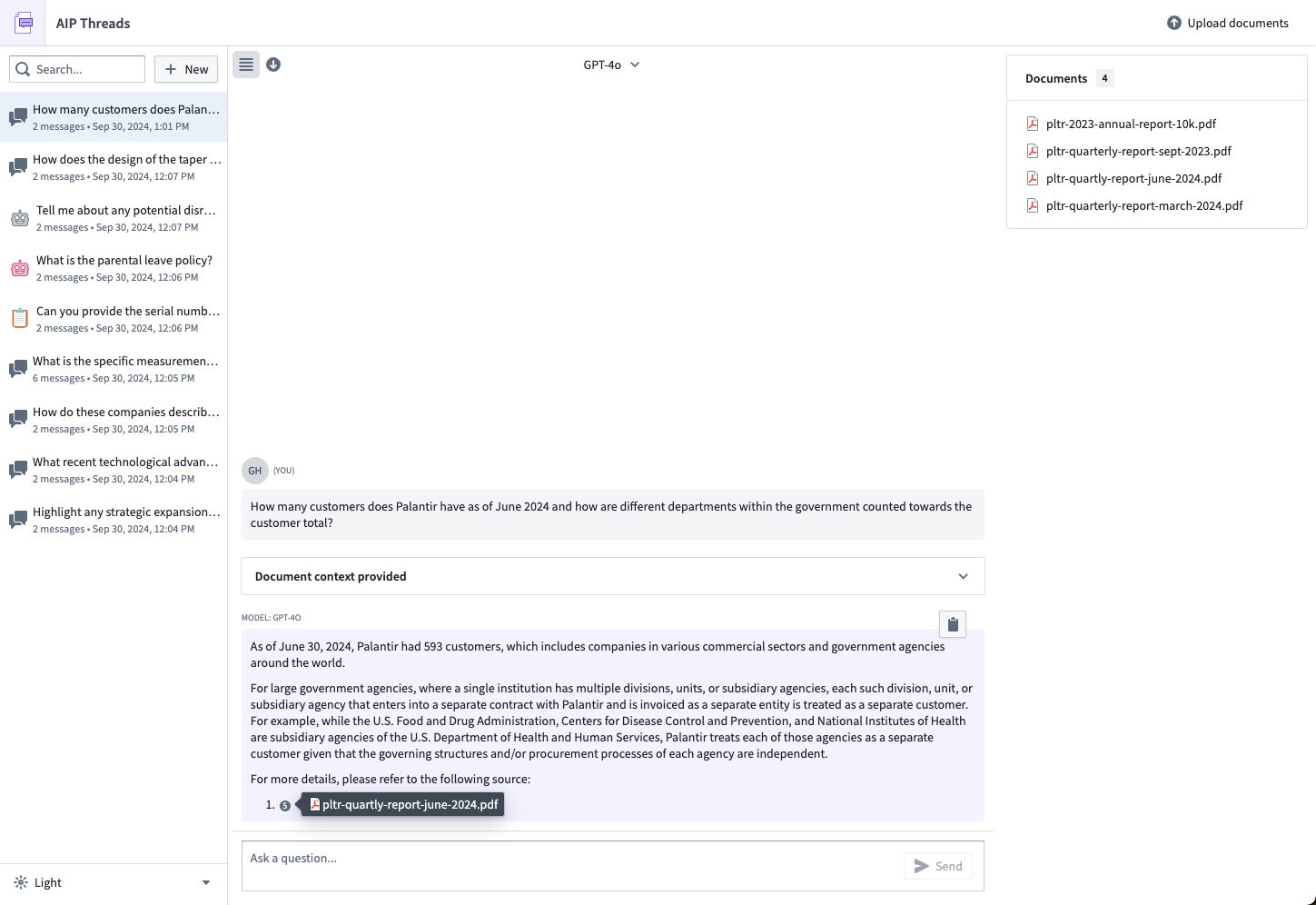
You may now start the thread by asking questions of the documents.
Document modes
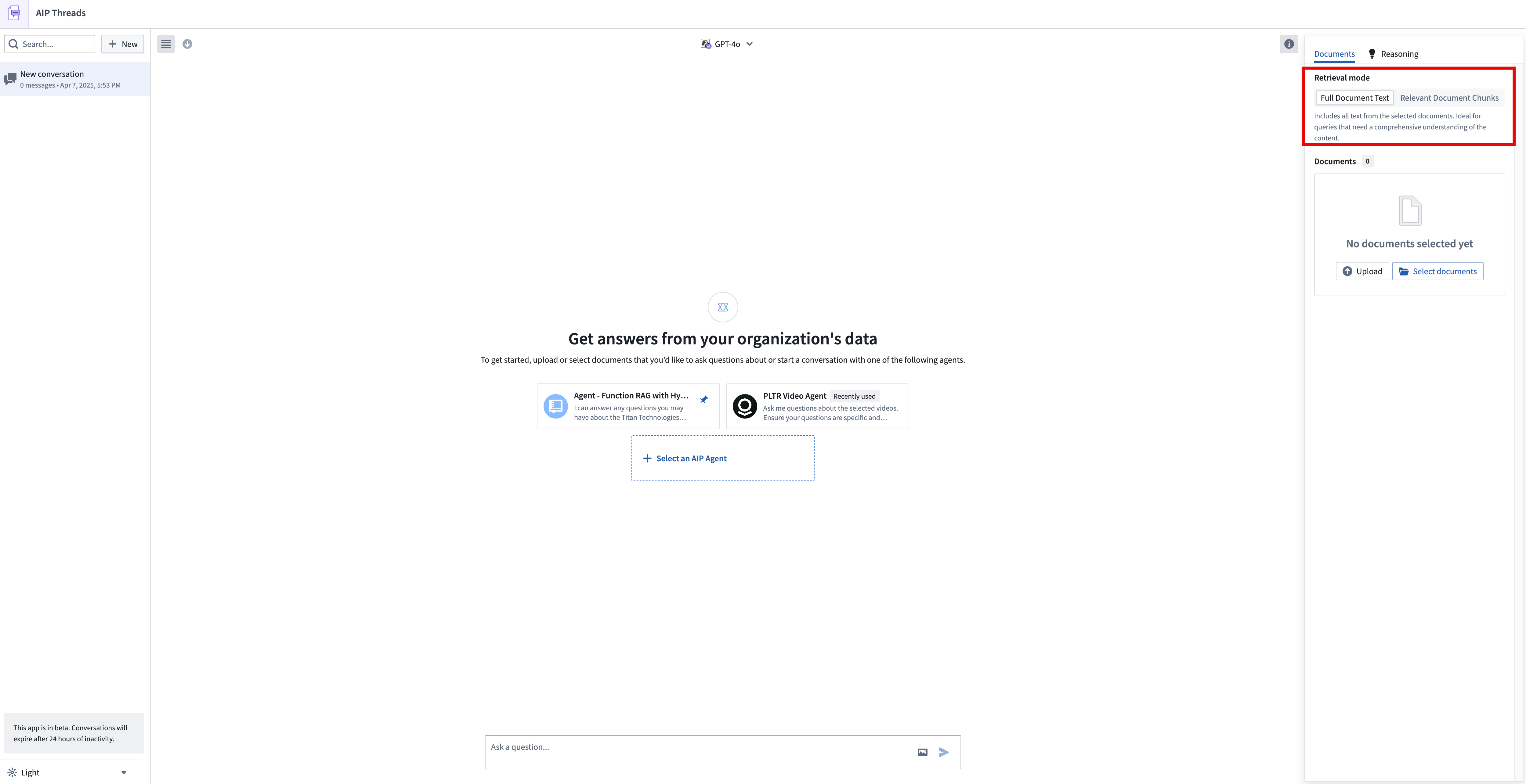
AIP Threads has two document modes: full document text and relevant document chunks (beta). Full document text extracts the entire text from the document, while relevant document chunks extract only the most semantically relevant chunks.
Full document text is useful for short and concise documents or when you need the LLM to review the entire content. For larger documents or when you need to focus on specific sections or details, relevant document chunks mode is more efficient. Keep in mind that using full document text may lead to context window limitations. To avoid exceeding the context capacity for the LLM, switch to relevant document chunks mode.
:::callout{theme="neutral"} When using the relevant document chunks mode, the chunking strategy by default uses 4096 characters per chunk (~1024 tokens), 512 character chunk overlap (~128 tokens), and Text embedding ada-002 as the embedding model. Enrollments that do not have access to the ada-002 model can use a different embedding model. :::
Citations
The model has been instructed to provide citations to the original documents with each answer, and users should verify the responses of the LLM. The citations should point to the corresponding page number in the PDF document indicating where the information was sourced.
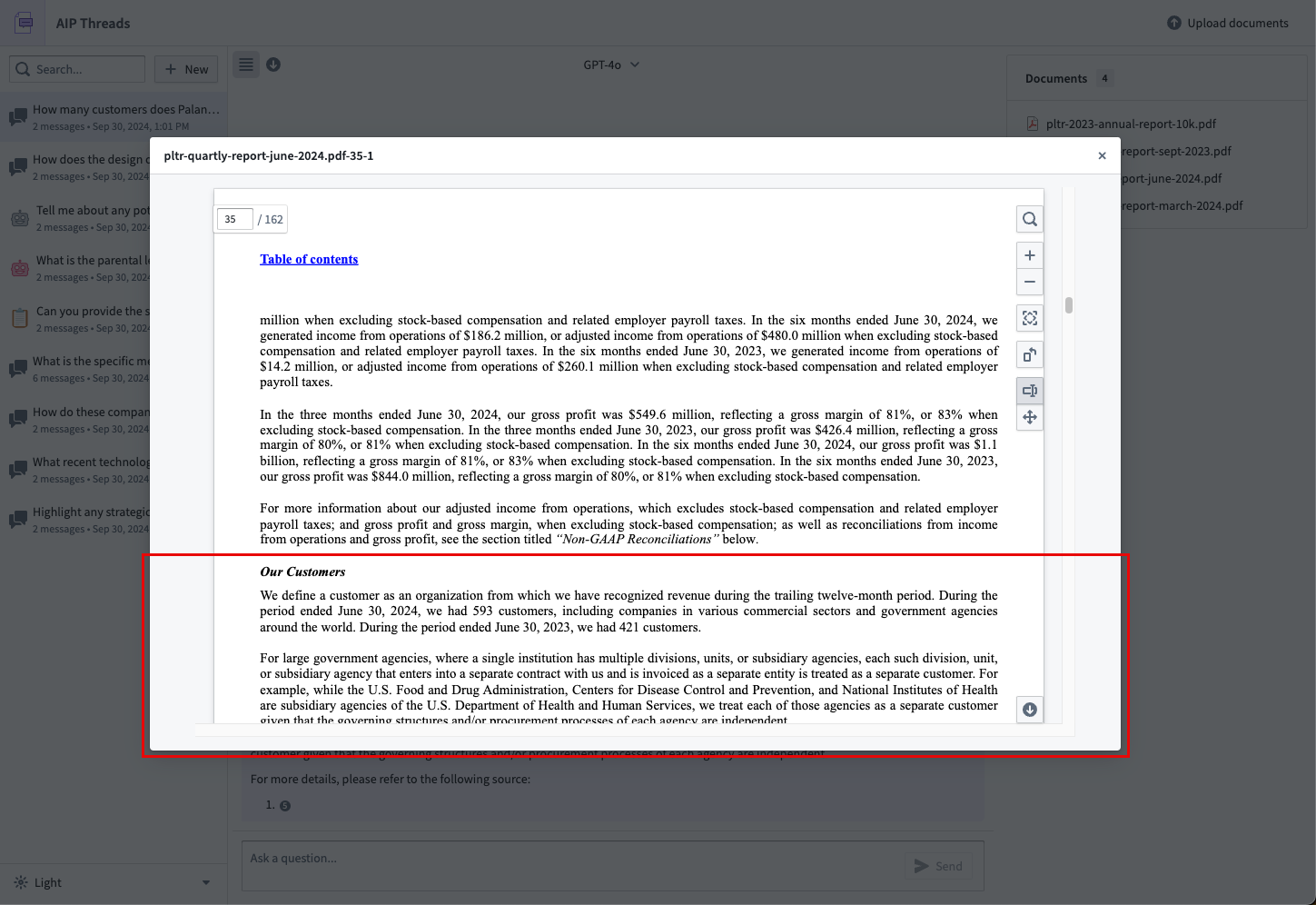
If you would like to change the documents in the context for a thread, either create a new thread and reselect the documents of interest or select Start new thread with current configuration, accessible from the model dropdown menu defined later on this page.
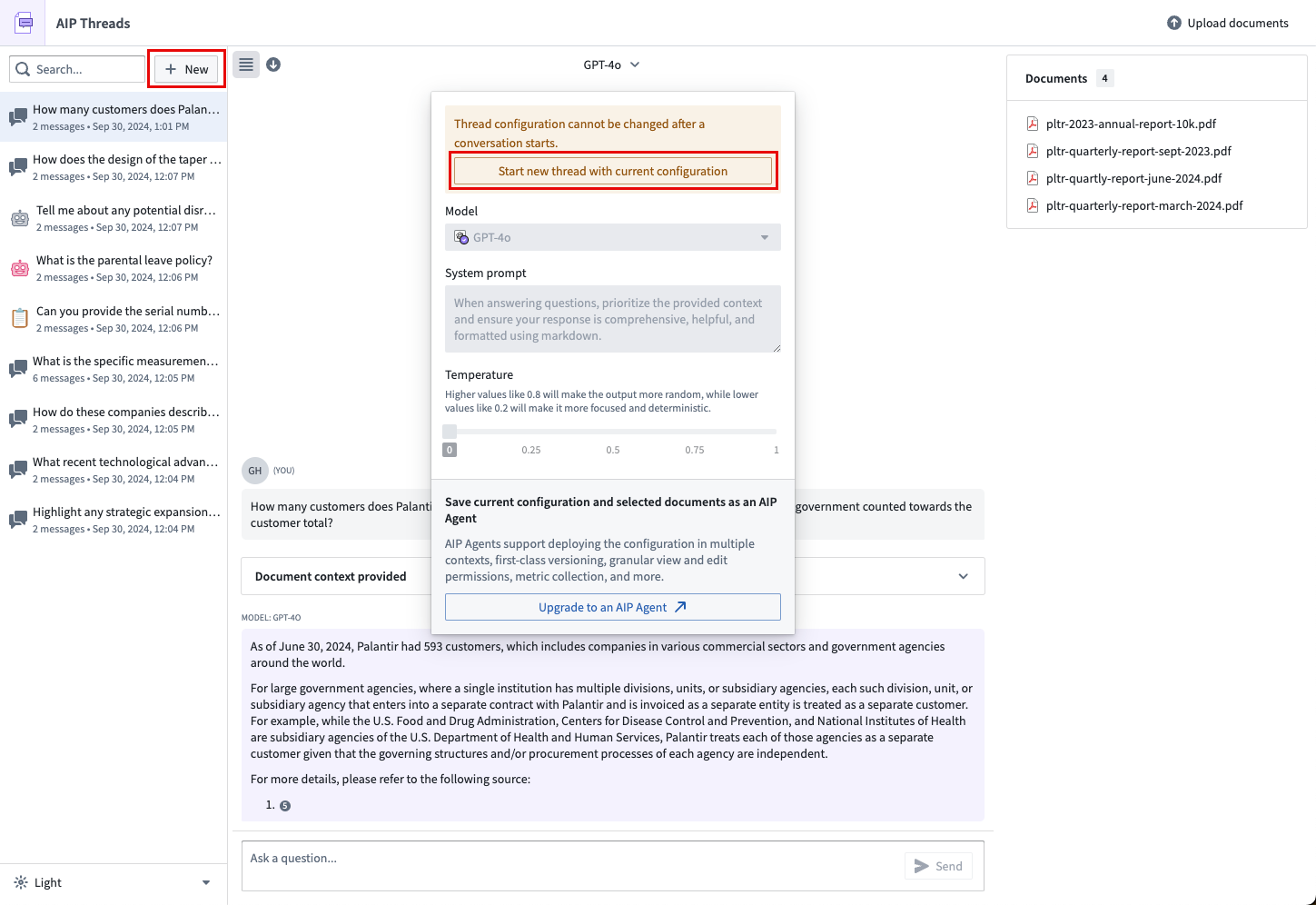
Thread configuration
The following section outlines the different configuration options available.
Model mode
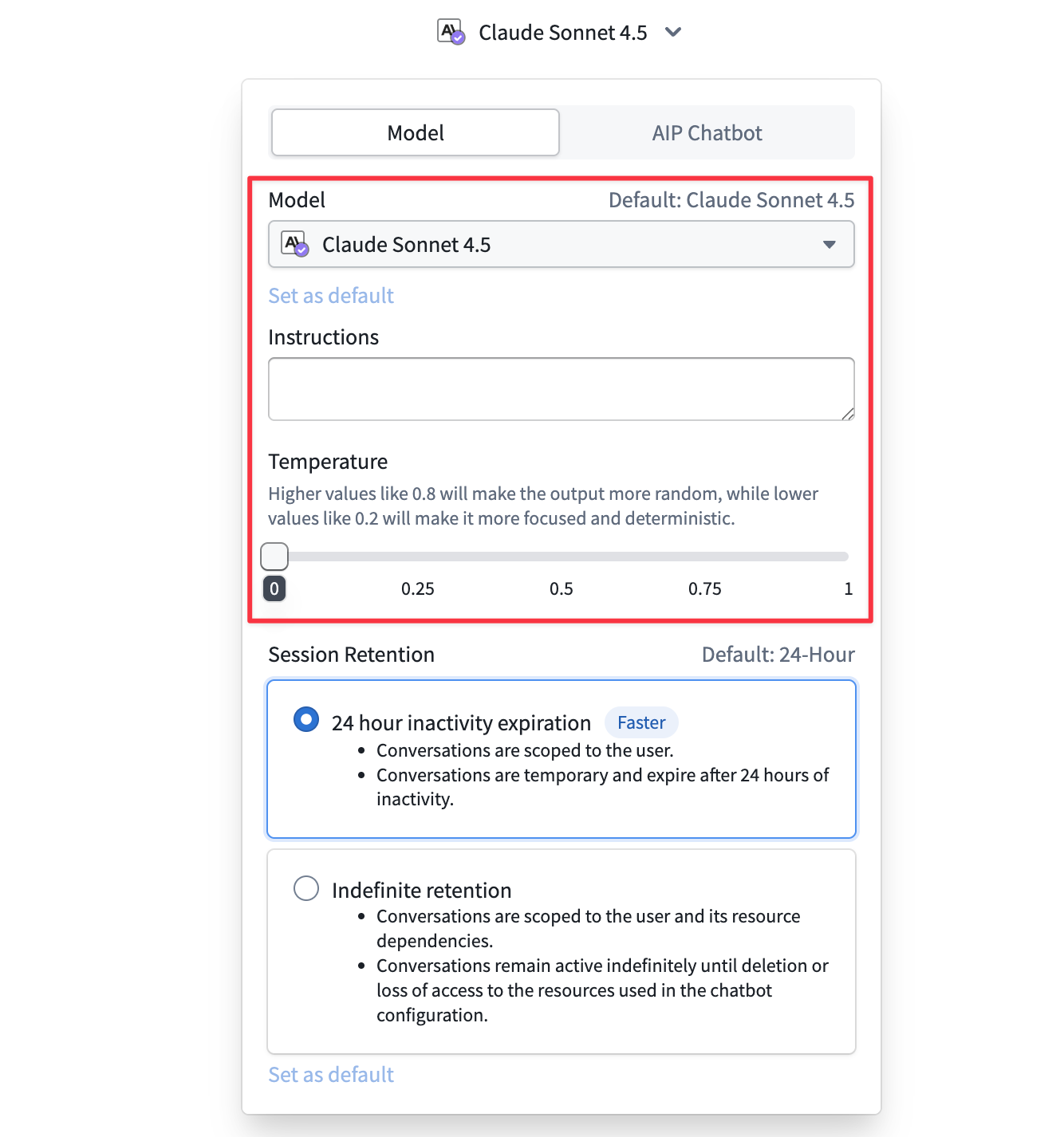
Users can select the LLM used to interact with documents. The models available to you are a subset of those enabled on your enrollment.
Users can modify the system prompt, which is an instruction for an LLM written in natural language. If you would like to modify the system prompt, keep in mind that a LLM only has access to the data that you specifically make available to it. In the case of the default AIP Threads experience, this would be just the documents you have added to the thread. This is different from AIP Chatbot Mode.
Users can modify the model temperature to determine the balance between a more focused, deterministic output (default value 0) and a more random output (maximum value 1).
Upgrade a Thread configuration to an AIP Chatbot
If you find that a particular document or set of documents or configuration of the model and prompting is valuable enough to use again or to share with another user, you may upgrade the thread configuration to an AIP Chatbot by using the option available in the model configuration dropdown menu.
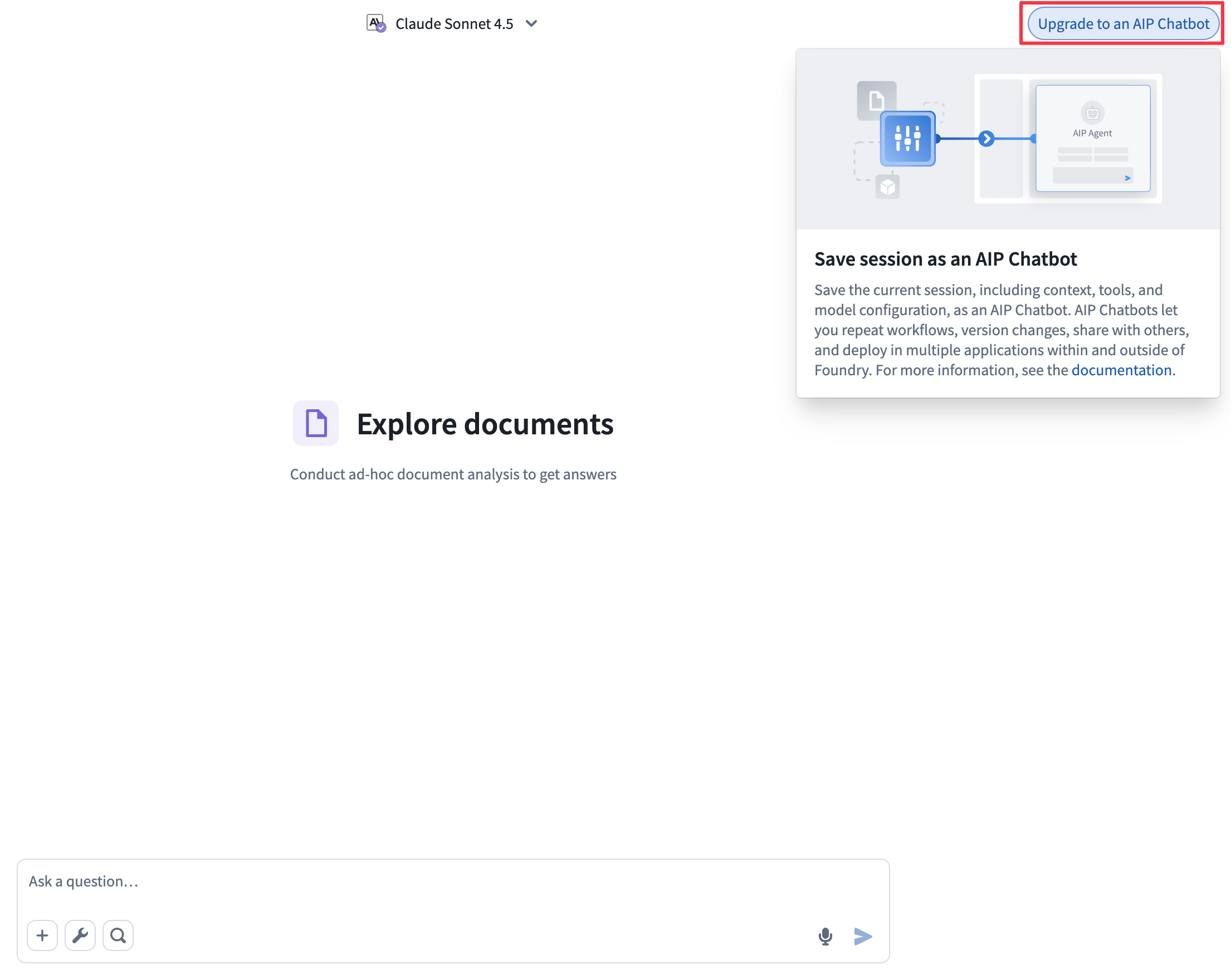
This will take you to AIP Chatbot Studio where you can complete the configuration of the chatbot. Upon publishing in AIP Chatbot Studio and refreshing AIP Threads, you will be able to interact with it again in AIP Threads.
AIP Chatbot Mode
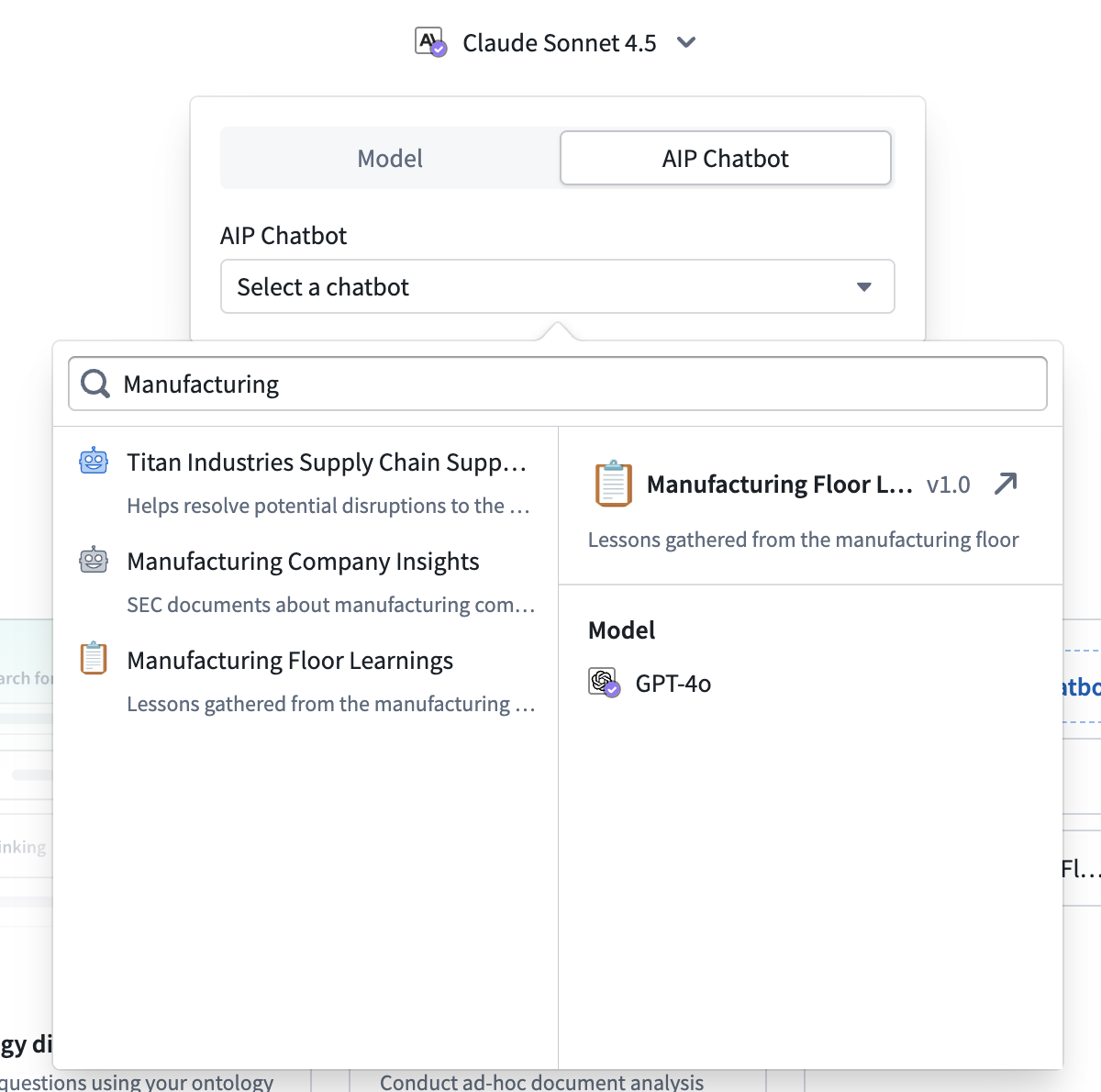
To select an AIP Chatbot to interact with, use the dropdown menu.
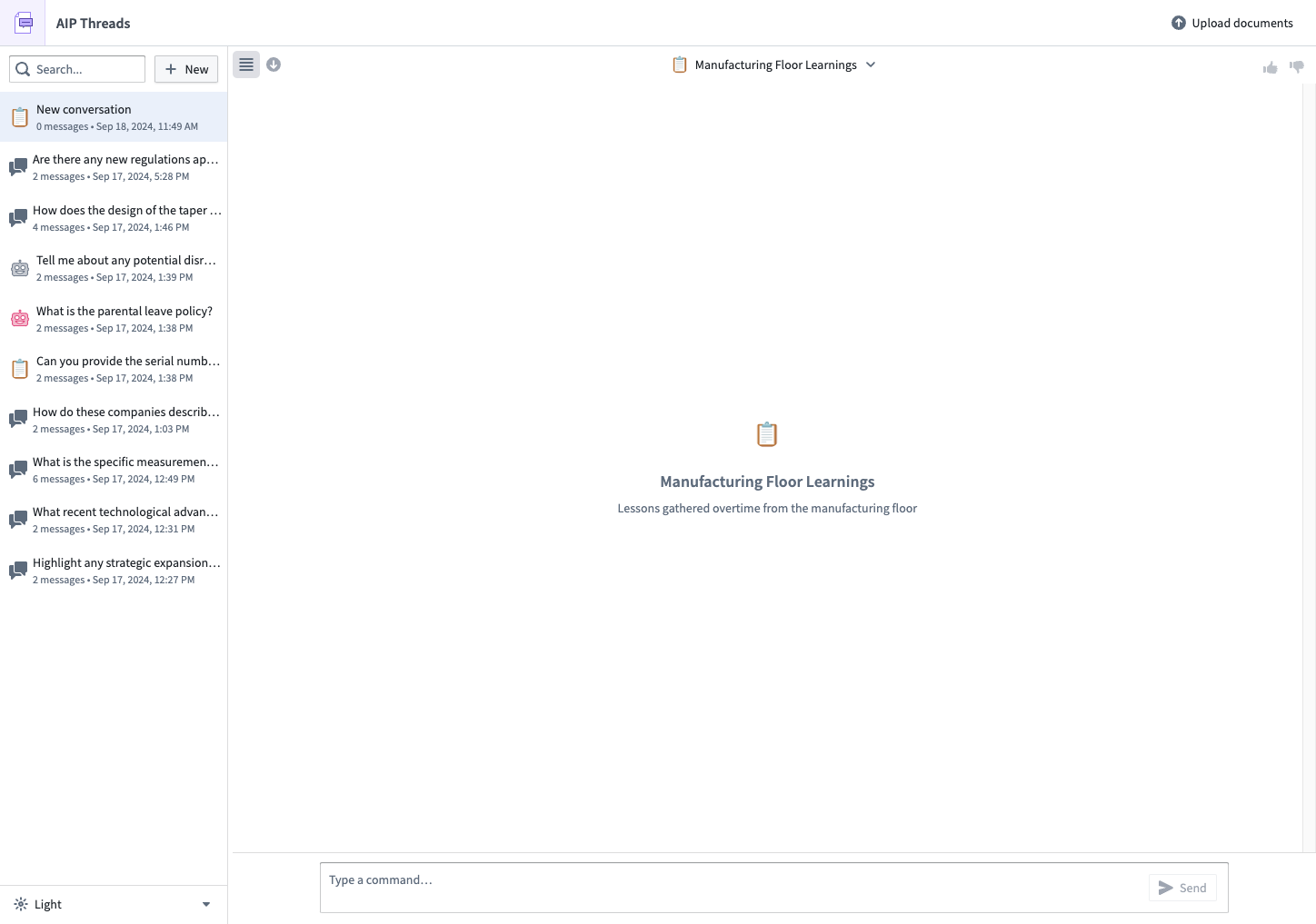
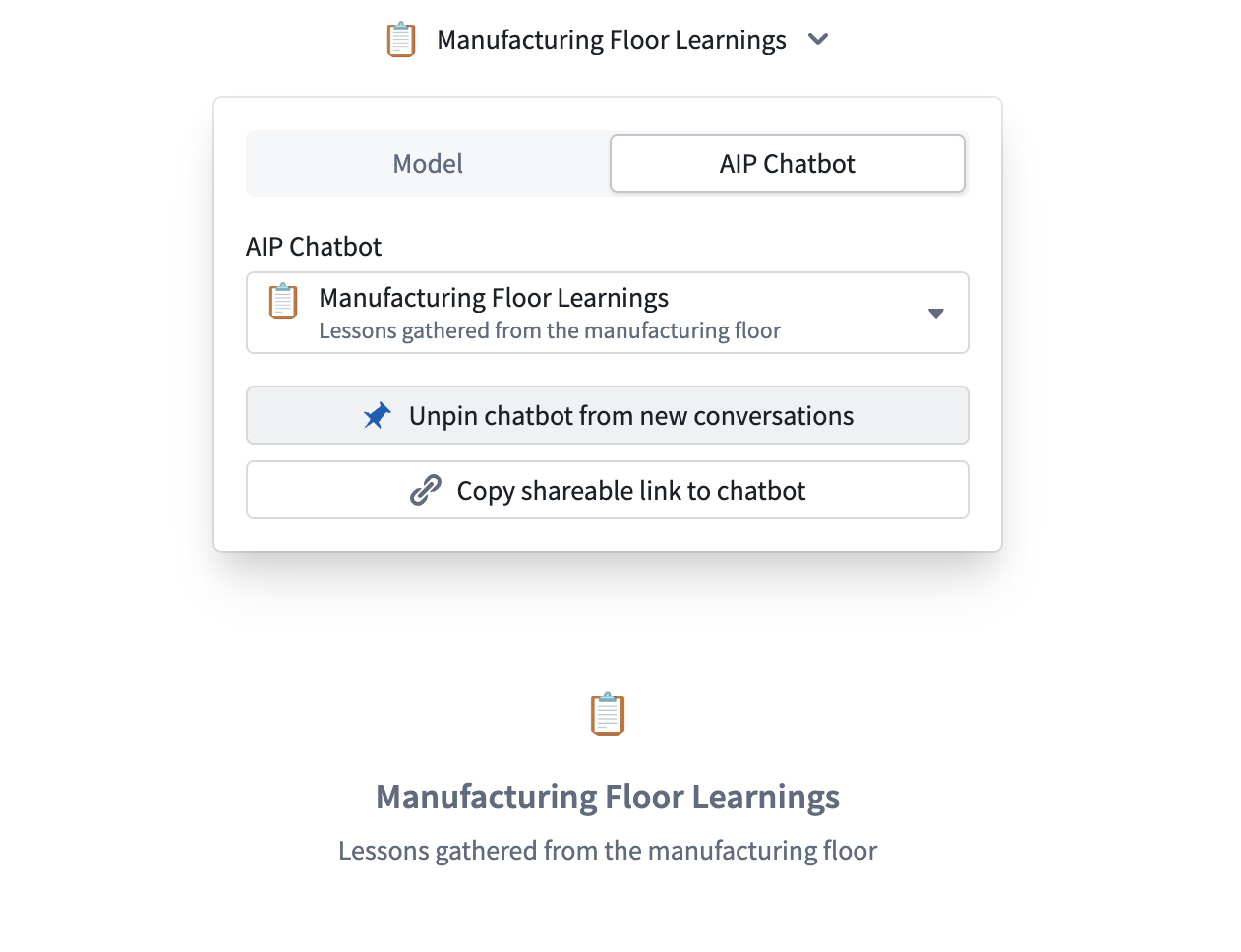
To make a particular chatbot one of your default options to use when starting a new thread, set a chatbot as default.
中文翻译
入门指南
本教程将引导您完成一个简单的工作流程:上传文档、与文档交互以及与 AIP Chatbot 交互。
访问 AIP Threads
您可以通过平台工作区的导航栏或使用快速搜索快捷键 CMD + J(macOS)或 CTRL + J(Windows)来访问 AIP Threads。
应用界面
AIP Threads 界面可分为两个主要部分,在下方的示意图中从左到右编号:
工作流程概览
在典型的 AIP Threads 工作流程中,您可以先在左侧面板(1)上选择之前的对话或开始新对话,然后使用右侧面板(2)与文档或 AIP Chatbot 进行交互。要与 AIP Chatbot 对话,只需从线程配置下拉菜单(A)中选择一个,然后开始交互(C)。要与文档交互,请在文档卡片(B)中上传并选择文档,然后开始交互(C)。
左侧面板
以下部分将讨论左侧面板中可配置的功能。
基本导航
您可以创建新线程、从现有线程中选择以及删除线程。
深色模式
您可以使用线程历史记录下方的选项来调整视觉设置。
最小化左侧面板
您可以使用以下按钮最小化左侧面板。
下载
您可以使用导出选项下载对话内容(JSON 或 PDF 格式)。
上传文档
AIP Threads 目前支持原生(非扫描)PDF 文档。
要上传文档,请按照文档卡片中的上传选项操作。
选择文档存储位置的媒体集后,拖放要处理的文档。
与文档交互
使用选择文档选项将文档添加到线程的上下文中,以访问文档选择对话框。
现在,您可以通过向文档提问来开始线程。
文档模式
AIP Threads 有两种文档模式:完整文档文本和相关文档片段(测试版)。完整文档文本从文档中提取全部文本,而相关文档片段仅提取语义最相关的片段。
完整文档文本适用于简短精炼的文档,或者当您需要 LLM 审查全部内容时。对于较大的文档,或者当您需要关注特定部分或细节时,相关文档片段模式更高效。请注意,使用完整文档文本可能会导致上下文窗口限制。为避免超出 LLM 的上下文容量,请切换到相关文档片段模式。
:::callout{theme="neutral"} 使用相关文档片段模式时,分块策略默认使用每块 4096 个字符(约 1024 个令牌(token)),512 个字符的块重叠(约 128 个令牌),并使用 Text embedding ada-002 作为嵌入模型(embedding model)。无法访问 ada-002 模型的注册用户可以使用其他嵌入模型。 :::
引用
模型已被指示为每个答案提供原始文档的引用,用户应验证 LLM 的回复。引用应指向 PDF 文档中信息来源的相应页码。
如果您想更改线程上下文中的文档,可以创建新线程并重新选择感兴趣的文档,或者选择使用当前配置启动新线程,该选项可通过本文后面定义的模型下拉菜单访问。
线程配置
以下部分概述了可用的不同配置选项。
模型模式
用户可以选择用于与文档交互的 LLM。可供您使用的模型是在您的注册中启用的模型子集。
用户可以修改系统提示词(system prompt),这是用自然语言为 LLM 编写的指令。如果您想修改系统提示词,请记住 LLM 只能访问您专门提供给它的数据。在默认的 AIP Threads 体验中,这仅指您添加到线程中的文档。这与 AIP Chatbot 模式不同。
用户可以修改模型温度(model temperature),以确定更专注、确定性的输出(默认值 0)和更随机的输出(最大值 1)之间的平衡。
将线程配置升级为 AIP Chatbot
如果您发现某个特定文档或文档集,或模型和提示词的配置足够有价值,可以再次使用或与其他用户共享,您可以通过模型配置下拉菜单中的选项将线程配置升级为 AIP Chatbot。
这将带您进入 AIP Chatbot Studio,您可以在其中完成聊天机器人的配置。在 AIP Chatbot Studio 中发布并刷新 AIP Threads 后,您将能够在 AIP Threads 中再次与其交互。
AIP Chatbot 模式
要选择要交互的 AIP Chatbot,请使用下拉菜单。
要将特定聊天机器人设置为启动新线程时的默认选项之一,请将其设为默认。