Data updates and edit history(数据更新与编辑历史)
You can view the data sources used in a spreadsheet under the Sources pane in the top right.
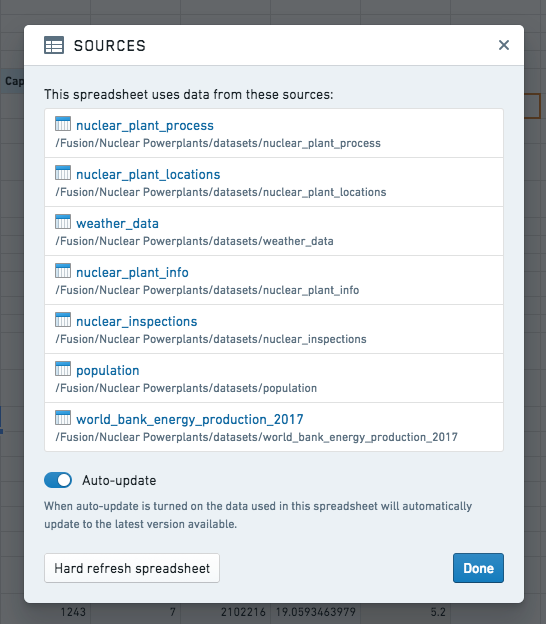
There are two ways to keep a spreadsheet up to date with dynamic data:
- Auto-update: When enabled, anytime a data source (i.e. a Foundry dataset used in a spreadsheet) is updated, cells that use data from that source will automatically be updated.
- Manual: If auto-update is not enabled, you will see a notification bar displayed on top of the spreadsheet whenever the data sources are updated, giving you the option to either update cells with fresh data or keep your spreadsheet as-is.
:::callout{theme="success" title="Tip"} When you share the Fusion sheet with other users, make sure they also have read access to the datasets listed on the Sources pane. Users who lack access to referenced datasets will not be able to open the document. :::
You can see a history of manually and automatically saved snapshots since a spreadsheet has been created in the history pane. Clicking on one of the snapshots will allow you to compare changes and restore if you’d like.
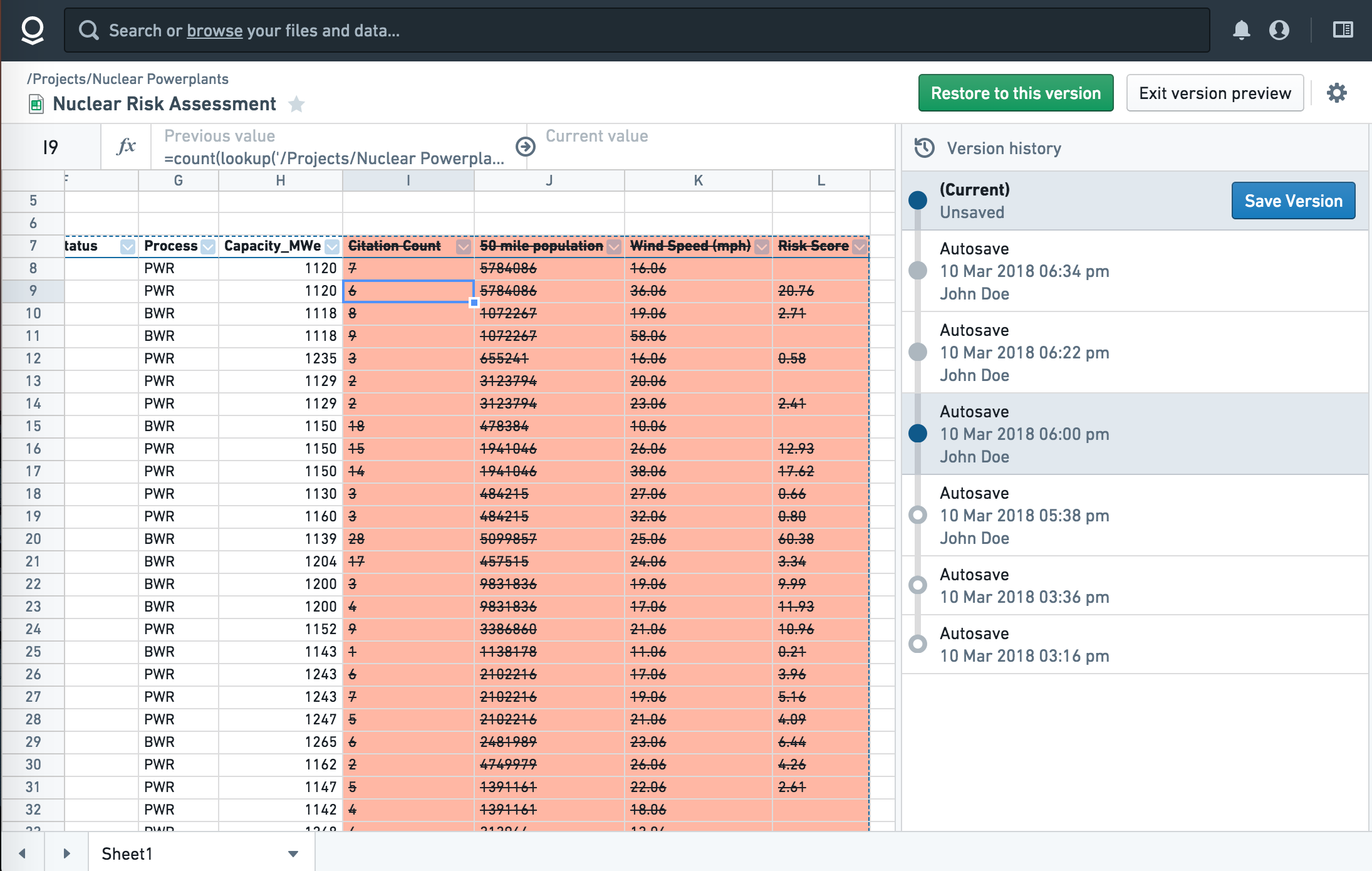
:::callout{theme="success" title="Tip"} Fusion will make backup snapshots of your spreadsheet periodically, but you can also manually make snapshots if you’d like. :::
中文翻译
数据更新与编辑历史
您可以在右上角的"数据源"(Sources)面板中查看电子表格所使用的数据源。
有两种方式可使电子表格与动态数据保持同步:
- 自动更新(Auto-update): 启用后,每当数据源(即电子表格中使用的 Foundry 数据集)发生更新时,引用该数据源的单元格将自动更新。
- 手动更新(Manual): 若未启用自动更新,当数据源更新时,电子表格顶部会显示通知栏,您可选择使用最新数据更新单元格,或保持电子表格原样。
:::callout{theme="success" title="提示"} 当您与其他用户共享 Fusion 工作表时,请确保他们也对"数据源"面板中列出的数据集拥有读取权限。若用户缺少对引用数据集的访问权限,将无法打开该文档。 :::
您可以在历史记录(history)面板中查看自电子表格创建以来所有手动及自动保存的快照历史。点击任一快照即可对比变更内容,并可根据需要恢复至该版本。
:::callout{theme="success" title="提示"} Fusion 会定期自动创建电子表格的备份快照,但您也可以根据需要手动创建快照。 :::