Find and use data(查找并使用数据)
Search
The Find and use data search panel makes it easy to pull data and objects into Fusion. The search panel can be accessed by selecting the Find and use data box in the upper-right-hand corner of the Fusion sheet.
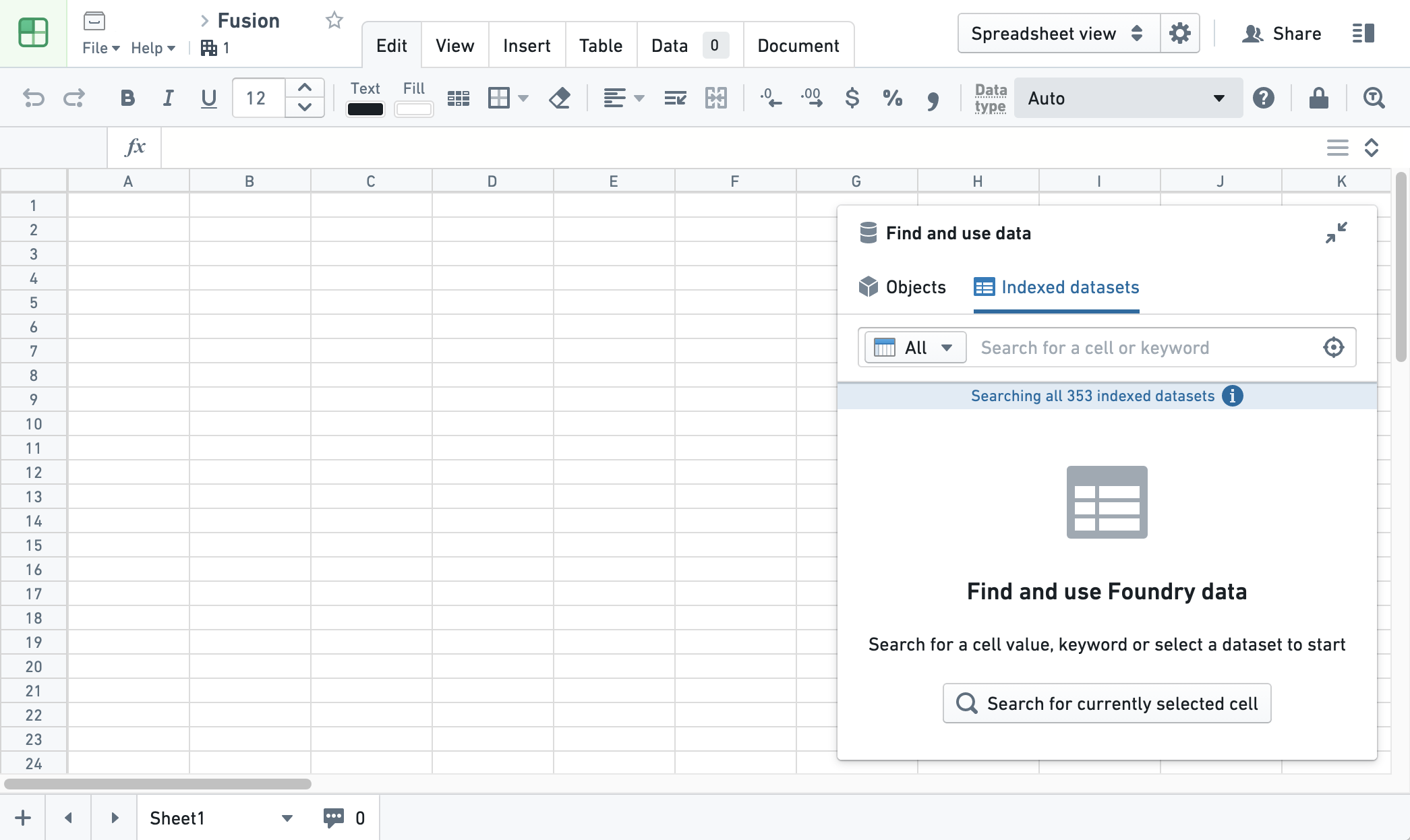
You can search either by typing values directly into the search input area ("Search for a cell or keyword") or by clicking the "Target" icon and then selecting cell values.

You can also choose specific object types or datasets to search across. If a selected dataset is not indexed, you will be prompted to index it.
Import data
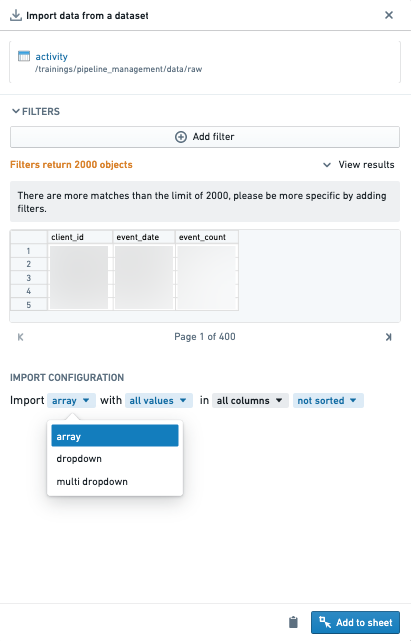
Once you’ve found the data you want to import, select Use data and open the Import Data panel to bring it into the sheet. Note that you can import a maximum of 2,000 rows.
The Import Data panel will add any filters used in the search results as filters for the import query. For example, if you search for Red and select Use data for a set of cars that matched on the color property or column, your initial query will start as cars where color == red.
From here you can add more filters, and eventually add the resulting data to your sheet as an array, dropdown, or multi-dropdown.
Dataset array
Importing as a dataset array adds a lookup_array function to the sheet. A dataset array does not include column names from the source. See Lookup datasets for more information on how to use lookups.
:::callout{theme="success" title="Tip"}
To expand an array of results from a lookup, you can Shift+drag that cell down into individual cells.
:::
Dataset dropdown and dataset multi-dropdown
Adding a dataset dropdown to a sheet places a single-select dropdown in a single cell for each imported column. A dataset multi-dropdown does the same, but allows selection of multiple values. You can then use this dropdown to power other parts of the sheet.
Formatting can be applied to dataset dropdown cells, including merging or resizing the cell, setting font size, and setting background fill.
Import objects
Similar to datasets, you can use filters to refine the list of objects imported into your sheet if the objects are not backed by restricted views. Filters can be values or cell references. Cell references will filter based on the value of a cell and allow you to make a dynamic sheet where your object set will update based on other values or selections. In this example, the underlying data comes from the U.S. Census Bureau ↗.
Below, the City object type has a filter where State is equal to the value of cell B2. Currently the cell value is Arizona, and filters down to cities where State is Arizona. The cell value could be changed, which would update the filter.
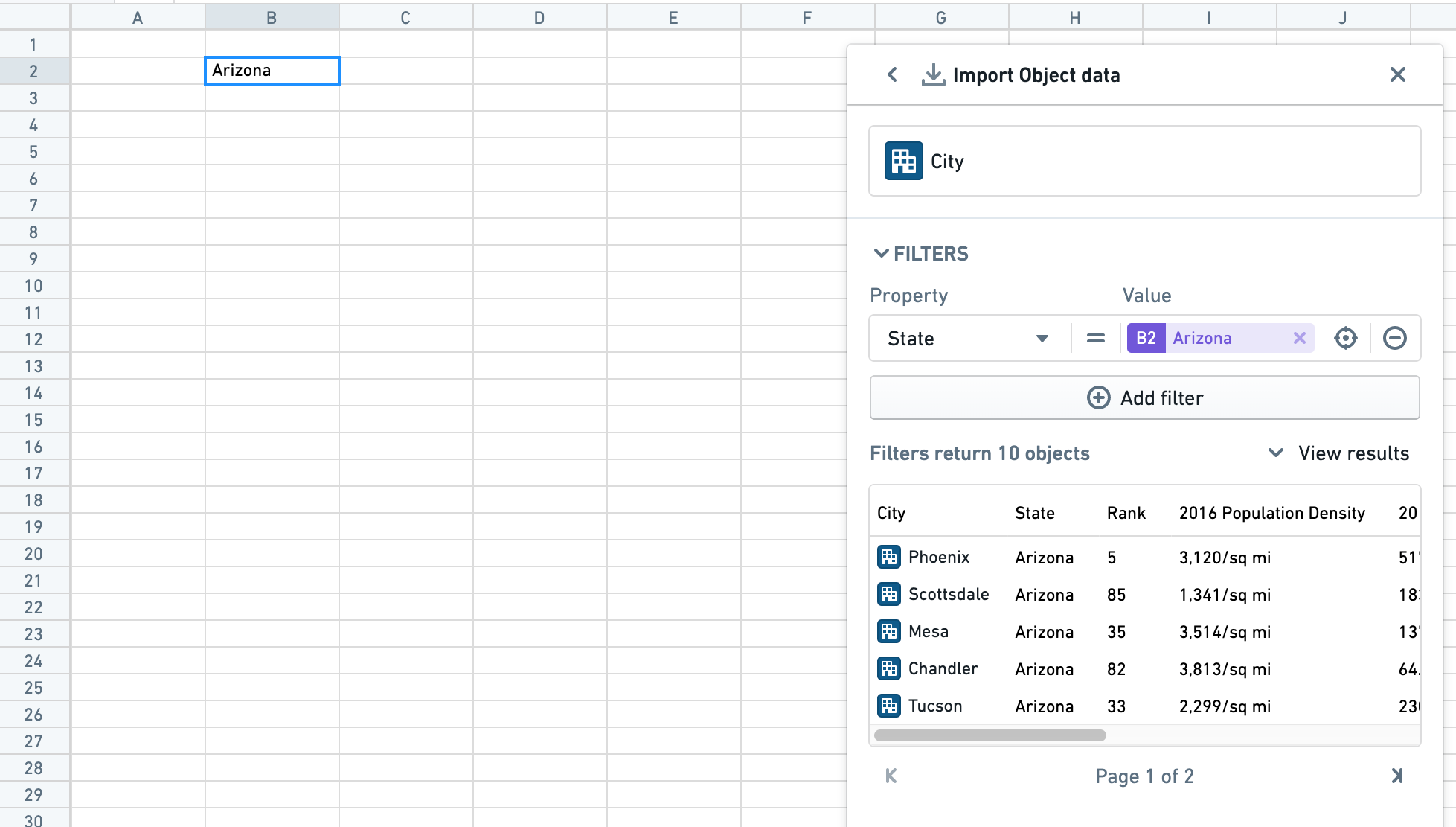
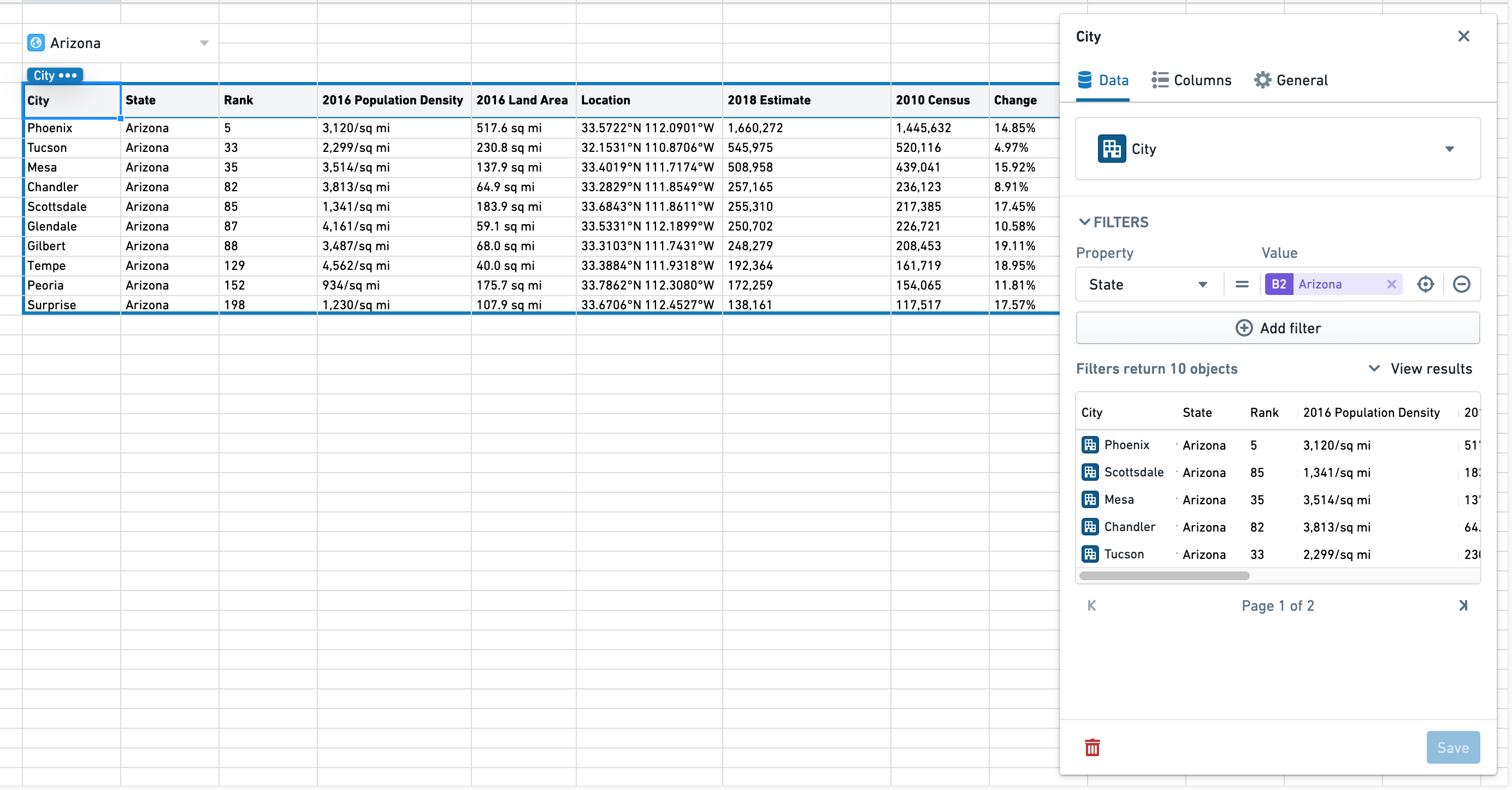
After applying filters, you can select Reload to view the resulting object set. You can import this object set to the sheet as an object dropdown or an object table. By default, up to 200 objects can be pulled into a single object dropdown or object table.
Object dropdown
Adding objects to a sheet as a dropdown will place a dropdown in a single cell. You can use this dropdown to power other parts of the sheet.
The object dropdown cell will display the currently selected object alongside the object icon. You can then select the cell to open the dropdown and select another object.
Formatting can be applied to object dropdown cells, including merging or resizing the cell, setting font size, and setting background fill.

Object tables
Object tables can be formatted for presentation or used elsewhere in the sheet.
Object dropdowns and object tables can be combined to create a simple dashboard: to accomplish this, object dropdowns can be used to select objects which are in turn used as filters in the object table.
:::callout{theme="neutral"} A Fusion sheet cannot contain both objects and export dataset syncs. If you have objects, you will be prevented from adding new dataset syncs and vice versa. :::
中文翻译
查找并使用数据
搜索
查找并使用数据(Find and use data) 搜索面板让您可以轻松地将数据和对象(objects)导入 Fusion。点击 Fusion 工作表右上角的 查找并使用数据 框即可打开该搜索面板。
您可以直接在搜索输入区域("搜索单元格或关键词")中输入值进行搜索,也可以点击"目标"图标,然后选择单元格中的值。
您还可以选择特定的对象类型(object types)或数据集(datasets)进行搜索。如果所选数据集尚未建立索引,系统会提示您为其建立索引。
导入数据
找到要导入的数据后,选择 使用数据(Use data) 并打开 导入数据(Import Data) 面板,即可将数据导入工作表。请注意,每次最多可导入 2,000 行数据。
导入数据 面板会将搜索中使用的所有筛选条件作为导入查询的筛选条件。例如,如果您搜索 Red,并为一组在 color 属性或列上匹配的汽车选择 使用数据,则初始查询将筛选出 color == red 的汽车。
在此之后,您可以添加更多筛选条件,并最终将结果数据以数组(array)、下拉列表(dropdown)或多选下拉列表(multi-dropdown)的形式添加到工作表中。
数据集数组
以数据集数组形式导入会在工作表中添加一个 lookup_array 函数。数据集数组不包含源数据中的列名。有关如何使用查找功能的更多信息,请参阅查找数据集。
:::callout{theme="success" title="提示"}
要展开 lookup 返回的结果数组,您可以按住 Shift 键并将该单元格向下拖动到各个单元格中。
:::
数据集下拉列表和数据集多选下拉列表
将数据集下拉列表添加到工作表后,每个导入的列都会在单个单元格中放置一个单选下拉列表。数据集多选下拉列表功能相同,但允许选择多个值。您可以使用此下拉列表来控制工作表的其他部分。
可以对数据集下拉列表单元格应用格式设置,包括合并或调整单元格大小、设置字体大小以及设置背景填充。
导入对象
与数据集类似,如果对象不受限制视图(restricted views)支持,您可以使用筛选条件来精炼导入到工作表中的对象列表。筛选条件可以是值,也可以是单元格引用。单元格引用会根据单元格的值进行筛选,使您能够创建动态工作表,其中的对象集将根据其他值或选择进行更新。以下示例中的底层数据来自美国人口普查局 ↗。
下图中,City 对象类型设置了一个筛选条件,即 State 等于单元格 B2 的值。当前单元格的值为 Arizona,因此筛选结果仅显示 State 为 Arizona 的城市。更改单元格的值即可更新筛选条件。
应用筛选条件后,您可以选择 重新加载(Reload) 来查看生成的对象集。您可以将此对象集以对象下拉列表(object dropdown)或对象表格(object table)的形式导入工作表。默认情况下,单个对象下拉列表或对象表格最多可导入 200 个对象。
对象下拉列表
将对象作为下拉列表添加到工作表后,会在单个单元格中放置一个下拉列表。您可以使用此下拉列表来控制工作表的其他部分。
对象下拉列表单元格会显示当前选中的对象及其对应的对象图标。您可以点击该单元格打开下拉列表,然后选择其他对象。
可以对对象下拉列表单元格应用格式设置,包括合并或调整单元格大小、设置字体大小以及设置背景填充。
对象表格
对象表格可以设置格式以便展示,也可以在工作表的其他位置使用。
对象下拉列表和对象表格可以组合使用,以创建简单的仪表板:具体做法是,使用对象下拉列表选择对象,然后将这些对象用作对象表格中的筛选条件。
:::callout{theme="neutral"} 一个 Fusion 工作表不能同时包含对象和导出数据集同步(export dataset syncs)。如果工作表中已有对象,则无法添加新的数据集同步,反之亦然。 :::