Sheets(电子表格(Sheets))
A Fusion spreadsheet looks and behaves like other spreadsheet applications, meaning that you can type anything anywhere, use cell references and functions, and so on. However, note that Fusion uses single quotes (') to indicate strings, not double quotes (").
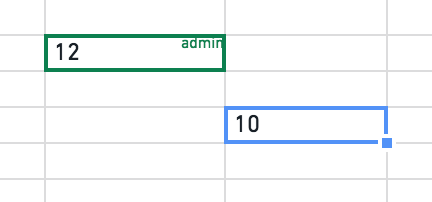
Multiple users can edit a spreadsheet at the same time, and see each others’ cursors with their respective usernames. Changes in cells only become visible to other users once they’ve been submitted (e.g. after submitting with the Enter key).
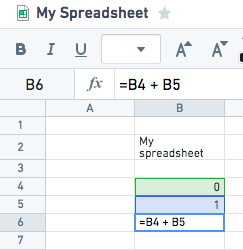
Sheets can be renamed by double-clicking the sheet name. Cell references work as one would expect (e.g =A1, =A1:A3, =Sheet2!A1:A3) and you can use the mouse when editing in the formula bar.
:::callout{theme="success" title="Tip"} You can drag the formula bar to expand it. :::
The function library is a combination of Contour expression language DSL and Fusion specific spreadsheet functions. For a list of functions visit function library.
:::callout{theme="success" title="Tip"}
Typing =a into the formula bar will give you a list of suggestions.
:::
In Fusion, the most common cell types are:
- String (e.g.
Fusionor='Fusion') - Number (e.g.
12or=12) - Date (e.g.
2013-02-18or=date(2013, 2, 18)) - Timestamp (e.g.
2013-02-18 00:00:00) - Boolean (e.g.
=true) - Array (e.g.
=array(1, 2)or=array('StringOne', 'StringTwo')) - Null (e.g.
=null)
:::callout{theme="success" title="Tip"} A good way to visually distinguish between decimals and other types of cells in a spreadsheet is to note that decimals will always be right-aligned in the cell. :::
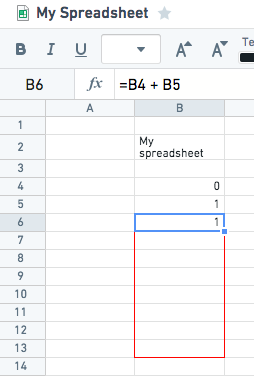
Similar to other spreadsheet applications, you can quickly fill cells with the contents of another cell by using copy/paste. Or, you can drag the cell’s fill handle. Double clicking the fill handle of a cell (or a region of cells) will automatically fill any empty cells in the same column(s), only stopping when adjacent cells are also empty.
You can also use the most common keyboard shortcuts for spreadsheets within Fusion. A list of them can be reached via the Keyboard Shortcuts button on the Document tab of the toolbar.
中文翻译
电子表格(Sheets)
Fusion 电子表格的外观和操作方式与其他电子表格应用程序类似,这意味着您可以在任意位置输入内容、使用单元格引用和函数等。但请注意,Fusion 使用单引号(')表示字符串,而非双引号(")。
多个用户可以同时编辑同一电子表格,并看到彼此的光标及其对应的用户名。单元格中的更改只有在提交后(例如按 Enter 键提交)才会对其他用户可见。
双击工作表名称即可重命名工作表。单元格引用的使用方式与预期一致(例如 =A1、=A1:A3、=Sheet2!A1:A3),在公式栏中编辑时也可以使用鼠标。
:::callout{theme="success" title="提示"} 您可以拖动公式栏来展开它。 :::
函数库是 Contour 表达式语言 DSL 与 Fusion 特定电子表格函数的结合。有关函数列表,请访问函数库。
:::callout{theme="success" title="提示"}
在公式栏中输入 =a 将显示建议列表。
:::
在 Fusion 中,最常见的单元格类型包括:
- 字符串(String,例如
Fusion或='Fusion') - 数字(Number,例如
12或=12) - 日期(Date,例如
2013-02-18或=date(2013, 2, 18)) - 时间戳(Timestamp,例如
2013-02-18 00:00:00) - 布尔值(Boolean,例如
=true) - 数组(Array,例如
=array(1, 2)或=array('StringOne', 'StringTwo')) - 空值(Null,例如
=null)
:::callout{theme="success" title="提示"} 在电子表格中直观区分小数与其他类型单元格的一个好方法是:小数在单元格中始终右对齐。 :::
与其他电子表格应用程序类似,您可以通过复制/粘贴快速用另一个单元格的内容填充单元格。或者,您也可以拖动单元格的填充柄。双击单元格(或单元格区域)的填充柄将自动填充同一列中的空白单元格,仅当相邻单元格也为空时才会停止。
您还可以在 Fusion 中使用最常见的电子表格键盘快捷键。通过工具栏的“文档”选项卡上的“键盘快捷键”按钮即可查看快捷键列表。