Sync data from Fusion to a dataset(将数据从 Fusion 同步至数据集)
Fusion allows you to create datasets based on your spreadsheets. You can either sync a whole sheet to a dataset or select a table range to be synced. After the data is successfully synced to a dataset in Foundry, the data will be available for consumption by other applications, such as Contour.
:::callout{theme="warning"} You may only use one type of sync within a Fusion sheet: a sheet sync, or a table sync. Using both types is not allowed as it would cause overlaps in dataset syncs. :::
Sync a table range to a dataset
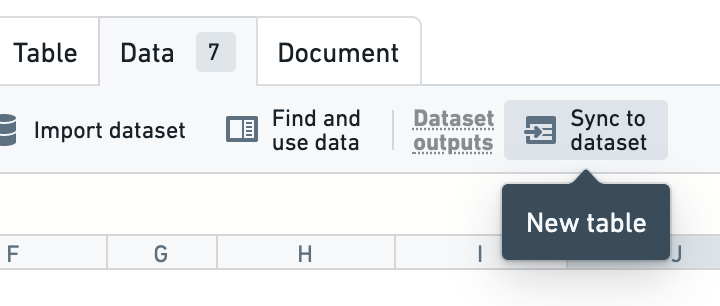
To sync a specific part of a sheet to a dataset, first select the region of your spreadsheet that you want to make available as a dataset. Then, select Sync to dataset in the Data menu. A pop-up will appear where you can create a table region and set up a sync with a default name in the same folder of your spreadsheet.
You can then move, rename, or change the branch of the dataset. You can also choose to modify the export column type to match your desired data type. Change column types from the same menu or by selecting the table's label in the spreadsheet to open a panel where you can make changes.
Select Save to apply the changes.
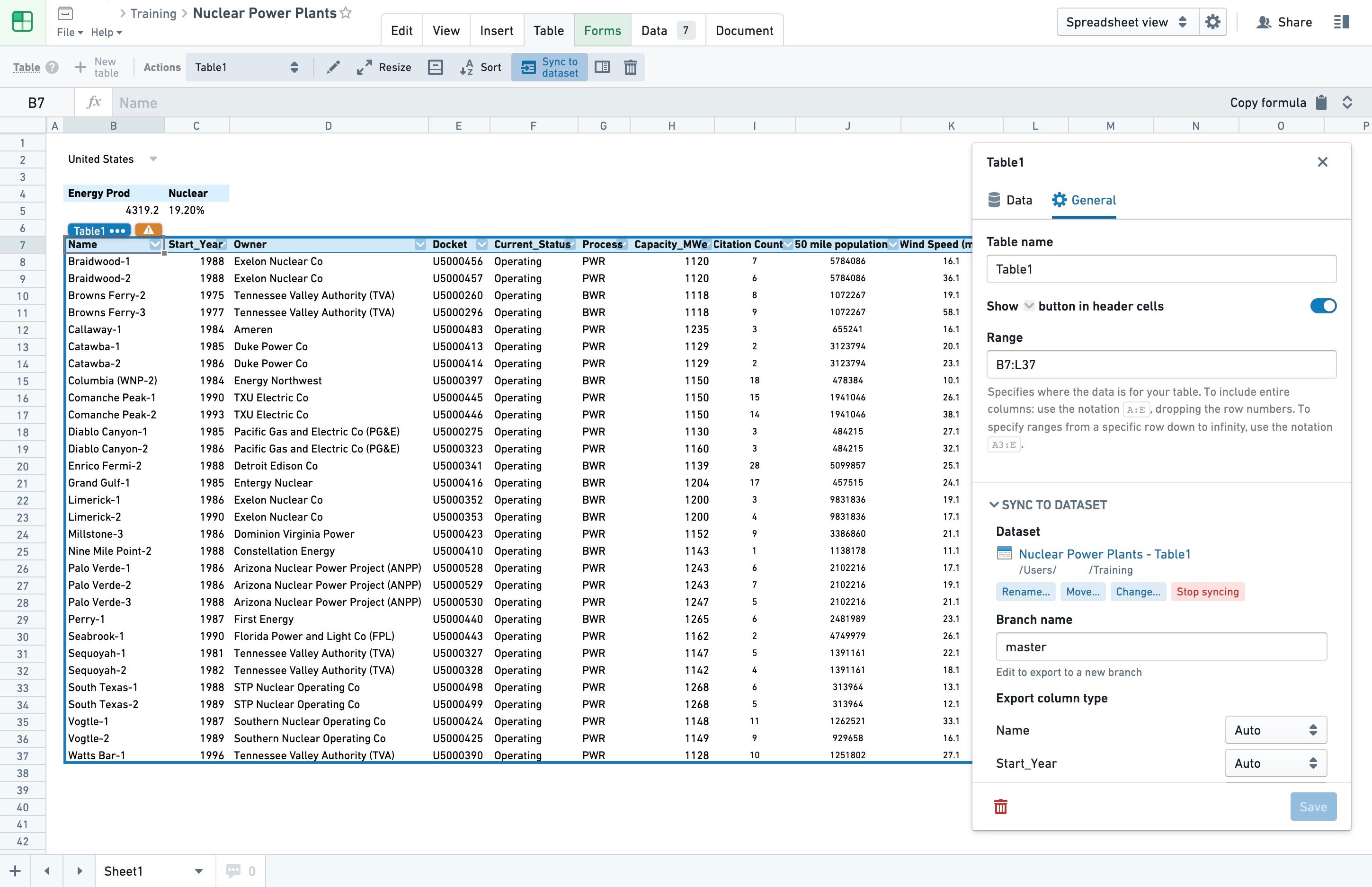
Any future changes to the exported table range will trigger a build and be reflected in its associated dataset. For example, if the dataset is open in Contour, you can update your path after you modify the spreadsheet.
Once your data in Fusion is synced to a dataset, you can also choose to export it as a CSV file.
:::callout{theme="neutral"}
Once you sync a table range to a dataset, any changes made to that table range will trigger a build and be reflected in its associated dataset as long as you have at least Editor permissions on the associated dataset. As you edit the table range, you may see a number of finished and aborted transactions on the dataset.
:::
You can also set the column types of the output dataset using the dropdown menu on the column headers of the table region in your spreadsheet.
Screenshots use open-source data from the US Nuclear Regulatory Commission ↗.
Sync a Fusion sheet to a dataset
If you need your whole Fusion sheet to be synced to a dataset, you can set up a sheet sync instead of a sync of a table range. While you can use table range syncs to create multiple datasets from within one Fusion sheet, a sheet sync will create only one dataset for the whole sheet.
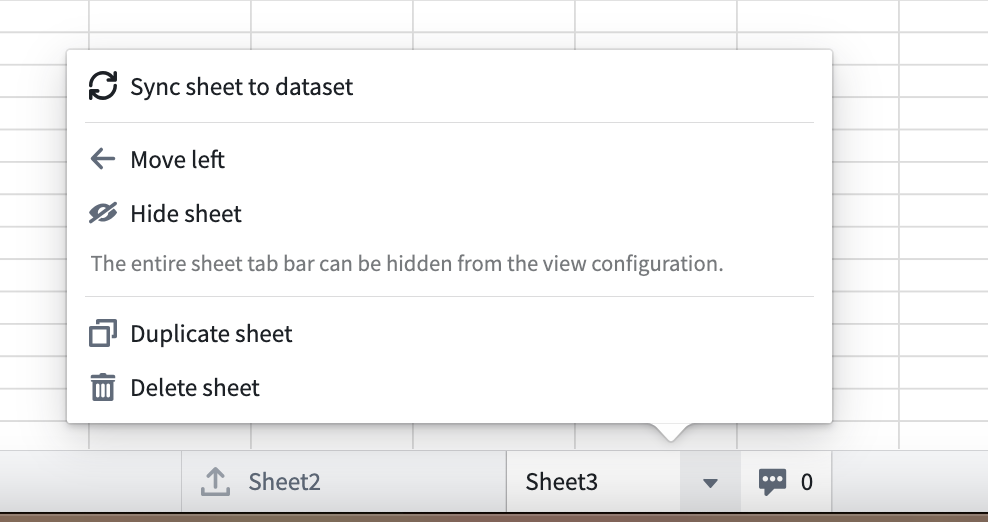
To set up a sheet sync, navigate to the bottom of your Fusion document and right-click on the sheet you want to sync to a dataset. Select Sync sheet to dataset. After a brief wait, the dialog will change and you will be able to edit the sync that was just initialized.
If required, you can swap out the Fusion sheet backing a dataset by performing the following steps:
- Create a new Fusion sheet with your desired data.
- Navigate to the Fusion table you want to replace and choose Stop syncing in the table details window.
- Go to the dataset and delete the job spec by navigating through the following: Details tab > Job spec > Edit > Delete.
- Navigate to the newly created Fusion sheet, create a table to use, and sync it to the
masterbranch of the dataset.
中文翻译
将数据从 Fusion 同步至数据集
Fusion 允许您基于电子表格创建数据集。您既可以将整个工作表同步到数据集,也可以选择同步某个表格区域。数据成功同步至 Foundry 数据集后,即可供 Contour 等其他应用程序使用。
:::callout{theme="warning"} 在 Fusion 工作表中,您只能使用一种同步类型:工作表同步或表格同步。不允许同时使用两种类型,否则会导致数据集同步重叠。 :::
将表格区域同步至数据集
若要将工作表的特定部分同步至数据集,请先选中电子表格中需要作为数据集的区域,然后在 数据 菜单中选择 同步至数据集。此时会弹出窗口,您可以在其中创建表格区域,并使用默认名称在电子表格所在文件夹中设置同步。
之后您可以移动、重命名或更改数据集的分支。您还可以修改导出列类型以匹配所需的数据类型。可通过同一菜单更改列类型,或选中电子表格中的表格标签打开面板进行修改。
选择 保存 以应用更改。
对导出表格区域所做的任何后续更改都将触发构建,并反映在关联数据集中。例如,如果数据集在 Contour 中处于打开状态,您可以在修改电子表格后更新路径。
Fusion 中的数据同步至数据集后,您还可以选择将其导出为 CSV 文件。
:::callout{theme="neutral"}
将表格区域同步至数据集后,只要您对关联数据集拥有至少 Editor 权限,对该表格区域所做的任何更改都将触发构建并反映在关联数据集中。编辑表格区域时,您可能会看到数据集上出现大量已完成和已中止的事务。
:::
您还可以使用电子表格中表格区域列标题上的下拉菜单设置输出数据集的列类型。
截图使用了来自 美国核管理委员会 ↗ 的开源数据。
将 Fusion 工作表同步至数据集
如果您需要将整个 Fusion 工作表同步至数据集,可以设置工作表同步,而非表格区域同步。表格区域同步允许您从单个 Fusion 工作表中创建多个数据集,而工作表同步则仅为整个工作表创建一个数据集。
要设置工作表同步,请导航至 Fusion 文档底部,右键单击要同步至数据集的工作表,选择 同步工作表至数据集。稍等片刻后,对话框将发生变化,您即可编辑刚刚初始化的同步。
如有需要,您可以通过以下步骤替换支持数据集的 Fusion 工作表:
- 创建包含所需数据的新 Fusion 工作表。
- 导航至要替换的 Fusion 表格,在表格详情窗口中选择 停止同步。
- 进入数据集,依次点击 详情选项卡 > 作业规范 > 编辑 > 删除 来删除作业规范。
- 导航至新创建的 Fusion 工作表,创建要使用的表格,并将其同步至数据集的
master分支。