Checking Permissions(检查权限)
You can check someone's permissions on a Project, folder, or file by using the Check access panel in the workspace sidebar or the Data Lineage tool.
Check access panel
To explore a user's permissions in more detail, use the Check access panel in the sidebar. On a Project, folder, or file, open the sidebar, then select Access > Check access. This panel is sometimes referred to as the "Access checker".

Access requirements and additional data requirements
The Check access panel can be used to confirm if a user meets the access requirement for the Project, folder, or file. Displayed under Access requirements, this includes:
- Satisfying the Organization and Marking requirements.
- Having one or more roles (directly, via a group, or a default role).
In addition to the access requirements described above, certain files may require additional permissions, which are listed under Additional data requirements. For example:
- A dataset that inherits Markings through lineage requires access to those Markings to see the dataset's data.
- A Workshop module that displays a table of objects requires access to the object type & its datasources.
Check access examples
In this first example, notional user John Smith meets access requirements for this dataset, but doesn't meet the additional data requirements because of the Common: Food Marking inherited through lineage. This means that he can see the dataset and its metadata, but not its data.

In this second example, John Smith also meets the access requirements for this Workshop module. The Workshop module uses object types, link types, and action types that John Smith will need access to in order to use the module; these elements are listed under Additional data requirements. John Smith has access to some of these elements but not all (as indicated by the colored dots); clicking the right-arrow icon allows you to examine these more closely.

Data Lineage
In addition to the Check access panel in the sidebar, you can visualize someone's access across complex data pipelines using the Data Lineage tool.
You can access this view by clicking on Explore data lineage from the Check access panel, or by selecting Permissions as the Node coloring option next to the right toolbar in the Data Lineage tool. This offers two sub-options:
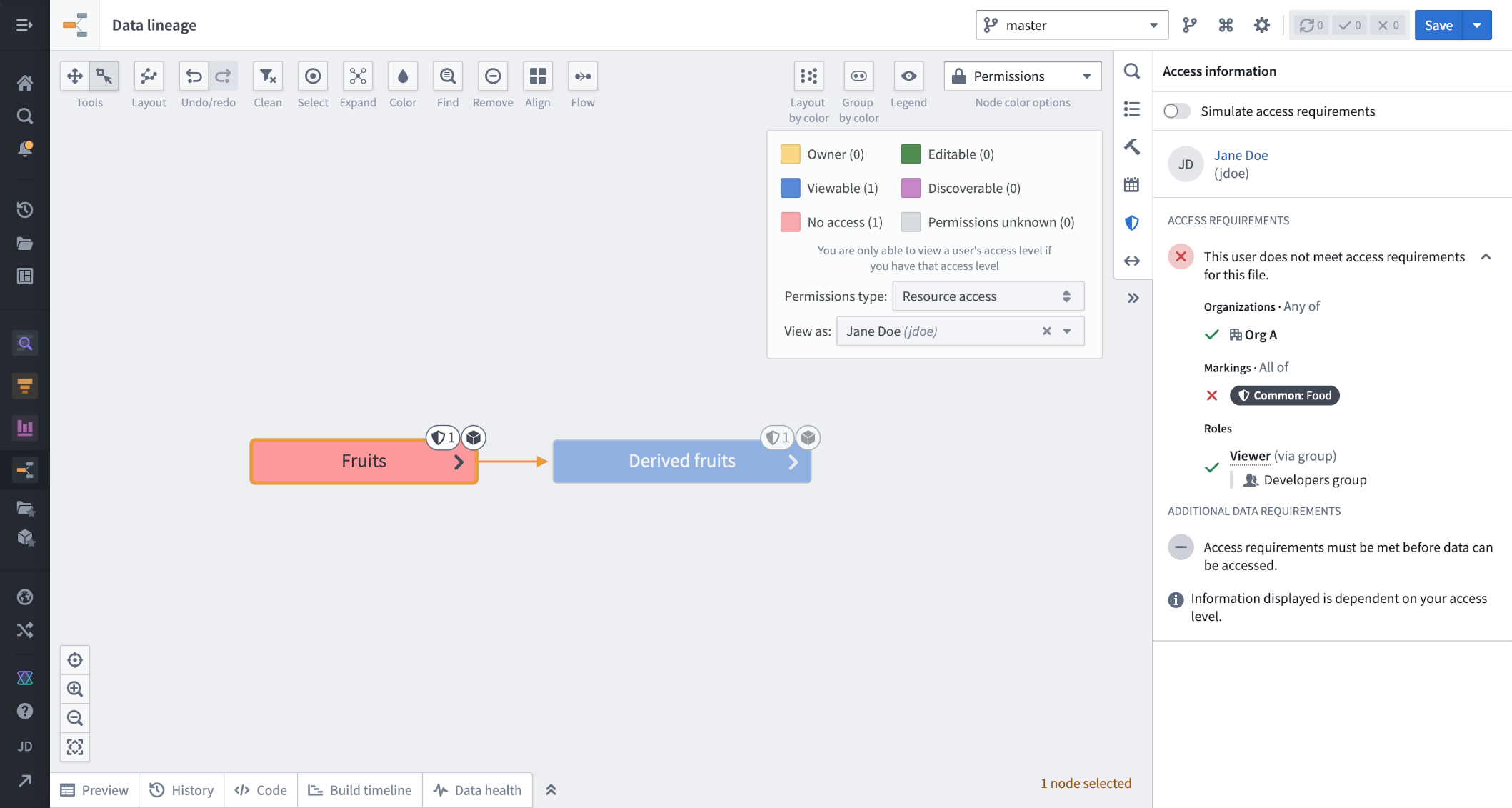
- Resource access: Nodes in the graph are colored based on whether the user meets the access requirements.

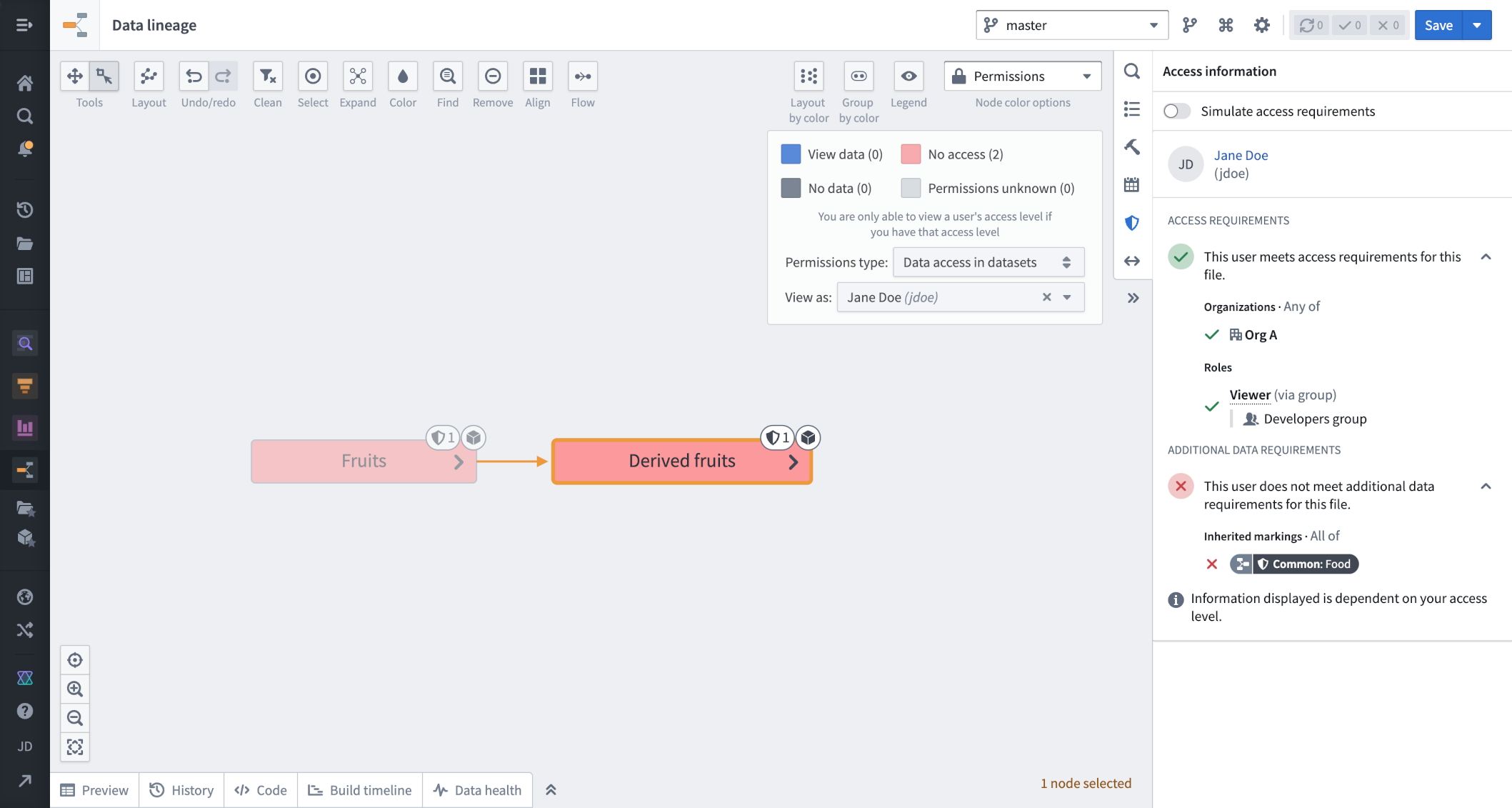
- Data access in datasets: Nodes in the graph are colored based on whether the user meets the additional data requirements. This is only supported for datasets.

In addition, you can select a node in the graph and open Access information in the right sidebar to find the same information as in the Check access panel.

Data Lineage example
In this example, the notional user Jane Doe meets the access requirements of one of the datasets in the pipeline, but not the other. In the Access information panel, we can see that Jane does not meet the access requirements of the Fruit dataset because she does not have access to the necessary Marking (Common: Food).
We can also see that Jane does not meet the additional data requirements for any of the datasets in the pipeline. When checking in the Access information panel, we can see that Jane does not meet the additional data requirements for the Derived Fruit dataset because she doesn't have access to the inherited Marking (Common: Food).
For more information, see the Data Lineage documentation.
Access graph
While Data Lineage can be used to visualize a user’s access to resources across complex data pipelines, access graph can be used to visualize relationships between entities like Projects, users, groups, and markings to aid in checking permissions.
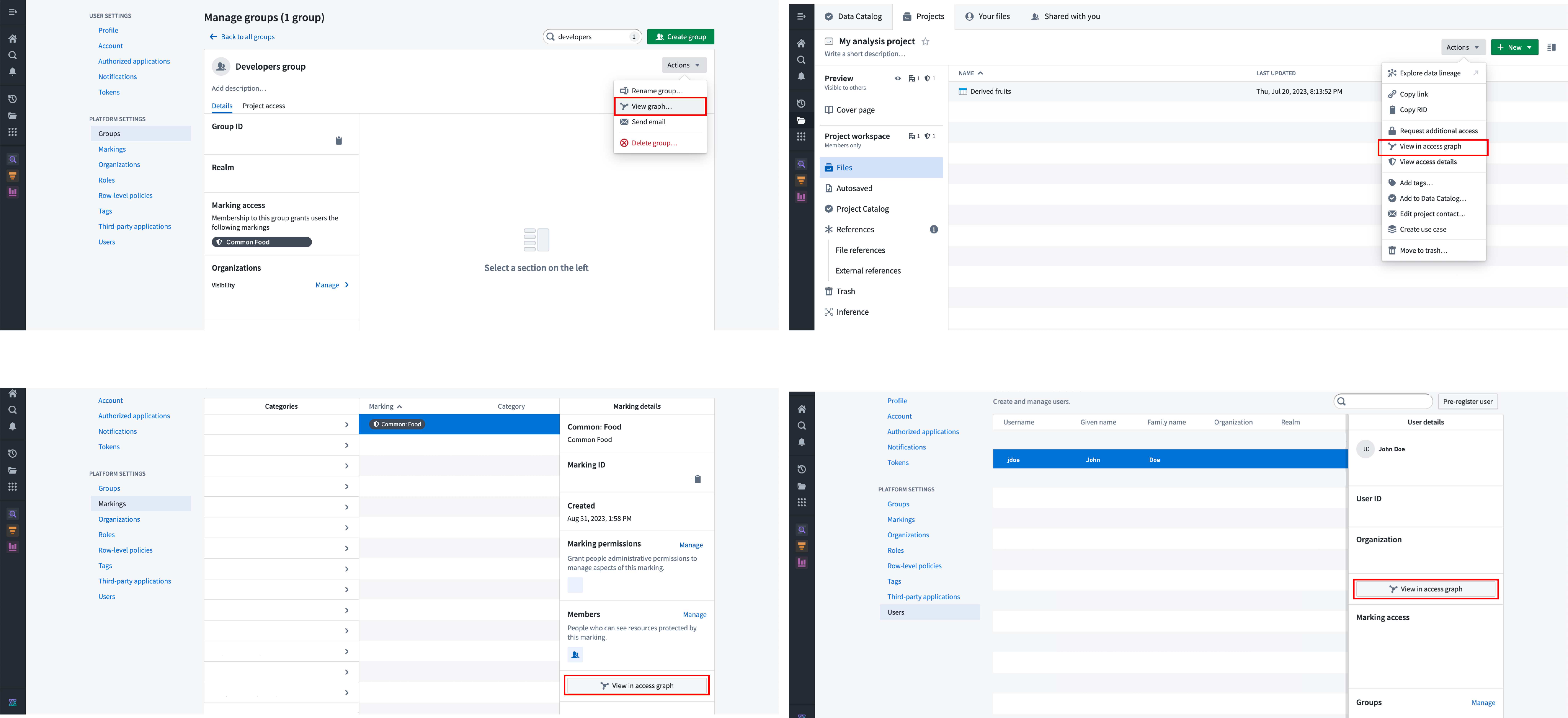
You can access this view from any of the entry points shown below:
Access graph example
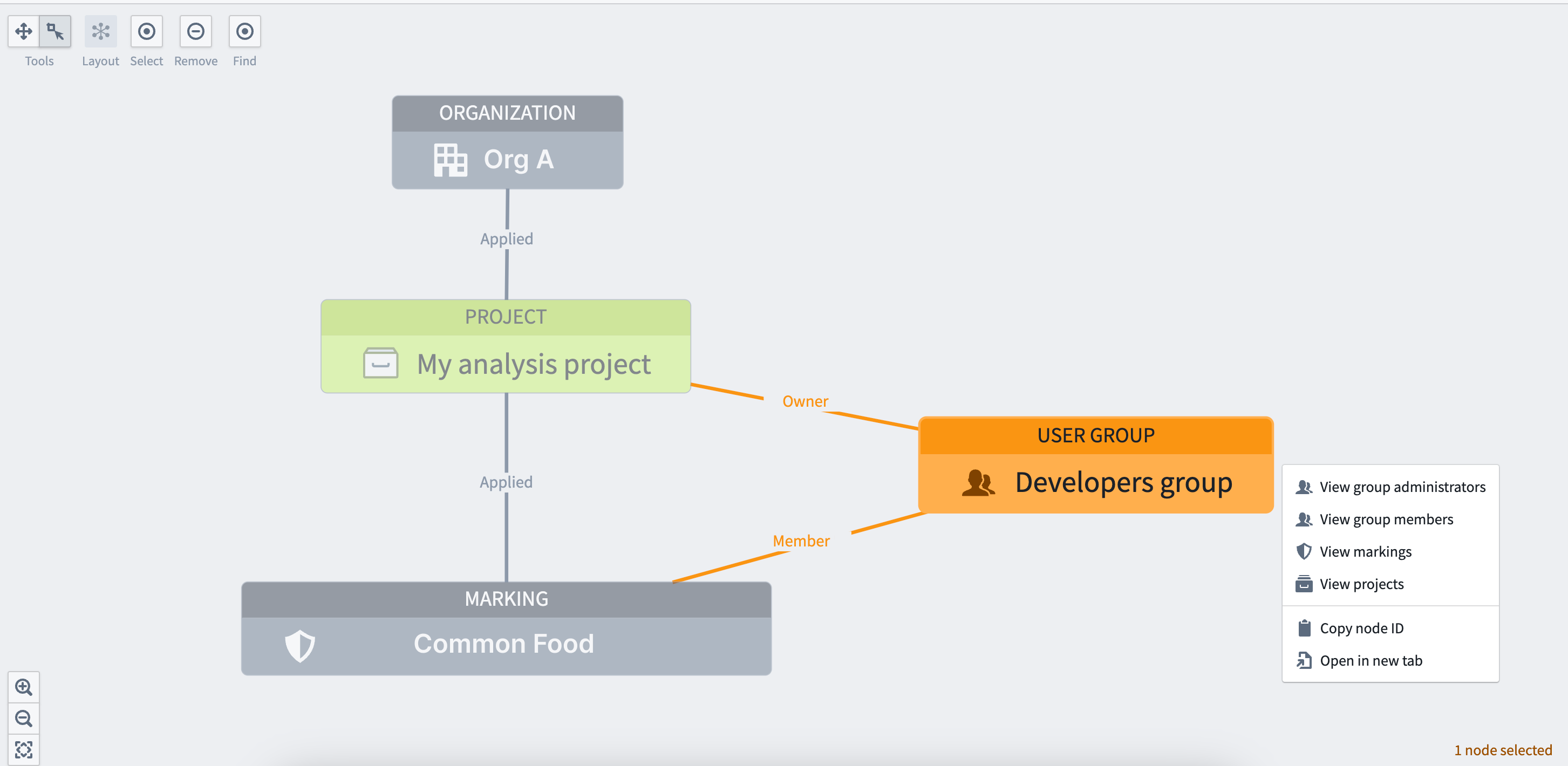
In this example, we want to check what markings and groups are associated with the notional My analysis project. The access graph view shows this information below. Select any node in the graph to show a menu that allows a user to expand to related entities. For example, to know what users have membership in the Developers group, select that node and expand into the node's related entities.
中文翻译
检查权限
您可以通过工作区侧边栏中的检查访问权限面板或数据沿袭工具来检查某人对项目、文件夹或文件的权限。
检查访问权限面板
要更详细地查看用户的权限,请使用侧边栏中的检查访问权限面板。在项目、文件夹或文件上,打开侧边栏,然后选择访问权限 > 检查访问权限。该面板有时也称为"访问权限检查器"。
访问要求与附加数据要求
检查访问权限面板可用于确认用户是否满足项目、文件夹或文件的访问要求。显示在访问要求下的内容包括:
- 满足组织与标记(Marking)要求。
- 拥有一个或多个角色(直接、通过群组或默认角色)。
除上述访问要求外,某些文件可能还需要附加权限,这些权限列在附加数据要求下。例如:
- 通过沿袭继承标记(Marking)的数据集需要访问这些标记才能查看数据集的数据。
- 显示对象表格的 Workshop 模块需要访问对象类型及其数据源。
检查访问权限示例
在第一个示例中,假设用户 John Smith 满足该数据集的访问要求,但由于通过沿袭继承的 Common: Food 标记而不满足附加数据要求。这意味着他可以查看数据集及其元数据,但无法查看其数据。
在第二个示例中,John Smith 也满足此 Workshop 模块的访问要求。该 Workshop 模块使用了 John Smith 需要拥有访问权限才能使用的对象类型、链接类型和操作类型;这些元素列在附加数据要求下。John Smith 拥有其中部分元素的访问权限,但并非全部(如彩色圆点所示);单击右箭头图标可以更详细地查看这些元素。
数据沿袭(Data Lineage)
除了侧边栏中的检查访问权限面板外,您还可以使用数据沿袭工具可视化某人在复杂数据管道中的访问权限。
您可以通过从检查访问权限面板中单击探索数据沿袭来访问此视图,或者在数据沿袭工具中从右侧工具栏旁选择权限作为节点着色选项。这提供了两个子选项:
- 资源访问权限: 根据用户是否满足访问要求对图中的节点进行着色。
- 数据集中的数据访问权限: 根据用户是否满足附加数据要求对图中的节点进行着色。此功能仅支持数据集。
此外,您可以选择图中的节点,然后在右侧边栏中打开访问信息,以查找与检查访问权限面板中相同的信息。
数据沿袭示例
在此示例中,假设用户 Jane Doe 满足管道中一个数据集的访问要求,但不满足另一个数据集的要求。在访问信息面板中,我们可以看到 Jane 不满足 Fruit 数据集的访问要求,因为她没有访问必要标记(Common: Food)的权限。
我们还可以看到 Jane 不满足管道中任何数据集的附加数据要求。在访问信息面板中检查时,我们可以看到 Jane 不满足 Derived Fruit 数据集的附加数据要求,因为她没有访问继承标记(Common: Food)的权限。
更多信息,请参阅数据沿袭文档。
访问关系图(Access graph)
数据沿袭可用于可视化用户在复杂数据管道中对资源的访问权限,而访问关系图则可用于可视化项目、用户、群组和标记等实体之间的关系,以辅助检查权限。
您可以通过以下任一入口点访问此视图:
访问关系图示例
在此示例中,我们想要检查与假设的 My analysis project 相关联的标记和群组。访问关系图视图显示了以下信息。选择图中的任意节点可显示一个菜单,允许用户展开到相关实体。例如,要了解哪些用户是 Developers 群组的成员,请选择该节点并展开到该节点的相关实体。