Code scanning(代码扫描(Code scanning))
Code scanning is a static analysis tool integrated into our continuous-integration system, Jemma, that automatically analyses code for vulnerabilities, code smells, and adherence to coding standards. This feature is designed to enhance code quality and security by providing actionable insights.
Key features
- Triggered on every commit, before checks are run.
- Supports multiple programming languages and file types.
- Provides insights into detected issues with severity levels.
- Seamlessly integrated into Jemma for continuous feedback.
How it works
If enabled by your enrollment administrator, every commit in a repository will trigger a code scan. This will analyze the codebase for potential vulnerabilities and code quality issues. Any findings will be displayed in Checks, and a downloadable report will be generated.
During a scan, a set of pre-configured rules is applied to the codebase and violations are flagged by the system. By default, a set of SAST rules are applied ↗.
After a scan is run, Jemma will continue running checks on the commit if no findings are detected; otherwise, the checks will fail. An enrollment administrator can change this behavior so that findings will result only in a warning, and checks will proceed.
Access scan results
- Navigate to Checks.
- Select the relevant build.
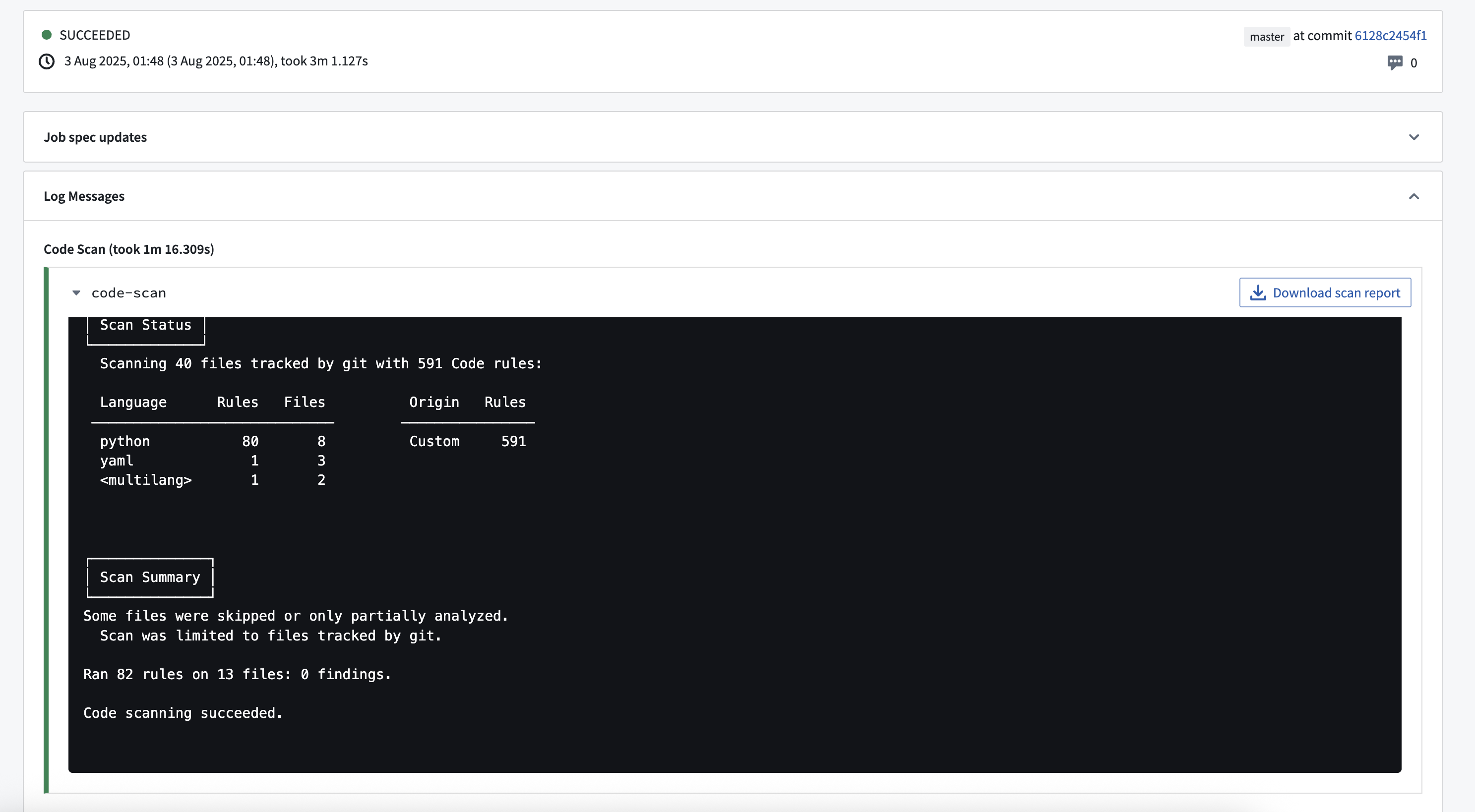
- Expand the Code scan tab to view the detailed report. A sample report is shown in the screenshot below. You can also Download scan report as a JSON file to your local machine.
中文翻译
代码扫描(Code scanning)
代码扫描(Code scanning)是一款集成到我们持续集成系统Jemma中的静态分析工具,可自动分析代码中的漏洞、代码异味及编码标准符合性。该功能通过提供可操作的洞察来提升代码质量与安全性。
主要特性
- 每次提交时触发,在检查运行前执行。
- 支持多种编程语言和文件类型。
- 提供检测到的问题及其严重性级别的洞察。
- 无缝集成至Jemma,实现持续反馈。
工作原理
若由您的注册管理员启用,仓库中的每次提交都将触发代码扫描。系统将分析代码库中的潜在漏洞和代码质量问题。所有发现结果将显示在"检查(Checks)"中,并生成可下载的报告。
扫描过程中,系统会对代码库应用一组预配置规则,并标记违规项。默认情况下,将应用一组SAST规则 ↗。
扫描完成后,若未检测到任何发现结果,Jemma将继续对该提交运行检查;否则检查将失败。注册管理员可更改此行为,使发现结果仅产生警告,检查仍可继续执行。
访问扫描结果
- 导航至检查(Checks)。
- 选择相关构建。
- 展开代码扫描(Code scan)选项卡查看详细报告。下方截图展示了示例报告。您也可以将扫描报告以JSON格式下载至本地计算机。