Cross-Organization collaboration(跨组织协作)
Our Flight Alert Inbox application was very successful and has now become an integral part of our support team’s work. Sky Industries’ leadership has presented the application to multiple partner airlines and it has received great reviews. One airline, Sunrise Airline, now wants to take the operational workflow to the next level. They propose sharing all the internal Sunrise Airline maintenance issues that resulted in delaying passengers with Sky Industries. Combining the maintenance issues data with our flight delay data, Sky Industries and Sunrise Airlines could collaborate to fix recurring maintenance issue and reduce future Sunrise Airline aircraft delays.
The Foundry platform was built to support cross-Organization collaboration. Taking a step back, Organizations are access requirements applied to Projects that enforce strict silos between groups of users and resources. Every user is a member of only one Organization but can be a guest member of multiple Organizations.
An enrollment represents an instance of the Foundry platform and is made up of one or more Organizations. In most cases, a company will have a single Organization with all their users in its enrollment. Some enrollments have multiple Organizations to enforce strict silos between groups of users, for example, when multiple companies collaborate in the same Foundry platform.
In our example, we have been operating within a single Foundry enrollment named Sky Industries which has only one identically-named Organization. To onboard Sunrise Airlines, we will need to create a new Organization, spaces, and Ontologies within our Sky Industries enrollment. By setting it up this way, Sky Industries and Sunrise Airlines will be able to collaborate while also having their own private workspace.
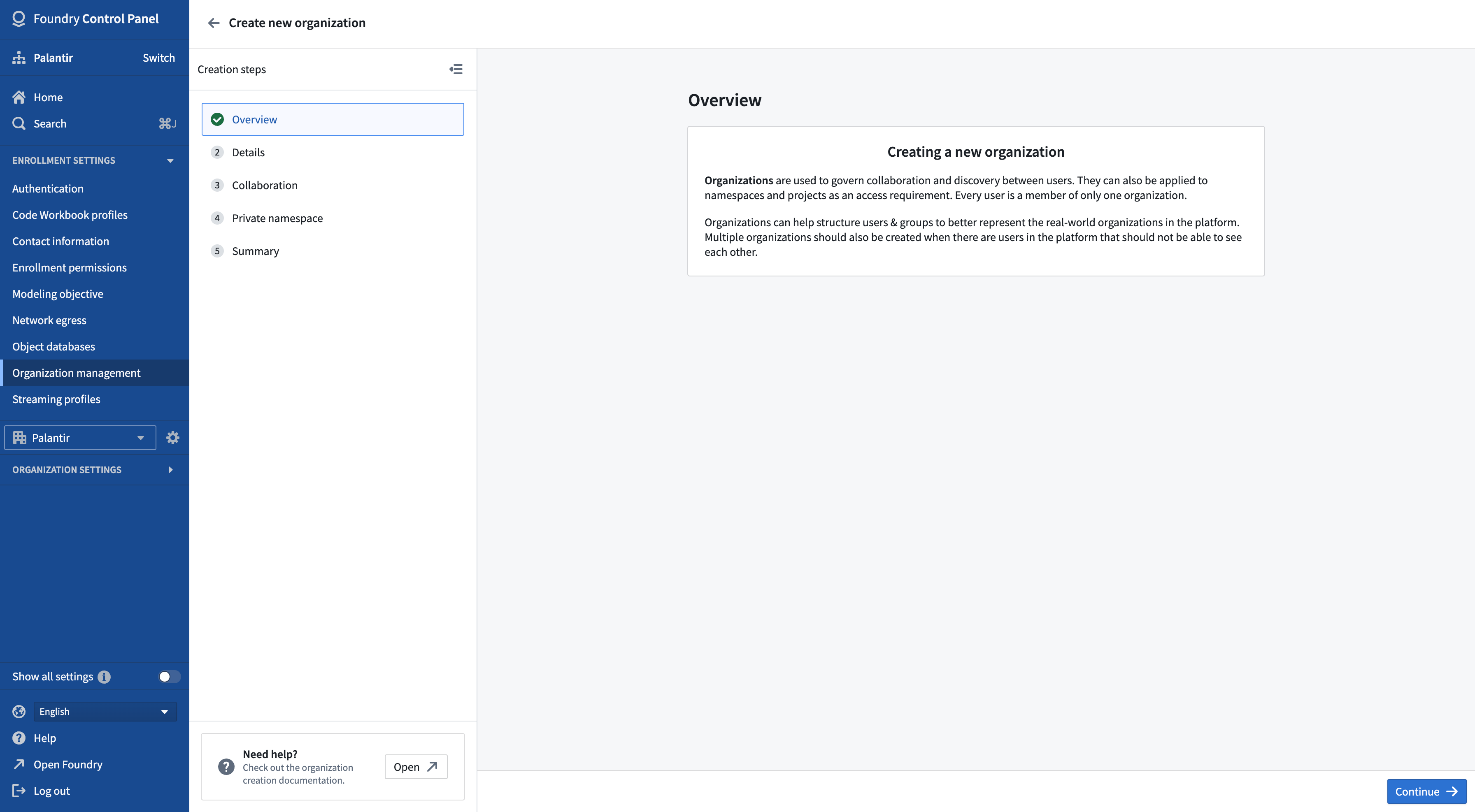
Create an Organization
We need to create a Sunrise Airline Organization so that Sunrise Airline users can protect their private data and only share the data they want to share with Sky Industries. As an enrollment administrator, you can create this new Organization in Control Panel. As part of the Organization creation workflow, you will optionally be able to configure collaboration with other Organizations as well as create a private space and Ontology.
:::callout{theme="neutral"}
You can rename an Organization any time after its creation in Control Panel's Organization management page by selecting Actions > Rename organization. You must have Edit organization metadata permissions for the Organization whose name you edit.
:::
Review the Organization documentation to determine whether creating a new Organization is the right choice for your use case.
Configure collaborations
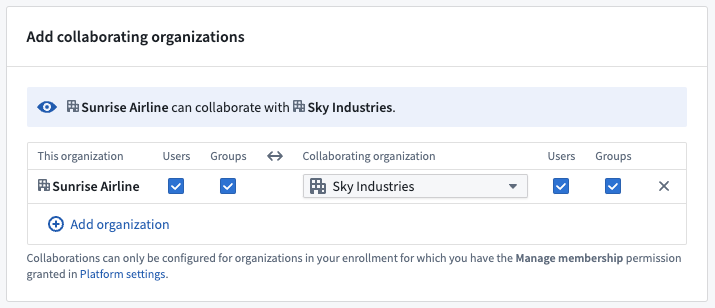
Collaboration enables users from different organizations to share their data and work together in Foundry. Adding a collaborating organization will allow members of both organizations to discover the name of the other. The discovery of users and groups can then be configured separately for each organization.
In our example, we will make both Sky Industries and Sunrise Airlines mutually discoverable and allow users and groups from both organizations to see each other.
Create a private space and Ontology
A private space and Ontology provide an isolated space for work that should not be shared with other collaborating Organizations. In our case, the space and Ontology will only be accessible to people in the Sunrise Airline Organization.
Configure an identity provider
Following the creation of the Sunrise Airline Organization, you may need to do some additional setup in Control Panel. Below are some of the steps you may have to perform. Read more detailed instructions in the Control Panel documentation.
- Add the Sunrise Airline identity provider to Control Panel so that Sunrise Airline users can log into Foundry.
- Assign Sunrise Airline users to the Sunrise Airline Organization created above.
- Set up ingress rules so that Sunrise Airline users can reach Foundry from their network.
After completing the steps above, a Sunrise Airline employee should be able to authenticate using their identity provider and log into Foundry.
Grant administrative permissions
Once the Sunrise Airline administrators have logged into Foundry, you will be able to grant them the necessary Organization roles in Control Panel. Administrative Organization roles should be granted to group(s) that are synced with the Sunrise Airline identity provider. Using a provider group allows any member user to automatically be granted the appropriate roles upon logging in to Foundry. Learn more about syncing an identity provider’s groups with Foundry.
Create a shared space and Ontology
Next, we need to create a shared space and Ontology. They will be marked with both the Sky Industries and Sunrise Airline Organizations so both Organizations can access whatever is shared in this space and Ontology.
We need to grant both Sunrise Airlines and Sky Industries administrators roles on the shared space so they can create Projects and change space settings.
:::callout{theme="neutral"}
In most cases, creating a shared space is self-service for Enrollment Administrators, and the associated shared Ontology will be created automatically. If you are unable to create a shared space, contact Palantir Support.
:::

Create a shared Project
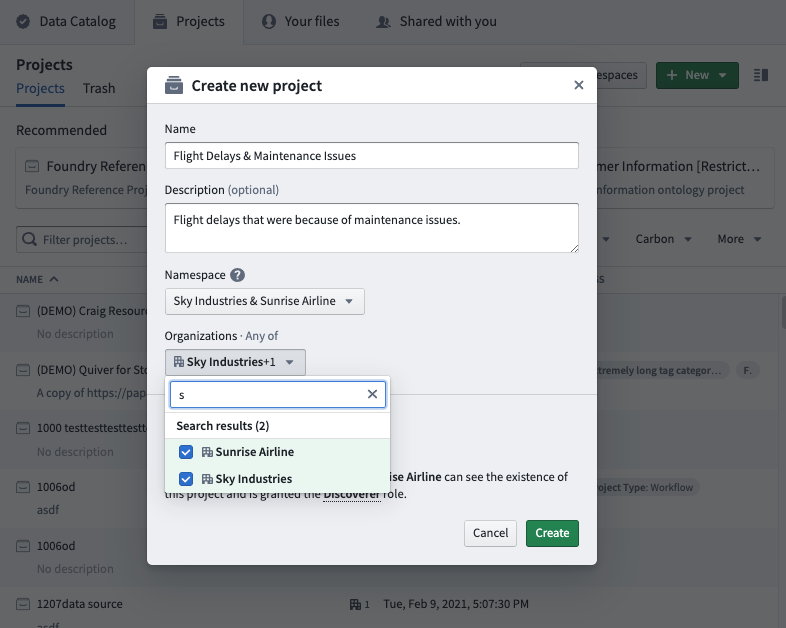
The Sunrise Airline developers will create their own data foundations in their private Sunrise Airline space, similar to what we did for the Sky Industries’ Flight Alerting Inbox application and data foundation. After Sunrise Airline developers build their shareable maintenance dataset, a Sky Industries and/or Sunrise Airline administrator would create a shared Project in the shared space. During or after the Project creation, the administrator will apply both the Sky Industries and Sunrise Airline Organizations to the Project. To do so, you must have the Apply organization permission for both Sky Industries and Sunrise Airline Organizations. This is managed in the Foundry Settings tab.
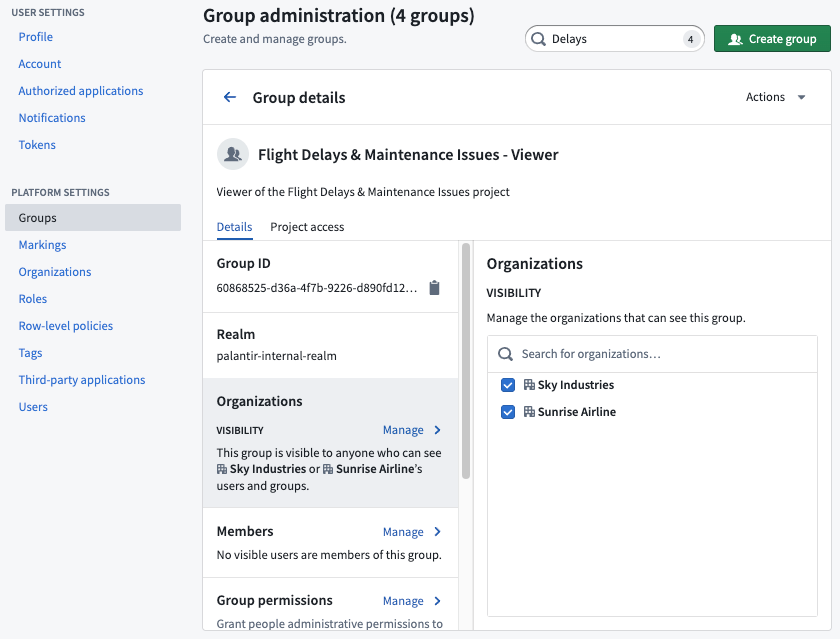
Following the same template as other Projects, we will create three new groups to manage permission on this shared Project. Each group should be visible to both Sunrise Airline and Sky Industries.
Remove inherited organizations
After the empty shared Project is set up, developers from both organizations can start referencing data from their private Projects.
When an Organization references a dataset from their private Projects into a shared space, the dataset continues to inherit the source Organization requirements until explicitly removed. In this case, although the Sky Industries dataset is referenced into a shared space, users from the Sunrise Airline Organization are still blocked from viewing the data. To resolve this, a Sky Industries developer who references a private Sky Industries dataset will need to stop inheriting the upstream Sky Industries Organization. The same process applies to datasets private to Sunrise Airline that Sunrise Airline developers reference in the shared Project.
In the shared Project, a Sky Industries developer will create a code repository file. In the code repository, the Sky Industries developer will need to perform the following:
- Create a branch
- Remove any Sky Industries sensitive columns, if any
- Remove the inherited Sky Industries Organization from the input dataset (using
stop_requiringsyntax) - Create the pull request
- Get necessary approvals and merge the pull request
We recommend reviewing the documentation on how to remove inherited markings and Organizations.
In the example below, the Sky Industries developer filtered the input aircraft dataset down to only the Sunrise Airline aircraft and then stopped inheriting the Sky Industries Organization.
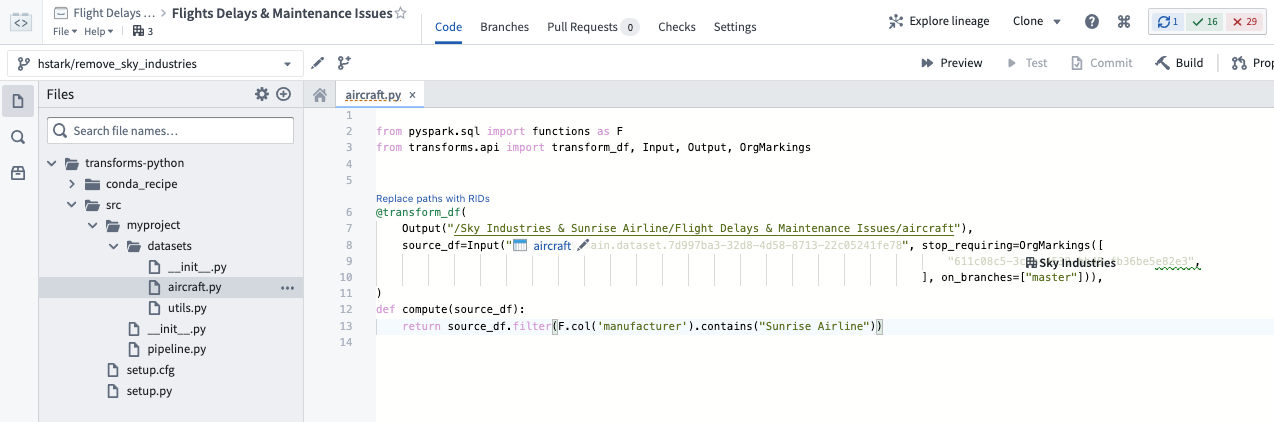
After the transform is built, the output aircraft dataset will be visible to both the Sunrise Airline and the Sky Industries Organizations. Similarly, Sunrise Airline developers can do the same for data they want to pull into the shared Project. Once both developers have completed sharing their Organizations’ data, they can begin working on the joint application using these shared datasets.
Once inherited Organizations are removed, all the work built on top of the input datasets will be visible to both Organizations. This means that work from this point onward will be shareable.
中文翻译
跨组织协作
我们的航班提醒收件箱应用取得了巨大成功,现已成为支持团队工作中不可或缺的一部分。Sky Industries 的领导层已将该应用展示给多家合作伙伴航空公司,并获得了高度评价。其中一家名为 Sunrise Airline 的航空公司希望将运营工作流提升到新高度。他们提议与 Sky Industries 共享所有导致乘客延误的内部维护问题。通过将维护问题数据与我们的航班延误数据相结合,Sky Industries 和 Sunrise Airlines 可以协作解决重复出现的维护问题,从而减少 Sunrise Airline 未来的飞机延误。
Foundry 平台专为支持跨组织协作而构建。概括来说,组织(Organizations) 是应用于项目(Projects)的访问要求,用于在用户组和资源之间实施严格的隔离。每个用户仅是一个组织的成员,但可以作为访客成员加入多个组织。
注册(Enrollment)代表 Foundry 平台的一个实例,由一个或多个组织(Organizations)组成。在大多数情况下,一家公司会在其注册中拥有一个包含所有用户的单一组织。某些注册包含多个组织,用于在用户组之间实施严格隔离,例如当多家公司在同一个 Foundry 平台中协作时。
在我们的示例中,我们一直在名为 Sky Industries 的单一 Foundry 注册中运营,该注册只有一个同名的组织。为了引入 Sunrise Airlines,我们需要在 Sky Industries 注册中创建一个新的组织、空间(Space)和本体论(Ontology)。通过这种方式设置,Sky Industries 和 Sunrise Airlines 将能够协作,同时各自拥有独立的工作空间。
创建组织
我们需要创建一个 Sunrise Airline 组织,以便 Sunrise Airline 用户能够保护其私有数据,并仅共享他们希望与 Sky Industries 共享的数据。作为注册管理员,您可以在控制面板(Control Panel)中创建这个新组织。在组织创建工作流程中,您还可以选择配置与其他组织的协作,以及创建私有空间和本体论。
:::callout{theme="neutral"}
您可以在创建组织后的任何时间,通过控制面板(Control Panel)的组织管理页面,选择操作 > 重命名组织来重命名组织。您必须对要编辑名称的组织拥有编辑组织元数据权限。
:::
请查阅组织文档,以确定创建新组织是否适合您的用例。
配置协作
协作使来自不同组织的用户能够共享数据并在 Foundry 中协同工作。添加协作组织将允许两个组织的成员发现对方的名称。随后,可以分别为每个组织配置用户和组的发现权限。
在我们的示例中,我们将使 Sky Industries 和 Sunrise Airlines 相互可发现,并允许两个组织的用户和组互相查看。
创建私有空间和本体论
私有空间和本体论为不应与其他协作组织共享的工作提供了隔离环境。在我们的案例中,该空间和本体论仅对 Sunrise Airline 组织中的用户可访问。
配置身份提供者
创建 Sunrise Airline 组织后,您可能需要在控制面板中进行一些额外设置。以下是您可能需要执行的一些步骤。请阅读控制面板文档中的详细说明。
- 将 Sunrise Airline 身份提供者添加到控制面板,以便 Sunrise Airline 用户能够登录 Foundry。
- 将 Sunrise Airline 用户分配到上面创建的 Sunrise Airline 组织。
- 设置入站规则,使 Sunrise Airline 用户能够从其网络访问 Foundry。
完成上述步骤后,Sunrise Airline 员工应能够使用其身份提供者进行身份验证并登录 Foundry。
授予管理权限
一旦 Sunrise Airline 管理员登录 Foundry,您就可以在控制面板中授予他们必要的组织角色。管理性组织角色应授予与 Sunrise Airline 身份提供者同步的组。使用提供者组允许任何成员用户在登录 Foundry 时自动获得相应角色。了解更多关于将身份提供者的组与 Foundry 同步的信息。
创建共享空间和本体论
接下来,我们需要创建一个共享空间和本体论。它们将被标记为同时属于 Sky Industries 和 Sunrise Airline 组织,以便两个组织都能访问此空间和本体论中共享的任何内容。
我们需要授予 Sunrise Airlines 和 Sky Industries 管理员在共享空间上的角色,以便他们能够创建项目(Projects)和更改空间设置。
:::callout{theme="neutral"}
在大多数情况下,创建共享空间对注册管理员来说是自助服务,相关的共享本体论(Shared Ontology)将自动创建。如果您无法创建共享空间,请联系 Palantir 支持。
:::
创建共享项目
Sunrise Airline 的开发人员将在其私有的 Sunrise Airline 空间中创建自己的数据基础(Data Foundations),类似于我们为 Sky Industries 的航班提醒收件箱应用和数据基础所做的工作。在 Sunrise Airline 开发人员构建了可共享的维护数据集后,Sky Industries 和/或 Sunrise Airline 管理员将在共享空间中创建一个共享项目。在项目创建期间或之后,管理员将同时为项目应用 Sky Industries 和 Sunrise Airline 组织。为此,您必须对 Sky Industries 和 Sunrise Airline 组织拥有应用组织权限。这通过Foundry 设置选项卡进行管理。
按照与其他项目相同的模板,我们将创建三个新组来管理此共享项目的权限。每个组应对 Sunrise Airline 和 Sky Industries 均可见。
移除继承的组织
在空的共享项目设置完成后,两个组织的开发人员可以开始从其私有项目中引用(Referencing)数据。
当组织从其私有项目引用数据集到共享空间时,该数据集将继续继承源组织的要求,直到被显式移除。在这种情况下,尽管 Sky Industries 的数据集被引用到共享空间中,Sunrise Airline 组织的用户仍然无法查看该数据。为了解决这个问题,引用私有 Sky Industries 数据集的 Sky Industries 开发人员需要停止继承上游的 Sky Industries 组织。同样的流程也适用于 Sunrise Airline 开发人员在共享项目中引用的私有数据集。
在共享项目中,Sky Industries 开发人员将创建一个代码仓库文件。在代码仓库中,Sky Industries 开发人员需要执行以下操作:
- 创建一个分支
- 移除任何 Sky Industries 敏感列(如有)
- 从输入数据集中移除继承的 Sky Industries 组织(使用
stop_requiring语法) - 创建拉取请求(Pull Request)
- 获取必要的批准并合并拉取请求
我们建议查阅关于如何移除继承的标记和组织的文档。
在下面的示例中,Sky Industries 开发人员将输入的 aircraft 数据集过滤为仅包含 Sunrise Airline 的飞机,然后停止继承 Sky Industries 组织。
在转换构建完成后,输出的 aircraft 数据集将对 Sunrise Airline 和 Sky Industries 组织均可见。类似地,Sunrise Airline 开发人员也可以对其希望拉取到共享项目中的数据执行相同操作。一旦两个开发人员都完成了各自组织数据的共享,他们就可以开始使用这些共享数据集来开发联合应用。
一旦继承的组织被移除,所有基于输入数据集构建的工作将对两个组织可见。这意味着从此以后的工作将是可共享的。