Portfolios(投资组合(Portfolios))
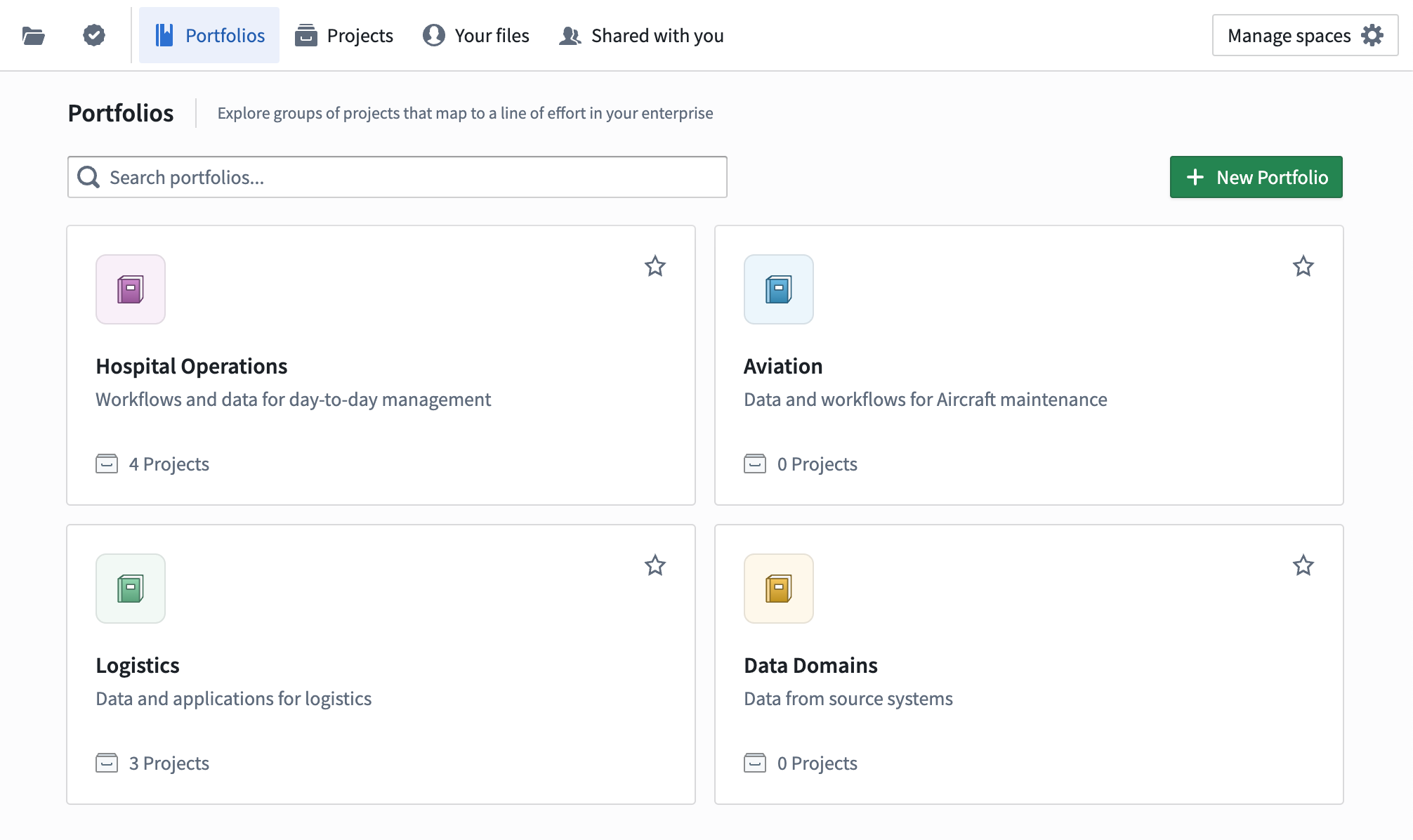
Portfolios allow users to organize Projects within a Space. Each Portfolio contains many Projects, and each project belongs to a single Portfolio. Any user with access to a Space can view its Portfolios, but users still separately need permissions to view the Projects inside a Portfolio.
Create Portfolios
Users with the Editor role on a Space can create a Portfolio from the Portfolios page. Each Portfolio must have a Space and a unique name. Portfolio creators can optionally provide a short text description and configure the Portfolio's thumbnail with an image or icon color. Thumbnail images should be square and will be compressed in size.
Edit Portfolio metadata
Administrators and curators can edit a Portfolio's metadata from the Actions menu in the top right. Name, Description, and Logo are editable, but Portfolios cannot move between Spaces after creation.
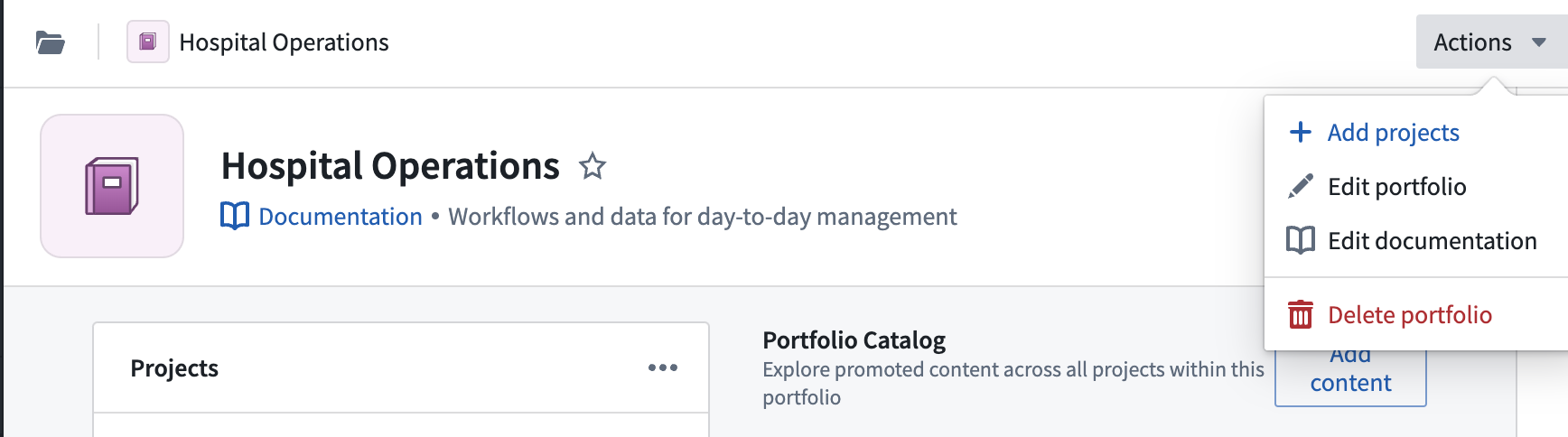
Administrators and curators can also add Markdown documentation to a portfolio. All users who can view the Portfolio can view this documentation.
Curate Portfolios
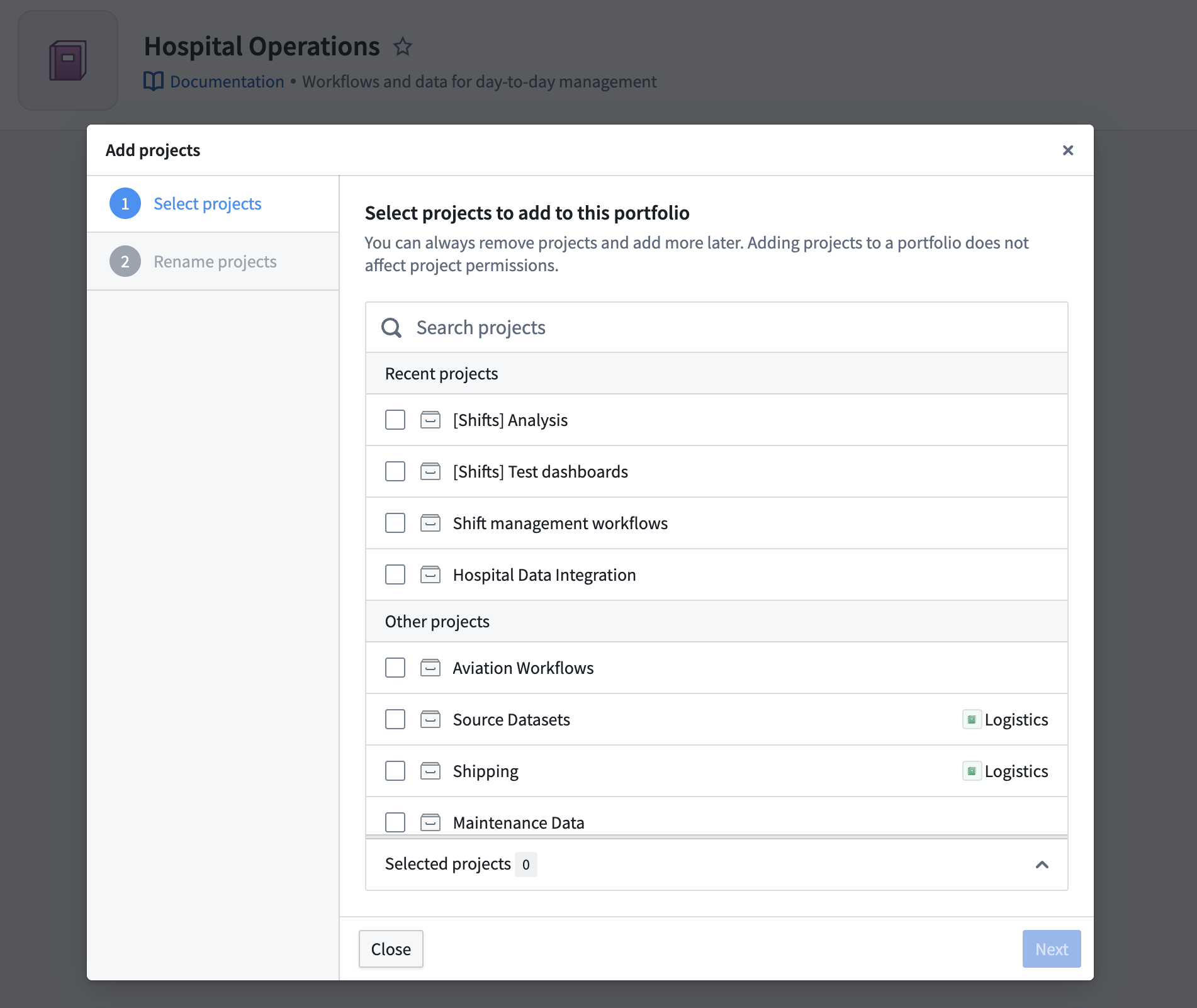
After creating a Portfolio, administrators can populate it with Projects from the same Space using the Add Projects dialog. This dialog displays all projects in the same Space as the Portfolio, including those that already belong to a separate Portfolio. Since Projects can only belong to a single Portfolio, moving a Project to another Portfolio will remove it from the first one.
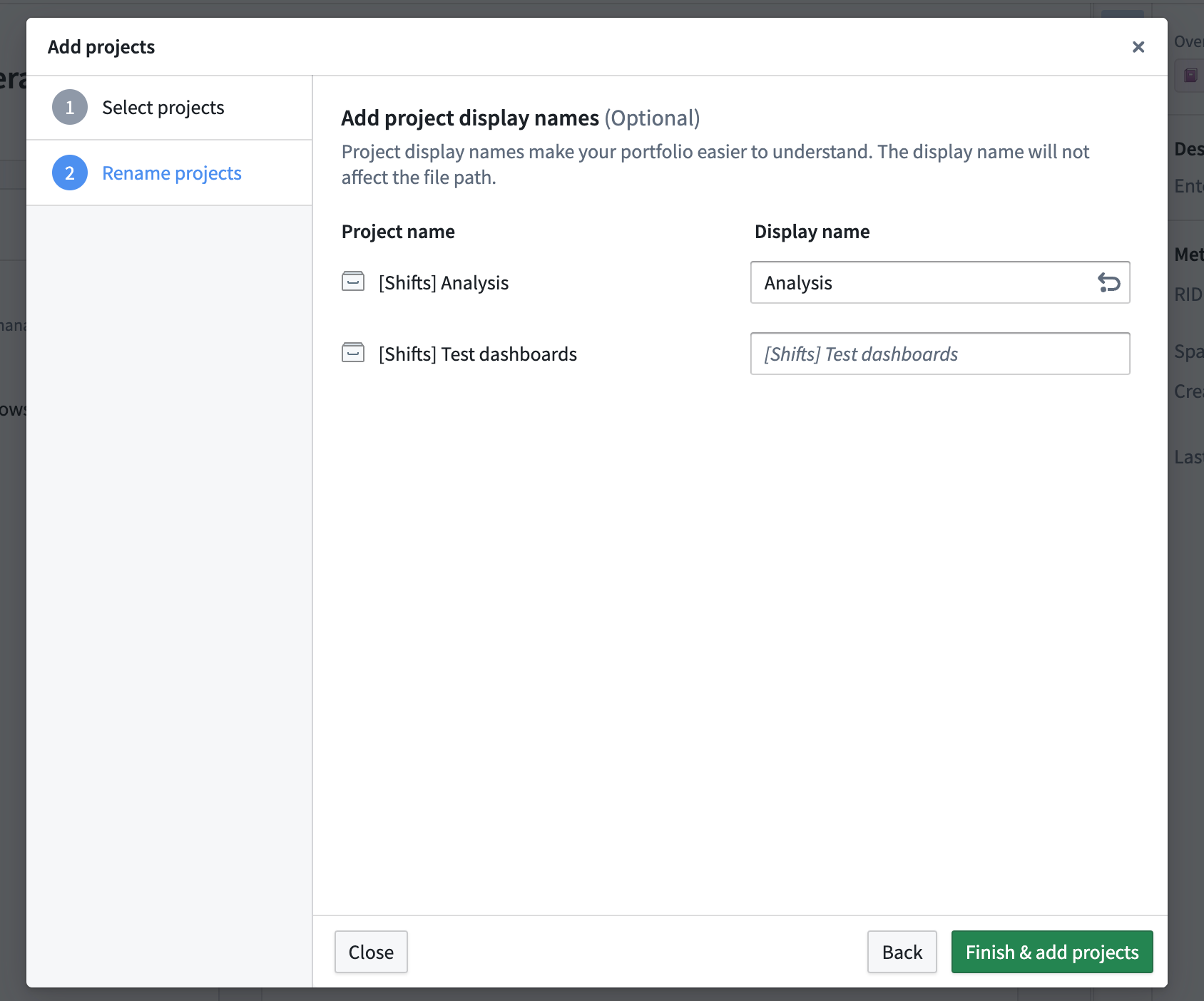
After selecting Projects to include in this Portfolio, users have the option to change each Project's display name. This is an optional step.
Additional Portfolio curators
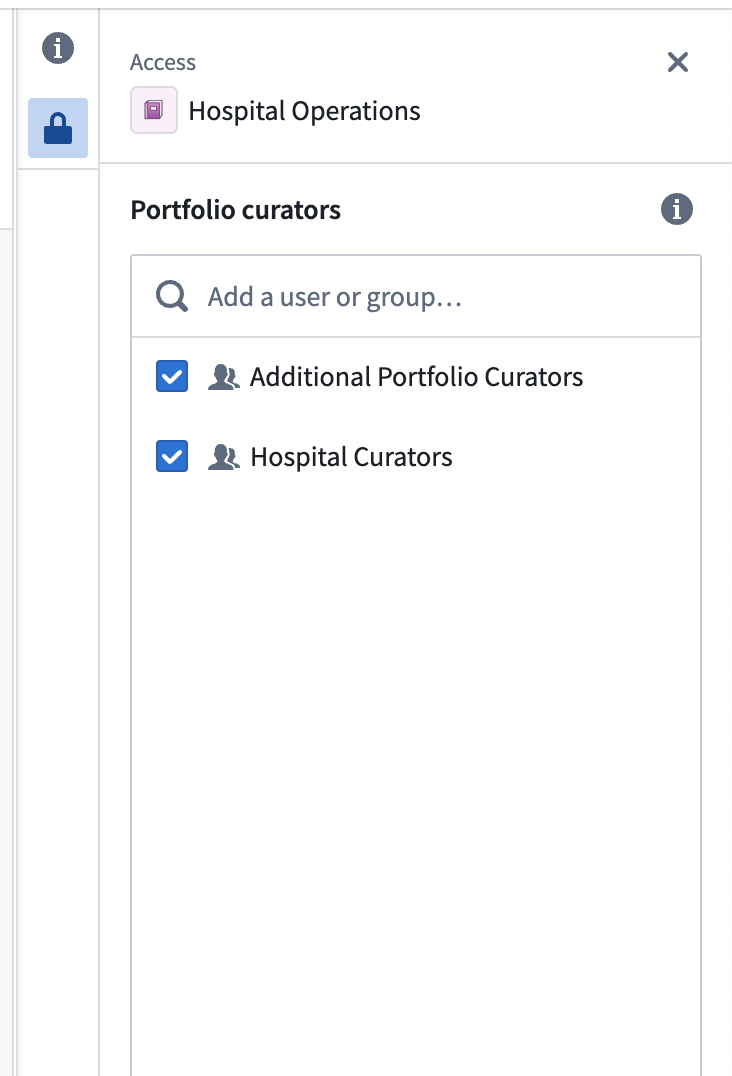
Normally, only users with the Editor role on a Space can manage the contents of its Portfolios. To expand Portfolio curation permissions, users with management access can open the sidebar on a Portfolio and edit its list of Curators. These users will have the option to add or remove Projects from this Portfolio, as well as edit its description and documentation.
Portfolio catalogs
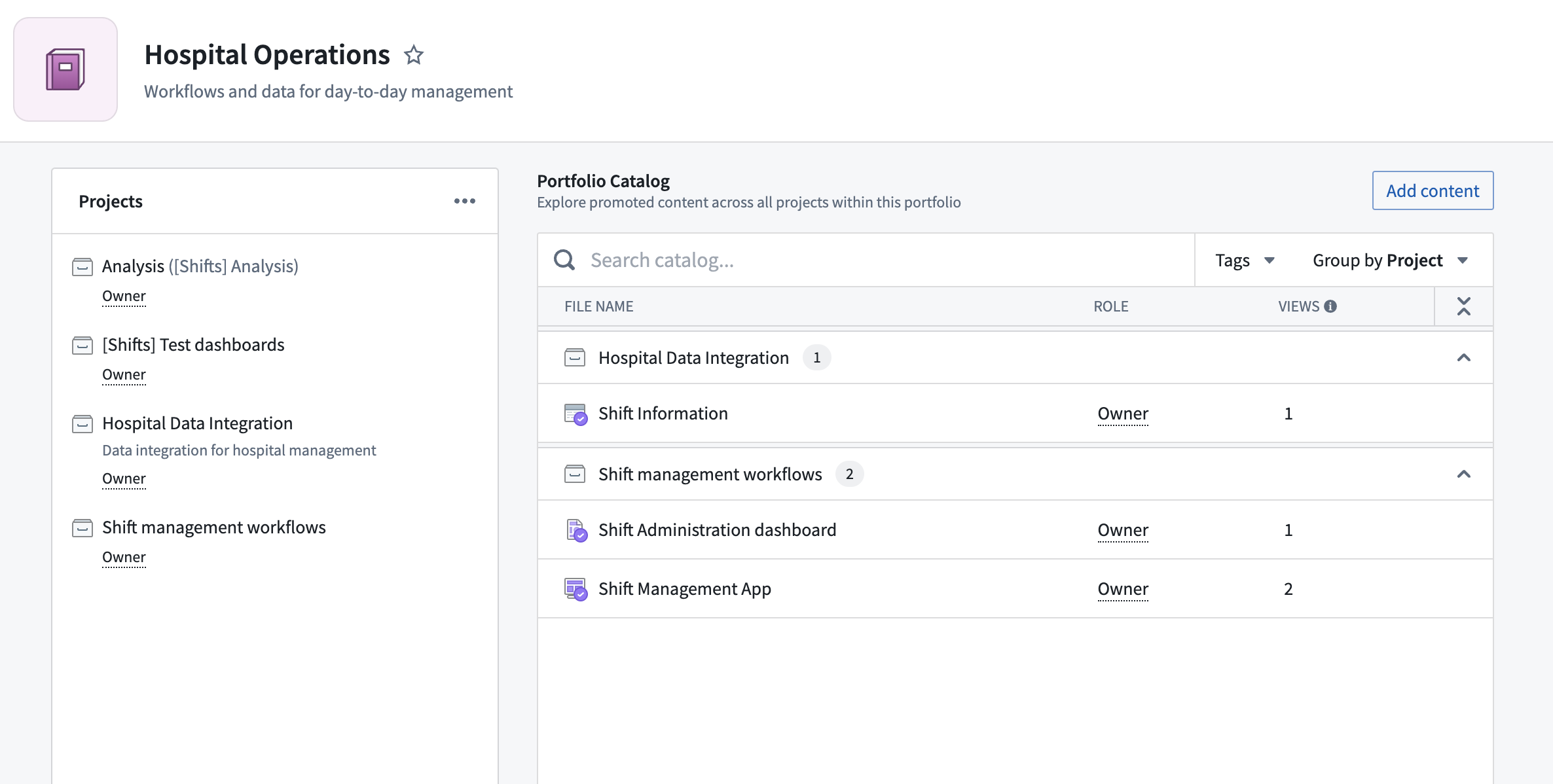
Resources that have been pinned in a project appear in the catalog for a portfolio grouped by project or resource type. Administrators can promote resources from projects in the portfolio by searching for resources in the Add Content dialog.
Project sidebar
The Project sidebar displays a list of Projects added to a Portfolio. From the Project sidebar, users can open individual Projects and Portfolio administrators can add or remove Projects.
中文翻译
投资组合(Portfolios)
投资组合(Portfolios)允许用户在空间(Space)内组织项目(Projects)。每个投资组合包含多个项目,而每个项目仅属于一个投资组合。任何拥有空间访问权限的用户都可以查看其投资组合,但用户仍需单独获得查看投资组合内项目的权限。
创建投资组合(Create Portfolios)
在空间(Space)中拥有编辑者(Editor)角色的用户可以从投资组合页面创建投资组合。每个投资组合必须关联一个空间并具有唯一名称。投资组合创建者可以选择提供简短的文本描述,并通过图片或图标颜色配置投资组合的缩略图。缩略图应为正方形,且会被压缩尺寸。
编辑投资组合元数据(Edit Portfolio metadata)
管理员和策展人(Curators)可以从右上角的操作菜单中编辑投资组合的元数据。名称、描述和徽标均可编辑,但投资组合在创建后无法在不同空间之间移动。
管理员和策展人还可以向投资组合添加Markdown文档。所有能够查看该投资组合的用户均可查看此文档。
策展投资组合(Curate Portfolios)
创建投资组合后,管理员可以使用添加项目(Add Projects)对话框,从同一空间中填充项目。此对话框显示与投资组合位于同一空间的所有项目,包括已属于其他投资组合的项目。由于每个项目只能属于一个投资组合,将项目移至另一个投资组合会将其从原投资组合中移除。
选择要包含在此投资组合中的项目后,用户可以选择更改每个项目的显示名称。这是一个可选步骤。
其他投资组合策展人(Additional Portfolio curators)
通常情况下,只有拥有空间编辑者(Editor)角色的用户才能管理其投资组合的内容。为了扩展投资组合策展权限,拥有管理权限的用户可以打开投资组合的侧边栏,编辑其策展人(Curators)列表。这些用户将能够在此投资组合中添加或移除项目,以及编辑其描述和文档。
投资组合目录(Portfolio catalogs)
在项目中固定的资源会按项目或资源类型分组显示在投资组合的目录中。管理员可以通过在添加内容(Add Content)对话框中搜索资源,来推广投资组合中项目的资源。
项目侧边栏(Project sidebar)
项目侧边栏显示已添加到投资组合的项目列表。从项目侧边栏中,用户可以打开单个项目,投资组合管理员可以添加或移除项目。