Projects & roles(项目与角色)
Projects are the primary way to organize work in Foundry, and the primary security boundary. You will likely want to set your pipeline up as a series of Projects. To collaborate with others, you will grant various users and groups roles on each Project. Together, Projects and roles are how discretionary access control is managed across Foundry.
Learn more about securing a data foundation in Foundry.
Projects and resources
Projects are the primary security boundary in Foundry and can be thought of as buckets of shared work. Because their boundaries enforce security, Projects are a key means of organizing data and enabling open collaboration within a secure space.
Each Project is a collaborative space that organizes users, files, and folders for a particular purpose. Projects should be designed such that users collaborating within each Project have approximately uniform access to the content, but varied permissions on that content - for example, everyone in your Project may have default Viewer role but only one specific group may have Editor role on all Project resources. Projects enforce security boundaries, which enables work to be contained in a space. Work (transformation, analysis, etc.) is done in a Project, and the output of that work lives alongside its logic within the Project.
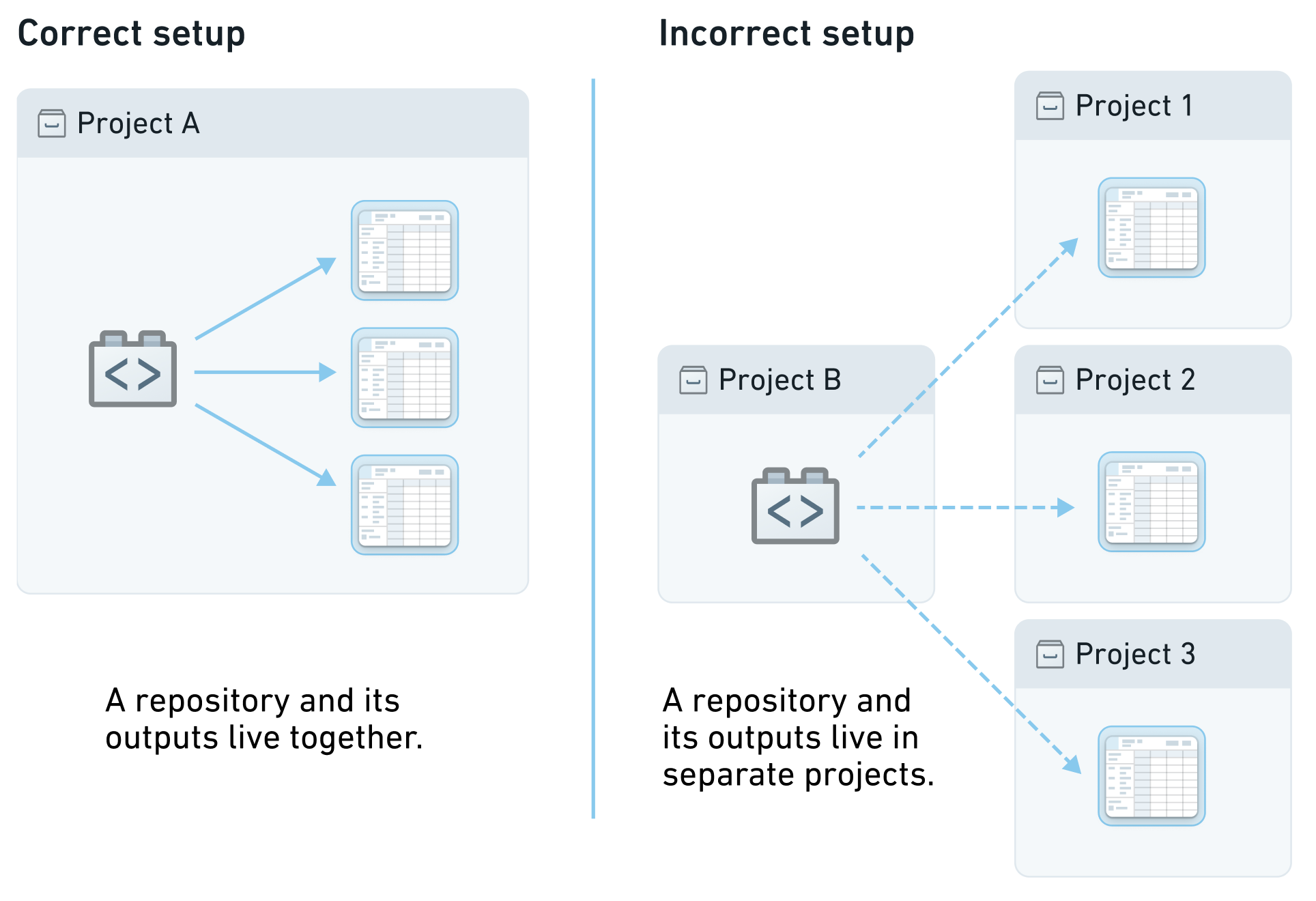
Since work and its output must live in the same Project, to reuse or build off of work in other Projects you must use References.
To make permission management easier, we recommend granting group roles at the Project level. Managing Project permissions with groups allows a set of users with the same permissions to be managed together, reducing the clutter of individual role grants. Project contents will inherit the roles granted at the Project level, providing users uniform access to the content in the Project.
Create Projects
Users need Editor or Owner permissions on a space to create Projects in that space.

Space permissions can be managed from the space settings page.
Request access to a Project
Users can submit access requests for Projects they are not authorized to access. The access request will include all changes required to give the user access to a Project, including any required Markings.
Project access requests can be submitted from multiple access points in the Foundry filesystem view:
- Request access
- Located next to the Project name in the Projects & files view.
- Appears when opening a resource that a user does not have permission to view (for example, a direct link).
- Request project access
- Located in the Project view if a user only has the Discoverer role on the Project.
- Request additional access
- Located in the Actions dropdown in the Project view if a user has access to the Project.
After selecting one of the above entry points, the user is presented with a Request access pop-up. They must provide a reason for access, the users and groups that should be granted access (if requesting on behalf of others), and how they should be granted access.
As mentioned above, we recommend managing permissions on Projects through groups. In the Request access pop-up, users can select to get access to a group with an appropriate role on the Project. For groups that are managed internally to Foundry, users can pick a group to join, which will route the request to the group administrators for approval. Custom request flows for groups can be configured to help requesting users select the appropriate group to join. You can find more information regarding custom approval access request configuration in the platform security management documentation. Additionally, you can hide groups to prevent users from requesting access to them. Learn how in the manage groups documentation.
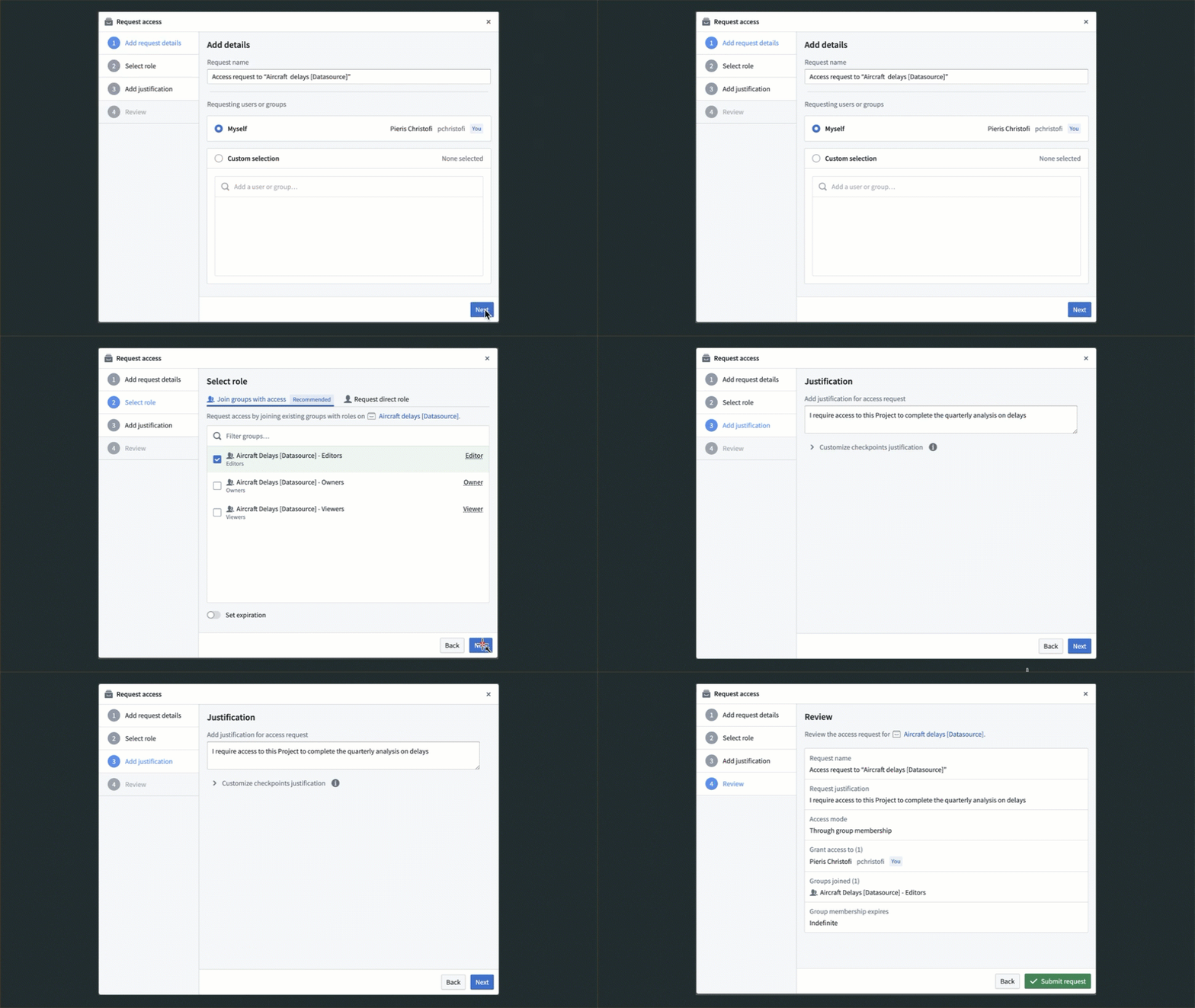
For groups that are managed externally to Foundry, users will be presented with a message and URL redirecting them to request access to the necessary group outside the Foundry platform. Learn how to configure this message and URL in the external group documentation.
If there are no groups assigned to the Project, a user can request to be added directly to the Project with a given role. This will create a Project access request task and require approval from users who have the Owner role on the Project.
Once users create a request, a message should appear indicating that the request succeeded. View the created request by selecting View details on the message, or navigate to the Approvals inbox in the Foundry workspace sidebar and select My requests from the filter on the left.

File and folder access requests
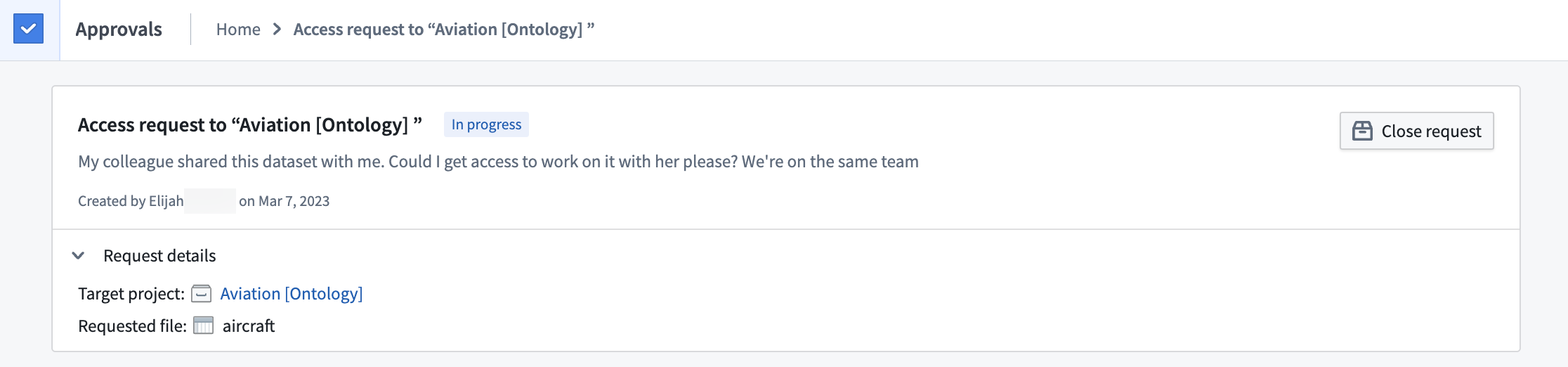
When users select Request access on a file or folder inside a Project, the access request will be submitted on the Project itself (not the specific resource). When reviewing the request, the file or folder where the request was submitted is shown to provide additional context.
Sharing and moving resources
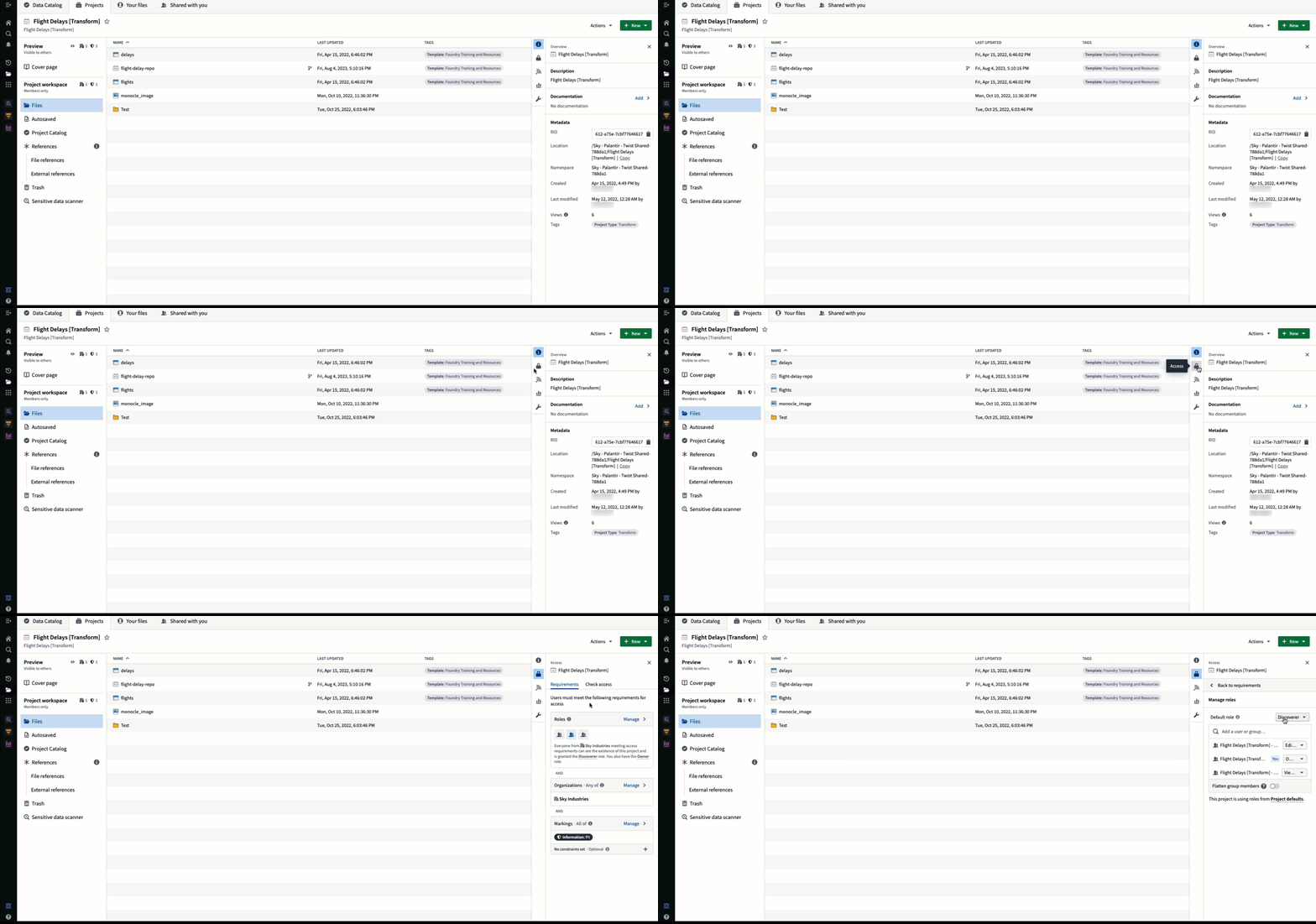
To enforce Projects as a security boundary, we recommend moving resources into Projects that have been permissioned for your use case rather than sharing directly from Your files. This allows clarity of access and legibility of who has access to what. The users and groups who have access to your Project can be managed by clicking on the access panel:
References
Projects are the central security boundary in Foundry, which extends to Foundry’s build system. A build takes in any number of input datasets and produces any number of output datasets. Those inputs and outputs must be in the same Project. However, to make a useful pipeline, you will likely want to use datasets from other Projects. When using datasets from other Projects, we recommend applying file references.
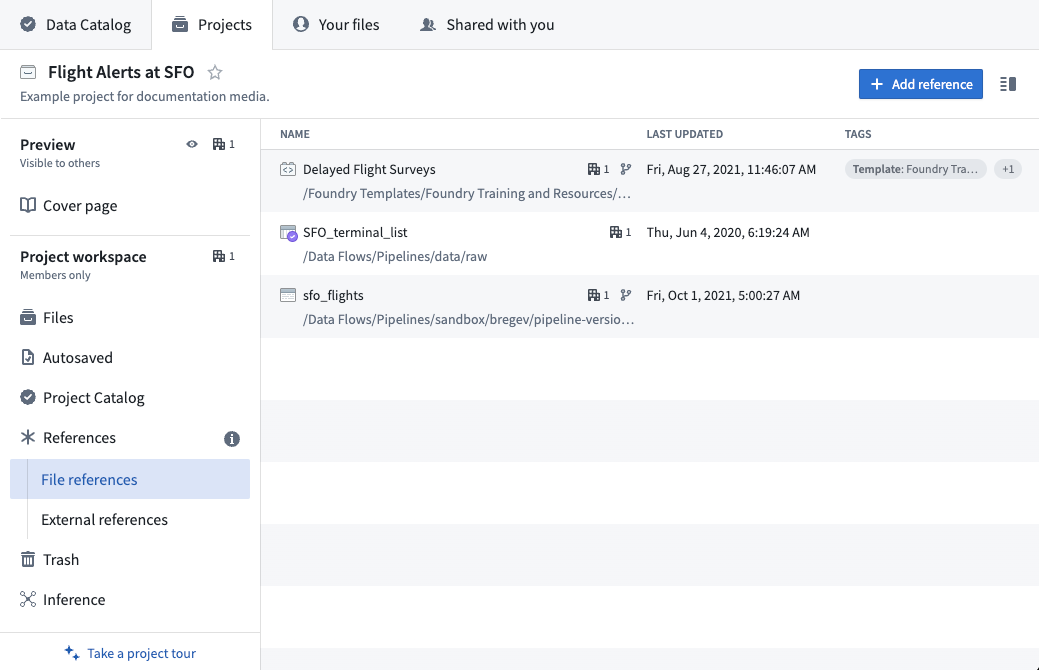
Adding a file reference allows you to use an upstream dataset in your project, as long as you have the required role for that use case. Once imported, your colleagues will not need access to the upstream project to see datasets derived in your project, as long as they satisfy any organizations and markings on the dataset.
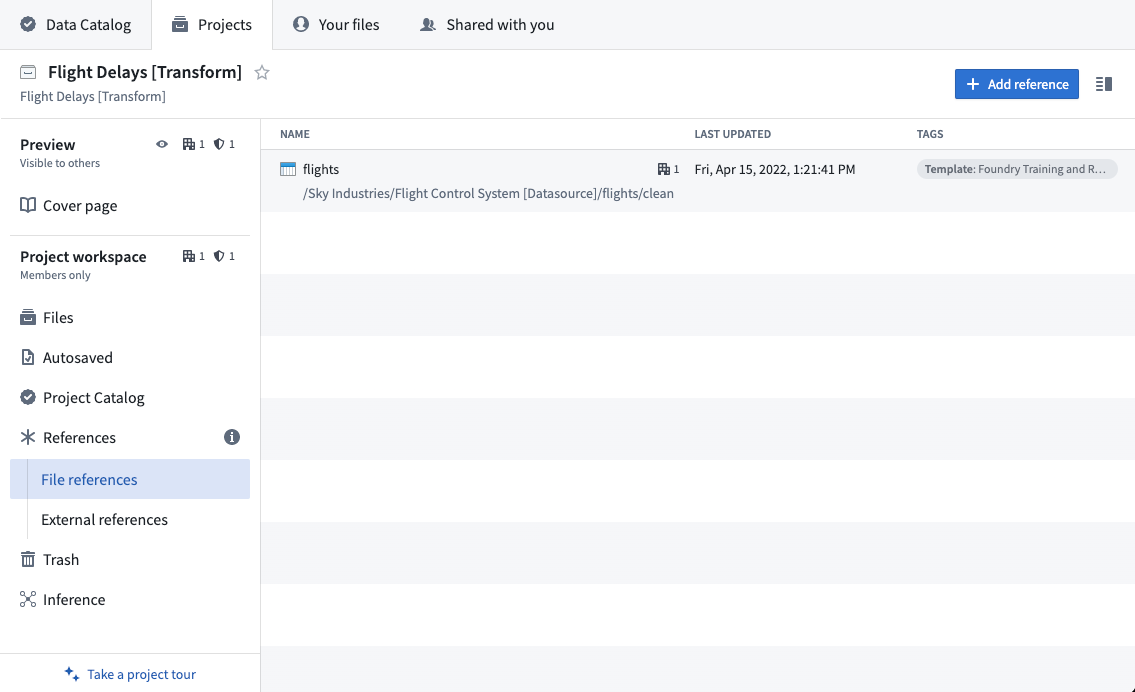
In the image above, we referenced the flights dataset from the Flight Control System [Datasource] Project in our Flight Delays [Transform] Project. If we add a user to our transform Project, they will be able to view the delays dataset and build additional transforms on top of it. However, to view the raw flights dataset or build any additional transformations on top of it they would still require Viewer role on the upstream Project.
Projects and references help organize collaboration, as Project owners can easily add users to their own Projects and ensure the latter have the right permissions.
To add file references to a Project you usually must have the Viewer role on the source Project and Editor on the destination Project. For more information on permissions required to add references to a Project, see Project references and permissions.
References can be added from many places in Foundry, such as Code Repositories, Code Workbook, Pipeline Builder, Fusion, and Contour.
You cannot add references to files that live in Your files because it may cause permission issues. If you want to reference a file that lives in Your files, first move the file into a Project so that it is visible to your colleagues.
Central data governance via Markings
In some situations, we may want to more centrally control access to a category of data. Perhaps anyone with access to any kind of flight data should go through a mandatory training first. Applying a Marking to the raw flights dataset will require that users go through a central body to get access to flights and anything derived from it, e.g. the delays dataset. For more information on using Markings, see Markings.
Roles
Roles are sets of permissions that grant different levels of access to resources. Roles are a discretionary permission and generally granted at the Project level to provide uniform capabilities on all resources within the Project’s scope. However, mandatory controls, Organizations and Markings, will always prevent an ineligible user from accessing a resource, regardless of the user’s role.
From most powerful to least powerful, the default roles in Foundry are: Owner, Editor, Viewer, and Discoverer. Each role can assign other users the same or lesser role. For example, an Owner can grant any other user the Owner, Editor, Viewer, or Discoverer role, while the Discoverer can only grant other users the Discoverer role. These defaults can be customized to include completely new roles.
Importantly, like mandatory controls, role grants inherit to child resources. For example, granting a user Viewer on a Project or folder gives them Viewer on all resources contained by that Project or folder. And typically groups of users are granted roles on a Project.
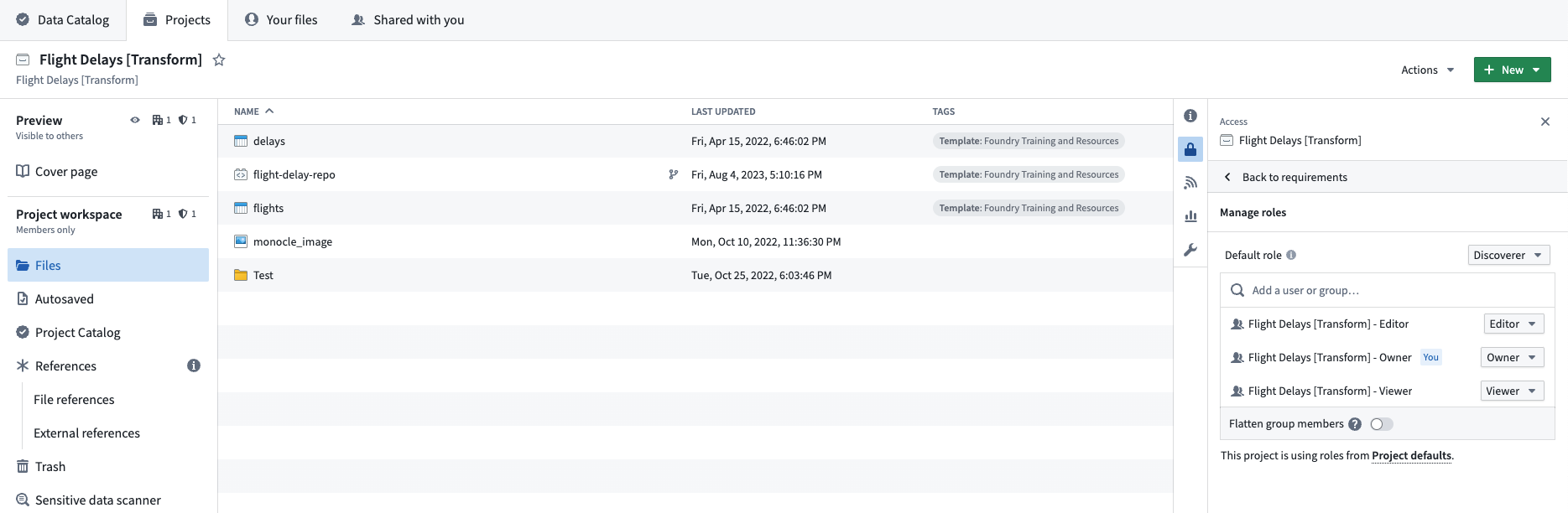
Learn more about configuring your Organization's roles.
Role grants on folders and files
As mentioned above, we recommend that roles be granted only at the Project level to provide uniform capabilities on all resources within the Project's scope. To enforce this behavior, you can use the toggle to disable folder and file role grants in the Settings section in the Project view. When this setting is disabled, role grants can only be granted at the Project level, not at the folder or file level. This toggle can be set by users with the Owner role on the Project.
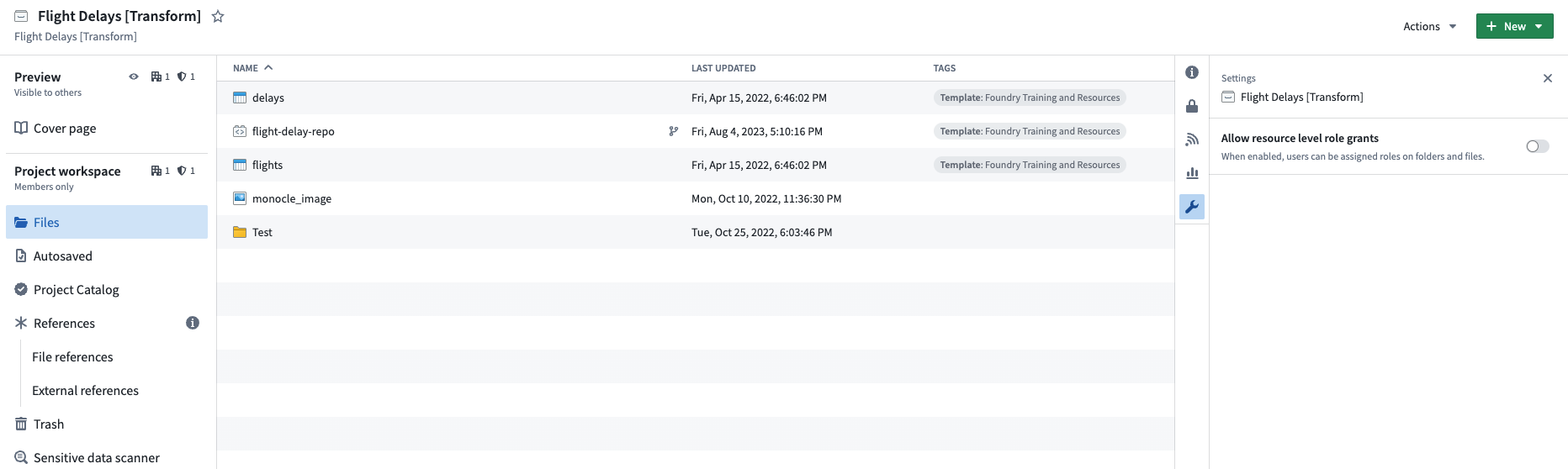
If the role grants setting is disabled for Projects already containing resources with role grants, role grants against these individual resources will be removed. Once an existing role grant is removed, it cannot be re-added until the setting is re-enabled. Similarly, if resources with role grants are moved to a Project where the role grants setting is disabled, resource-level role grants will be removed. Users are warned of this behavior when disabling the role grants setting and when moving resources to a Project with a disabled role grant setting.
Additionally, Project link sharing capability will also be removed as link sharing gives the receiver of the link a direct role grant on the individual folder or file.
Role grants on folders and files are disabled by default. Space administrators can change the default behavior at the space level. We recommend keeping role grants on folders and files disabled.

中文翻译
项目与角色
项目(Projects) 是在 Foundry 中组织工作的主要方式,也是主要的安全边界。您可能希望将您的流水线设置为一系列项目。为了与他人协作,您需要为每个项目授予不同用户和组相应的角色。项目与角色共同构成了 Foundry 中自主访问控制(discretionary access control)的管理方式。
了解更多关于在 Foundry 中保护数据基础的信息。
项目与资源
项目(Projects)是 Foundry 中的主要安全边界,可以将其视为共享工作的容器。由于其边界强制执行安全策略,项目是组织数据并在安全空间内实现开放协作的关键手段。
每个项目都是一个协作空间,为特定目的组织用户、文件和文件夹。项目的设计应使得在项目内协作的用户对内容具有大致相同的访问权限,但对内容的权限有所不同——例如,项目中的所有人可能默认拥有查看者(Viewer)角色,但只有特定组对所有项目资源拥有编辑者(Editor)角色。项目强制执行安全边界,从而将工作限制在特定空间内。工作(转换、分析等)在项目内完成,其输出与逻辑一同存在于项目中。
由于工作及其输出必须位于同一项目中,要重用或基于其他项目的工作进行构建,您必须使用引用(References)。
为简化权限管理,我们建议在项目级别授予组(Group)角色。使用组管理项目权限可以统一管理具有相同权限的一组用户,减少单个角色授权的杂乱。项目内容将继承在项目级别授予的角色(Roles),为用户提供对项目内容的统一访问权限。
创建项目
用户需要在某个空间上拥有编辑者(Editor)或所有者(Owner)权限才能在该空间中创建项目。
空间权限可以从空间设置页面进行管理。
请求项目访问权限
用户可以提交对未授权项目的访问请求。访问请求将包含授予用户项目访问权限所需的所有更改,包括任何必要的标记(Markings)。
项目访问请求可以从 Foundry 文件系统视图的多个访问点提交:
- 请求访问(Request access)
- 位于项目与文件视图中项目名称旁边。
- 当用户打开其无权查看的资源(例如,直接链接)时出现。
- 请求项目访问(Request project access)
- 如果用户仅拥有项目的发现者(Discoverer)角色,则位于项目视图中。
- 请求额外访问(Request additional access)
- 如果用户拥有项目访问权限,则位于项目视图的操作(Actions)下拉菜单中。
选择上述任一入口点后,用户将看到一个请求访问(Request access)弹出窗口。他们必须提供访问原因、应被授予访问权限的用户和组(如果代表他人请求),以及应如何授予访问权限。
如上文所述,我们建议通过组来管理项目权限。在请求访问(Request access)弹出窗口中,用户可以选择加入一个在项目上拥有适当角色的组。对于在 Foundry 内部管理的组,用户可以选择要加入的组,该请求将路由至组管理员进行审批。可以为组配置自定义请求流程,以帮助请求用户选择合适的组加入。有关自定义审批访问请求配置的更多信息,请参阅平台安全管理文档。此外,您可以隐藏组以防止用户请求访问它们。了解如何在管理组文档中操作。
对于在 Foundry 外部管理的组,用户将看到一条消息和 URL,引导他们在 Foundry 平台之外请求访问必要的组。了解如何在外部组文档中配置此消息和 URL。
如果项目未分配任何组,用户可以直接请求以特定角色添加到项目中。这将创建一个项目访问请求任务,并需要项目上拥有所有者(Owner)角色的用户批准。
用户创建请求后,应出现一条消息指示请求成功。选择消息上的查看详情(View details)来查看创建的请求,或导航至 Foundry 工作区侧边栏中的审批收件箱(Approvals inbox),然后从左侧的筛选器中选择我的请求(My requests)。
文件和文件夹访问请求
当用户选择项目内文件或文件夹上的请求访问(Request access)时,访问请求将针对项目本身(而非特定资源)提交。在审核请求时,将显示提交请求的文件或文件夹以提供额外上下文。
共享和移动资源
为强制执行项目作为安全边界,我们建议将资源移动到已根据您的用例设置权限的项目中,而不是直接从您的文件(Your files)共享。这有助于明确访问权限以及谁有权访问什么内容。可以通过点击访问面板来管理有权访问您项目的用户和组:
引用(References)
项目是 Foundry 中的核心安全边界,这也延伸到了 Foundry 的构建系统。一个构建过程接收任意数量的输入数据集并生成任意数量的输出数据集。这些输入和输出必须位于同一项目中。然而,要构建有用的流水线,您很可能需要使用来自其他项目的数据集。当使用来自其他项目的数据集时,我们建议应用文件引用(File References)。
添加文件引用允许您在项目中使用上游数据集,前提是您拥有该用例所需的角色(Roles)。一旦导入,只要您的同事满足数据集上的任何组织和标记要求,他们无需访问上游项目即可查看在您项目中衍生出的数据集。
在上图中,我们从航班控制系统[数据源]项目中引用了航班数据集到我们的航班延误[转换]项目中。如果我们向转换项目添加用户,他们将能够查看延误数据集并在此基础上构建额外的转换。然而,要查看原始航班数据集或在其基础上构建任何额外的转换,他们仍然需要上游项目的查看者(Viewer)角色。
项目和引用有助于组织协作,因为项目所有者可以轻松地将用户添加到自己的项目中,并确保后者拥有正确的权限。
要向项目添加文件引用,您通常需要在源项目上拥有查看者(Viewer)角色,在目标项目上拥有编辑者(Editor)角色。有关向项目添加引用所需权限的更多信息,请参阅项目引用和权限。
可以从 Foundry 的许多地方添加引用,例如代码仓库(Code Repositories)、代码工作簿(Code Workbook)、流水线构建器(Pipeline Builder)、Fusion和Contour。
您不能添加对位于您的文件(Your files)中的文件的引用,因为这可能导致权限问题。如果您想引用位于您的文件(Your files)中的文件,请先将该文件移动到项目中,以便您的同事能够看到它。
通过标记(Markings)进行中央数据治理
在某些情况下,我们可能希望对某一类数据的访问进行更集中的控制。例如,任何有权访问任何类型航班数据的人都应首先完成强制性培训。对原始航班数据集应用标记(Marking)将要求用户通过中央机构才能获得对航班及其衍生数据(例如延误数据集)的访问权限。有关使用标记的更多信息,请参阅标记(Markings)。
角色(Roles)
角色是一组权限,授予对资源不同级别的访问权限。角色是一种自主权限(discretionary permission),通常在项目级别授予,以在项目范围内的所有资源上提供统一的能力。然而,强制性控制(mandatory controls)——组织(Organizations)和标记(Markings)——将始终阻止不合格用户访问资源,无论用户的角色如何。
从最强到最弱,Foundry 中的默认角色依次为:所有者(Owner)、编辑者(Editor)、查看者(Viewer)和发现者(Discoverer)。每个角色都可以将相同或较低级别的角色分配给其他用户。例如,所有者可以授予任何其他用户所有者、编辑者、查看者或发现者角色,而发现者只能授予其他用户发现者角色。这些默认设置可以自定义,以包含全新的角色。
重要的是,与强制性控制一样,角色授权会继承到子资源。例如,授予用户对项目或文件夹的查看者角色,即授予他们对该项目或文件夹包含的所有资源的查看者角色。通常,用户组会在项目上被授予角色。
了解更多关于配置您组织的角色的信息。
文件夹和文件上的角色授权
如上所述,我们建议仅在项目级别授予角色,以在项目范围内的所有资源上提供统一的能力。为强制执行此行为,您可以在项目视图的设置(Settings)部分使用切换开关来禁用文件夹和文件角色授权。当此设置禁用时,角色授权只能在项目级别授予,而不能在文件夹或文件级别授予。此切换开关可由项目上拥有所有者(Owner)角色的用户设置。
如果对于已包含具有角色授权的资源的项目禁用了角色授权设置,则针对这些单个资源的角色授权将被移除。一旦现有角色授权被移除,在重新启用该设置之前无法重新添加。同样,如果具有角色授权的资源被移动到角色授权设置已禁用的项目,则资源级别的角色授权将被移除。在禁用角色授权设置以及将资源移动到角色授权设置已禁用的项目时,用户会收到此行为的警告。
此外,项目链接共享功能也将被移除,因为链接共享会为链接接收者授予对单个文件夹或文件的直接角色授权。
文件夹和文件上的角色授权默认处于禁用状态。空间管理员可以在空间级别更改默认行为。我们建议保持文件夹和文件上的角色授权处于禁用状态。