Restricted views(受限视图(Restricted views))
Markings and roles provide powerful access controls. However, some situations require more granular permissioning. For example, it may be insufficient or inappropriate to grant access to all objects of a certain type. Some object types may need to surface different objects to different users, as when a company limits sales representatives to viewing customers at their assigned branch. Restricted views can provide this additional level of access control.
Users interact with restricted view resources in Foundry, and restricted views are powered by Granular Permissions. Restricted views limit dataset access to only the rows that a user has permission to see. A restricted view is built on top of a backing dataset and cannot be used as an input for transforms. The policy for a restricted view determines the specific rows a user can see. It is typically defined by a user with the Owner role upon creation of the restricted view. After creation, the restricted view can be used as the backing data source for an object type in your Ontology. For example, if one row represents one object, the restricted view controls what objects users can see based on the object type it backs.
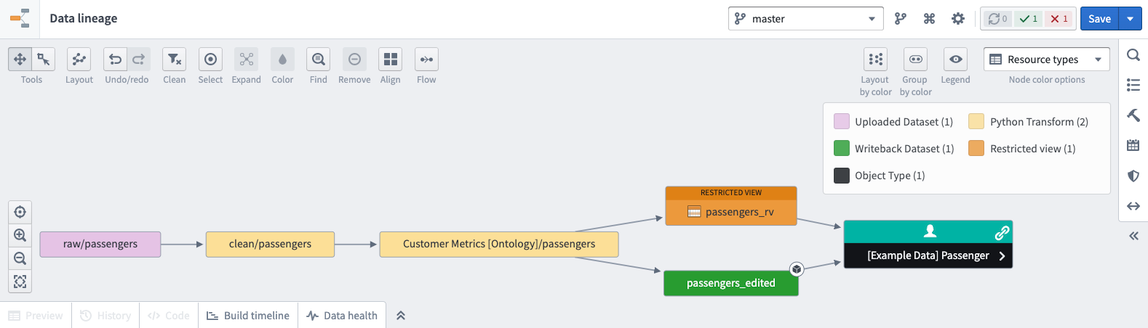
Restricted view policies
The policy is the core of a restricted view. Restricted view policies use granular policies to determine which rows a user can see. A granular policy is a set of rules and logical operators that compare user attributes, columns, and values.
- User attributes: Properties of the user viewing the data.
- Column name: A column in the restricted views backing dataset.
- Specific value: A string, Boolean, number, or array.
Most, if not all, policies will involve at least one term that is compared with a user attribute. At least one such term is necessary for user-based permissioning.
When referencing a user, group, or Organization, the policy requires the unique identifier (UUID) in both the policy column and the policy definition. Specifying names instead of IDs is not supported to prevent renaming-related issues.
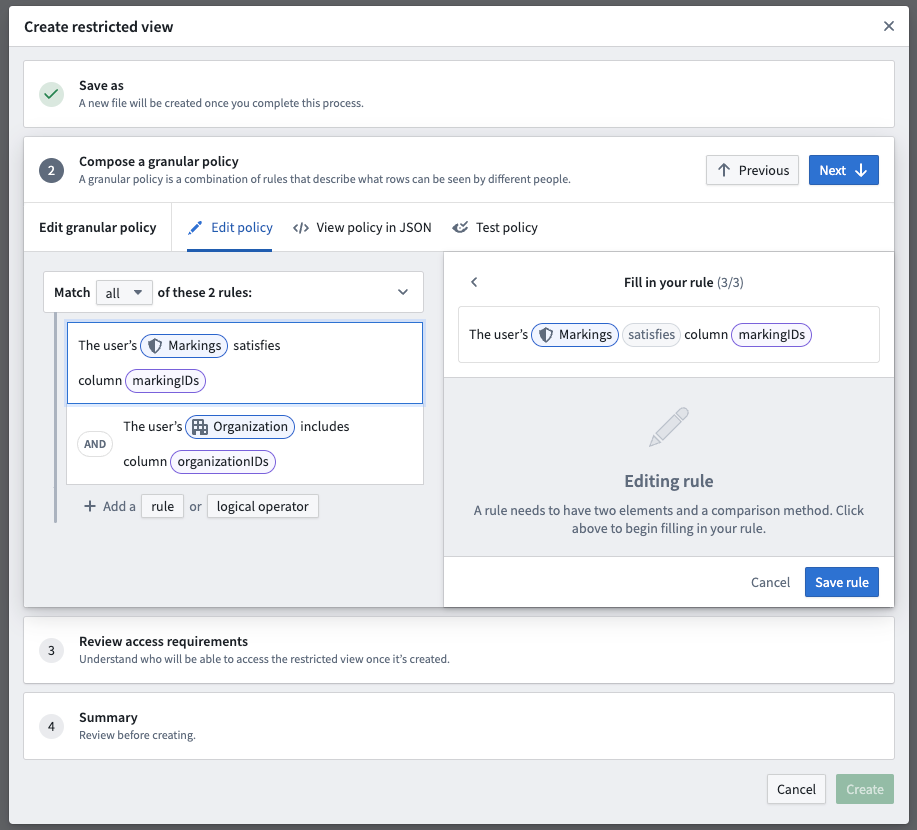
In the example below, the restricted view policy includes two rules that can be applied:
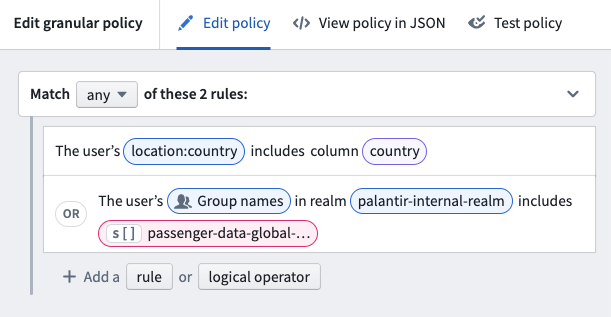
Learn more about designing granular policies, including recommendations and best practices. You can also review information on user attributes, policy comparisons, and policy limitations.
After you've determined the design of your restricted view policy, make any pipeline and Project changes needed to power it. With a restricted view policy and pipeline in place, you can move on to creating your restricted view.
Create restricted views
Users with an Owner role or the necessary permissions can create restricted views downstream of a dataset with a right-click contextual action:
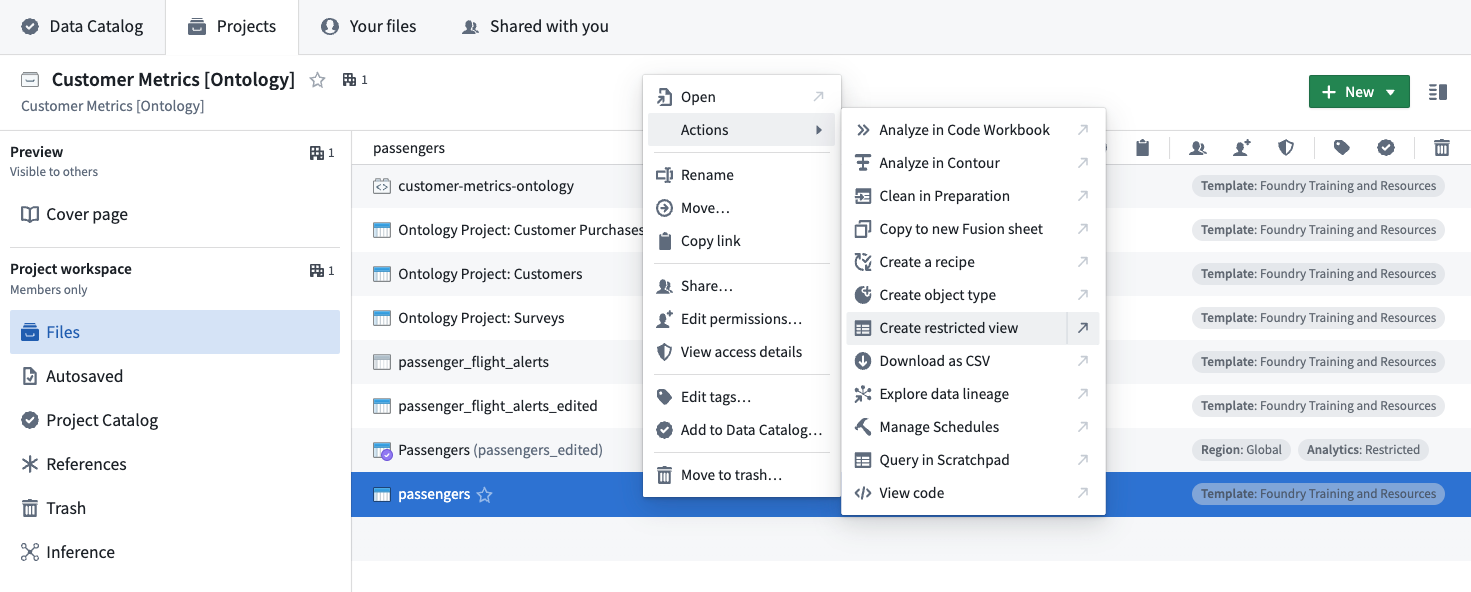
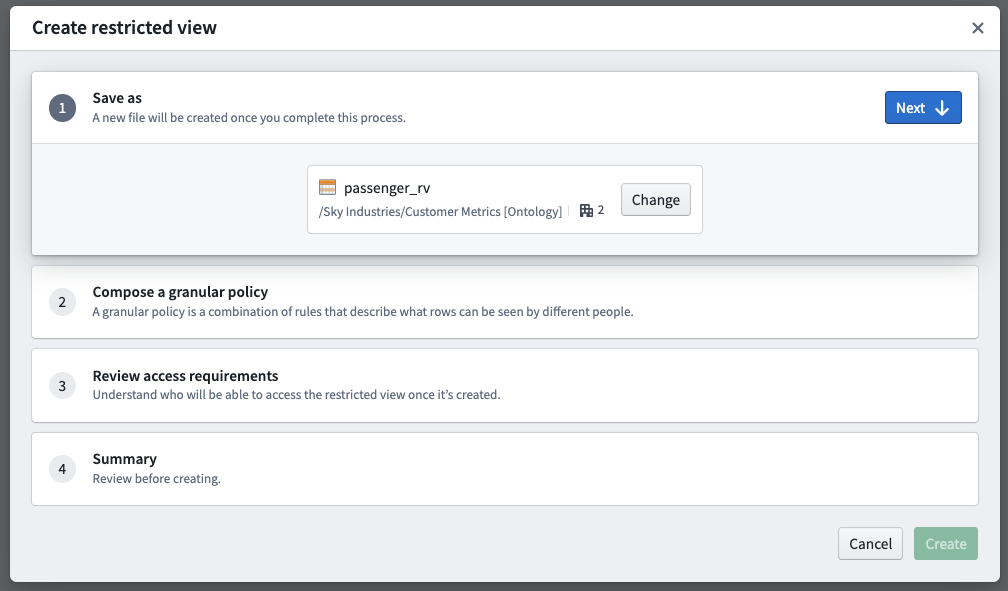
The restricted view creation dialog has the following steps:
- Save as: Choose a name and location where the restricted view will live in the file system.
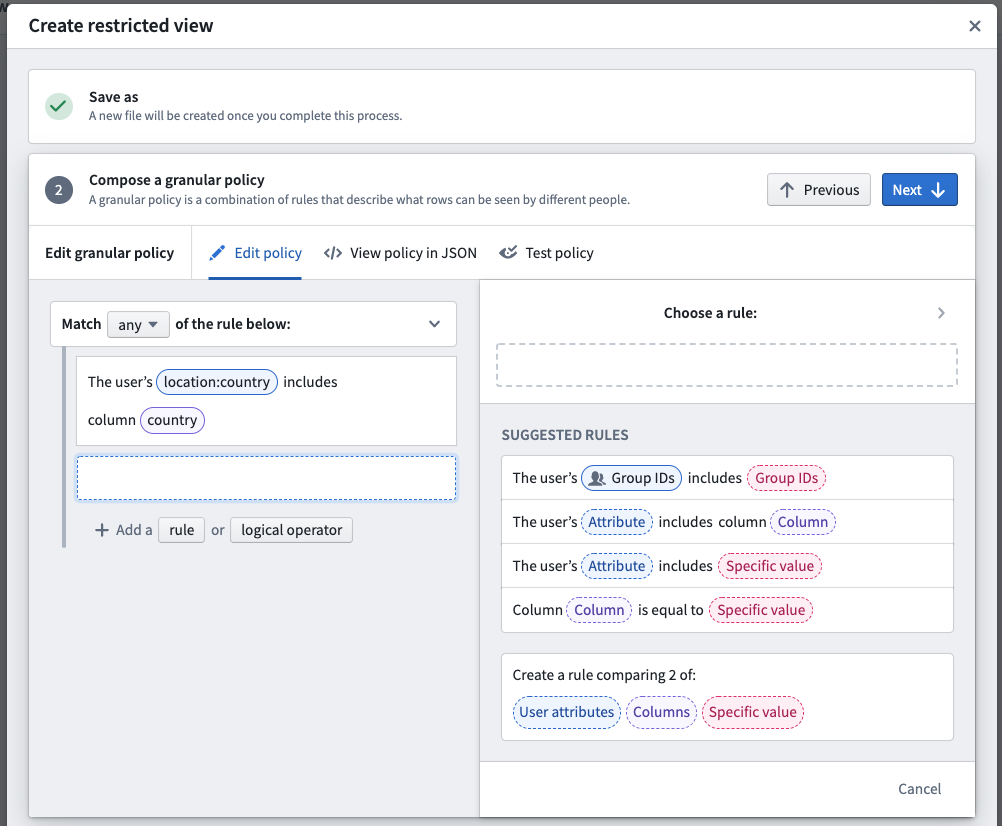
- Compose a granular policy: Define the policy statements that will determine which rows or objects users are able to see when accessing the restricted view or object.
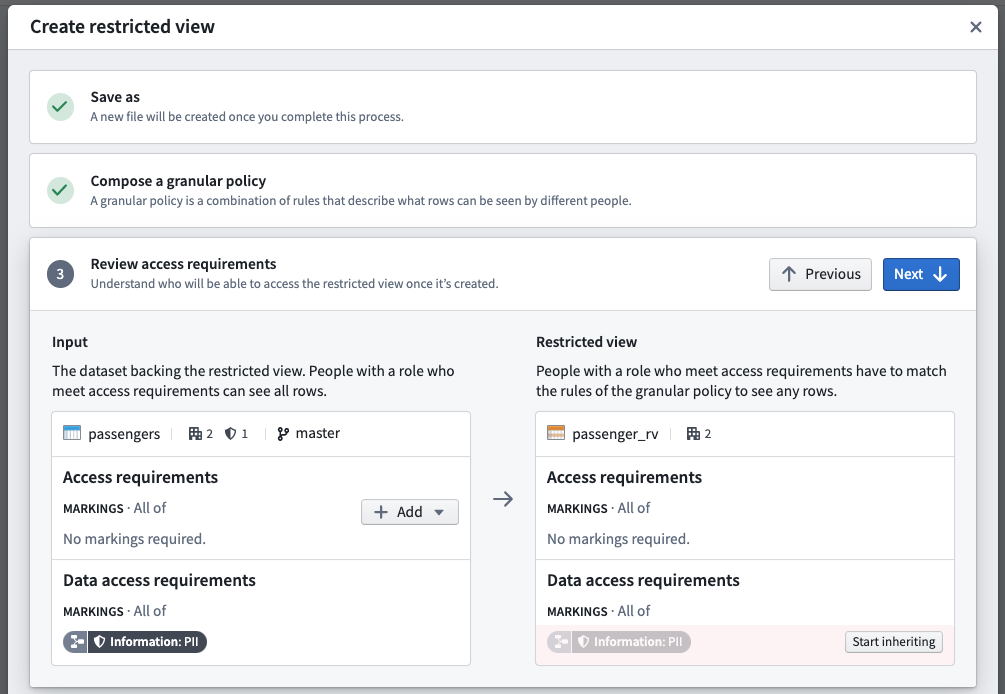
- Review access requirements: Review the existing file and transaction-level Markings on both the upstream dataset and downstream restricted view. With appropriate permissions, you can un-mark (remove) Markings from the restricted view.
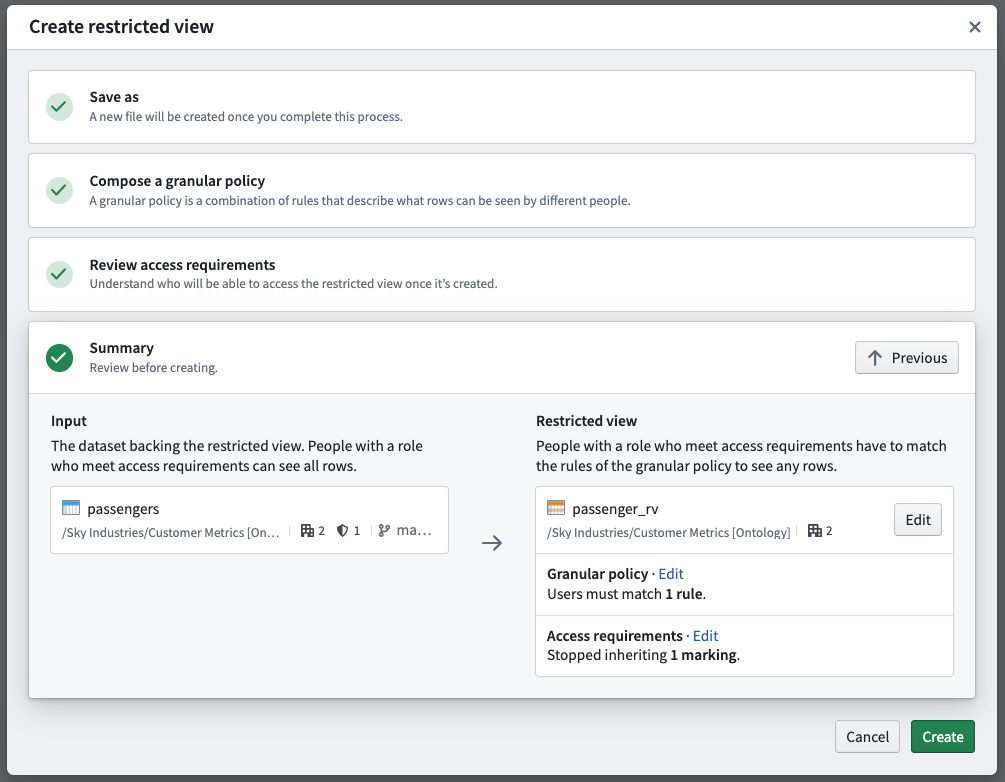
- Summary: Review your selections before the creation and initial build of the restricted view.
Save as
Name your restricted view and select a save location. Typically, you will want to save your restricted view in a different Project from the input dataset. This ensures users consuming the restricted view can have View permissions on the downstream Project. Alternatively, you can save the restricted view in the same Project as the input dataset. Use Markings to protect the input dataset.
Compose a granular policy
You can create rule-based policies using user attributes, column names, and specific values. See restricted view policies for more information.
Review access requirements
Users that should only access sensitive data through a restricted view should not have access to the upstream dataset. In this step, you can review the access requirements for both the dataset and the restricted view you are creating. If you have appropriate Marking permissions, you can remove inherited Markings from the restricted view and/or apply Markings to the upstream dataset.
Summary
The summary presents the final proposed access controls for both the dataset and the restricted view. If you are satisfied with the summary result, select Create to start an initial build of the restricted view.
When the restricted view is created, a build schedule will be automatically created in the background that will rebuild anytime the input dataset updates.
Review the management documentation on how to use restricted views to back object types.
Create marking-backed restricted views
You can create a restricted view based off of a dataset with a column of Markings. Each row will only be visible to users with the necessary Marking access. For example, in the restricted view below, a user needs both A1 and A2 to view the first row, and needs B1 to view the second row.
| Data | Markings |
|---|---|
| Row 1 | [A1, A2] |
| Row 2 | [B1] |
Follow these steps to create a Marking-backed restricted view:
- Prepare a dataset with one or more Marking columns that will be secured as a restricted view. Each cell must contain a STRING ARRAY of Marking IDs. Learn more about the expected format of the upstream dataset.
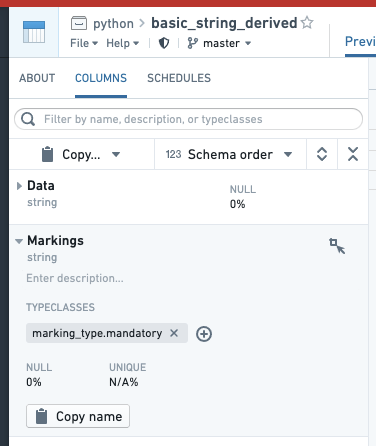
- Annotate each Marking column by going to the COLUMNS tab of the Dataset Preview interface, selecting the column, selecting "Add typeclasses", and entering marking_type.mandatory. This step is not necessary for granular permissions to work, but some interfaces in Foundry use this as a hint to render the column more appropriately.
- Create the restricted view off of the dataset. The left side of the policy rule should be “user’s Markings”. For the right side, select “Columns” and select the Marking column. If you have multiple columns, create a rule for each one and combine them with AND or OR rules as desired.
Expected format of the upstream dataset
The dataset from which a restricted view is created must contain a column of Marking IDs.
- These IDs are universally unique identifiers (UUIDs).
- The column must be of type STRING ARRAY (and contain a list of Marking IDs).
- You may have more than one column of Marking IDs.
- You may mix Markings and Organizations in the same column.
For example, this dataset contains lists of Markings. The sample CSV below can be uploaded directly to Foundry. However, you will need to manually modify the inferred schema. Go to Details > Schema and change "type": "STRING" to "type": "ARRAY, "arraySubtype": { "type": "STRING" }.
| Data | Markings |
|---|---|
| Row 1 | [ab888888-7777-6666-5555-123456789012, gh111111-2222-3333-4444-555566667777] |
| Row 2 | [cd345678-1111-2222-3333-123456789102, jk765432-1111-2222-3333-345678912345] |
Add restricted view to a Marketplace product
Use Foundry DevOps to include your restricted views in Marketplace products for other users to install and reuse. Learn how to create your first product.
Supported features
Only string and boolean constants are supported. Constants can only be compared to fields (columns) or "the user’s groups" user property. Marketplace currently does not support multiple field-constant comparison conditions using the same field.
Add restricted views to products
To add a restricted view to a product, first create a product, then add outputs. Choose the Add files option to navigate to the restricted view from within the Compass filesystem and add it to your product.
Adding a restricted view to a product packages the restricted view's policy, not the data.
Add and merge restricted views to a branch [Experimental]
Support for restricted views in branching version control is in the experimental phase of development and may not be available on your enrollment.Learn more about branching.
Add a restricted view on a branch
To add a restricted view to a branch, select the branch in the dropdown menu. Then, use the Add resource option to add the restricted view to the branch. This allows you to build or modify the policy of the restricted view by adding it as a modified resource into your branch. Note that the branch needs to exist on the backing dataset, otherwise you may receive an error.
This is a necessary step because by default, accessing a restricted view on a branch displays content from the main branch. However, if you are already on a branch and edit the restricted view’s policy or markings, then it will automatically be added to the branch with those edits. Note that builds are automatically triggered when a restricted view is added to the branch.
By default, owners and editors have the ability to add a restricted view to a branch. Owners can edit the policy and markings to add the branch restricted view, while editors can only build a restricted view. This allows editors to add the restricted view to their branched workflow and test it without needing ownership of the restricted view.
View a branched restricted view
The permissions on a branched restricted view are the same as the parent restricted view. If you can view the original restricted view, you can view its branched restricted views. Note that if the upstream dataset on a branch restricted view has different markings, then a viewer may be able to see previously restricted data.
Propagate a restricted view downstream
If the restricted view is updated on a branch, object types backed by the restricted view will need to be indexed on the branch to reflect these changes. Within Ontology Manager, use the Index object type option on the top banner to index the object on the branch. Once indexed, Workshop modules referencing these objects and Ontology Manager will reflect the restricted view changes on the branch.
Approve a restricted view change
Restricted views are currently being integrated with the Approvals application.
Changes to a branched restricted view by an owner or an editor are automatically approved. As a reminder, editors will only be able to build restricted views on branches, while owners can both build restricted views and modify their policies on branches.
Merge in a branched restricted view
The permissions for merging a restricted view on a branch are the same as branching integrations in other applications: only the creator of the branch can merge a restricted view.
中文翻译
受限视图(Restricted views)
标记(Markings)和角色(Roles)提供了强大的访问控制能力,但部分场景需要更细粒度的权限管控。例如,授予用户访问某类所有对象的权限可能不足,也不符合实际需求。部分对象类型需要为不同用户展示不同的对象,比如企业会限制销售代表仅可查看其分配门店对应的客户。受限视图就可以提供这一层级的额外访问控制能力。
用户在Foundry中与受限视图资源交互,受限视图的底层能力由细粒度权限(Granular Permissions)提供。受限视图会将数据集(Dataset)的访问范围限制为用户仅可查看有权限的行数据。受限视图构建在支撑数据集之上,不可作为转换(Transforms)的输入。受限视图的策略(Policy) 决定了用户可见的具体行数据,通常由拥有所有者(Owner)角色的用户在创建受限视图时定义。创建完成后,受限视图可以作为本体论(Ontology)中对象类型的底层数据源。例如,如果一行数据对应一个对象,受限视图就会根据其支撑的对象类型,控制用户可见的对象范围。
受限视图策略
策略是受限视图的核心。受限视图策略使用细粒度策略(Granular Policies)判断用户可见的行范围。细粒度策略是一组规则和逻辑运算符,用于对用户属性、列、值进行比较判断。
- 用户属性: 查看数据的用户的属性信息
- 列名: 受限视图支撑数据集中的列
- 特定值: 字符串、布尔值、数字或数组
绝大多数(甚至全部)策略都会包含至少一个与用户属性比较的条件项,基于用户的权限管控至少需要一个这类条件项才能实现。
当引用用户、用户组或组织时,策略的列和策略定义中都需要使用唯一标识符(UUID)。不支持使用名称替代ID,避免重命名引发的相关问题。
在下方示例中,受限视图策略包含两条可生效的规则:
你可以了解更多细粒度策略设计的相关内容,包括推荐方案和最佳实践,也可以查看用户属性、策略比较逻辑和策略限制的说明。
确定受限视图策略的设计方案后,你可以对流水线和项目(Project)做必要的调整来支撑策略运行。准备好受限视图策略和流水线后,就可以开始创建受限视图了。
创建受限视图
拥有所有者角色或对应权限的用户可以右键数据集,通过上下文菜单操作在下游创建受限视图:
受限视图创建向导包含以下步骤: 1. 保存为: 选择受限视图在文件系统中的名称和存储位置 2. 编写细粒度策略: 定义策略语句,决定用户访问受限视图或对应对象时可见的行或对象范围 3. 检查访问要求: 检查上游数据集和下游受限视图现有的文件级、事务级标记。如果拥有对应权限,你可以移除受限视图继承的标记 4. 摘要: 在创建并首次构建受限视图前,检查你选择的所有配置
保存为
为你的受限视图命名并选择存储位置。通常建议将受限视图存储在与输入数据集不同的项目中,确保使用受限视图的用户仅拥有下游项目的查看权限。你也可以选择将受限视图和输入数据集存在同一个项目中,使用标记保护输入数据集。
编写细粒度策略
你可以使用用户属性、列名和特定值创建基于规则的策略,查看受限视图策略了解更多信息。
检查访问要求
仅允许通过受限视图访问敏感数据的用户,不应该拥有上游数据集的访问权限。在这一步,你可以检查数据集和正在创建的受限视图的访问要求。如果拥有对应的标记管理权限,你可以移除受限视图继承的标记,和/或为上游数据集添加标记。
摘要
摘要页展示了数据集和受限视图最终的访问控制配置。如果确认配置无误,选择创建(Create)启动受限视图的首次构建。
受限视图创建完成后,后台会自动生成一个构建调度,只要输入数据集更新就会自动重新构建受限视图。
查看管理文档了解如何使用受限视图作为对象类型的数据源。
创建标记驱动(Marking-backed)的受限视图
你可以基于带有标记列的数据集创建受限视图,每一行数据仅对拥有对应标记访问权限的用户可见。例如在下方的受限视图中,用户需要同时拥有A1和A2的权限才能查看第一行,需要拥有B1的权限才能查看第二行。
| 数据 | 标记 |
|---|---|
| 行1 | [A1, A2] |
| 行2 | [B1] |
按照以下步骤创建标记驱动的受限视图: 1. 准备包含一个或多个标记列的数据集,该数据集将被作为受限视图进行安全管控。每个单元格必须包含由标记ID组成的字符串数组。了解更多上游数据集的格式要求。 2. 为每个标记列添加注解:进入数据集预览界面的「列」标签页,选中对应列,选择「添加类型类(Add typeclasses)」,输入 marking_type.mandatory。该步骤不是细粒度权限运行的必要条件,但Foundry的部分界面会基于该注解优化列的展示效果。
- 基于该数据集创建受限视图。策略规则的左侧选择「用户的标记」,右侧选择「列」,再选中对应的标记列。如果有多个标记列,可以为每列创建一条规则,根据需要用AND或OR逻辑组合。
上游数据集的格式要求
用于创建受限视图的数据集必须包含一个存储标记ID的列: * 这些ID是通用唯一标识符(UUID) * 列的类型必须为字符串数组(存储标记ID的列表) * 可以存在多个存储标记ID的列 * 可以在同一列中混合存储标记和组织的ID
例如以下数据集包含标记列表,对应的示例CSV可以直接上传到Foundry,但你需要手动修改系统推断的Schema:进入详情 > Schema,将"type": "STRING"修改为"type": "ARRAY", "arraySubtype": { "type": "STRING" }。
| 数据 | 标记 |
|---|---|
| 行1 | [ab888888-7777-6666-5555-123456789012, gh111111-2222-3333-4444-555566667777] |
| 行2 | [cd345678-1111-2222-3333-123456789102, jk765432-1111-2222-3333-345678912345] |
向市场产品添加受限视图
使用Foundry DevOps将你的受限视图添加到市场产品(Marketplace Products)中,供其他用户安装复用。了解如何创建你的第一个产品。
支持的功能
目前仅支持string和boolean类型的常量,常量仅可与字段(列)或「用户的用户组」属性做比较。市场当前不支持对同一个字段添加多个字段-常量比较条件。
向产品添加受限视图
要向产品添加受限视图,首先创建一个产品,然后添加输出。选择添加文件(Add files)选项,从Compass文件系统中找到对应的受限视图,添加到产品中即可。
将受限视图添加到产品时,打包的是受限视图的策略,不是数据本身。
向分支添加并合并受限视图 [实验性(Experimental)]
分支版本控制(Branching Version Control)对受限视图的支持目前处于开发的实验阶段,你的部署实例(Enrollment)可能未开放该功能。了解更多分支相关内容。
向分支添加受限视图
要向分支添加受限视图,在下拉菜单中选中对应分支,然后使用添加资源(Add resource)选项将受限视图添加到分支中。该操作会将受限视图作为修改资源加入你的分支,你可以构建受限视图或修改其策略。请注意,支撑数据集必须存在对应分支,否则可能会报错。
该步骤是必要的,因为默认情况下访问分支上的受限视图会展示主分支的内容。但如果你已经在对应分支上编辑了受限视图的策略或标记,它会自动随编辑内容被添加到分支中。请注意,受限视图被添加到分支时会自动触发构建。
默认情况下,所有者和编辑者有权限向分支添加受限视图:所有者可以编辑策略和标记来添加分支受限视图,编辑者仅可以构建受限视图。这使得编辑者可以将受限视图加入他们的分支工作流并测试,不需要拥有受限视图的所有权。
查看分支上的受限视图
分支上的受限视图的权限与父受限视图一致,如果你可以查看原始受限视图,就可以查看其分支版本。请注意,如果分支受限视图的上游数据集有不同的标记,查看者可能可以看到之前被限制访问的数据。
向下游同步受限视图变更
如果分支上的受限视图被更新,以该受限视图为数据源的对象类型需要在分支上重新索引才能生效变更。在本体管理器(Ontology Manager)中,使用顶部栏的索引对象类型(Index object type)选项在分支上索引对象。索引完成后,引用这些对象的Workshop模块和本体管理器都会展示分支上受限视图的变更效果。
审批受限视图变更
受限视图目前正在与审批(Approvals)应用集成。 所有者或编辑者对分支受限视图的变更会自动通过审批。请注意,编辑者仅可以在分支上构建受限视图,所有者既可以构建分支上的受限视图,也可以修改其策略。
合并分支上的受限视图
合并分支上受限视图的权限与其他应用的分支集成规则一致:仅分支的创建者可以合并受限视图。