Configure application access(配置应用程序访问权限)
The Application access section of Control Panel allows appropriate administrators to control the scope of access for users and groups to specific tools within Foundry.
A common usage pattern for limiting application access is to prevent distraction or confusion for users within Foundry that operate within either custom applications or with a narrow set of curated analyses and other resources. Limiting the scope of applications available to this group of users can streamline their Foundry experience.
Another common pattern is to use application access to give a platform administration team or a group of advanced users early access to beta applications while restricting their availability to the broader user base.
This can even go as far as removing access to almost all Foundry applications. In this case a user will only have access to consumer-facing applications, such as Slate and Workshop.
:::callout{theme="warning"} Application access is not a security feature; it only simplifies the frontend user experience for users that do not need to view certain applications. Refer to the Security documentation for guidance on how to properly permission off functionality. :::
To view and configure the Application access section in Control Panel, a user needs the Manage application access workflow, which is granted by the User experience administrator role. Roles are administered in the Organization permissions tab in Control Panel.
Change requests
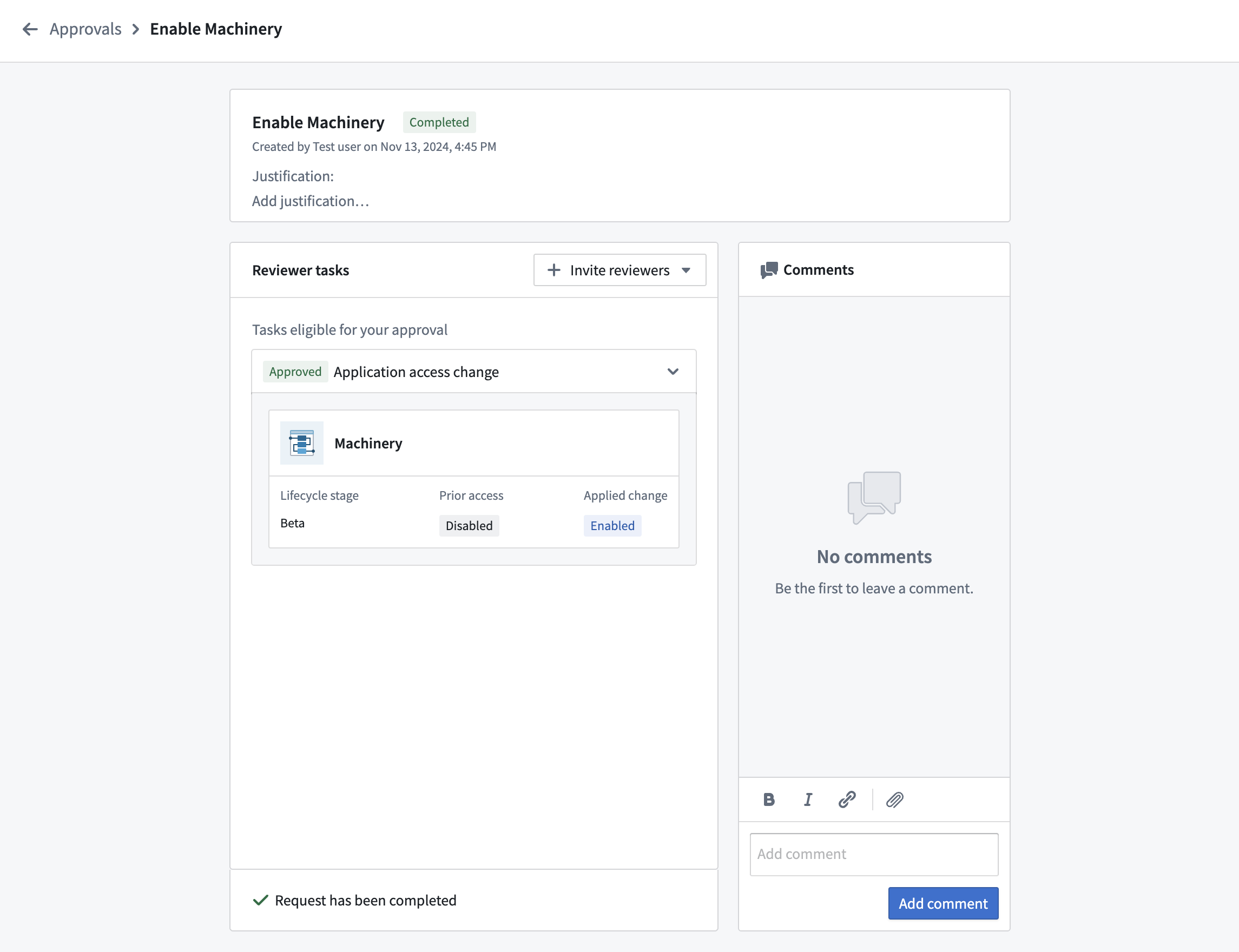
Changing an application access configuration will generate a change request in Approvals. These can be viewed in the Approvals inbox in Control Panel with the request type Application access change requests. A historical record of all changes made will be kept.
Configure approval policy
By default, application access change requests will be automatically self-approved and applied. This can be configured in the Advanced settings tab.
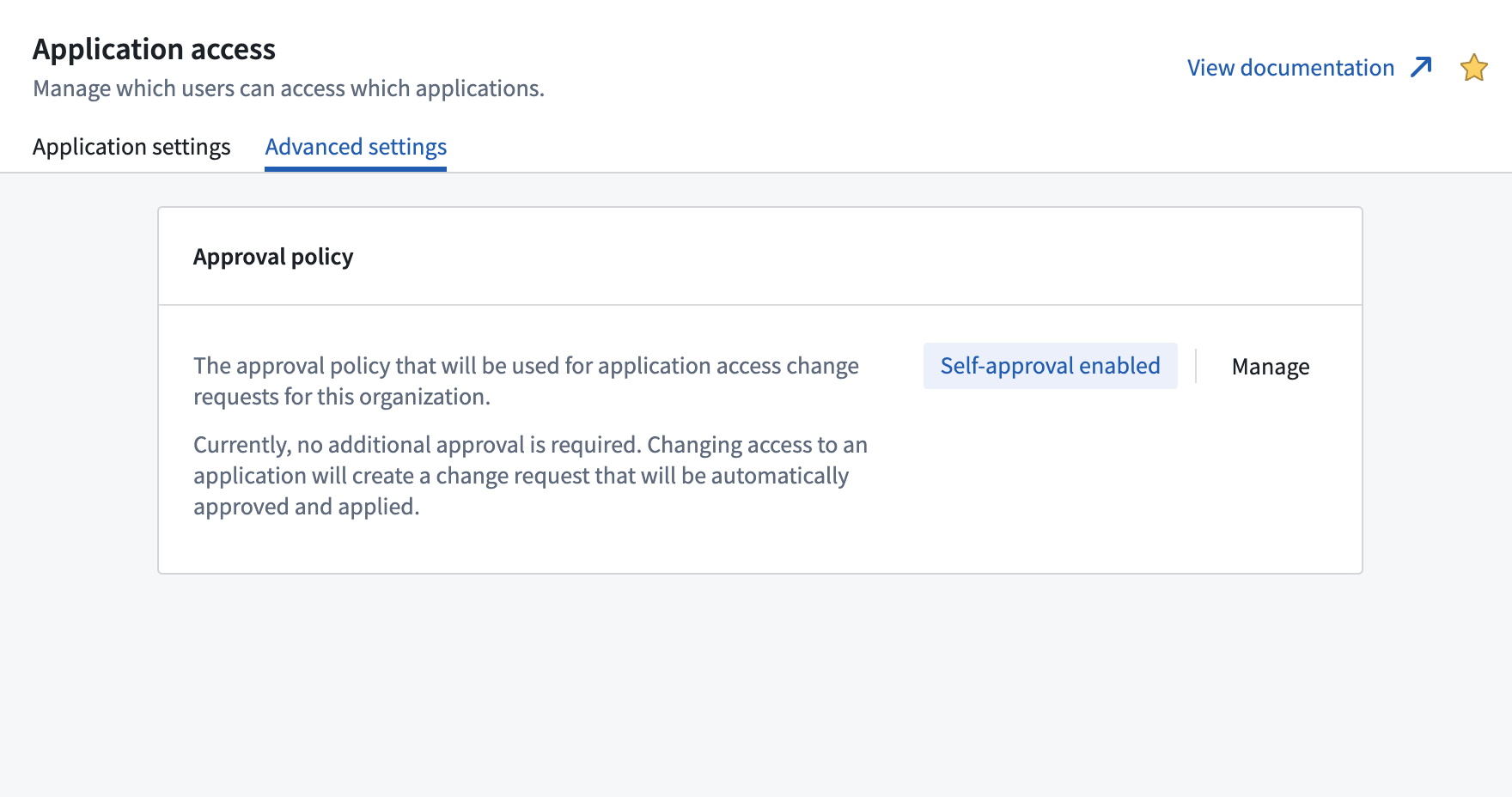
Select Manage to request a change to the approval policy. This will bring up a dialog where you can select the new policy that should apply to application access requests.
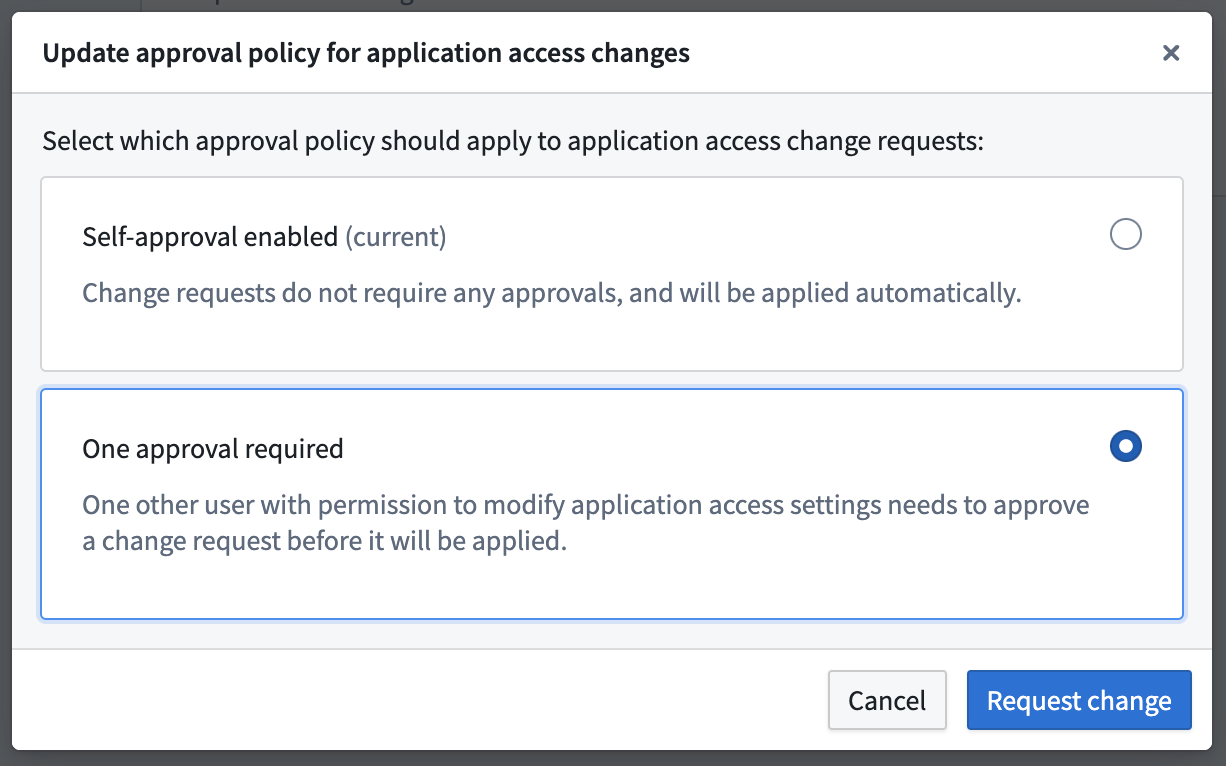
Choose the new desired approval policy and select Request change. This will generate a change request in Approvals. Changes to the approval policy require approval from a user with the Manage application access workflow other than the change request author.
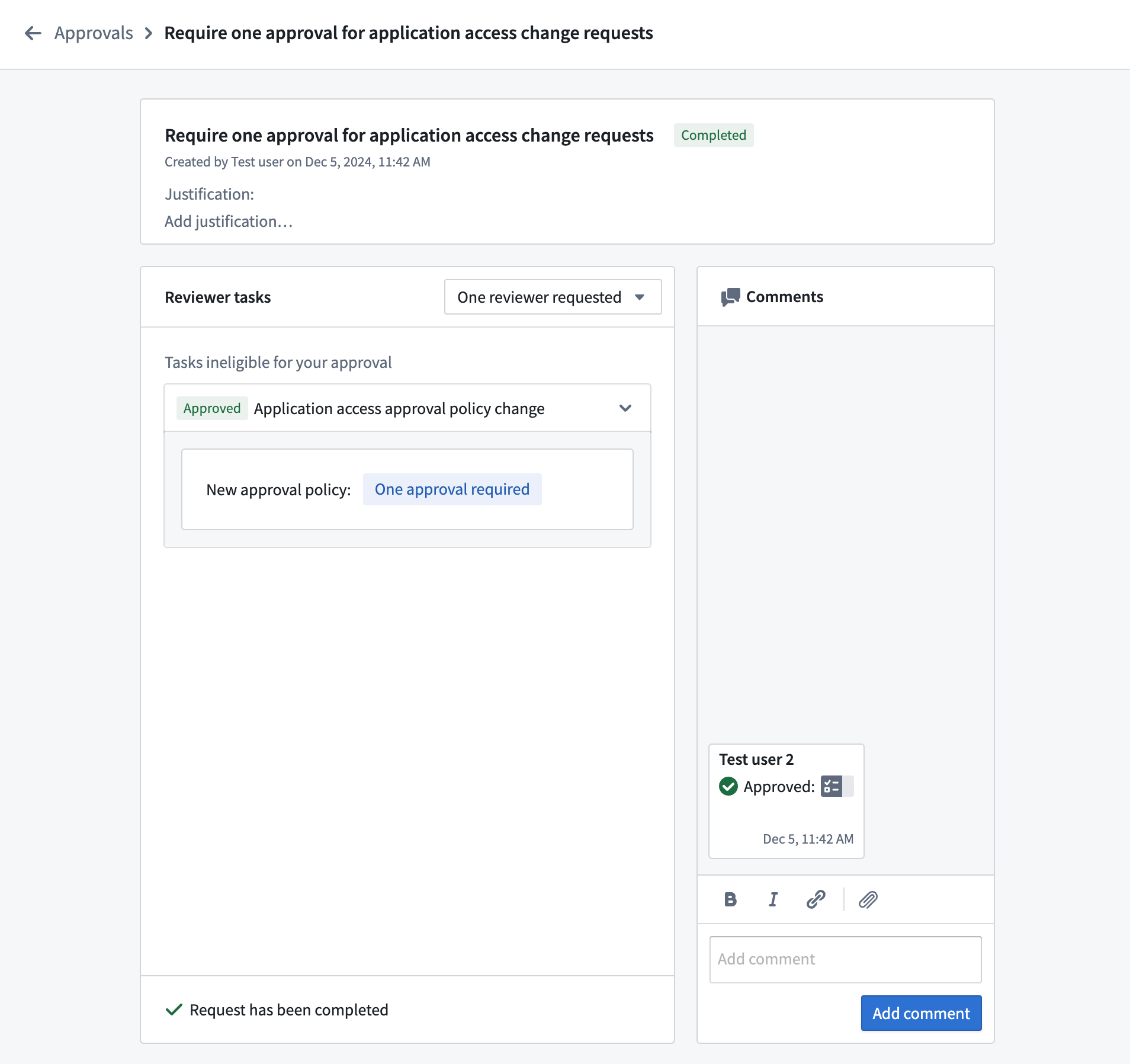
Once approved, the updated approval policy will immediately start being applied to application access change requests.
Restrict platform access
By default, Foundry users have access to most parts of the Foundry platform. With Application access it's possible to flexibly tailor the Foundry experience for different groups.
The most restrictive configuration is to remove Foundry platform access entirely. There are two options for restricting access to the Foundry Platform: an allowlist or a blocklist. Everyone except members of groups restricts access for users who are in at least one of the groups specified. Only members of groups restricts access for users who are not in any of the groups specified. Users with restricted access to the Foundry platform will only have access to consumer-facing applications built in Slate or Workshop to which they have explicitly been granted resource-level access. For these users the Foundry sidebar will be hidden and they will be prevented from navigating to any other parts of Foundry. Note that application access operates at the application level; these controls do not differentiate between read and write access.
To limit which users are able to access the Foundry platform as a whole:
- Select Manage next to Foundry Platform to bring up a dialog for configuring access to the Foundry platform.
- Choose Everyone except members of groups or Only members of groups.
- Search for user groups which, depending on the previous selection, should or should not have access to the platform.
- Select Request and apply change to create a change request and immediately apply it.
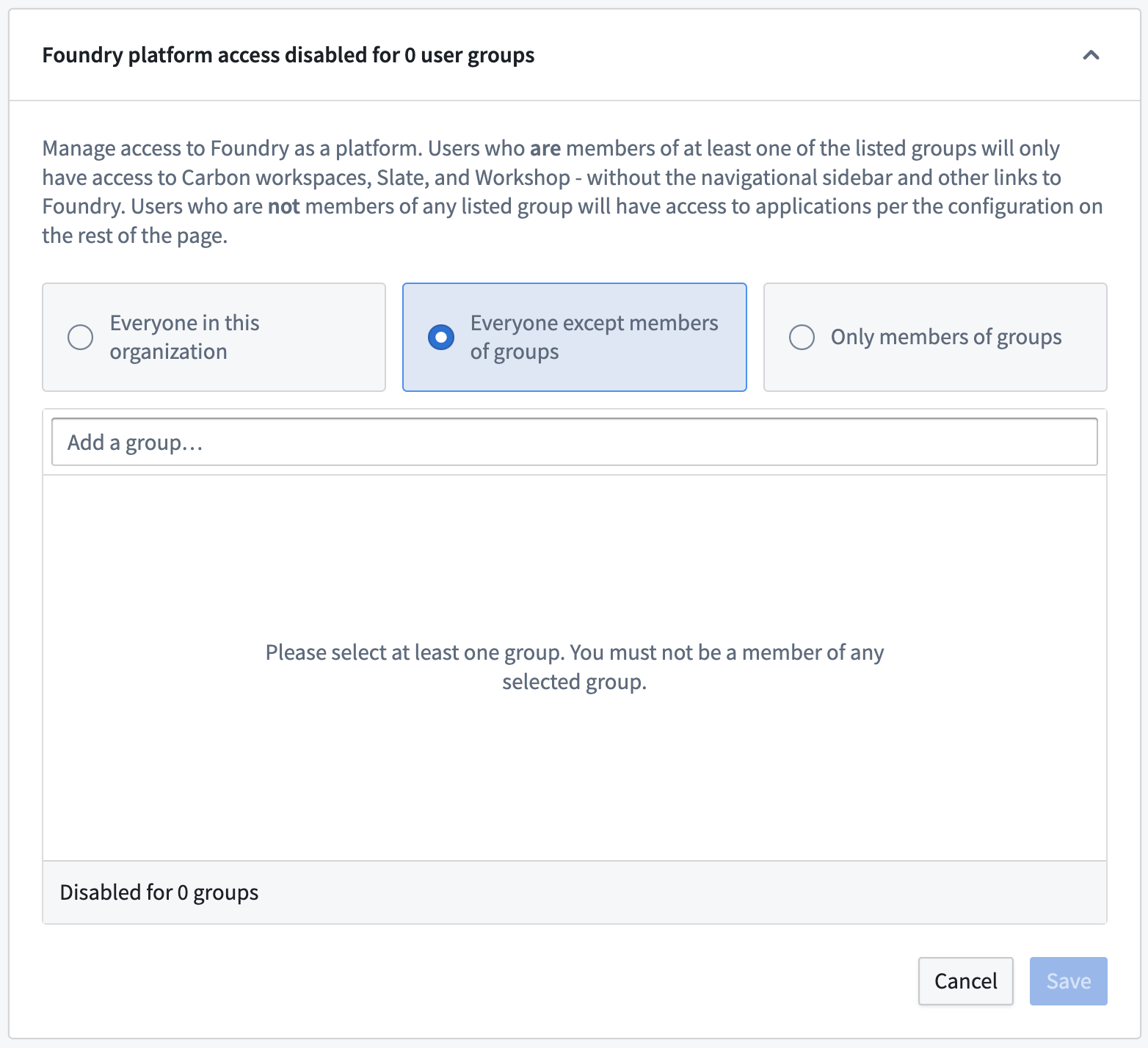
Note that a user account with the User experience administrator role must remain in at least one group that retains Foundry platform access because otherwise it will lose access to Control Panel and no longer be able to administer these settings.
Customize application access
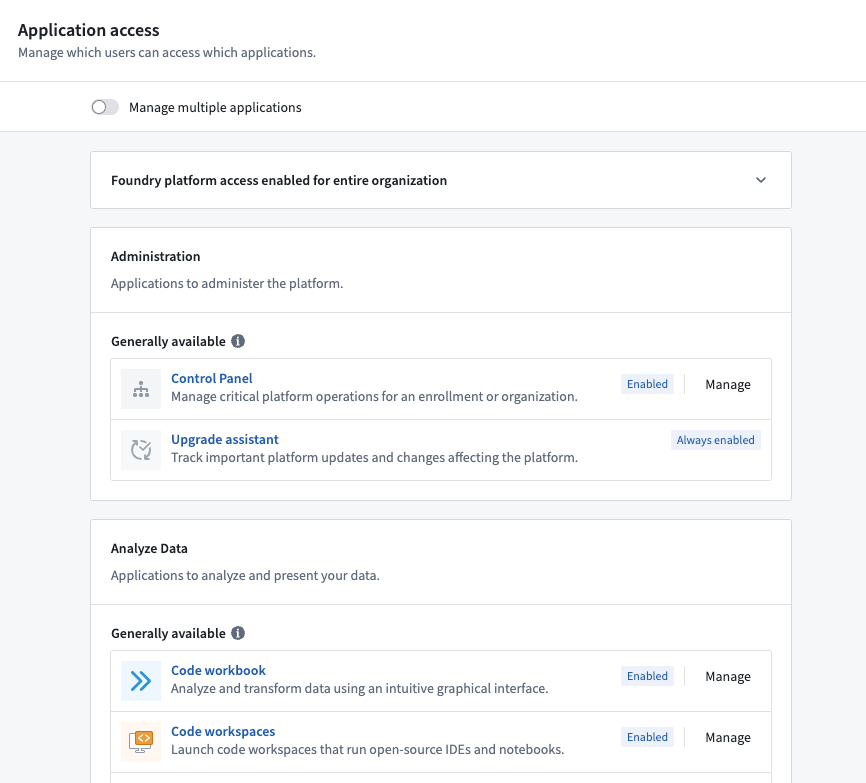
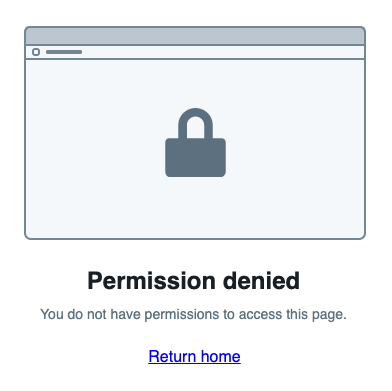
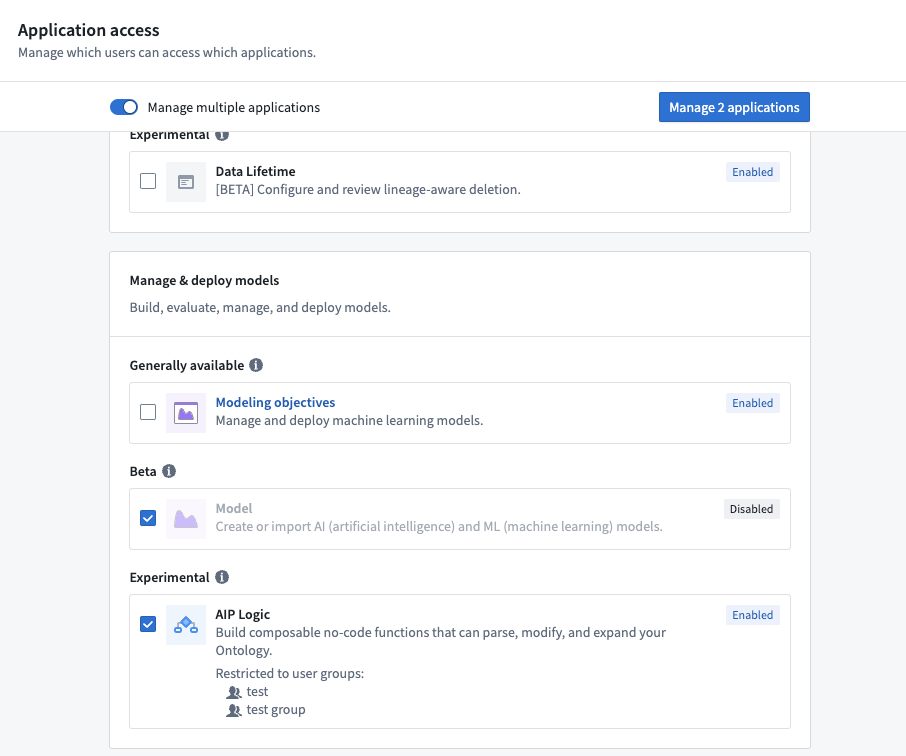
The scope of the Foundry platform can be restricted on a per-application basis. Users without access to an application will not be able to discover it from the sidebar or Application Portal. Additionally, they will see a 403 "Permission denied" error message when attempting to access an application through a URL to which they do not have access.
All applications are grouped by category and lifecycle stage, and sorted alphabetically.
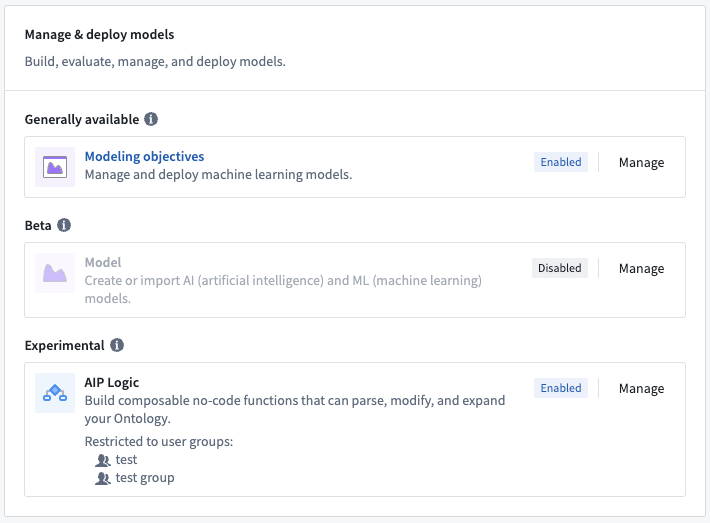
Select Manage to bring up a dialog for configuring access to one single application. To configure the same access setting for multiple applications, toggle Manage multiple applications at the top of the page and make a selection of applications to update.
In this case, the manage dialog shows all selected applications with their current lifecycle stage and access setting.
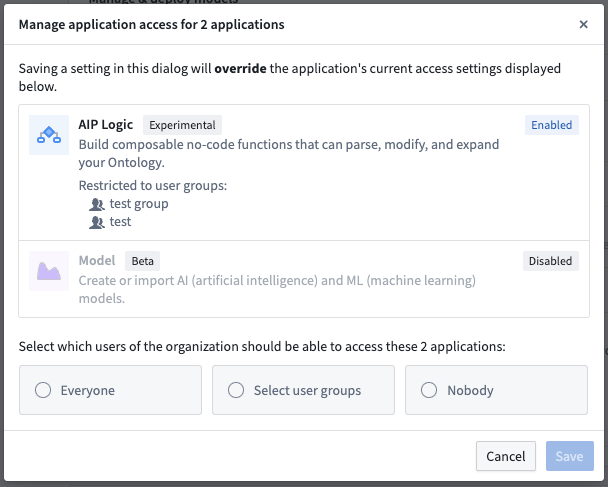
Note that Control Panel cannot be disabled completely. At least one group that you are a member of needs to have access because otherwise you would no longer be able to administer these settings.
Lifecycle stage updates
Applications follow the development lifecycle. When an application transitions from one lifecycle stage to the next, the same set of users maintain access, with the following exceptions:
- When an application becomes generally available, all users will get access to it automatically, unless the application has been explicitly disabled during the experimental or beta stage. Beta applications that will be automatically enabled are shown as "Not yet enabled" rather than "Disabled" in Application access to indicate this state.
- When an application is deprecated, all users will lose access to it.
To highlight significant lifecycle stage updates, some applications are displayed at the top of the page until their settings are confirmed or updated:
- Generally available applications that were previously disabled: Applications that were explicitly disabled or restricted to certain user groups during the experimental or beta stage remain restricted when those applications reach general availability. Quick actions are available to either keep the restriction or enable the application for all users in its new lifecycle stage.
- Recently sunsetted applications that are enabled: When an application enters the sunset stage, those users who had access before will maintain access. At this point, usage of the application is discouraged, but support for critical bug fixes is still provided. If a deprecation timeline (typically 12 months) has been set, the deprecation date will be announced and displayed alongside the application on the application access page. Work with users to decrease usage of the application ahead of the deprecation date, then disable it.
- Deprecated applications that are enabled: It is expected that all users have migrated to different workflows while the application was in the sunset stage with a deprecation date. Deprecated applications can disappear from your Foundry installation at any point and should no longer be used.
Note that all application lifecycle stages will be announced two weeks in advance in the Announcements section of the documentation. Addresses configured in the Platform administration contact information will also be emailed about these changes.
中文翻译
配置应用程序访问权限
控制面板中的应用程序访问权限部分允许相应的管理员控制用户和组对 Foundry 内特定工具集的访问范围。
限制应用程序访问权限的常见使用模式是防止在自定义应用程序或有限的分析资源集中操作的 Foundry 用户产生干扰或困惑。限制这组用户可用的应用程序范围可以简化他们的 Foundry 体验。
另一种常见模式是利用应用程序访问权限,让平台管理团队或高级用户组提前使用 beta 应用程序,同时限制这些应用程序对更广泛用户群的可用性。
甚至可以做到移除几乎所有 Foundry 应用程序的访问权限。在这种情况下,用户只能访问面向消费者的应用程序,如 Slate 和 Workshop。
:::callout{theme="warning"} 应用程序访问权限并非安全功能;它仅简化了无需查看某些应用程序的用户的前端用户体验。有关如何正确设置功能权限的指导,请参阅安全文档。 :::
要在控制面板中查看和配置应用程序访问权限部分,用户需要拥有管理应用程序访问权限工作流,该工作流由用户体验管理员角色授予。角色在控制面板的组织权限标签页中进行管理。
变更请求
更改应用程序访问权限配置将在审批中生成一个变更请求。这些变更请求可以在控制面板的审批收件箱中查看,请求类型为应用程序访问权限变更请求。所有更改的历史记录都将被保留。
配置审批策略
默认情况下,应用程序访问权限变更请求将自动自我批准并应用。这可以在高级设置标签页中进行配置。
选择管理以请求更改审批策略。这将弹出一个对话框,您可以在其中选择适用于应用程序访问权限请求的新策略。
选择所需的新审批策略,然后选择请求更改。这将在审批中生成一个变更请求。对审批策略的更改需要由拥有管理应用程序访问权限工作流(且不是变更请求作者)的用户批准。
一旦批准,更新后的审批策略将立即开始应用于应用程序访问权限变更请求。
限制平台访问
默认情况下,Foundry 用户可以访问 Foundry 平台的大部分功能。通过应用程序访问权限,可以灵活地为不同群体定制 Foundry 体验。
最严格的配置是完全移除 Foundry 平台访问权限。限制 Foundry 平台访问权限有两种选项:允许列表或阻止列表。除组成员之外的所有人会限制至少属于一个指定组的用户的访问权限。仅限组成员会限制不属于任何指定组的用户的访问权限。对 Foundry 平台访问受限的用户只能访问他们被明确授予资源级访问权限的、在 Slate 或 Workshop 中构建的面向消费者的应用程序。对于这些用户,Foundry 侧边栏将被隐藏,并且他们将无法导航到 Foundry 的任何其他部分。请注意,应用程序访问权限在应用程序级别运行;这些控制不区分读取和写入访问权限。
要限制哪些用户可以访问整个 Foundry 平台:
- 选择Foundry 平台旁边的管理,以弹出配置 Foundry 平台访问权限的对话框。
- 选择除组成员之外的所有人或仅限组成员。
- 搜索用户组,根据之前的选项,这些组应该或不应该拥有平台访问权限。
- 选择请求并应用更改以创建变更请求并立即应用。
请注意,拥有用户体验管理员角色的用户帐户必须至少保留在一个保留 Foundry 平台访问权限的组中,否则它将失去对控制面板的访问权限,并且无法再管理这些设置。
自定义应用程序访问权限
Foundry 平台的范围可以按单个应用程序进行限制。没有某个应用程序访问权限的用户将无法从侧边栏或应用程序门户中发现该应用程序。此外,当他们尝试通过 URL 访问没有权限的应用程序时,将看到 403 "Permission denied" 错误消息。
所有应用程序按类别和生命周期阶段分组,并按字母顺序排序。
选择管理以弹出配置单个应用程序访问权限的对话框。要为多个应用程序配置相同的访问设置,请切换页面顶部的管理多个应用程序,然后选择要更新的应用程序。
在这种情况下,管理对话框会显示所有选定的应用程序及其当前生命周期阶段和访问设置。
请注意,控制面板无法完全禁用。您所属的至少一个组需要拥有访问权限,否则您将无法再管理这些设置。
生命周期阶段更新
应用程序遵循开发生命周期。当应用程序从一个生命周期阶段过渡到下一个阶段时,同一组用户保持访问权限,但以下情况除外:
- 当应用程序正式发布(generally available)时,所有用户将自动获得访问权限,除非该应用程序在实验(experimental)或测试(beta)阶段被明确禁用。在应用程序访问权限中,将自动启用的测试版应用程序显示为"尚未启用"而非"已禁用",以表明此状态。
- 当应用程序被弃用(deprecated)时,所有用户将失去对其的访问权限。
为了突出显示重要的生命周期阶段更新,某些应用程序会显示在页面顶部,直到其设置被确认或更新:
- 之前被禁用的正式发布应用程序: 在实验或测试阶段被明确禁用或限制给特定用户组的应用程序,在达到正式发布阶段时仍保持受限状态。提供快速操作,可以选择保持限制或在新生命周期阶段为所有用户启用该应用程序。
- 最近进入日落阶段且已启用的应用程序: 当应用程序进入日落(sunset)阶段时,之前拥有访问权限的用户将保持访问权限。此时,不鼓励使用该应用程序,但仍提供关键错误修复支持。如果已设置弃用时间线(通常为 12 个月),弃用日期将在应用程序访问页面上与该应用程序一起公布和显示。与用户合作,在弃用日期之前减少对该应用程序的使用,然后禁用它。
- 已弃用且已启用的应用程序: 预计所有用户在应用程序处于日落阶段并带有弃用日期时已迁移到不同的工作流。已弃用的应用程序可能随时从您的 Foundry 安装中消失,不应再使用。
请注意,所有应用程序生命周期阶段将在文档的公告部分提前两周公布。在平台管理联系信息中配置的地址也将通过电子邮件收到这些更改的通知。