Configure Code Workbook profiles(配置Code Workbook配置文件(profile))
:::callout{theme="warning" title="Availability"} Code Workbook profiles are only configurable in Control Panel in some environments. Contact your Palantir representative with any questions. :::
Code Workbook profiles can be seen as a useful default of Conda packages and Spark settings for a particular use case or user group. Code Workbook profiles will appear in the Environment Configuration dialog in Code Workbook for users to select. Optionally, you can specify prewarmed modules for a given profile to reduce startup time.
:::callout{theme="neutral"} New Code Workbook profiles created in Control Panel are backed by Artifacts. See below for details about Artifacts profiles. :::
Artifacts profiles
All new profiles created in Control Panel are backed by Artifacts. The configuration of Artifacts profiles is largely the same as the configuration of existing legacy profiles, with Artifacts profiles enabling the use of libraries published securely through Artifacts, including Python libraries created in Foundry that are not published to the shared channel.
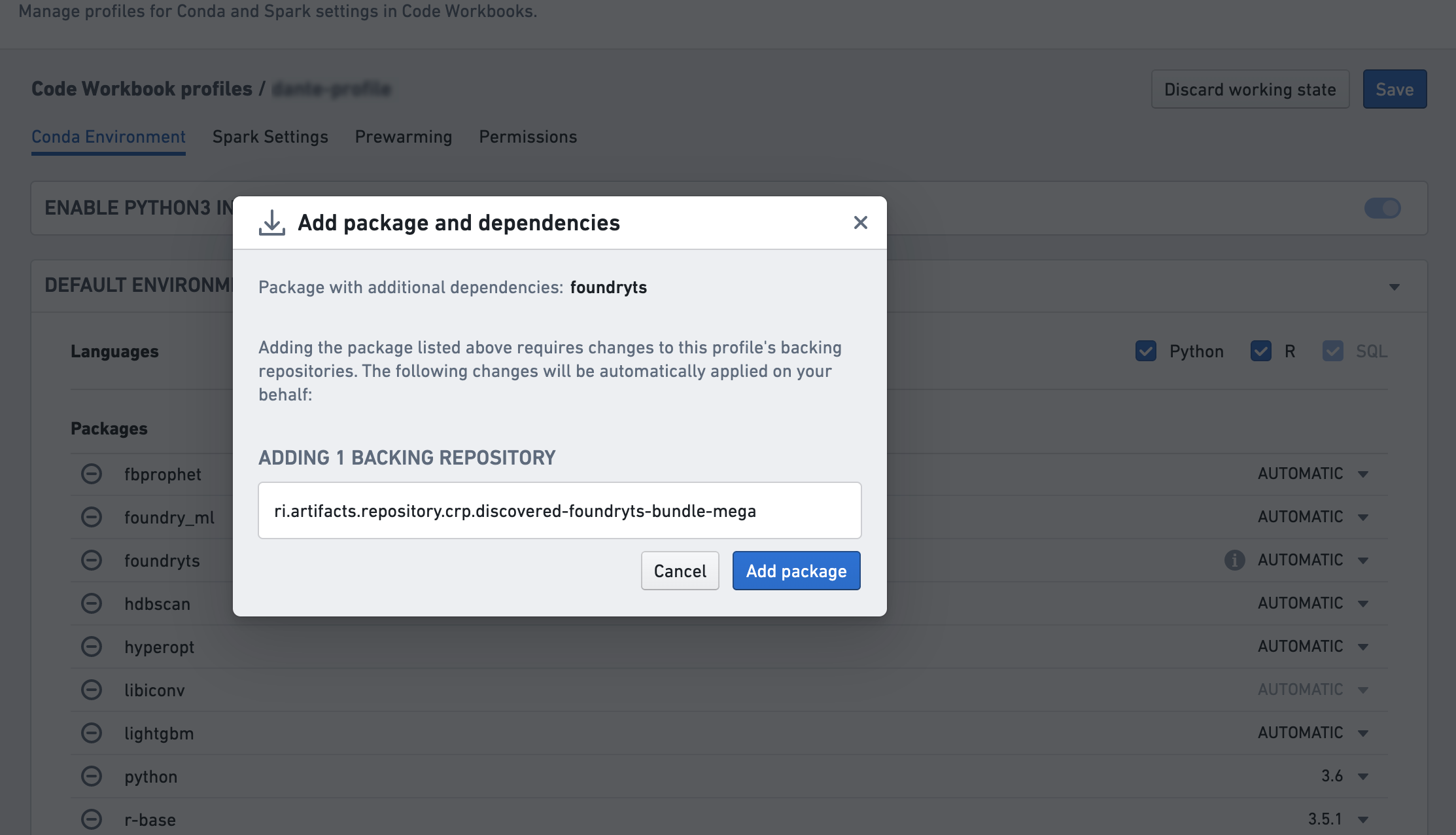
In an Artifacts profile, the Conda environment contains both a list of packages and a list of backing repositories. To use a profile in Code Workbook, all backing repositories listed on the profile must be imported into the workbook's project.
When editing the Conda environment for a profile, the UI automatically finds the needed list of backing repositories and informs the user they will be added to the profile.
Configuring Code Workbook profiles
Conda environment
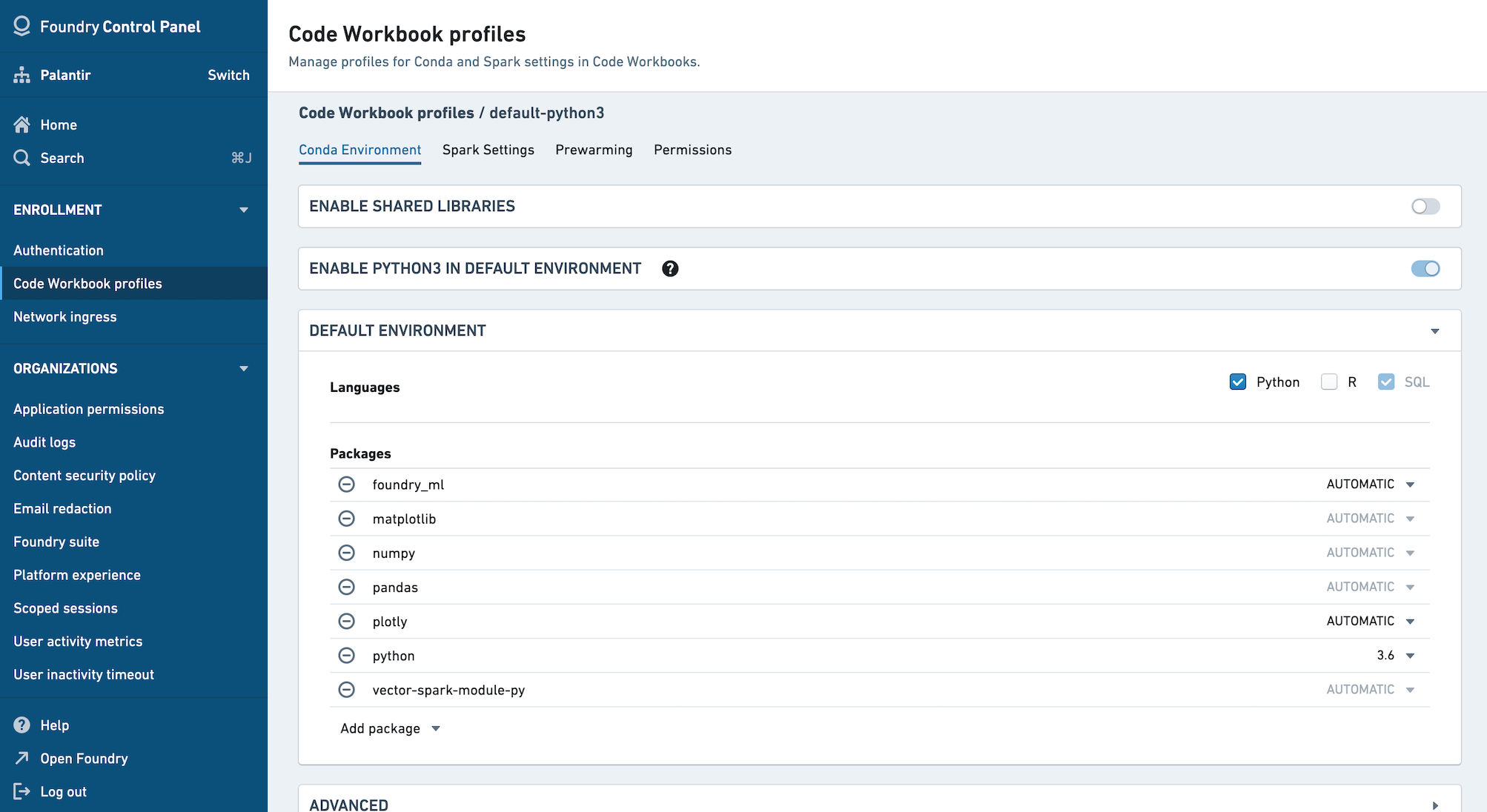
In the Conda environment tab, specify the default packages when using this profile. Users will be able to customize their Conda environments in their workbook as desired.
In order to execute Python and R transforms, Code Workbook requires the packages vector-spark-module-py and vector-spark-module-r respectively to be present in the profile's environment. To add those, you can either toggle the Python and R checkboxes in the Conda environment tab, or manually add them in the Add package dropdown menu. SQL doesn't require any additional packages and is therefore always available on any given profile.
Before changing the Conda environment for a profile, make sure that the proposed environment resolves by customizing the environment in a workbook. You will be asked to acknowledge you've done so when saving changes to the Conda environment.
:::callout
Code Workbook automatically adds default versions of pandas, matplotlib, and numpy if python is enabled, and a default version of r-base if R is enabled. If you need different versions, manually add these packages either in the Conda environment tab of Control Panel or directly in Code Workbook via Environment > Configure environment > Customize Profile and choose a version from the dropdown menu for each package to satisfy your version requirements.
Additionally, R is not yet available for self-service by default. Contact Palantir support for enablement. :::
Spark settings
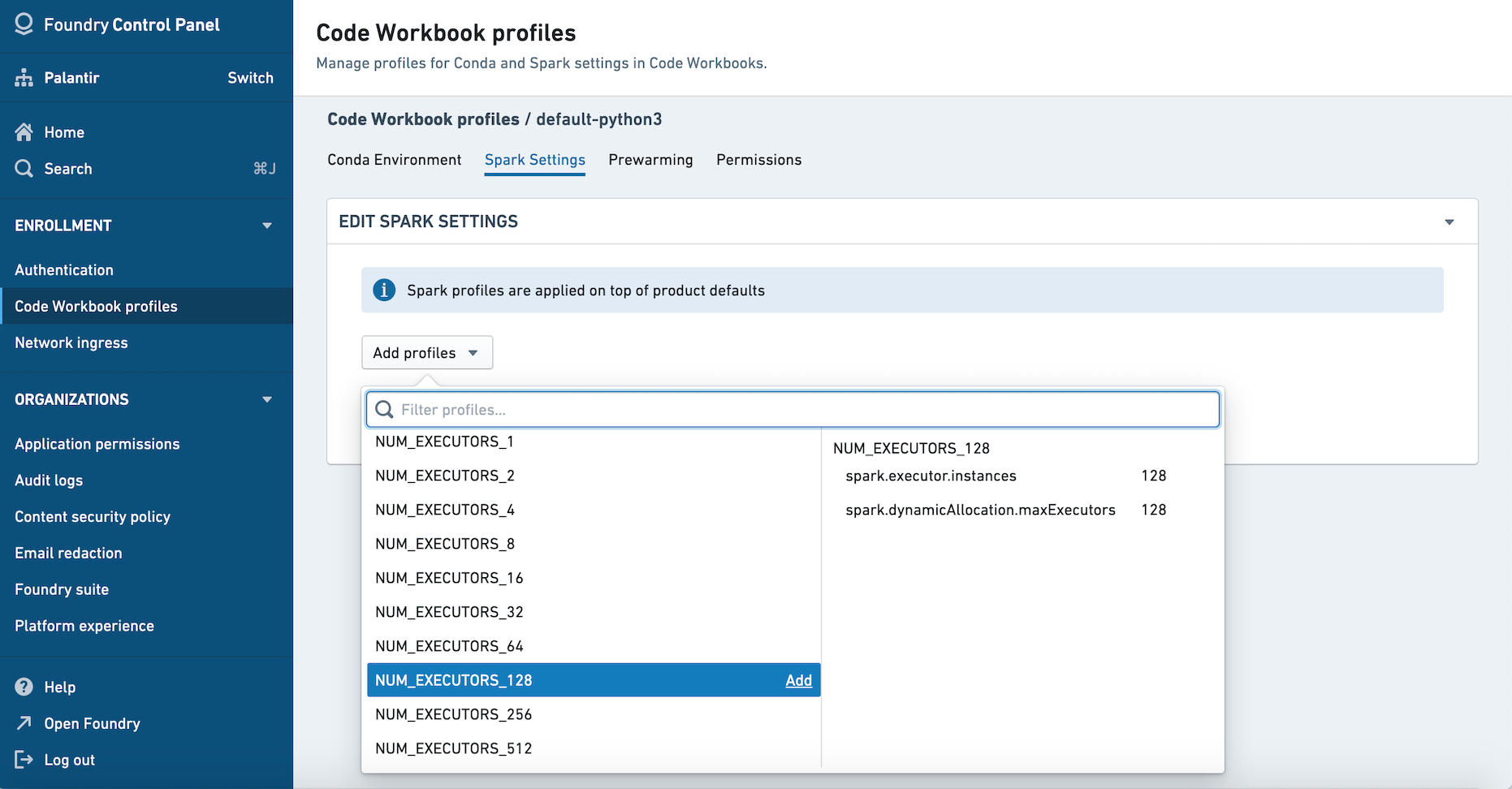
Upon initially migrating to Control Panel-backed Code Workbook profiles, your legacy Spark settings will be preserved. However, if you choose to make any changes to your Spark settings, you will need to recreate these overrides using Spark Configuration Service profiles.
You must have import permissions on a Spark profile to add it to a Code Workbook profile. Learn more about available Spark profiles.
Prewarming
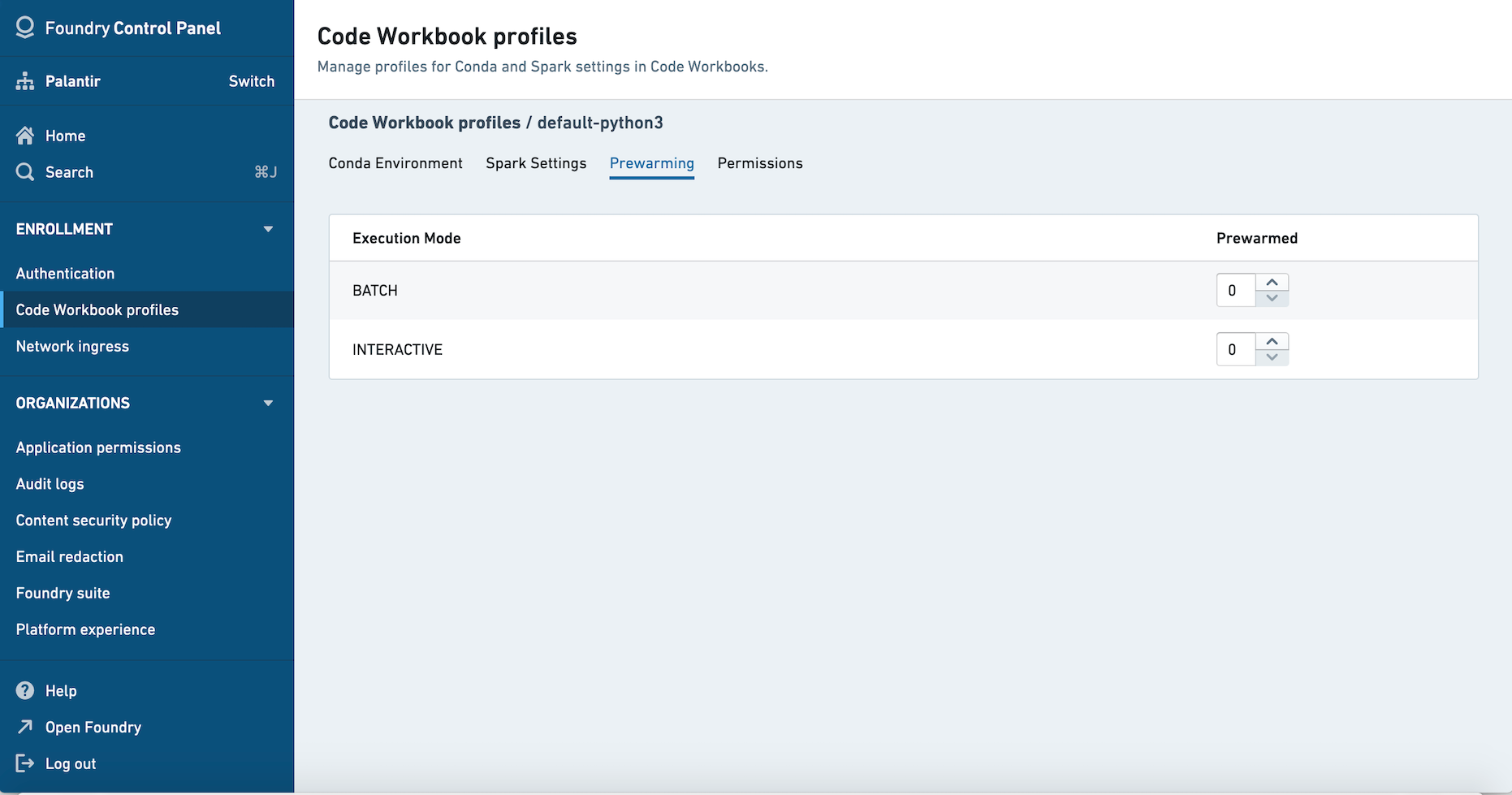
For each profile, you can choose to prewarm a number of modules so they are ready to be used. If no prewarmed modules are defined, users selecting the profile will need to wait for their environment to initialize.
In the Prewarming tab, you will see options to prewarm Interactive and Batch modules. Interactive modules are used for workbook sessions. Batch modules are used for builds, including scheduled builds. Learn more about the difference between batch builds and interactive builds.
Permissions
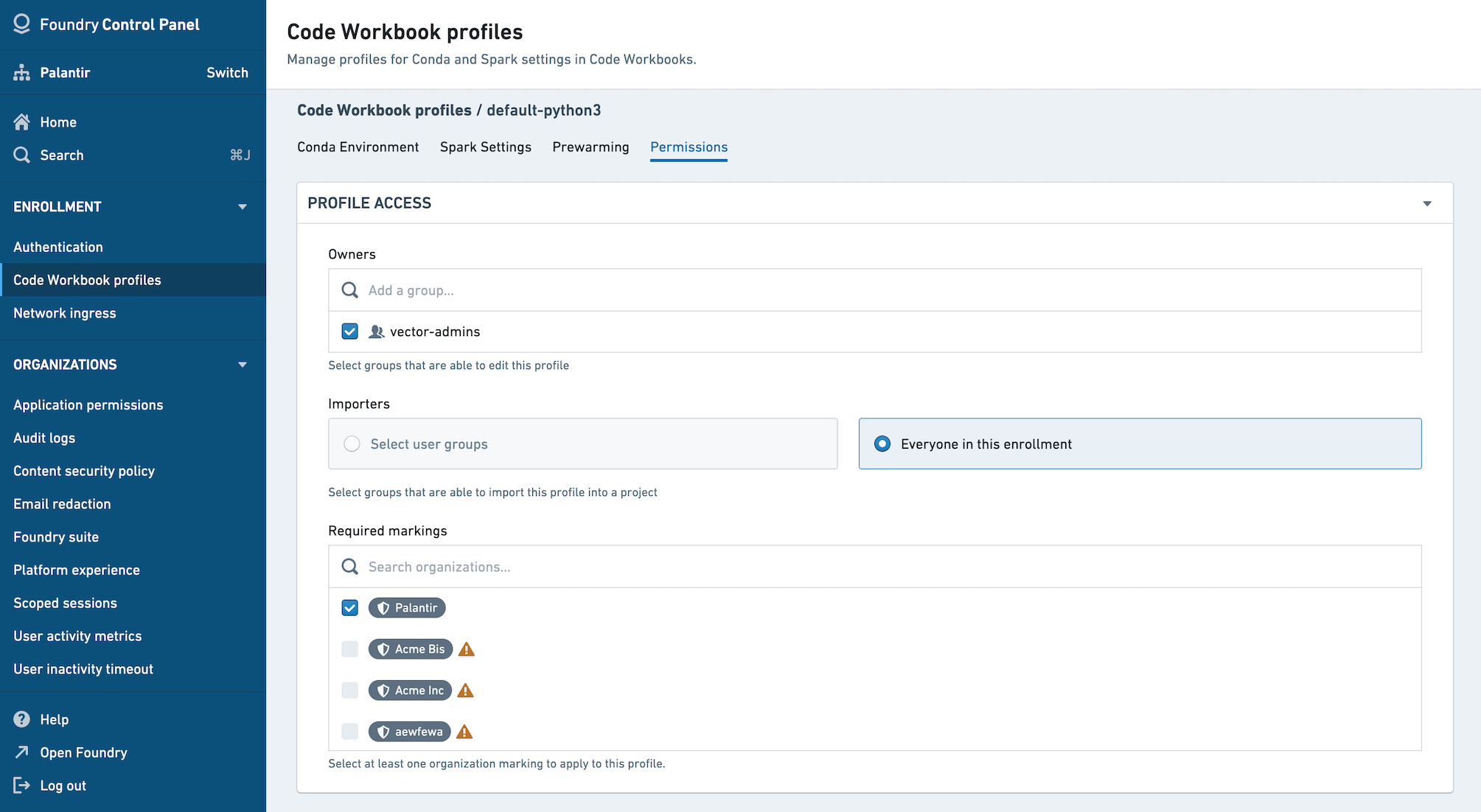
Owners of a profile are able to edit the profile, while Importers are able to import the profile into a project. Owners are automatically included in the Importers group. You can choose to allow all users in the enrollment to import the profile by selecting Everyone in this enrollment.
Once an Importer has imported a profile into a project, anyone in the project will be able to use that profile. You can add markings to a profile to limit the profile to a particular Organization.
FAQ
Who can configure Code Workbook profiles?
The set of users who are allowed to create Code Workbook profiles for an enrollment is configurable in Control Panel's Enrollment Permissions tab.
- To create a profile, a user must have the
Manage Code Workbook profilesworkflow, which is part of theAnalytical applications administratorrole (or be an enrollment administrator). - To edit an existing profile configuration (such as a Spark or Conda environment configuration), a user must have the Owner role on the profile resource.
Who can configure warm module queues?
To configure warm module queues, a user must have the "manage" permission on a profile (Manage Code Workbook profiles workflow plus being the Owner of the profile) as well as the Manage Code Workbook warm module queues workflow, which is part of the Resource management administrator role.
Which profile is used by default for all users?
The profile named default is the default environment for users in Organizations in the enrollment.
What profiles can I see in Control Panel?
All of the profiles for which you have Owner access will be listed in the Code Workbook tab of Control Panel. There may be additional profiles for which you have Importer access but not Owner access; you would be able to use these profiles in Code Workbook but unable to view them in Control Panel.
中文翻译
配置Code Workbook配置文件(profile)
:::callout{theme="warning" title="可用性(Availability)"} Code Workbook配置文件仅在部分环境的Control Panel中支持配置。如有任何疑问,请联系您的Palantir客户代表。 :::
Code Workbook配置文件可视为面向特定使用场景或用户组的Conda包与Spark设置的实用默认配置。配置文件会展示在Code Workbook的环境配置对话框(Environment Configuration dialog)中供用户选择。您还可以为指定配置文件设置预启动模块(prewarmed module),以缩短启动耗时。
:::callout{theme="neutral"} 在Control Panel中新建的Code Workbook配置文件均由Artifacts提供支撑。有关Artifacts配置文件的详细说明请参见下文。 :::
Artifacts配置文件
所有在Control Panel中创建的新配置文件均由Artifacts提供支撑。Artifacts配置文件的配置逻辑与旧版遗留配置文件基本一致,区别在于Artifacts配置文件支持使用通过Artifacts安全发布的库,包括在Foundry中创建、未发布到shared渠道的Python库。
在Artifacts配置文件中,Conda环境既包含依赖包列表,也包含支撑仓库列表。要在Code Workbook中使用某个配置文件,必须先将该配置文件列出的所有支撑仓库导入到工作簿所属的项目中。
编辑配置文件的Conda环境时,UI会自动查找所需的支撑仓库列表,并告知用户这些仓库将被添加到配置文件中。
配置Code Workbook配置文件
Conda环境
在Conda环境标签页中,您可以指定使用该配置文件时默认预装的依赖包。用户可根据自身需求在工作簿中自定义Conda环境。
要运行Python和R转换(transform),Code Workbook要求配置文件的环境中分别存在vector-spark-module-py和vector-spark-module-r包。要添加这两个包,您既可以在Conda环境标签页勾选Python和R对应的复选框,也可以通过添加包(Add package)下拉菜单手动添加。SQL无需额外依赖包,因此在所有配置文件中默认可用。
修改配置文件的Conda环境前,请先在某个工作簿中自定义测试该环境,确保依赖可以正常解析。保存Conda环境的修改时,系统会要求您确认已完成该测试步骤。
:::callout
如果启用了Python支持,Code Workbook会自动添加默认版本的pandas、matplotlib和numpy;如果启用了R支持,则会自动添加默认版本的r-base。如果您需要使用其他版本,可以在Control Panel的Conda环境标签页手动添加这些包,或者直接在Code Workbook中通过环境 > 配置环境 > 自定义配置文件(Environment > Configure environment > Customize Profile)路径,为每个包从下拉菜单中选择符合要求的版本。
此外,R默认暂不支持自助启用。请联系Palantir支持团队申请开通。 :::
Spark设置
首次迁移到Control Panel托管的Code Workbook配置文件时,您的旧版Spark设置会被保留。但如果您需要修改Spark设置,则需要通过Spark配置服务(Spark Configuration Service)配置文件重新创建这些覆盖规则。
您必须拥有某个Spark配置文件的导入权限,才能将其添加到Code Workbook配置文件中。了解可用的Spark配置文件详情。
预启动(prewarming)
对于每个配置文件,您可以选择预启动一定数量的模块,方便用户直接使用。如果没有配置预启动模块,选择该配置文件的用户需要等待环境初始化完成才能使用。
在预启动标签页中,您可以看到预启动交互式(Interactive)模块和批处理(Batch)模块的选项。交互式模块用于工作簿会话,批处理模块用于构建任务,包括定时构建任务。了解批处理构建和交互式构建的区别。
权限
配置文件的所有者(Owner)可以编辑配置文件,导入者(Importer)可以将配置文件导入到项目中。所有者默认属于导入者组。您可以勾选本注册实例下的所有用户(Everyone in this enrollment),允许注册实例内的所有用户导入该配置文件。
一旦导入者将配置文件导入到某个项目中,项目内的所有用户都可以使用该配置文件。您可以为配置文件添加标记(marking),将其使用范围限制为特定组织。
常见问题(FAQ)
谁可以配置Code Workbook配置文件?
允许为某个注册实例创建Code Workbook配置文件的用户范围,可在Control Panel的注册实例权限(Enrollment Permissions)标签页中配置。
* 要创建配置文件,用户必须拥有Manage Code Workbook profiles工作流权限,该权限属于分析应用管理员(Analytical applications administrator)角色(或注册实例管理员角色)。
* 要编辑现有配置文件的配置(如Spark或Conda环境配置),用户必须拥有该配置文件资源的所有者角色。
谁可以配置热模块队列(warm module queue)?
要配置热模块队列,用户必须拥有配置文件的“管理”权限(即拥有Manage Code Workbook profiles工作流权限且是配置文件的所有者),同时还需要拥有Manage Code Workbook warm module queues工作流权限,该权限属于资源管理管理员(Resource management administrator)角色。
所有用户默认使用哪个配置文件?
名为default的配置文件是注册实例内所有组织用户的默认环境。
我在Control Panel中可以看到哪些配置文件?
您拥有所有者权限的所有配置文件都会列在Control Panel的Code Workbook标签页中。可能还有其他您拥有导入者权限但无所有者权限的配置文件,您可以在Code Workbook中使用这些配置文件,但无法在Control Panel中查看它们。