Configure file access presets(配置文件访问预设(file access presets))
:::callout{theme="warning"} To configure file access presets, your enrollment must use both Foundry and Gotham. Contact Palantir Support with questions about enabling file access preset configuration if its extension is not available in Control Panel. :::
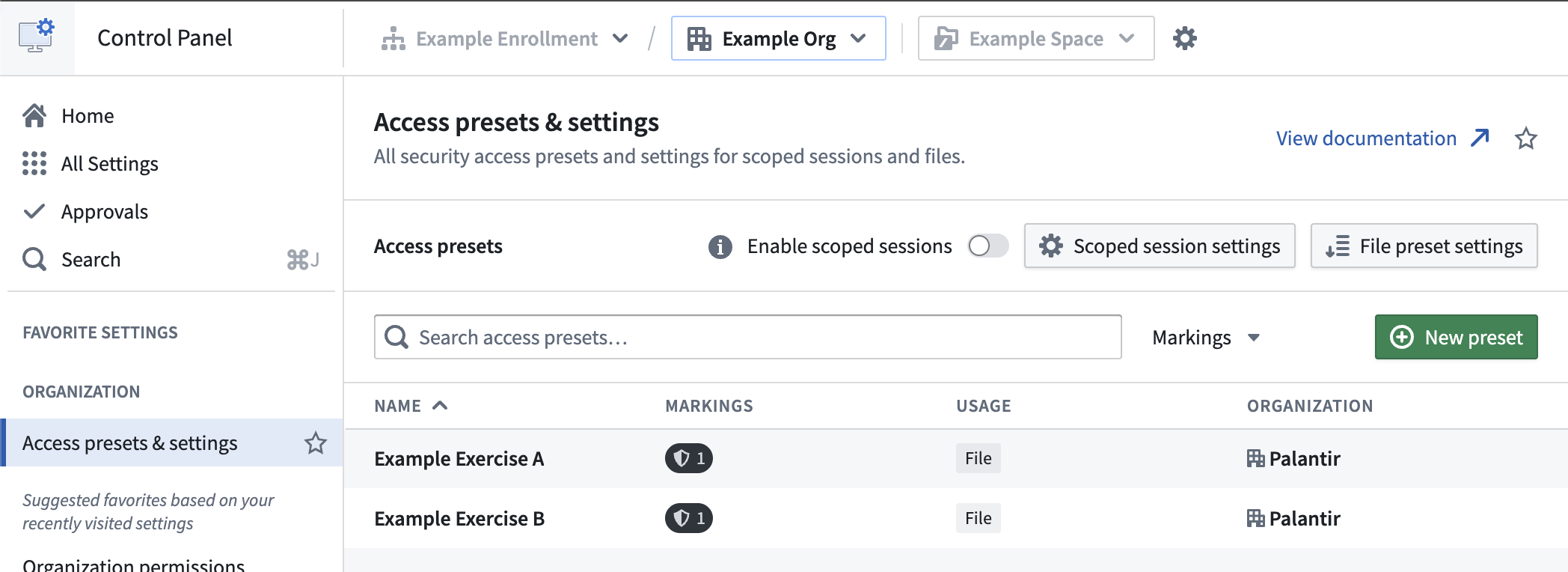
You can use the Access presets & settings extension to configure file access presets for your Organization in Control Panel, granting users quick access to commonly used security settings when they create a file. Consisting of a title and optional description, file access presets can apply both mandatory markings and Classification-based Access Controls (CBAC) markings.
:::callout{theme="neutral"} CBAC markings are not enabled by default on Foundry. Review the existing documentation to learn more about the availability and use of CBAC markings. :::
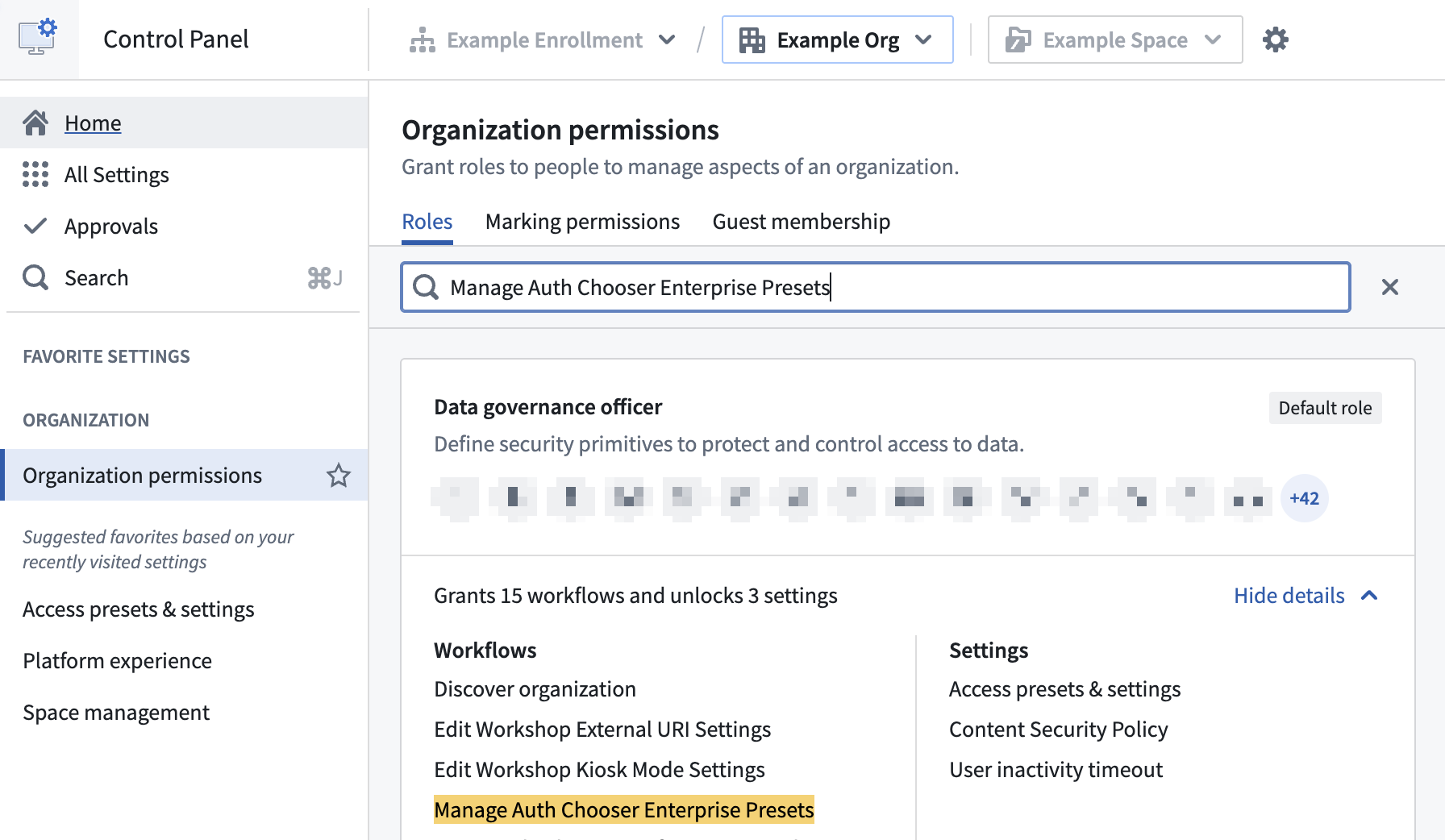
To configure file access presets in the Access presets & settings extension, you must be able to execute the Manage Auth Chooser Enterprise Presets workflow as part of either the Data governance officer or Organization administrator role in Control Panel's Organization permissions extension. If you do not have access to a role with that workflow, then you will need to ask your Organization administrator to grant you access.
Create a file access preset
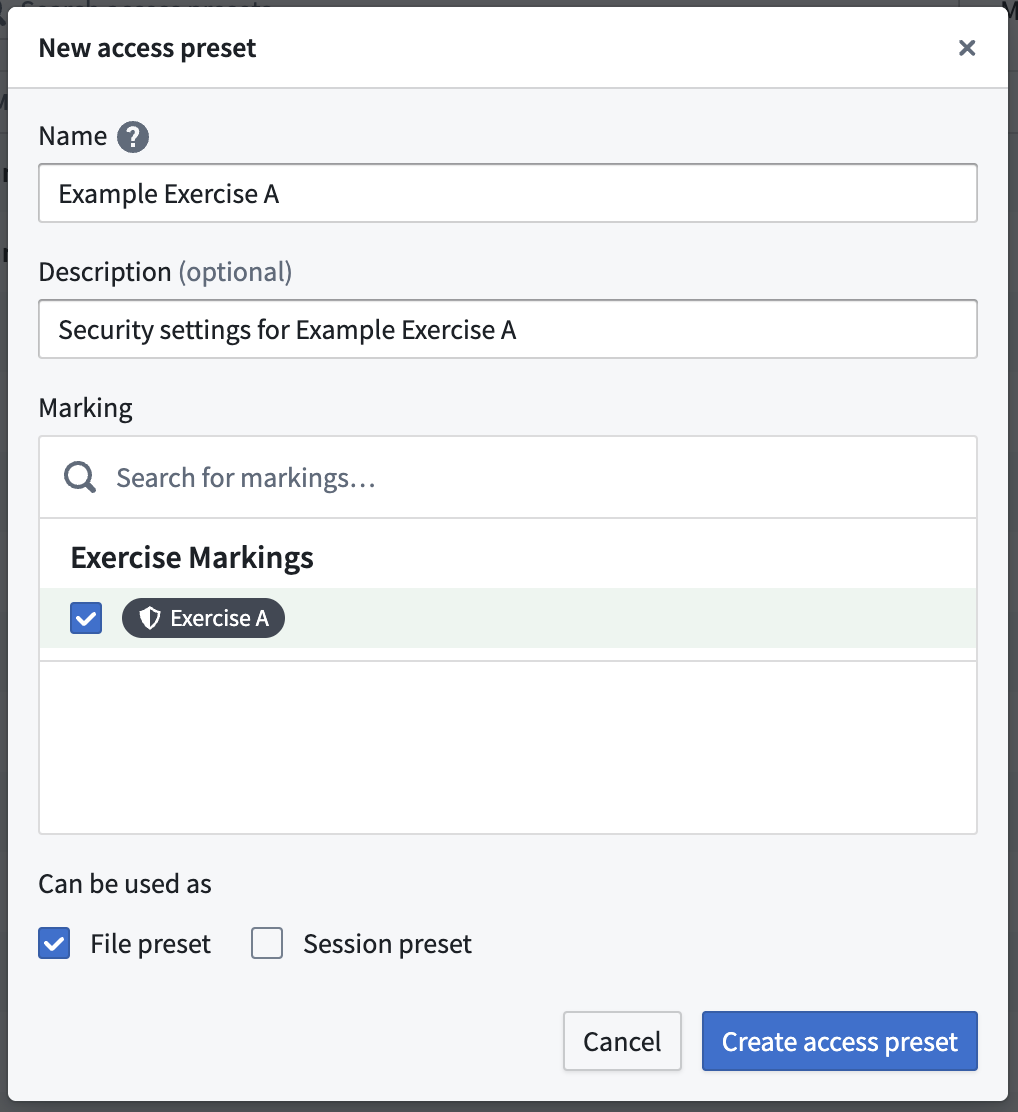
To create a file access preset, select New preset to launch the New access preset popup window. Provide the preset with a Name and optionally enter a Description before you add the Markings the preset applies. Ensure you check File preset under Can be used as before selecting Create access preset.
If your environment uses CBAC, then the New access preset popup window will also enable you to add CBAC markings to your file access preset.
Set a default preset selection ordering
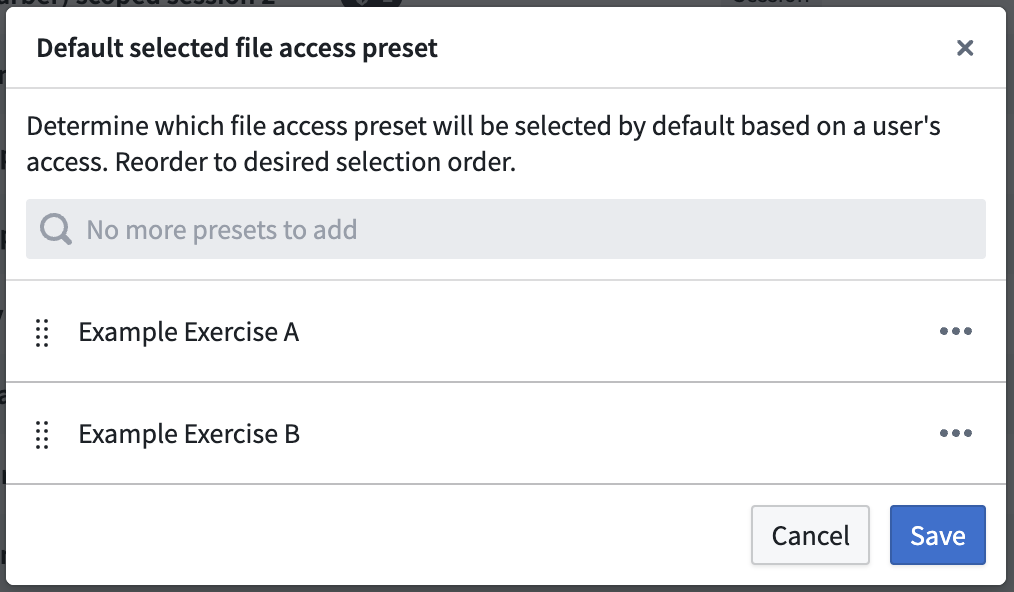
Select File preset settings to configure the default selected preset ordering for users. The first preset that is visible to a user will be selected for them by default, but they can change the preset. Presets not visible to users due to a lack of relevant Marking permissions will be ignored in the ordering.
File access preset visibility
All users in your Organization can view the file access preset if they have the "Apply marking" permission on all the Markings configured as part of the preset.
Guest members of your organization will not be able to view or apply presets configured for your organization. They will see presets configured for their primary organization.
Apply a file access preset
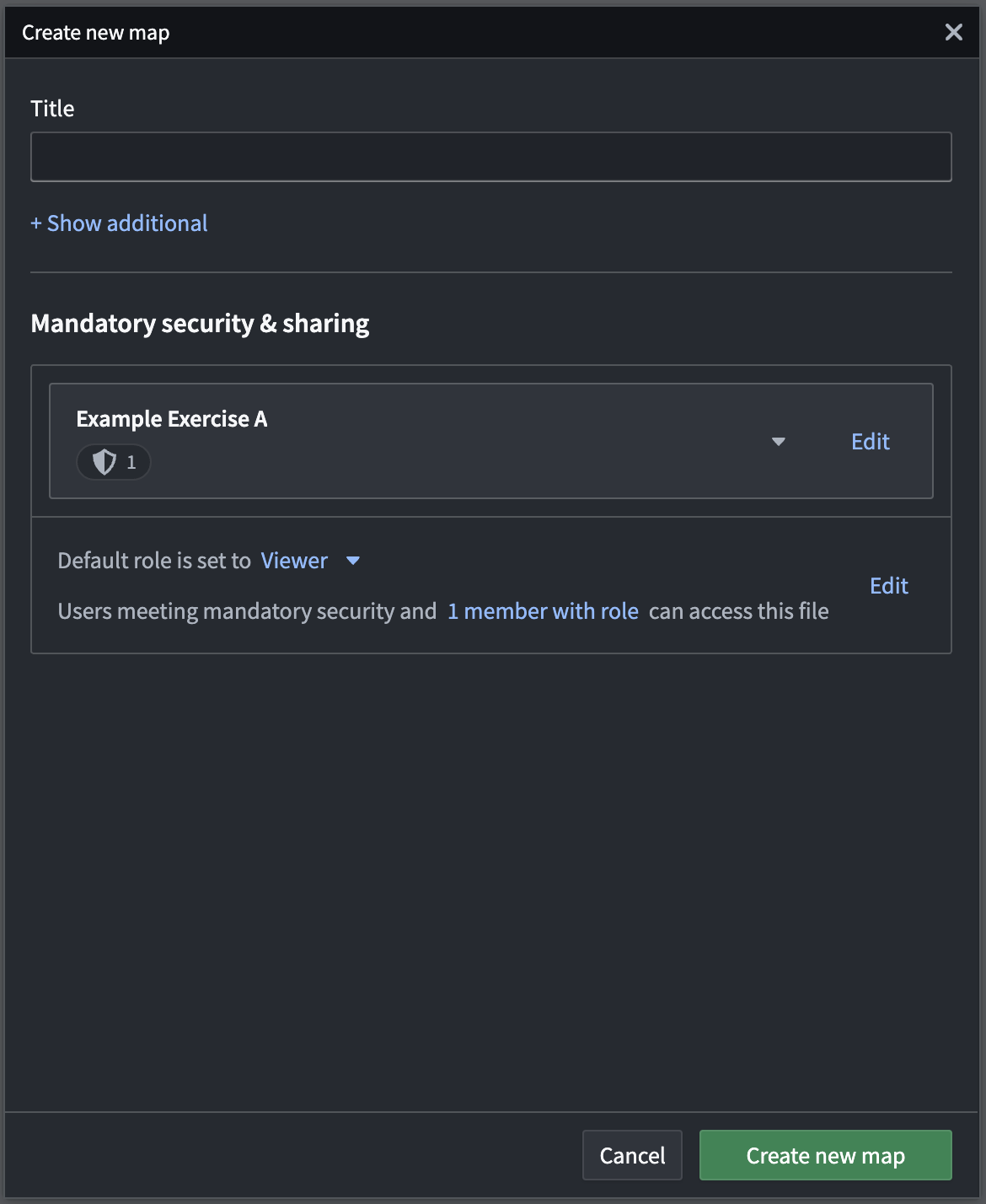
After you configure and save a file access preset, users in your Organization will be able to select the preset when setting the security of certain files created in Gotham.
中文翻译
配置文件访问预设(file access presets)
:::callout{theme="warning"} 要配置文件访问预设,您的注册实例必须同时使用Foundry和Gotham。如果控制面板(Control Panel)中没有对应扩展,如需启用文件访问预设配置功能,请联系Palantir支持(Palantir Support)咨询。 :::
您可以使用访问预设与设置(Access presets & settings)扩展,在控制面板中为您的组织(Organization)配置文件访问预设,让用户创建文件时可以快速选用常用的安全设置。文件访问预设包含标题和可选描述,可同时应用强制标记(mandatory markings)和基于分类的访问控制(Classification-based Access Controls, CBAC)标记。
:::callout{theme="neutral"} CBAC标记在Foundry中默认未启用。请查阅相关文档了解CBAC标记的可用范围与使用方法。 :::
要在访问预设与设置扩展中配置文件访问预设,您需要拥有执行管理身份验证选择器企业预设(Manage Auth Chooser Enterprise Presets)工作流的权限,该权限会授予控制面板组织权限(Organization permissions)扩展中的Data governance officer(数据治理专员)或Organization administrator(组织管理员)角色。如果您没有包含该工作流权限的角色,请联系您的组织管理员为您授权。
创建文件访问预设
要创建文件访问预设,选择新建预设(New preset)打开新建访问预设(New access preset)弹窗。为预设填写名称(Name),可选择性输入描述(Description),之后添加该预设适用的标记(Markings)。在选择创建访问预设(Create access preset)前,请确保勾选可用于(Can be used as)分类下的文件预设(File preset)选项。
如果您的环境启用了CBAC,新建访问预设弹窗还会支持您向文件访问预设中添加CBAC标记。
设置默认预设选择排序
选择文件预设设置(File preset settings)即可配置面向用户的默认预设选择排序。对用户可见的第一个预设会被默认选中,用户也可自行更换预设。因缺少相关标记权限对用户不可见的预设,不会纳入排序范围。
文件访问预设可见性
如果组织内用户拥有预设配置中所有标记的「应用标记」权限,即可查看该文件访问预设。
您组织的访客成员无法查看或应用为您的组织配置的预设,他们仅能看到为其所属主组织配置的预设。
应用文件访问预设
您配置并保存文件访问预设后,组织内的用户在为Gotham中创建的部分文件设置安全规则时,即可选择该预设。