Configure the platform experience(配置平台体验(Platform experience))
You can configure settings for the overall platform experience using the Platform experience page in Control Panel. To view the Platform experience tab, you must have one of the following roles:
- Enrollment administrator granted in the Enrollment permissions extension.
- Organization administrator or User experience administrator granted in the Organization permissions extension.
Configure the home page URL
An Organization's home page URL can be configured per Organization or per user group in the Platform experience tab of Control Panel.
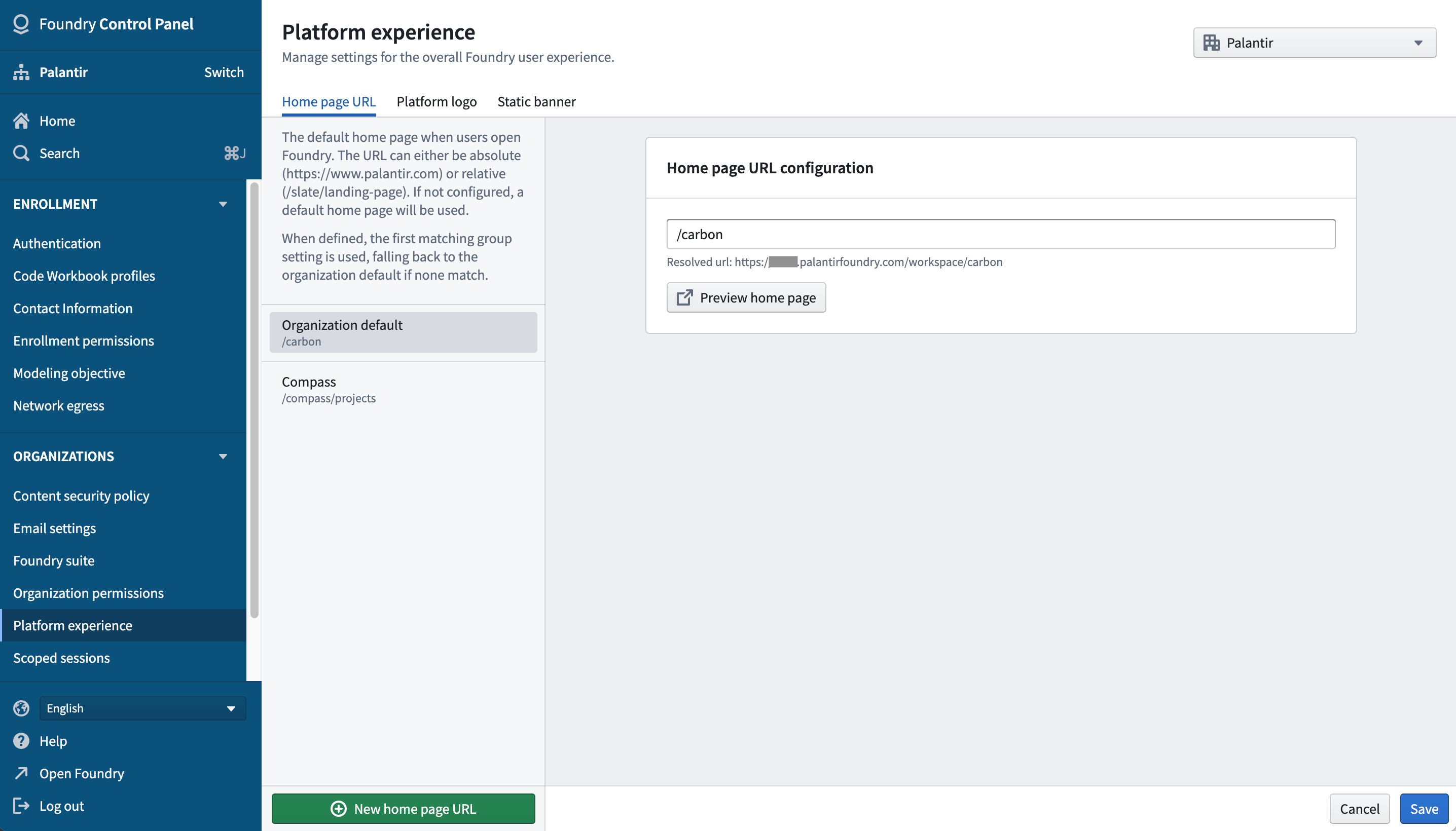
Examples of some common setups:
- Most new Foundry enrollments will display a default narrative home page that helps users learn about the Foundry platform. The URL of this home page is
/narrative. - If a Slate dashboard should be used as the Organization's home page, set the value to
/slate/<dashboard-rid-or-permalink>. - If a Carbon workspace should be used as the Organization's home page, set the value to
/carbon/<workspace-rid>
If certain user groups should be sent to a home page URL that differs from the Organization default, you can add group-specific overrides under Group override from the left sidebar. The first entry in that list, where a user is a member of any of the listed groups, will be used.
Configure available languages
You can make additional languages besides English available to your users from the Platform experience extension.
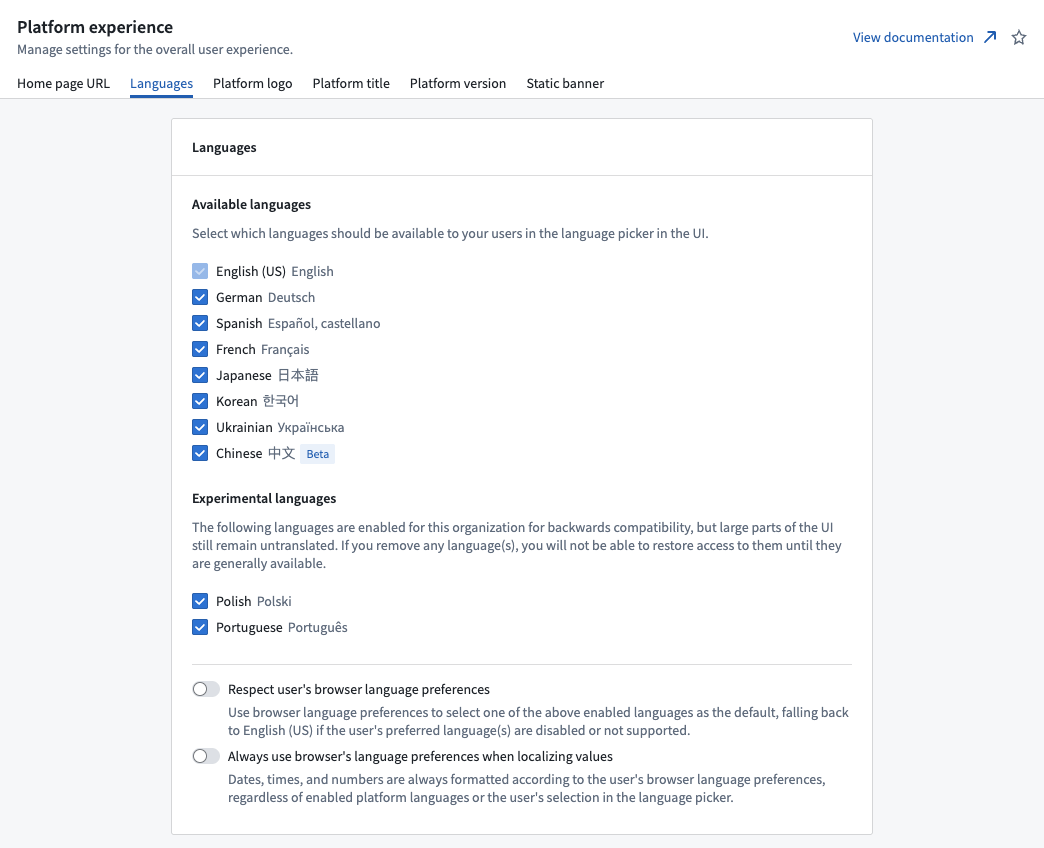
Users who have access to additional languages will see a locale switcher in their Foundry sidebar that enables language selection. If the Respect user's browser language preferences or Always use browser's language preferences when localizing values options are enabled, users will initially see Foundry in the available language that is set as highest priority in their web browser preferences. Otherwise, English is used by default until the user selects a different language from the language switcher.
:::callout{theme="neutral"} Certain widgets in Foundry are set to the user's browser language preference and may require the browser language setting to be updated where necessary. :::
Configure the platform logo
:::callout{theme="neutral"} You can configure platform logos per Enrollment if you have Enrollment administrator permissions. If you do not have those permissions, then you can only configure logos per Organization. :::
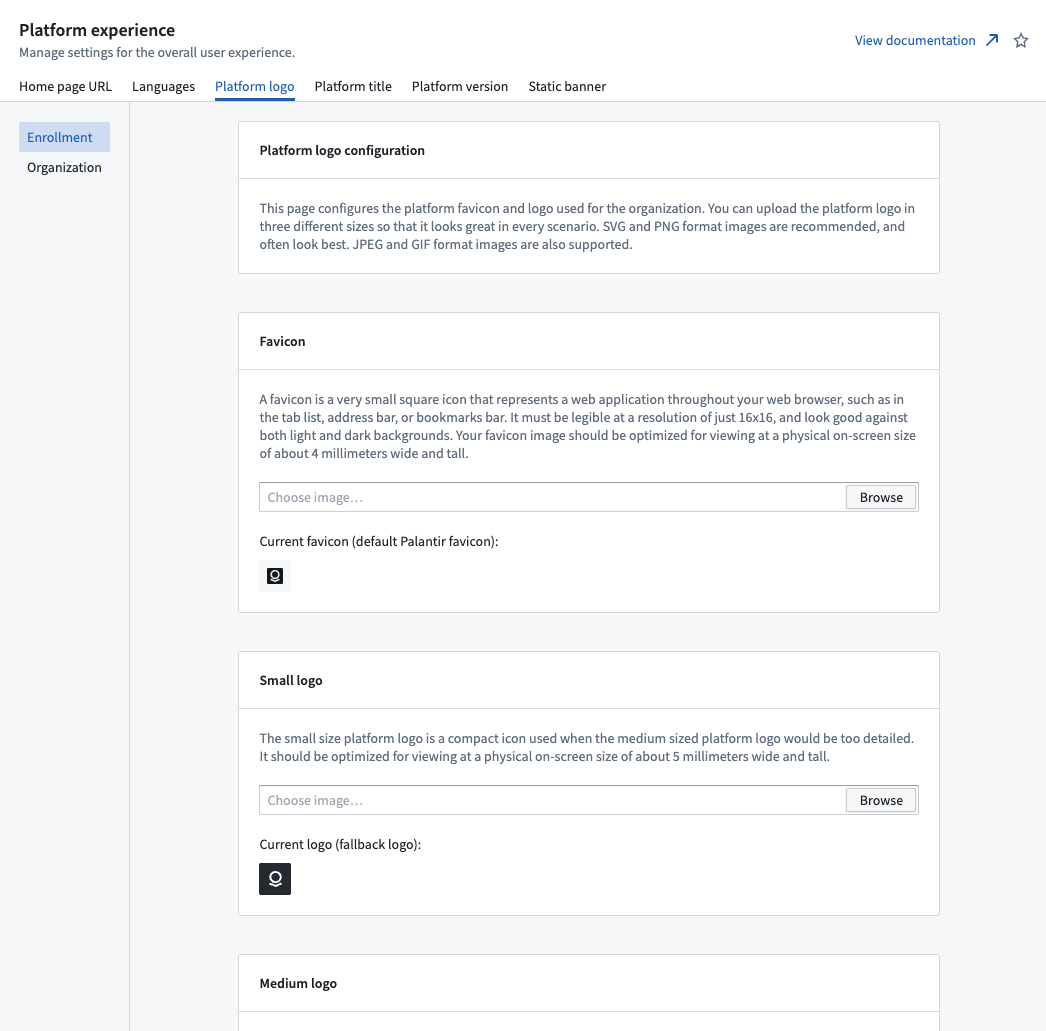
The platform logo can be configured per Enrollment and Organization, replacing any occurrences of the default Palantir logo with an image of your choice. You can provide up to four different logo sizes: favicon, small, medium, and large. If you do not provide an image for each size, then Foundry uses an appropriate fallback size. The favicon does not have any fallback behavior. When customizing your logo, you should upload a favicon and at least one of the other three sizes.
| Size | Fallback |
|---|---|
| Favicon | (none) |
| Small | Medium, Large |
| Medium | Small, Large |
| Large | Medium, Small |
Configure the platform title
:::callout{theme="neutral"} You can configure the platform title per Enrollment if you have Enrollment administrator permissions. If you do not have those permissions, then you can only configure logos per Organization. :::
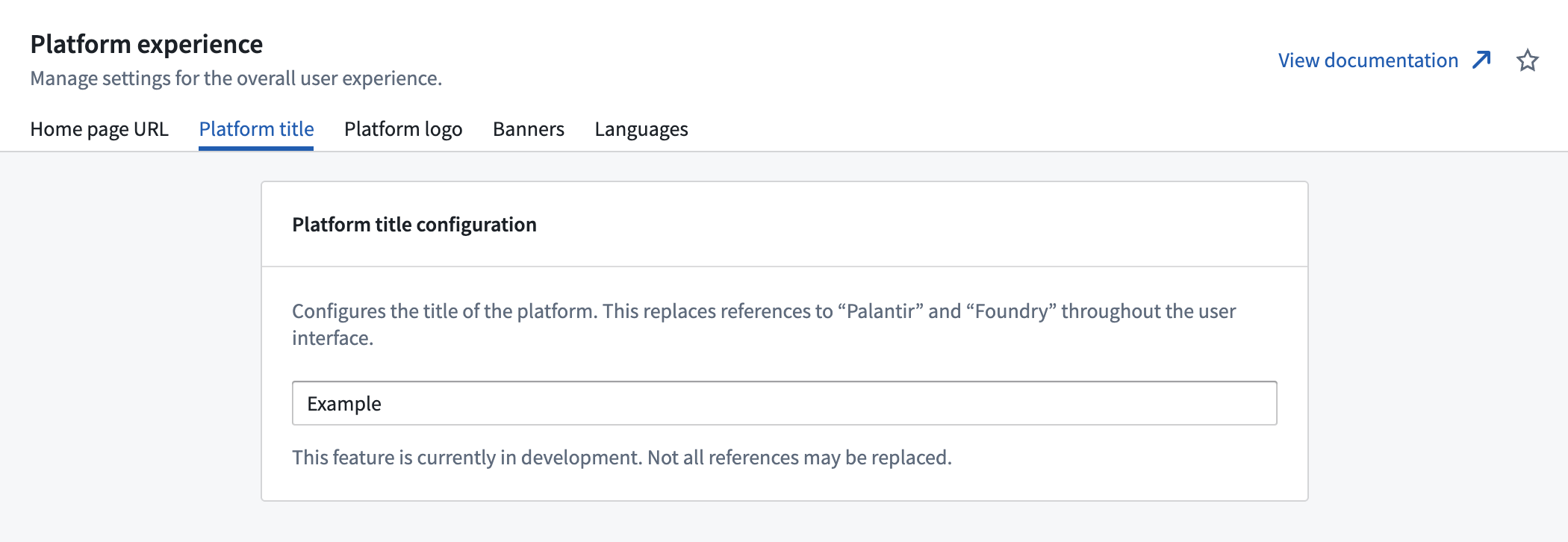
The platform title can be configured per Enrollment and Organization and replaces references to the
platform with the provided title. The default platform title is Palantir. You can configure this
in the Platform title tab of the Platform experience extension.
Once you configure a new platform title, this update will also be reflected in the name of your
in-platform documentation. For example, if you rename your platform to ABC, the in-platform
documentation application will change from the default Custom documentation title to ABC
documentation.
Configure platform version
The platform version switcher lets you choose between using different versions of the platform. For instance, some users may prefer to use the beta version of the platform to access new features earlier, before they are available on the stable version of the platform.
To view and configure the Platform version tab in Control Panel, a user needs the Manage platform version workflow, which is granted by the User experience administrator role. Roles are administered in the Organization permissions tab in Control Panel.
Platform versions
There are three platform versions available through the platform version switcher: stable, beta, and prior.
Stable
The stable release has been rigorously tested and has widespread usage. The vast majority of users will be using the stable release.
Beta
The beta release is a future stable release that contains new changes and features not yet available on the current stable release. Because the beta release is newer, the changes made in this release may not be as rigorously tested as the stable release, and you may encounter unexpected behaviors. When building in the Palantir platform, opting into the beta release can be useful to get access to features early.
Prior
The prior release is the stable release that existed immediately previous to the current stable release. Switching to the prior release can be useful for viewing the old UI in case of changes made in the stable release, but the prior release is not recommended for everyday use. Users can temporarily view the prior version, but will be automatically moved back onto their default version (see Configuring users' default platform version).
Platform version switcher
To change the platform version, navigate to account settings in the bottom of the left sidebar, then select the current version next to Platform version to open the platform version switcher. Choosing a different version will reload the page and load the new version.

The default version shown to users is determined by the default platform version setting in Control Panel. When viewing a platform version other than the stable release, a small tag will be visible in the sidebar to indicate that the user is viewing a different release.

Restricting access to the platform version switcher
Access to the platform version switcher in the sidebar can be restricted for users in your organization. To change access to the switcher, navigate to the Platform experience extension, then go to the Platform version tab.
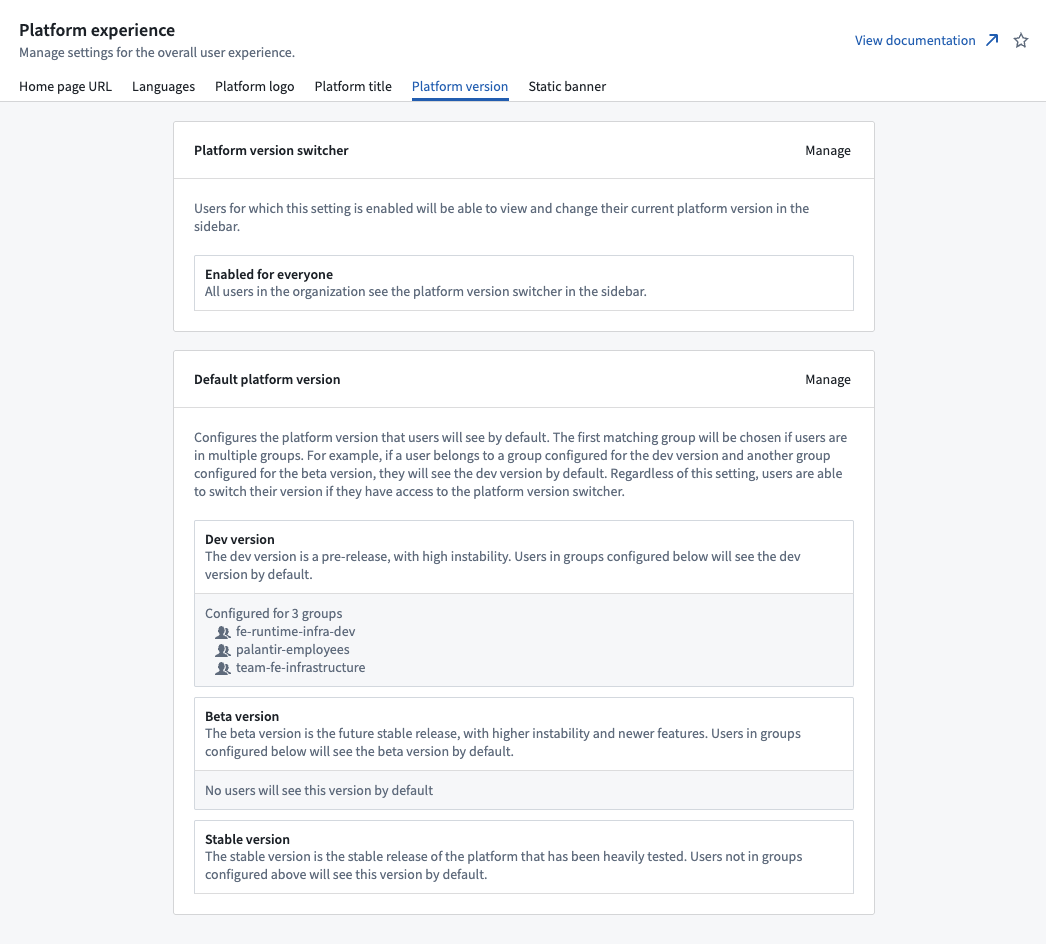
Select Manage next to Platform version switcher to bring up a dialog to change the platform version switcher setting.
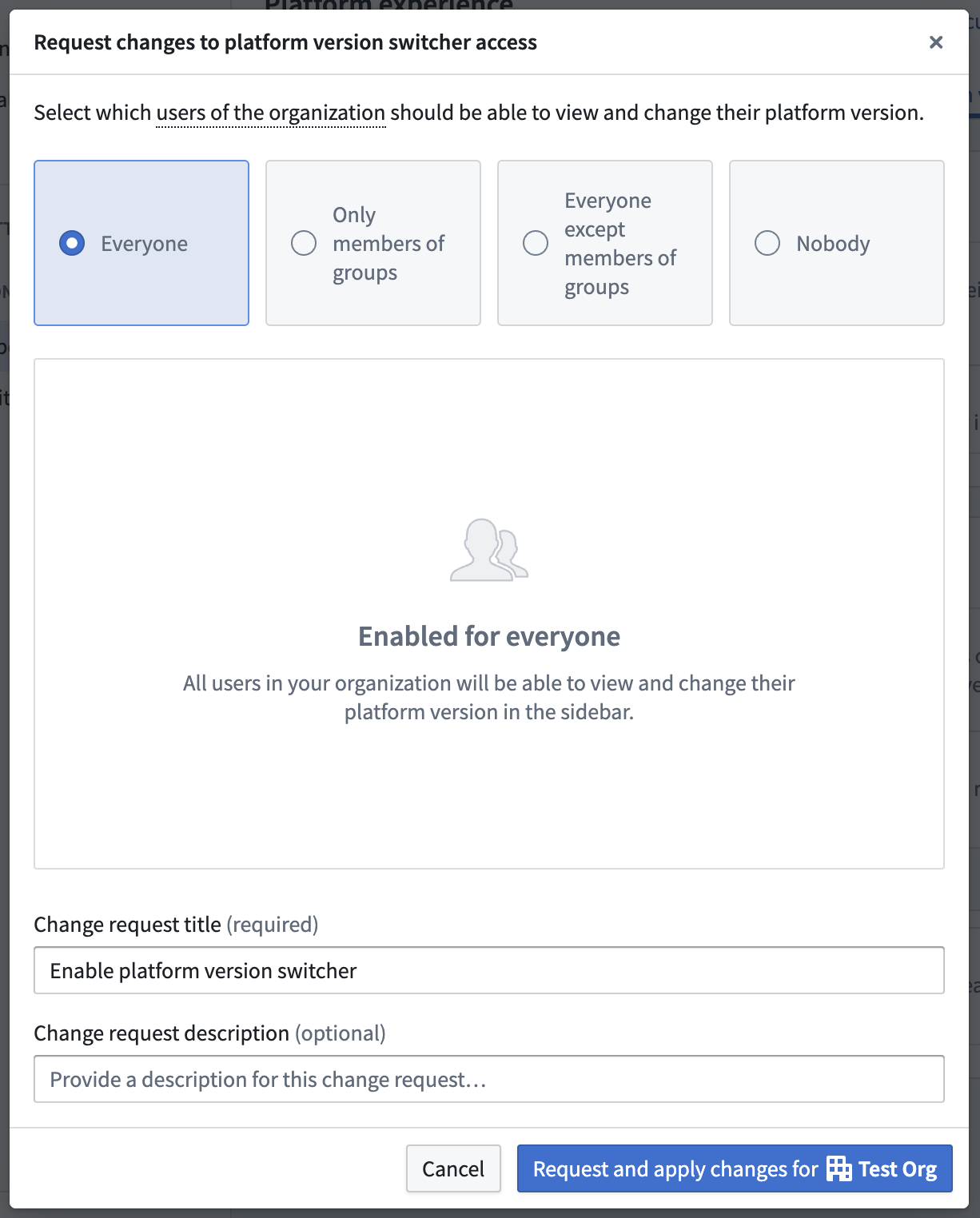
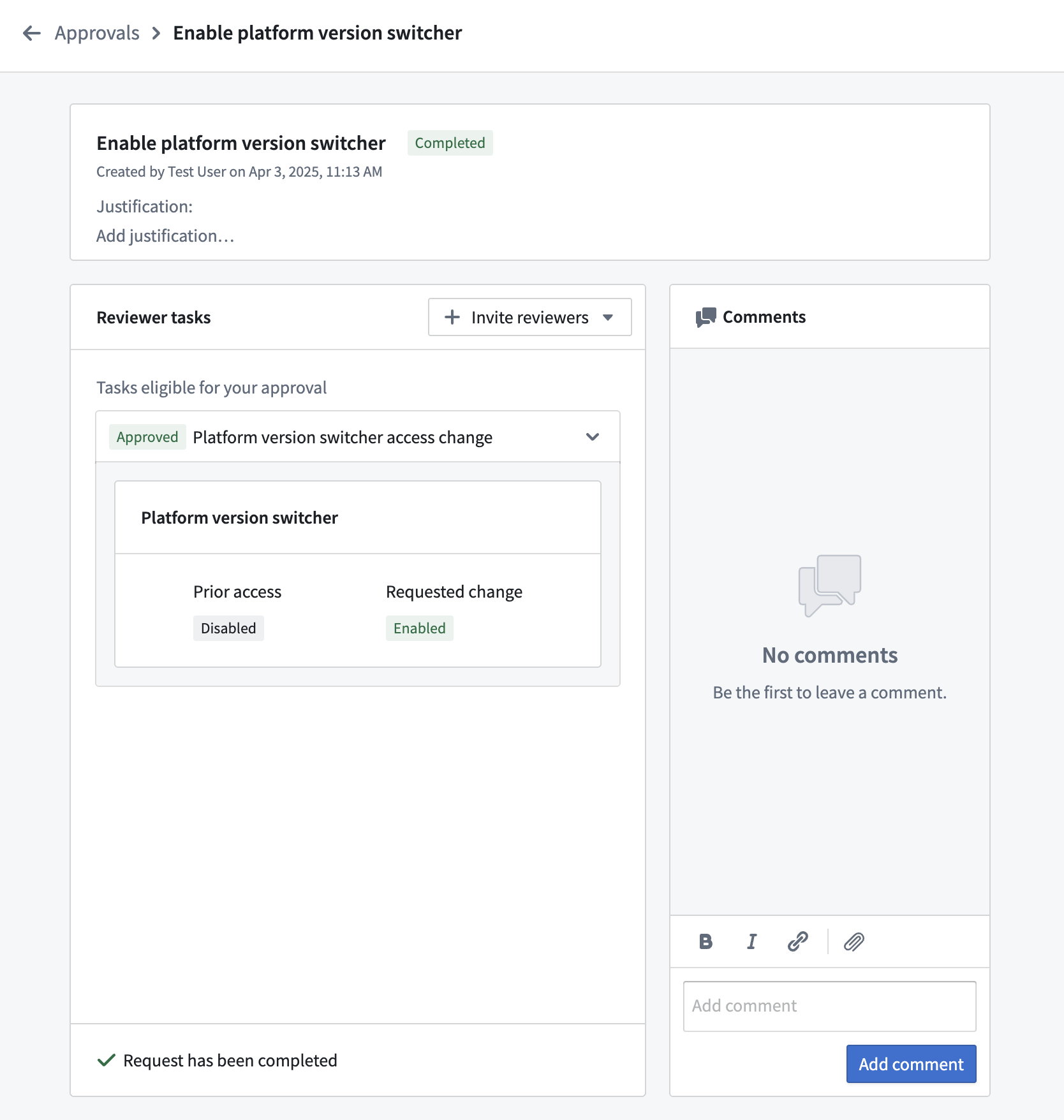
Select the desired access, then select Request and apply change for your organization. This will create a change request in the Approvals inbox in Control Panel that will automatically be self-approved and applied. To view all past changes, choose Platform version switcher requests in the approvals inbox.
Configuring users' default platform version
Administrators can additionally configure groups of users to use the beta platform version by default. If any of these users have access to the platform version switcher, they will still be able to switch to a different version from the beta version. This enables you to select a group of power users that should use the beta version by default, so that they can try new features out before the rest of your users see them.
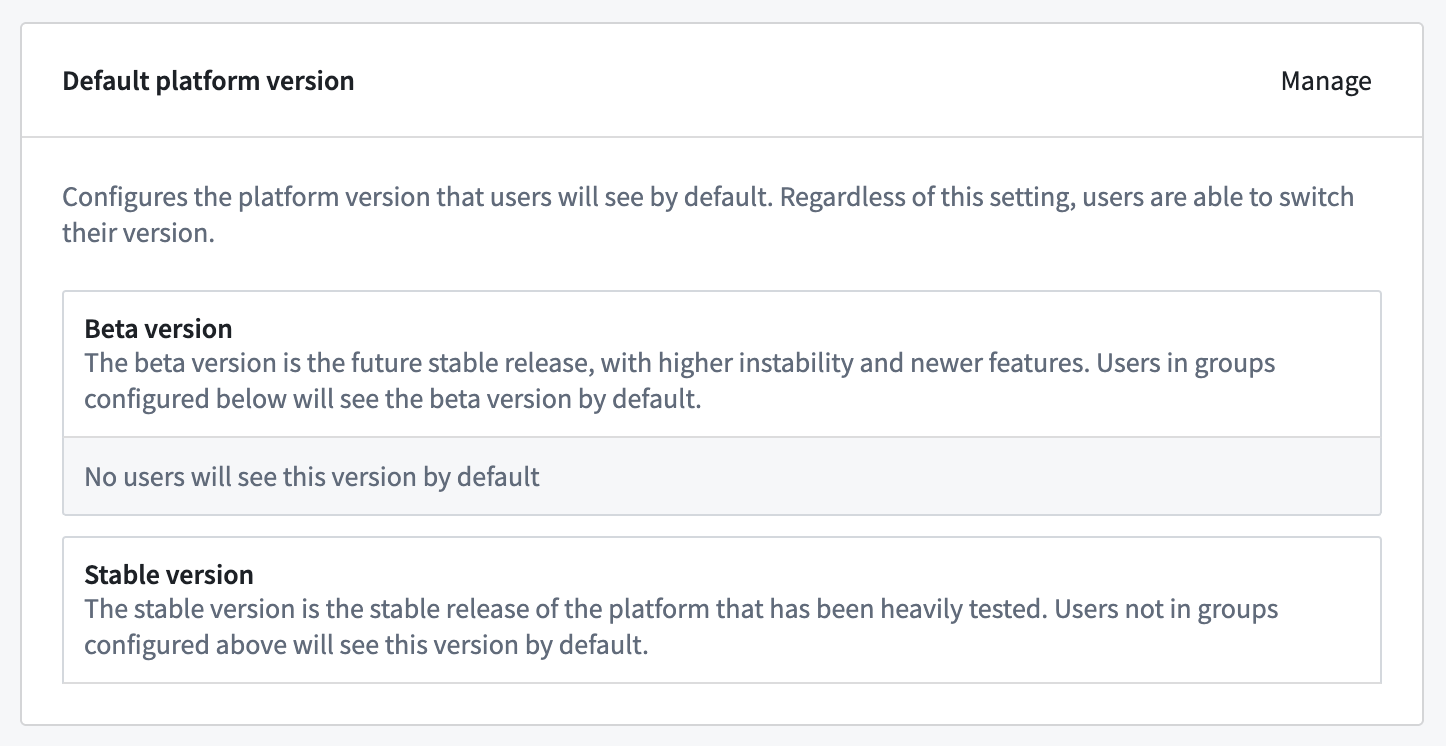
To configure which users should see the beta version by default, select Manage next to Default platform version. In the dialog, select the desired groups to use the beta version; any users not in the selected groups will see the stable version by default.
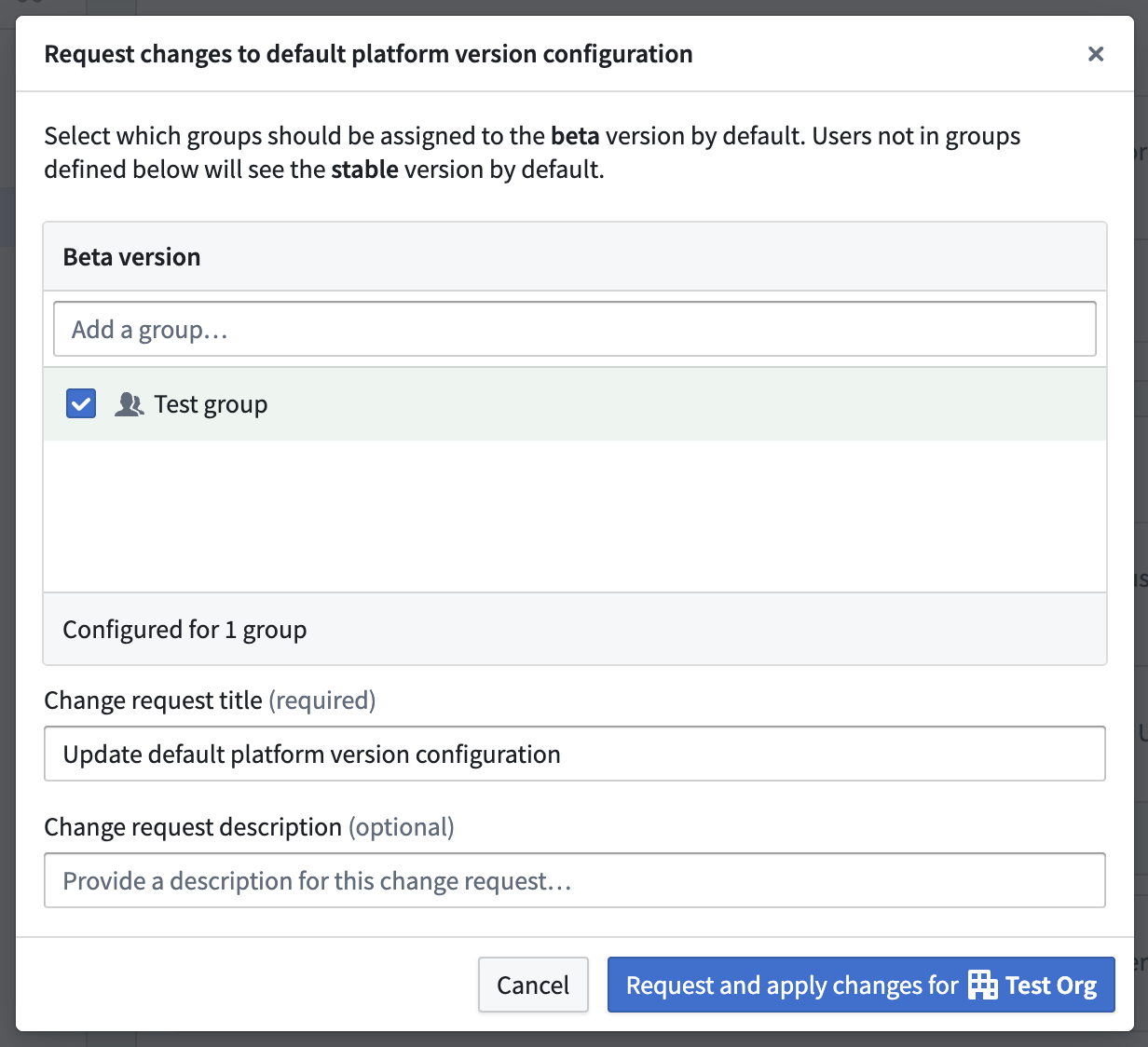
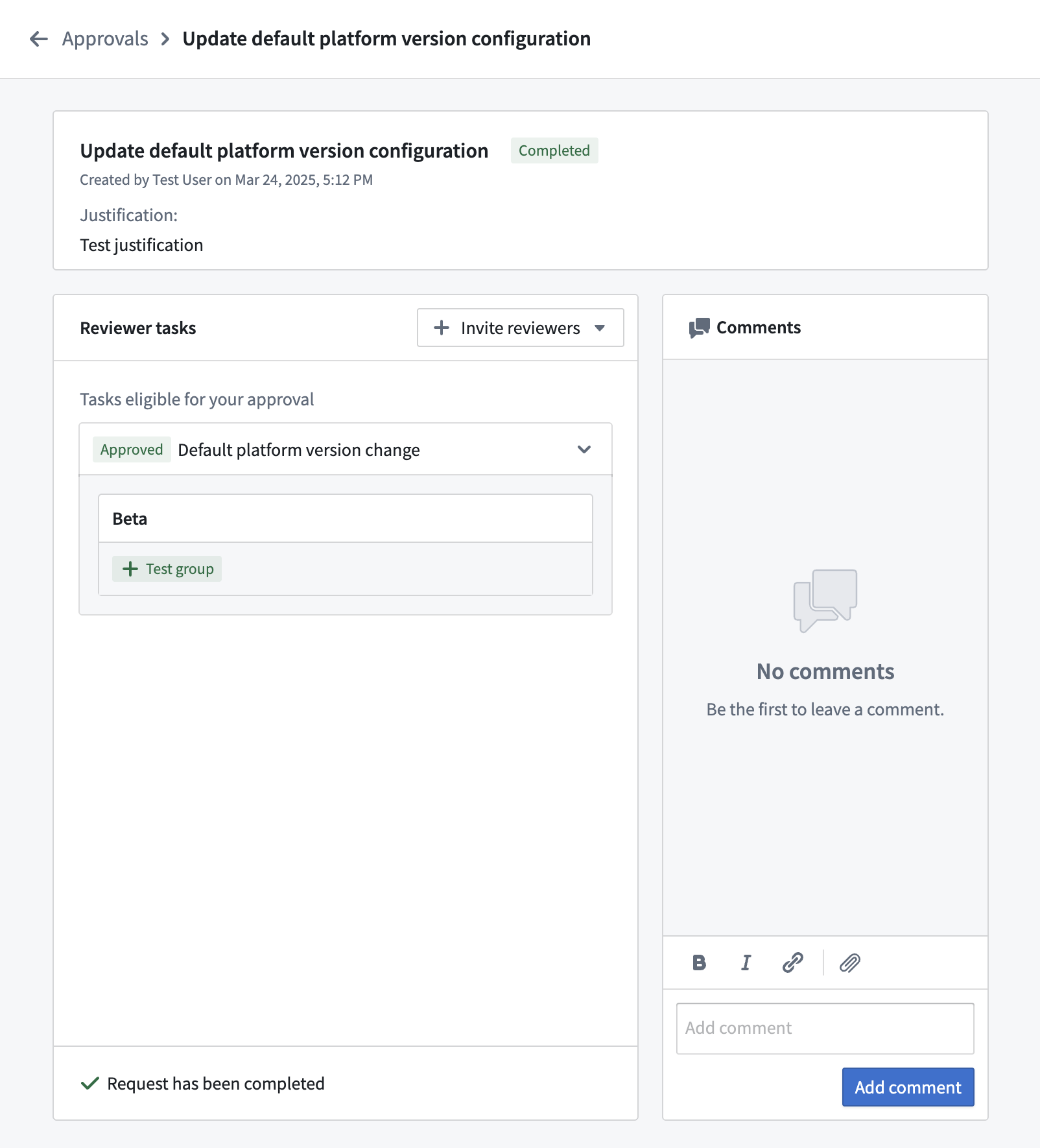
When you are done with configuration, select Request and apply change for your organization. This will create a change request in the Approvals inbox in Control Panel that will automatically be self-approved and applied. To view all past changes, choose Platform version default requests in the approvals inbox.
Configure the static banner
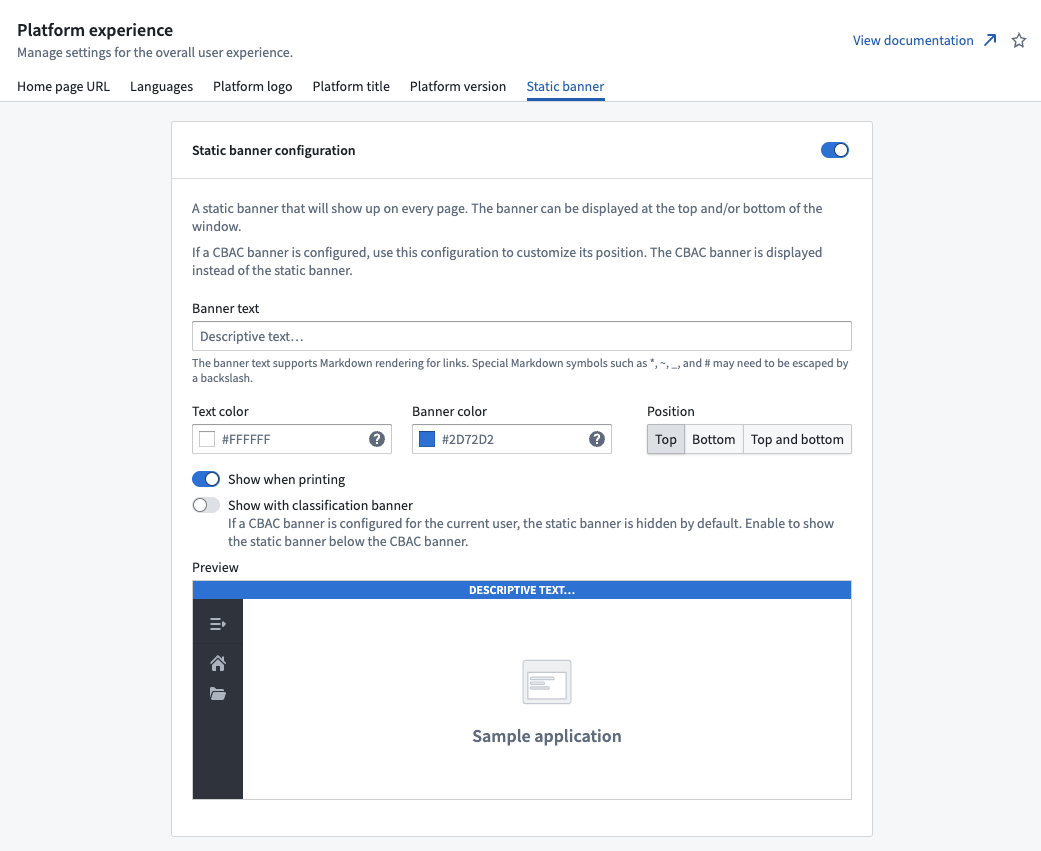
You can configure a static banner per Organization that renders at the top, bottom, or top and bottom of every page. The Banner text field supports basic Markdown syntax. This setting is disabled by default.
中文翻译
配置平台体验(Platform experience)
你可以通过控制面板(Control Panel)中的平台体验页面配置全平台体验相关设置。要查看平台体验选项卡,你必须拥有以下任一角色:
- 在注册权限(Enrollment permissions)扩展中授予的注册管理员(Enrollment administrator)角色。
- 在组织权限(Organization permissions)扩展中授予的组织管理员(Organization administrator)或用户体验管理员(User experience administrator)角色。
配置首页URL
你可以在控制面板的平台体验选项卡中,按组织或用户组配置组织的首页URL。
常见配置示例如下:
* 大多数新的Foundry注册实例会显示默认的叙事首页,帮助用户了解Foundry平台,该首页的URL为/narrative。
* 如果要使用Slate仪表板作为组织首页,请将值设置为/slate/<dashboard-rid-or-permalink>。
* 如果要使用Carbon工作区作为组织首页,请将值设置为/carbon/<workspace-rid>。
如果需要将特定用户组定向到与组织默认配置不同的首页URL,你可以在左侧边栏的组覆盖(Group override)下添加针对特定组的覆盖规则。系统将采用列表中用户所属的第一个匹配组对应的配置。
配置可用语言
你可以通过平台体验扩展,为用户提供英语之外的其他可用语言。
有权使用多语言的用户会在其Foundry侧边栏中看到区域设置切换器,可用于选择语言。如果启用了遵循用户浏览器语言偏好(Respect user's browser language preferences)或本地化值时始终使用浏览器语言偏好(Always use browser's language preferences when localizing values)选项,用户首次打开Foundry时将显示其浏览器偏好中优先级最高的可用语言。否则默认使用英语,直到用户从语言切换器中选择其他语言。
:::callout{theme="neutral"} Foundry中的某些小组件会遵循用户的浏览器语言偏好,必要时可能需要更新浏览器的语言设置。 :::
配置平台徽标(logo)
:::callout{theme="neutral"} 如果你拥有注册管理员权限,可以按注册实例配置平台徽标。如果你没有该权限,则只能按组织配置徽标。 :::
平台徽标可按注册实例和组织配置,将所有默认Palantir徽标替换为你选择的图片。你最多可提供4种不同尺寸的徽标:favicon(站点图标)、小、中、大。如果你没有提供所有尺寸的图片,Foundry会使用合适的备用尺寸。favicon没有备用机制。自定义徽标时,你需要上传一个favicon,至少还要上传其他三种尺寸中的一种。
| 尺寸 | 备用优先级 |
|---|---|
| Favicon | (无) |
| 小 | 中、大 |
| 中 | 小、大 |
| 大 | 中、小 |
配置平台标题
:::callout{theme="neutral"} 如果你拥有注册管理员权限,可以按注册实例配置平台标题。如果你没有该权限,则只能按组织配置徽标。 :::
平台标题可按注册实例和组织配置,会将所有平台相关的默认引用替换为你提供的标题。默认平台标题为Palantir。你可以在平台体验扩展的平台标题选项卡中进行配置。
配置新的平台标题后,平台内文档的名称也会同步更新。例如,如果你将平台重命名为ABC,平台内文档应用的名称将从默认的Custom documentation变为ABC documentation。
配置平台版本
平台版本切换器(platform version switcher) 允许你选择使用不同的平台版本。例如,部分用户可能更倾向于使用beta版平台,以在stable版平台推出新功能前提前试用。
要查看和配置控制面板中的平台版本选项卡,用户需要拥有管理平台版本(Manage platform version)工作流权限,该权限由用户体验管理员角色授予。角色可在控制面板的组织权限选项卡中管理。
平台版本
平台版本切换器提供三个可用的平台版本:稳定版(stable)、测试版(beta)和旧版(prior)。
稳定版
稳定版经过严格测试,已被广泛使用,绝大多数用户都会使用稳定版。
测试版
测试版是未来的稳定版本,包含当前稳定版尚未提供的新改动和功能。由于测试版更新,其中的改动可能不像稳定版那样经过严格测试,你可能会遇到意外行为。在Palantir平台上开发时,选择测试版有助于提前获取新功能。
旧版
旧版是当前稳定版的上一个稳定版本。如果稳定版发生了改动,切换到旧版有助于查看旧UI,但不建议日常使用旧版。用户可以临时查看旧版本,但会被自动切回其默认版本(参见配置用户的默认平台版本)。
平台版本切换器
要更改平台版本,导航到左侧边栏底部的账户设置,然后选择平台版本旁边的当前版本即可打开平台版本切换器。选择其他版本会重新加载页面并加载新版本。
向用户显示的默认版本由控制面板中的默认平台版本设置决定。当用户查看稳定版之外的平台版本时,侧边栏中会显示一个小标签,提示用户当前正在查看其他版本。
限制平台版本切换器的访问权限
你可以限制组织内用户对侧边栏中平台版本切换器的访问权限。要更改切换器的访问权限,导航到平台体验扩展,然后进入平台版本选项卡。
选择平台版本切换器旁边的管理,会弹出对话框用于更改平台版本切换器的设置。
选择所需的访问权限,然后选择请求并应用组织变更。这会在控制面板的审批收件箱(Approvals inbox)中生成一个变更请求,该请求会自动自行审批并生效。要查看所有历史变更,请在审批收件箱中选择平台版本切换器请求。
配置用户的默认平台版本
管理员还可以配置用户组默认使用测试版平台。如果这些用户有权使用平台版本切换器,他们仍然可以从测试版切换到其他版本。这让你可以选择一组高级用户(power user)默认使用测试版,以便他们可以在其他用户使用前试用新功能。
要配置哪些用户默认看到测试版,选择默认平台版本旁边的管理。在对话框中,选择需要使用测试版的目标用户组;所有未在选中组内的用户默认将使用稳定版。
配置完成后,选择请求并应用组织变更。这会在控制面板的审批收件箱中生成一个变更请求,该请求会自动自行审批并生效。要查看所有历史变更,请在审批收件箱中选择默认平台版本请求。
配置静态横幅
你可以按组织配置在所有页面的顶部、底部或上下两端显示的静态横幅。横幅文本字段支持基础Markdown语法。该设置默认禁用。