Configure private link egress for Azure(为 Azure 配置私有链接出站)
:::callout{theme="neutral" title="Beta"} Private link egress is in the beta phase of development and may not be available on your enrollment. Functionality may change during active development. :::
This page outlines how to configure and manage private link egress for Azure-hosted Palantir platforms connecting to customer services hosted in Azure, powered by Azure Private Link ↗.
Private link egress supports private egress to Azure services, user-owned resources deployed on Azure, or third-party APIs deployed on Azure.
Configure a private link
Navigate to the Private links tab in the Network egress page in Control Panel to manage private links.
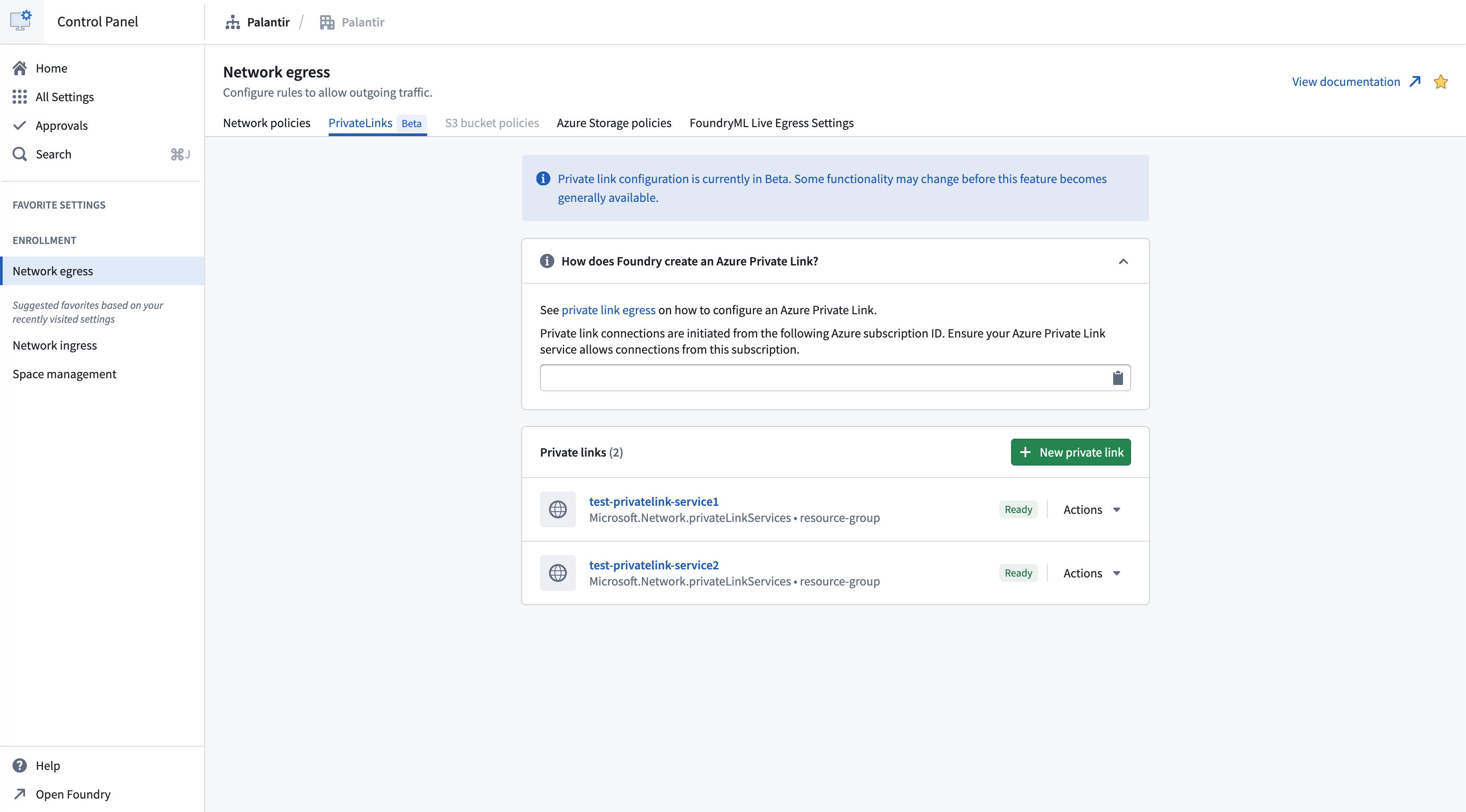
To successfully create a private link connection:
- Create a private link service for your target resource.
- Allow the Palantir platform to access the target resource.
- Provide the target resource details.
- Create network egress policies.
Create a private link service for your target resource
Azure services that support private endpoints
Many Azure services support private endpoints natively, allowing you to connect to them through private link without creating a custom private link service. A comprehensive list of Azure services that support private endpoints can be found in the Azure documentation ↗.
For these services, Azure automatically provides the necessary private link service configuration, and you only need to create a private endpoint connection.
Allow the Palantir platform to access the target resource
To enable the Palantir platform to create private endpoint connections to your Azure resources, you must configure visibility and optionally, auto-approval settings.
For custom private link services
For custom private link services ↗, follow the steps below:
-
Find the Palantir platform's Azure subscription ID in Control Panel > Network egress > Private links.

-
Add the Palantir subscription ID to the list of subscriptions that have visibility to your private link service. This allows the Palantir platform to request access to the service.
-
Optionally, enable auto-approval for the Palantir subscription ID to automatically approve connection requests, eliminating the need for manual approval.
For Azure PaaS services
For most Azure PaaS services such as Azure Storage, Azure SQL Database, Azure Key Vault, Cosmos DB, and so on, the default behavior is as follows:
- The resource is visible to anyone who knows its resource ID or name.
- Anyone with sufficient Azure permissions in their subscription can attempt to create a private endpoint to your resource.
- This triggers a manual approval workflow where you must accept or reject the connection request.
:::callout{theme="neutral"} Auto-approval configuration varies by Azure service. Some services support pre-approved subscriptions, while others require manual approval for each connection request. Consult the Azure documentation for your specific service for detailed instructions. :::
Provide the target resource details
To create a private link in Control Panel, you need the Azure resource ID of the target resource you want to connect to.
- Navigate to Control Panel > Network egress > Private links and select New private link.
- Enter the Resource ID of your Azure resource. The resource ID is the full Azure Resource Manager path to your resource.
- Optionally, specify Sub-resources if you want to connect to specific sub-resources of the target resource (for example,
blobfor Azure Storage orsqlServerfor Azure SQL Database).
Standard private links
Standard private links are the default configuration for connecting to most Azure resources and custom private link services. Use standard private links for Azure SQL Database, Azure Key Vault, Azure Cosmos DB, custom private link services, and other Azure PaaS services. When creating a standard private link, you need to provide the resource ID and optionally specify sub-resources.
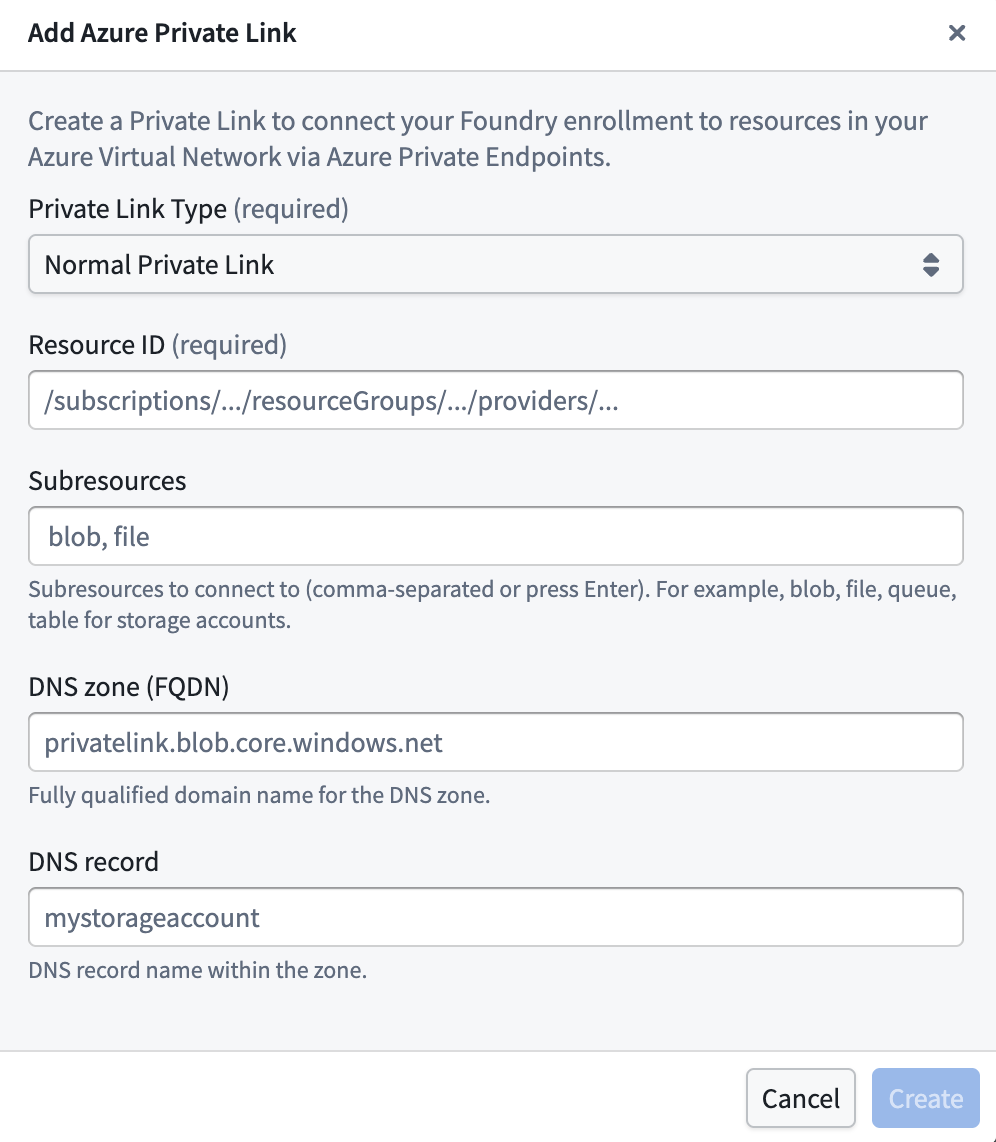
Advanced settings:
- DNS zone: The private DNS zone to use for name resolution (for example,
privatelink.blob.core.windows.net). Required if a DNS record is specified. - DNS record: Optionally specify a custom DNS record for the private link. If you add a DNS record, you must also specify a DNS zone.
:::callout{theme="neutral"} DNS configuration is optional for standard private links. If not specified, you must use the Azure-generated private endpoint IP address directly. :::
Storage private links
Use storage private links specifically for Azure Storage accounts (resources containing /Microsoft.Storage/storageAccounts/ in their resource ID). Unlike standard private links, storage private links automatically define DNS configuration to handle Azure networking edge cases for storage resources. The system generates the required DNS zones and records in the format {storage-account-name}.privatelink.{sub-resource}.core.windows.net.
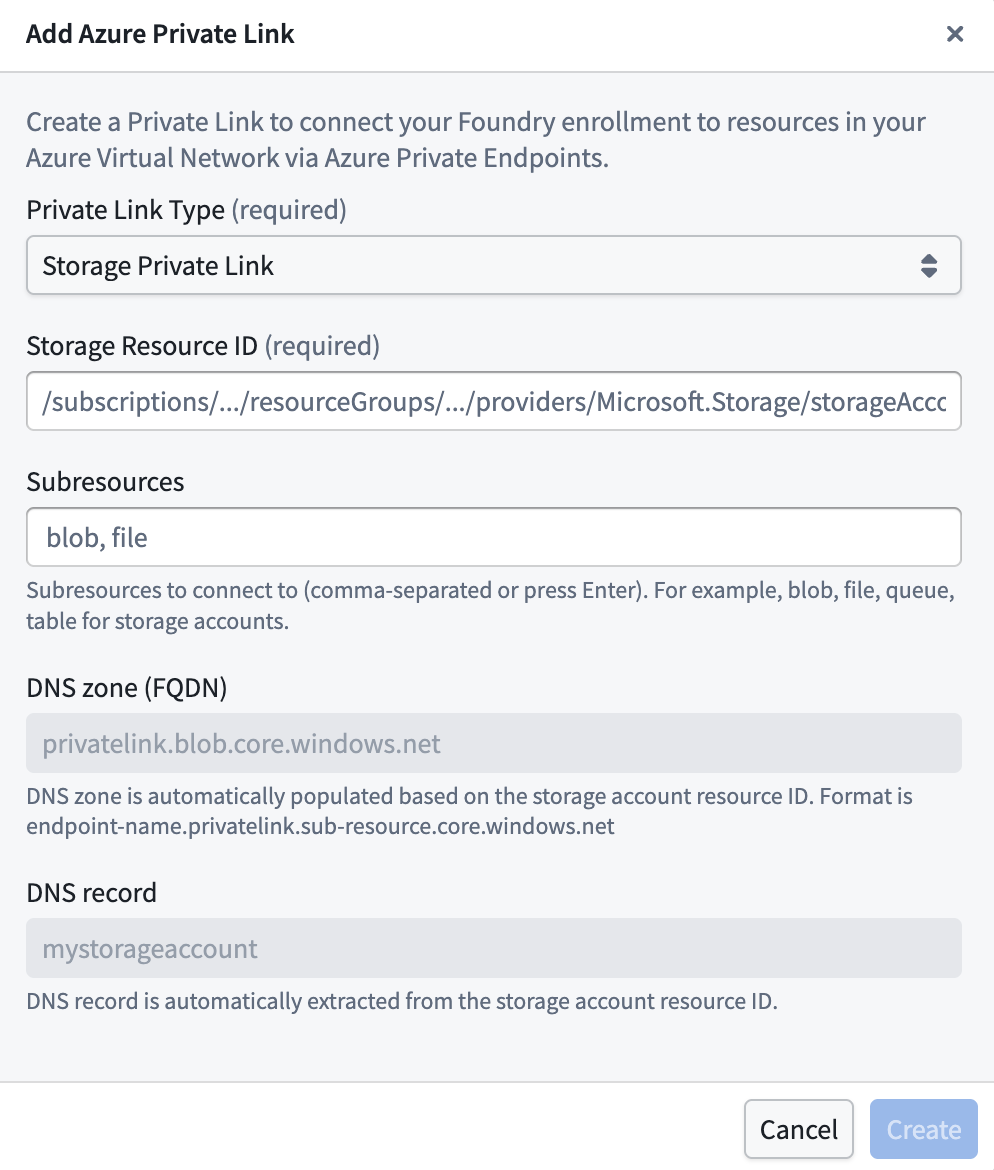
Important notes for storage private links:
- The DNS configuration is automatically managed by the system and cannot be changed.
- The system will create the appropriate DNS records for the storage account's private endpoints.
- Sub-resources (blob, file, table, queue, dfs) must be specified based on which storage services you want to access.
After providing the details above, select Create.
The private link may have the following states:
- Creating: Creation of the private link has begun.
- Creating cloud resources: Provisioning Azure Private Endpoint and related cloud resources.
- Waiting for cloud resources: Waiting for Azure to complete provisioning of the Private Endpoint.
- Pending acceptance: The private link is awaiting acceptance by the service provider (applies to certain Azure services).
- Ready: The private link has been successfully created and is operational.
Create private link egress policies
After successful creation of a private link, create private link egress policies to allow egress to the target resource.
- Create network egress policies by selecting Actions > Create network egress policy in Control Panel.
- Select a Private link type of address and input the port of the target resource per item when creating a network egress policy. These created policies are visible under Actions > View network egress policy in Control Panel.
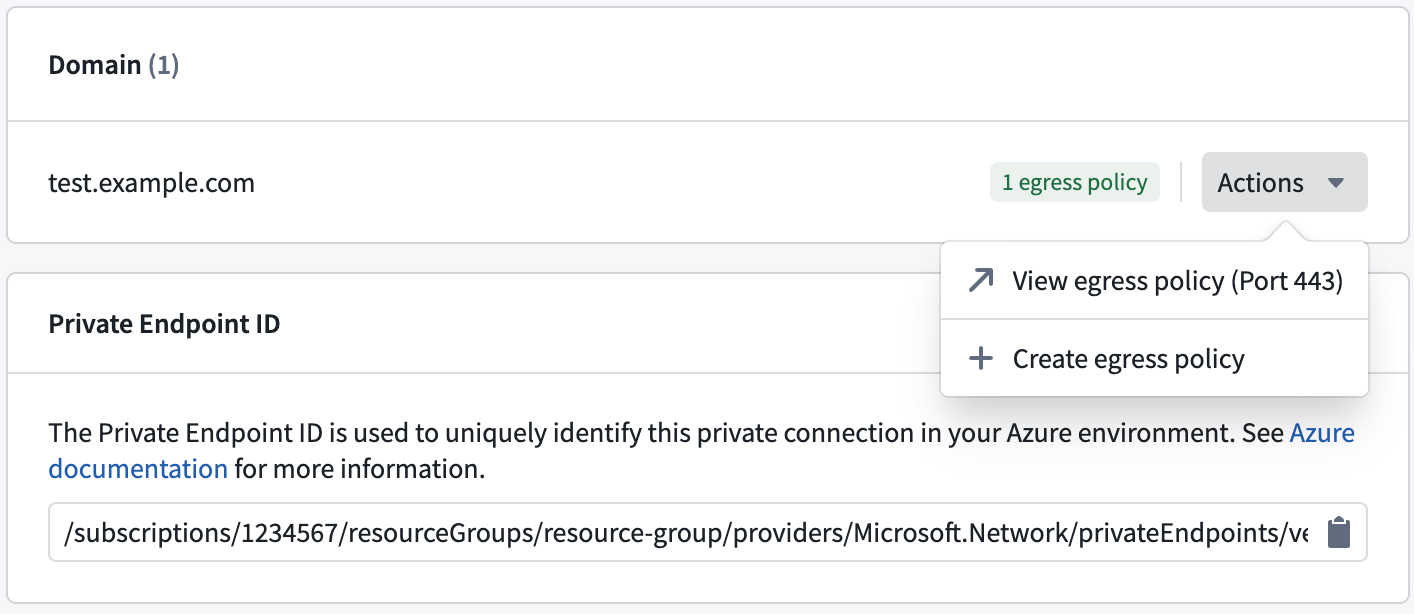
Once the private link is in the Ready state and network egress policies are created, the private link can be used in the Palantir platform.
Manage private links
Possible actions on the private link are displayed under Actions in the private link details page, and in the private links page for each item.
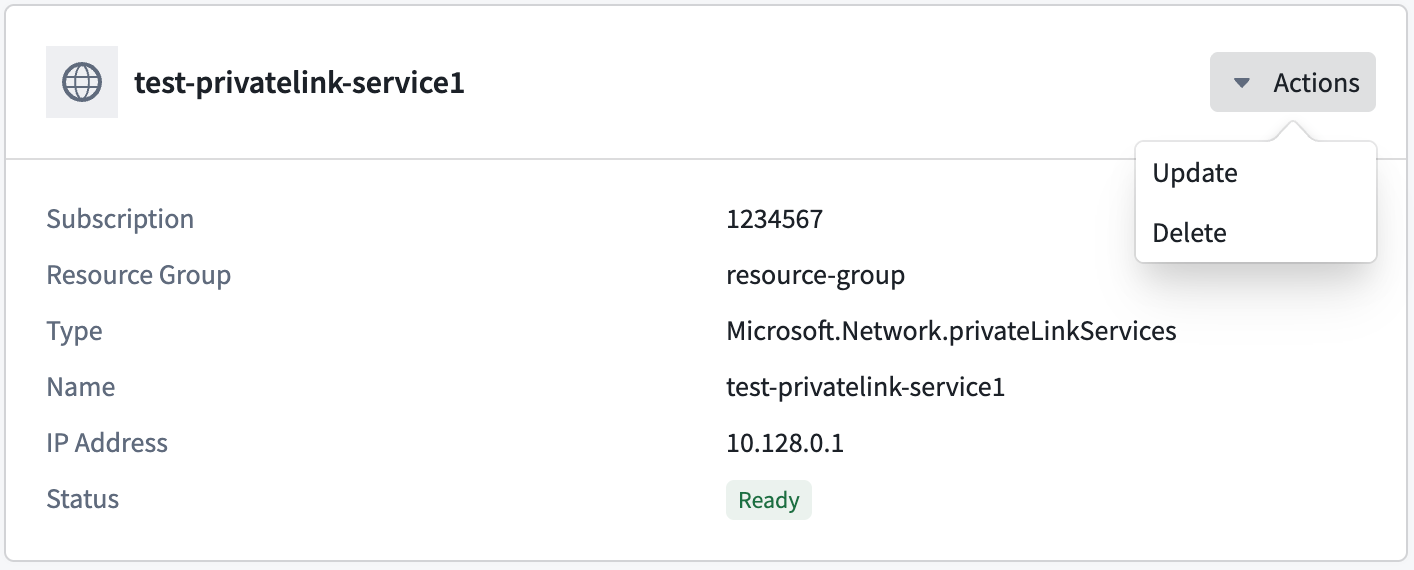
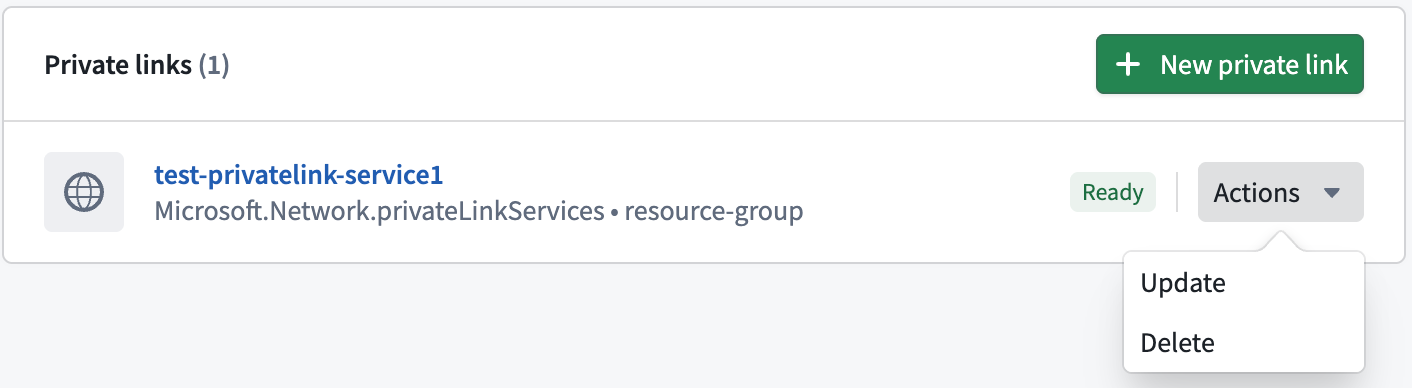
Update a private link
A private link's DNS zone, DNS record, and TCP ports can be updated by selecting Actions > Update.
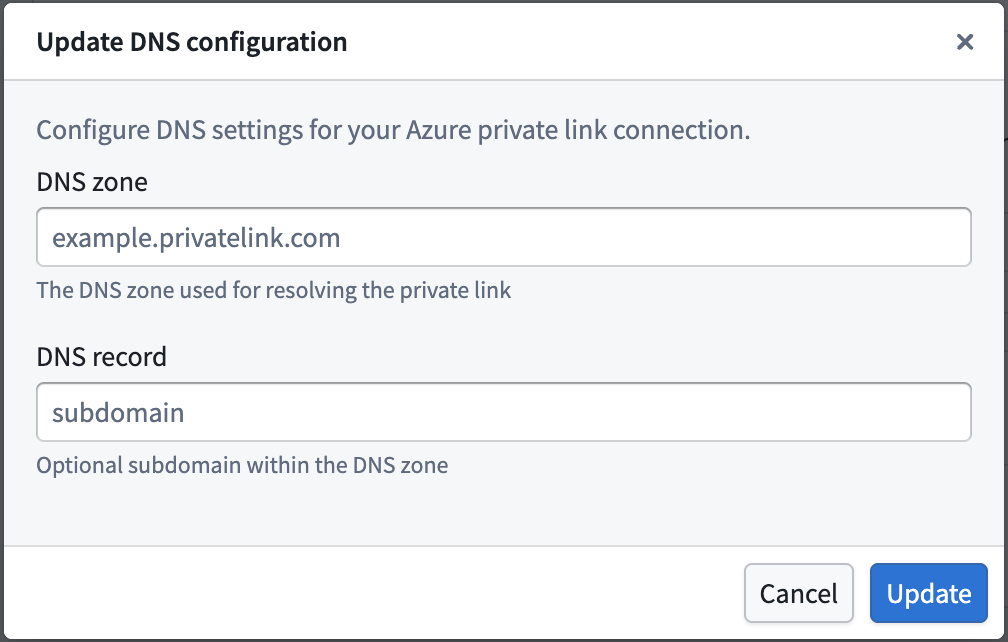
Delete a private link
Private links can be deleted by selecting Actions > Delete.
中文翻译
为 Azure 配置私有链接出站
:::callout{theme="neutral" title="Beta"} 私有链接出站功能目前处于测试版开发阶段,可能未在你的注册环境中开放。功能在活跃开发期间可能会发生变化。 :::
本文档概述了如何为托管在 Azure 上的 Palantir 平台配置和管理私有链接出站,以连接同样托管在 Azure 上的客户服务,该功能由 Azure Private Link ↗ 提供支持。
私有链接出站支持对 Azure 服务、部署在 Azure 上的用户自有资源或部署在 Azure 上的第三方 API 进行私有出站访问。
配置私有链接
在控制面板中导航至网络出站页面的私有链接选项卡,以管理私有链接。
要成功创建私有链接连接,请执行以下步骤:
为目标资源创建私有链接服务
支持私有端点的 Azure 服务
许多 Azure 服务原生支持私有端点,允许你通过私有链接连接到这些服务,而无需创建自定义的私有链接服务。支持私有端点的 Azure 服务完整列表可在 Azure 文档 ↗ 中找到。
对于这些服务,Azure 会自动提供必要的私有链接服务配置,你只需创建私有端点连接即可。
允许 Palantir 平台访问目标资源
要允许 Palantir 平台创建到你的 Azure 资源的私有端点连接,你必须配置可见性设置,并可选择配置自动审批设置。
针对自定义私有链接服务
对于自定义私有链接服务 ↗,请按照以下步骤操作:
-
在控制面板 > 网络出站 > 私有链接中找到 Palantir 平台的 Azure 订阅 ID。
-
将 Palantir 订阅 ID 添加到对你的私有链接服务具有可见性的订阅列表中。这允许 Palantir 平台请求访问该服务。
-
可选地,为 Palantir 订阅 ID 启用自动审批,以自动批准连接请求,无需手动审批。
针对 Azure PaaS 服务
对于大多数 Azure PaaS 服务,例如 Azure 存储、Azure SQL 数据库、Azure Key Vault、Cosmos DB 等,默认行为如下:
- 任何知道资源 ID 或名称的人都可以看到该资源。
- 任何在其订阅中拥有足够 Azure 权限的人都可以尝试为你的资源创建私有端点。
- 这会触发手动审批工作流,你必须接受或拒绝连接请求。
:::callout{theme="neutral"} 自动审批配置因 Azure 服务而异。某些服务支持预批准的订阅,而其他服务则需要对每个连接请求进行手动审批。请查阅特定服务的 Azure 文档以获取详细说明。 :::
提供目标资源详细信息
要在控制面板中创建私有链接,你需要提供要连接的目标资源的 Azure 资源 ID。
- 导航至控制面板 > 网络出站 > 私有链接,然后选择新建私有链接。
- 输入你的 Azure 资源的资源 ID。资源 ID 是你的资源的完整 Azure 资源管理器路径。
- 可选地,如果你希望连接到目标资源的特定子资源,请指定子资源(例如,Azure 存储的
blob或 Azure SQL 数据库的sqlServer)。
标准私有链接
标准私有链接是连接到大多数 Azure 资源和自定义私有链接服务的默认配置。使用标准私有链接连接到 Azure SQL 数据库、Azure Key Vault、Azure Cosmos DB、自定义私有链接服务以及其他 Azure PaaS 服务。创建标准私有链接时,你需要提供资源 ID,并可选择指定子资源。
高级设置:
- DNS 区域: 用于名称解析的私有 DNS 区域(例如
privatelink.blob.core.windows.net)。如果指定了 DNS 记录,则此项为必填。 - DNS 记录: 可选地为私有链接指定自定义 DNS 记录。如果添加了 DNS 记录,则还必须指定 DNS 区域。
:::callout{theme="neutral"} 标准私有链接的 DNS 配置是可选的。如果未指定,则必须直接使用 Azure 生成的私有端点 IP 地址。 :::
存储私有链接
专门为 Azure 存储账户(资源 ID 中包含 /Microsoft.Storage/storageAccounts/ 的资源)使用存储私有链接。与标准私有链接不同,存储私有链接会自动定义 DNS 配置,以处理存储资源的 Azure 网络边缘情况。系统会以 {storage-account-name}.privatelink.{sub-resource}.core.windows.net 格式生成所需的 DNS 区域和记录。
存储私有链接的重要说明:
- DNS 配置由系统自动管理,无法更改。
- 系统将为存储账户的私有端点创建适当的 DNS 记录。
- 必须根据你要访问的存储服务指定子资源(blob、file、table、queue、dfs)。
提供上述详细信息后,选择创建。
私有链接可能具有以下状态:
- 创建中: 已开始创建私有链接。
- 正在创建云资源: 正在预配 Azure 私有端点和相关云资源。
- 等待云资源: 正在等待 Azure 完成私有端点的预配。
- 等待接受: 私有链接正在等待服务提供商接受(适用于某些 Azure 服务)。
- 就绪: 私有链接已成功创建并可运行。
创建私有链接出站策略
成功创建私有链接后,创建私有链接出站策略以允许出站访问目标资源。
- 在控制面板中选择操作 > 创建网络出站策略来创建网络出站策略。
- 创建网络出站策略时,为每个条目选择私有链接类型的地址,并输入目标资源的端口。这些已创建的策略可在控制面板的操作 > 查看网络出站策略下查看。
一旦私有链接处于就绪状态并且网络出站策略已创建,该私有链接即可在 Palantir 平台中使用。
管理私有链接
私有链接上可执行的操作显示在私有链接详情页面的操作下,以及私有链接页面中每个项目的操作菜单中。
更新私有链接
可以通过选择操作 > 更新来更新私有链接的DNS 区域、DNS 记录和TCP 端口。
删除私有链接
可以通过选择操作 > 删除来删除私有链接。