Configure RStudio® license(配置 RStudio® 许可证)
Code Workspaces uses RStudio® Workbench, which requires a corresponding operational license. To enable RStudio® Workbench, Organization administrators should first reach out to Posit™ to either obtain a Posit™ Workbench license for Foundry or to confirm that an existing license is sufficient. The license must then be added to Foundry so that the application can be whitelisted.
:::callout{theme="neutral"} If you renewed or upgraded an existing RStudio® license, ensure uninterrupted access to your existing workspaces by updating the corresponding license in Foundry instead of creating a new one. The last validated license remains in effect until your update has been validated by Posit™. :::
Add RStudio® license
To add an RStudio® license to Foundry, follow the instructions below:
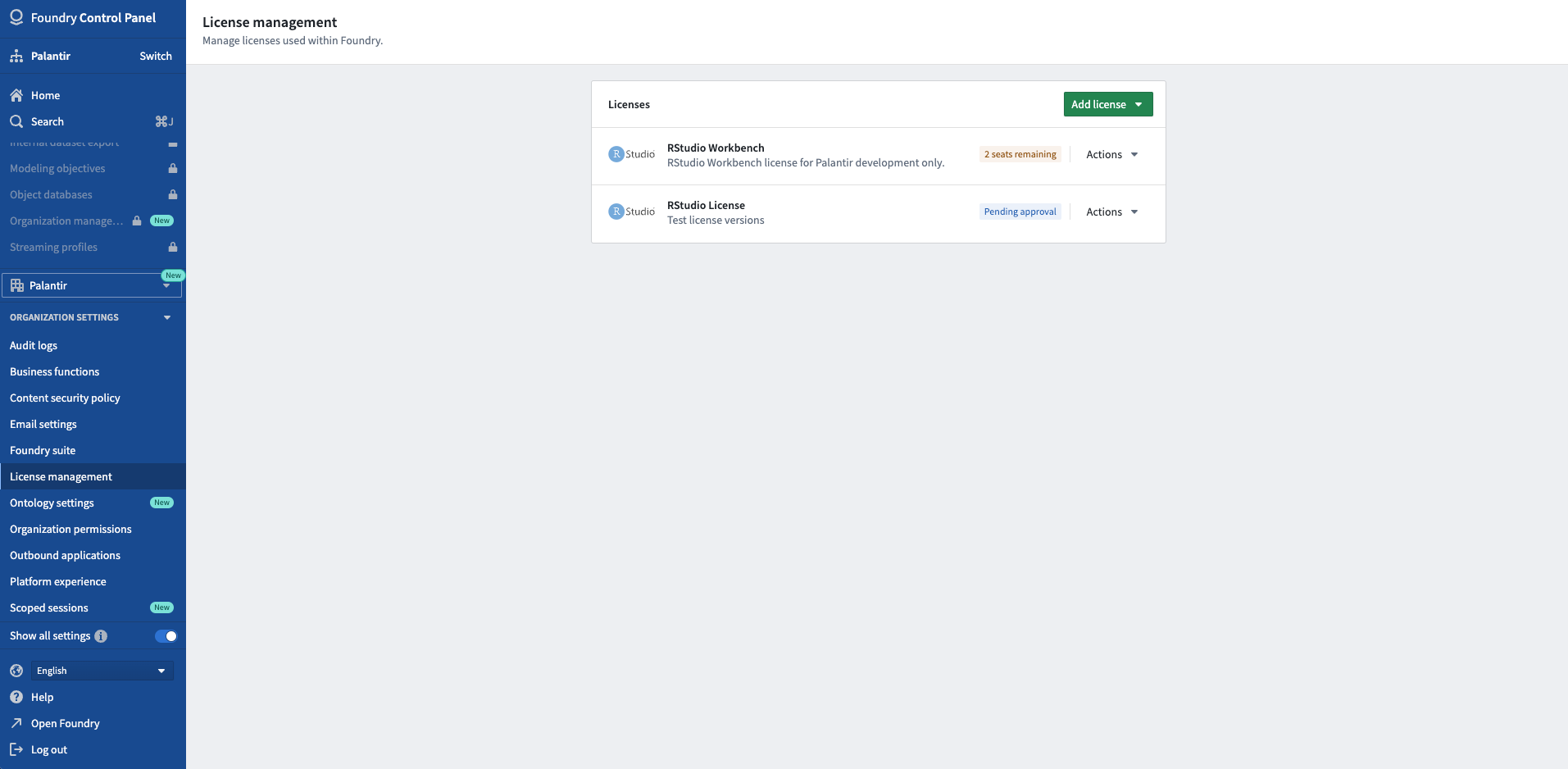
- Navigate to the License management section in Control Panel.
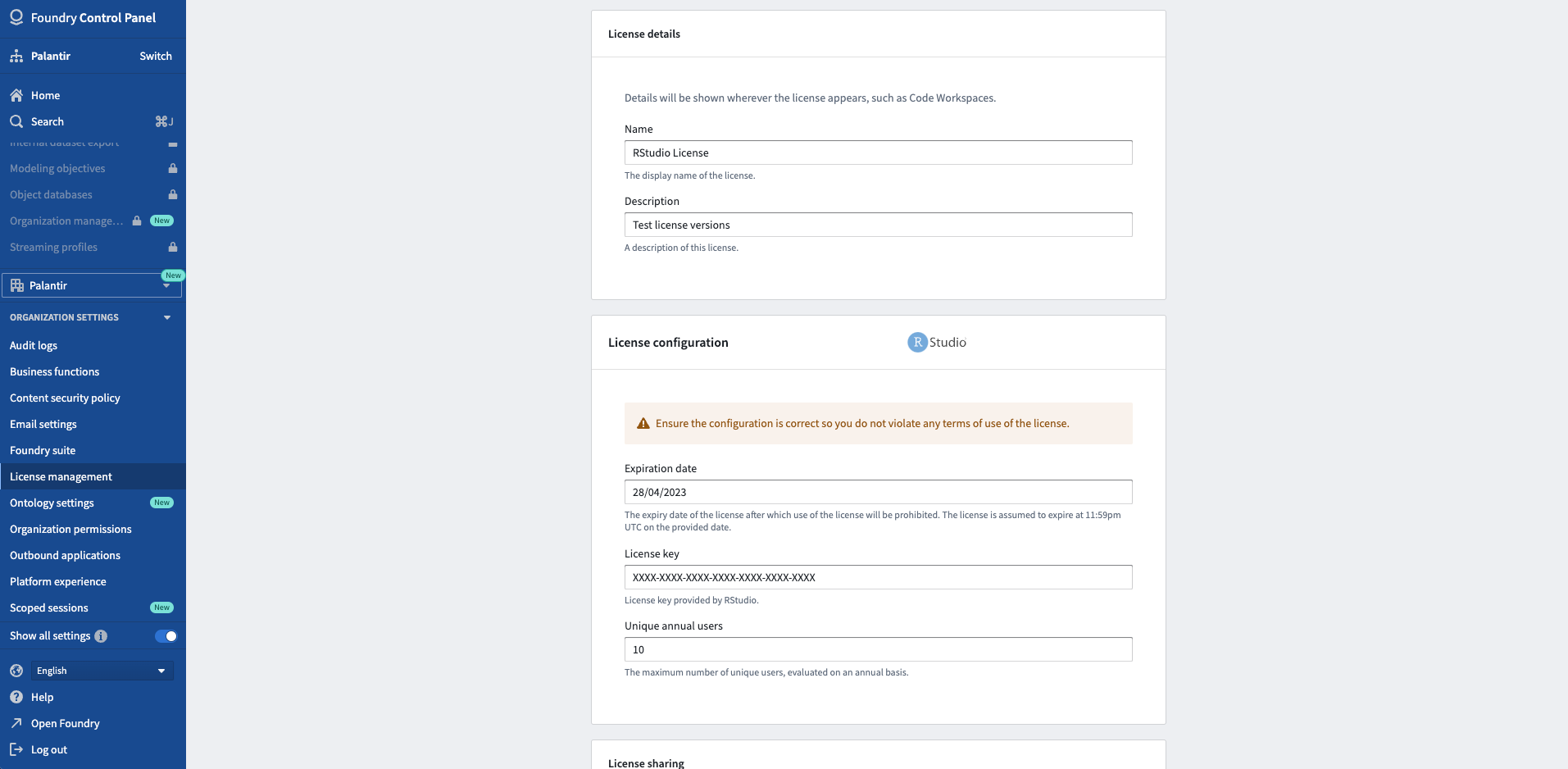
- Provide information about the license (license key, number of named users, expiry date).
- Follow the prompt to contact both Posit™ and Palantir to have the license whitelisted.
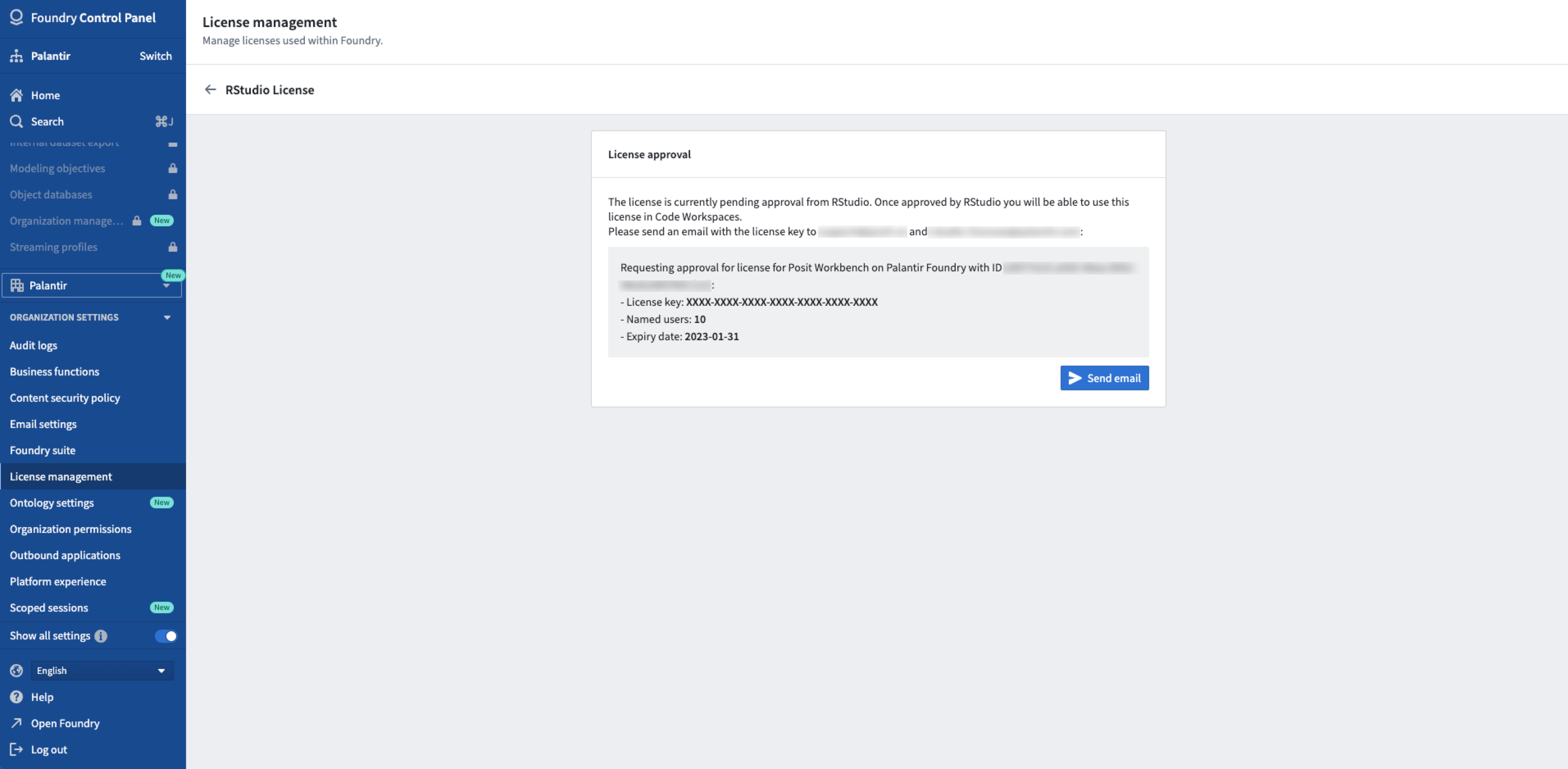
- Once Posit™ confirms the specified license information is accurate and operational, Palantir will whitelist the license and enable RStudio® Code Workspaces in Foundry.
:::callout{theme="neutral"} Foundry does not validate the license information but requires confirmation from Posit™ that it can be used. Foundry manages the license internally; if all the license seats have been used, the next new user will not be allowed to launch RStudio® in Foundry. :::
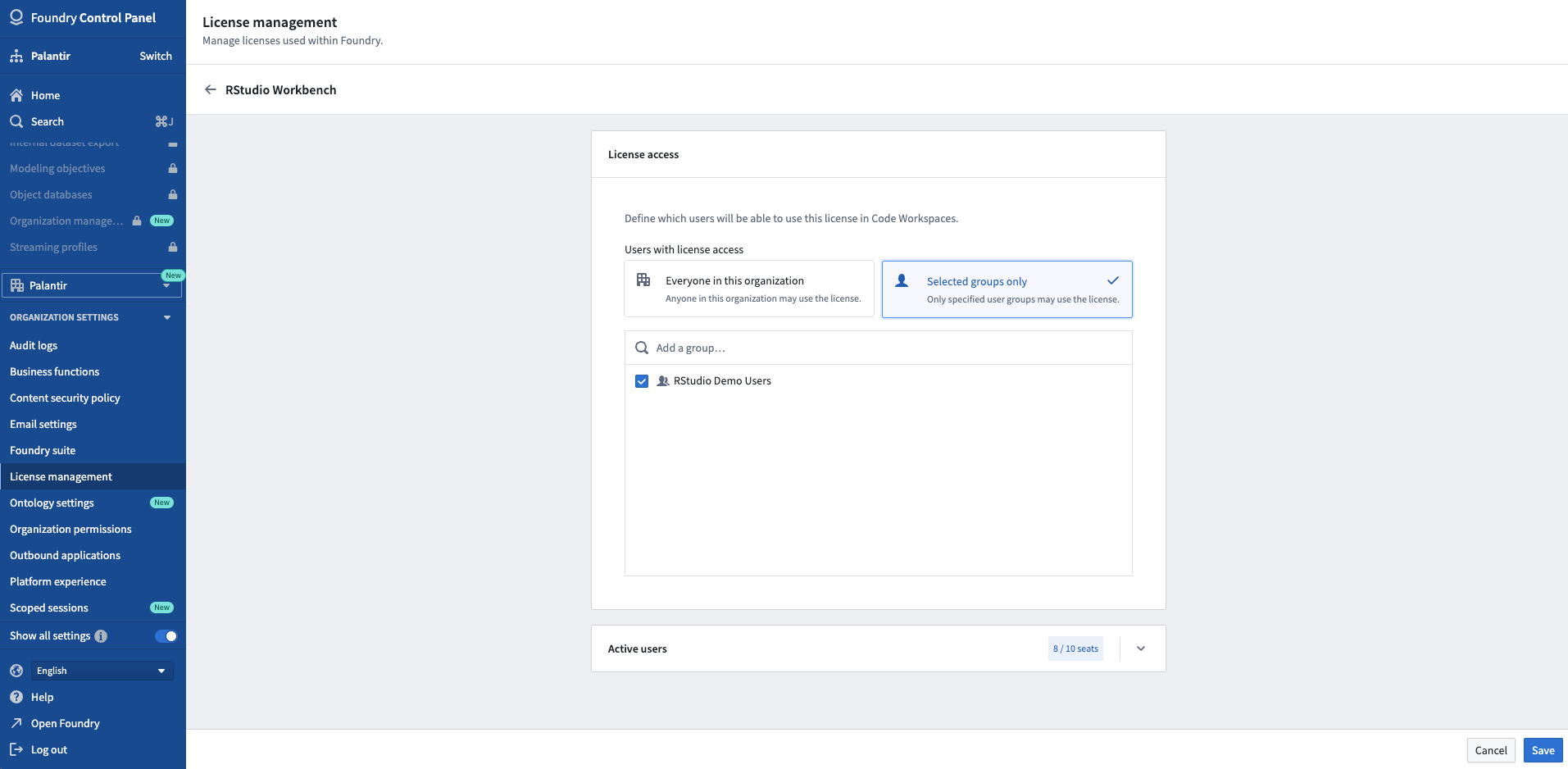
Access to a given license can be restricted to a subset of user groups from License management.
RStudio® and Shiny® are trademarks of Posit™.
All third-party trademarks (including logos and icons) referenced remain the property of their respective owners. No affiliation or endorsement is implied.
中文翻译
配置 RStudio® 许可证
代码工作台(Code Workspaces)使用 RStudio® Workbench,该工具需要相应的运营许可证。要启用 RStudio® Workbench,组织管理员应首先联系 Posit™,获取适用于 Foundry 的 Posit™ Workbench 许可证,或确认现有许可证是否足够。随后必须将该许可证添加到 Foundry,以便应用程序能够被列入白名单。
:::callout{theme="neutral"} 如果您续订或升级了现有的 RStudio® 许可证,请通过更新 Foundry 中的相应许可证(而非创建新许可证)来确保对现有工作台的无中断访问。在您的更新获得 Posit™ 验证之前,最后验证的许可证将保持有效。 :::
添加 RStudio® 许可证
要添加 RStudio® 许可证至 Foundry,请按照以下步骤操作:
- 导航至控制面板(Control Panel)中的 许可证管理(License management) 部分。
- 提供许可证相关信息(许可证密钥、命名用户数量、到期日期)。
- 按照提示联系 Posit™ 和 Palantir,将许可证列入白名单。
- 一旦 Posit™ 确认指定的许可证信息准确且可运行,Palantir 将把该许可证列入白名单,并在 Foundry 中启用 RStudio® 代码工作台。
:::callout{theme="neutral"} Foundry 不会验证许可证信息,但需要 Posit™ 确认其可用性。Foundry 在内部管理许可证;如果所有许可证席位已用完,下一个新用户将无法在 Foundry 中启动 RStudio®。 :::
可通过 许可证管理(License management) 将特定许可证的访问权限限制给部分用户组。
RStudio® 和 Shiny® 是 Posit™ 的商标。
所有引用的第三方商标(包括徽标和图标)均归其各自所有者所有。不暗示任何隶属关系或认可。