Configure workspaces(配置工作区(workspaces))
:::callout{theme="warning" title="Deprecated functionality"} These docs only apply if you see the Foundry suite section in Control Panel. If you see Application access instead, refer to Configure application access. :::
If you want to narrow the scope of user access and help users focus on provided workflows, you can customize available apps per Organization or user group in Control Panel via the Foundry Suite section.
Platform access
All users have access to most parts of the Foundry platform unless otherwise restricted. Users who are not in user groups with platform access will only have access to consumer-facing applications built in Slate or Workshop to which they have explicitly been granted access. Additionally, these restricted users will not see a navigational Foundry sidebar nor will they be able to navigate to other parts of Foundry.
For users with platform access, you can further customize which workspaces they are able to use.
Workspaces
A workspace is one of the following:
- A stand-alone application without the Foundry sidebar
- A grouping of related applications that appear with the Foundry sidebar
Foundry Suite
To get access to the Foundry Suite section in Control Panel, you will need the Manage application access workflow (previously called Manage Foundry suite workspaces) belonging to the User experience administrator role. This role is administered in the Organization permissions tab in Control Panel.
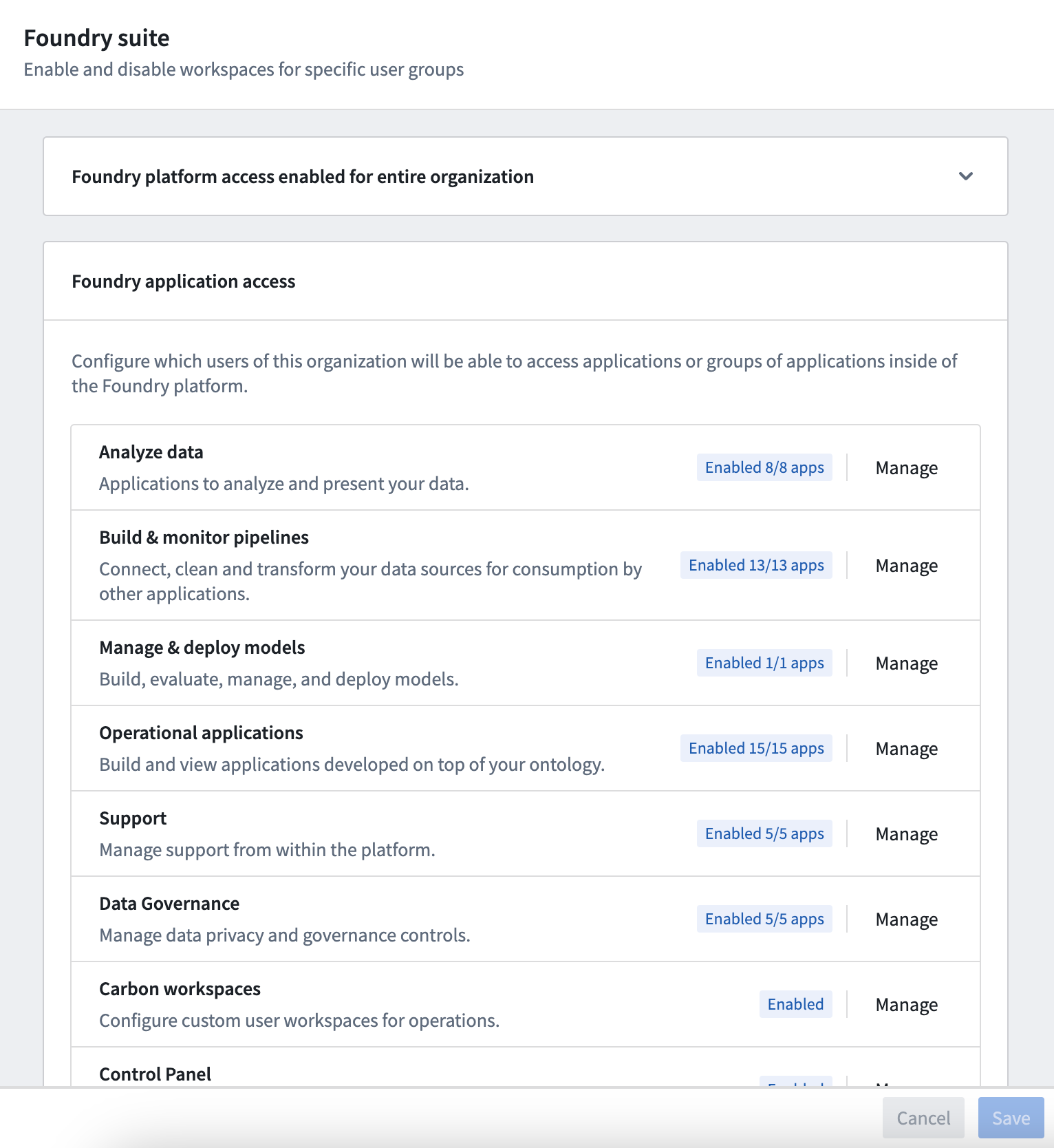
Once you have permission to access the Foundry Suite settings, you will see it as an option in the Control Panel sidebar. From the Foundry Suite page, you can restrict platform access and understand which workspaces are enabled for a particular Organization.
Restrict platform access
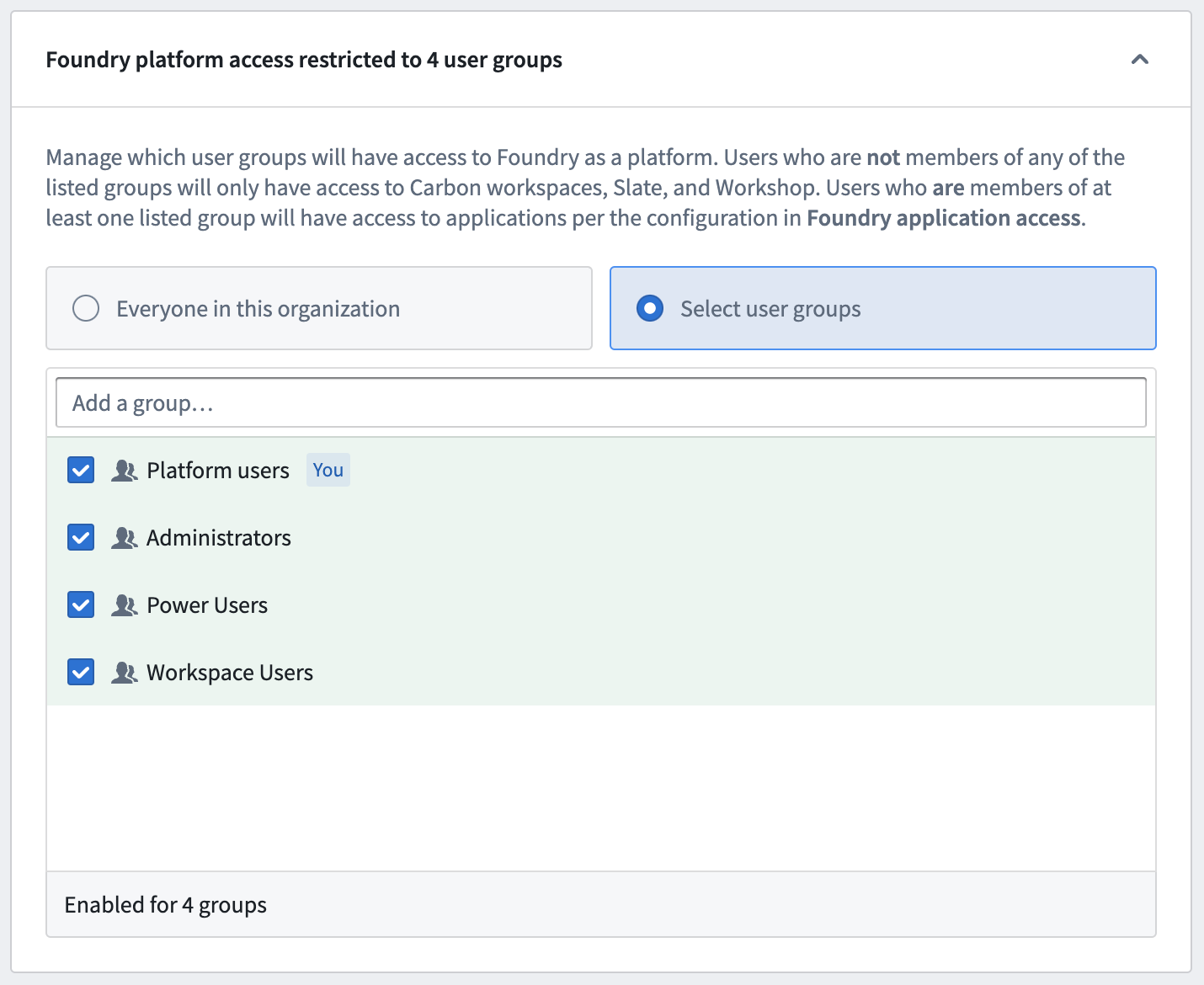
To limit which users are able to access the Foundry platform as a whole, choose Select user groups and search for user groups which should have access to the platform. Users not in any of those groups will be restricted to using custom consumer-facing applications, and the Foundry application navigation sidebar will not be visible to them. The workspace and application access configuration under Foundry application access further down on the page only applies to users with platform access.
Configure a workspace
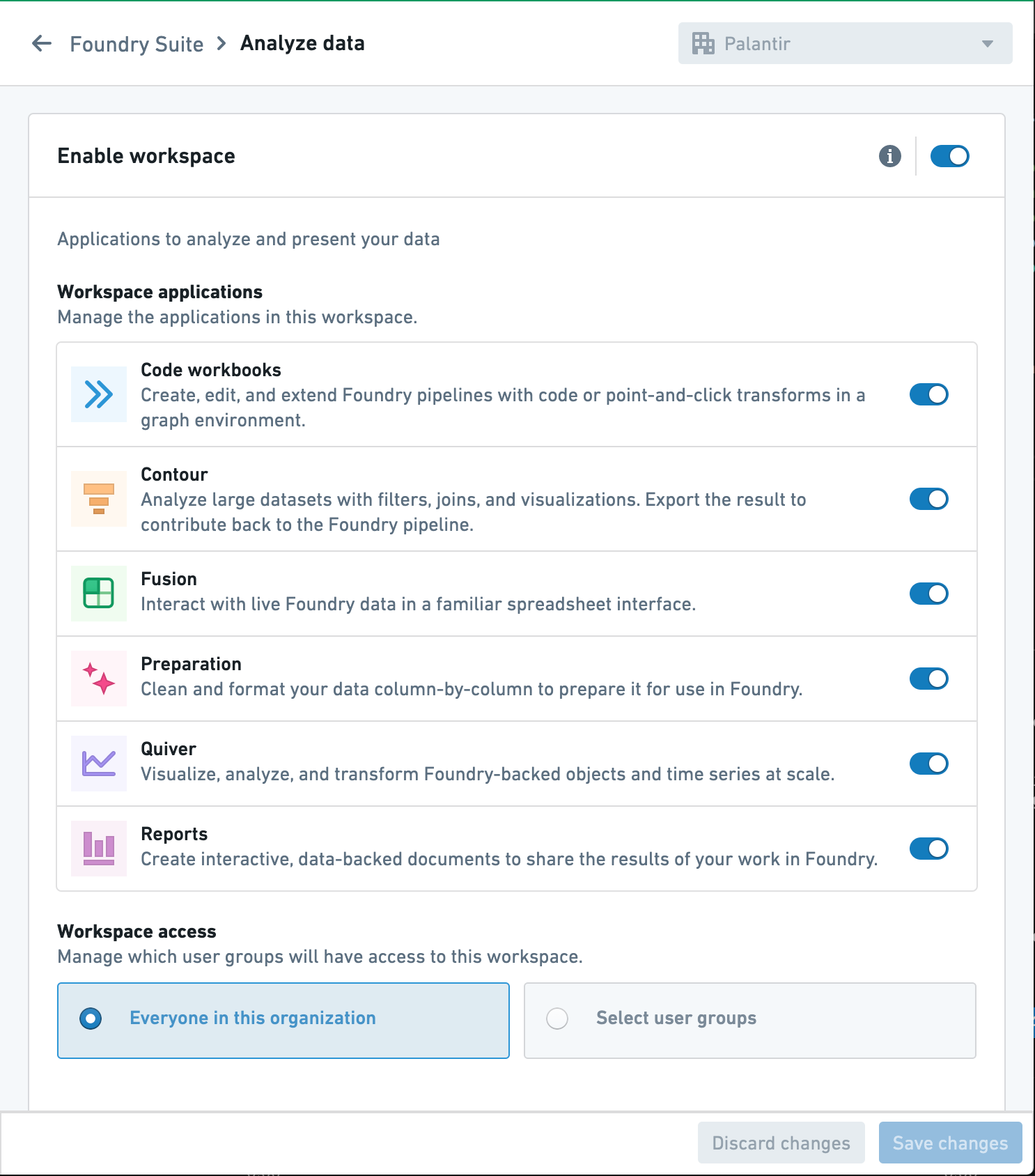
Select Manage workspace to configure access to a workspace. You will find more details about the workspace and any associated applications. The example below shows the result of selecting Manage workspace for the Analyze data workspace. From this page, you can toggle on or off the entire workspace using Enable workspace or just specific applications. If an application is considered default for this workspace, it cannot be toggled off.
Configure more granular access to workspaces and applications
For a granular configuration of permissions for the workspace, you can limit the access to specified group(s), as shown below.

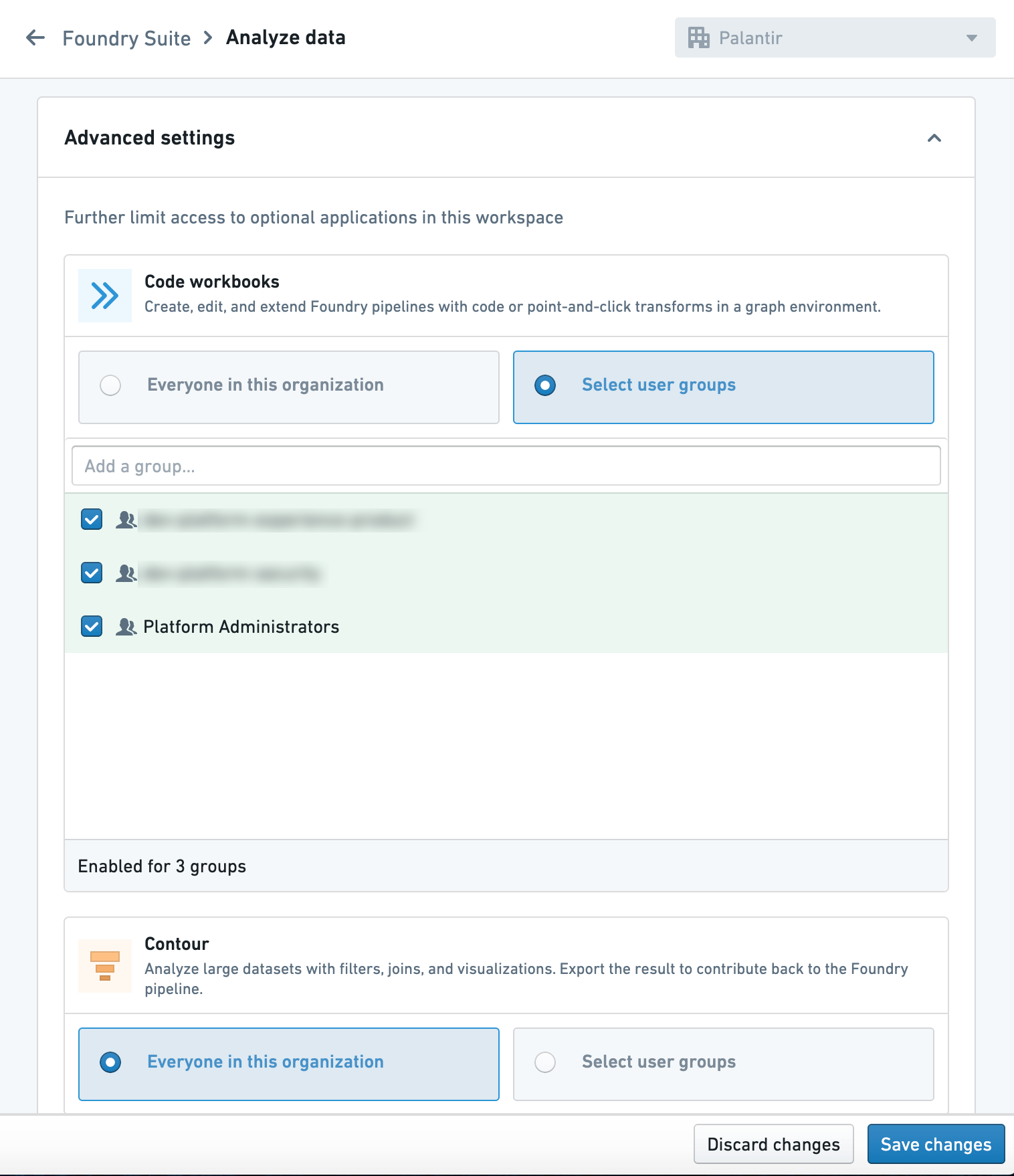
Additionally, within the workspace you can limit access to applications to specified group(s) under Advanced settings. Users only have permission to see applications belonging to enabled workspaces. If a workspace is limited to a certain set of groups, an application can only be enabled for that set of groups or a more narrow subset of those groups.
Disable access to workspaces and applications
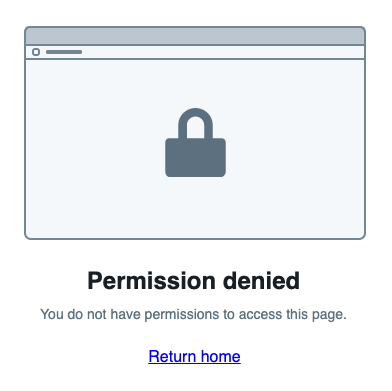
Users without access to a workspace or application will not find the specific applications and workspaces from the sidebar. Additionally, users will encounter a 403 "Permission denied" error if they try to access an unauthorized application or workspace via a link.
:::callout{theme="warning"} Some applications within workspaces are enabled by default and cannot be turned off within a workspace, as they are considered core functionality of that workspace. :::
中文翻译
配置工作区(workspaces)
:::callout{theme="warning" title="已弃用功能"} 本文档仅适用于在控制面板(Control Panel)中看到 Foundry 套件(Foundry suite) 部分的情况。如果您看到的是 应用程序访问(Application access),请参考配置应用程序访问。 :::
如果您希望缩小用户访问范围,帮助用户专注于已提供的工作流程,可以通过控制面板中的 Foundry 套件(Foundry Suite) 部分,按组织(Organization)或用户组(user group)自定义可用的应用程序。
平台访问(Platform access)
除非另有限制,所有用户均可访问 Foundry 平台的大部分功能。未加入具有平台访问权限的用户组的用户,只能访问在 Slate 或 Workshop 中构建的、已明确授予其访问权限的面向消费者的应用程序。此外,这些受限用户将看不到 Foundry 导航侧边栏,也无法导航到 Foundry 的其他部分。
对于具有平台访问权限的用户,您可以进一步自定义他们能够使用的工作区。
工作区(Workspaces)
工作区(workspace) 是以下之一:
- 一个独立的应用程序,不显示 Foundry 侧边栏
- 一组相关应用程序的集合,显示 Foundry 侧边栏
Foundry 套件(Foundry Suite)
要获得控制面板中 Foundry 套件部分的访问权限,您需要拥有属于用户体验管理员(User experience administrator)角色的管理应用程序访问(Manage application access)工作流程(以前称为管理 Foundry 套件工作区(Manage Foundry suite workspaces))。该角色在控制面板的组织权限(Organization permissions)选项卡中进行管理。
一旦您获得访问 Foundry 套件设置的权限,您将在控制面板侧边栏中看到它作为一个选项。在 Foundry 套件页面中,您可以限制平台访问权限,并了解特定组织启用了哪些工作区。
限制平台访问
要限制哪些用户可以访问整个 Foundry 平台,请选择选择用户组(Select user groups)并搜索应具有平台访问权限的用户组。不在这些组中的用户将被限制使用自定义的面向消费者的应用程序,并且他们将看不到 Foundry 应用程序导航侧边栏。页面下方Foundry 应用程序访问(Foundry application access)下的工作区和应用程序访问配置仅适用于具有平台访问权限的用户。
配置工作区
选择管理工作区(Manage workspace)以配置对工作区的访问。您将看到有关该工作区及其关联应用程序的更多详细信息。以下示例显示了为分析数据(Analyze data)工作区选择管理工作区的结果。在此页面中,您可以使用启用工作区(Enable workspace)来打开或关闭整个工作区,或者仅针对特定应用程序进行操作。如果某个应用程序被视为该工作区的默认应用程序,则无法将其关闭。
配置更细粒度的工作区和应用程序访问
要对工作区的权限进行细粒度配置,您可以限制对指定用户组的访问,如下所示。
此外,在工作区内,您可以在高级设置(Advanced settings)下限制对指定用户组的应用程序访问。用户只有权限查看属于已启用工作区的应用程序。如果某个工作区仅限于特定用户组,则应用程序只能为该用户组或这些用户组的更小子集启用。
禁用工作区和应用程序的访问
没有工作区或应用程序访问权限的用户将无法在侧边栏中找到特定的应用程序和工作区。此外,如果用户尝试通过链接访问未经授权的应用程序或工作区,将遇到 403 "权限被拒绝(Permission denied)"错误。
:::callout{theme="warning"} 工作区中的某些应用程序默认启用,并且无法在工作区内关闭,因为它们被视为该工作区的核心功能。 :::