Managing access(管理访问权限)
Who can manage permissions in Control Panel?
Users granted the Enrollment administrator role can manage permissions for their enrollment in the Enrollment permissions tab. Conversely, users granted the Organization administrator role can manage permissions for their Organization(s) in the Organization permissions tab. Users that are not granted those roles will not have access to these tabs.
Why do I not see a certain settings tab in Control Panel?
Settings in Control Panel are presented as tabs on the side panel grouped by enrollment / organization levels. These settings tabs are only visible to users who have the relevant permissions. For instance, the Authentication tab requires the Manage SAML providers workflow.
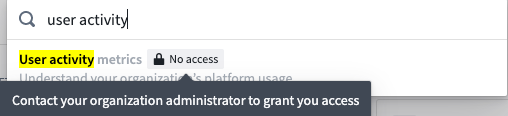
If you're unable to see a specific settings tab in Control Panel, open the search dialog by clicking on Search in the side panel or using the Cmd+J (MacOS) or Ctrl+J (Windows) keyboard shortcut. You can then search for the relevant setting. If you see a message such as Contact your organization administrator to grant you access (as shown below), ask the person who manages permissions for your enrollment/organization to grant you the correct role.
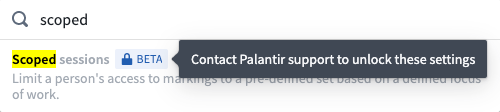
In some cases, you may see a message like Contact Palantir Support to unlock these settings, which indicates a beta or limited-release feature.
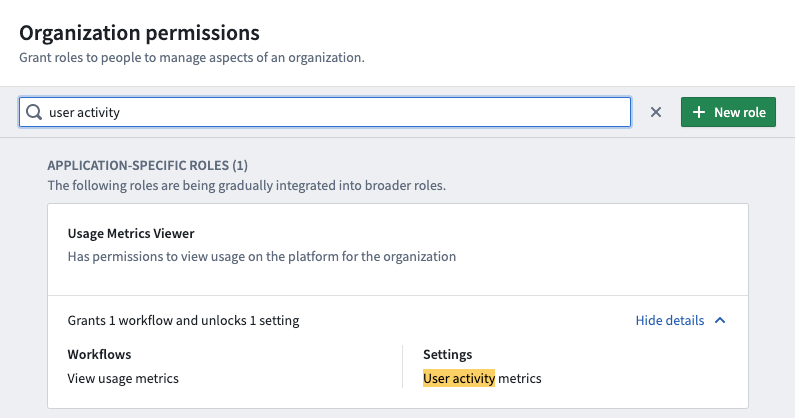
If you're unsure which role to grant, use the search feature in Enrollment/Organization permissions to look for keywords. This will search over role names, descriptions, and workflows, as well as the setting(s) that each role enables.
Managing Organization access
There are two ways in which a user can access an Organization: as the user's primary Organization, or as an Organization for which the user has guest access.
Primary Organization
Every user has exactly one primary Organization. A user's primary Organization can be assigned upon user creation, mapped via your SAML setup (available at Admin > Authentication > Organization assignment), or managed in the Users interface.
A user's primary Organization determines:
- The Organization that shows up in a user's profile.
- A user's visibility to users from other Organizations.
- The default Organization markings for new Projects and groups created by the user; by default, resources are restricted to users within the primary Organization.
Guest access to Organizations
In addition to their primary Organization, users can be granted guest access to other Organizations. A guest of an Organization is a user who can view Projects, files, users, groups, tag categories, and collections in this Organization. Guests can be users or groups.
:::callout{theme="neutral"} Assume user Alice has guest access to Organization X. Guest access to Organization X allows Alice to view users that have Organization X as their primary Organization, but not other guest users of Organization X. Users who have Organization X as their primary Organization will always be able to view users who are guests of Organization X, except when user visibility is disabled for Organization X. :::
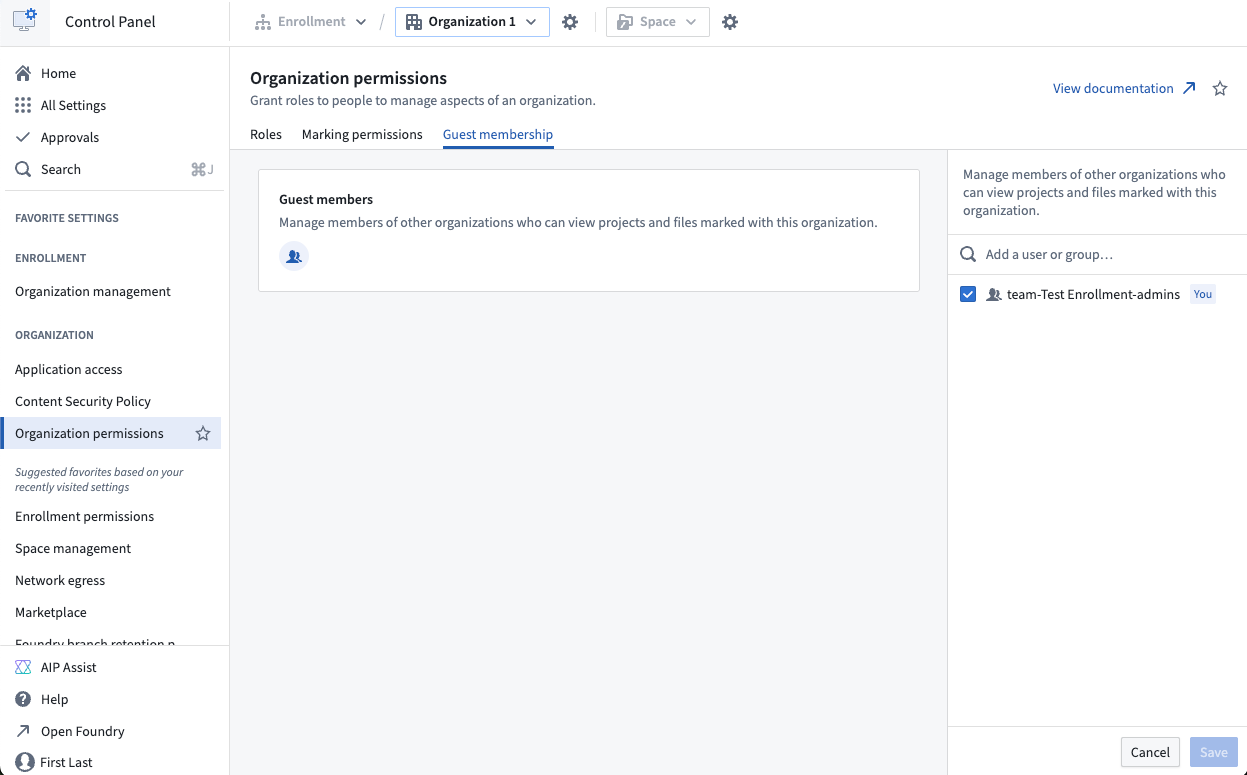
You can add guests to your Organization from the Guest membership tab of the Organization Permissions page.
中文翻译
管理访问权限
谁可以在控制面板中管理权限?
被授予 注册管理员(Enrollment administrator) 角色的用户可以在 注册权限(Enrollment permissions) 标签页中管理其注册的权限。相反,被授予 组织管理员(Organization administrator) 角色的用户可以在 组织权限(Organization permissions) 标签页中管理其组织的权限。未获得这些角色的用户将无法访问这些标签页。
为什么我在控制面板中看不到某个设置标签页?
控制面板中的设置以标签页形式显示在侧面板上,并按注册/组织级别分组。这些设置标签页仅对拥有相关权限的用户可见。例如,身份验证(Authentication) 标签页需要 管理 SAML 提供者(Manage SAML providers) 工作流。
如果您在控制面板中看不到某个特定的设置标签页,请点击侧面板中的搜索(Search)或使用 Cmd+J (MacOS) 或 Ctrl+J (Windows) 键盘快捷键打开搜索对话框。然后您可以搜索相关设置。如果您看到类似 联系您的组织管理员以授予您访问权限(Contact your organization administrator to grant you access) 的消息(如下所示),请向管理您注册/组织权限的人员请求授予正确的角色。
在某些情况下,您可能会看到类似 联系 Palantir 支持以解锁这些设置(Contact Palantir Support to unlock these settings) 的消息,这表示该功能处于测试版或有限发布阶段。
如果您不确定应授予哪个角色,请使用 注册/组织权限(Enrollment/Organization permissions) 中的搜索功能查找关键词。这将搜索角色名称、描述、工作流以及每个角色启用的设置。
管理组织访问权限
用户可以通过两种方式访问组织:作为用户的主组织(Primary Organization),或作为用户拥有访客访问权限(Guest access)的组织。
主组织(Primary Organization)
每个用户只有一个主组织。用户的主组织可以在创建用户时分配,通过您的 SAML 设置映射(可在 管理 > 身份验证 > 组织分配(Admin > Authentication > Organization assignment) 中操作),或在 用户(Users) 界面中管理。
用户的主组织决定:
- 用户个人资料中显示的组织。
- 用户对其他组织用户的可见性。
- 用户创建的新项目和群组的默认组织标记;默认情况下,资源仅限于主组织内的用户访问。
组织的访客访问权限(Guest access to Organizations)
除了主组织之外,用户还可以被授予其他组织的访客访问权限。组织的访客是指可以查看该组织中的项目、文件、用户、群组、标签类别和集合的用户。访客可以是用户或群组。
:::callout{theme="neutral"} 假设用户 Alice 拥有组织 X 的访客访问权限。对组织 X 的访客访问权限允许 Alice 查看以组织 X 为主组织的用户,但不能查看组织 X 的其他访客用户。以组织 X 为主组织的用户始终能够查看组织 X 的访客用户,除非组织 X 禁用了用户可见性(User visibility)。 :::
您可以从 组织权限(Organization Permissions) 页面的 访客成员资格(Guest membership) 标签页向您的组织添加访客。