View and modify host settings(查看和修改主机设置)
Hosts are the gateway between your web browser and access to your Foundry stack. After setting up and enabling multiple identity providers, you can optionally configure a default provider, a logo, and login instructions that users will be presented with for each host. If no default provider is configured for a host, users will be able to choose from a dropdown of enabled providers when attempting to log in.
View host settings
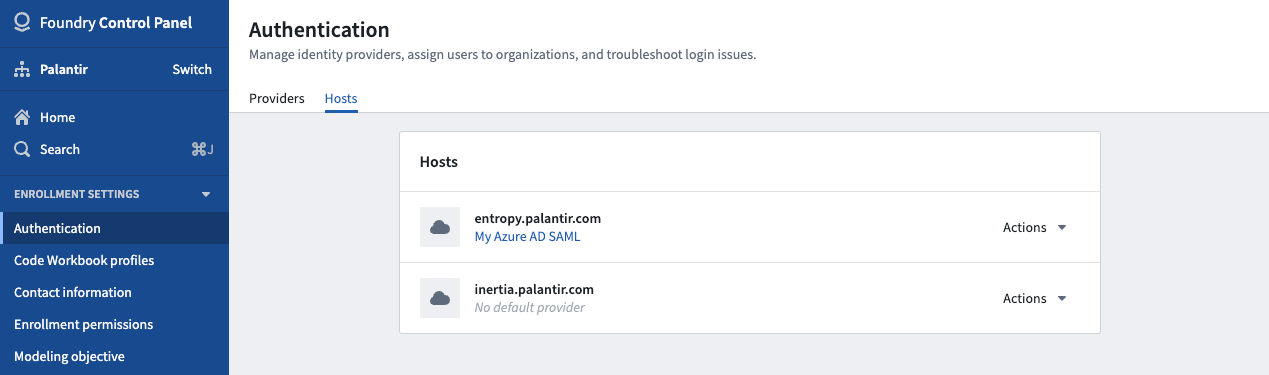
First, navigate to the Authentication extension in Control Panel and select the Hosts tab located near the top of the page.
Here, you will see the list of hosts set up for your enrollment, and each host should be listed along with a description expressing its default provider. If a host does not have a set default provider, the description will state No default provider. The description may also display Unknown default provider if a default provider exists but you do not have the correct permissions to view provider details.
Manage host settings
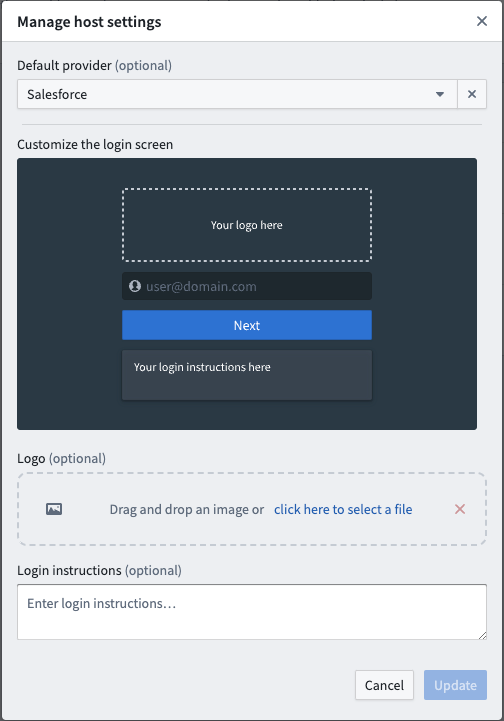
Click on the Actions menu to the right of the host you want to configure and select Manage. A pop-up will then open, and you will be able to change various settings for the host.
Update default provider
The first item on the pop-up will be a dropdown menu with all available identity providers to which you have access. You can then select a new default provider for that host.
Update logo
The second item on the pop-up will be a field where you can upload an image by dragging and dropping directly onto the field or selecting from your file system. This image will then replace the Palantir logo on the host's login screen.
Update login instructions
The third item will be a text area where you can provide login instructions for users when they access the host. It will be the last item to appear on the login page.
Click Cancel or Update anytime at the bottom right of the pop-up to discard or save your changes.
中文翻译
查看和修改主机设置
主机(Hosts)是您的网页浏览器与 Foundry 堆栈之间的网关。在设置并启用多个身份提供商后,您可以选择性地为每个主机配置默认提供商、徽标以及用户将看到的登录说明。如果未为主机配置默认提供商,用户在尝试登录时可以从已启用提供商的下拉列表中进行选择。
查看主机设置
首先,导航至控制面板中的 Authentication 扩展,并选择页面顶部附近的 Hosts 选项卡。
在此处,您将看到为您的注册设置的主机列表,每个主机应附带描述其默认提供商的说明。如果主机未设置默认提供商,说明将显示无默认提供商。如果存在默认提供商但您没有查看提供商详情的正确权限,说明也可能显示未知默认提供商。
管理主机设置
点击要配置的主机右侧的 Actions 菜单,然后选择 Manage。此时将弹出一个窗口,您可以在其中更改主机的各种设置。
更新默认提供商
弹出窗口中的第一项是一个下拉菜单,包含您有权访问的所有可用身份提供商。您可以为此主机选择一个新的默认提供商。
更新徽标
弹出窗口中的第二项是一个字段,您可以通过直接拖放图像到该字段或从文件系统中选择来上传图像。此图像将替换主机登录屏幕上的 Palantir 徽标。
更新登录说明
第三项是一个文本区域,您可以在其中为用户访问主机时提供登录说明。它将显示在登录页面的最后一项。
随时点击弹出窗口右下角的 Cancel 或 Update 以放弃或保存您的更改。